
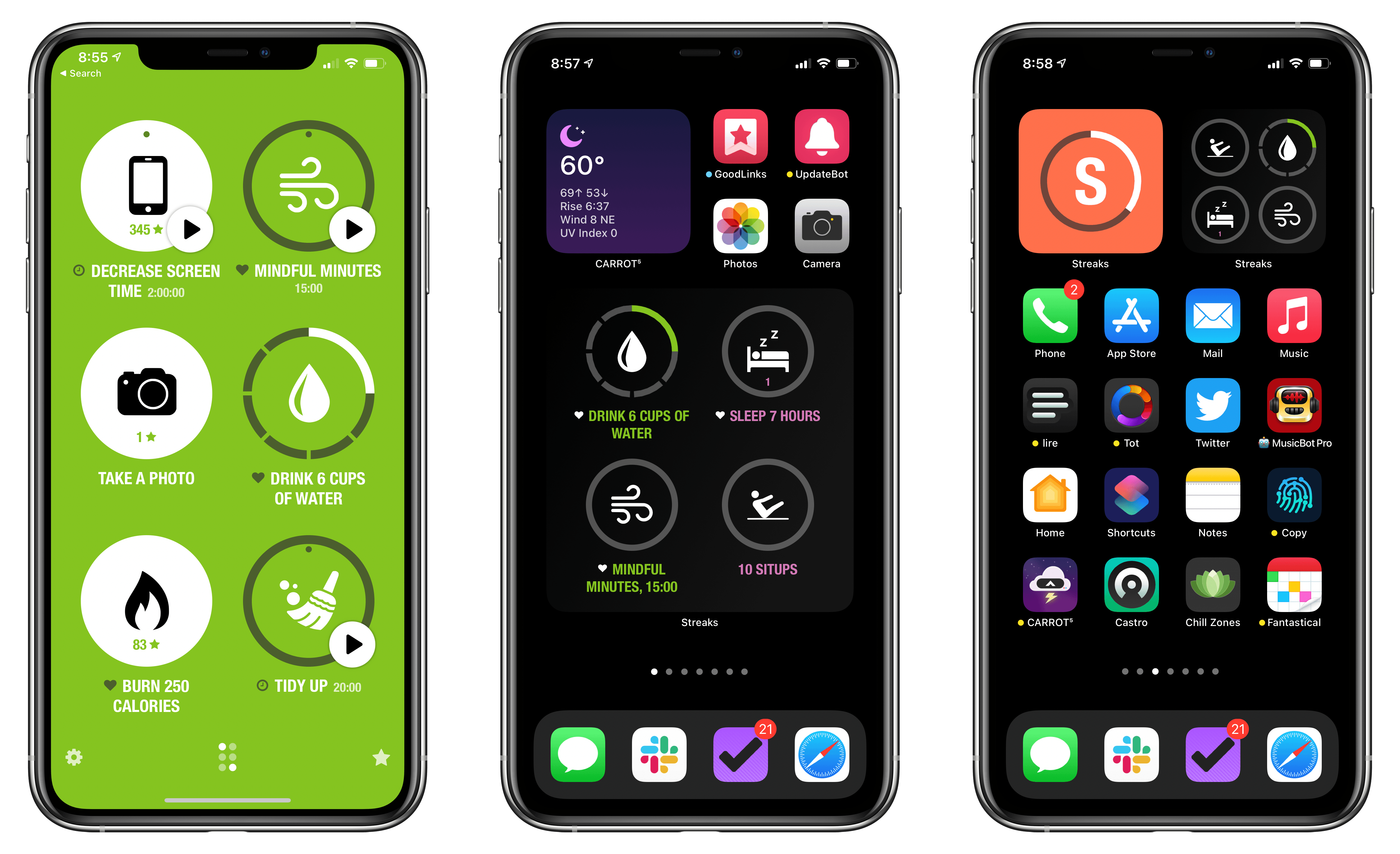
Habit tracking apps have proliferated across the App Store in recent years, but Streaks by Crunchy Bagel, which is the first one I ever tried and reviewed, is still one of my favorites. This week it’s been updated with a trio of highly-customizable widgets, a library of watch faces, plus some design changes, new iPad features, and other updates.
Streaks 6 Brings Habit Tracking to Your Home Screen With Extensively Customizable Widgets
watchOS 7: The MacStories Review
Memoji App
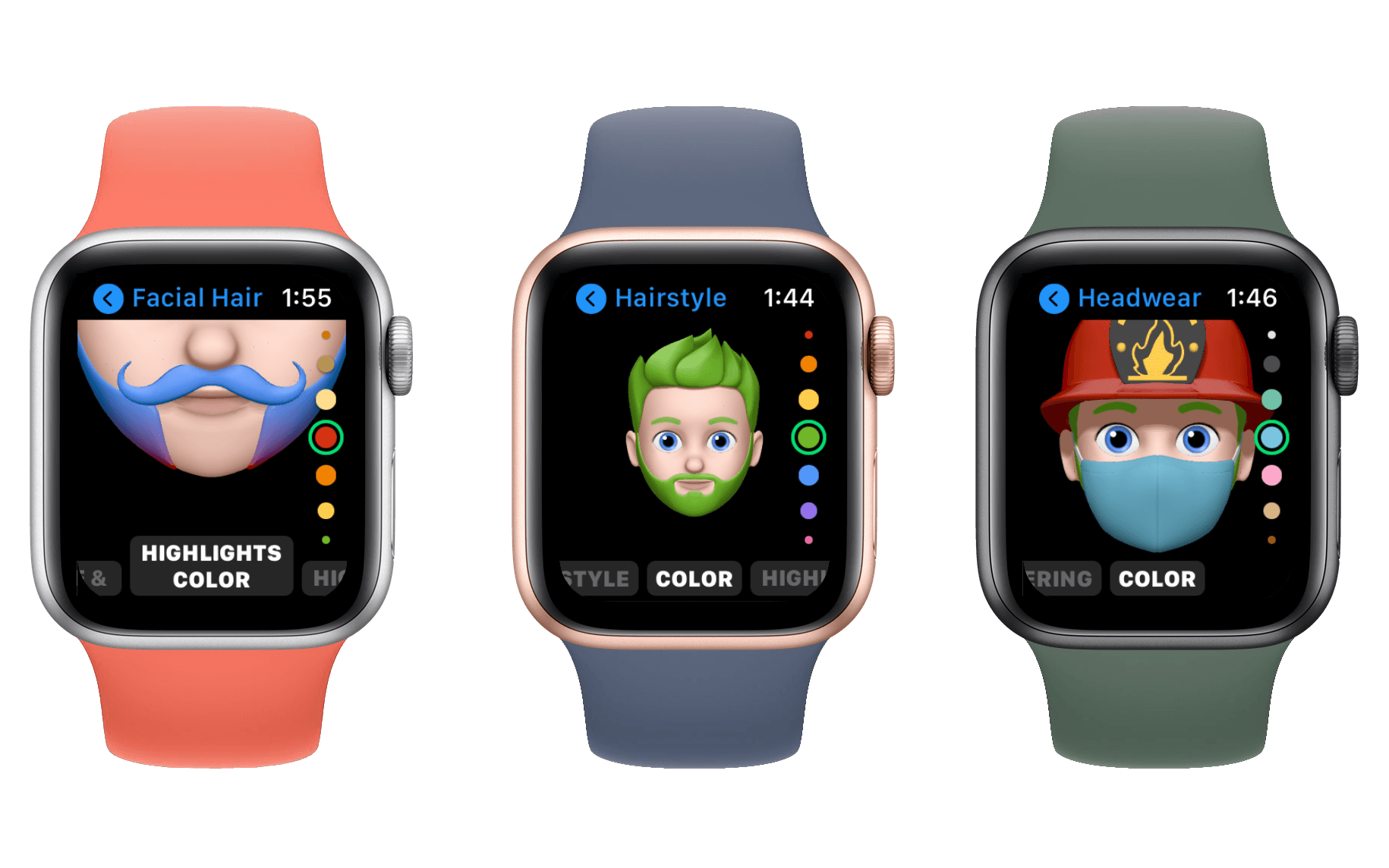
Alongside the Memoji watch face, Apple has also dropped a brand new Memoji app for the Apple Watch. The app opens to a scrolling list of your custom Memojis, and you can tap one to edit it. If you scroll to the top you can also hit the plus button to create a new Memoji from scratch.
The editing section is simple and straightforward. From the top level you can select editing the skin, hair, eyes, mouth, and other features of the Memoji. Once selected you’ll get a scrolling list of the available options, and as you scroll by each option it will display on your new Memoji. At the bottom of the main editing view you can also choose to create a watch face from the Memoji or duplicate or delete it.
I think it’s great that Apple Watch users can now create Memoji without needing to use a phone. This app was clearly added to work well with the new Family Setup feature, which allows family members to use an Apple Watch without having an iPhone of their own to pair it with (it still needs to be paired with an iPhone, just not necessarily one that uses the same Apple ID). Assuming you do have an iPhone though, it’s definitely easier to configure Memoji on the larger screen real estate than it is on the Watch.
Cycling Directions in Maps, Eventually
watchOS 7’s Maps app has been updated to include detailed directions for cyclists. At least, it has if you live in New York City, the San Francisco Bay Area, Shanghai, or Beijing. Other cities will be added over time, but I haven’t been able to test this feature since my home city of Minneapolis is not yet supported. If you search for a destination in the watchOS 7 Maps app you’ll see an option for cycling instructions, but tapping that will just tell you that they aren’t supported (unless you live in one of the areas mentioned above). Cycling directions join the previously supported transportation methods of driving, public transit, and walking.
All methods of transportation have been updated to support multiple routes in Maps for watchOS 7. After choosing a destination you’ll be given a suggested route, but can scroll down to see alternate routes too. Unfortunately this list does not actually show the maps themselves, so the only difference in routes that you can easily see is the time they take and their mileage. You’ll need to tap in and out of them one by one to actually view the route. Fitting route maps onto the Apple Watch screen is certainly a challenge, but I wish Apple would provide some better way to determine between them since most routes to the same place have similar times and mileage.
Last month MacStories’ John Voorhees covered this year’s Apple Maps changes in another of our summer OS preview articles. Make sure to check that out if you missed it, as it goes into much greater detail on the new Maps features across all of Apple’s platforms.
Miscellany
watchOS 7 has removed support for Force Touch, even on existing watches which include the hardware to support the feature. Force Touch has always had a significant discoverability issue, but it was also quick and easy to activate in places where you knew you needed it. All such places have been replaced in watchOS 7 by tap-and-hold gestures, and I find this to be a significant regression in experience. Force Touch’s discoverability problems are not relieved at all by replacing it with a long press. Instead, Apple has simply added latency to many simple interactions throughout the system. I understand that this clears the way for future Apple Watches to drop the Force Touch sensors and utilize that space in other ways, but I still can’t condone such a clear downgrade in usability. Editing watch faces in particular feels like such a sluggish action to initiate now.
Siri has been updated on the Apple Watch to support translating speech into different languages. It supports ten different languages to start, but more will be coming in the future. Siri dictation can also now happen locally on the Watch, so most Siri interactions should now be sped up.
One of the features announced at the Apple Watch Series 6 event is Family Setup. This allows Apple Watches to be shared among family members even without them all owning iPhones. We haven’t been able to test this feature yet, but our Apple Watch Series 6 overview has some more details on the announcement if you’re interested.
Conclusion
watchOS 7 might not be a revolutionary update, but I think it’s just what we needed this year: a clear, solid, and stable iteration. Health and fitness are the Apple Watch’s main selling points, and Apple is continuing to push forward in these important areas. I love seeing Apple pay attention to watch faces as well, and this year has brought some excellent new features there.
Sleep tracking isn’t for me right now, but I think it will work for most people who live on normal sleep schedules. I expect it will loosen up over time too, so I’m looking forward to future iterations. Handwashing detection is well-timed, and hopefully will help more people adjust to that vital habit.
Multiple complications from individual apps combined with face sharing make for very exciting new potential in watch faces. I’m excited to see the work that developers have been putting in this summer, as we’ll need third-party help to realize the full potential of these additions.
Shortcuts on the Apple Watch were sorely missed, and it’s good to see that hole filled back in. This is another area that will get even more powerful as developers update their apps to support shortcut execution on the Apple Watch itself.
To top everything off, this year’s batch of watch faces have several options which are actually great. So find yourself a new watch face, set yourself a healthy sleep schedule, and enjoy the calm waters of watchOS 7.
 MacStories Weekly: Issue 240
Wikipedia’s Widgets Bring Daily Updates to Your iOS 14 Home Screen
My iPad and iPhone are both important devices in my life, but they serve different roles for me. I use the iPad Pro as a work machine, while my iPhone is set up more for recreation and on-the-go uses. As a result, my approach with widgets has largely differed on each device. One widget I happily keep installed on both, however, is Apple’s Photos widget. I love the surprise and delight element of having the widget update automatically throughout the day, displaying photos I wouldn’t have seen otherwise.
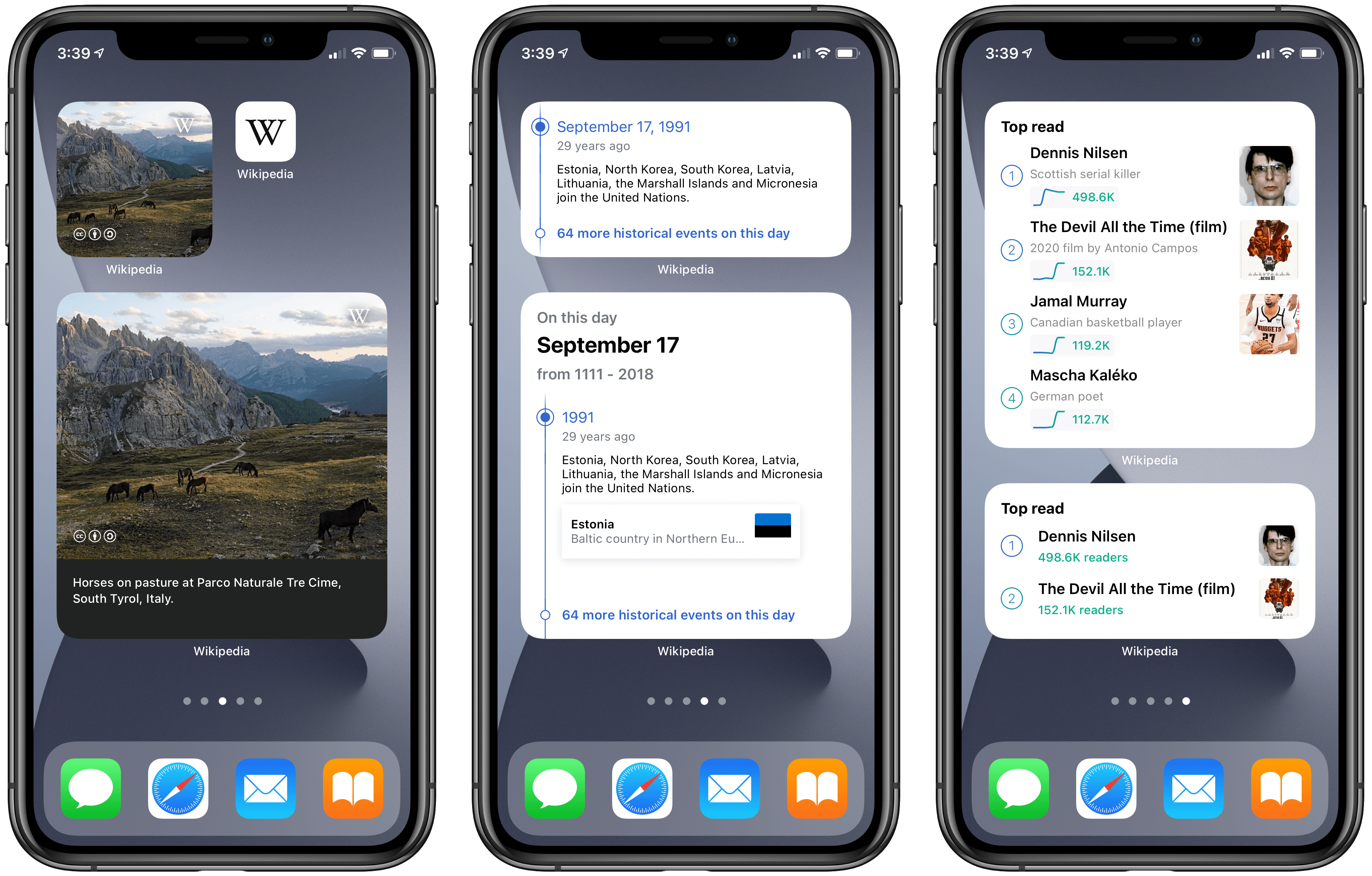
This sort of passive, but welcome information delivery is at the heart of three separate widgets included in the latest Wikipedia app update:
- Picture of the day
- On this day
- Top read
The purpose of each widget is pretty self-explanatory: one shows a different beautiful photo each day, another tells you about something that happened on this day in the past, and another shows today’s popular Wikipedia pages.
Widgets that surface data from one of the largest public information hubs in the world seems like a no-brainer use case, and the Wikipedia app has done a great job here.
Each widget is available in small, medium, and large sizes, showing more or less information as they’re able. I find the small size a great choice for the picture of the day, though the large is nice too because it includes a caption to accompany the photo. With ‘On this day’ and ‘Top read’ the medium size strikes a great balance of providing just the right amount of information. And if you ever want to learn more, you can always tap on the widget to jump straight to the content you’re interested in.
Widgets have so many different use cases, but this delivery of information I’d never otherwise see is one of my favorites. Wikipedia is a perfect example of how to do it right, and I’m eager to continue exploring this concept as I build out my ideal iOS and iPadOS 14 Home screens.
Things Introduces New Widgets and Scribble for Task Creation on iPad
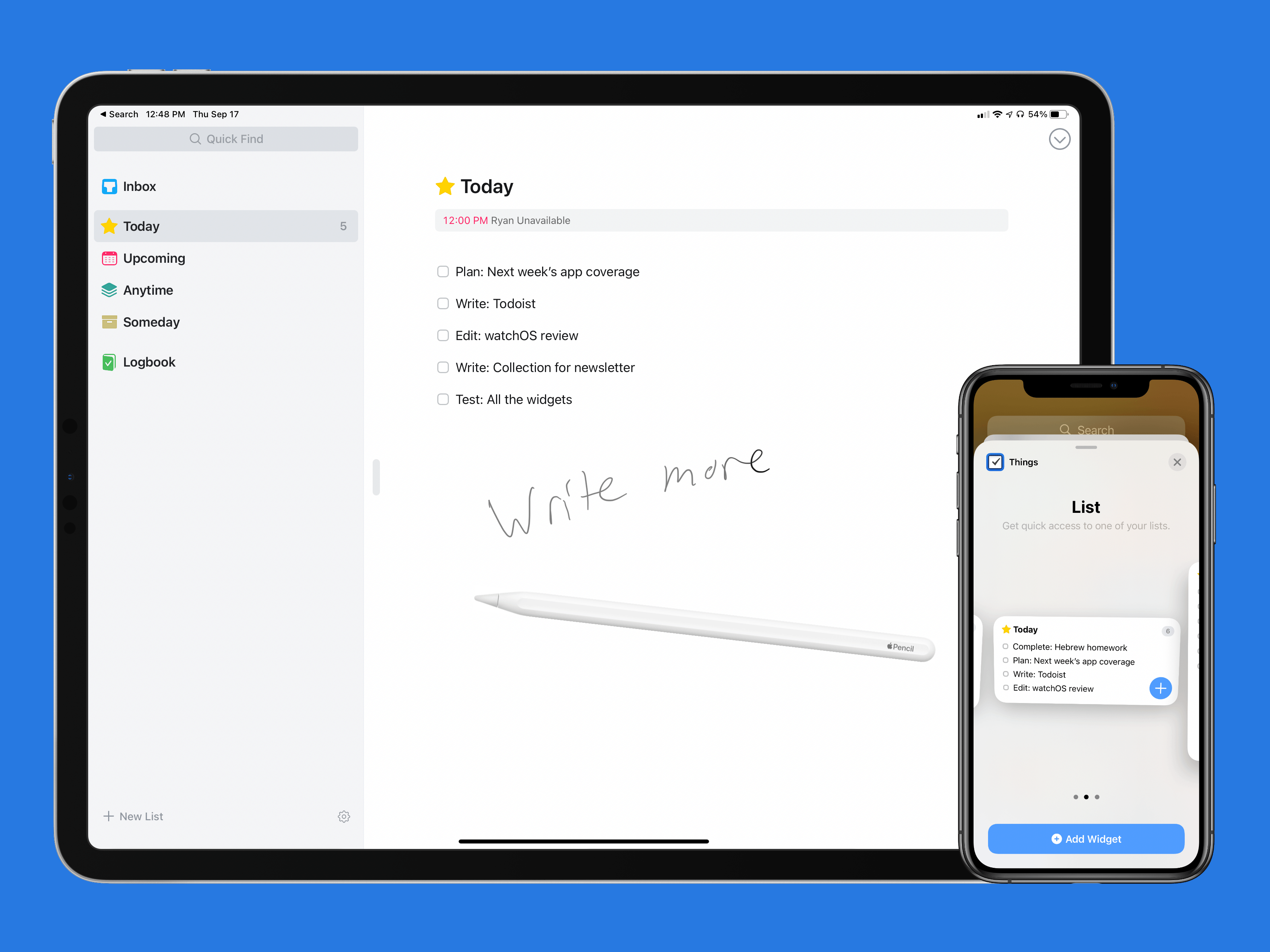
I’ve used Things off and on as my primary task manager for as long as I’ve used Apple devices, which is just over a decade now. During that time the app has been remarkably consistent at supporting new OS features as soon as Apple launches them, and this year is no exception. In its latest update, Things has added new widgets for iOS and iPadOS 14 as well as a unique implementation of Scribble for creating new tasks. Apple Watch users will find a couple useful new complication options too.
On the surface, the update may seem simple and straightforward: new widgets, Scribble support, and new complications. But as the team at Cultured Code has done time and time again, their implementation of new OS technologies is thoughtful and even innovative, especially on iPad.
MusicHarbor Unveils a New Mac-Ready iPad Design and Widgets
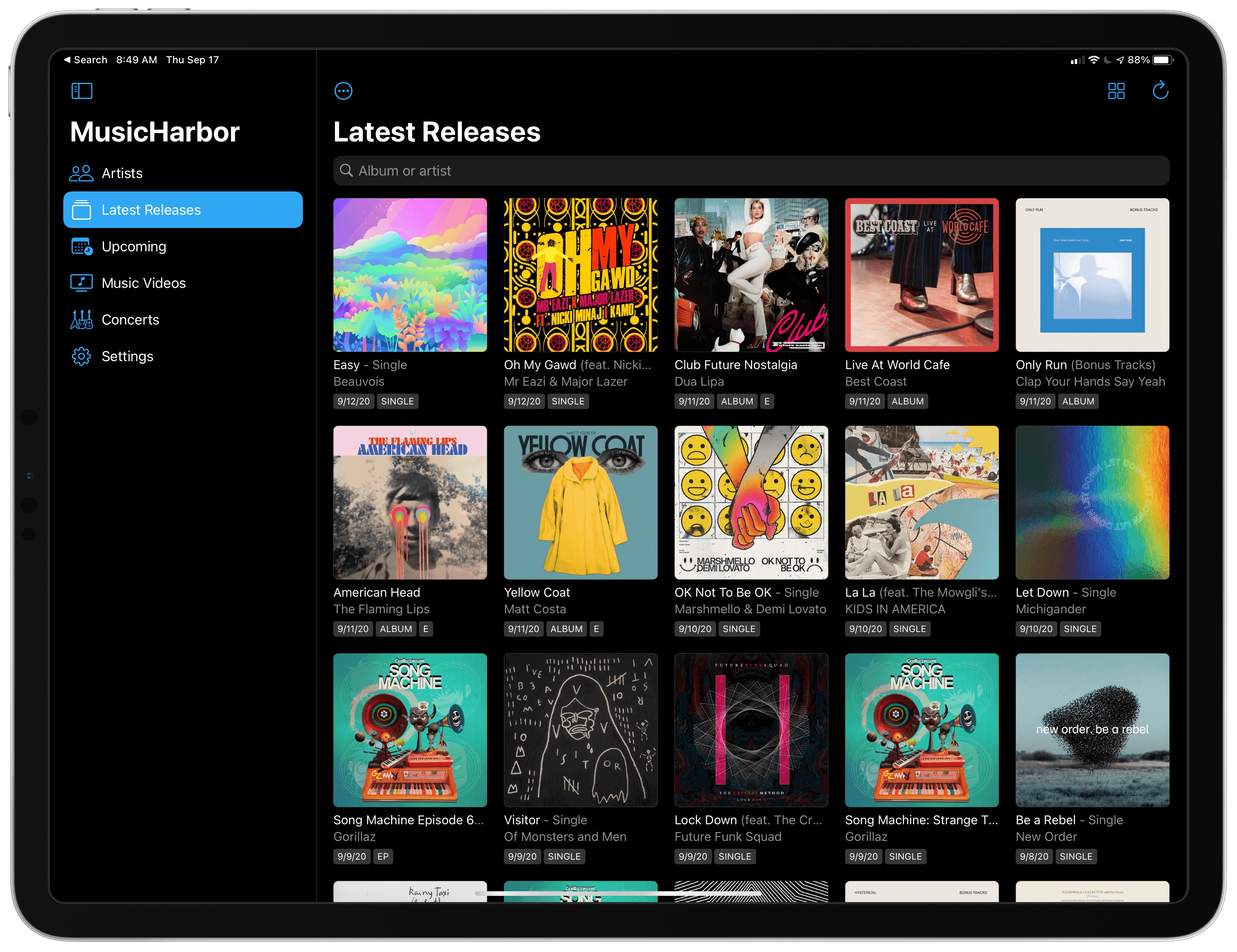
MusicHarbor by Marcos Tanaka has single-handedly kept me on top of my favorite music artists since I first learned about it from Federico. Tanaka has been updating the app regularly, refining the UI and adding handy new features. With the release of iOS and iPadOS 14, MusicHarbor has a brand new look and several widgets.
Todoist’s iOS 14 Widgets Make Managing and Creating Tasks Easier than Ever
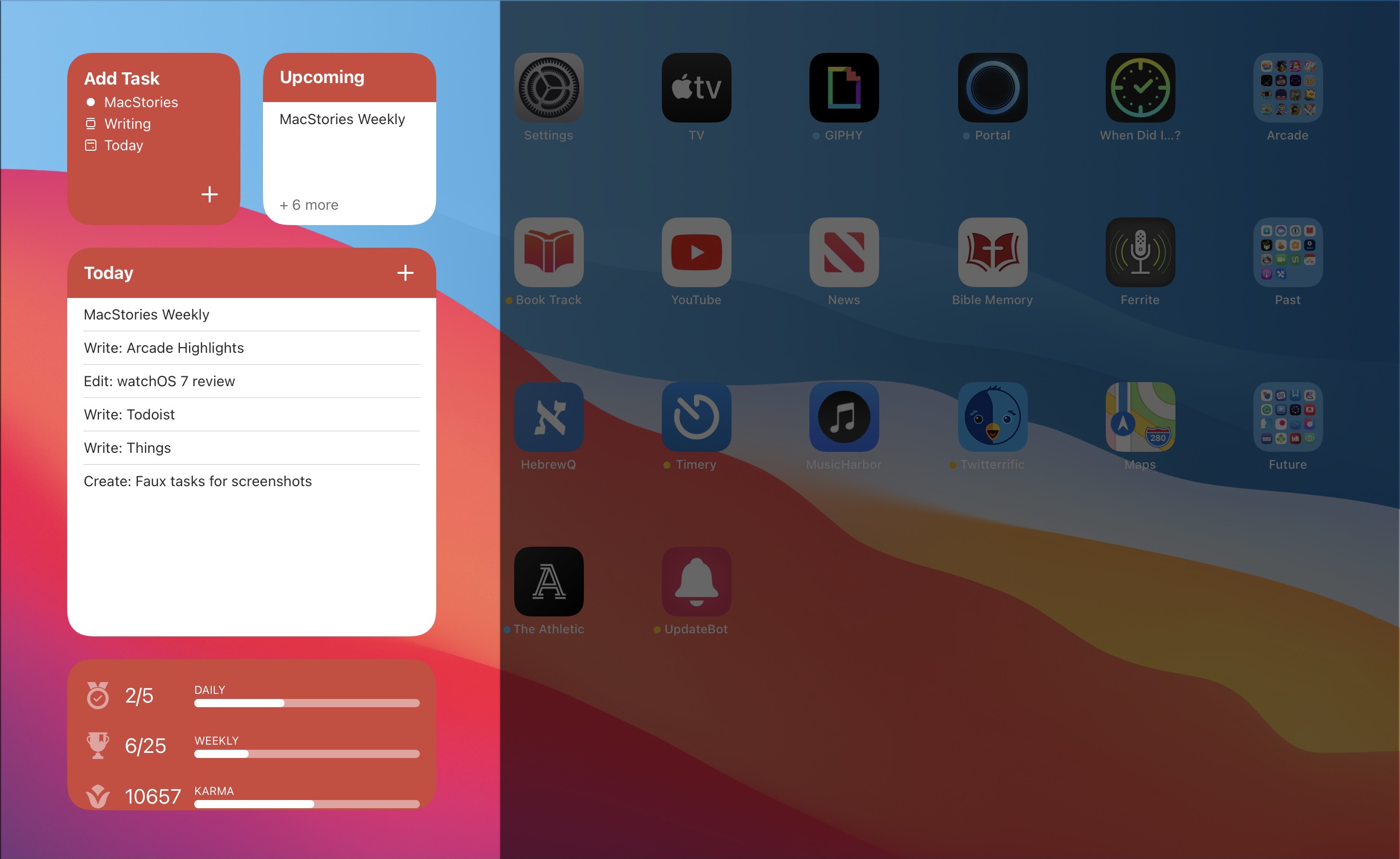
Even before iOS and iPadOS 14 brought a new form and function to widgets on Apple platforms, one of the tried and true widget use cases in previous years was task lists. Some of my most used widgets over the years have been those provided by my task manager, so I was excited to see the slate of new widgets Todoist has introduced in its latest update for iPhone and iPad.
Before detailing the new widgets, though, it’s important to state up front that for all the advantages of iOS 14’s new widgets, they bring a regression that negatively impacts task managers especially: widgets can no longer be fully interactive. In the iOS 13 widget for Todoist, you could check off tasks as you completed them without needing to open the full app. With the app’s new widgets that’s no longer possible, because the only interactions Apple currently allows in widgets is launchers into different parts of an app. The good news is that apps are allowed to offer both iOS 13 and iOS 14 widgets to users, so on iOS 14 Todoist users will find both options available. If you really need the old functionality it’s still available to you, there’s just no way to add a legacy widget to the Home screen.
That bad news out of the way, let me focus on how Todoist’s team has made the most of the new widget system in a couple key ways.
Let’s start with its basic Tasks widget. In iOS 14 you can configure a list of your tasks to appear in either a small, medium, or large widget. Each widget can be set to show tasks from your Today or Upcoming lists, or one of your projects, labels, or filters. Despite being unable to check off tasks from the widget, there are two advantages over Todoist’s previous widget: information density and the ability to create multiple widgets. Since Todoist’s developers no longer need to create large touch targets for users to check off tasks, the widget is able to display a bit more information than before. And you can now create separate widgets tied to separate lists of tasks, even stacking them if you’d like, offering a lot more flexibility than before.
Besides widgets for lists of tasks, Todoist offers two other widget types: Productivity and Add Task. The former displays stats relating to your task completion goals for the day and week, along with your karma score. I’ve never been big on tracking the number of tasks I complete in a given day, but the Productivity widget’s nice to have for users who care about those numbers. The Add Task widget, however, is exactly what I would want from every task manager.
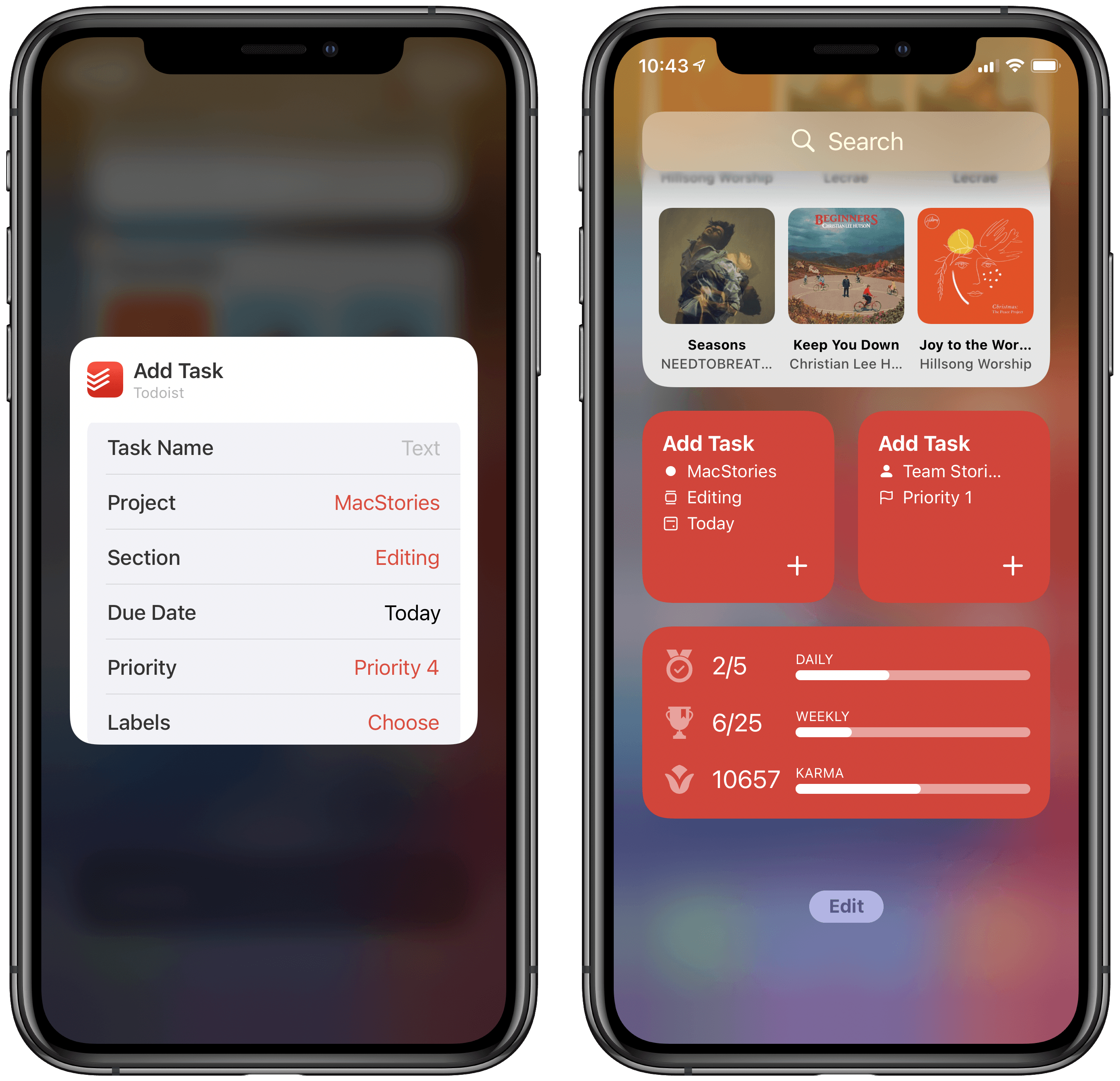
Both the medium and large Tasks widgets already offer a button to quickly create a new task inside Todoist, but the dedicated Add Task widget is special because it can be customized to create tasks that have their metadata pre-filled. You can set which project and section the newly created task will have, its due date, priority, labels, and even the task name if there’s a specific task you commonly create. Once it’s set up for your preferences, the Add Task widget eliminates the monotony of filling in metadata over and over again for every new task. If you commonly create tasks assigned to a certain project and with a certain due date, the widget is now the quickest way to do that.
Add Task is only available as a small widget and as a result it can only have a single group of pre-sets for creating a single type of task, but that makes it a perfect candidate for stacking. Using a few different Add Task widgets for different types of common tasks you create and having them stacked will still provide a faster task creation method than having to enter the metadata over and over with every new task.
Todoist already offered the fastest task creation of any task manager I’ve used thanks to its natural language input system, but now with the Add Task widget it provides an even faster method. Todoist’s developers have clearly spent time considering the needs of their users and have built a suite of widgets that meet those needs well. The OS restriction against full interaction will hopefully be removed in the future, but even if it never is, Todoist has delivered value with its new widgets that more than makes up for what it lost.
Todoist is available on the App Store.
LookUp 7 Debuts Widgets on iPhone and iPad Alongside Powerful New watchOS 7 App
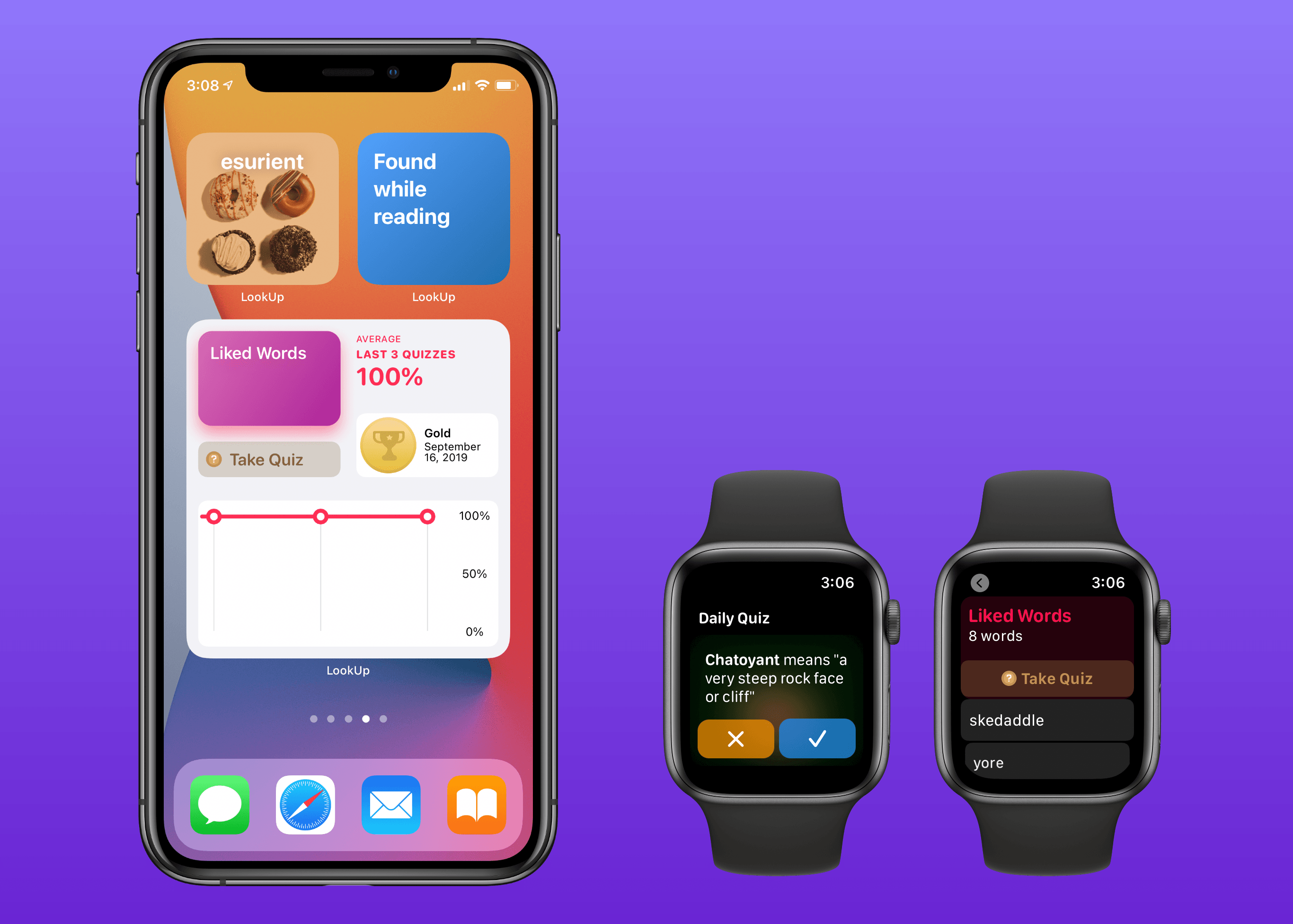
Widgets in iOS and iPadOS 14 are here and can be saved to your iPhone or iPad Home screen. A lot of third-party app updates will be trickling out in the days and weeks ahead with support for their own custom widgets, vying for your limited Home screen space.
If you’re interested in expanding your vocabulary, a word of the day widget seems like a perfect fit for the Home screen where you can glance at it throughout the day. That’s exactly what LookUp 7 provides, alongside widgets for running quizzes and opening your word collections. The dictionary app has also upgraded its watchOS component in a big way, offering new functionality that was previously limited to the full iOS version.
Book Track 2 Review: Widgets, Sidebar for iPad, Shortcuts, and More
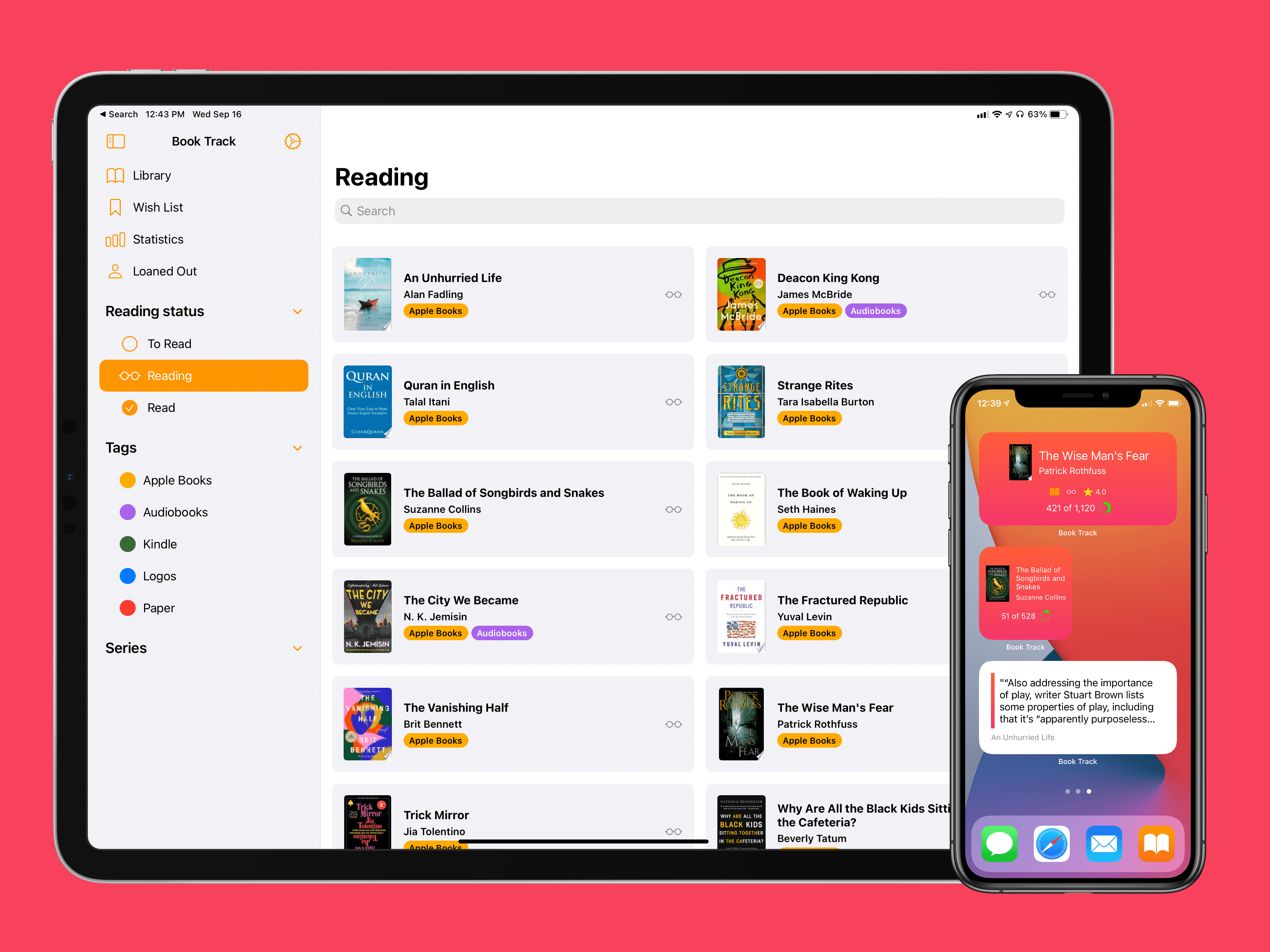
I’ve been on a book reading binge this year like never before. That’s partly owing to the pandemic, I’m sure, but it’s also tied to reduced time spent reading articles and social media. In a normal year I read about a dozen books, and this year I’m on pace for five times that. As a result, it’s no surprise that one of my favorite app debuts of the year has been Book Track, from developer Simone Montalto.
Book Track launched at the beginning of the year as a promising 1.0, then followed with a big update mid-year that addressed my initial problems with the app and expanded its functionality in key ways. That update was a great setup for the launch of today’s version 2.0, which introduces support for some of the top features of iOS 14 and iPadOS 14: widgets and a new sidebar design. By getting the low-hanging fruit out of the way in previous updates, Montalto was able to keep Book Track current with all the latest OS technologies right from launch day. Not stopping there, however, he’s thrown in support for Shortcuts (the app) and keyboard shortcuts in today’s update too.