First-Party Apps
Despite its relative diminutiveness, watchOS 8 still includes a handful of updates to Apple’s first-party apps. Changes are mostly minor, but there are some definite improvements to take note of.
Timers
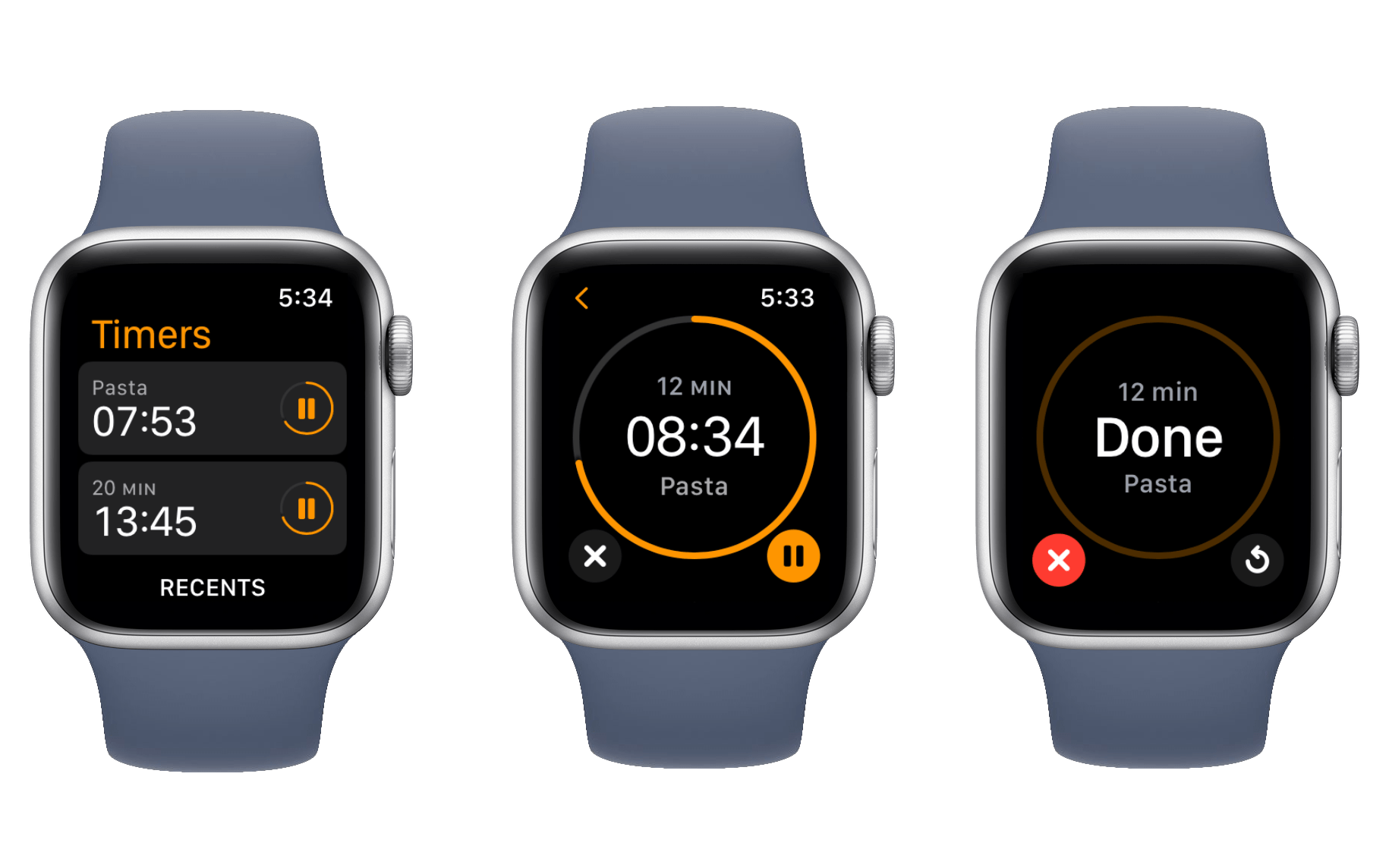
Let’s start with an easy win: the Timers app in watchOS 8 supports multiple simultaneous timers. When you start a timer from within the app, you can now hit the back button to return to the main view. Your timer will be shown counting down at the top, and you can proceed to start more timers or pause any running ones.
You can set timers using Siri as well, and in this case you can even give them names. For instance, saying “hey Siri, start a pasta timer for 12 minutes” will create a new timer in the Timers app and label it “Pasta.” Timers created manually from the app’s interface do not support labels.
When timers complete, you’ll get a full-screen interface which includes the timer’s label if it has one. You can then choose to end or repeat the timer.
Home
The Home app for watchOS has been supercharged with Apple’s favorite buzz words: machine learning. Surprising no one, I haven’t found this to be particularly effective. As usual though, since it’s machine learning, your mileage may vary.
In my apartment, I have twelve smart lightbulbs connected to HomeKit. Of these, I interact with seven of them multiple times each day via scenes. These seven bulbs are always on and always connected. The other five I use sparingly. They are generally turned off at the switch, and thus disconnected.
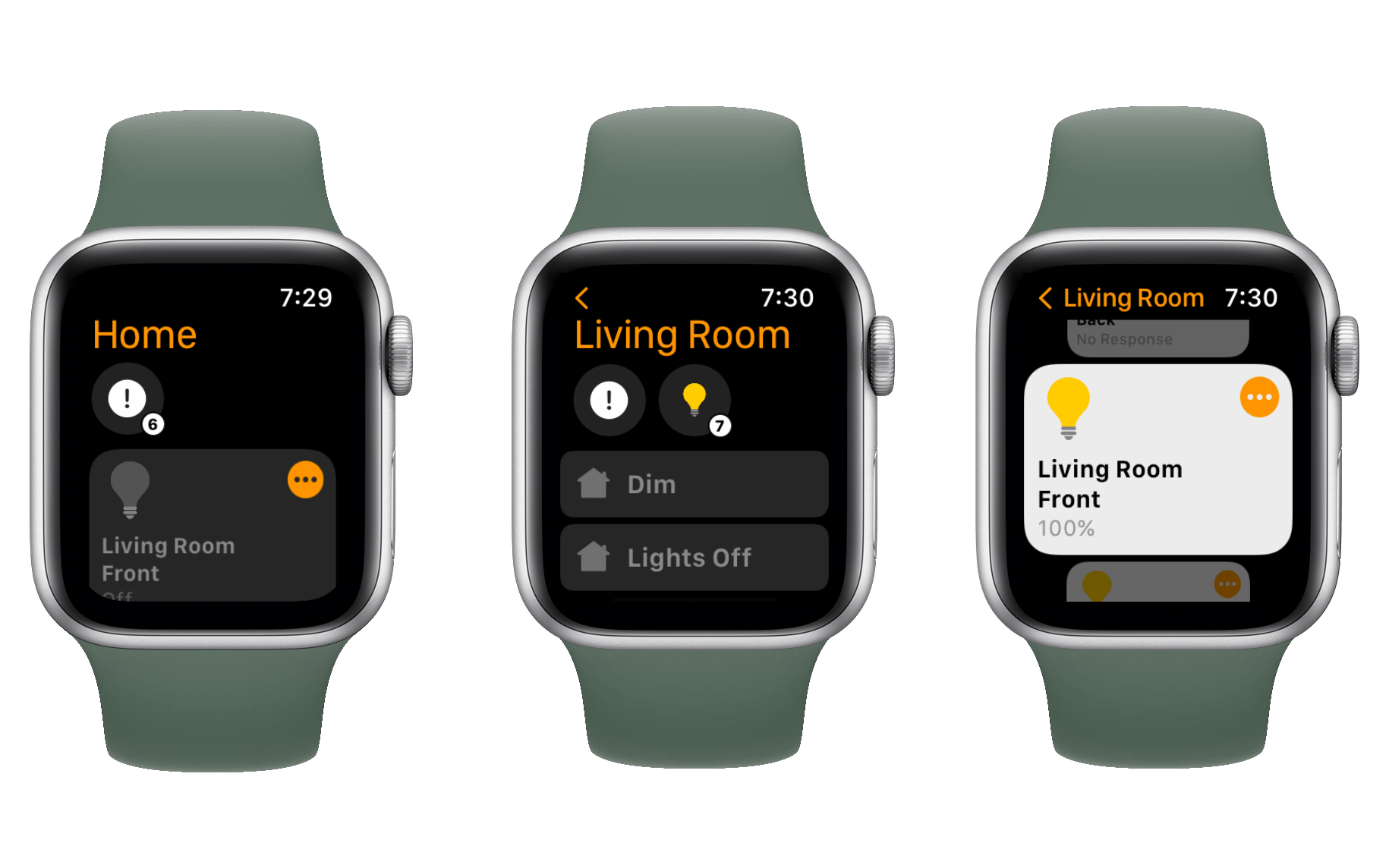
The new watchOS Home app reserves the top third of the screen for three circular “status symbol” slots. These slots are supposed to intelligently display device statuses, and grant access to devices.
Since five of my light bulbs are almost always disconnected, the top third of my Home app’s interface in watchOS 8 is usually worthless to me. It constantly utilizes the first of the three status symbol slots to inform me that five devices are offline. The other two slots are left entirely empty, wasting valuable screen real-estate. Below the status symbol slots, the Home app now “intelligently” displays a scrolling list of devices and scenes which it thinks I might want to use at any given time.
The more I’m exposed to machine learning, especially on watchOS, the more I wish in nearly every circumstance that Apple would just give me some manual controls. Or at least allow manual overrides for power users who want them. I think the new Home app’s redesign is great. I love the idea of having quicker access to device statuses, device controls, and scenes. But as long as machine learning is involved, I’ll never be able to reliably know what options exist there.
Apple just can’t know what I want before I want it as well as I can, and I wish they’d stop trying and let me take control. Instead of device status symbols, if I could set three light bulbs (or better yet, three scenes) to always show up at the top of the Home app, then I’d be using the app all the time. I’d even use it more if I could just set a standard sort order for the scrollable list of devices and scenes below the line of symbols. But alas, as it is, I almost never open the Home app on my Apple Watch.
If your HomeKit setup includes video cameras, then the watchOS 8 Home app might have some legitimately useful new functionality for you. The new update includes the ability to view live security camera footage, and even use your Apple Watch’s microphone and speakers to access two-way audio capabilities on supporting camera models. I don’t have cameras to test this with, but it sounds like a great new feature addition for the Watch.
Photos
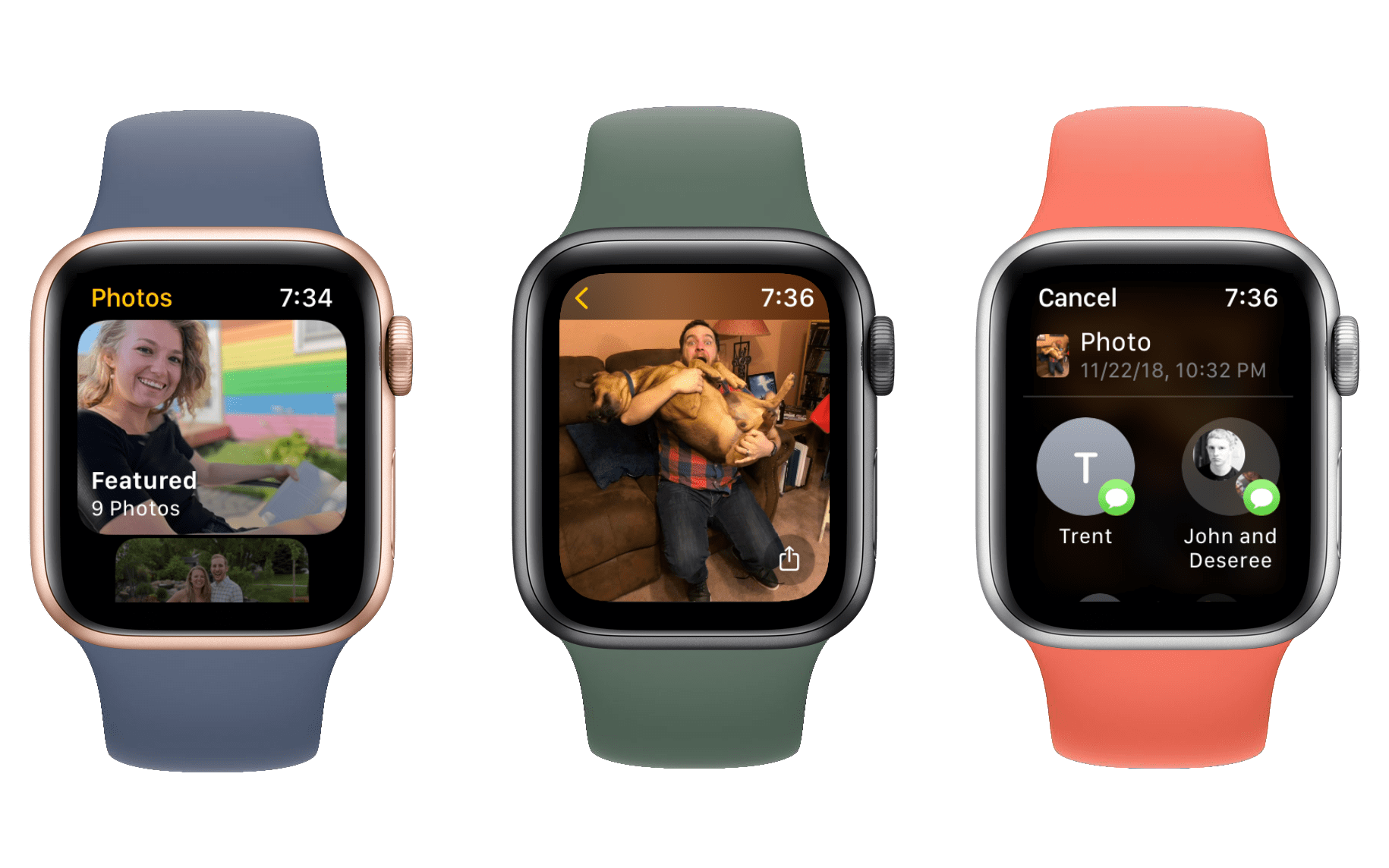
The watchOS 8 Photos app has been updated to include new featured photos and Memories. Featured photos show up automatically in the app, and there seems to be a rotating selection of ten of them which change over time.
Memories are also now supported on watchOS. You won’t see as many Memories as you see in Photos for iOS, but they’ll show up randomly. You can tap into each Memory to see a nice new mosaic-style grid view of that Memory’s photos.
Memories come and go without any control, and often there are none present at all. If you don’t see any right away on your own Apple Watch, try checking back the next day and hopefully one will have appeared.
Photos in watchOS 8 also supports sharing photos for the first time. When you tap into a photo, you’ll see a share button in the bottom-right corner which you can tap to share the image via Messages or Mail, or to create a new Photos watch face with it.
Wallet
The Wallet app in watchOS 8 has been updated alongside the iOS 15 Wallet app to support new card and key types. You’ll be able to store a digital key to your home, your official state driver’s license, and your car key in Wallet.
Of course, all of these features require more infrastructure around you to work. The lock on your home needs to support digital keys, as does your car. Your state needs to join Apple’s new program, which hasn’t fully launched yet.
It’s great to see the watchOS version of Wallet keeping up with its iOS counterpart, but it will probably be a few years at least before most of us can make use of most of these features.
Find My
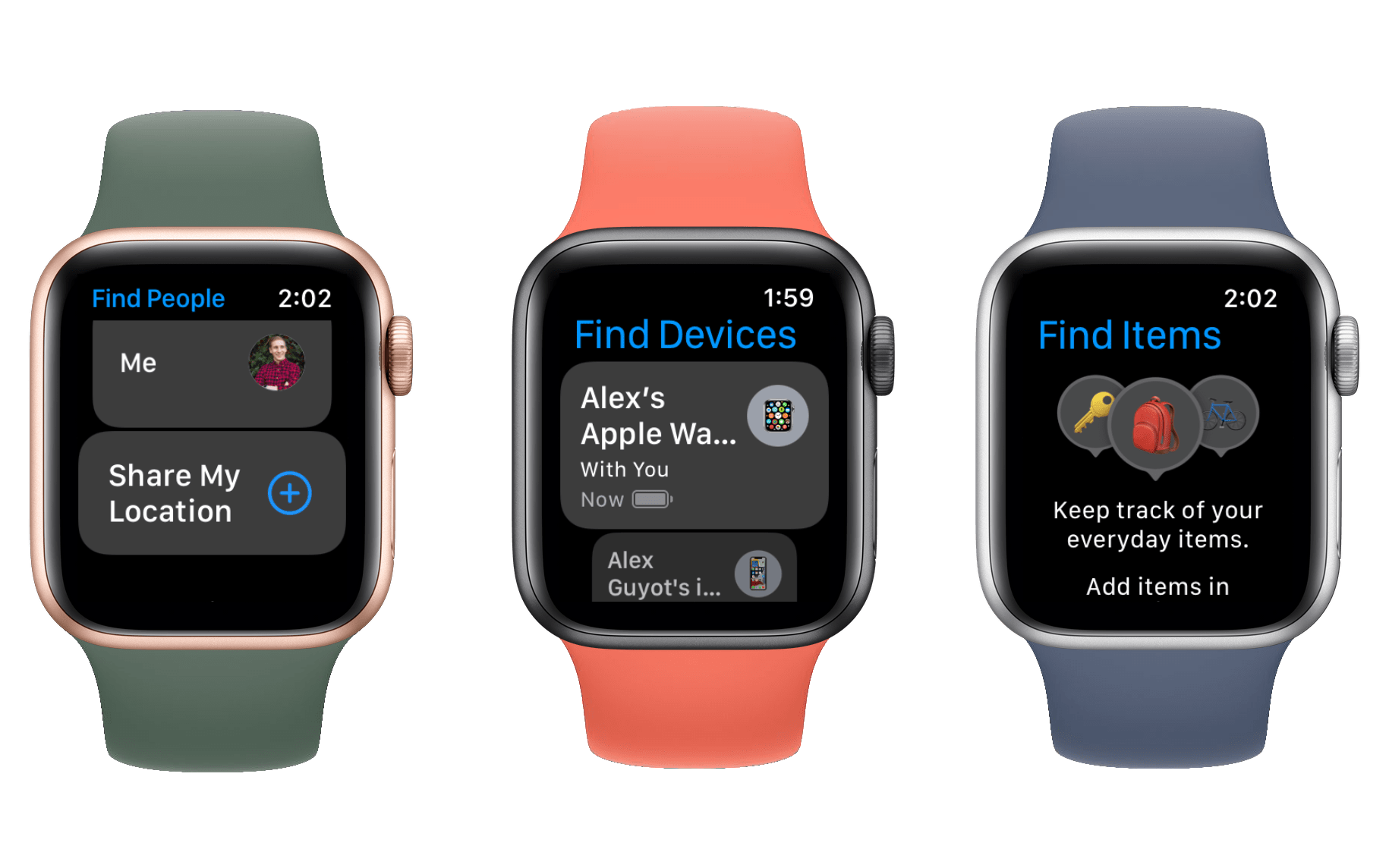
Apple rebranded its watchOS Find My Friends app to “Find People” in watchOS 6. This year, it has added two more split-offs from the iOS Find My app to the Apple Watch.
Find Items is an app for tracking your AirTags or any alternative third-party devices enrolled in the Find My program. Find Devices tracks all of the Apple devices that you have connected to your iCloud account.
I get that Apple is trying to keep the complexity of its watchOS apps to a minimum, but having three apps for the same set of features feels even more confusing to me. Especially since these features are all found in the single Find My app on iOS and iPadOS. When you’re using the List view for navigating your Apple Watch apps this seems fine, since all three of the Find My app variants appear in a row. On the honeycomb view though, I don’t know how anyone is expected to figure out that there are three separate apps for these somewhat related tasks.
Assuming you can find the right app, all three of these are well-designed watchOS apps that I have no complaints about. Each offers a scrolling list of the people/items/devices that you can track, and allows you to tap into an individual entry to access a detailed view.
In the Find Devices app, the details view includes a map of where your device is (or was the last time it checked in), information on the device’s last known battery level, and buttons for interacting with it. You can play a sound from the device, put it into Lost mode, or kick off directions to the device via Maps.
Find Devices also supports notifications in watchOS 8, and will ping you if you leave a device behind in an unusual location. While I haven’t left my devices anywhere unexpectedly yet, I like the peace of mind that comes from these notifications. If I ever leave my iPad at a coffee shop, I expect a notification to come through when I’m just a few blocks away. It seems to work with enough accuracy that you’ll have time to head back and grab your forgotten device.
Weather
The watchOS Weather app itself hasn’t seen any significant changes, but in watchOS 8 you can receive detailed weather event notifications. These include severe weather alerts, and notifications of upcoming rain or snow. You can set these up in the Weather app on your iPhone in iOS 15.
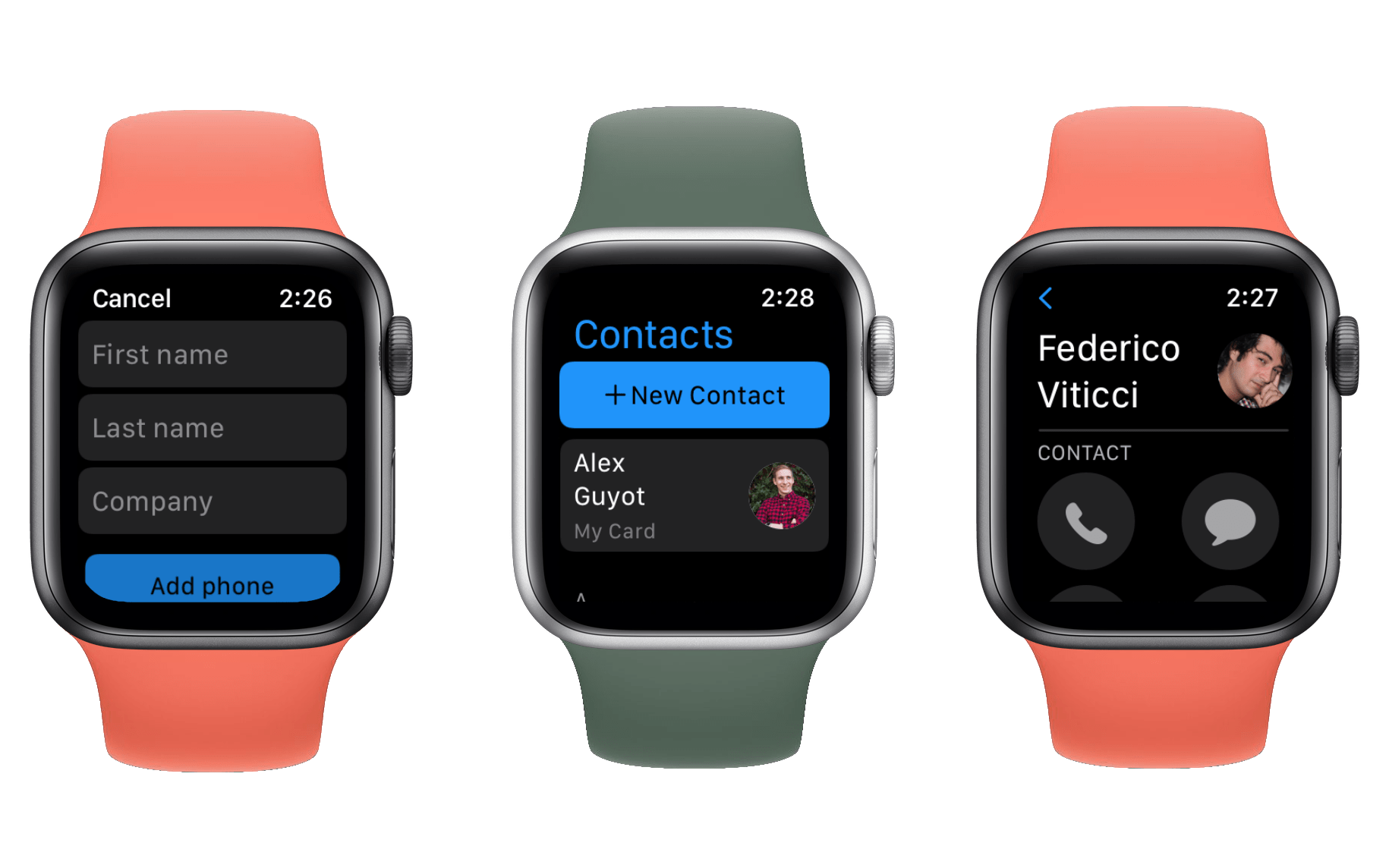
watchOS 8 includes a first-party Contacts app for the first time. The app is as straightforward as it gets, but handles everything I’d want from it. You can create, edit, view, and delete contacts all from your Apple Watch. Viewing them gives you quick access to making a phone call, sending a text or email, or connecting via the watchOS Walkie-Talkie feature (in case anyone remembers what that is).
For contacts that you are following on Find My, you’ll see a map of their location in the Contacts app, and can launch the Find People app from there.
Creating a new contact is somewhat clunky, but also as good as you could expect from the wrist. In most cases you’ll probably want to pull your phone out to do this amount of text input, but when you’re in a pinch the Apple Watch can now get the job done. The ‘New Contact’ button can be found at the very top of the Contacts app. You have to swipe up from the default position to see it, because it lives above the top contact entry.
Messages and Text Input
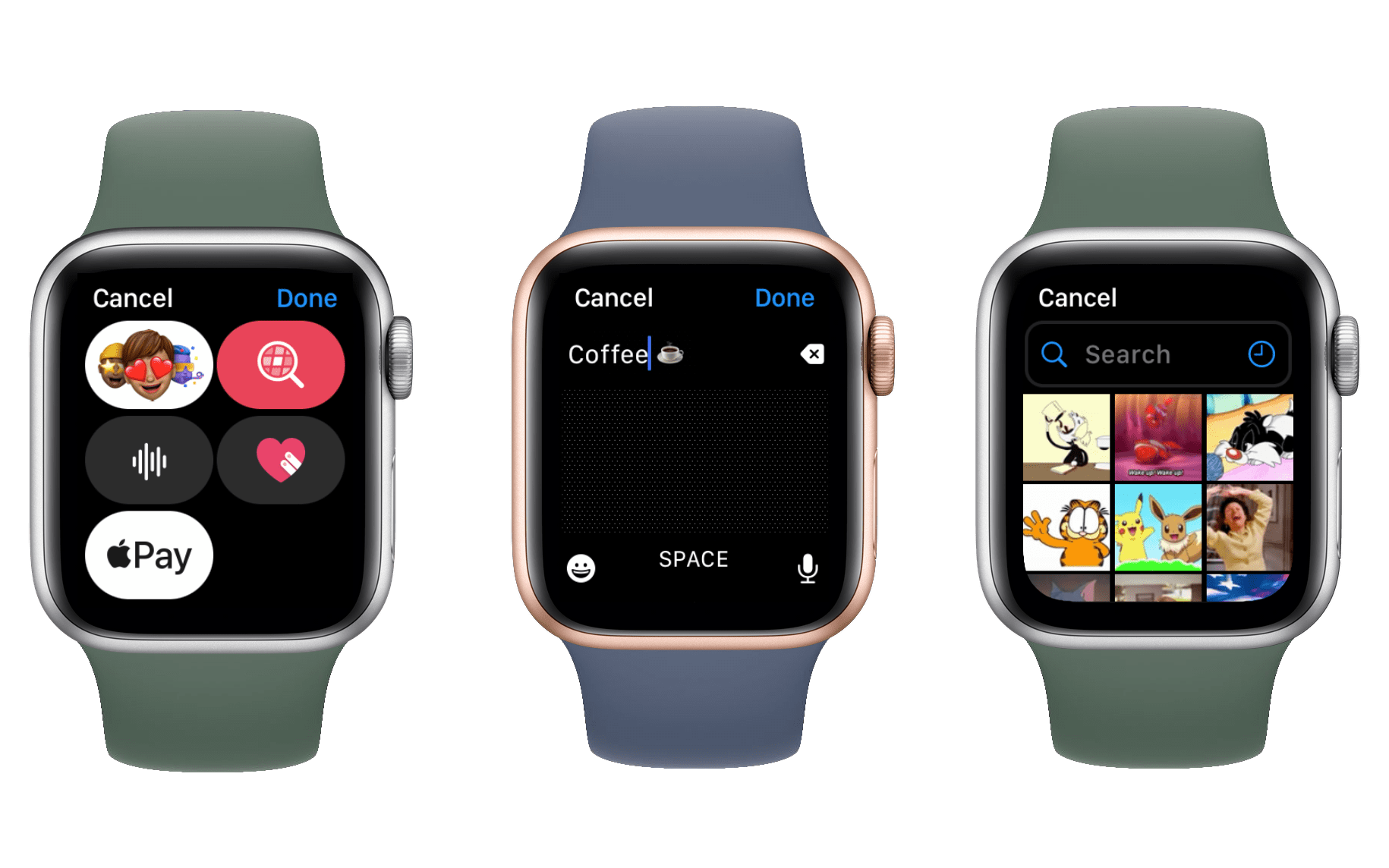
Speaking of text input, it has been improved significantly in watchOS 8 because you can now mix-and-match content. In previous versions, tapping any emoji from the emoji list would send it immediately as its own message. Now you can swap back and forth between Scribble, dictation, and emoji inputs to compose a full message. You can also spin the Digital Crown to move the cursor input around (to get to the autocorrect suggestions you now need to tap a word in your message before spinning the Digital Crown). This change applies to the system text input interface, so it works in Messages, Mail, Contacts, and more first-party apps. Third-party apps can access this feature as well, but they may need to be updated by their developers first.
The Messages app itself now provides access to Apple’s #Images iMessage app. You can access this from the App Store icon in the Messages app in watchOS 8, and it fully supports searching for and sending animated GIFs just like its iOS counterpart.
Control Center
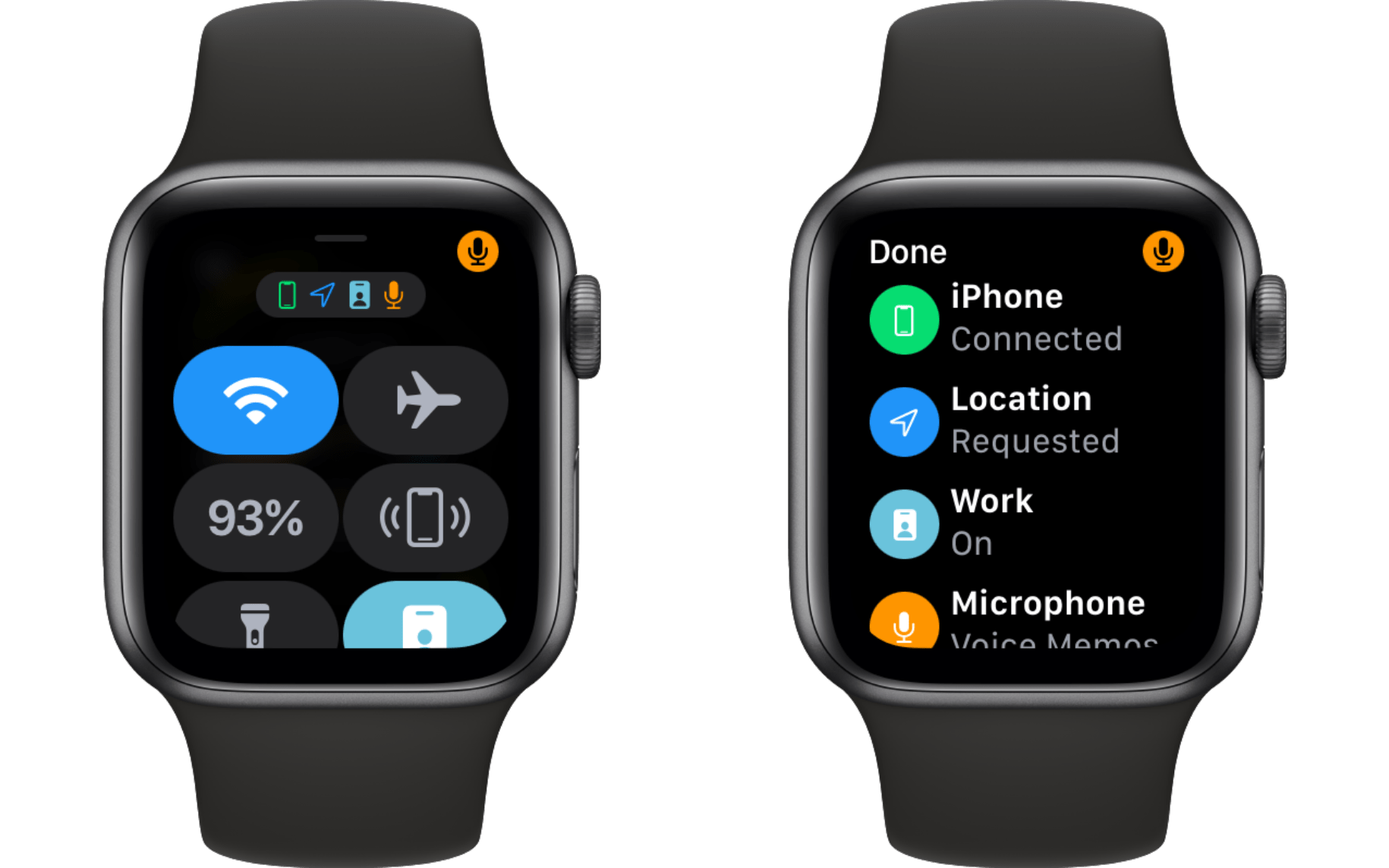
Control Center is mostly the same in watchOS 8, but now you’ll find a new set of status icons at the very top of it. These are the same tiny icons that have always flashed in the top center of the watch face. These icons are much easier to see when they’re all together, and you can tap on them to open up a detailed view that explains what each icon means and why it’s present.
I always found those tiny icons difficult to notice and sometimes hard to understand, so I love this change. It’s nice to tap in and see exactly which app is using the microphone on my watch, what the connection status to my iPhone is, and what Focus mode I’m currently in.
Focus Modes
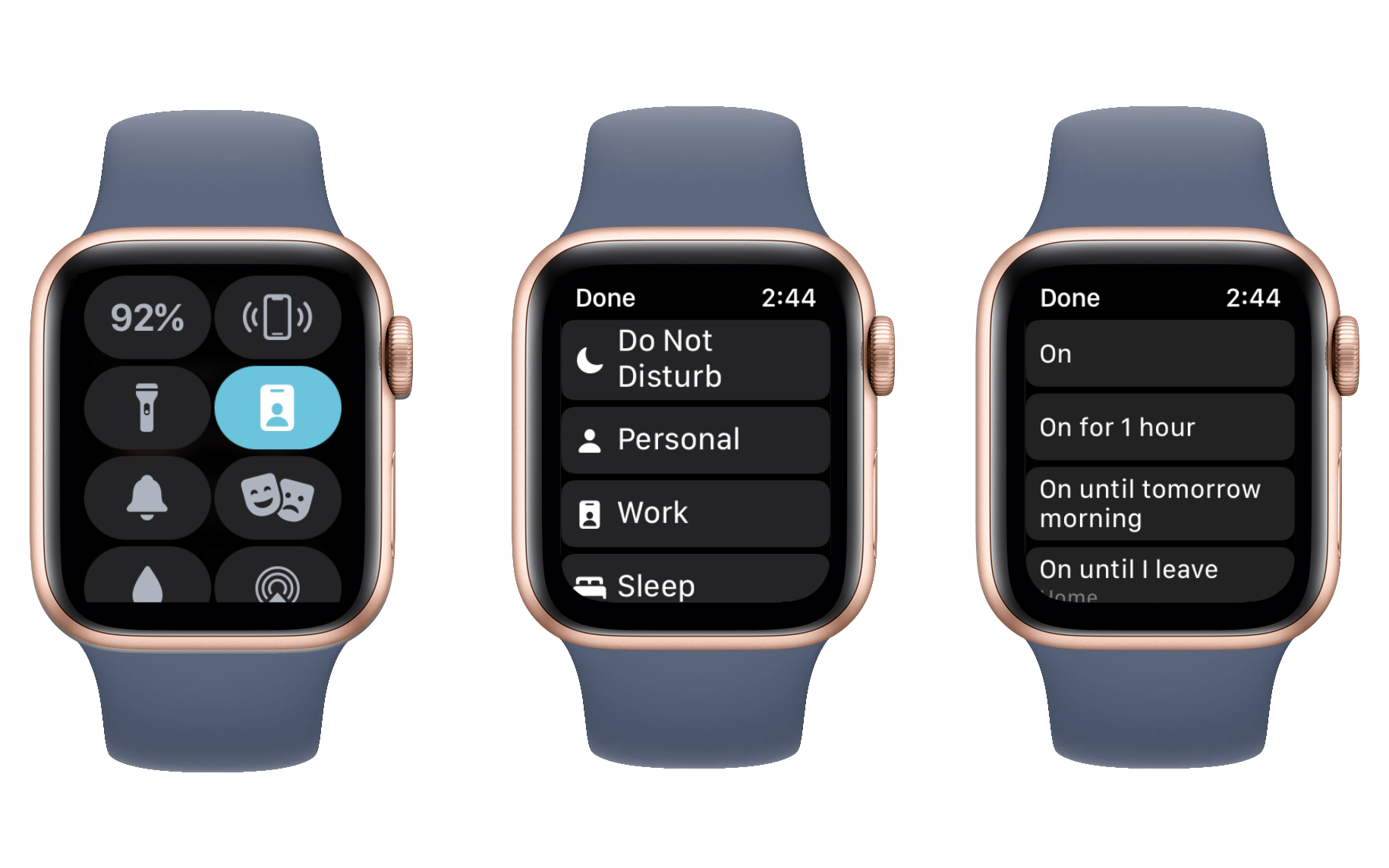
On that note, Focus modes are new feature in iOS 15. They’re essentially custom Do Not Disturb setups, and you can create them on your iPhone. Once you have some Focus modes created, you can turn them on or off from your Apple Watch in watchOS 8.
Focus modes can be accessed from the Do Not Disturb icon in Control Center on the Watch. Just tap the icon and then choose from your list of Focus modes. You can select an amount of time that you want to mode to last for, or just choose “On” to keep it on until you turn it off.
The easy access to Focus modes is great, and I’m glad that Apple chose to put it in Control Center rather than making a new watchOS app specifically for this. The one item that might confuse watchOS users is that the watchOS Sleep mode has been moved to a Focus mode, so you now enable it via the Do Not Disturb icon rather than from its own icon in Control Center. Once you figure this out, it isn’t much more difficult to enable or disable Sleep mode than it was previously.
Hearing Protection
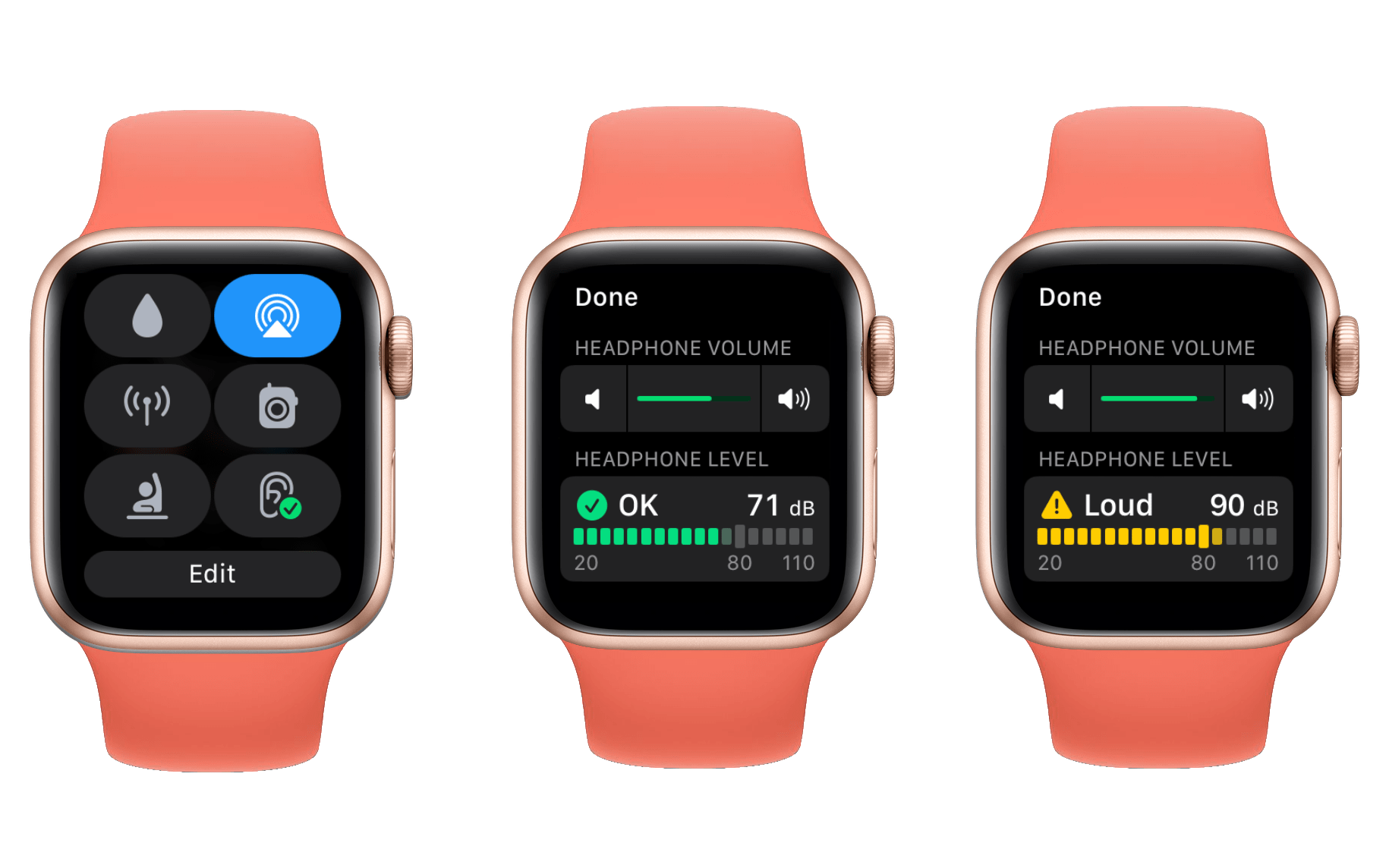
The final new feature of Control Center is hearing protection. This is a new icon in the shape of an ear, and you can tap it to set the current volume of sound playing through your headphones. Below the current volume, you’ll see a slider that shows the impact this volume setting will have on your hearing over time.
I really like this feature as a way to double check that I’m not listening to music so loud that it might damage my hearing. The only unfortunate part is that the feature only works from your Apple Watch when you are playing audio from the Watch itself. If you’re playing audio from your iPhone then the hearing protection interface in watchOS’ Control Center will just show that nothing is playing.
The iOS Health app still shows a high-level overview of how recent headphone volume levels are affecting your hearing, but I wish that the live view on my Apple Watch would work even when audio is flowing from my phone.
Always-On Display
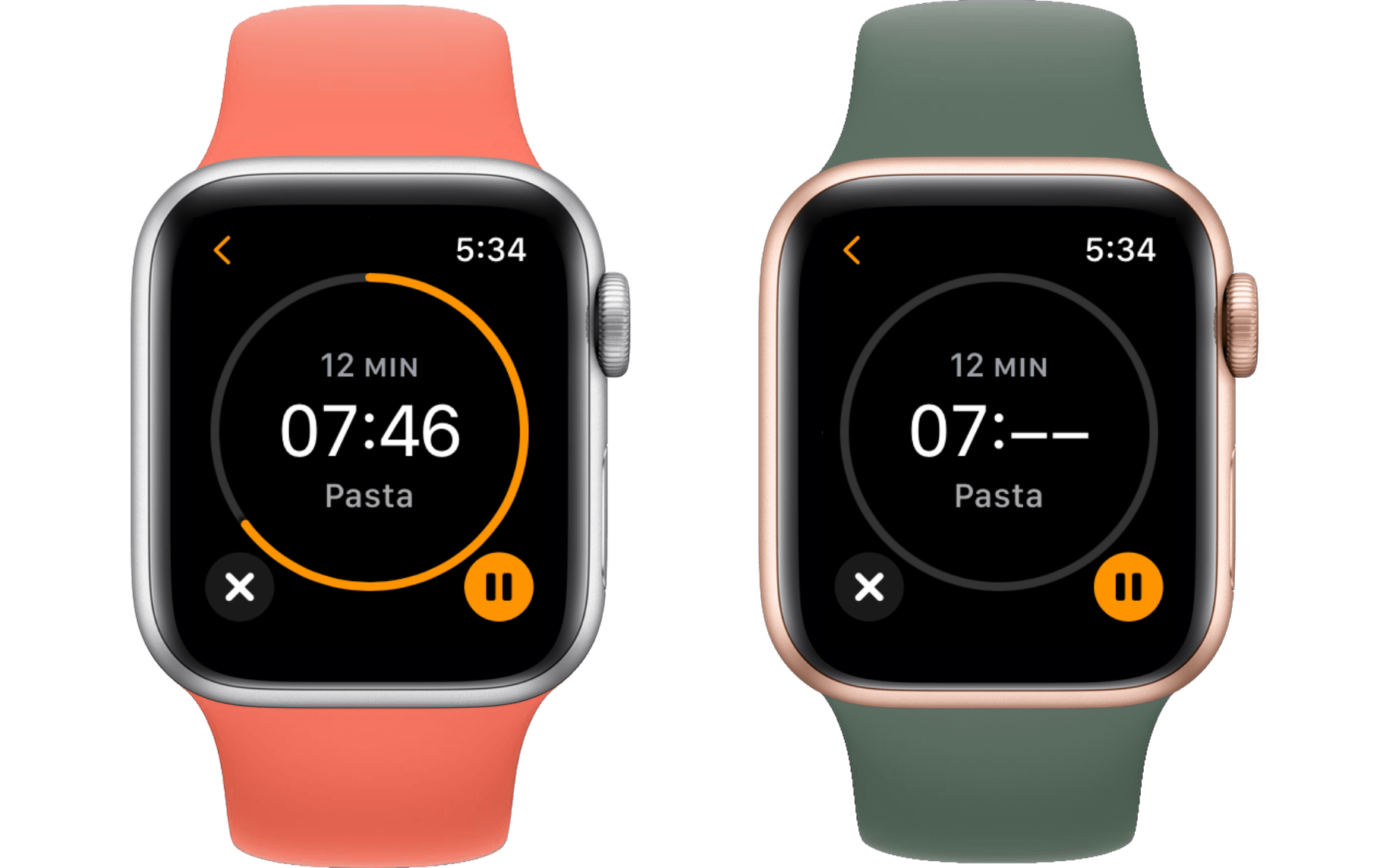
In watchOS 8, developers finally have access to the appearance of the Apple Watch when its always-on display is dimmed. In previous versions, the display would cloud over with a dull gray color, and only the system time would be shown. Now, third-party apps will be displayed with their interfaces dimmed out. Developers will be able to control what shows up on the dimmed version, and what data should be updated over time or just removed altogether.
One common example that can be seen in Apple’s first-party apps is that minutes will continue to be displayed and updated, but seconds will be replaced with unmoving dashes. You can see this in the examples below, where the Timers app and the Workouts app replace seconds with dashes.
It will be interesting to see how developers take advantage of this, but it’s an objectively great improvement for any users of the Apple Watch Series 5 and beyond.
Conclusion
watchOS 8 is the sleepiest update we’ve seen for the Apple Watch thus far. The always-on face changes are excellent, but otherwise there’s not much to get excited about here. While there’s nothing explicitly wrong with a slow year of iteration, I can’t help but feel a bit disappointed.
The Apple Watch still seems to me like a platform with unrealized potential. Apple is killing it in the health and fitness department, but I think they’re dropping the ball in the “computer on your wrist” area. This year, they could only be bothered to make two new watch faces.
The good news is, I do like the Portraits face, and I think it will be a popular pick for new users. I’m worried that the vast majority of users won’t find the editing interface for this watch face, and thus might be more frustrated with it than necessary. Even then though, people should be able to find enough photos that look fine for the face to work for them. Ultimately I like more complications to be present, and I prefer analog faces, so Portraits isn’t for me. I wish Apple would have given me some other intriguing new options (World Time has way too much going on for my tastes), but I still like my classic Infograph face, so I’ll stick with it for another year.
watchOS 8 has plenty of small iterative improvements, making it the best watchOS update to date. While I’m pleased that I can say that, I still wish I could shower it with praises for some bigger, more interesting new features. While it may be a mostly mature operating system, I still think it’s far from done. Time will tell, but hopefully Apple agrees.









](https://cdn.macstories.net/banneras-1629219199428.png)
](https://cdn.macstories.net/9ed8e26b-bf71-4369-922d-f161e8f4a3be-1632357204240.jpeg)
](https://cdn.macstories.net/14c54e72-ed75-40ea-987b-237b59ceacf7-1632357204430.jpeg)
](https://cdn.macstories.net/b0689245-e6d4-4097-bb3c-a081b987b2d0-1632357765264.jpeg)