The NYT Investigates How Apple Sidesteps Billions In Taxes

The NYT Investigates How Apple Sidesteps Billions In Taxes

The New York Times this weekend published an in-depth article about Apple’s tax practices and specifically, how they have been able to “sidestep” billions in taxes through carefully chosen office locations for certain financial activities. For example, a small office in Reno, Nevada (shown above) manages and invests some of the companies cash - in a state where corporate tax rate is zero - compared to California’s 8.84% where Apple’s headquarters are.

Setting up an office in Reno is just one of many legal methods Apple uses to reduce its worldwide tax bill by billions of dollars each year. As it has in Nevada, Apple has created subsidiaries in low-tax places like Ireland, the Netherlands, Luxembourg and the British Virgin Islands — some little more than a letterbox or an anonymous office — that help cut the taxes it pays around the world.

The New York Times doesn’t suggest that there is anything illegal about what Apple does, every company tries to minimise the taxes they owe. Rather, it paints a picture of how tech companies in particular have been taking advantage of tax codes “written for an industrial age and ill suited to today’s digital economy”.

Apple, for instance, was among the first tech companies to designate overseas salespeople in high-tax countries in a manner that allowed them to sell on behalf of low-tax subsidiaries on other continents, sidestepping income taxes, according to former executives. Apple was a pioneer of an accounting technique known as the “Double Irish With a Dutch Sandwich,” which reduces taxes by routing profits through Irish subsidiaries and the Netherlands and then to the Caribbean. Today, that tactic is used by hundreds of other corporations — some of which directly imitated Apple’s methods, say accountants at those companies.

A particularly stark is example is to compare Apple to Walmart, Apple paid $3.3 billion in taxes from profits of $34.2 billion compared to Walmart who paid $5.9 billion in taxes from their $24.4 billion in profits last year. Apple was able to achieve that because it’s much easier to move digital products to low-tax countries than it is for Walmart to do the same, with their physical products.

When someone in the United States buys an iPhone, iPad or other Apple product, a portion of the profits from that sale is often deposited into accounts controlled by Braeburn, and then invested in stocks, bonds or other financial instruments, say company executives. Then, when those investments turn a profit, some of it is shielded from tax authorities in California by virtue of Braeburn’s Nevada address.

In their response to the NYT’s request for a comment, Apple focused on their US job-creation activities, stressing that their innovation and growth was providing benefits that go beyond just paying taxes. You can read their full response here.

Over the past several years, we have created an incredible number of jobs in the United States. The vast majority of our global work force remains in the U.S., with more than 47,000 full-time employees in all 50 states. By focusing on innovation, we’ve created entirely new products and industries, and more than 500,000 jobs for U.S. workers — from the people who create components for our products to the people who deliver them to our customers.

Permalink

Typeli Is A Questionable OS X Note-Taking App

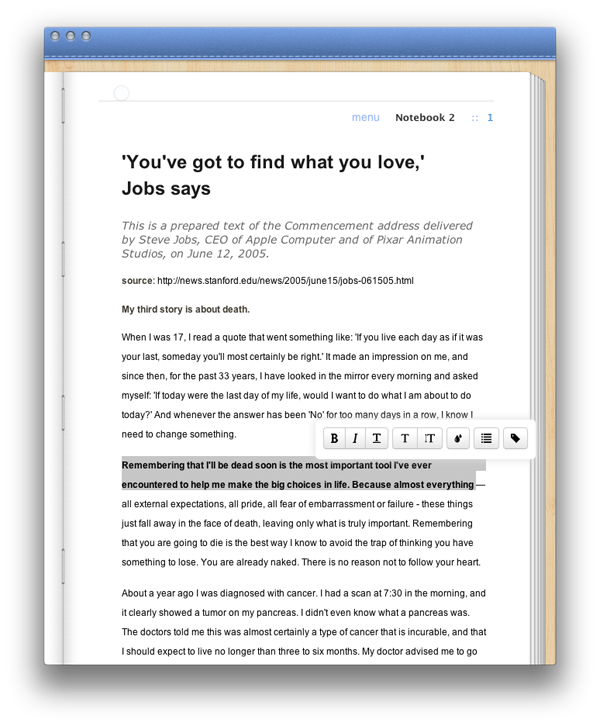
I really thought a long time about the question whether I should review Typeli by Lukasz Dmowski or not. When I looked at the app website for the first time, I was quite impressed by its design and feature set, but after trying it out for some time, most of the magic the website conveys is gone. What remains is just another note taking app with innovative, but very uncomfortable and unfinished styling and organizing features. Read more


Tip: Use Pocket’s Keyboard Shortcut In Google Chrome

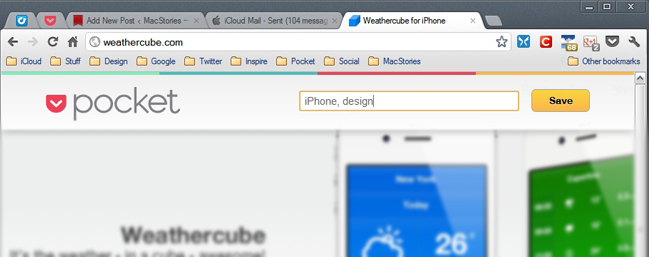
Earlier this week, Pocket updated its ultra-handy bookmarklet and Chrome extension by adding tags after you’ve saved something. Along with this, the Chrome extension also received a useful shortcut (OS X: CMD+Shift+P, Windows: Ctrl+Shift+P) for even quicker saving.

This morning as I was drinking my coffee and reading my RSS/Twitter news I updated the Chrome extension, and then tried the new key combo… and tried… and tried. The only thing Chrome was doing was bringing up the Print Preview dialog box. Upon searching some Google Groups pages, I found an easy fix to disable the Print Preview box and let Pocket use its new shortcut as intended.

Directions: Type ‘about:flags’ in Chrome’s address bar and locate the ‘Disable Print Preview’ option. Click the underlined ‘Enable’ to disable Chrome’s print preview, then restart Chrome. Now CMD+Shift+P (OS X) or Ctrl+Shift+P (Windows) should activate the Pocket key command. Personally, I’d love for Pocket to add user-customizable shortcuts, so that users will have the option to use something else besides the default command to avoid this problem entirely.

By the way, if you haven’t checked out Pocket yet, read our review.


My Dropbox Writing Workflow

Ever since I wrote about my new year’s resolutions to work smarter using better tools, compared my favorite iOS text editors, and shared some of my workflow techniques on Macdrifter, I thought it would be appropriate to share a bit more about the activity that takes up 80% of my work time: writing.

As I wrote in my comparison of iOS text editors:

Two months ago, I noted how there seemed to be a distinction between text editors focused on long-form writing, and the ones stemming from a note-taking approach. I think this difference is blurring with time, but there are still several apps that are clearly focused on distraction-free, long-form writing, like iA Writer and Byword, whereas the ones I tried for this article belong to the note-taking/Markdown/Dropbox generation of text editors. I like iA Writer and Byword, but I’m saving that kind of apps for another article.

In my workflow, there is a distinction between apps “for writing” and tools for quick “note-taking”, but in order to minimize the effort required to keep everything in sync and tied together, I set out to make sure the differences of such tasks could coexist within a single ecosystem.

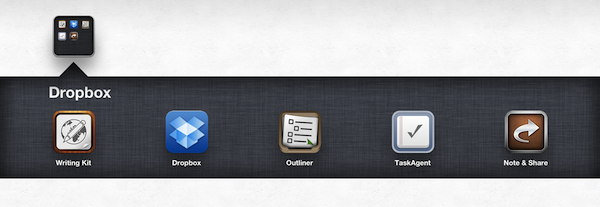
My writing ecosystem is powered by Dropbox. Read more


Assistant: Older iPhone Generations Just Got Their Own Siri

During the last years, dictation software has become more and more popular with the development of touchscreen devices. Many writers prefer to use mechanical keyboards for typing, because touchscreen keyboards are not suited for longer texts: they can get very uncomfortable for someone who is not used to them. So especially when you’re outside, dictating text or data can be a very comfortable and healthy alternative to touchscreen keyboards. Even Apple has shown a reaction to that development by introducing Siri, the mobile all-in-one voice assistant on the iPhone 4S. Although it works fine and has lots of features, there are still many independent competitors in this area of app development.. Assistant, developed by Appmosphere and designed by talented designer Michael Flarup, is one of the newer, yet slightly more interesting, efforts.

Assistant serves just one feature: setting calendar events and timers via voice recognition. I know, Siri does that as well, plus much more (and might be funnier too). So why mention a more or less obviously inferior competitor, for which you even have to invest extra money when you get Siri for free with your iPhone 4S? Well, first of all, because not everyone owns an iPhone 4S and Assistant works on 3G(s) and 4 models. And to a certain extent, because of Flarup and his UI work.
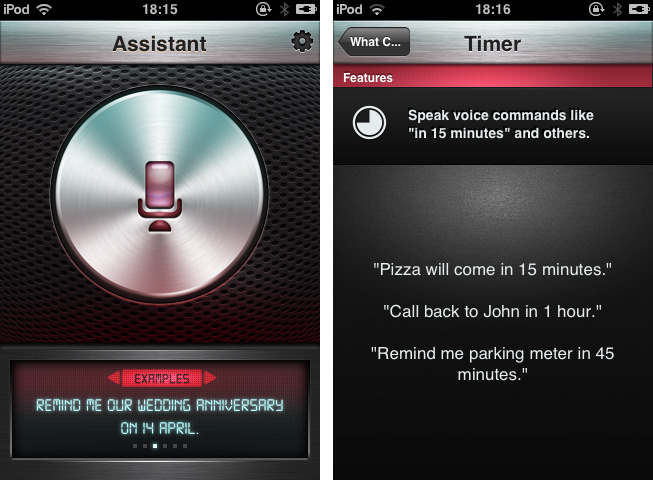
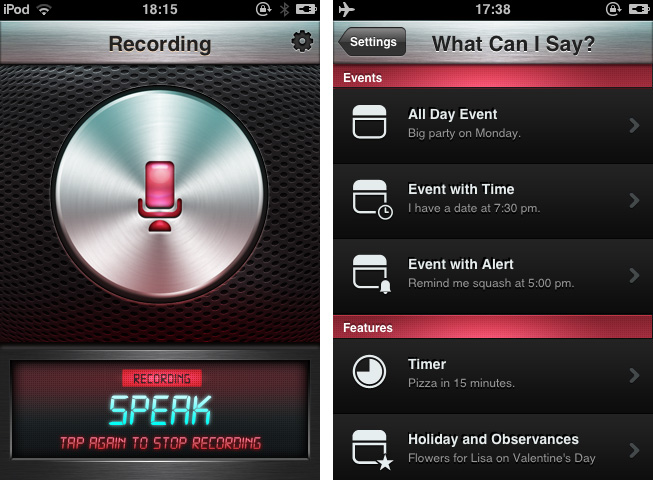
After firing up the app you’re greeted with that immensely huge and gloomy stainless steel recording button and some examples on how to use the features of Assistant. Tap it and the voice recording via the integrated or attached microphone starts; tap it again to stop it. The app processes your vocal input (using the well-founded technology of Nuance Communications) and shows up a date dialogue afterwards, titled with the dictated appointment content and enhanced by eventually mentioned reminders. That’s it: all these main windows are clean, simple and immediately understandable, and the voice processing is pretty accurate and efficient.

Besides its well-done demo video on the app’s website, Assistant also has many setting possibilities which make the app very flexible and useful. You can select the default calendar in which Assistant will deposit your appointments, and default alter time and event duration. The app currently supports only English language input: you can choose from Britain, American, and Australian English. In addition to that, the settings include examples as to which kind of formulations the voice recognition is able to process. It’s quite variable: for example to set an appointment to a special time you can use direct time spelling (12.00 AM) or prevalent paraphrases like noon.

So now let’s get into the UI. Although I like Michael Flarup’s style of digital design very much and, as I already pointed out, the main window and the dialogue panel look nice and polished, there are two things that made me feel a bit uncomfortable with the overall design of Assistant: the buttons and the (also stainless-steel-like) titlebar used within the settings. The latter might fit pretty well to the main window and the “What can I say?”-example list, since the recording button, the monospace screen at the bottom, and the gloomy red list elements correspond to it. But if you move into the settings and the standard iPhone listing UI used for selecting several options, it becomes a disturbing visual overkill. Secondly the buttons set on it do not have anything in common with the plastic and rather machinery look of the titlebar: in my opinion, they are too smooth and colored too dark to fit to the bright but still cold and “hard” atmosphere the title bar creates.

So, I have to say that giving an exact final statement or even a recommendation for buying Assistant is rather difficult. It definitely has some advantages and provides iPhone 3G(S) and 4 users the possibility of stripped-down voice dictation to quickly create calendar appointments. But its look is a bit uneven and therefore I think not good enough to be considered as a must-have — there are some hot spots in it, but to me it is not completely coherent and attractive to reasonably use because of the design. Still if you’re searching for a stable and quite enjoyable app to solve the problem of not having a Siri-like working robot on your phone, get Assistant for $1.99 to dictate calendar events on your older devices.


Insanely Simple

Like many others, I was disappointed by how Walter Isaacson’s official biography of Steve Jobs turned out. With the kind of access that Isaacson had to Jobs’ information, photos, close friends and colleagues, in my opinion, the author should have tried to linger less on the personal reasons that led Steve to walk barefoot around campus, and more on the ideas that shaped the great businessman and inventor that he was.

Steve Jobs was a polyhedric figure, and Isaacson tried to capture the “facts” of his life by focusing on several of his “passions” and “flaws” while, unfortunately, getting many of the facts that helped Apple become the company it is today simply wrong. Perhaps Jobs wanted the book to be a honest representation of “the man behind the business”. Perhaps Jobs’ idea of the book people wanted to read about him was inherently flawed, then. But the way I see it, Isaacson made a choice, independently from Steve, to put the spotlight on certain aspects of Steve’s life, while omitting key details and facts to better understand the Steve Jobs who founded and re-shaped Apple. Maybe “Steve Jobs” is perfect for Joan Baez, or one of Steve’s multiple ex’s in time. But it is not the book I, as someone interested in Steve Jobs the man and businessman, wanted to read.

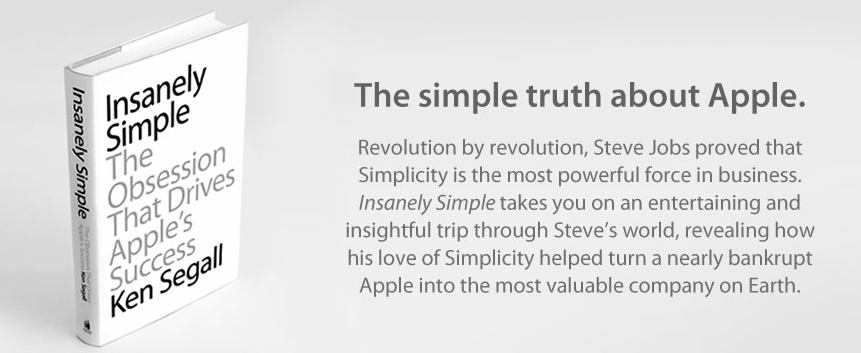
Ken Segall’s new book, Insanely Simple, is, from this standpoint, a simpler book about Steve Jobs. Rather than attempting to provide a complete and exhaustive picture of Steve Jobs in each and every aspect of his life – something that, as we’ve seen with Isaacson, can be a little daunting – Insanely Simple focuses on one thing: simplicity. Insanely Simple, though Segall’s recollections, wants to help readers understand how some of Steve’s ideas and behaviors came to be by following the principles of Simplicity.

Insanely Simple doesn’t want you to know why Steve didn’t wash for weeks, was a vegan, didn’t speak to his daughter for years, or refused to properly park his car. For as much as those are intriguing (and, to an extent, posthumously voyeuristic) nuggets of information, they won’t make you think about why the products Apple makes are great and profitable – the numbers speak for themselves – when compared to the plethora of options that we have on the market today.

Apple makes consumer products. Insanely Simple focuses on this aspect of the company from two perspectives: Segall’s, who worked at the Chiat\Day advertising agency alongside NeXT and Apple for several campaigns, and Jobs’, whom Segall got to know (and work with) personally. The two perspectives often intertwine and overlap in interesting ways: in the concise, fluent style of the book, Segall takes you through an anecdote about the introduction of the iMac to his ad team, and in the next chapter he’s comparing the shopping experience of Apple.com to Dell’s website.

Segall certainly didn’t write Insanely Simple for “Apple novices”, trying to explain that an iPhone is made of glass or what FireWire stands for (something that Isaacson did in his attempt to produce the universal book about Jobs for the masses). While, say, a less tech-savvy reader like my mother would probably need to look up a reference or two when reading Insanely Simple, I believe anyone will be comfortable within the range of discussion laid out by Segall: how “a deep, almost religious belief in the power of Simplicity” always beats Complexity in every business-related decision.

The thing is, it’s funny how Segall’s sole focus on one core concept – Simplicity – provides a richer and more meaningful tapestry of insight into Jobs’ attitude and actions than Isaacson’s poorly researched technical explanations and sentimental departures. In describing the oft-abused “think different” mindset that drives Apple as a company, Segall tries to portray Simplicity as a “skill” that “takes practice”. Unlike Isaacson’s story of the man, Segall thinks “being brutal and being respected are not mutually exclusive”.

Without spoiling too much of the book, I think a couple of brief excerpts can better put into context the “Power of Simplicity” that Segall wants to turn into the selling point of his work (below, page numbers are reported as provided in the review copy I received).

Page 42:

He stopped cold. His eyes locked on to the one thing in the room that didn’t look right. Pointing to Lorrie, he said, “Who are you?” Lorrie was a bit stunned to be called out like that, but she calmly ex- plained that she’d been asked to attend because she was involved with some of the marketing projects we’d be discussing. Steve heard it. Processed it. Then he hit her with the Simple Stick. “I don’t think we need you in this meeting, Lorrie. Thanks,” he said. Then, as if that diversion had never occurred— and as if Lorrie never existed—he continued with his update. So, just as the meeting started, in front of eight or so people whom Steve did want to see at the table, poor Lorrie had to pack up her belongings, rise from her chair, and take the long walk across the room toward the door. Her crime: She had nothing to add.

Lorrie, as Segall remembers, only added to the complexity of the room. She wasn’t “necessary” in the sense that, for what Steve wanted to accomplish during that meeting, he didn’t think Lorrie could contribute in any substantial way. So he asker her to leave. Where’s the line between honesty and rudeness? Segall continues (page 47):

To this day I have a recurring fantasy when I find myself trapped in a big meeting going nowhere. I imagine what Steve Jobs would say and do if he were sitting in that room, enduring what I’m enduring. In my fantasy, it’s like having a really good seat for a matinee at the Roman Colloseum. Who would Steve verbally dismantle or eject from the meeting? When would he cut the presenter off midsentence and say it’s all bullshit? With all the talk about how rough Steve could be, it should be acknowledged that oftentimes he was only doing what many of us wish we could do. Steve saw no reason to be delicate when his time, and the time of everyone in the room, was being wasted.

How many times have you wished you could simply call out someone during a meeting like that, and tell him he’s not necessary? Self-imposed social rules and the fear of hurting someone else’s feelings often keep us from doing what we want to do with a simple and efficient way. And as Segall says, “showing a little of that brutal honesty at the right time is a pretty good way to earn respect— and keep those smart groups small”.

When he hit something or someone with the “Simple Stick”, however, Steve Jobs didn’t always have the perfect touch or vision. But whilst reading Isaacson’s take on Jobs’ human flaws I had the feeling those traits were treated as “mistakes” without another possible explanation – just “mistakes”. I like how Segall tries to explain Steve’s deviation from the Truth of Simplicity as a result of a “skill” that needs to be learned and practiced. Even Jobs’ mind could sometimes be obfuscated by the appeal of “options” and “extras”; but because he was a visionary that understood the nature of Simplicity better than most people at the company – he could “see a spark in there that nobody else sees” – eventually Simplicity always found the way back to Steve’s vision.

The Ultimate Efficiency

In a way, Segall’s book is limited. It approaches the story of Steve Jobs at Apple with a very specific angle, it doesn’t follow a strict timeline of events, and it builds on the author’s theory that Simplicity leads to more prolific creative efforts with a constant flow of anecdotes and examples that, ultimately, aren’t “facts”. Segall doesn’t want to be a biographer, nor is he trying to put “the better book” about Steve Jobs’ life in the hands of customers. Segall wants to prove a point, and while the memories he uses surely contribute to solidifying his theory, in the end it is up to the reader to decide whether Simplicity really is the right key to understanding Apple’s success and a part of Steve Jobs’ persona.

I think Insanely Simple is honest. At $12.99 on the iBookstore (Amazon editions available here and here), you’re getting a clear, balanced recollection of events that focus on Simplicity, Steve Jobs, and the products and ideas that took place in between.

Insanely Simple may be “simpler” in terms of scope and chronological events, but it left me with a more complex, genuine necessity of reflecting more about Simplicity and its effects on Apple’s history than Isaacon’s book ever did.



Kickstarter: Do More with the iPad + Brydge

Wow, Kickstarter has been on fire lately. People have some really great ideas that everyone wants to be a part of. Remember the Pebble from two weeks ago? It was looking for $100,000 in funding and now is at almost $7 million with 22 days left. Amazing!

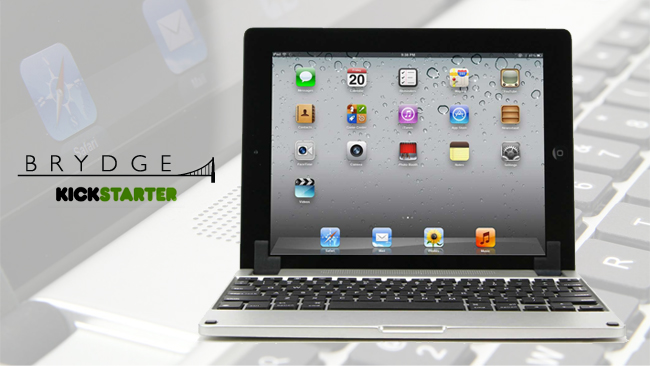
Another product that’s getting a lot of attention is the Brydge, an accessory that turns your iPad into an Apple worthy laptop. “Brydge is an elegant solution to the lack of quality iPad keyboards and accessories currently on the market.” It’s made from aerospace-grade aluminum and optional stereo speakers. Load your iPad into the patent-pending extra-strong hinge and connect via a Bluetooth connection. The optional built-in stereo speakers are an excellent addition to the Brydge since the iPad lacks stereo sound.

Video after the break. Read more


Airfoil Speakers Touch 3.0 Review

Ever since developers started reverse-engineering the AirPlay protocol that Apple introduced with iOS 4.2 in November 2010, we have seen all kinds of possible implementations of Apple’s streaming technology being ported to a variety of devices, for multiple purposes and scenarios. From tools to turn Macs into AirPlay receivers for audio, video, iOS Mirroring sessions, then a combination of all them, to more or less Apple-approved “AirPlay audio receivers” sold in the App Store, then pulled, then released in Cydia, the past two years have surely been interesting for AirPlay.

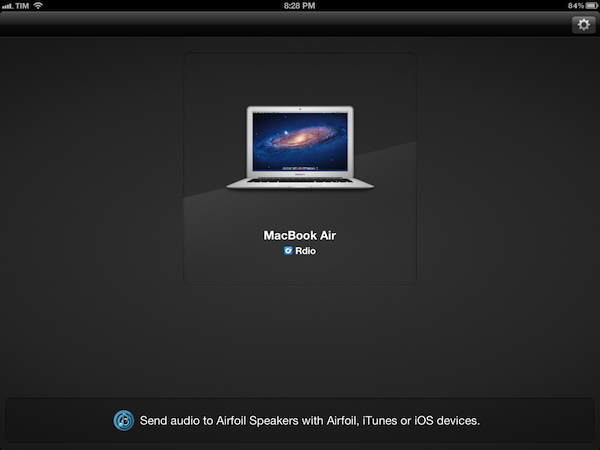
When it comes to dealing with audio on my Macs and iOS devices, however, my preference always goes to Rogue Amoeba’s Airfoil. As covered multiple times in the past here on MacStories, Airfoil is a powerful solution from a renowned Mac development studio that allows you to easily control audio sources on your Mac, and organize how audio is sent across your room through Airfoil Speakers, Airfoil Speakers Touch, or a mix of other utilities as I also previously detailed. I love Airfoil, because it just works. And today it gets even better with a major update to Airfoil Speakers Touch, which reaches version 3.0, becomes universal, and adds a $2.99 in-app purchase to turn any iOS device into an AirPlay receiver for audio.

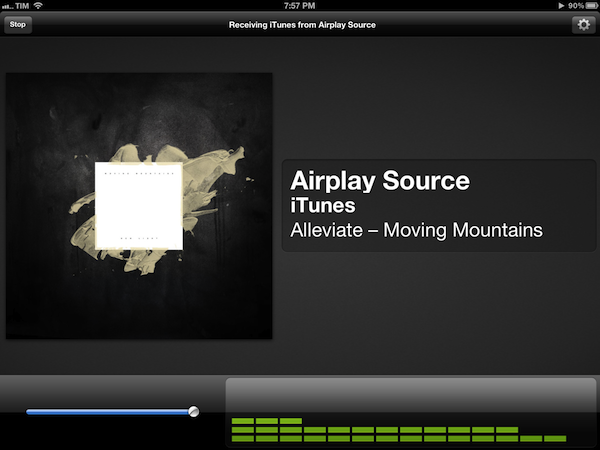
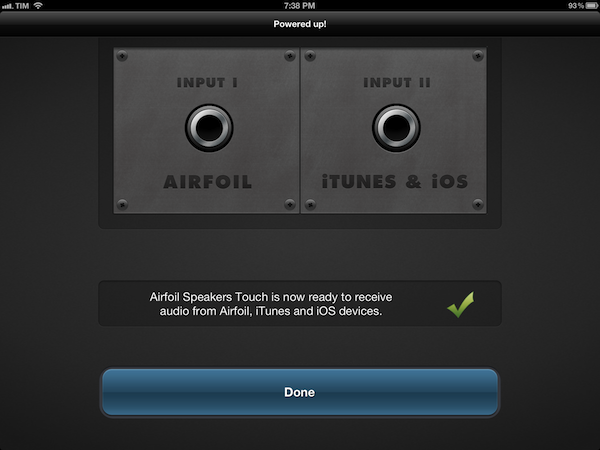
Available for free on the App Store, the new Airfoil Speakers Touch runs beautifully on iPhones or iPads with Retina display. More importantly, it doesn’t require you to send audio to the app exclusively through Airfoil on your computer (more here), as an in-app purchase will unlock the ability to receive audio from iTunes or any AirPlay-enabled iOS app or device. This is neatly illustrated by the in-app purchase unlocking screen inside Airfoil Speakers Touch 3.0.

By enabling the “Input II” option, you’ll be able to turn a device running Airfoil Speakers Touch into an AirPlay receiver recognized by iTunes on your computer, iOS apps like Rdio, Spotify or Instacast, or iOS itself through the system-wide playback controls in the multitasking tray. In my tests, Airfoil Speakers Touch 3.0 was correctly recognized by iTunes, iOS 5.1 on iPhones and iPads, and any app that allowed for streaming audio through AirPlay.

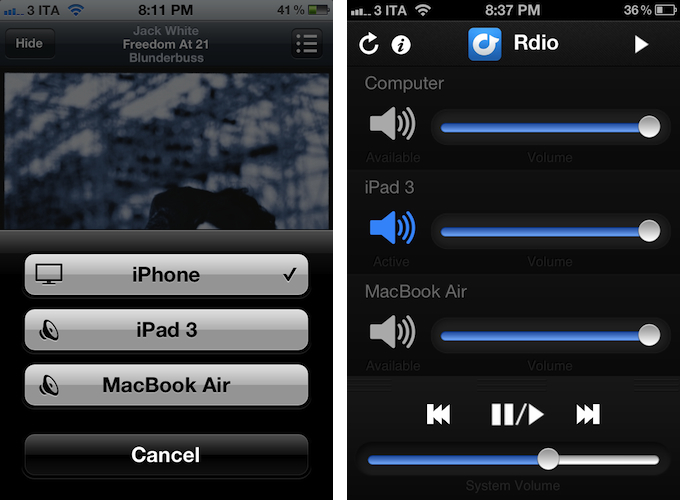
The true potential of Airfoil, obviously, is unlocked when you start combining the various utilities provided by Rogue Amoeba together to build your own personalized wireless audio setup. Whilst I greatly appreciate the support for native AirPlay integration (at $2.99 and in the App Store, it’s a no-brainer), I still like to control audio in my office or living room with a mix of Airfoil, Airfoil Speakers Touch, and Reemote. The latter is a fantastic third-party utility that, connecting to Airfoil on the Mac with a “server” app, allows you to directly control single audio sources and volume levels on iOS.

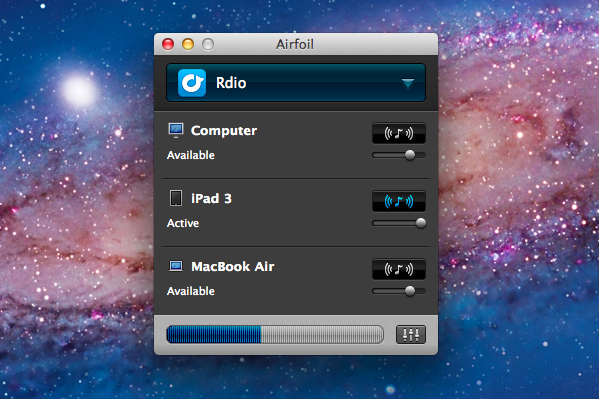
This means that, if I want to simply stream audio from iTunes or iOS to my iPhone and iPad I can use Airfoil’s new input method; if the audio I want to stream, though, comes from apps like Rdio for Mac or QuickTime, I can fire up Airfoil, beam the audio with its InstantOn technology, and control everything – sources and volumes and playback controls – with Reemote for Airfoil. I can even control standalone speakers connected to my Mac if I want to get audio both on my iPad and the external speakers. It’s a wireless audio nerd’s dream setup.

Airfoil is one of my favorite apps ever created for the Mac – one that I immediately install every time I set up a new OS X installation – and now the iOS version has proper AirPlay support through a $2.99 in-app purchase that, ultimately, just works. If you’ve been looking for an easy way to, say, beam iTunes or iPad audio to an iPhone connected to your car’s system, the latest Airfoil Speakers Touch gets the job done. And if your audio listening habits are made of more complex and variegate needs, you can stay assured Airfoil Speakers Touch will equally serve you well thanks to the combination of Rogue Amoeba-made and third-party utilities mentioned above.

Get Airfoil Speakers Touch 3.0 here.