


Here are today’s @MacStoriesDeals on hardware, iOS, and Mac apps that are on sale for a limited time, so get them before they end!
Read more
#MacStoriesDeals - Friday
Why Upgrade Pricing Isn’t Coming To The App Store
The 2012 WWDC keynote has come and gone, and we now know which of the many rumored announcements turned out to be true and which turned out to be false. But there was one unrumored announcement many developers were hoping would be true that failed to materialize altogether: the option to offer paid upgrades and true demo versions for their apps.
Demos and paid upgrades are something that App Store developers (where “App Store” encompasses both iOS and Mac) have long since wanted, as Wil Shipley explained in his blog post “The Mac App Store Needs Paid Upgrades” and as John Gruber and Cabel Sasser discussed on episode 5 of The Talk Show. No doubt there are many Apple users, especially longstanding Mac fans, who would be happy for the opportunity to support their favorite developers and be rewarded with lower prices for new versions of their favorite apps as well (the “99¢ IS TOO EXPENSIVE” crowd need not apply). As Shipley’s post lays out, it would seem there are many good reasons for Apple to implement these. So why haven’t they?
I think it comes down to one of Apple’s core values: simplicity.
The fact that Apple chose to name their online retail presence the “App Store” is, I think, telling. Remember that Apple aims squarely for the mass market (much to the consternation of some advanced and pro users) and remember what shopping at a real life store is like for that market.
When most people go to a store, they don’t expect to take home products that catch their eye and try them out for a limited time. They don’t expect to get reduced prices on the latest version of a product they’ve paid for before. The retail model of a typical store from a consumer’s point of view is simple. You walk in, look for something you want, pay for it, and walk out. This is exactly how Apple’s physical stores work, and it is how their digital stores are designed to work as well.
Whether this is the way digital stores should work is another discussion, and one that is certainly well worth having. But if we assume that this is how Apple wants their stores to work, their policies for not allowing demos and upgrades make sense. In Apple’s physical stores, and indeed nearly all retail establishments, take-home trials and upgrade pricing is nearly unheard of. At best they offer demo units of products you can try, but only ones they choose and only while you remain at the store. Try insisting on half-price for the next-gen MacBook Pro with Retina display because you bought a 13” MacBook Air two years ago and see how far you get before you’re asked to leave.
Developers and longtime computer users may be used to the shareware, time trial, pay-full-price-once-upgrade-cheaply-forever model of buying and selling software, but regular people, the mass market that Apple continues to court first and foremost, aren’t. Adding demos (“I thought this app was free, but now it’s telling me I have to pay to keep using it? What a ripoff!”) and paid upgrades (“Wait, I bought this app last year and now I have to pay again to keep using it? Screw that!”) would introduce a layer of confusion and make buying an app a more arduous process, which would result in people buying fewer apps.
At least, that’s the rationale behind Apple’s decision not to implement them. To be clear: what I just wrote is not my opinion of how things should be. This is only my guess at Apple’s reasoning.
So if Apple is basing their digital stores on their physical ones, how should developers like Wil Shipley and Cabel Sasser handle the problem of making enough money from past and future customers in order to eat and make more cool software? I think Apple thinks they should take cues from how Apple handles their own software transitions: no upgrade pricing, just one reasonable price that is palatable to its target audience. Make your software great and easy to buy, and more people will buy it.
Yes, there are edge cases where some unlucky customers will fall through the cracks (those who bought your old app right before the new one came out) and those who won’t be happy to pay again for the “same” app regardless of how much time has passed (two words: “Tweetie 2”). And it would be great for customers and developers alike if Apple implemented a way to stop selling an old app but still let devs provide bug fixes. But Apple knows that while you can’t please everyone, you can make good money by pleasing the majority. And as long as the majority likes affordable, straightforward app-buying, that’s what they’ll continue to offer.
#MacStoriesDeals - Thursday

Here are today’s @MacStoriesDeals on hardware, iOS, and Mac apps that are on sale for a limited time, so get them before they end!
Read more
Strophes
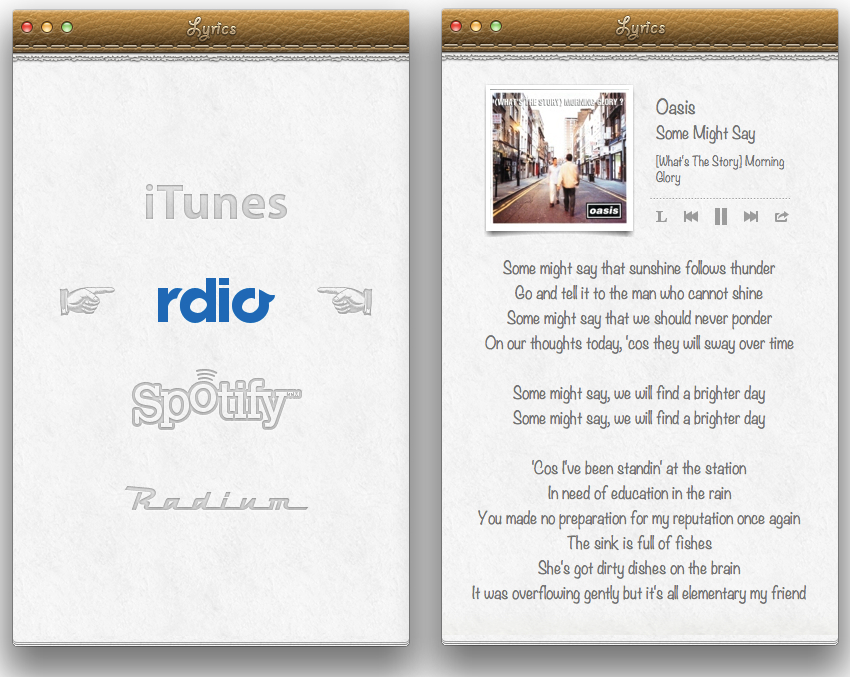
I have a good ear for the English language, but most of the times when I’m listening to music I still want to know exactly what a song says. Unfortunately, for the past years I had to cope with poor solutions to check out a song’s lyrics on the Mac; even worse, all of those methods sported no kind of integration whatsoever with the services I use to listen to music on a daily basis. It’s not just about iTunes anymore: today, my library is on Rdio, new releases are streamed every Tuesday, and I may casually check out a YouTube video or two as I look for that old live set or creepy 80’s Italian music video. Music comes from multiple sources, yet there hasn’t been a single, integrated app that could help in displaying lyrics on the desktop without using ugly and ad-filled lyrics websites.
Developed by Italian Alfredo Delli Bovi, Strophes wants to be the beautiful Mac app that’s integrated with the music apps you’re already using.
Before I delve into the app’s feature set, though, it is worth mentioning how Strophes’ deep skeuomorphic roots will likely fence several users off as they will look at bits of torn paper and stitched leather in disbelief and utter despise for interfaces mimicking real life object. Personally, whilst I am not the biggest fan of Apple’s Calendar and Find My Friends, I recognize how, to most users, Strophes’ appeal lies in its strong resemblance to recent Apple trends and design patterns. In that regard, Strophes almost feels as the app Apple would create if they were to offer their take on displaying song lyrics, which is to say – Strophes is a natural fit for the Mac platform, and, more importantly, it just looks better than any other lyrics app I’ve tried.
Strophes works with a variety of music players, such as Rdio. The full list includes iTunes, Spotify, and Radium as well; through an optional Safari extension – which needs to be downloaded from Strophes’ website – you’ll also be able to load lyrics for videos playing on YouTube.com. Strophes is extremely simple in the way it works: it plugs directly into your active music player, checks for the song that’s playing, and displays lyrics inline fetching them off the Internet. The app uses a lyrics database to find lyrics, and it also displays album artworks and artists information above the actual lyrics. Strophes can control music players, too, but I prefer to keep The Iconfactory’s Take Five on my Mac for those playback and pausing duties. Strophes automatically loads another song as the music player changes, and, as far as features are concerned, it can also visualize an artist’s bio through last.fm integration, and translate lyrics.
In my tests, Strophes has been reliable. Working in tandem with Rdio, it only failed to find lyrics a couple of times; when it did, it provided a link to open lyrics in the web browser. Most of the times, the app loaded lyrics just fine and within seconds.
Strophes is, by far, the best lyrics app I have found on OS X, and it works with the apps I am already enjoying to listen to my music library. You can get Strophes at $4.99 on the Mac App Store.
Skype 5.8 for Mac Adds Mountain Lion Support, New Contact List
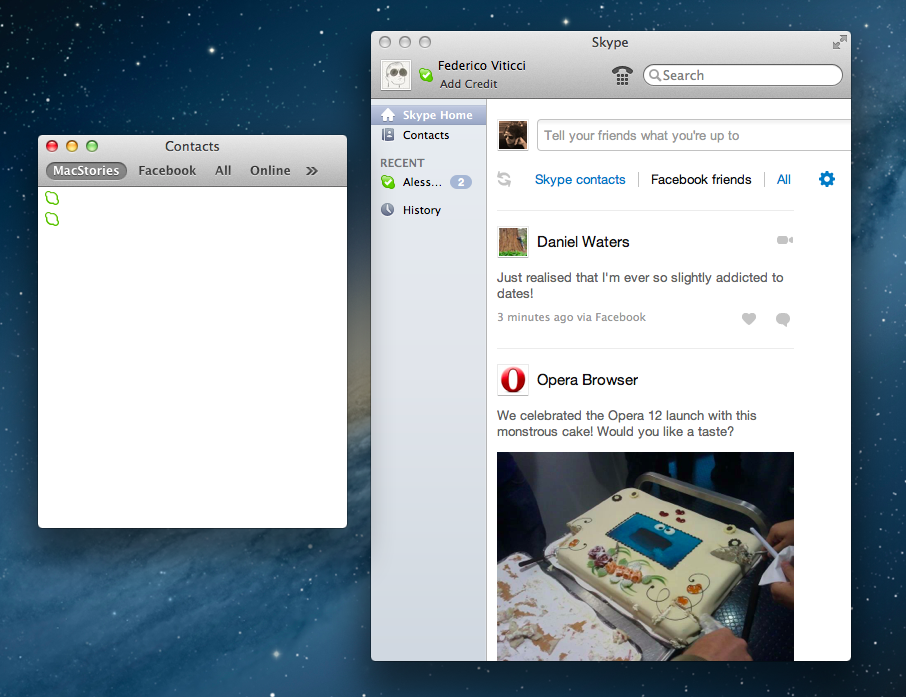
Out today, Skype 5.8 for Mac brings a series of changes meant to make the app ready for Apple’s upcoming Mountain Lion, simplify the interface, and improve support for video calls coming from mobile devices. Whereas Skype 5.6, released in March, added support for Lion’s full-screen mode, version 5.8 gets the app ready for Apple’s next major iteration of OS X so you won’t have to “worry about compatibility”. Unfortunately, after an initial test, Skype 5.8 crashed while I was browsing the integrated Facebook feed. The app works on the latest Mountain Lion developer preview, but it seems like Skype will still need to finely tune the software to avoid unexpected quit.
Perhaps more importantly for Mac users, the latest Skype brings back the old Skype’s simplified floating contact list that disappeared after the much criticized transition to version 5.0. Quite ironically, a simplified contact list wasn’t amongst the most shared ideas Skype asked its user base to submit in a contest to propose design ideas; however, the company clearly listened to feedback, and decided to bring back the Contacts Monitor (available from the Window menu through a CMD+3 shortcut) to offer more streamlined access to contacts and groups.
The Contacts Monitor is a resizable floating window listing groups in a toolbar, and contacts with status indicators below them. It provides filters for All, Skype, Facebook, and Address Book contacts, and it allows you to start new chats either via double-click or right-click. The Contacts Monitor is certainly more intuitive and easier to navigate than Skype’s integrated Contacts interface for Skype and Facebook friends. It’s a welcome addition.
In version 5.8, Skype also added better support for video calling from mobile devices. In 5.8, video calls in portrait or landscape mode are automatically adjusted to the right orientation when displayed on a desktop computer. Last, according to Skype, the possibility to open chats in separate windows is “coming soon”.
Skype 5.8 is available as a free download here. You can read the company’s official blog post here.
Reeder 3.0 Review
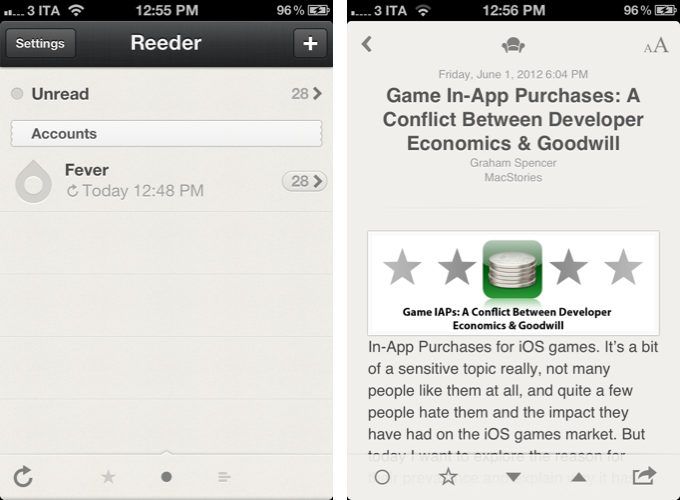
In 2009, reading news on the iPhone was different. The App Store was only one year old; Twitter wasn’t the information network adopted by mass media and millions of users we interact with today; there was no iPad, no universal apps, and no Flipboard. In 2009, reading news on an iPhone meant having to choose between few decent Google Reader clients, some Twitter apps, and lots of “mobile optimized” web apps.
Then in late 2009, Reeder came around. Created by Swiss developer Silvio Rizzi, I remember writing one of the first public reviews of Reeder for iPhone, which unlike the majority of contestants in the space at the time, sported a highly custom “sepia” interface that would later went on to define Reeder as a brand. Crafted with care and an eye for speed, Reeder not only stood out because it was beautiful to look at – the app was fast, visibly more responsive than Byline and NetNewsWire, easy to navigate in spite of its new UI paradigms, and focused on letting the user easily share links on other networks and services. Reeder 1.0 wasn’t perfect; version 2.0, released a few months later, fixed some glaring omissions of its predecessor (namely, lack of saved state), and introduced an even faster syncing engine and more link sharing options.
Reeder took off. The success of the iPhone app allowed Rizzi to become one of the most well-known names in the indie iOS developer community, redefining iPad RSS readers with a brand new version of Reeder, and then again capturing a large portion of the OS X market with the highly-anticipated Reeder for Mac.
In spite of its obvious merits, it is hard to pinpoint the exact reason behind Reeder’s rise to the top of Google Reader clients. There are hundreds, if not thousands, of Google Reader apps on Apple’s App Store now. Rizzi isn’t the “fastest” developer around (Reeder for iPhone was last updated in November 2011), and many valid RSS clients have been released in the past two years, some of them combining traditional RSS functionalities with deeper social integration to offer more compelling, modern alternatives to standard Google Reader syncing and browsing. Yet Reeder has managed to maintain its top position as the go-to Google Reader client for millions of iPhone users.
That’s not to say, however, that Reeder’s constant success and popularity don’t have to account for the profound change in news reading habits that occurred in the past two years. Sometime around 2010 – and I tend to associate this shift with the release of the iPad – a new breed of apps begin grazing the surface of established mobile news reading trends and conventions. Flipboard turned the world of RSS aggregators upside down with embedded discovery and direct integration with social feeds; Twitter clients got more capable, leveraging mobilizers and read-later services to provide a better experience with URLs; Zite brought automatic and intelligent curation to a platform based on RSS, while popular news organizations like CNN and NYTimes kept improving their own iOS apps.
In 2012, people don’t find their news exclusively through Google Reader anymore. That wasn’t true in 2009 either, but the growth of the App Store has certainly catalyzed the process: news travel fast, on a variety of channels, on multiple aggregators, in real-time and in multiple forms. We have become news gatherers.
Reeder 3.0, released today, holds true to its roots of a Google Reader client, but tries to modernize the overall approach and feature set with support for a new service, improved Readability syncing, more sharing options, and a refreshed look. In the first major rewrite of the app since 2010, is Reeder still relevant? Read more
Apple Store 2.2 Update Brings Express Checkout for Faster Online Shopping and Location Aware Retail Pick Ups
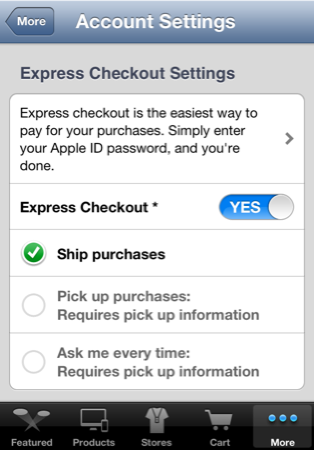
The Apple Store app for the iPhone has enabled Apple to revolutionize retail and mobile shopping shopping thanks to features such EasyPay, Personal Pickup, and assistance from the store’s Specialists. In today’s 2.2 update, Apple has added Express Checkout and new location features which focuses on online shoppers and customers picking their orders up from their nearest Apple Retail Store.
Express Checkout speeds up the process of making purchases through Apple’s online store by using your existing payment and shipping options. You can simply complete your order by tapping on the buy button for the items you want to purchase, selecting your options (if applicable), and checking out, then entering the password associated with your Apple ID. You’ll have to sign into Express Checkout through your Account Settings in the Apple Store app (on each device), and agree to the terms of service to use the quick pay feature. A FAQ for Express Checkout is available for your perusal online.
If you have an iPhone 4S and are picking up a purchased item from your local Apple Retail Store, your device can let the specialists know you’re arriving so that your items are ready for pickup before you reach the storefront. By enabling Location-Based Alerts and setting your pick up information in the Account Settings, items for pick up will be waiting for you to carry out when you reach your Apple Retail Store.
The Apple Store 2.2 update is available on the App Store as a free update and download.
Edit 4:03 pm: Edited title to clarify that faster, location-based pickups are not a part of Express Checkout, but a separate feature available on the iPhone 4S.
#MacStoriesDeals - Wednesday

Here are today’s @MacStoriesDeals on hardware, iOS, and Mac apps that are on sale for a limited time, so get them before they end!
Read more
Apple’s Phill Schiller On App Store Curation and Promotion For Developers→
Apple’s Phill Schiller On App Store Curation and Promotion For Developers
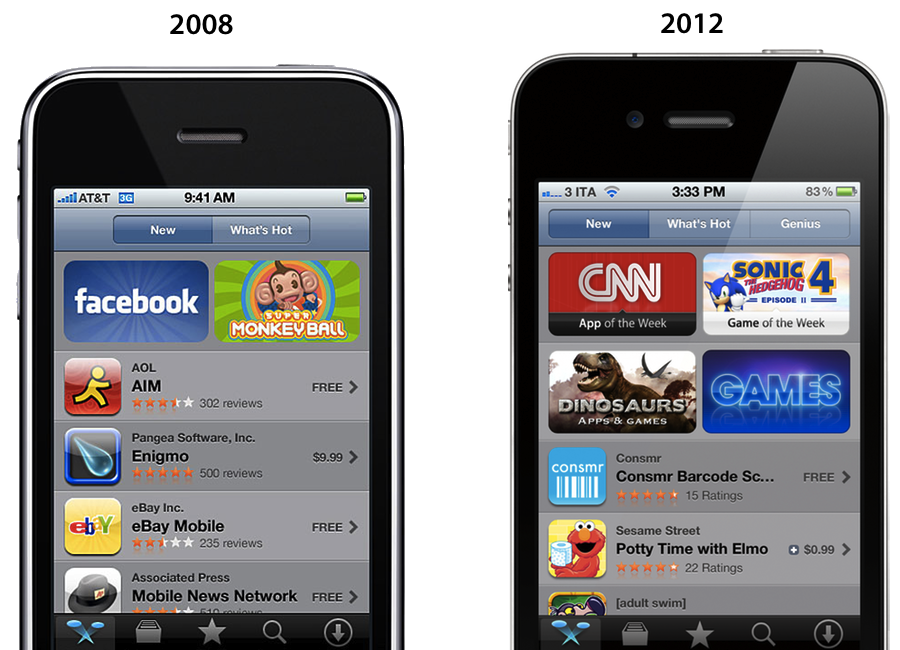
In an interview with The Wall Street Journal published yesterday, Apple’s Phill Schiller weighed in on App Store curation, promotion of third-party apps, and traditional retail selling space.
The opportunity is the best it has ever been for software developers,” Mr. Schiller said, adding that he thinks the app store is a far more democratic way to sell software than traditional retail stores with limited shelf space.
Mr. Schiller also pointed out that Apple promotes apps in multiple ways, such as popularity charts and featured app lists. “Every other day you hear about another app going off the charts,” he said. “You can still get discovered and get a hit overnight.
There’s no doubt Apple has done a “tremendous amount” (Schiller’s words) to help apps get discovered on the App Store. With the iPhone and the App Store, Apple created a new economy that, in the U.S. alone, has spurred the creation of over 200,000 jobs. But as I have outlined last month, the App Store of 2012 isn’t the same that launched in 2008 to 900 apps: there are over 650,000 apps on the App Store today, and while Apple has done a lot for developers, it could optimize the layout of the Store to do more and better. I wrote:
Custom sections provide a decent solution to browse titles Apple has previously “curated”; however, these sections aren’t usually updated as often as they are created — N.O.V.A. 3, a new shooter game by Gameloft, still isn’t listed under Benchmark Games: Stunning Graphics, whilst the majority of reviewers and publications have outlined the game’s remarkable graphic capabilities.
The IconFactory’s Craig Hockenberry also noted how Apple could bring its “personal touch” to the App Store to showcase great software with different methods than simple Top Charts, or “curated lists” that are often abandoned and never updated.
Instead of fighting for a short-term placement in the Top 100 lists, we’d fight for a long-term product review. Look at the amazing things developers do to earn an ADA and imagine if that happened once a week. Earning that “Apple approval” could ensure a product’s success for a long time. Which would be great for both customers and developers alike.
Hopefully Apple is thinking about this stuff. Earlier this year they acquired app recommendation service Chomp, and they revamped their “App of the Week” section with a new “Editor’s Choice” tag. The redesigned App Stores of iOS 6 come with Facebook integration and improved layout for descriptions and screenshots, something developers have been asking for. It’s too early to tell, but it seems like the iOS 6 App Store is on track to deliver great improvements for navigation and user interaction this Fall; to improve discoverability and promotion, however, Apple should also consider tweaking longstanding minor, yet important aspects such as filters, search, and Category sorting options.
Read the full interview with Schiller (who also confirms a new tracking tool for developers being discussed at WWDC sessions) here.