Posts in reviews

Airfoil Speakers Touch 3.0 Review

Ever since developers started reverse-engineering the AirPlay protocol that Apple introduced with iOS 4.2 in November 2010, we have seen all kinds of possible implementations of Apple’s streaming technology being ported to a variety of devices, for multiple purposes and scenarios. From tools to turn Macs into AirPlay receivers for audio, video, iOS Mirroring sessions, then a combination of all them, to more or less Apple-approved “AirPlay audio receivers” sold in the App Store, then pulled, then released in Cydia, the past two years have surely been interesting for AirPlay.

When it comes to dealing with audio on my Macs and iOS devices, however, my preference always goes to Rogue Amoeba’s Airfoil. As covered multiple times in the past here on MacStories, Airfoil is a powerful solution from a renowned Mac development studio that allows you to easily control audio sources on your Mac, and organize how audio is sent across your room through Airfoil Speakers, Airfoil Speakers Touch, or a mix of other utilities as I also previously detailed. I love Airfoil, because it just works. And today it gets even better with a major update to Airfoil Speakers Touch, which reaches version 3.0, becomes universal, and adds a $2.99 in-app purchase to turn any iOS device into an AirPlay receiver for audio.

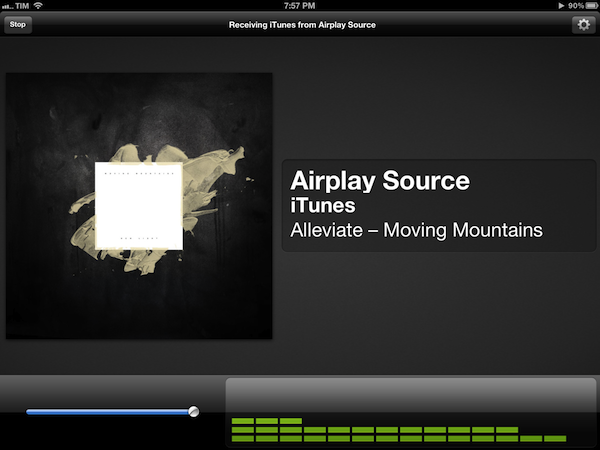
Available for free on the App Store, the new Airfoil Speakers Touch runs beautifully on iPhones or iPads with Retina display. More importantly, it doesn’t require you to send audio to the app exclusively through Airfoil on your computer (more here), as an in-app purchase will unlock the ability to receive audio from iTunes or any AirPlay-enabled iOS app or device. This is neatly illustrated by the in-app purchase unlocking screen inside Airfoil Speakers Touch 3.0.

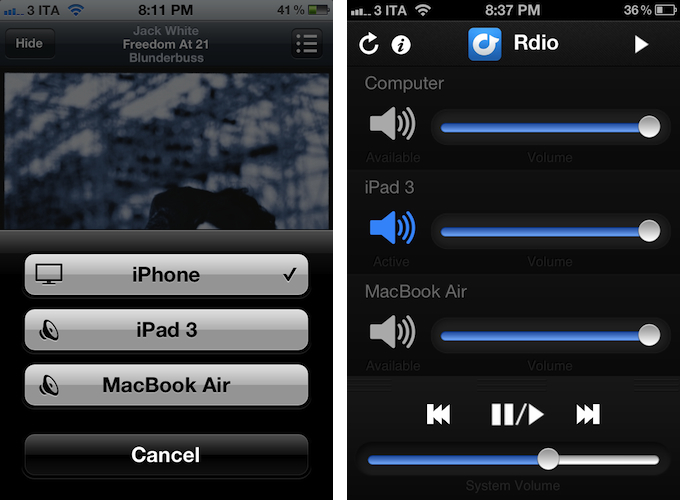
By enabling the “Input II” option, you’ll be able to turn a device running Airfoil Speakers Touch into an AirPlay receiver recognized by iTunes on your computer, iOS apps like Rdio, Spotify or Instacast, or iOS itself through the system-wide playback controls in the multitasking tray. In my tests, Airfoil Speakers Touch 3.0 was correctly recognized by iTunes, iOS 5.1 on iPhones and iPads, and any app that allowed for streaming audio through AirPlay.

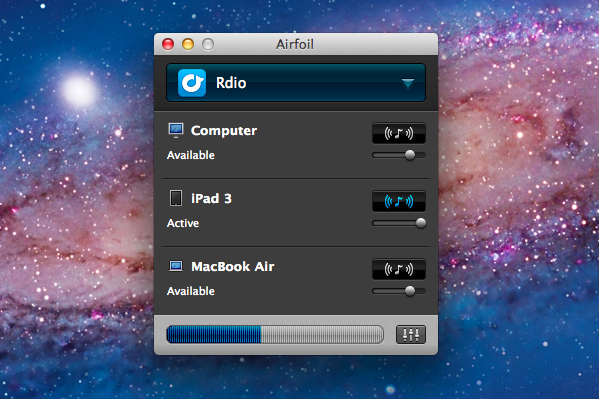
The true potential of Airfoil, obviously, is unlocked when you start combining the various utilities provided by Rogue Amoeba together to build your own personalized wireless audio setup. Whilst I greatly appreciate the support for native AirPlay integration (at $2.99 and in the App Store, it’s a no-brainer), I still like to control audio in my office or living room with a mix of Airfoil, Airfoil Speakers Touch, and Reemote. The latter is a fantastic third-party utility that, connecting to Airfoil on the Mac with a “server” app, allows you to directly control single audio sources and volume levels on iOS.

This means that, if I want to simply stream audio from iTunes or iOS to my iPhone and iPad I can use Airfoil’s new input method; if the audio I want to stream, though, comes from apps like Rdio for Mac or QuickTime, I can fire up Airfoil, beam the audio with its InstantOn technology, and control everything – sources and volumes and playback controls – with Reemote for Airfoil. I can even control standalone speakers connected to my Mac if I want to get audio both on my iPad and the external speakers. It’s a wireless audio nerd’s dream setup.

Airfoil is one of my favorite apps ever created for the Mac – one that I immediately install every time I set up a new OS X installation – and now the iOS version has proper AirPlay support through a $2.99 in-app purchase that, ultimately, just works. If you’ve been looking for an easy way to, say, beam iTunes or iPad audio to an iPhone connected to your car’s system, the latest Airfoil Speakers Touch gets the job done. And if your audio listening habits are made of more complex and variegate needs, you can stay assured Airfoil Speakers Touch will equally serve you well thanks to the combination of Rogue Amoeba-made and third-party utilities mentioned above.

Get Airfoil Speakers Touch 3.0 here.


The Heist 1.1: Highly Addictive Puzzle Fun

I’m a huge fan of puzzle games. Throughout the years I installed almost every interesting game from this genre on my iPod touch: Cross Fingers and Smart Sokoban are some of my all-time favorites. I have to confess, I didn’t notice MacHeist coming up with their first iPhone game about a year ago. But today, their very sophisticated iPhone game The Heist got updated to version 1.1 and I had the great pleasure to beta test its new features and gameplay. Finally, I also recognized what a great game concept and visual effects The Heist has to offer.

Let’s start out with the actual game features. The Heist has got a small “story” around it:

Some puzzle-obsessed nut has rigged up this vault with state of the art defenses! You’ll have to crack a variety of puzzles to short circuit the lasers, security cameras and electrified bars. Are you up for the challenge?
Because of that, you frequently get calls by your spying colleague Sophia who gives you more instructions and (not really existing) time limits. Every time she calls you, new levels and difficulties are unlocked until you finally reach the vault.

In version 1.1 this story and the whole app has been enhanced by various features and fixes (taken from its App Store description):

  • iPod play through with remote control support
  • Game Center enabled on older devices (iPad 1 and iPod Touch 2nd generation)
  • Awards earned achievements if any were missed
  • Support for unlocking secret Clear theme
  • Vault exit button

As the app is developed by the curators of MacHeist, there are some real loots deposited in this vault: with the new 1.1 version you can get steam codes for various games; you can even unlock a secret theme for Clear 1.1. To get there you have to solve four different puzzle games with 15 levels and four difficulty stages. These games actually include Smart Sokoban-style box puzzles, two sliding puzzles with bars and rectangle pieces. The most difficult — and unique — puzzle game in my opinion was the fourth one: a game where you have to sort differently colored stones marked with symbols on the field without having the same symbol two times in a horizontal or vertical row.

These games are not just addictive: they are surrounded by stunning visual effects and endowed with easy gameplay as well. The Heist is a very good example of how extensive and detailed design and the goal of keeping the gameplay smooth and simple should be mixed. Its use of LED effects, light reflections, and other more or less decorative elements is never disturbing the game’s content, and The Heist is easy and intuitive to play and understand.

With its Game Center integration (which now also works on iPad 1 and the 2nd generation iPod touch) and new achievements, The Heist is a quite substantial and addictive collection of tricky puzzles, and it definitely has the capability of captivating you for some time. If you like small time killers for short train or bus rides, go and get The Heist 1.1 right now for $0.99 (introductory sale price) .


StockTouch: Monitoring Stock Values With Style

As a lover of great interfaces, I’m constantly searching for developers who are passionate about displaying common content in new, attractive ways. This is sometimes easier (when it comes to photography or written content for example) but in some cases it can be very difficult and exhausting. Over the years I recognized that this is especially true for stock information and data. There is not much less sexy than linear diagrams and percentage data. You need a very good taste and, even more importantly, a perfect sense for balancing information and design in data visualization to create a functional and exiting product in this area. The developers at Visible Market Inc. definitely meet these requirements when you look at their app StockTouch for iPad.

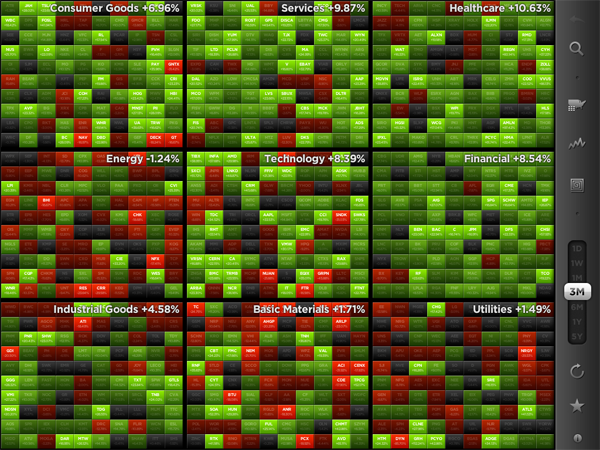
The app displays the stock value information of the Top 100 companies from 9 industrial sectors (e.g.: technology, energy or health care). You can display their percentaged price change, volume and price change relative to the S&P 500 or the average change of the sector they belong to. Additionally, you can search for specific stocks and set them as favorites, which are then subtly highlighted. To filter this information even more you are able to choose between their global or U.S. value and arrange them in 5 different ways (in a top/low spiral, largest to smallest market cap etc.) — which brings us straight to the app’s concept of data visualization.

All these features and filter possibilities are integrated into a sidebar and get visible via pop up windows if you touch the respective pictogram. The actual stock data occupies the rest of the screen. The app’s main window presents you all 9 sectors in commensurate rectangles, which are headlined with the sector description and its overall percentaged change. StockTouch works with visual layers. By pinching or tapping one of the sectors, it zooms in and you can take a look at the sector’s “member companies” and their overall change within the set timeframe — again presented in a field of rectangles containing the different companies and their current stock value or change.

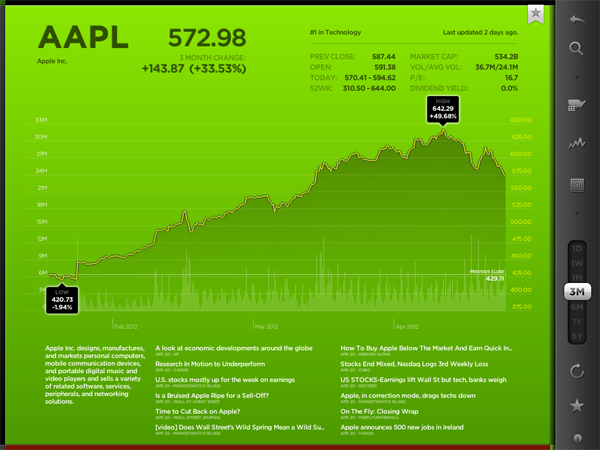
To visually underline the current value and its position in the respective sector, positive change is signalized with different shades of green; more or less stagnating stock prices are black and those falling can be identified by their red background colors. This intelligent and subtle use of colors makes it very easy to quickly analyze the overall changes of a sector, the stock market in general and, to a certain extent, also encourages the user to dive deeper into the information StockTouch has to offer, embodied by the third layer: the line chart of a single company’s stock value, available by tapping on a single stock within a sector.

The style of displaying the course of a single stock shows the second immense quality of StockTouch: its perfect use of visual and especially typographic hierarchy. Again, the background color indicates the general direction of the stock value’s course; but the real innovative solution in this part of StockTouch is the way the related numbers and information are organized and presented. At the top, using white space and different font opacity, the relevant data like the current stock value or the company’s position within its sector are easy to identify and read. Below the chart you get a short description of the company’s profile and the possibility to check several current newspaper articles about it which can be opened in an integrated (not very beautiful) web browser. But overall, the whole interface is modern, unique and intuitive at the same time.

Concerning the overall UX of StockTouch I think there are some small lacks in intuitive use though. For example, it is not possible to swipe left or right to move to another sector or company: you always need to zoom out completely, and then select the information you want to check. Furthermore, although the search feature is performing very fast, the results are listed way too small and you often unintentionally tap the wrong stock (which definitely can be avoided on a screen that large). StockTouch also features unobtrusive sound design while browsing through the stock data, but although I personally like the sound effects very much, the developers should at least have provided the option to turn them off — which is not the case here. In fact, the app does not offer any preferences at all, a move which surprised me bit, to be honest.

But nevertheless I became a fan of StockTouch immediately after firing it up for the first time. It is the product of a deep love for good design and unique and interesting data visualization. I absolutely recommend it to anyone who seeks for an easy way to monitor the stock market and has a taste for good interface development. StockTouch is available on the App Store as an universal app for $4.99.


Clear 1.1: Refining the User Experience

Defined by its clever and unmistakable user interface, Clear 1.1 refines second nature concepts and acknowledges community feedback by introducing a friendly new gesture, UI refinements, some added inspiration, and a big list making improvement.

First up: shake to undo. Shake to undo works with lists in Clear, allowing one to backpedal on new todo items or undelete list items previously cleared. A couple flicks of the wrist will display an alert signaling the opportunity to undo, redo, or cancel the option of retrieving a list or completing an item. Additionally, you can shake up your themes to select a random theme (as noted in the screenshot below).

As seen with undo, Clear keeps the context of its user interface in mind with custom alerts that can be best examined in the tips & tricks section of the app. By tapping on a quick todo (in this case “Shaking Things Up”), Clear provides context on the action. There is no OK or cancel button, nor is there an X to tap. Only a necessary tap anywhere on the display dismisses the on screen prompt without any call for user action — tapping to dismiss shouldn’t require the cruft of a one way out prompt. It’s a minor functional change, yet still significant in idea.

Ideas in Clear are quite literally rewarding when one begins by creating a new list or clearing a list’s items from the display. Several new quotes have been added in the 1.1 update — users can look forward to additional phrases to mull over after pouring coffee or after completing a day’s worth of items.

Lastly, improving upon lists, list items in Clear no longer have a limited character count. If ideas are flowing that are bigger than the width of your iPhone’s display, feel free to continue typing so that no word will be forgotten and no item will be left undone. Don’t worry — the shades of color splashed across the screen still look terrific.

While there are other secrets to be uncovered in Clear, I’ll try not spoil the fun and let you discover how to unlock some of the newly added themes. I maintain that Clear’s intuitive and ultimately addictive take on the traditional todo list is a much needed breath of fresh air in realm of task management. The new features are welcome improvements, and I’m looking forward to seeing what will happen to Clear in future updates. Clear is available for $0.99 in the App Store.


National Parks By National Geographic: A Beautiful Guide To American Nature

Great content deserves great design. In my opinion, this is one of the main principles UI designers have to sought after. If your product features great content, it needs to be highlighted with great design and usability elements around it, or it loses a lot of its advantages and flair. The second principle I truly admire when executed well is the attitude that content always comes first. If the standard tools (in the case of UI design, the standard interface elements) do not fit your app’s purpose, create new ones instead of reducing your feature set.

You do not often stumble upon apps with such interface features (one of the more prominent examples could be the current Twitter app with its “pull to refresh” feature) but if you do, most of the time your jaw just automatically drops. This is also the case with the new National Geographic National Parks app.

The app lets you discover American national parks in a way you’ve never seen before. You can rush through images, park information, secret tips and much more in a trip of pure joy and wonder. Before I focus completely on its tremendous UI, allow me to list the main park guide features the app has to offer as they are summarized in its App Store description:

  • Global and interactive map views with filtering by activity and seasonality
  • Personalized user space to track your favorite parks, activities, itineraries, photos, and more
  • Thousands of points of interest, all tagged with GPS coordinates for easy planning and locating
  • The top must-sees and must-dos for each park, curated by National Geographic editors [includes downloadable park guides]
  • Stunning photo galleries for each park, plus rare vintage images from the National Geographic Archive Photo tips from National Geographic photographers
  • Sharing through Facebook, email, and Twitter
  • Collectible park stamps.

Just to get the idea. But mentioning all these features explicitly would have distracted me from writing about what I’m really into: the app’s design and the way this content and feature possibilities are presented. So let’s get into that now.

When I fired up the National Parks app I immediately recognized that it’s something very special. The main window contains a beautifully styled photo wall of all parks to choose from or alternatively a map (with fluent Google Maps integration) featuring their hot spots and attractions. This window already shows the designer’s approach with taking common iOS buttons and selectors and re-editing them in order to give them a personal touch. This is most of the time achieved by changing their structure to something that looks wilder, grungy and very often like tanned leather. The app’s look makes you almost feel the park guide in your hands: everything is rounded up with well placed shadows, visual borders and, more importantly, realistic consistency.

After selecting a park and browsing through its given information, you’ll also recognize a (at least to me) completely new interface effect: if you take a look at its visitor stats or current weather situation, the main window gently slides in the background and up comes a halved screen presenting the selected information.

But National Parks is not just an excellent example for UI innovation: it also makes great use of visual guiding. The app features an immense and advantageous use of well-placed pictograms and especially photography — even on the rather small screen of an iPhone. Professional and beautiful images are flawlessly integrated while discovering the parks, and they give every single park presentation an individual and inspiring touch.

All in all I just can say that this is one of the most inspiring, useful and consistent iPhone apps I’d seen in a while now. There’s a lot more to it than I just highlighted. Although it crashed two times while using it and the enhanced park guides are only available for extra money (the first one is free, the rest is $1.99 each, which is a very fair price) I definitely recommend you downloading it for free. Whether you’re an enthusiastic lover of American National parks and a frequent visitor, hobbyist, professional photographer or just a interested design lover — it’s going to be worth it!


TeleTweet: Tweeting with Morse Code

It’s the week of morse code I guess. After showcasing iToneMaker on Thursday, Federico pointed me to TeleTweet by Shacked Software, a lovely designed iPhone app with a rather bootless set of functions, but a very passionate creation background which was the reason why it drew my attention.

TeleTweet is a Twitter client. It connects to your account, and lets you enter tweets using morse code, publishing them to your account. This is a rather strange approach, but I had a lot of fun with it.

To understand how the app works, let’s take a look at the truly unique design, as it’s the app’s main feature and also the visual door to what it does. TeleTweet is an on-screen morsing station with a big paddle triggering the long and short morse signals and the corresponding sounds. The combinations of the triggered lengths are then converted into characters and appear in the post panel at the top of the screen. For users like me, who never used morse code before, there’s also a dropdown listing of all alphabetic letters and some useful special characters like “@” and their appropriate code. You can also bring up a “normal” QWERTY keyboard if you like — a feature which seems a bit useless to me, since you lose all the special features of the app, not just in usability terms, but also design-wise.

Entering tweets in TeleTweet takes its time, but it’s a lot of fun and, to a certain extent, it serves the goal of teaching the user morse code. This isn’t simply accomplished through the functionality itself but also with the app’s antique, warm look and its lovely animations (like the stamped envelopes when you send a tweet). It really shows a clear love for steampunk design from the IconFactory designers responsible for it, and it made me stick to the app for a long time.

Sometimes completely forgotten, TeleTweet shows a deep attention to sound design: it clatters and squeaks and rumbles everywhere you touch. It’s very authentic. And I didn’t recognize the coolest thing about TeleTweet until I read through the developers’ website for the second time: if you connect to your Twitter account you can turn your iPhone sideways to show your Twitter stream — in real time morse code and its translation in monospace characters. I was just stunned at first, and then literally laughed. It’s hilarious and beautiful at the same time.

You shouldn’t buy TeleTweet if you want a decent Twitter client or a really useful tool to learn morse code. TeleTweet is a nice mix of both but does not completely serve the needs to meet the high feature standards of dedicated apps. What really makes the app attractive is its design.

If you’re a lover of high UI standards or steampunk design, go get TeleTweet for $0.99, and even if you’re not using it at all afterwards, it will surely stimulate your eye’s desire for detailed pixel work. Isn’t that what we’re all after from time to time?

By the way, in less than a week it’s Samuel Morse’s birthday — he’s the inventor of the morse code system.


Iris: A Beautiful and Simple Instagram App for iPad

Instagram may have been acquired by Facebook, but this isn’t stopping third-party developers from coming up with clever solutions to use the Instagram API. If anything, if Facebook will live up to its promise of keeping Instagram alive while growing and improving its network, everyone’s favorite photo sharing service may see even bigger numbers and user adoption. And there’s no better way to use official APIs than building software the developers of the original app are ignoring, at least for now.

For the past few weeks, I have been trying a new Instagram app for the iPad called Iris. It’s available now on the App Store and it’s optimized for the Retina display. While Instagram has started experimenting with a new API to allow other developers to upload pictures to the service, Iris doesn’t let you upload photos using the iPad’s camera and the app’s custom interface. Instead, Iris is another app focused on providing a beautiful experience for browsing and liking Instagram photos, and, in my opinion, it is the most attractive solution that’s been brought to the market to date.

Iris puts great focus on large thumbnails for photos, a light background to make Instagram’s filters really pop, and a dark sidebar to switch between your feed, popular items, profile, and search. Iris allows you to browse either via large thumbnail previews or smaller ones; the layout change can be activated with a switch in the lower left corner. In the lower right corner, the developers have implemented a “pull to refresh” command, which literally requires you to pull a slider to refresh the main view. You can also hit the associated refresh button if you feel uncomfortable with pulling, but I found the gesture quite clever and fun. Unlike other apps, Iris doesn’t have standard pull to refresh at the top of the view.

To navigate, Iris uses a mix of tabs, “load more” buttons, and panels. For instance, the main feed gives you a vertical list of photos from people you follow, and once you reach the end of the list you can hit a “load more” button to fetch more items. I found the refresh times acceptable, and I like the custom popup dialog that shows up when you load sections or refresh pages. You can tap on a photo to bring it up at its original size; you can like with a double tap (like the original Instagram), or by hitting the heart icon below a photo. In the same area, you can find buttons to comment, and view a photo’s location. Comments are displayed in a panel that loads at the side of the screen and is reminiscent of Loren Brichter’s Twitter for iPad. If you tap on a user’s avatar while viewing a photo, the user’s profile will slide up from the bottom of the screen, and, if I had to point out a minor UI annoyance I noticed, you’ll have to hit a “back” button to make the profile view slide down again. I find the action confusing as back buttons are typically associated with the content area moving to the right.

The Popular section is pretty self-explanatory; I did find some nice touches in the profile view. You can view the people you follow and your followers in dedicated panels; you can follow/unfollow in-app, and of course check out another user’s complete set of photos. In your Profile, you can also hit a globe icon to have a history of your Instagram shots displayed as Iris pins on a Google map – it’s a neat summarization of the places you “visited” with Instagram.

The search function of the app is very basic as well: you can search for people and “tags”. While people results will open in the aforementioned side panel, tags will simply return associated photo results in a regular grid view.

If Instagram were to release an official iPad app, I think it’d be extremely similar to Iris’ approach. A minimal, beautiful interface for the Instagram community that takes advantage of the iPad’s display to lay out large thumbnails and photos. Instagram would obviously want to implement a camera in a (possible) official app – right now, Iris doesn’t let you upload anything, and has to display photos at low resolution on the iPad’s Retina display. The effect, however, is nice (especially thanks to filters, which help hiding some pixellation here and there), and I bet it gets a lot better on older iPad models.

Iris offers a simple, good-looking and enjoyable Instagram experience on the iPad, so if you’ve been looking for a great iPad app to browse your favorite photos, $1.99 should be a no-brainer.


Produce Morse Ringtones With iToneMaker

Some of you who are interested in electronic music may know Moog analog synthesizers and guitar effects. With their big stainless steel knobs, LEDs and very elaborate technology behind them, they create enormously noisy, grungy and disturbing sounds. The company also managed to create a very polished music production app for the iPad, animoog. The UI designer of today’s pick, iToneMaker Morse Code, was definitely inspired by this company’s product design, but nevertheless the app is a very unique and lovely compiled ringtone maker for your iPhone.

As the name might already suggest, the app’s sound production is based on the morse code principle. Hence you have to type in a word or a random letter/digit combination as the basis of your new ringtone into a message panel within the main window. The slightly different sounds of the single characters are played consecutively and result in the final ringtone.

Within this main window you can also change the basic elements of your ringtone: like “normal” analog synths, iToneMaker is based on (in this case obviously digital) oscillatory sound production. You can choose between triangular, saw and square oscillators and adjust their pitch, speed and break length between the morse sounds via custom sliding controls. Just push the central play button and your ringtone is played back, over and over… it can get pretty annoying, I warrant you.

If you are not satisfied with the output of these few controls - which happened to me literally every time I tried to produce an agreeable sound - you can additionally superimpose more editing features via the option button. You’ll find reverb and low-pass filter regulators plus some different effector types and the ability to change pitch while a morse tone is played. Besides that, developers Eiji and Tom kindly created some presets to choose from so that you never have to start from scratch completely and possibly never get to a passable ringtone result.

But let’s go back to the Moog-inspired UI. The knobs marking the advanced features are designed threedimensionally with a reflecting silver tone and are definitely dominating the individual style of the app. Everything else has got a monochromic look to it and the selector buttons feature a very nice custom indicating orange LED-design when their function is active. iToneMaker is coherent in every little detail and works really smooth with iOS 5 on my 3rd generation iPod touch. Even the implementation of the address book in order to use a friend’s name as a morse code pattern and entering longer character lines works as fast as the rest does.

There is just one small problem to the UX which I consider as relatively disadvantageous: if you superimpose the options panel it overlaps the (actually pretty big) play button and you can not stop the playback from there, if your ringtone is still running. But for an app which features such a cool and elaborated interface and is still available for free, this seems like a quite acceptable problem to me.


Shazam Player Now Available for iPad

Shazam Player, the app from the creators of popular music recognition utility Shazam, has today reached version 1.5, adding support for the iPad, Retina graphics, and better display of lyrics on screen. Shazam Player, as I outlined in my original review of the iPhone version, provides an alternative view to Apple’s Music app, enhancing your music library with a plethora of sharing and discovery functionalities for artists and albums.

Like its iPhone counterpart, Shazam Player for iPad offers users the ability to create separate playlists from Apple’s Music app and organize songs in “good” and “bad” lists for easy retrieval later. The whole interface has been revised to take advantage of the iPad’s real screen estate, adding a “Player” box on the left side to visualize the songs playing in your queue. These songs can be rearranged for a particular order, and lists can be saved for later or cleared with one tap. You can send single songs or entire albums to the player with a tap or swipe. Tapping on the triangle button next to a song gives you access to a separate popover window containing the same sharing options of the iPhone app: you can share on Facebook and Twitter, check out related YouTube videos, artist information, and activate LyricPlay.

Shazam Player’s standout feature, in fact, is its support for song lyrics visualized on screen through a system Shazam calls LyricPlay. This functionality is only available for tracks that have been “scanned” and matched with Shazam’s servers, and unfortunately I found this new 1.5 version to be mostly hit or miss when it came to, say, matching popular songs from Drake, Oasis, or even The Eagles – all of them available on iTunes and well-known to Shazam (the standard app can fetch song info through the device’s mic). On the iPad, when the feature works, lyrics have been updated for the Retina display and they follow a song’s progression with an animation on screen. Lyrics can now be sent to the Apple TV via AirPlay, and songs that aren’t matched for LyricsPlay usage have also received a new UI for full-screen cover art and music visualizer.

Overall, I still find Shazam Player a solid alternative to the iOS Music app if you’re looking for on-device playlist creation, sharing and queue options, and online lyrics support all in the same package. Keeping in mind that LyricsPlay won’t probably find all your lyrics, you can check out the app for free on the App Store.