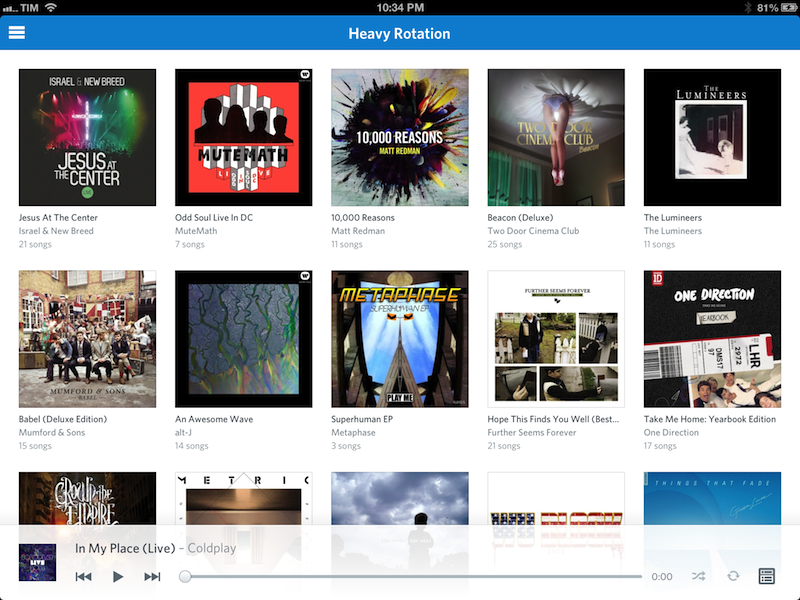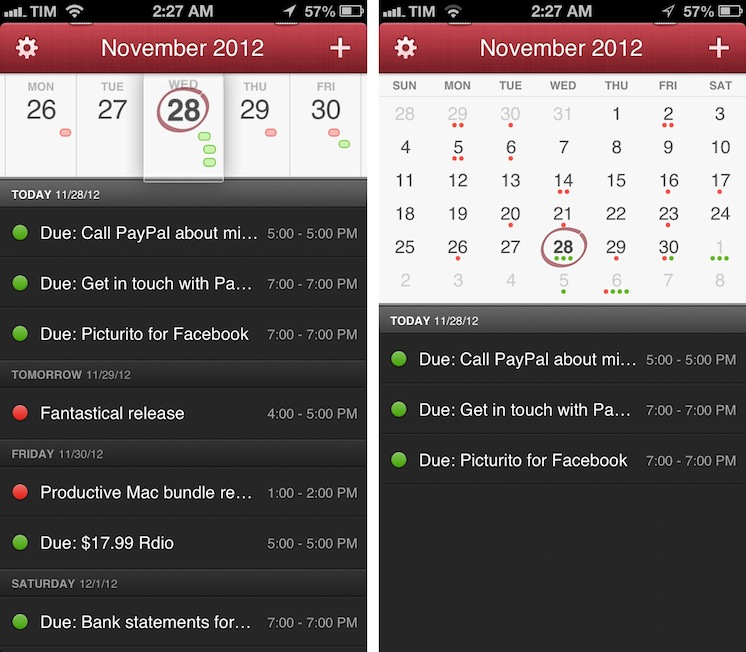
I have been using the latest Evernote app for iOS, Evernote 5, for the past week. I am not an “Evernote power user”, but having recently revamped my paperless workflow, I thought I had a good opportunity to properly test the major update. I believe Evernote has a strong foundation to build upon, but the first result of this process – the new Evernote 5 for iOS – is far from solid. Read more
Posts in reviews
Evernote 5.0 for iOS Review
StatNut for iPhone
I’ll admit it: I am crazy about the details. I enjoy numbers, statistics, and as much info about my interests as humanly possible. Sometimes I wonder if my brain will collapse with all the data I try to absorb. I’m one of those people who reads the manual every time I get a new gadget because I want to know the ins and outs of how everything works.
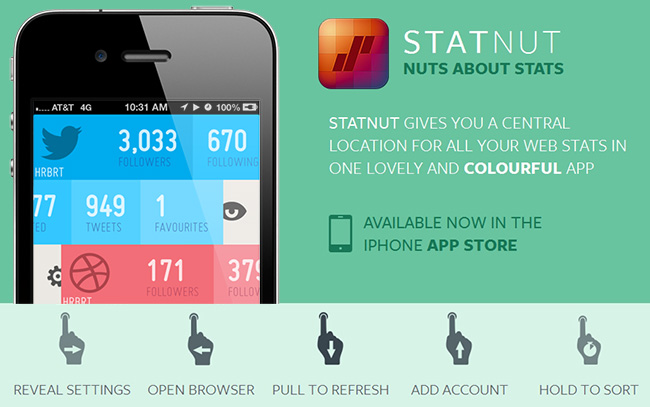
Most of us enjoy seeing stats for our social networks; we like to know how many followers, clicks, etc. we have across the Internet. There are a few iOS apps out there that do so, like Ego or Birdbrain, but I’m always curious to try something new. StatNut is a new iPhone app from Shiny Frog and FFFABS that lets you add accounts from many social services and displays them in one easy to read mobile interface. Services include Instagram, Twitter, Dribbble, Facebook, Tumblr, Vimeo and YouTube.
Setup is easy: just enter your usernames and you’re ready to go. Once you enter your accounts you can access the settings for each by swiping to the right to reveal an animated gear icon; from there you can change your username or delete the account. Swiping to the left reveals more details like follows, lists, tweet counts, likes, shots, and favorites. A full swipe to the left reveals an animated opening eye, and this will take you to the mobile site of each service except Instagram; StatNut will open the Instagram app if you have it installed.
If you want to reorder the services, simply tap and hold to move them up and down. Some services will let you enter more than one username if you have multiple accounts, like Twitter or Dribbble. We have included a promo video below so you can see it in action. Read more
Clear for Mac Review
Like Tweetbot, Clear for Mac is a good indication of what the future of mainstream OS X software will look like: consistent with iOS, and powered by iCloud.
I was given a preview of Clear for Mac last week; the app is launching today on the Mac App Store at $6.99 (depending on your time zone, Clear will be available after midnight). In my preview, I wrote:
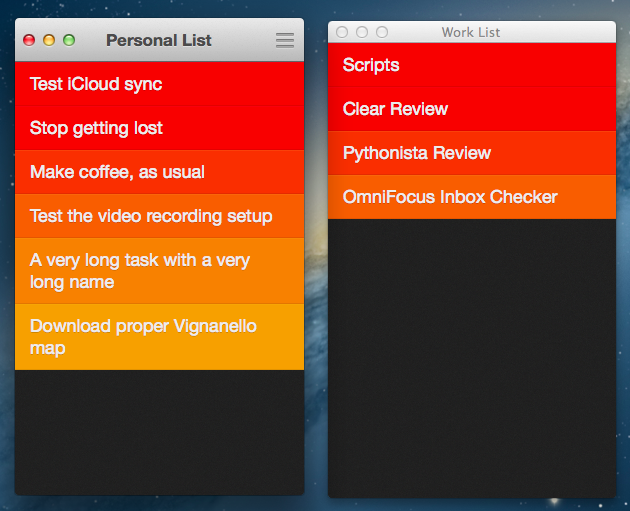
Clear for Mac works like Clear for iPhone: you can create lists, and tasks inside lists. Tasks are color-coded (according to the theme you’re using) to show a darker tone if they’re at the top of a list, and thus have higher priority. Gestures play an important role in Clear for Mac: you can swipe with two fingers to complete or delete a task, swipe up or down to move between “levels” of the interface, pinch to go back, and so forth. From what you can see in the first promo video (embedded below), almost everything that made Clear for iPhone simple and great has been ported to the Mac version, including sounds.
After trying Clear for over a week, I feel like there’s a distinction to be made about how the app works per se, and how the app works on a Mac. Read more
iStat 2 Review
I like Bjango. They make the kind of simple, polished, and useful software that defines OS X as a platform with equal attention to beautiful pixels and powerful features. I was already a big fan of Consume and Skala. Bjango’s latest release, iStat 2, falls exactly under this category of apps: great-looking and efficient at the same time.
Mac Servers
I own a 13-inch MacBook Air and a 21.5-inch iMac. My MBA is the “work machine”, whereas the iMac has always been the media center of the house, as it’s connected to a couple of external drives with my iTunes library on it. For the past few months, however, I’ve been increasingly switching every part of my “entertainment workflow” from local to cloud-based. It started with Rdio a year ago (now, I have a Family account and I’m not switching any time soon). For iTunes, it means I’ve slowly uploaded my library to a Mac mini hosted on Macminicolo. As documented elsewhere, I’m very happy with Macminicolo, their reliability, and the overall message of a Mac mini server always available in the cloud.
But I’m not a “server guy”. I don’t understand the teminology behind server management, and my limited skills go as far as restarting WebDAV and Apache. I use my Mac mini primarily for media streaming through Plex and as a server for Mail, OmniFocus, Dropbox, and other services or apps that allow me to automate my workflow in the cloud. All my Dropbox-based scripts for plain text and OmniFocus are created with the Mac mini in mind, because it’s always-on and lets me receive results in real time. Hazel is another invaluable utility when it comes to automating a remote Mac.
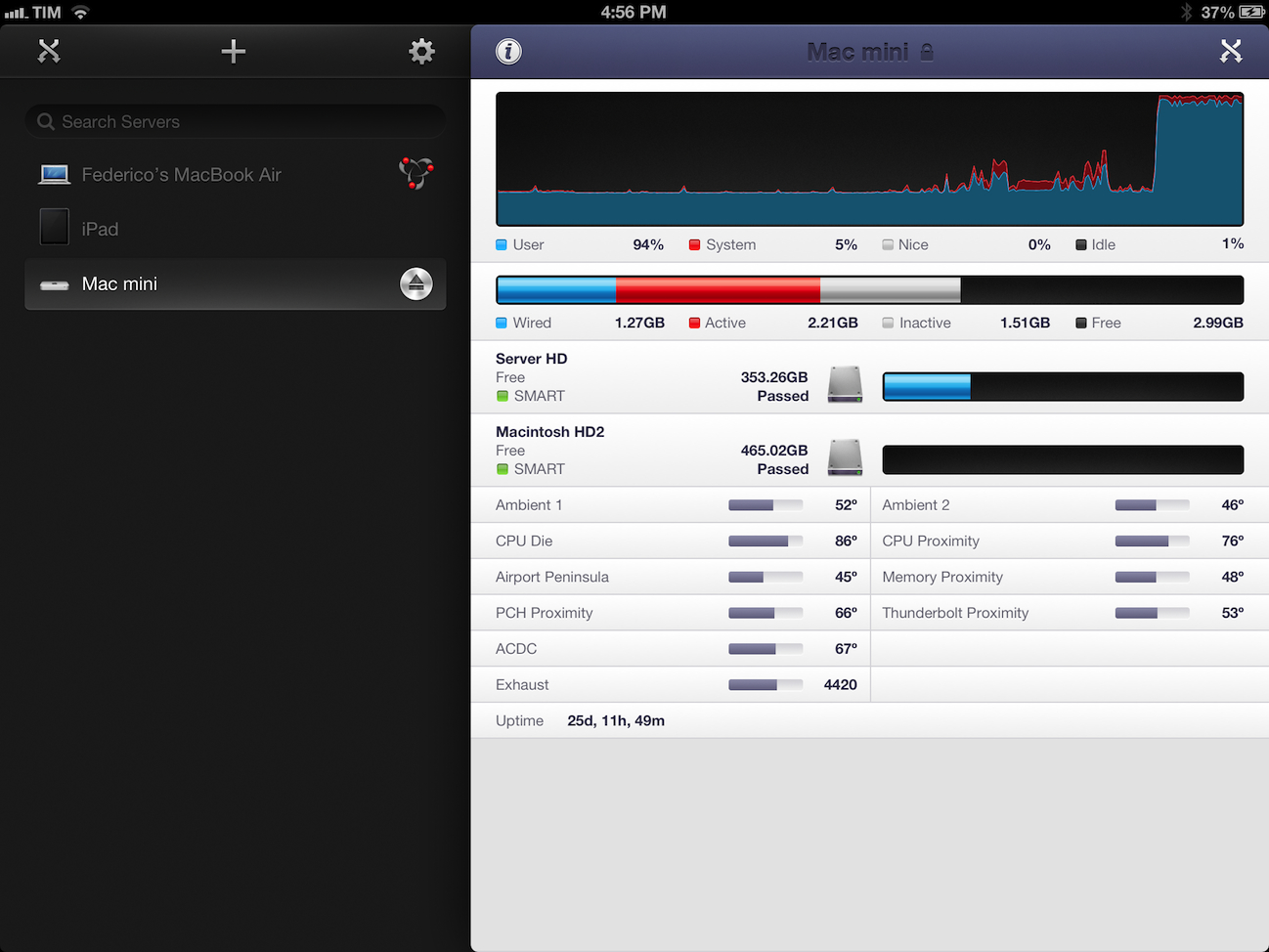
I do put my Mac mini through some more processor-intensive tasks every once in a while. Usually, it’s movie conversion through Handbrake or movie streaming through Plex Media Server. I recoginize this doesn’t compare to using a mini as an Xcode build server, but it’s still something that I want to keep an eye on. Read more
Paper for iPad Adds a Color Mixer, Custom Palettes, and Support for Pressure Input with Pogo Connect
I think the incredible thing about an app like Paper is that it allows someone like me to feel like an artist, even though I’m clearly not. It’s an app that brings out childlike joy and creativity in people who’d otherwise say they have no ability to draw or paint well. Paper is probably one of the most interesting apps on the iPad to look at for this reason; it manages to capture the essence of what makes doodling something on paper so fun, without making you feel inadequate thanks to its decidedly simple presentation and a carefully chosen color palette (originally: black, gray, white, orange, yellow, blue, green, and violet). Paper launched with just nine colors and five basic tools.
Paper’s next major update addressed a popular feature request; Version 1.1 introduced several new organizational features such as rearranging pages between journals and duplicating pages. Ink itself became more fluid, more closely matching finger and stylus input thanks to improvements to FiftyThree’s Expressive Ink Engine.
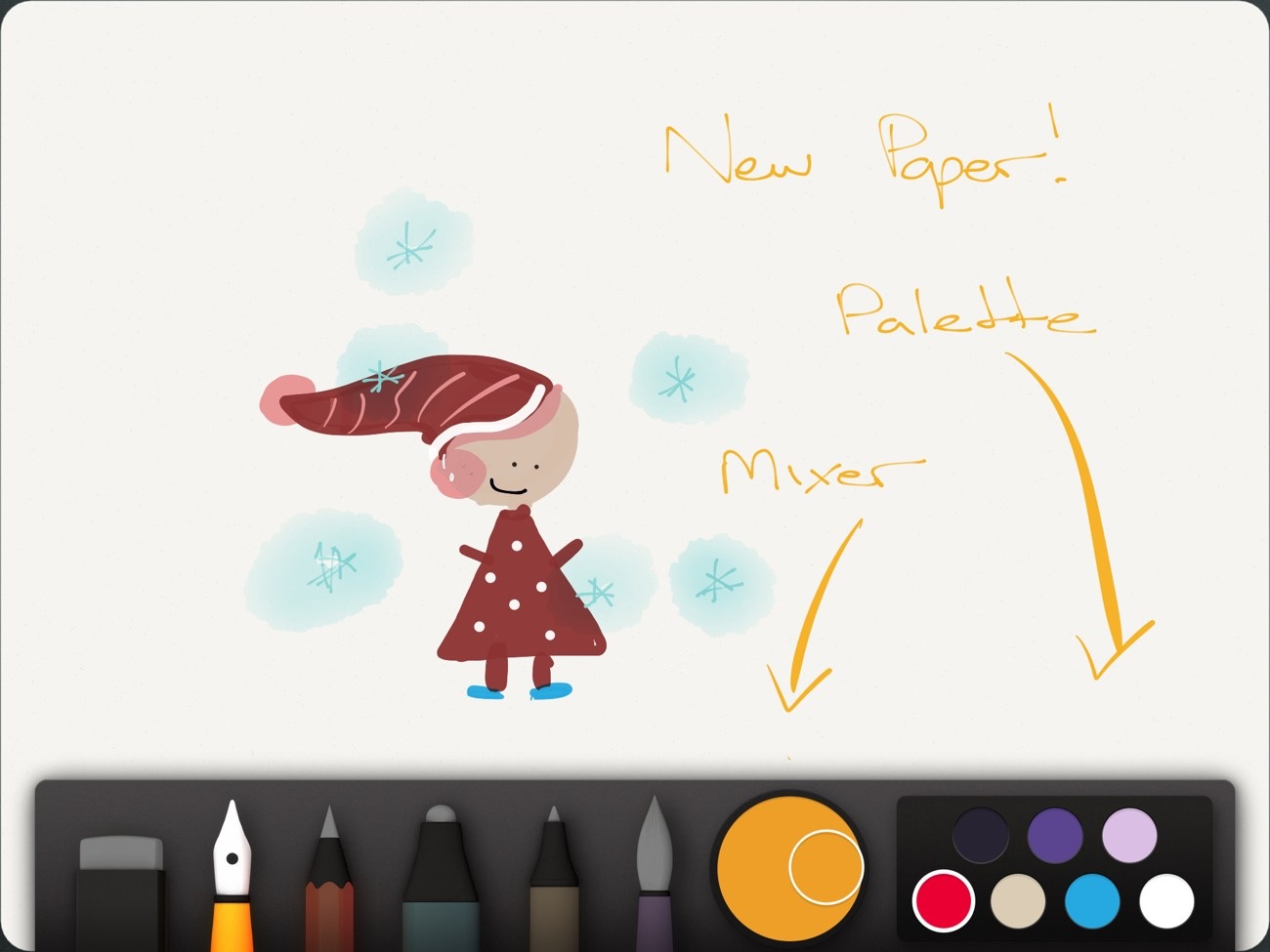
Today’s update further addresses another common feature request. While people have submitted some really amazing things to Made With Paper, I’d expect to see even more spectacular drawings thanks to the addition of the Mixer, Palettes, and support for the Pogo Connect. Not only have FiftyThree added more colors, they’ve added all of the colors.
Review: Kuvva for iPhone
I recently posted a longer review about a cool app called Kuvva for Mac OS X. The app automatically displays series of cool, professionally designed desktop wallpapers for you. By setting up an account on kuvva.com you can select your personal favorites from the constantly growing database of tremendous desktop art. These are then displayed as your personal series of desktop wallpapers in a set timespan on your desktop in order to make your working day at the computer a bit more beautiful. Kuvva also works with your Twitter profile background wallpaper.
Last week, Present Plus, the developers of kuvva finally published an iPhone version of their very popular app. I was lucky to be one of the app’s beta testers, and as I now hold the final version of the app below my fingers I again have to admit that this is a truly great app.
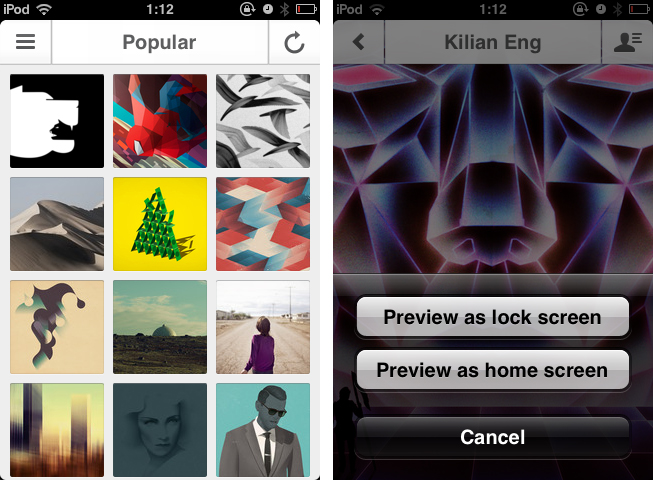
Kuvva for iPhone (watch a cool demo video made by my friend Joost Van Der Ree over at Vimeo) adopts the same basic features from the web service for wallpaper discovery like the Mac client does. You can view all wallpapers published on kuvva.com (of course in an iPhone-optimized scale and resolution) in the main screen sorted by release date, artist, and popularity.
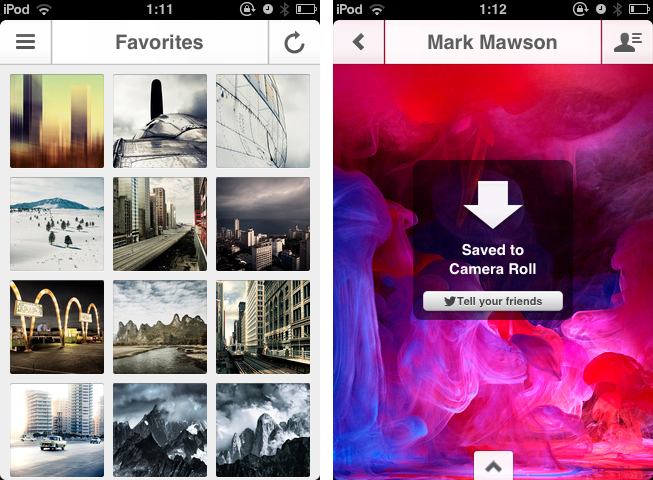
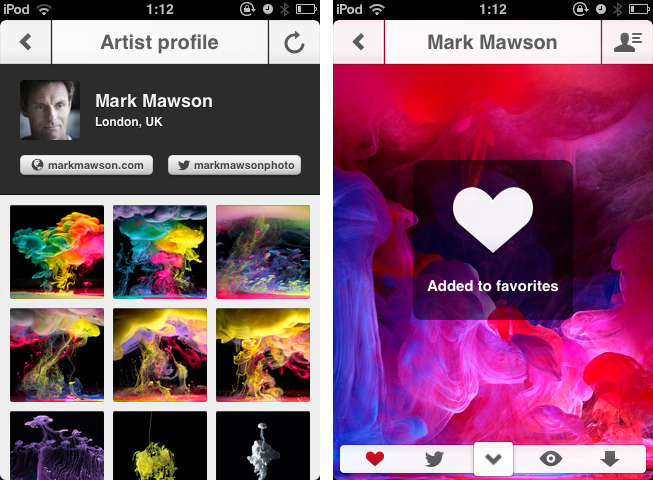
Tapping on one of the wallpaper previews in the main view brings up the single-wallpaper inspection interface. In this view you can smoothly bring up a small interaction menu by tapping on the small arrow laid over the (now scaled up) wallpaper covering the full screen. If you have a Kuvva account, you can mark the wallpaper you’re currently looking at as a favorite (and thus add it to the list of wallpapers which are also also displayed on your Mac desktop). Additionally you can tweet about it, preview it (which is done via a cool transition effect bringing up the lock screen interface to show you how the wallpaper looks in the iOS- context), and download it right from the app into your device’s camera roll.
Via a paneled side menu you can access all the mentioned sorting categories as well as all of you favorites. If you find a wallpaper you like a lot, you can tap on the button in the top right corner in the preview window to get more information about the artist who made the respective wallpaper, which not only includes all of the artist’s wallpapers on kuvva and a photo of him or her, but also a link to his/her twitter account and website for immediately getting more information if desired.
The app works well, more or less without any performance flaws on my (now considered very old) iPod touch 3rd Gen on iOS 4.1. All subtle UI gimmicks like transitions or moving effects (e.g. the aforementioned navigation menu in the wallpaper view) work just as they should and make Kuvva fun to use.
If you’re already a user of Kuvva (like I am), consider this to be a must-have (it also includes wallpaper optimized for the new iPhone 5). The app extends your wallpaper “workflow” perfectly as you now can like and view wallpapers on the road for usage on your Mac. And of course this is a great, handy resource for new wallpapers on your iPhone if you’re a fan of eye-catching, vividly designed backgrounds. If you are a lover of minimalist wallpapers or photography on your lockscreen though, Kuvva probably won’t suit your tastes. But for everyone else, it is a perfect, easy to use resource for getting new wallpapers for your iPhone without any hassle. I can’t wait to see if the app will be available for iPad as well in the nearer future; it definitely should be a great app as well.
Kuvva for iPhone is available for purchase on the App Store for $1.99.
Improve iOS Screenshots with Status Magic
Status Magic is not a “mainstream” app: you’ll only need it if you care about quality and precision in your iOS screenshots.
I write about a lot of apps on a daily basis. For these apps, I take screenshots, which, when it comes to iPhone apps, are automatically resized and combined with a Keyboard Maestro macro. But, sometimes, the screenshots I take aren’t perfect, in that the status bar is cluttered with icons or, even worse, showing a red battery indicator. Personally, I think showing a red battery in screenshots is a sign of poor attention to detail and quality. This is where Status Magic comes in.
Status Magic lets you replace the status bar in a screenshot with a clean one in just two clicks. It can apply clean status bars to multiple screenshots at once, and it works with the latest Apple devices such as the iPhone 5 and Retina iPad. Read more
Languages Review
Can an offline translator for iPhone be beautiful?
Translations are boring. Even Google, which has put some effort into caring more about its appearance in the past year, has seemingly forgotten that Google Translate is used by millions every day. Not only is Google Translate outdated from a design perspective, it also doesn’t take advantage of the trends and interactions that have recently defined great mobile experiences.
In a collaboration with Sonico, award-winning development studio Tapity wants to reinvent mobile translators for iPhone starting with two core concepts: multi-touch and offline access. Read more
Pocket Releases Mac App
Pocket, the “save for later” service that relaunched as a major revamp of Read It Later back in April, is launching today its first official desktop application for OS X. Pocket for OS X is available today for free on the Mac App Store.
I’ve been able to test Pocket for Mac during the past week. Michael Schneider, creator of Read Later (nèe Read Now), joined the Pocket team to create the new Mac app; you may remember Read Later as a client for Instapaper/Pocket/Readability articles that we’ve been following here at MacStories since the first version. According to Pocket, the former Read Later app will continue to work for existing users, but it will no longer be supported.
Pocket for Mac is a new app, but it borrows heavily in terms of underlying concept and flow from Read Later. On the left, there’s a sidebar listing articles and videos with thumbnails for visual previews; the actual article (or video) is displayed on the right in a clean, Pocket-formatted view that uses the same parser of the mobile app. I personally find Instapaper’s parser to be slightly more precise than Pocket’s when it comes to long articles, but I also find Pocket way better at parsing content than Readability, especially for embedded videos and images. Read more
.jpg)