Posts in reviews

Screentaker Helps You Take Beautiful iOS Screenshots

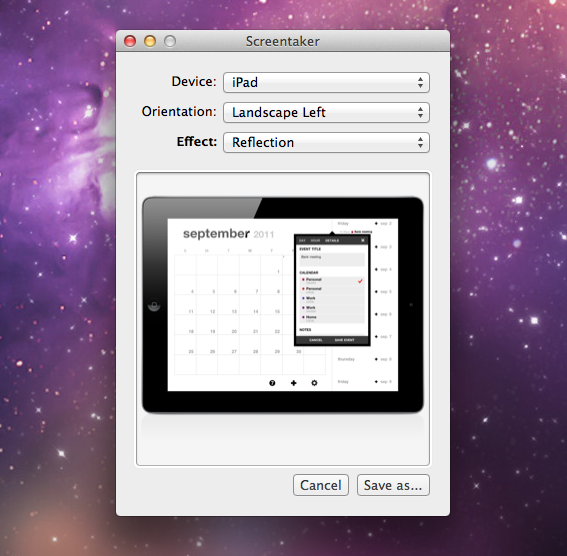
I first mentioned iPhone Screentaker from developer Fabian Kreiser in a post from January 2010, in which I collected some of the tools we used at MacStories to produce beautiful high-quality screenshots of iPhone apps for our articles. We were big fans of Fabian’s side projects, and although he updated the app on his website with support for the original iPad, he never included an iPhone 4 template we could use for our iPhone screenshots. But fortunately for us, and any designer/developer who wants to create better iOS screenshots than a device’s original output, 13 months after the release of the iPhone 4 a completely revamped version of iPhone Screentaker is out, and available on the Mac App Store under a new name.

Screentaker for iOS Apps is available at $4.99, and it’s a very niche app. In fact, my guess is that Kreiser created it to scratch his own itch for better screenshots to present on websites and blog post – Screentaker is an app that might appeal to people like me, who take screenshots of iOS apps every day, or website designers that don’t want to create their own iPhone, iPod touch and iPad templates. Read more


My Artists 2.0 Brings 8tracks Internet Radio, iTunes Integration, Better Controls

When I first stumbled upon My Artists last year, what I found was a great companion for iOS’ native iPod app that allowed users to play songs they had synced on their iPhones with a different interface that, among other things, came with Wikipedia and YouTube integration. My Artists’ main goal, in fact, was to provide users with more information about songs and albums they were listening to, pulling data from the web as a way to showcase videos and songs from the same artist that, however, were not available on the device. My Artists 1.0 was a discovery tool for music already synced on an iPhone; version 1.1 brought several interface improvements, whilst 1.2 focused on Last.fm support as in-app purchase, and made the app independent from iPod.app in that users could see My Artists’ icon in iOS 4’s multitasking tray.

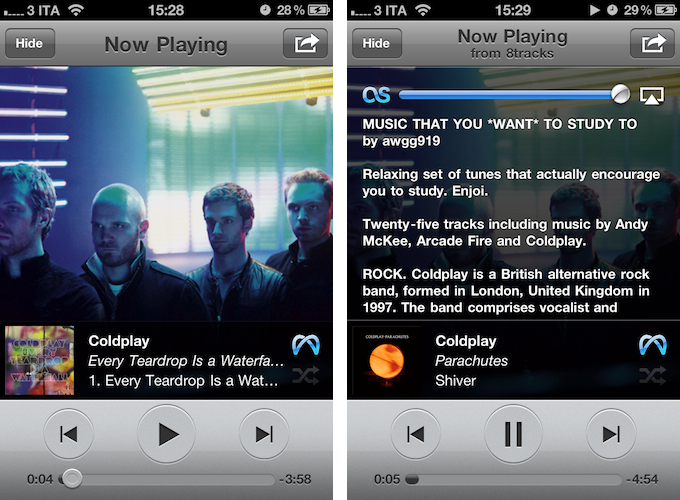
My Artists 2.0, released today, takes the whole concept a step further to become a full-featured music player and discovery system for all kinds of artists, not just the ones you already know and have on iTunes. Thanks to built-in integration with 8tracks, the “handcrafted Internet radio”, users can now listen to a personalized radio station with easy controls to jump through live-streaming songs from the popular online service. Whereas previous versions of My Artists wanted to put more information about your music at your fingertips – by displaying artists’ bios, related music, and videos – My Artists 2.0 brings actual new music to the mix thanks to an 8tracks button that’s always accessible from the main list view, which as usual pulls beautiful and high-res artist pics and album artworks from the web.

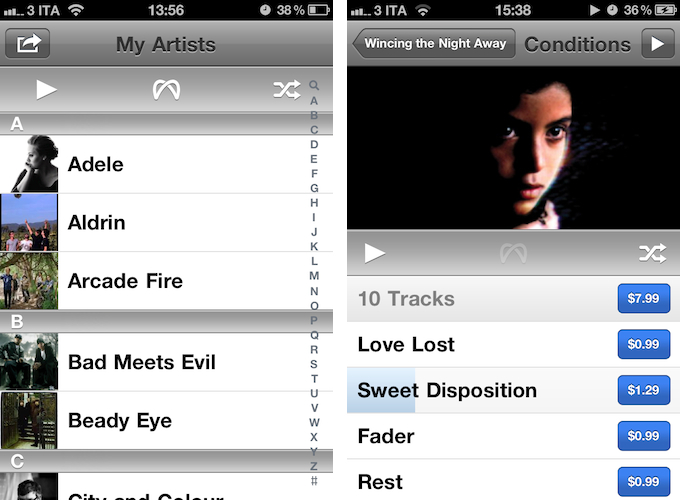
The new control bar in the list view has also got buttons for quick play all and shuffle, surely a welcome addition for those who don’t always want to navigate to an artist’s page to start playing music. Once you hit the 8tracks button, My Artists will open a new window, and start streaming a random playlist within seconds. The playlists are user-generated on 8tracks.com, and you can skip and pause songs with the app’s regular playback controls. Tapping on the album artwork of a song streaming from 8tracks will display an overlay with the playlist’s information, although you can also use the sharing button in the upper right corner to open 8tracks’ website in-app. As with older versions, the sharing button has additional options to “explore” (opens Wikipedia, YouTube, or related artists and genres), open an artist’s profile or album details. And when you check out the details for an album you don’t own or have on your device, that’s where another new feature of 2.0 comes to light: native iTunes Music Store integration.

As you can see in the screenshot, alongside a nice inline playing indicator (available both for local and streaming songs) there’s a blue Buy button next to each song belonging to the album you’re listening to through 8tracks. My Artists 2.0 enables you to preview iTunes Store songs without leaving the app or, alternatively, tap on the purchase button to open iTunes and start downloading right away. No matter how you get to an album or song you don’t own, whether it’s an 8tracks streaming session or Last.fm-based “discovery” for related artists, the app will have an iTunes button next to music you don’t have synced.

Speaking of Last.fm: gone is the in-app purchase from version 1.2. Last.fm scrobbling is now free for every My Artists customer, and it needs to be enabled through a login page the first time you hit the Last.fm button. From there on, My Artists will scrobble songs – be them “local” or coming from 8tracks – to Last.fm.

For me, My Artists 2.0 nears perfection. I still miss the ability of displaying lyrics alongside artists’ bios in the now playing overlay, and it’d be nice to be able to “forward” discovered songs to Rdio or Spotify, besides the iTunes Store. But other than that, for someone who listens to music every day, all day (well, almost), My Artists 2.0 offers a fantastic combination of local music playback (enhanced with better, up-to-date artworks and a fresh UI) and Internet-based discovery.

You can get My Artists 2.0 at $1.99 on the App Store.


WeatherSnitch 2.0: Beautifully Detailed Weather Data and Forecasts

I have tried several weather apps for the iPhone in the past year. Eventually I decided to stick with a combination of BeachWeather and WeatherSnitch for iPhone, even though I appreciated the attention to details of Shine, a beautifully designed weather app that was subsequently updated to work better internationally.

So it was with a bit of curiosity that I approached WeatherSnitch 2 last month, when I learned that the developers had switched the original WeatherSnitch to a free app, and released a major 2.0 version as a standalone, paid app. As it turns out, WeatherSnitch 2 builds on the excellent feature set of version 1 adding a darker UI, more reliable and accurate weather data and forecasts, moon phases, and more. WeatherSnitch 2.0 looks a lot like its little brother, now free on the App Store, albeit it’s been completely rewritten to have a new design with snappier animations, and faster update times.

WeatherSnitch 2 lets you add multiple locations, search the ones you’ve already added, and add your current location by tapping on the default GPS icon as in Apple’s Weather app for iOS. Speaking of Apple’s Weather widget: I believe average users will be more than fine with iOS 5, Weather in Notification Center and the additional features Weather received through the betas, but there will still be room for apps that provide a more detailed look at weather data, forecasts, and so forth.

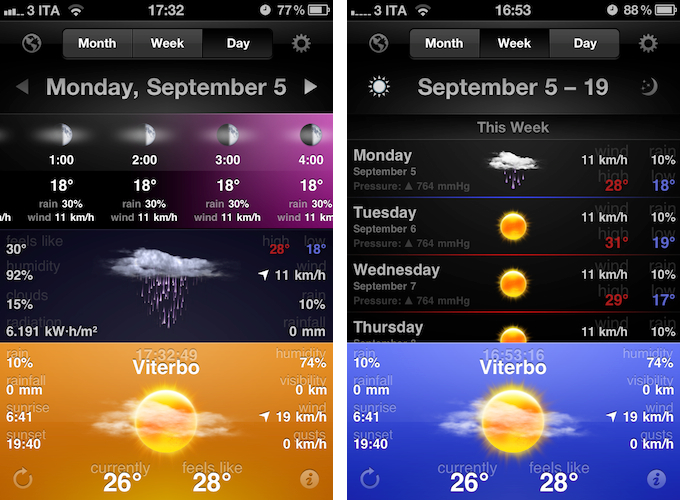
Locations you’ve configured in WeatherSnitch will appear along the bottom of the app as a section you can swipe to change between places. The single-location section lists current time, weather and “feels like” factor, an icon representing the weather, and a bunch of additional information such as rainfall, sunrise and sunset time, humidity percentage, visibility, and wind. Units, colors and other options can be tweaked in the Settings, which have some clever switches for on/off items, as well as units and types (see screenshots below). The bottom part of the UI is WeatherSnitch’s main controller, as swiping between locations automatically updates the data visualized above in the Month, Week, and Day views.

Month view is pretty self explanatory in that it displays a calendar with weather icons and temperature associated to each day of the month. Tapping on a day opens a small popover with the icon in greater detail, high and low temperatures, and humidity percentage. My favorite view, however, is the middle “Week” one. Not only does Week lists weather forecasts for “this week”, “next week” and “week after next” in a vertically scrollable interface with wind/rain/temperature/pressure data, it also lets you switch between day and night forecasts with the tap of a button. The animation for this is delightfully simple, attractive, and powered by a dark linen background.

“Day” is perhaps the most complex of the three views. It contains a continuously scrolling “hour bar” at the top with hour/temperature/wind/rain data and gradually fading colors that reflect the time of day; as you move forward, WeatherSnitch updates the day header at the top, thus allowing you to go as far you want inside the Day view. In the middle, there’s what I interpret as a “day average” section – the developers call it a ”a new detail bar” that offers extensive details for each day. The detail bar can be swiped to reveal a nice 3D animation (reminds me of 3Do) to switch night/day forecasts.

WeatherSnitch 2 is a good-looking piece of software with lots of weather data to assimilate – perhaps even too much. In fact, I’m told the developers are working on an update to allow for deeper customization and let users choose what pieces of data to show on screen, optionally with bigger text labels. WeatherSnitch 2 doesn’t disappoint, it’s intuitive and fun to use thanks to support for swipe gesture, and the homescreen icon with optional badge looks fantastic on the iPhone 4. You can get WeatherSnitch 2 at $1.99 on the App Store. Read more


Prowl 1.3 Adds iPad Support and “Do Not Disturb”

Back in July I decided to take a look at Prowl, an iOS app and web service that takes notifications from Growl, the popular app for the Mac soon to receive a major update, and transforms them into push notifications for your iPhone. So say you’ve left Transmission downloading a large torent at home, when the download is complete and Growl displays a desktop notification for that, Prowl will grab that message, push it up to the cloud, and back down to your iOS device when you’re on the go. Prowl works with any app that’s supported by Growl, and I was impressed by the quantity and quality of third party apps based on the Prowl API when I spent my first weekend with the app.

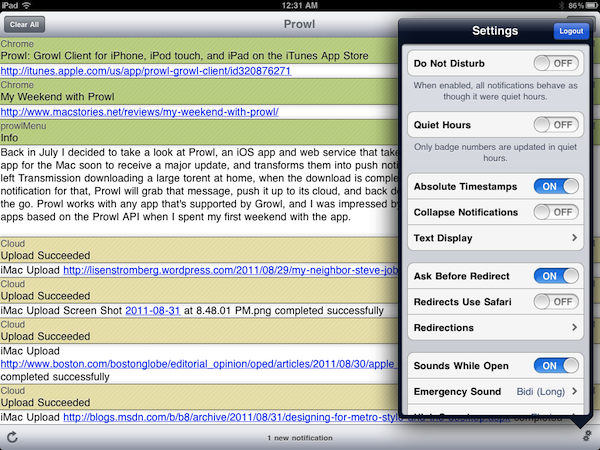
An update to Prowl for iOS was released today, and as the developers had previously teased this new version adds native iPad support and a “do not disturb” feature to force quiet hours when enabled. If you don’t want your devices to wake you in the middle of the night, that’s certainly welcome. And whilst the iPad app looks fairly similar to its iPhone counterpart in terms of design, the main notification list has been tweaked to be more refined and smaller in size. Notifications can be collapsed and expanded, and the settings have been moved to app’s toolbar.

This release also includes the following bug fixes:

  • Fixed quiet time setting the wrong time zone, thus being an hour off.
  • Fixed not leaving edit mode when removing the last entry.
  • Fixed some settings pages lacking titles.
  • Fixed cropping of Prowl app icon.
  • Fixed marking notifications as “new” even after backgrounding.
  • Fixed some description text sizing problems.

Prowl 1.3 retains its underlying simplicity in both design and function while adding some useful options to control how notifications are displayed. Get it here at $2.99.


MarkdownNote Brings Live Markdown Previews to OS X

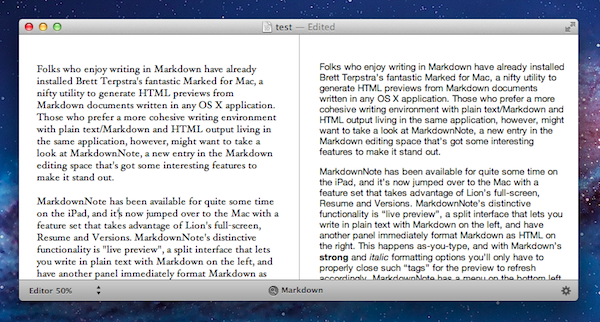
Folks who enjoy writing in Markdown have already installed Brett Terpstra’s fantastic Marked for Mac, a nifty utility to generate HTML previews from Markdown documents written in any OS X application. You can read our review of version 1.2 here. Those who prefer a more cohesive writing environment with plain text/Markdown and HTML output living in the same application, however, might want to take a look at MarkdownNote, a new entry in the Markdown editing space that’s got some interesting features.

MarkdownNote has been available for quite some time on the iPad, and it’s now jumped over to the Mac with a feature set that takes advantage of Lion’s full-screen, Resume and Versions. MarkdownNote’s distinctive functionality is “live preview”, a split interface that lets you write in plain text with Markdown on the left, and have another panel immediately format Markdown as HTML on the right. This happens as-you-type, and with Markdown’s strong and italic formatting options you’ll only have to properly close such “tags” for the preview to refresh accordingly. MarkdownNote has a menu on the bottom left to resize the panels for Markdown and Live Preview, with options to set the editor and preview at 50, 70 or 100 percent.

MarkdownNote can save .txt files (everyone loves plain text, right?) , it lets you pick your own font and it’s got some further options to play with in the Preferences. When you’re done writing, you can copy the HTML and paste it somewhere else as usual. I’ve found MarkdownNote to be extremely useful in full-screen mode, as the split interface makes for a great alternative to having large borders around your text – with this app, you don’t waste space and you’ve got a live-updating preview at the same time.

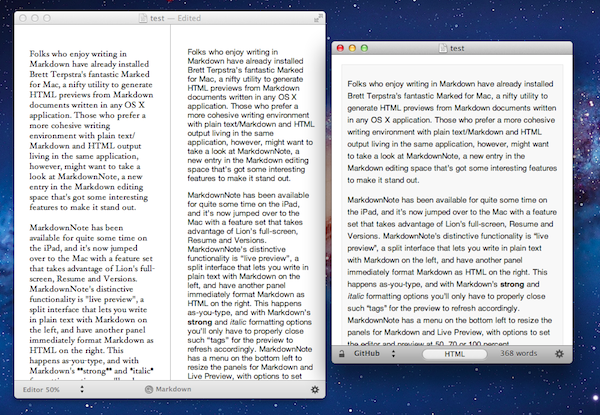
MarkdownNote and Marked

Best of all, MarkdownNote works great with Brett’s Marked, although you may wonder why would anyone use Marked when MarkdownNote has got a live preview. I think MarkdownNote is great at letting you write and quickly keep an eye on the correct visual output, but I still prefer Marked for editing – after I’ve written a long piece, I fire up Marked, choose my favorite style, see how many words I’ve typed, and I go through my Markdown. I love this combination of writing tools.

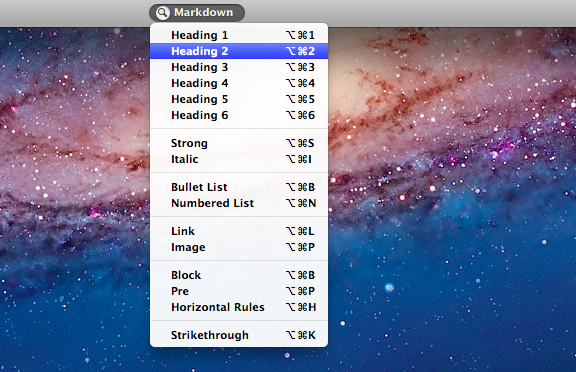
At $3.99 on the Mac App Store, MarkdownNote gives you an easy way to write in Markdown and instantly see how the words you typed will look like, and use keyboard shortcuts to facilitate the process of Markdown writing itself. MarkdownNote works really well in combination with Lion’s full-screen mode and Marked – if you’re a Markdown nerd, you should give this a try.


EmojiBar Puts Emoji In Your Lion Menubar

With OS X Lion, Apple introduced system-wide support for Emoji characters, implemented on iOS 4’s Japanese keyboard last year and recently extended to all international keyboards in iOS 5 beta. Emoji characters are a cute, fun way to share more detailed emoticons with friends on social networks and messaging apps, and because they’re based on Unicode, they can be used in a variety of other ways, including domain names.

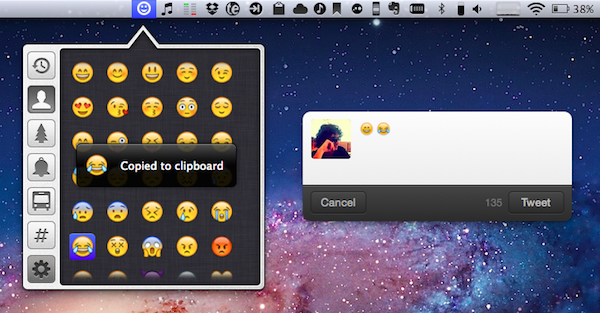
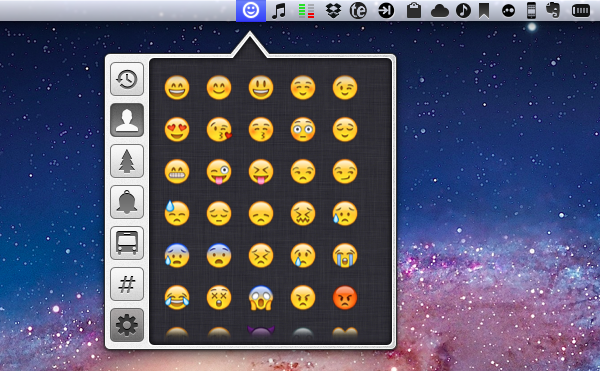
On Lion, users can display Emoji characters and easily insert them using the OS’ default character picker; EmojiBar, a $0.99 app available on the Mac App Store, makes emoji-picking even easier by putting those characters right into the menubar, accessible from a popover. EmojiBar is very simple, and nicely designed: a click on its icon opens the popover, another click on the emoji you need will copy it to the clipboard, and display a notification (notifications can be disabled in the Settings). Icons on the left let you switch between different kinds of emoji characters, whilst the Recents tab gives you access to your most used emojis (presumably your favorite ones as well).

I like the app’s simple approach and design. I know OS X can accomplish the basic functionality by itself, but it’s always nice to see an app doing one thing, and one thing well. You can download EmojiBar here.


Yoink: Enhanced Drag & Drop for Lion’s Full-Screen Apps

As I noted in my MacBook Air 13-inch review, the smaller the screen, the better full-screen apps get on Lion. For those still unaware of the new feature, OS X Lion comes with the possibility of enlarging applications to fill the entire screen – thus the name “full-screen mode” – so that, similarly to iOS, users can focus on one app at a time. Whereas some full-screen apps can look comically large on bigger displays such as a 21.5-inch iMac or Apple Thunderbolt Display, I found that smaller screens make more sense in regards to full-screen mode in that you don’t feel like you’re wasting available pixel space. Apple’s system applications have already been updated to take advantage of full-screen mode, and we’ve seen third party developers starting to play around with the new API as well, coming up with interesting solutions to modify the user interface accordingly to full-screen mode.

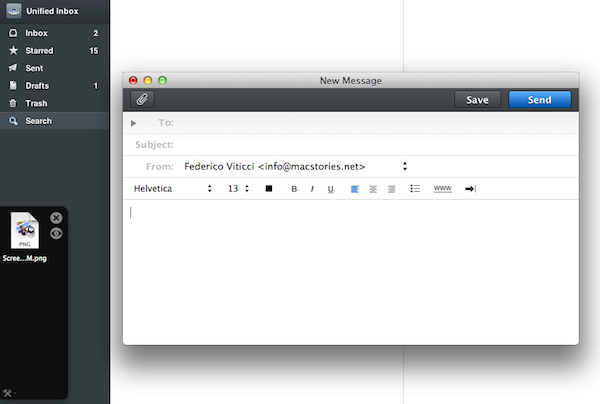
Personally, I have enjoyed using apps like Evernote, Sparrow and Reeder in full-screen mode on my MacBook Air. With a four-finger swipe, I can easily switch between these apps, and go back to my main desktop where all my other application windows reside. However, as full-screen apps live in their own separate graphical environment, I wished on a couple of occasions that Apple would implement an easier method to move files between spaces and full-screen apps in Lion. Rather than delving into the technical details of drag & drop and APIs, here’s a practical example: say I run Sparrow in full-screen mode, and I need to quickly drop an attachment onto a new message window. I could use the app’s “attach file” dialog, but drag & drop would be more intuitive. On Lion, there’s no simple way to drag files from Desktop 1, and drop them into a full-screen app. In fact, the “easiest” trick I’ve discovered to achieve such a functionality is to click & hold a file, hit the Mission Control key on my MacBook Air’s keyboard, select a a full-screen app and wait for it to “spring load” (e.g. the window flashes and after a few seconds comes in the foreground), then drop the file. Clumsy and slow.

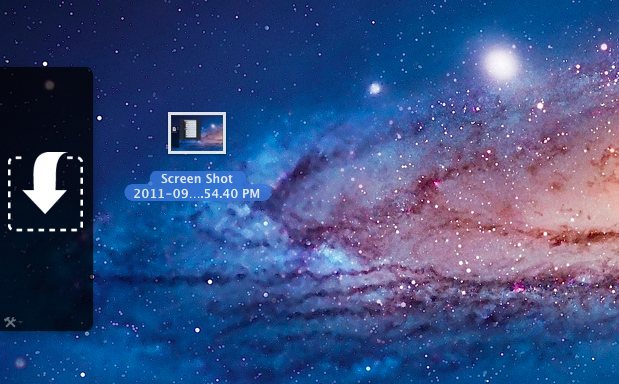
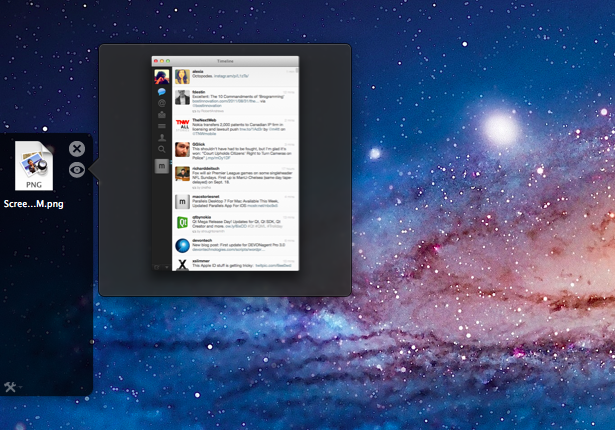
A new app by Eternal Storms – makers of Flickery and ScreenFloat, among others – called Yoink, aims at improving Lion’s behavior with drag & drop and full-screen apps. Built from the ground-up with Lion-only APIs, Yoink places an unobtrusive, translucent “shelf” at the side of your Mac’s screen every time you start dragging a file. Drop the file in there, switch to your full-screen app with a gesture, get the file out of the shelf. Done.

Yoink is a drag & drop assistant for Lion, in that it provides you with a virtual “safe zone” to temporarily store files – or rather, links to them – you want to move from one location (say your desktop) to another space or full-screen app.

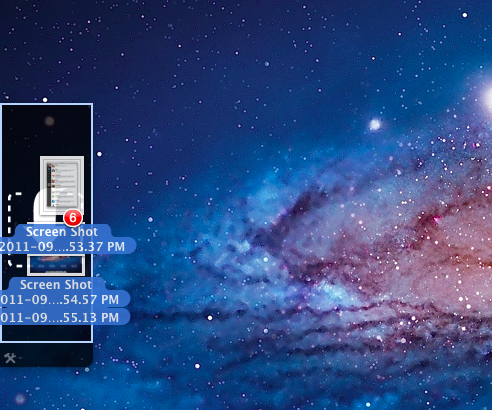
Yoink doesn’t “copy” a file, or multiple ones, to its shelf: it only acts as a bridge between the original file, and the destination of the drop. So, back to my Sparrow example: I can select a bunch of files from my desktop, drop them into Yoink, switch back to Sparrow with a gesture, and get the files out of Yoink. Very simple. This works with any full-screen app, any space – Yoink works wherever you can drop a file. In fact, nothing stops you from using the app as a drag & drop utility for your Finder windows instead of full-screen apps, although the app is clearly focused on the latter.

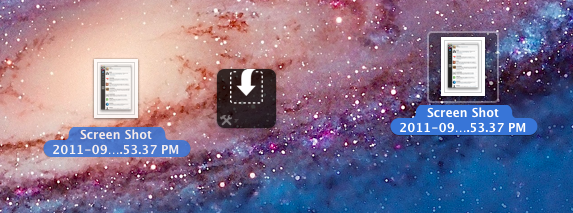
In my tests, I’ve found Yoink to be very lightweight in memory footprint, and easy to use. The app only appears when you start dragging a file – you won’t see its window all the time – and you can customize it to sit on the left, or right of the screen. Alternatively, you can tell Yoink to quickly move next to your cursor as you drag a file, then go back to screen’s side. Yoink can store multiple files, Quick Look them, and let you scroll and select multiple items with CMD-click.

Yoink is available at $2.99 on the App Store, and you can head over the developer’s website to check out a demo video and get a better idea of the app in action. If you work with full-screen apps on a daily basis and you’d like to enhance Lion’s drag & drop support, Yoink is a must-have.


Tunesque: iTunes Search Made Easy From The Menubar

Many people claim searching any of Apple’s iTunes Stores is tedious, inane work. You have to launch an app, navigate to the search box and type for your result - and that’s only for searching one of Apple’s services at a time. Now imagine a ‘mythical’ Mac app that lets you search the Mac App Store and iTunes App Stores at the same time.

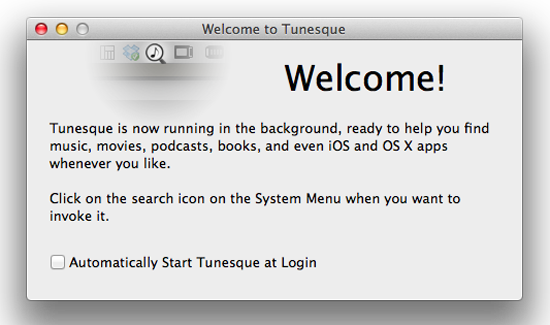
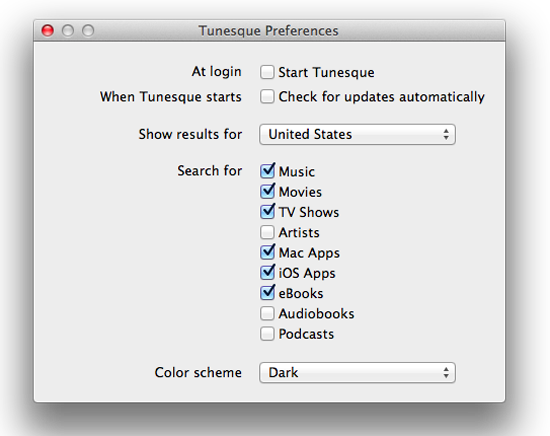
It’s no myth - enter Tunesque by AFK Studio. Tunesque lives in your Mac’s menubar: click the icon, and start typing to finds apps, music, movies, and books across all stores and “app stores” without having to manually launch them. If you feel Tunesque’s search is too broad, simply open the Preferences and define what categories you want to search for – you can check them all or just a few. Plus, the app works with your local iTunes Store, anywhere in the world, so you can select which international store you need and go.

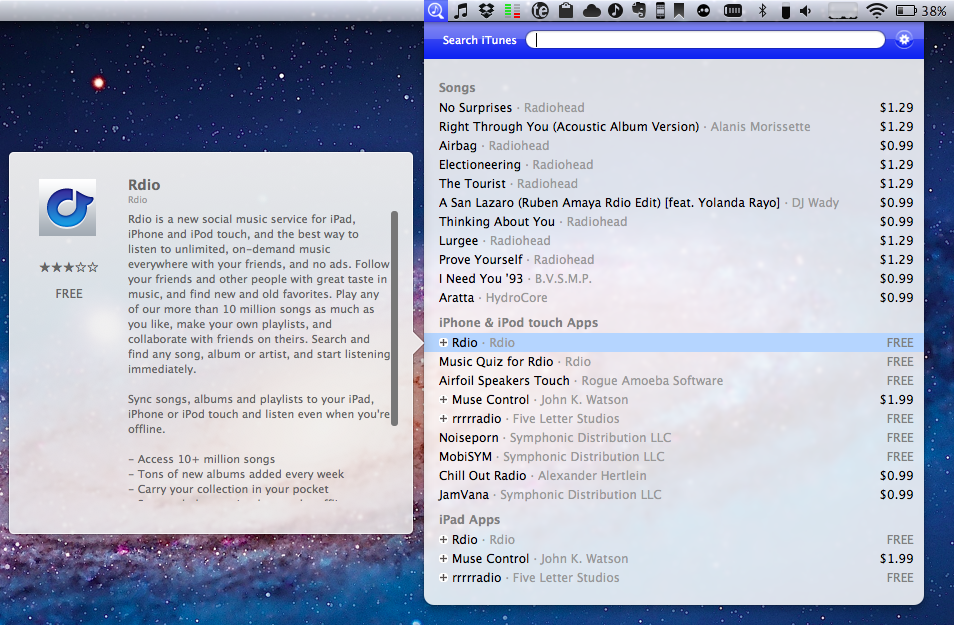
Tunesque has 2 color schemes, light and dark, so you can pick the mood you’re in that day while you search for that new Pantera single. I prefer the light scheme as it matches the OS better, but some people may like the dark tone for added contrast. The app could be improved with a global hotkey in the prefs, though clicking the menubar icon is still faster that a traditional search method.

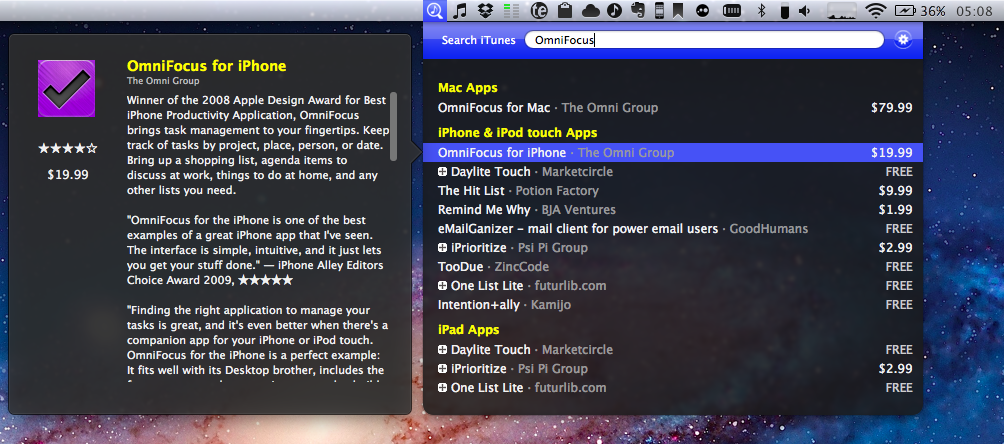
Once you enter a search term, let’s say OmniFocus, you can arrow down through the results (it even lists prices) and a hovercard will pop out to the side giving you the app’s description - this is a nice feature.

Tunesque is available from the app’s website and is a small download - only 811kb, with a smaller price - free. Please note that when you use Tunesque to find apps, Apple pays the developers a small commission via iTunes’ affiliate service but this doesn’t affect the price to the customer. A direct download for the app can be found here.

If you search the App Store and iTunes more frequently than browsing, Tunesque will be a great time saver.


App Journal, Episode 1: Writron, Tempus, BillMinder

App Journal is a new series aimed at showcasing apps we have enjoyed using on our iPhones, iPads, and Macs, but decided not to feature in a standalone, lengthy review here on MacStories. Sometimes, an app is so simple, so focused on one task that a full review in our typical format would be unnecessary. But at the same time, we felt like we needed a way to get the word out about these little gems, other than a quick tweet or footnote on #MacStoriesDeals.

Think of App Journal as a mix of classic reviews, weekly app recommendations, and a diary of our experiences with apps that still deserve a proper mention. Because after all, that’s what we love: talking about great software.

In Episode 1 of App Journal, I take a look at Writron for iPhone, Tempus and BillMinder. Stay tuned for new App Journal episodes in the next weeks.

Writron

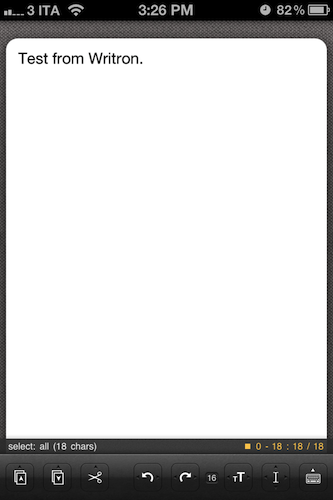
Writron is an app I found on the App Store last week and bought because of its simple, elegant icon and price tag. Admittedly, these are two factors that contribute to impulsive app-buying when iTunes credit is available, and curiosity takes over. Writron is a “text input tool” that can forward text to other apps and online services. That’s it. Once you’ve written some text using the app, you can tap & hold the sharing button to send it to Mail, Twitterrific, or other services supported with Mobile Safari such as Google, Evernote, Twitter, and Wikipedia. You can edit the “send to” menu to include options like Maps, Google Translate, Wikipanion, Wiktionary, and Twitter for iPhone. Additional templates will be added periodically and can be downloaded within the app.

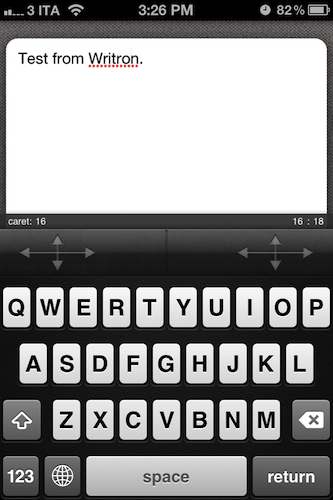
Writron achieves two goals: it’s a text input tool with a heavy sharing component. And whilst sharing isn’t too dissimilar from what other apps like Note & Share offer, the writing experience is quite different. Writron comes with a toolbar between the keyboard and the text field; this toolbar has buttons to share, paste, cut, undo and redo, increase/decrease font size and move the iOS’ default cursor. Whereas tapping on these buttons triggers their basic functionality, Writron’s full potential is unlocked when you “tap, hold, and slide”. Here’s an example: tapping and holding the undo button will get you access to a scrollable timeline of words you typed, which you can control by sliding your finger across the toolbar itself. You don’t see a list of previously typed words and letters when you do so – instead, Writron directly manipulates text as you slide you finger back and forth through history, letting you know when you’re “out of undos and redos”. The same sliding concept applies to the “move cursor” action: you can tap on it to select a word, an entire sentence, or move to the beginning of your text, but it’s when you begin sliding that you’ll notice Writron can freely move the cursor between letters according to your finger’s movement. It’s seriously cool.

Writron may not revolutionize your workflow but it’s a neat little app that I’m sure will have its own passionate niche of aficionados. Writron is only $0.99 on the App Store. Read more