Federico Viticci

10775 posts on MacStories since April 2009

Federico is the founder and Editor-in-Chief of MacStories, where he writes about Apple with a focus on apps, developers, iPad, and iOS productivity. He founded MacStories in April 2009 and has been writing about Apple since. Federico is also the co-host of AppStories, a weekly podcast exploring the world of apps, Unwind, a fun exploration of media and more, and NPC: Next Portable Console, a show about portable gaming and the handheld revolution.

Microsoft Releases New iPhone App To Create Panoramic Photos

In its ongoing effort to support the iOS platform with a steady flow of new releases and updates, Microsoft released earlier today a new app for iPhone called Photosynth which is aimed at letting you create panoramic, 360-degree photos with your device’s camera. The concept and overall execution are very similar to Occipital’s 360 Panorama for iPhone: you hold your iPhone, and rotate it to capture what’s around you. The app will then “stitch” the panorama to offer a zoomable image that you can pan with your fingers to see the complete result. Unlike Occipital’s software, Microsoft’s application comes with sound effects for each photo (in fact, Photosynth does nothing but capturing a series of photos and making a collage after processing them) and simpler on-screen guides. I’ve used the app for a couple of hours now and, lack of gyroscope aside, it seems to me that Occipital’s app still produces better panoramas both in direct sunlight and low-light conditions. There’s some serious overlapping of photos in Photosynth, and the underlying processing algorithm doesn’t look very smart to me.

However, if you’re a fan of Microsoft’s new Metro style, the Photosynth app will please you with Windows Phone 7-like menus and buttons. The animations are quite nice, but not exactly “iOS native.” Photosynth also comes with several sharing functionalities: you can send panoramas to the Photosynth.net service (requires a Windows Live ID login), Facebook and even Bing Maps. Microsoft actually encourages you to share through Bing Maps, as “millions of people could see your panoramas on maps and in search results for locations you’ve captured.”

Photosynth is an interesting experiment, and I look forward to future updates. Get the app here.


Presence Puts Your Mac In The Cloud, Lets You Connect from iOS

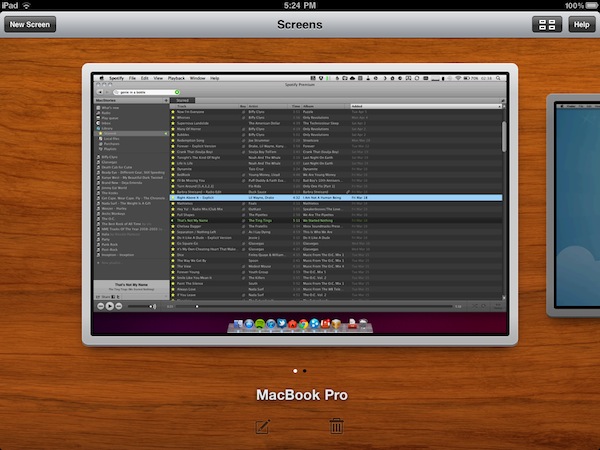
Over the past few months, I have tried several iOS apps to access my Mac’s filesystem and screen while away from my home office. These apps, either standalone VNC clients like Screens or all-in-one solutions like Cloud Connect Pro, usually relied on a Mac’s built-in sharing and remote login capabilities to create a secure connection between the machine and iOS devices trying to access its contents. To work with these apps, I simply had to set up a global DynDns hostname or a VPN server so that I could log into my Mac, view files, and control its screen. The VPN method, for instance, was actually based on the same DynDns hostname I had already configured in Edovia’s Screens, Cloud Connect Pro, Plex, FileBrowser and many others. For as much as I loved being able to remotely connect to my OS  X machines with a standard web address (DynDns allows you to create a custom URL), now I can’t use it anymore. We have recently upgraded our Internet connection to a new ISP, and whilst the speed bump is noticeable and generally useful when it comes to downloading large files, the new router provided by the ISP doesn’t offer a public IP address (without entering all the details, it’s based on NAT), thus preventing me from using all those neat Mac and iOS apps that needed DynDns to be working correctly. I can access my Mac’s content locally, but as soon as I go out DynDns becomes useless thanks to the new router. This means Here, File File doesn’t work anymore in 3G, as well as Screens (through DynDns), Plex and Cloud Connect. I may have a faster Internet connection now, but the lack of DynDns support changed the way I can access my machines from outside my home network.

So I tried to come up with new solutions to work from anywhere in these past weeks. Screens comes with an optional Screens Connect option that lets you set up a hostname that works through Edovia’s servers (and it’s not blocked by my router) and LogMeIn comes with its own Mac application that handles connections independently. From what I’ve seen so far, apps that provide their own connections through a “server” Mac app and don’t require me to enter a global DynDns hostname are working just fine. But this also means that apps based on OS X sharing features and lacking proprietary remote access capabilities won’t work unless I change my ISP again. Presence, a new version of the popular FarFinder tool by FlyingMac, allows me to access my Mac – all its files, folders, and drives – through a web service that puts the computer in the cloud and makes it accessible from any web browser, iPhone, or iPad. Read more


Apple Using New App Store Ranking Algorithm?

According to Inside Mobile Apps, Apple may have recently tweaked the algorithm that determines ranking of iOS apps in the App Store embracing more factors than simple download numbers to present the most popular free and paid apps. Noticing a sudden change in how the Facebook iPhone app jumped to #1 after months of sitting between the #10 and #20 spots, the website contacted various mobile advertising networks inquiring about the possibility of a new algorithm put in place by Apple in the past week. While it’s not clear which new factors Apple is using to generate the App Store charts, Inside Mobile Apps speculates the Store’s backend may now be heavily based on ratings and active usage of an app, rather than download stats.

We’ve been noticing changes in the Top Free rankings for at least three days now,” said Peter Farago, vice president of marketing at Flurry, which serves 80,000 applications with its analytics product. “From our point of view, Apple is absolutely considering more than just downloads, which we believe is the right direction go to measure true popularity of an app.” Other pay-per-install networks tell us they’ve been detecting these changes too.

Apple also recently adjusted the App Store mobile experience by allowing users to browse the top 300 apps from a mobile device. Still, this rumor doesn’t address specific aspects of the story like how it would be possible for Apple to track usage, and what kind of ratings are being considered exactly. It’s well known that positive reviews in the App Store have always helped developers in gaining more exposure and better rankings, so it’s unclear how Apple could have tweaked its algorithm to influence the position of apps in the charts through ratings. Furthermore, besides leaving a rating and a review in the App Store, users can also mark others’ reviews as “helpful.” Is this factor being considered by Apple in its (allegedly) new ranking system? We don’t know.

If the rumor’s true, however, this would lead iOS developers to create better, more engaging apps that result in a better experience on a user’s end – who is likely to leave a positive review in the App Store and use an app more. If Apple’s really tweaking its algorithm to promote quality, rather than raw numbers, it’ll be interesting to see how this will play out for the thousands of iPhone and iPad developers out there. [via 9to5mac]


GoodReader for iPad Adds AirPlay for Video, Encryption, Better PDF Annotations

GoodReader, the popular file manager and document previewer for iOS, received an update last night in its iPad version that, reaching version 3.6, adds support for enterprise-class encryption for files and documents, alongside many other features and bug fixes aimed at improving the performances and stability of the app.

Encryption in the new GoodReader for iPad is based on Apple’s implementation of data protection (introduced with iOS 4.2) that requires a passcode to unlock an iOS device. To put it simply, whilst Apple’s passcode feature is responsible for encrypting and decrypting files as soon as a device is locked / unlocked, GoodReader can apply an additional security measure in the form of app-specific password and documents’ passwords. GoodReader doesn’t encrypt data – iOS’ encryption functionalities do that – but with this update the app integrates Apple’s advanced security with its own restricted access features in a single package. So while iOS will do all the work of encrypting your files when a device is locked (and until it stays so, not even a jailbreak can decrypt those files with direct access to the filesystem), GoodReader now takes full advantage of iOS’ capabilities to protect your documents and folders in case of a stolen or lost iPad (the iPhone version hasn’t been updated to version 3.6 yet).

On the server side of things, GoodReader 3.6 features better support for all online services like iDisk and Dropbox, more stable SugarSync connections and faster SFTP downloads. In case you haven’t tried the app, GoodReader is a pretty sweet way to gain access to files stored in the cloud, download them locally, and edit them.

The biggest new feature of 3.6, however, is the improved support for PDF annotations. GoodReader for iPad now offers an option to “flatten annotations”, meaning that all the drawings and annotations you take on a document – like a PDF – can be flattened into the main body of the file and previewed by Apple’s own iOS apps like Mail, Safari or iBooks. Previously, annotations were only visible in desktop apps like Preview and Acrobat Reader as iOS can’t read by default the annotations’ metadata. GoodReader now offers a workaround to save a flattened copy that’s nothing but the original file with all annotations applied within a page. You can send these annotated documents to other apps with the Open In menu, or share them via email with anyone (GoodReader will even ask you if you want to flatten a document upon hitting the share button – just to make sure).

Last, GoodReader 3.6 can stream videos to an Apple TV in your room thanks to AirPlay support, which requires iOS 4.3 or later. GoodReader might not have the most elegant interface design seen on iOS, but it sure is packed with features, and it’s an app that keeps getting better and more powerful on each release. Get it in the App Store at $4.99.


Rumor: iPhone 5 Won’t Feature “All-New Design”

As reported by AppleInsider, analyst Ming-Chi Kuo with Concord Securities issued a note to investors this morning including details of the next-generation iPhone, allegedly scheduled for a Fall 2011 launch with a possible announcement at Apple’s usual September media event. According to Ming-Chi Kuo, the iPhone 5 won’t feature an all-new design marking a departure from the current iPhone 4 industrial hardware design – rather, it will be a “slight modification” with the addition of the Apple A5 processor, and a Qualcomm baseband for CDMA and GSM models.

His checks with supply chain sources indicated that the next handset from Apple will not feature an all-new-design, but rather only “slight modifications” from the iPhone 4.

Specifically, Kuo has heard that the iPhone 5 will include the faster A5 processor already found in the iPad 2, as well as a higher resolution 8 megapixel rear camera. He has also been told that Apple will switch to a Qualcomm baseband for both GSM and CDMA models, along with an improved antenna design.

The analyst believes “trial production” of the new device will start in August, with massive production for retail distribution in September. Whilst Ming-Chi Kuo has a good track record when it comes to Apple rumors (he pinpointed the rumored white iPhone 4 release in April, and the fact that the iPad 2 would feature a 1024 x 768 display with iPod touch-like cameras), it is worth noting that several reports in the past weeks indicated the iPhone 5 wouldn’t ship until this Fall, or that Apple was considering an updated design with a metal back and a redesign antenna system. Among other rumors, NFC capabilities and a bigger screen to face competition from Android handsets which come with bigger displays than the iPhone’s.

Last, Ming-Chi Kuo claims the biggest selling point of the iPhone 5 will be the new operating system, iOS 5, Apple will unveil in the next months. iOS 5 is set to be previewed at the WWDC in June, and previous speculation suggested it would be a heavily cloud-based OS with new social, location and music features built on top of a “locker” for media Apple will include in a future (quite possibly free) version of MobileMe.


Droplist, The Dropbox-based Todo App, Gains Native iPad Interface

A few weeks ago I reviewed Droplist, a Dropbox-based “list creation app” that allowed you to quickly create todos and lists on the iPhone and have them available anywhere thanks to the Dropbox integration that turned these files into plain text documents. Droplist is an easy to use app that’s powered by a nice design, and it’s now available on the iPad as well thanks to the latest update that made the app universal for all iOS devices.

The iPad app retains the same functionalities we’ve seen on the iPhone: you can create lists on the desktop by following simple formatting rules, and save them to Dropbox to make them available in Droplist. If you prefer to turn an email or a message into a list with its own actions, Droplist allows you to paste items and see them becoming a list in a few seconds. The UI design is, of course, different as it takes advantage of the iPad’s bigger screen, but you’ll feel right home if you’ve used Droplist.

Droplist is available at $1.99 here, and it’s the easiest way to create lists on Dropbox.


Dropbox 1.4 Brings Tabs Back, Direct Uploads from Other Apps

A major update to the official Dropbox app for iOS was released night in the App Store, and it adds important new functionalities to the uploading aspect of the app. Originally released last May on the iPad (a  month after the iPad 1 went on sale), the app was often criticized because of its unintuitive navigation and limited upload features that didn’t allow users to interact with external applications or navigate between folders and starred items with ease. The latest update, version 1.4, aims at fixing these usability issues by bringing tabs back. Instead of having to tap on buttons in the top toolbar, Favorites, Uploads and Settings are accessible alongside the main Dropbox folder in a series of tabs at the bottom.

The most notable feature, however, is the complete revamp of uploads. Not only can Dropbox upload multiple photos and videos at once from your camera roll, it can also accept direct uploads from external apps thanks to the “Open In” menu. For example, you can select a document from apps like Mail and iFiles, send it to Dropbox, and have Dropbox automatically open the upload interface letting you pick a destination for the document you’re importing. It’s fast and works really well.

Dropbox 1.4 is available for free in the App Store. Read more


Access Recent Apps, Volumes, Servers and Documents From Your OS X Dock

Here’s an interesting tip about the OS X dock I absolutely didn’t know about, which was brought to our attention by OS X Daily. With a simple Terminal command, you can create a new “smart” stack item in your dock that will automatically collect your most recent applications, servers you’ve connected to, documents, volumes and Favorite items. The stack – which needs to be manually enabled – comes in handy if you’re looking for a quick way to re-open items you’ve recently launched – and especially for Servers and Volumes, this means the stack is collecting my most used items, not just the recent ones.

To enable the recents menu, type this in the Terminal:

defaults write com.apple.dock persistent-others -array-add ‘{ “tile-data” = { “list-type” = 1; }; “tile-type” = “recents-tile”; }’

Then, to relaunch the Dock:

killall Dock

The new stack will automatically be placed in the rightmost section, next to the Trash. To remove it, simply drag it out of the Dock. I like this menu because it’s making me save lots of time that would have been spent into the Finder otherwise (the method above worked just fine for me on Snow Leopard 10.6.7). Check out more screenshots below.

Update: if the Terminal command throws you a syntax error, make sure to copy the plain text from OS X Daily.

Read more


Apple Launches “Apple Support Communities” - Redesigned Discussions Website

Originally announced back in August 2010, Apple took down for maintenance discussions.apple.com – the official discussion board of the company where users could discuss in threads about various Apple products and applications – and replaced it with a brand new, redesigned version called Apple Support Communities. You can check it out now here.

ASC is basically a completely revamped version of Apple Discussions which is tailored towards making it easier to ask questions, receive feedback and answers from fellow iOS and Mac users, and browse threads by category, topic or relevance. As detailed in the tutorial and Etiquette sections, Apple Support Communities features a new design that should simplify the process of asking questions and replying with detailed information about a product. The compose window has been redesigned to have a cleaner look and more formatting options; your personal page can be customized with “widgets to bring you the content you’re interested in, from within or even outside the community”; you can receive email notifications for a specific community as well as subscribe to feeds. Top “participants” of a community (example: iPad community, or the “Using iPad” place – a term that indicates sub-sections) are featured in a new sidebar widget, and the overall design has been improved with a cleaner look, and more navigation options to see most helpful responses without reading an entire thread. You can play around with preferences for thread views and email notifications, upload an avatar and submit the products you own directly from your account’s page. Surprisingly enough, many UI elements of the new website are borrowed from the iPad with popover menus and overlays. You can also increase your “level” and collect “points” by being an active (and helpful) participant in the communities. From the “Your Stuff” tab, you can manage your bookmarks, check on discussions you’re involved with and see announcement posts. There’s indeed lots of stuff to do and tweak in this new website design. For instance, you can attach tags to your posts and “browse by tag” from the new Search page.

In an effort to better connect iOS and Mac users through discussions and answers, Apple Support Communities looks like a good first step towards a full-featured social backend that we hope will gain a native iOS app to quickly browse topics and submit posts in the future. In the meantime, you can visit ASC and create an account here. Read more