Federico Viticci

10766 posts on MacStories since April 2009

Federico is the founder and Editor-in-Chief of MacStories, where he writes about Apple with a focus on apps, developers, iPad, and iOS productivity. He founded MacStories in April 2009 and has been writing about Apple since. Federico is also the co-host of AppStories, a weekly podcast exploring the world of apps, Unwind, a fun exploration of media and more, and NPC: Next Portable Console, a show about portable gaming and the handheld revolution.

Sidekick Automates Your Mac’s Settings Based On Your Location

Last week, I ordered a new MacBook Air from Apple’s website. My MacBook Pro was getting old, so I decided it was time for an upgrade – and the new MacBook Airs looked like a worthy upgrade. As with the Apple online store’s tradition, the computer showed up at my doorstep in roughly three days. As soon as I got it, I opened it up, set up my personal information, and connected it to the Internet to start downloading my first apps. I was at my office, and in less than two hours I had my new MacBook Air up and running with my favorite applications, Dropbox, work documents, and so forth. A few hours later, when it was time to go home for dinner, I took my MacBook Air, got home, and placed it on the desk in my room. Thirty minutes later, I opened the MacBook’s lid again, fired up Spotify and Google Chrome, launched MacStories’ internal chat URL, and opened iTunes to check for app updates. Sure, the computer was new, but the pattern of actions that followed the opening of the lid wasn’t uncommon: this is what I do every day after dinner. I fire up some music, talk to my co-workers overseas, and browse iTunes. My laptop may be changing location travelling from my office to my house and everything in between (usually a coffee shop downtown), but the workflow is the same.

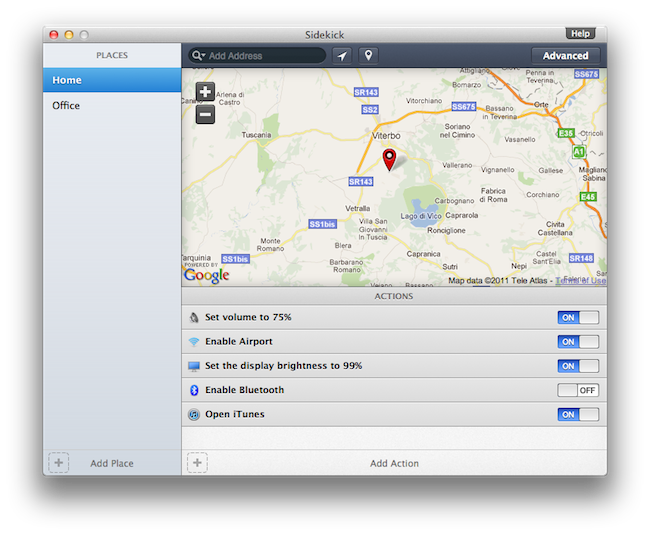
Sidekick, a new app by Oomph, aims at automating the tedious process of changing your Mac’s settings basing on the location of your computer. Read more

Screens for Mac Makes VNC Easy and Organized

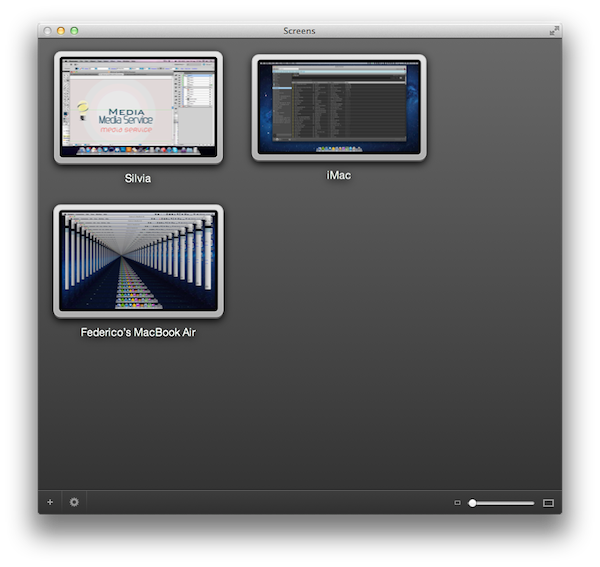
I’m a big fan of Edovia’s Screen VNC client for the iPhone and iPad. Whilst I still use LogMeIn when I need to access my computer’s filesystem remotely and I enjoy the service’s social features and network-recognition capabilities (when combined with Hamachi), my basic VNC needs can be easily satisfied with Screens, which provides a very intuitive interface to set up new computers, connect to them, and use them. I don’t recall a single time I haven’t used Screens at least once a day in the past few months to quickly connect to my iMac while I’m on the couch, and fire up some Spotify through the room. For quick connections, Screens is a great app – it even works on 3G and remote Wi-Fi networks thanks to a companion desktop app that will make your Mac available outside your local network.

In my overview of the improved Screen Sharing app in OS X Lion, I detailed how Apple enhanced the system utility with new clipboard features, per-user login, and possibility of grabbing a screenshot of the connected machine. With Screens for Mac, released last week, Edovia offers an alternative to Apple’s default Screen Sharing app that doesn’t have new breakthrough functionalities, but dramatically improves the organization of your remote desktops, and gives you more control over what you’re connecting to. Read more


Ustream Releases iPad App with AirPlay Support

Ustream, the popular web service to broadcast and interact with live events, updated its iPhone app back in March to unify the broadcasting and chatting features in a single package that allowed users to record and engage in conversations in the chat room at the same time, providing additional social features for Facebook and Twitter sharing as well. With a new update released today and now available on the App Store, Ustream is bringing native support to iPad owners with a brand new app that’s been completely redesigned to take advantage of the iPad’s larger screen. The update is universal, so you’ll need to update your existing Ustream iPhone app to get the iPad version.

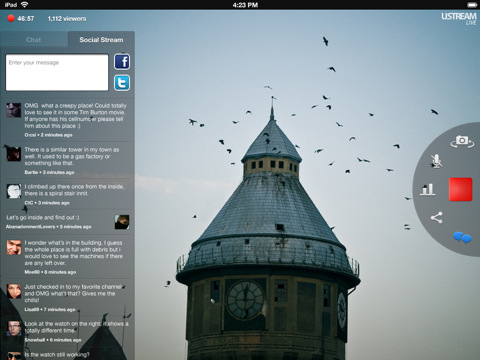
Just like the iPhone app, Ustream for iPad will let you broadcast and interact with your audience from a single interface that, on the iPad, lays out video, audio, chat and social controls in a semi-circular overlay control popup similar to Grazing’s slidepad. You can flip cameras and adjust audio, or if you want to see what’s happening online, head over the social stream to hear what people are saying on Twitter and Facebook about your show, or simply pop into the chat room dedicated to your broadcast. Obviously, you can also watch live shows and participate in the chat room – Ustream’s iPad app lets you check on popular, live and featured shows right from the homepage, so if you’re a heavy Ustream user you’ll always have something to tune into. Among the new features, Ustream also touts “Airplay support for true social interactive viewing of the chat and social stream”.

Ustream already had a very solid iPhone app, and this new iPad version contributes to making the service a complete solution that works on any web browser, and now iOS devices as well. Get the app here for free.


Miscellaneous Lion Tips and Tricks, Part 2

In our first “Miscellaneous Lion Tips and Tricks” article we collected the best tips we received soon after Lion’s launch on the Mac App Store last Wednesday. Lion was being welcomed with positive reviews, Mac users finally got their hands on the much anticipated upgrade, and people started digging deeper into the OS to discover functions and tricks not publicized by Apple in its marketing material and Mac App Store description page. Less than a week into Lion, the web has exploded with new Lion tips, Terminal hacks, and app tweaks. Once again, we have collected the best tips sent to us by our readers and Twitter followers in an article that will (hopefully) help you discover new things Apple didn’t talk about at its developer events or in Lion’s promo video. Jump after the break for a second list of Lion tips and tricks you can try right now. Read more


Apple Posts OS X 10.6.8 Supplemental Update And Other Revisions

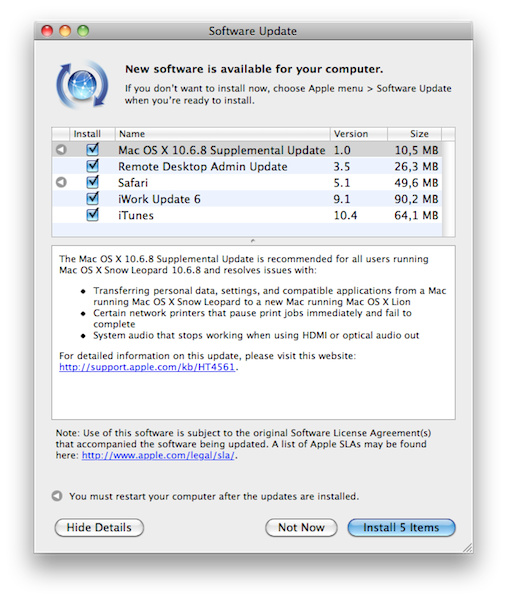
Earlier today, Apple posted a series of revised Mac OS X 10.6.8 updates aimed at both desktop and Server users to fix a number of bugs and issue from the previous 10.6.8 release, and ease the transition to Lion. The “Mac OS X 10.6.8 Supplemental Update” – showing up now in Software Update and available on Apple’s website – brings audio fixes when using HDMI or optical audio out, resolves issues with certain network printers and improves the transfer process of personal data from Snow Leopard to Lion, something that Apple also addressed with a separate Migration Assistant update last week.

The supplemental and combo updates for Snow Leopard are all available on Apple’s website, or directly through Software Update. The updates are recommended for all users running Snow Leopard, presumably looking to upgrade to OS X Lion in the near future. Direct links below.

Mac OS X Server v10.6.8 Update Combo v1.1

Mac OS X 10.6.8 Server Supplemental Update

Mac OS X Server v10.6.8 Update v1.1

Mac OS X 10.6.8 Update Combo v1.1

Mac OS X 10.6.8 Supplemental Update

Mac OS X 10.6.8 Update v.1.1


Apple Releases iOS 4.3.5 [Direct Links]

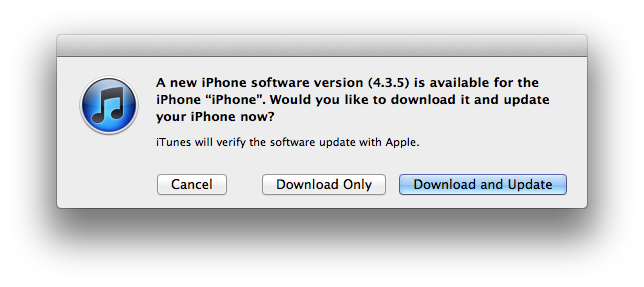
Apple has just released iOS 4.3.5 in iTunes. The new firmware should be available now if you check for updates. iOS 4.3.4 was released on July 15th, and as you can see from the screenshot below this new update “fixes a security vulnerability with certificate validation”. The direct links to the OS haven’t been posted yet, and we’re hearing several users are getting timeout errors in iTunes when trying to download the new firmware. Build number of iOS 4.3.5 is 8L1, whilst a separate iOS 4.2.10 version for the CDMA has been released as well with build number 8E600.

We’ll update this article with more details on iOS 4.3.5 as we get them.

Direct links below:


My Weekend with Prowl

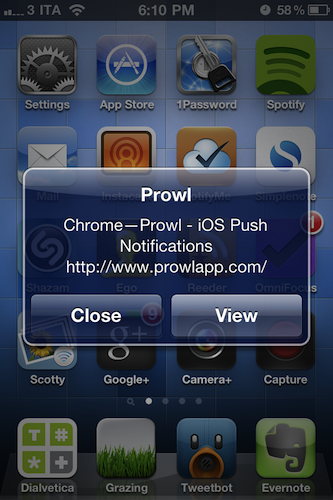
For some reason, I never considered Prowl as a viable alternative to the apps that let iOS devices communicate with a Mac. Prowl has been around since 2009 and, as the name suggests, it is an interface for Growl, the popular Mac notification system that’s getting a major revamp in version 1.3 for its Mac App Store debut. Basically, Prowl is both an iPhone app and a Mac plugin that will send Growl notifications – those Growl notifications you see every day – from your computer to your iPhone in seconds, via push notifications. On the Mac’s side, the app is entirely configurable: in spite of the fact that it’s listed under the Display Options of Growl – and so you could think it’s just a theme – its control panel comes with detailed login and notification settings to keep using a Growl theme you know and love, but at the same time build a bridge between your computer and the aforementioned Prowl for iPhone, which is a list of desktop notifications sent to your phone over the air. Prowl mirrors Growl notifications to your iPhone. Read more


Lion’s QuickTime Player: Screen Recording Improvements and New Sharing Features

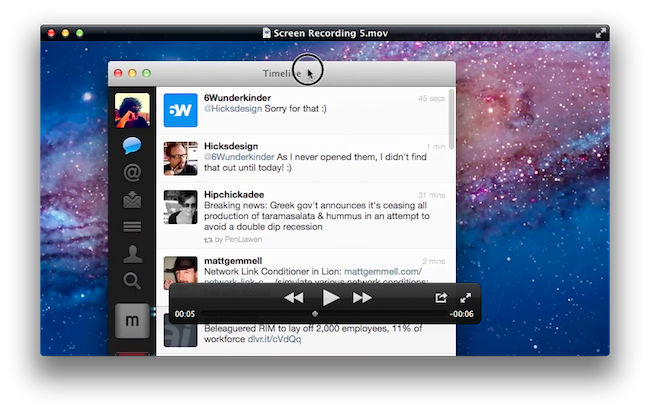
One of the built-in apps that received several interesting improvements in OS X Lion is QuickTime Player, Apple’s default video and music player based on the QuickTime framework that’s capable of handling a variety of audio, video, and picture codecs. Seemingly unchanged from version 10 of QuickTime Player that shipped with Mac OS X Snow Leopard, the new QuickTime Player 10.1 contains a number of changes under the hood, new sharing features, as well as screen recording enhancements built specifically for OS X Lion. Read more


Apple Posts New iPad 2 Commercial: “We’ll Always”

We’ll never stop sharing our memories. Or getting lost in a good book. We’ll always cook dinner, and cheer for our favorite team. We’ll still go to meetings, make home movies, and learn new things. But how do all this, we’ll never be the same.

Apple posted a new iPad 2 commercial on its website and YouTube channel, once again highlighting how the device is changing the way people do things in their lives. With the “We’ll always” ad, Apple wants to show how the iPad has changed, and perhaps improved, the most basic tasks like cooking dinner or editing a quick video in iMovie. Just like other commercials like “Now” and “If You Asked”, Apple’s focus is on apps – the software – rather than technical specifications and hardware features. In this latest video, the iPad is seen organizing photos in the native Photos app, streaming a baseball match and flipping pages of an iBook – among other things. The built-in iOS and the apps – not the screen or the thin form factor – are the real stars in Apple’s iPad commercials.

Apple’s previous iPad 2 commercials were called “We Believe”“If You Asked” and “Now”. Check out the new video below. [YouTube via 9to5mac]
Read more