Federico Viticci

10766 posts on MacStories since April 2009

Federico is the founder and Editor-in-Chief of MacStories, where he writes about Apple with a focus on apps, developers, iPad, and iOS productivity. He founded MacStories in April 2009 and has been writing about Apple since. Federico is also the co-host of AppStories, a weekly podcast exploring the world of apps, Unwind, a fun exploration of media and more, and NPC: Next Portable Console, a show about portable gaming and the handheld revolution.

Walter Isaacson’s “Steve Jobs” In Amazon’s Best Books of 2011

Walter Isaacson’s “Steve Jobs” In Amazon’s Best Books of 2011

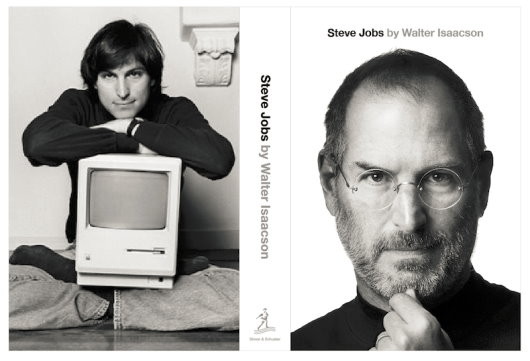
In a press release published this morning, Amazon has announced the 100 Best Books of 2011, which include Editors’ Picks for the Top 100 Books of the Year and “Top 10 lists in more than two dozen categories”. Walter Isaacson’s biography of Steve Jobs is in the Top 10 editors’ picks ranking at #8:

Few in history have transformed their time like Steve Jobs has. In this timely book, Isaacson paints a vivid, compelling portrait that pulls no punches – the end result is satisfying, complete, and gives insight into a man who managed to turn his contradictions into potent strengths.

Last week, “Steve Jobs” was reported to have sold 379,000 copies in the first week of US availability, and 37,000 copies in the UK in first five days of sales. Those numbers didn’t include digital sales for the book, which is available on Apple’s iBookstore as well as Amazon’s Kindle Store. After its release on October 24th, “Steve Jobs” by Walter Isaacson quickly became a bestseller on Amazon, suggesting the bio would be one of the most successful books this holiday season.

Permalink

Apple Store App Updated with Personal Pickup and EasyPay

Two weeks ago Apple began rolling out a new initiative that allowed customers to order products through the online Apple Store and go to a retail store to collect them. Apple quickly trialled the initiative for three San Francisco stores before rolling it out to the rest of the Apple Stores in the Bay Area and New York City. Following speculation that suggested Apple could release an updated Apple Store app last Thursday, and then on Friday alongside the Fifth Avenue Apple Store renovations, the company has released Apple Store 2.0 in the App Store last night, enabling a number of functionalities such as Personal Pickup and EasyPay.

Personal Pickup lets customers decide to order an item online and pick it up at a local retail store. Apple says most products will be available within an hour in the US, although rumors claimed customers would be able to walk into sa store within 12 minutes after the purchase, skip lines and pick up their order. There’s no confirmation of this except that the feature is US-only for most in-stock orders.

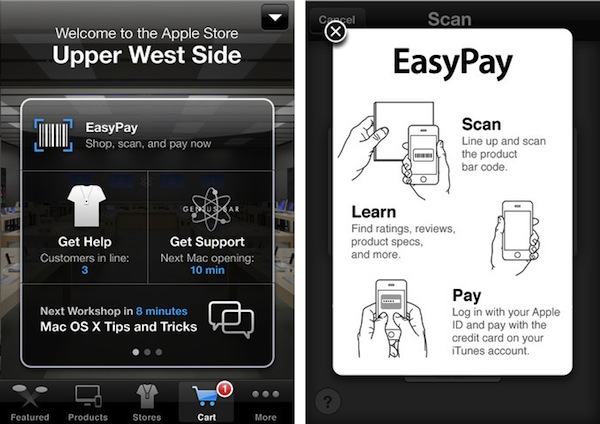
Another new feature is EasyPay, a built-in functionality of the app that lets customers complete an in-store transaction for select accessories by quickly scanning a barcode with the iPhone’s camera. The feature is US-only and it requires the iPhone 4 or iPhone 4S, and an Apple ID with iTunes credit will be used to complete transactions.

Last, the updated Apple Store app comes with a new order status section in the More tab to track current and previous orders.

This 2.0 update largely falls in line with rumors from the past weeks, focusing on self-checkout and in-store pickups as the main new features for customers and Apple retail employees. These new features are, apparently, something Apple is heavily betting on to facilitate the shopping experience at its retail stores, and they are available now in the free update from the App Store.


Screenshots Show “Panorama Mode” Enabled On iOS 5

Shortly after the first beta of iOS 5 was seeded to developers in June, a series of code strings suggested the company could implement a panoramic photo-taking feature in the OS, allowing users to shoot wider photos with a Panorama functionality allegedly similar to what third-party apps like 360 Panorama and Pano are already offering. As Apple kept seeding more betas and eventually released iOS 5 to the public, Panorama was nowhere to be found in iOS, suggesting Apple wasn’t ready to debut the feature yet.

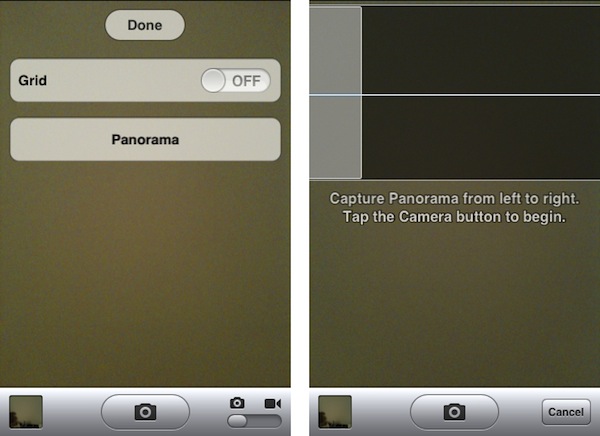
A series of screenshots posted by programmer and iPhone hacker Conrad Kramer earlier today, however, show the interface and options for what could have been Panorama in iOS 5. In particular, the screenshots show a very simplified UI to take multiple shots in a single camera session “from left to right”. It is unclear whether the design of the functionality was final but Apple decided to save it for a future version of iOS, or if the company decided Panorama wasn’t simply good enough for iOS 5. While Kramer seems to promise a Cydia tweak will be released to easily activate the feature on jailbroken phones, developers can play around with Panorama by manually changing a key on their devices. The resulting image of an iOS Panorama has also been posted on Dropbox showing a far from perfect output, although we can’t speculate on how the picture was taken, or the stability of unofficial, hidden iOS 5 functionalities.

As we mentioned above, those willing to check out panoramic photos on iOS right now should check out Occipital’s 360, which we reviewed here and here. Apple is working on an iOS 5.0 update that will introduce security fixes, better battery life and gestures on the original iPad, but Panorama wasn’t mentioned in the release notes for the new beta software.

Update: Cydia developer @chpwn has already submitted a tweak called “Firebreak” to Cydia to enable panorama mode on iOS devices.


Security Researcher Demoes Bug To Execute Unsigned Code on iOS Devices

Security researcher Charlie Miller, former NSA analyst now working for consultancy firm Accuvant, plans to publicly demonstrate a new security hole that could allow regular App Store apps to download and execute unsigned code on any iOS device. As Forbes reports, Miller, who isn’t new to the Mac and iOS hacking and security scene, plans to detail his discoveries at the SysCan conference in Taiwan next week.

Full details of the security hole aren’t available – Miller is apparently saving the presentation for next week to give Apple time to fix the issue, and the company is indeed already working on an iOS 5.0.1 update – but Miller had a “stealth app” approved by Apple in the App Store to record a video of the hidden “functionality”. The app was called Instastock, and it behaved as a regular stock monitoring app until Miller recorded a video of his iPhone being subject to malicious attacks through the app, which has since been pulled. Apparently, since Apple found out about Miller’s app and YouTube video, he’s also been removed from the iOS Developer Program.

As you can see in the video, the app gets downloaded from the App Store as any other free or paid app. The first time Miller runs it on his iPhone, nothing happens and the app performs as advertised. But as soon as Miller activates the hidden functionalities on his web server, somehow connected to the iOS app, the app “phones home” and starts downloading and executing unsigned code. As per Apple’s technical rules and guidelines, App Store apps can only execute code approved by Apple. Yet with Instastock, Miller managed to make the iPhone vibrate remotely, open a YouTube video, and even download the device’s entire Address Book remotely. The app is seen exposing parts of the iOS filesystem, listing installed apps, and presumably giving access to a user’s documents, photos and more. In the video – which we’ve embedded below – you can also watch Miller execute commands remotely (from his computer to iPhone) using a command line interface.

Apparently, the hack has been made possible by a flaw in Apple’s JavaScript engine Nitro, introduced with iOS 4.3, that makes a series of system exceptions for Mobile Safari to render web pages faster. Forbes quotes Miller as saying “Apple runs all these checks to make sure only the browser can use the exception,” he says. “But in this one weird little corner case, it’s possible. And then you don’t have to worry about code-signing any more at all.”

Instastock has already been pulled from the App Store, and it’s unlikely that anyone else will figure out the exact bug that Miller has discovered before Apple releases iOS 5.0.1, which has reached beta 2 status and has been reported to introduce security fixes for iOS devices. Apple will likely include a fix for Miller’s discovery in iOS 5.0.1, but  in the meantime you can check out the interesting demo after the break.
Read more


iTeleport Adds “Launch” VNC Voice Command for iPhone 4S

iTeleport, a popular VNC client for iOS that allows users to remotely connect to Windows PCs and Macs, has added a new feature in its latest update that lets iPhone 4S users launch applications just by using their voice. iTeleport, which I reviewed here, has always been a fine app to connect via VNC to OS X and Windows, and recently the app added full Lion support with authentication through the OS’ username and password. Unlike Screens by Edovia, another great VNC app for iOS and Mac, iTeleport doesn’t use its own online service to make computers available over the air, relying on Google logins instead (via Google Talk protocol).

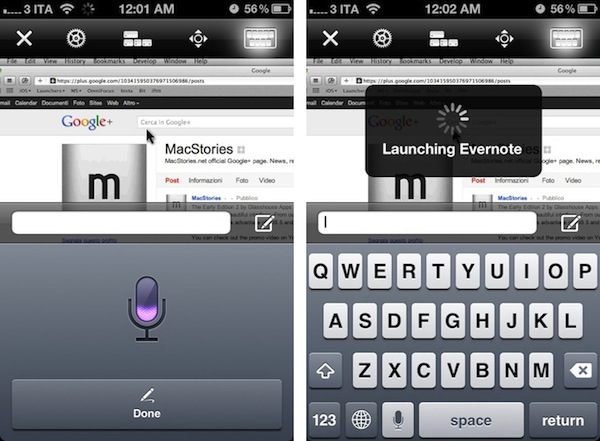
With version 5.2, iPhone 4S owners will be able to open Mac apps by saying “Launch” followed by an app’s name. Once connected to a Mac, the keyboard icon in the upper toolbar of iTeleport will display the standard iOS system keyboard with a compose box on top of it. And because the iPhone 4S comes with Siri and dictation, the keyboard will also have the dedicated microphone icon next to the spacebar. What happens with iTeleport is that if you say “Launch iTunes” through Siri’s dictation, the app won’t transcribe your command in the text box – it will directly launch the app as you can see in the screenshot above. The developers have apparently figured out a way to parse dictated commands directly inside the app to let it recognize installed applications, and launch them in seconds. In my tests, voice recognition in iTeleport has been as good as you’d expect from regular Siri, and app names such as Evernote, Google Chrome, iTunes and Sparrow were recognized instantly.

iTeleport was already a solid VNC app and this new feature will allow iPhone 4S users to save a few seconds when using a Mac remotely. iTeleport for iPhone and iPad can be downloaded on the App Store, and you’ll need the iTeleport Connect app to make your Mac available over the air.


Siri and iPhone URL Schemes

Siri and iPhone URL Schemes

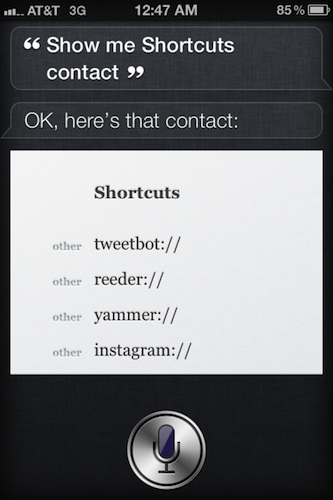
Alex Heath at iDownloadBlog came up with a way to let Siri launch third-party apps on an iPhone. The solution is far from integrated and it requires some tweaking, and it uses an iOS app’s internal URL scheme (example: fb:// for Facebook) and the Address Book to open apps, provided you’ve asked Siri to visualize a “contact card” with some shortcuts in it. You’re basically creating a fake Address Book entry for apps, and assigning a URL scheme to one of the available fields. Tapping on it will open the app or a specific section of the app.

If you have a select number of apps that you’d like to have quick access to with Siri, you could create a “Shortcuts” or “Favorites” contact and add each trigger. Telling Siri to “show shortcuts” would then pull up your list of app shortcuts to open within Siri.

Many have speculated that, in the future, Siri will gain new functionalities including the capability of launching apps directly from its voice-based interface. But wouldn’t it be cool to ask Siri “Open my Facebook messages” rather than just “Open Facebook app”? Or perhaps ask Siri “Go to my OmniFocus Home project” instead of just launching OmniFocus? And what about creating new content from Siri inside a specific section of an app (a new task inside an OmniFocus project), without actually opening it? That’s why I think URL schemes will be worth keeping an eye on – Apple could offer developers a new set of APIs to associate their apps’ sections and menus with Siri actions, and perhaps revamp the URL scheme architecture to include support for Siri and new APIs. This is just speculation on my side, but I think it’d be interesting to see Siri becoming a new, lightweight interface for basic tasks in external apps.

Meanwhile, if you really want to launch apps using Siri and the Address Book, check out iDownloadBlog’s tips here.

Permalink

App Journal, Episode 7: Muon, Flint, Sociable, CoinKeeper

App Journal is a new series aimed at showcasing apps we have enjoyed using on our iPhones, iPads, and Macs, but decided not to feature in a standalone, lengthy review here on MacStories. App Journal is a mix of classic reviews, weekly app recommendations, and a diary of our experiences with apps that still deserve a proper mention.

After the release of iOS 5, iCloud and the first wave of new apps that take advantage of Apple’s new OS and sync services, the App Store is quickly marching towards a holiday season that will be huge, both for hardware sales as well as app and game releases, software deals, and new retail features at Apple’s physical stores. While we wait for the craziness to begin later this month, we take a look at a cool music visualizer for the iPad, a finance app for the iPhone, a Campfire client and a utility to update your status on multiple social networks at once.

Sounds cool? Follow us for this week’s app collection after the break, and stay tuned for more App Journals in the next weeks.

Muon

I found out about Muon when I first saw an ad in our site’s sidebar. I don’t manage advertising on MacStories anymore, so the encounter was completely random, and the fact that the developers are advertising on our site didn’t influence my decision to mention their iPad app on the Journal. Just making things clear.

That said, Muon is a nice music visualizer for the iPad, kind of like iTunes’ own visualizer but with more effects and touch controls. The app can fetch songs from your existing Music library, and displays AirPlay-compatible controls as a translucent bar at the bottom. You can tap on a song’s name at any time to change artist or album or pick a playlist, but I don’t like the blue design of the music picker menu. Visual effects are obviously Muon’s main feature, and interestingly enough the app comes with settings to control the Audio, Drag and Mutate reactions of the Visualizer. You can tweak things like Orbital Speed, Life Span, Color Entropy and Zoom & Blur, and you’ll notice that modifying these parameters really changes what’s displayed on screen.

The developers claim Muon can move up to 500,000 particles on the iPad 2, with a complex visualization engine that makes effects evolve with the beat of you music and gradually form different shapes and patterns that you can capture as presets, or screenshots with the dedicated camera button. The app supports video-out and AirPlay Mirroring, as well as dual monitor setups and full-screen view on the iPad.

Overall, Muon comes with some fairly advanced control options but I simply prefer to keep it running and let it decide which effects to use according to the song that’s playing. Muon is $0.99 on the App Store for a limited time.

Flint

For our communication needs here at MacStories, we use 37signals’ Campfire. For those who are not familiar with the service, it’s a fantastic chat tool for teams that, among other things, allows you to upload files, manage chat transcripts for multiple rooms, and visualize media such as pictures and videos with inline previews. We use Campfire every day to quickly put out news, casually hang out, and assign articles to each other. There’s no doubt Campfire has become an essential tool for getting things done over here.

In the past months I’ve been testing Flint, a native Mac client for Campfire that’s available on the Mac App Store. It’s been hard for me to switch from the browser-based, pinned tab for Campfire, but Flint is simply fantastic. The interface is elegant, gets out of the way and nicely highlights conversations in a Campfire room. There are profile pictures for users, and a popover at the bottom lets you see all participants in a conversation. The app supports most of Campfire’s web functionalities (image previews, sounds, but no emoji), and more importantly it’s perfectly integrated with Growl on OS X.

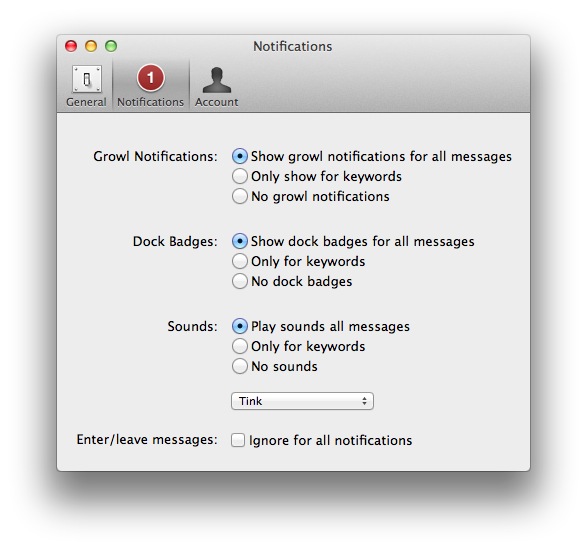
This is the main reason I use Flint – with Growl integration, I can take a look at what’s being said without opening the app and, from the Preferences, control the behavior of sounds, dock badges, keywords and enter/leave messages. In the past weeks, the developers have also released an update that improves the reliability and speed of the app from the first version – so if you gave it a try initially and went back to Campfire on the web, now it’s time to fire up the app again and see if things have improved for you.

I, for one, will keep using Flint to catch up with my team and get work done. If you’re serious about Campfire and have a Mac, Flint is $9.99 on the App Store. Read more


iCloud, Mobile Documents Sync and GoodReader

Last night we detailed how it’s possible to sync documents across multiple Macs configured with the same iCloud account through a hidden folder in Lion’s Library called Mobile Documents. As I explained in the article, this folder is actually the destination and sync location for iCloud-enabled apps, such as Instacast and iWork, that have been updated by developers to officially take advantage of iCloud’s Documents & Data. But as it turns out, Mobile Documents can be used for syncing files across Macs “manually” – just drop a file or folder in there, and it’ll show up on another Mac running the same iCloud account. So whilst Mobile Documents is “officially” used for App Store apps that work with iCloud, it can also come in handy as a native “drop box” powered by iCloud.

As many were quick to point out, syncing files between Macs is nice, but “real” syncing solutions like Dropbox come with mobile apps to make sure your documents and folders aren’t simply synced between desktop machines. Since Apple isn’t offering a new version of iDisk based on iCloud – and seems to be moving away from the concept of filesystem altogether – the method I described in the article was obviously meant for owners of multiple Macs – the Mobile Documents “hack” is cool, but it’s not supported by Apple.

On the App Store, however, that are several apps that over the years have tried to re-implement the filesystem on iOS by offering access to a plethora of online sources for your files, such as FTP servers, Google Docs, Dropbox and SugarSync. These “file management” apps like iFiles and iStorage aren’t integrated on a system level, but they work as “aggregators” for documents you may have already saved in the cloud, only they bring them together in a single location.

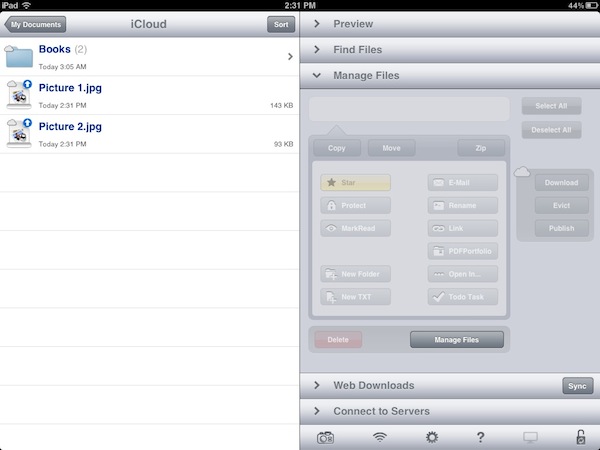
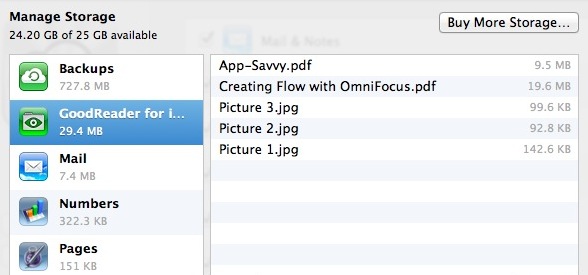
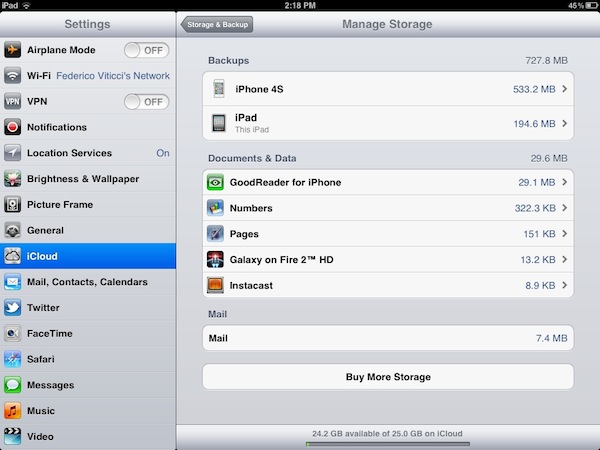
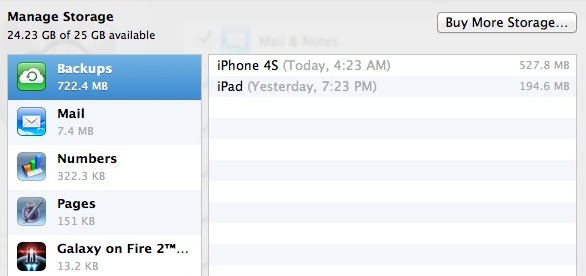
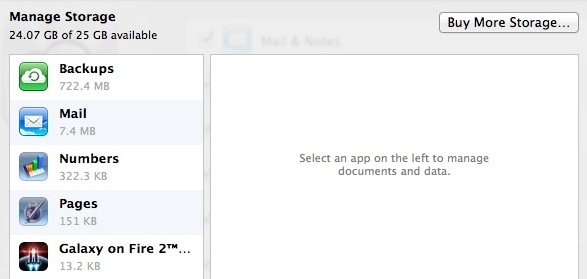
One of such apps is GoodReader, perhaps the most popular document reader & file manager ever landed on the App Store’s virtual shelves – GoodReader comes with hundreds of features and support for multiple online services, plus it’s also a decent PDF reader with annotation functionalities and an overall good preview engine. As I was playing around with the idea of having Mobile Documents work with an iOS app, I realized one of the latest GoodReader updates introduced full iOS 5 and iCloud compatibility, meaning the app can store its documents and data in iCloud, and will show up as iCloud-enabled app in your account (to check this, open Settings->iCloud->Storage & Backup->Manage Storage on iOS, or System Preferences->iCloud->Manage… on OS X Lion). And if an iCloud-enabled app with Documents & Data shows its contents on OS X under Mobile Documents, it means GoodReader should be capable of syncing its own filesystem back to the Mac.

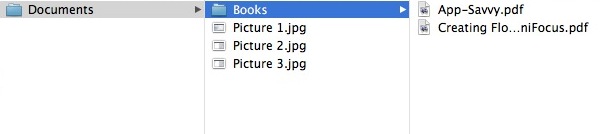
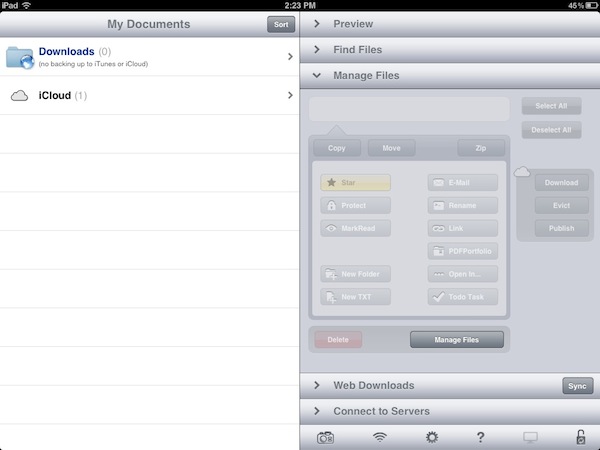
Indeed, you can use GoodReader to manage files and folders on iOS, and have them available on the Mac as well through iCloud and Mobile Documents. GoodReader will create its own folder inside Mobile Documents, and every change (new file, new folder) you’ll make on the iOS app will appear inside GoodReader’s “Documents” directory. Of course, you’ll have to use GoodReader’s “iCloud” folder to enjoy these syncing features; thanks to GoodReader’s file management features, you’ll be able to create folders and sub-folders, move documents around and delete them, create new text files, rename documents, and more. GoodReader has some pretty powerful features, and it’s nice to see the developers are supporting iCloud out of the box with a dedicated folder on the main “My Documents” page.

Thanks to GoodReader’s support for multiple online services, you’ll be able to, say, move files from Dropbox or Google Docs to iCloud directly from the iOS app.

In my tests, iCloud sync with GoodReader has been extremely fast and reliable. Documents imported on iOS would show up in seconds on the Mac’s Mobile Documents, and vice versa. I was able to move screenshots between my Mac, iPhone and iPad using Mobile Documents and GoodReader, but I also created folders, compressed files, imported PDFs and MP3 files. Because iCloud is based on push technology, files are pushed immediately to the cloud and downloaded on all configured clients, but I noticed that GoodReader for iOS, unlike the Mac’s Mobile Documents folder, doesn’t download a full document as soon as the data is “pushed” from iCloud. Try this: on your Mac, drag a medium-sized PDF into GoodReader’s iCloud folder. Notice how the PDF’s icon and name show up on GoodReader after your Mac has pushed the document to iCloud. But try to open the PDF from GoodReader, and you’ll see the app will require additional download time, as only the main information about the file has been pushed to iOS – if you want to read it, you’ll have to wait for the full download. I actually found this method pretty clever, as it gives me up-to-date file information in seconds, and allows me to download files when I need them. Overall, I’m impressed by iCloud and GoodReader working together to sync files across different iCloud clients.

Why should you care to have GoodReader syncing files that also happen to show up on your Mac? First off, it’s a cool trick. More importantly, iCloud’s push technology works well, and users (like me) may find it convenient to have an easy way to, say, import iOS screenshots on the desktop without using Photo Stream, while still relying on iCloud. Thanks to GoodReader’s support for audio and video, iWork and Office files, HTML archives and text files, you’ll be able to copy a variety of documents from your desktop onto iCloud, and have them synced back to iOS in seconds.

Check out how to sync files with Mobile Documents and iCloud here. GoodReader is available on the App Store for iPhone and iPad.


Use “Mobile Documents” Folder To Sync Files with iCloud Across Macs


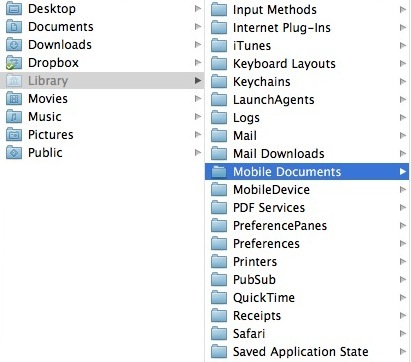
Hidden into Lion’s ~/Library (which can be displayed in a variety of ways as we detailed in our Lion review) there’s a Mobile Documents folder that’s capable of syncing files across Macs configured with iCloud, Mac OS X Hints reports. Sure enough, the Mobile Documents folder is the directory iCloud uses for Documents & Data, a feature available both on iOS 5 and Lion. Mobile Documents is the same folder that contains data for apps that already work with iCloud, such as Instacast, iWork, or Galaxy on Fire 2.

What’s interesting about this folder when used with two Macs under the same iCloud account is that it provides a basic “drop box” functionality for files that don’t necessarily belong to an iCloud-enabled app. As you can see in my screenshot, the Mobile Documents folder contains data and sub-folders for App Store apps that work with iCloud. In order to follow Mac OS X Hints’ suggestion, I tried to drop a few images directly in the folder – as I’d normally do with Dropbox – using my iMac. In a few seconds, those files were synced back to my MacBook Air. Both my iMac and MacBook Air use the same iCloud account, and have Documents & Data on. Clearly, those images didn’t belong to an officially-registered iCloud app (such as Instacast), but the files were synced back and forth between the two machines.

So what we have here is a cool hack to use the Mobile Documents folder as a temporary Dropbox-like solution based on iCloud. This is interesting because Apple could technically prevent files that don’t belong to a signed iCloud app from syncing across Macs, but decided not to, at least on 10.7.2. If you think about it, this could imply the company will offer some sort of iDisk replacement sometime in the future, or build a GUI for syncing documents back and forth between Macs manually. Or, it could be the foundation for an upcoming iWork for OS X update. Or then again, it could simply be a cool trick that won’t receive any official support from Apple.

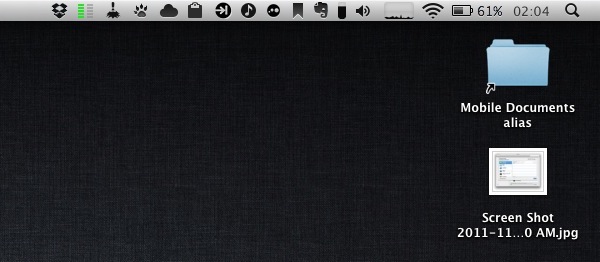
If you want to try the Mobile Documents sync (Mac OS X Hints claims the system even supports conflict resolution, which was suggested by John Gruber months ago), I’d recommend you make an alias of the folder, drop it onto your Desktop, and start dropping files into it. Make sure all your Macs are configured with a single iCloud account, and do not delete the documents & data that are already in there, or you’ll lose precious app libraries, preferences, or saved states.

Finally, please note that even if files you’ll sync won’t show up in “official” iCloud apps, they’ll still count against your iCloud storage.

Update: here’s how you can use Mobile Documents with GoodReader for iOS.