Federico Viticci

10779 posts on MacStories since April 2009

Federico is the founder and Editor-in-Chief of MacStories, where he writes about Apple with a focus on apps, developers, iPad, and iOS productivity. He founded MacStories in April 2009 and has been writing about Apple since. Federico is also the co-host of AppStories, a weekly podcast exploring the world of apps, Unwind, a fun exploration of media and more, and NPC: Next Portable Console, a show about portable gaming and the handheld revolution.

Things 3.4 Brings Powerful New Automation Features and App Integrations

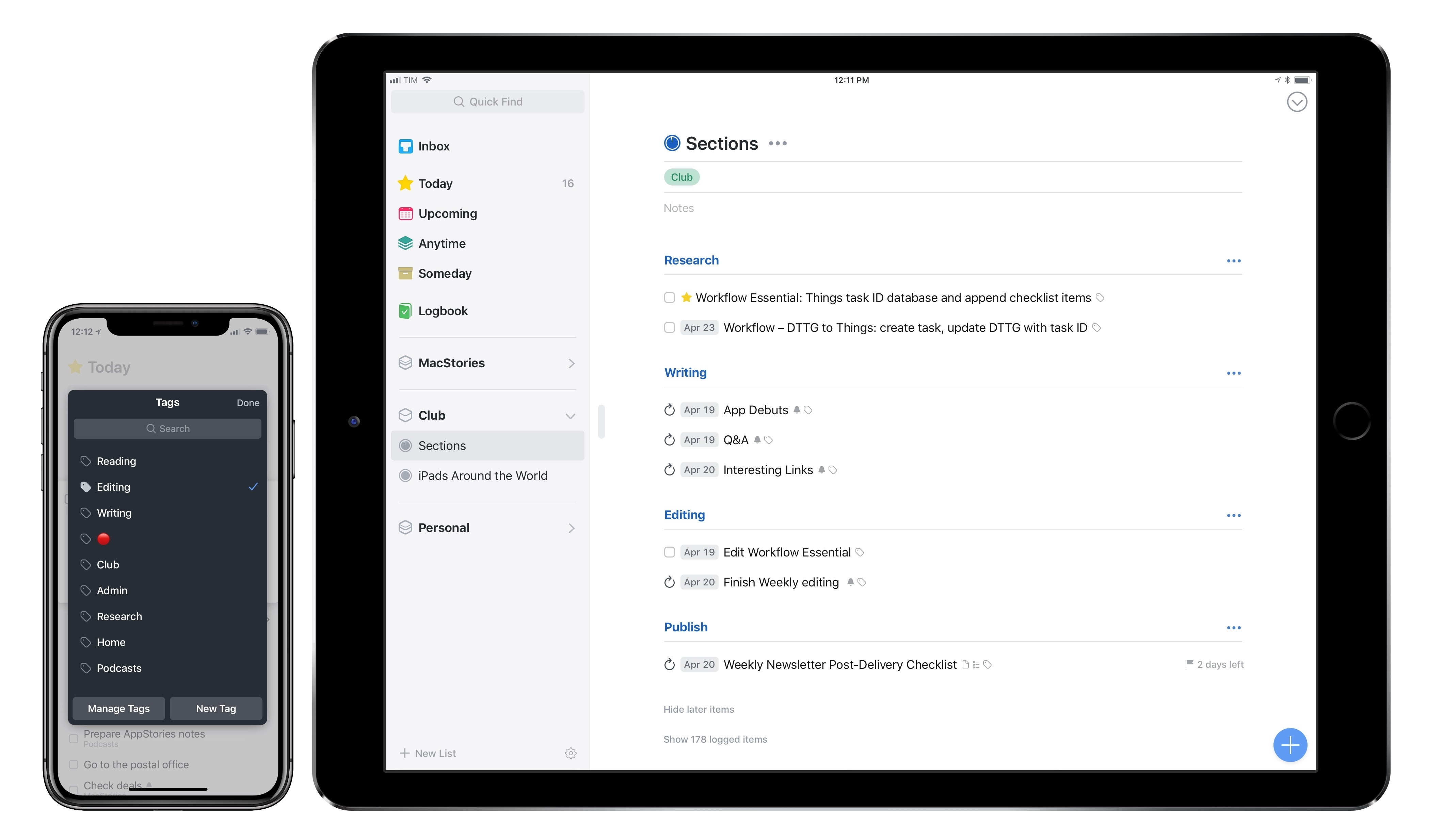
I switched to Things as my task manager late last year, sometime before the holidays. While I discussed this decision at length on Connected and AppStories, I didn’t write about it on MacStories because I didn’t want to rehash Ryan’s in-depth review of Things 3. In terms of design and features, everything I like about Things is covered in his original review.

My personal motivation for switching to Things boils down to this: the way projects and the Today screen are designed in Things fits well with my schedule, and doesn’t stress me out. Things has a “calm” interface that doesn’t turn overdue tasks red, making me feel guilty; projects are clearly laid out with a tasteful use of San Francisco, and further organization can be applied to a project using headings, a feature I’ve never seen in any other task manager. And among dozens of thoughtful touches, Things’ separation of Today and This Evening for the current day is absolutely in line with how I think about my typical day. In short: I want 2018 to be less stressful than last year, and Things is helping with the task management part.

That said, as someone who used 2Do and Todoist in the past and heavily automated them for integration with other apps, I was missing some solid automation options from Things. Cultured Code has offered a basic URL scheme in their iOS app for a few years now, but the supported commands never went beyond the ability to create basic, metadata-free tasks in the app.

This is changing today with Things 3.4, which I’ve had the opportunity to test and experiment with for the past couple of months. With this new version, the folks at Cultured Code have shipped one of the most powerful and versatile URL scheme action libraries seen in a task manager for iOS – comparable to Omni’s work on OmniFocus, and, in a way, perhaps even more flexible.

The new Things URL scheme, which has been documented here, lets you create tasks, projects, show specific sections of the app, and search across your entire Things database. This may not sound too impressive on paper, but what sets this feature apart is the level of customization and detail that can be applied to every single parameter of every action. As a result, Things is now a first-class citizen of the iOS automation scene, and, within the limitations of iOS inter-app communication, its URL scheme unlocks several new possible integrations with apps and workflows.

Furthermore, Cultured Code wants to make it easy for third-party developers to natively support sending data to Things from their apps. Today, the company is also introducing a JSON-based command to allow more control when adding items to Things from external apps, and they’ve created a set of Swift helper classes that apps can use to easily generate the JSON needed to pass data to Things. As I’ll demonstrate later in this article, a couple developers of two of my favorite iOS apps are already taking advantage of these capabilities to great effect.

As you can imagine, I’ve been busy experimenting with the new automation features of Things and identifying aspects of the app I wanted to speed up by integrating them with other apps. Below, you’ll find a collection of the launchers and workflows I’ve put together for Things 3.4. These are the actions and scripts I find myself using the most on a daily basis, and which I believe considerably extend Things’ capabilities on the iPhone and iPad. More advanced workflows will follow over the next couple of weeks (and months) exclusively for Club MacStories members in the Workflow Corner section of MacStories Weekly.

Let’s dig in.

Read more


Homecam for Apple TV Adds Room-Based Accessory Details and Controls

I first covered Aaaron Pearce’s Homecam app last week, noting how this is the app you need to have if you own multiple HomeKit cameras and want a dashboard to monitor them all at once.

I wrote:

Homecam displays a live grid of all the HomeKit-enabled cameras in your house. That’s it. Instead of having to look for cameras in specific rooms or at the bottom of the main accessories list in Apple’s Home app, you can launch HomeCam and see them all at once. Then, you can tap on a camera to watch live footage in full-screen, and optionally add a camera to the Today widget as well. Soon, you’ll also be able to control accessories in the room where the camera is located.

Homecam’s widget is particularly impressive as it can also display live footage from each camera without having to load the main app – and it works both over WiFi and with remote access on cellular connections. I can’t recommend Homecam enough if you own multiple HomeKit cameras and have been looking for a quick way to switch between them.

While my story focused on iOS, Homecam is also available on the Apple TV, where it takes advantage of the big screen to let you keep an eye on even bigger real-time video feeds from HomeKit cameras around the house. And today, Homecam for tvOS received a substantial update with a feature I hope Pearce will soon bring to the iOS version as well: room-based accessory details and controls.

In the new Homecam for Apple TV, you can long-press on the Siri Remote to bring up a menu that lists controls for sensors, switches, and lights located in the same room as the camera. This allows you to, say, monitor your sleeping baby and progressively dim the lights, or remotely check on the state of any appliance connected to a smart plug. In addition, Homecam can now pull in details from sensors (for temperature, humidity, and air quality) and overlay them on the full-screen video, so you can see what the temperature is, turn the fan off, and visually confirm that it worked.

I’ve been testing this Homecam update for the past couple of days, and, while I continue to fundamentally dislike the Siri Remote’s fiddly touchpad, it was fun to watch the dogs sleep on the sofa and wake them up by changing the color of the lights or turning the TV on and off (yes, we did apologize to them with treats afterwards). Pairing a live video feed from a HomeKit camera with data layers and controls from the same room makes perfect sense, and I hope this feature makes it to the iOS app soon.

Homecam for iOS and tvOS is available on the App Store at $4.99.

Permalink

The Reliable Simplicity of AirPods

Chris Welch, writing for The Verge on AirPods’ advantage over other wireless earbuds:

AirPods are the best truly wireless earbuds available because they nail the essentials like ease of use, reliability, and battery life. There are alternatives that definitely_ sound_ better from Bose, B&O Play, and other. But they often cost more and all of them experience occasional audio dropouts. AirPods don’t. I’d argue they’re maybe the best first-gen product Apple has ever made. Unfortunately, I’m one of the sad souls whose ears just aren’t a match for the AirPods — and I’m a nerd who likes having both an iPhone and Android phone around — so I’ve been searching for the best non-Apple option.

But some 14 months after AirPods shipped, there’s still no clear cut competitor that’s truly better at the important stuff. They all lack the magic sauce that is Apple’s W1 chip, which improves pairing, range, and battery life for the AirPods. At this point I think it’s fair to say that Bluetooth alone isn’t enough to make these gadgets work smoothly. Hopefully the connection will be more sturdy once more earbuds with Bluetooth 5 hit the market. And Qualcomm is also putting in work to help improve reliability.

I haven’t tested all the wireless earbuds Welch has, but I have some anecdotal experience here.

A few months ago, I bought the B&O E8 earbuds on Amazon. After getting a 4K HDR TV for Black Friday (the 55-inch LG B7), I realized that I wanted to be able to watch a movie or play videogames while lying in bed without having to put bulky over-ear Bluetooth headphones on. Essentially, I wanted AirPods for my TV, but I didn’t want to use the AirPods that were already paired with my iPhone and iPad. I wanted something that I could take out of the case, put on, and be done with. So instead of getting a second pair of AirPods, I decided to try the E8.

I like the way the E8 sound and I’m a fan of the Comply foam tips. The case is elegant (though not as intuitive as the AirPods’ case) and the gestures can be confusing. My problem is that, despite sitting 3 meters away from the TV, one of the earbuds constantly drops out. I sometimes have to sit perfectly still to ensure the audio doesn’t cut out – quite often, even turning my head causes the audio to drop out in one of the E8. I’m still going to use these because I like the freedom granted by a truly wireless experience and because I’ve found the ideal position that doesn’t cause audio issues, but I’m not a happy customer. Also, it’s too late to return them now.

A couple of days ago, I was doing chores around the house. I usually listen to podcasts with my AirPods on if it’s early and my girlfriend is still sleeping, which means I leave my iPhone in the kitchen and move around wearing AirPods. At one point, I needed to check out something outside (we have a very spacious terrace – large enough for the dogs to run around) and I just walked out while listening to a podcast.

A couple of minutes later, the audio started cutting out. My first thought was that something in Overcast was broken. It took me a solid minute to realize that I had walked too far away from the iPhone inside the house. I’m so used to the incredible reliability and simplicity of my AirPods, it didn’t even occur to me that I shouldn’t have left my iPhone 15 meters and two rooms away.


How We Use RSS

AppStories+ Deeper into the world of apps

AppStories Episode 43 - How We Use RSS

0:00
30:56

AppStories+ Deeper into the world of apps

Federico and John follow up their RSS app and service episode with a closer look at how each of them uses RSS for work and pleasure reading.

Read more


New iOS Apps Must Be Built with iOS 11 SDK and Support iPhone X Display Starting in April

Juli Clover, writing for MacRumors:

Apple today sent out a notice to developers letting them know that starting in April of 2018, all new apps submitted to the App Store must be built using the iOS 11 SDK, which is included in Xcode 9 or later.

Furthermore, Apple says that all new apps designed for the iPhone, including universal apps, must support the iPhone X’s Super Retina display.

“Must be built”, unfortunately, doesn’t mean apps have to support new features like drag and drop. Speaking of which, I don’t think supporting the native resolution of the 12.9-inch iPad Pro is a requirement yet, and the device launched in November 2015.

Permalink

Apple Music’s Archaic Album Categorization

Benjamin Mayo sums up one of the most annoying features of Apple Music: the way the service thinks everything is an “album”, making it extremely inconvenient to find what you’re looking for.

These artefacts of compact discs show up again when looking at an artist page. What a human would think of as an artist’s albums, and what Apple Music lists, are completely different. EPs, singles, specials, deluxe, originals are all shoehorned under one name ‘Albums’. There is no way to filter these out. This really makes finding what you want hard. When you know what you want to find, all this backwardly organised catalogue gets in your way.

There has to be a better method than packaging everything up with the same ‘album’ label. This is not a hard problem, I thought to myself. In fact, it’s already been solved … by Spotify. As you have probably noticed by now, I have included a graphical illustration of Apple Music’s biggest flaw alongside this article. If you can’t see it, your browser isn’t wide enough. If you are reading outside of a browser, like RSS, this probably won’t show up for you either. Use a browser. I encountered this exact scenario in my first day of using the service. I did not fabricate it.

Don’t miss the effective visualization of this problem on his post.

I like Apple Music, but this has been a problem since the service launched almost three years ago, and it’s time for a fix.

Here’s what makes this even more annoying: Beats Music – the very service Apple Music is largely based onvisualized albums, compilations, and different editions in separate tabs/views. Two of the worst Apple Music features (album categorization and the separation of playlists made by you vs. those made by others) had already been fixed by Beats Music, but Apple went for an inferior design that is still with us today.

Permalink

Connected, Episode 180: Our True Tiny Head Form

We have HomePod opinions, dreams about WWDC and an amazing new t-shirt.

On this week’s episode of Connected, we talk about our HomePod impressions and Apple’s plans for iOS and macOS this year. You can listen here.

As a side note, we’ve launched a new t-shirt design for Connected. You can find the t-shirt (in three colors) on Cotton Bureau.

I think this artwork (by the talented Chris Rowland) is amazing, and I’d love to see many of these t-shirts at WWDC later this year. You can get yours here.

Permalink

FileBrowser for Business Gains New FTP Options, Native iXpand Drive Integration in Files App

I first covered FileBrowser in an iPad Diaries column from January about finding a replacement for Transmit on iOS. As I noted in the story, FileBrowser didn’t have the prettiest interface (to be fair, I still have to find a file manager that looks as nice as Transmit), but it offered superior integration with iOS 11 features such as drag and drop and Files.

I wrote:

What FileBrowser gets right is support for iOS 11’s drag and drop and Files app. With drag and drop, you can import items into FileBrowser (and thus upload them to any configured location) as well as export files from a server you’re browsing in FileBrowser. The app supports multi-item drag and drop so you can pick up multiple files in a single drag session and drop them into another iPad app, and it correctly implements lazy delivery (asynchronous transfers) for large files. For instance, I was able to drag a .aif song (30 MB) and a .zip archive (160 MB) from FileBrowser and drop them into Gladys and, while it took a few seconds (particularly for the 160 MB file), it worked just fine; as the file was being copied after I let go of it, I could continue using Gladys as normal.

Something else I should have noted: the FileBrowser team is extremely receptive to criticism and new ideas. Over the past few weeks, I’ve been testing an updated version of FileBrowser (in the Business flavor) that addresses several limitations I covered last month.

Read more