
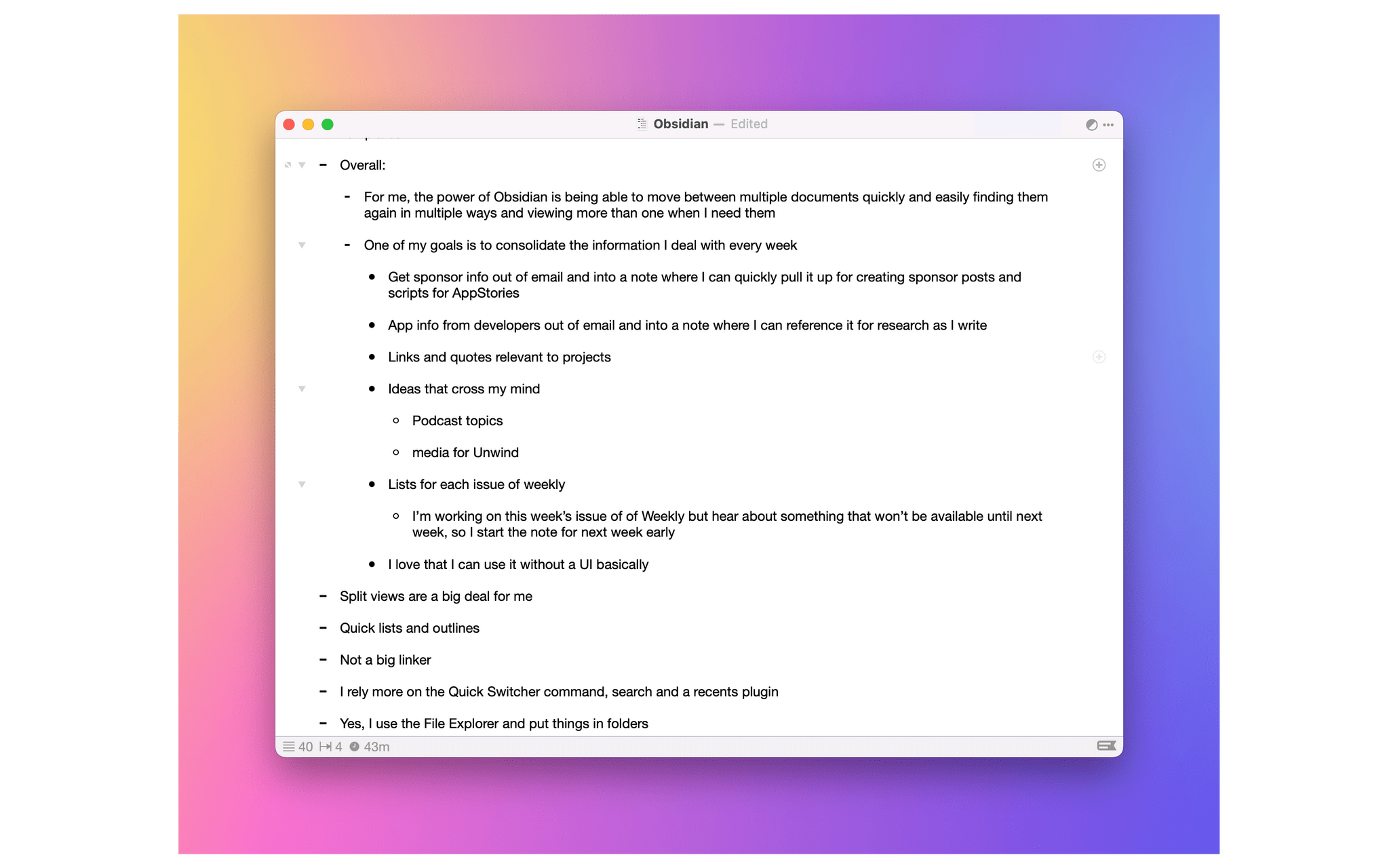
One of my earliest MacStories reviews was of OutlineEdit 1.0, a Mac-only outlining app that caught my eye with its attention to the kind of details that are a must for creating carefully structured outlines quickly. Version 3.0 recently landed on the Mac App Store and at its core, OutlineEdit is just as capable as ever at effortlessly turning ideas into outlines. The changes introduced with version 3.0 include refinements to existing features, as well as a handful of new features that extend OutlineEdit’s capabilities. Let’s take a look.
Posts tagged with "utility"
OutlineEdit 3 Offers a Fast, Keyboard-Driven Way to Outline Your Thoughts

Access Extra Content and Perks
Founded in 2015, Club MacStories has delivered exclusive content every week for nearly a decade.
What started with weekly and monthly email newsletters has blossomed into a family of memberships designed for every MacStories fan.
Club MacStories: Weekly and monthly newsletters via email and the web that are brimming with apps, tips, automation workflows, longform writing, early access to the MacStories Unwind podcast, periodic giveaways, and more;
Club MacStories+: Everything that Club MacStories offers, plus an active Discord community, advanced search and custom RSS features for exploring the Club’s entire back catalog, bonus columns, and dozens of app discounts;
Club Premier: All of the above and AppStories+, an extended version of our flagship podcast that’s delivered early, ad-free, and in high-bitrate audio.
Play: A Fantastic Utility for Saving and Organizing YouTube Videos for Later
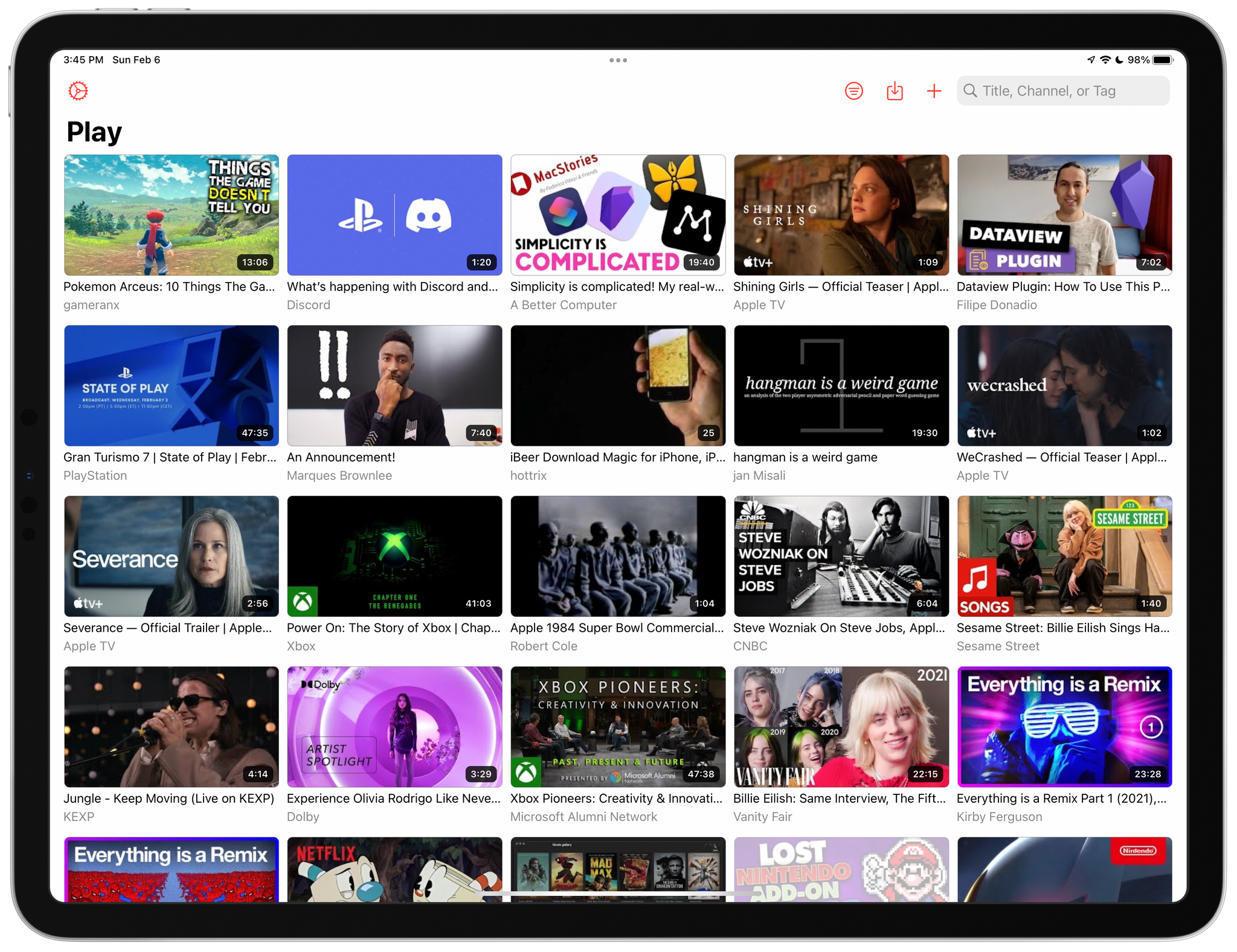
Today, Marcos Tanaka released Play, an iPhone, iPad, and Mac app for saving links to YouTube videos for later. The app doesn’t save the videos themselves. Instead, it saves their URLs, along with metadata, making it easy to organize, sort, filter, and rediscover videos that might otherwise fall by the wayside.
Play is an excellent example of how purpose-built apps often outshine more general solutions. There are many ways to save a YouTube video for later, from a bare URL pasted in a text file to a bookmarking or read later app. YouTube has its own solution, too, with its Watch Later playlist. Each solution I’ve tried in the past works to a degree, but by focusing solely on the experience of saving YouTube links for watching later, Play outshines them all.
Access Extra Content and Perks
Founded in 2015, Club MacStories has delivered exclusive content every week for nearly a decade.
What started with weekly and monthly email newsletters has blossomed into a family of memberships designed for every MacStories fan.
Club MacStories: Weekly and monthly newsletters via email and the web that are brimming with apps, tips, automation workflows, longform writing, early access to the MacStories Unwind podcast, periodic giveaways, and more;
Club MacStories+: Everything that Club MacStories offers, plus an active Discord community, advanced search and custom RSS features for exploring the Club’s entire back catalog, bonus columns, and dozens of app discounts;
Club Premier: All of the above and AppStories+, an extended version of our flagship podcast that’s delivered early, ad-free, and in high-bitrate audio.
CARROT 5.5 Debuts Redesigned Weather Maps with Expanded Customization Options
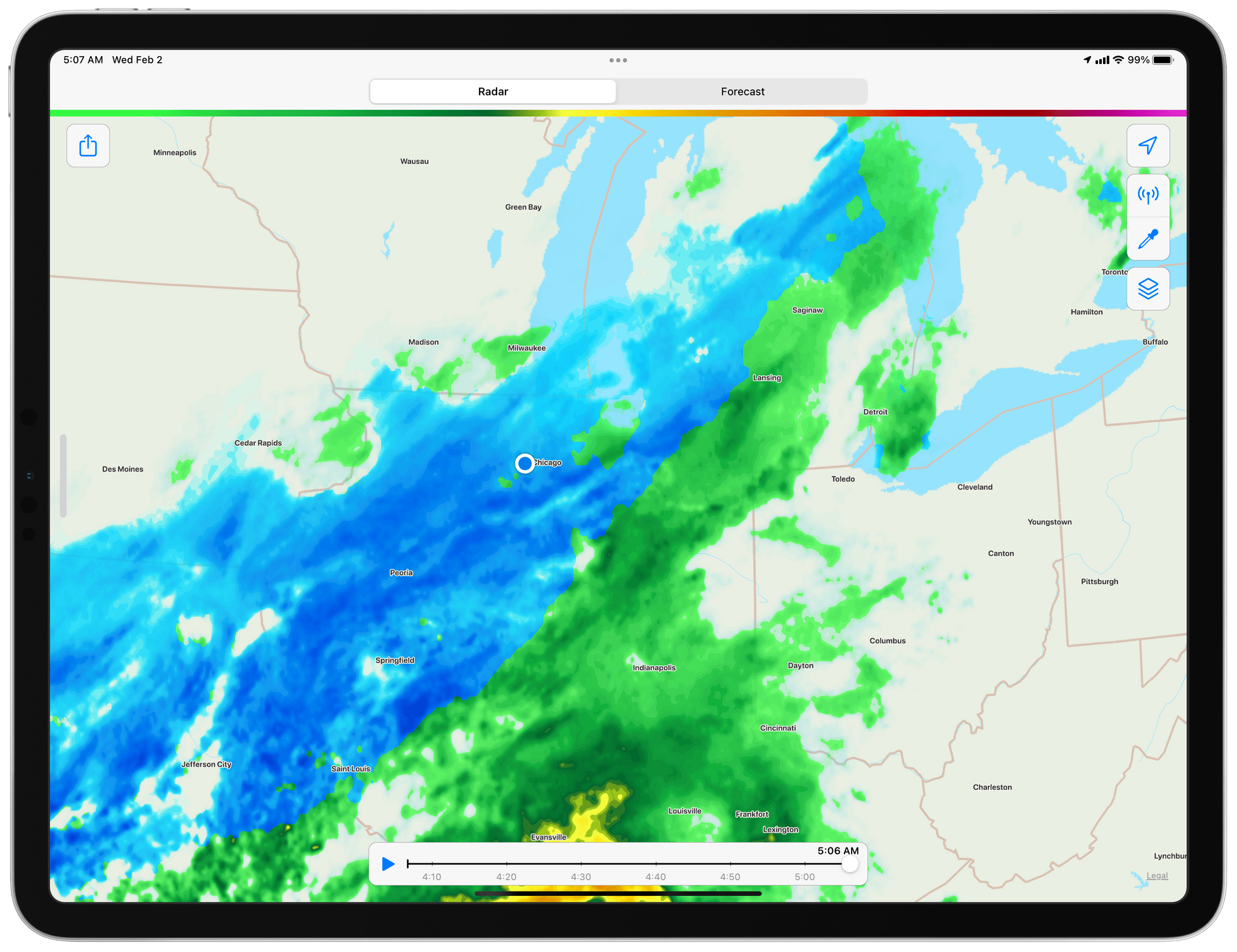
CARROT Weather 5.5 is out with a focus on weather maps. The entire maps UI has been redesigned and expanded with the same sort of deep customization options found throughout the rest of the app. It’s an excellent update that’s all about visual design, so get ready for a bunch of screenshots.
Access Extra Content and Perks
Founded in 2015, Club MacStories has delivered exclusive content every week for nearly a decade.
What started with weekly and monthly email newsletters has blossomed into a family of memberships designed for every MacStories fan.
Club MacStories: Weekly and monthly newsletters via email and the web that are brimming with apps, tips, automation workflows, longform writing, early access to the MacStories Unwind podcast, periodic giveaways, and more;
Club MacStories+: Everything that Club MacStories offers, plus an active Discord community, advanced search and custom RSS features for exploring the Club’s entire back catalog, bonus columns, and dozens of app discounts;
Club Premier: All of the above and AppStories+, an extended version of our flagship podcast that’s delivered early, ad-free, and in high-bitrate audio.
MacStories Starter Pack: Getting a Handle on Links By Treating Them Like Email
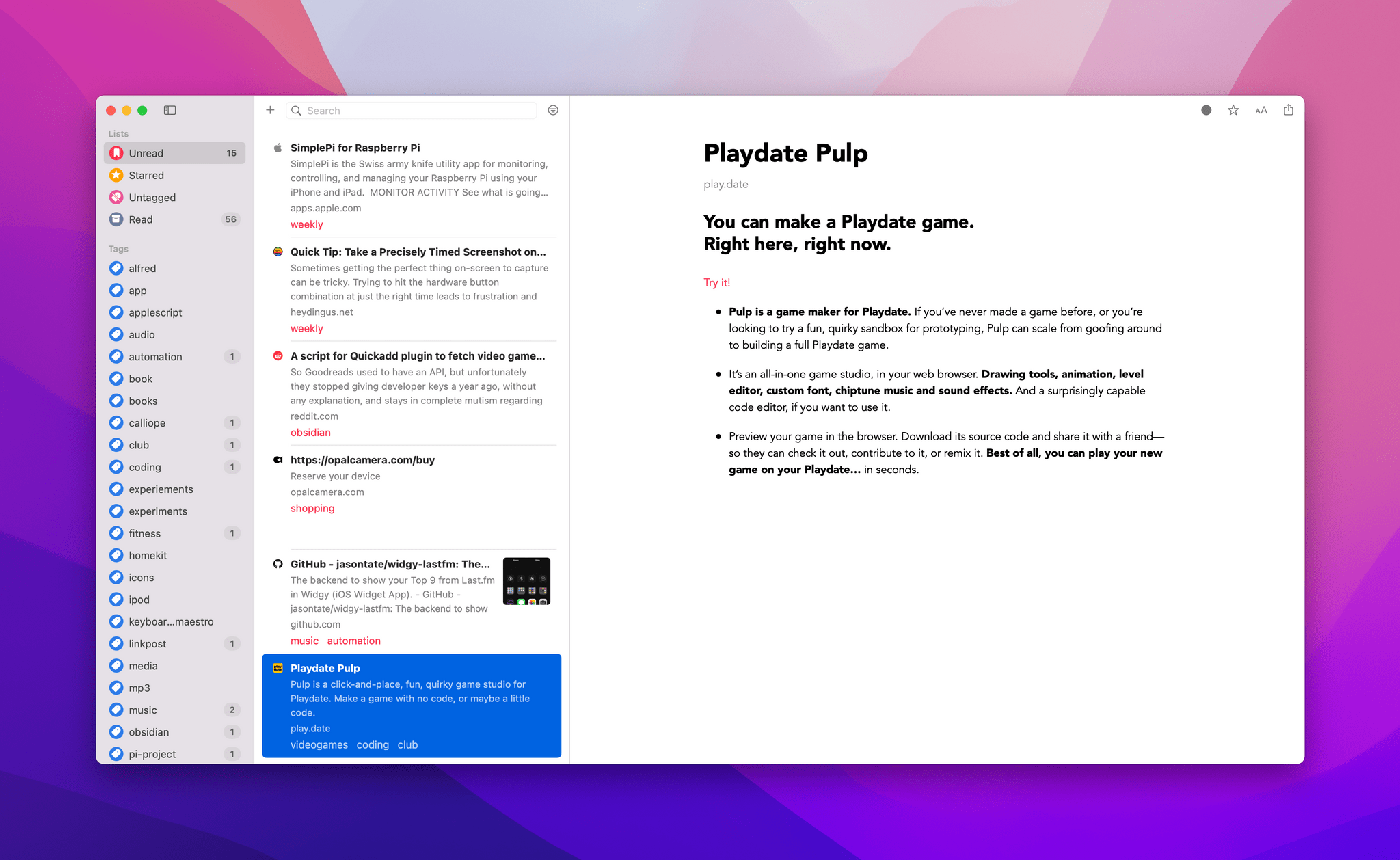
Editor’s Note: Getting a Handle on Links By Treating Them Like Email is part of the MacStories Starter Pack, a collection of ready-to-use shortcuts, apps, workflows, and more that we’ve created to help you get the most out of your Mac, iPhone, and iPad.
I’ve had a link problem for a long time. Links accumulate everywhere: in Messages, mail clients, text files, Discord, Trello, research tools, and elsewhere else imaginable. If they weren’t digital, I’m sure I’d be tripping over links on my way to the kitchen for breakfast each morning.
Part of my problem is an occupational hazard. Links to apps, articles I may want to link on MacStories, images on our CDN, podcast episodes uploaded for publication, and materials from advertisers are just a small sampling of the links I deal with every day.
But links are part of everyone’s lives. Friends and family send us links to things to read, videos to watch, itineraries for trips, and a lot more. Companies send us links to things we buy online and deals we want to check out. Most of all, though, there are the many links we collect ourselves throughout our day. The Internet touches every aspect of our lives, which means links permeate every corner of our days, yet links are collected, organized, and processed haphazardly on an ad hoc basis by most of us.
Over the holidays, I sat down to think about links and how I deal with them. It didn’t take long to realize that thinking about links in the abstract is about as useful as thinking about email messages and tasks. The trouble is that links can represent almost anything from a short video that will take two minutes to watch to an expensive purchase that you will need hours to research. They vary widely in importance, the attention required to deal with them, and relevancy. As a result, it doesn’t do you much good to treat links without also considering what they represent.
Leaving links locked inside the app where you found them isn’t much use either. I’d never considered that links could benefit from a more structured processing approach like email or tasks, but having just reorganized my approach to email, I realized that they absolutely can. The trick is to keep the system lightweight and flexible and to be willing to delete most of your links to avoid clutter.
Access Extra Content and Perks
Founded in 2015, Club MacStories has delivered exclusive content every week for nearly a decade.
What started with weekly and monthly email newsletters has blossomed into a family of memberships designed for every MacStories fan.
Club MacStories: Weekly and monthly newsletters via email and the web that are brimming with apps, tips, automation workflows, longform writing, early access to the MacStories Unwind podcast, periodic giveaways, and more;
Club MacStories+: Everything that Club MacStories offers, plus an active Discord community, advanced search and custom RSS features for exploring the Club’s entire back catalog, bonus columns, and dozens of app discounts;
Club Premier: All of the above and AppStories+, an extended version of our flagship podcast that’s delivered early, ad-free, and in high-bitrate audio.
AirBuddy 2.5: A Refined Experience That Adds Shortcuts Integration and Other New Features
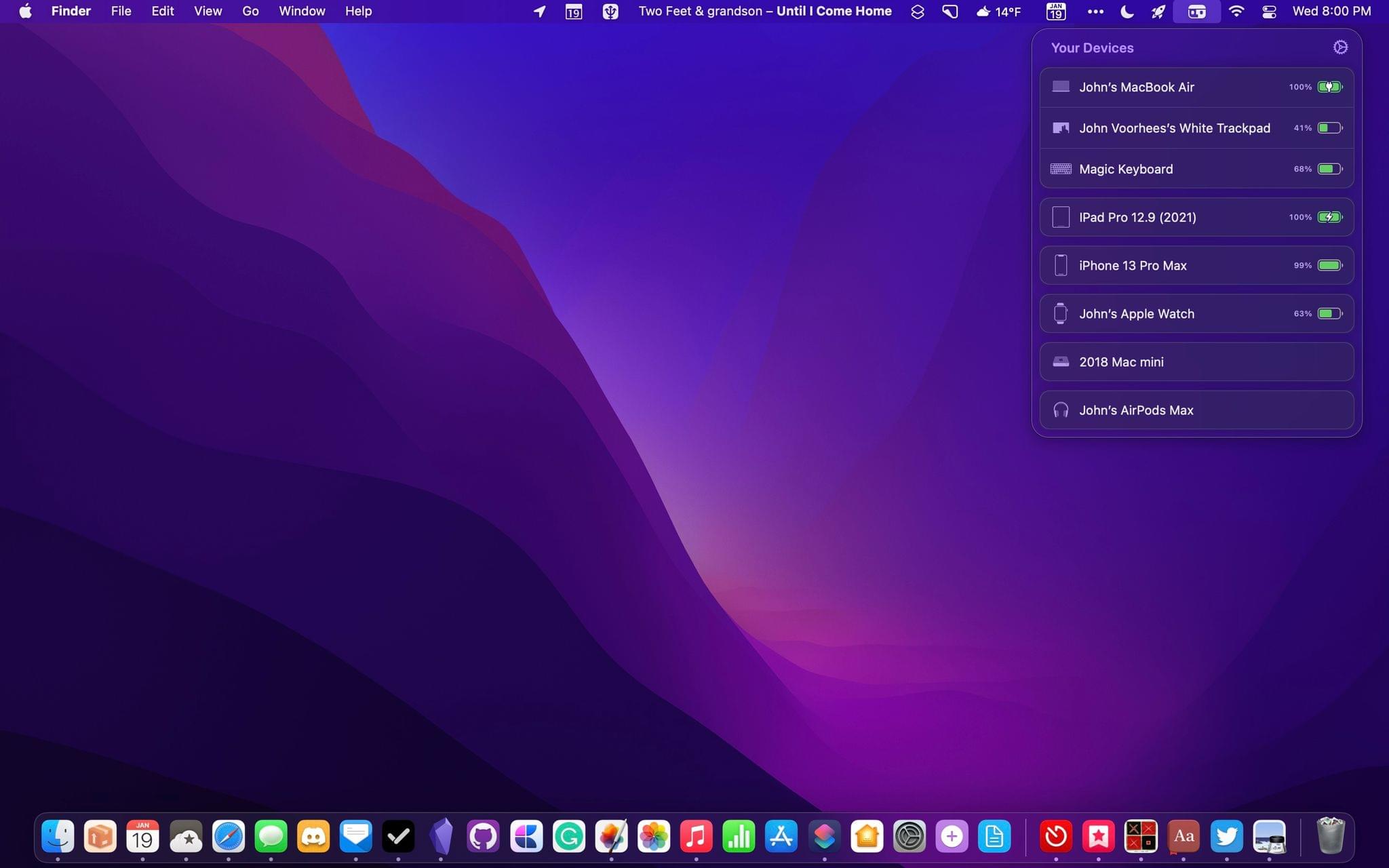
Today, Gui Rambo released version 2.5 of AirBuddy, his Mac menu bar app for connecting and managing wireless headphones and other devices. AirBuddy has come a long way from its origins as an app that simply connected AirPods and some Beats headphones with your Mac. The app still does that well, but as I wrote about AirBuddy 2.0, the app is a fantastic way to monitor the charge status of a wide variety of devices and hand their connections off from one Mac to another. With the latest version, the app’s core features are faster and more reliable, the UI has been refreshed with a Monterey-friendly design, and there are some excellent new features, too, so let’s dig in.
Access Extra Content and Perks
Founded in 2015, Club MacStories has delivered exclusive content every week for nearly a decade.
What started with weekly and monthly email newsletters has blossomed into a family of memberships designed for every MacStories fan.
Club MacStories: Weekly and monthly newsletters via email and the web that are brimming with apps, tips, automation workflows, longform writing, early access to the MacStories Unwind podcast, periodic giveaways, and more;
Club MacStories+: Everything that Club MacStories offers, plus an active Discord community, advanced search and custom RSS features for exploring the Club’s entire back catalog, bonus columns, and dozens of app discounts;
Club Premier: All of the above and AppStories+, an extended version of our flagship podcast that’s delivered early, ad-free, and in high-bitrate audio.
CARROT Weather 5.4: XL Widgets, Time Sensitive Notifications, Complication Customization, Themes, Icons, and More
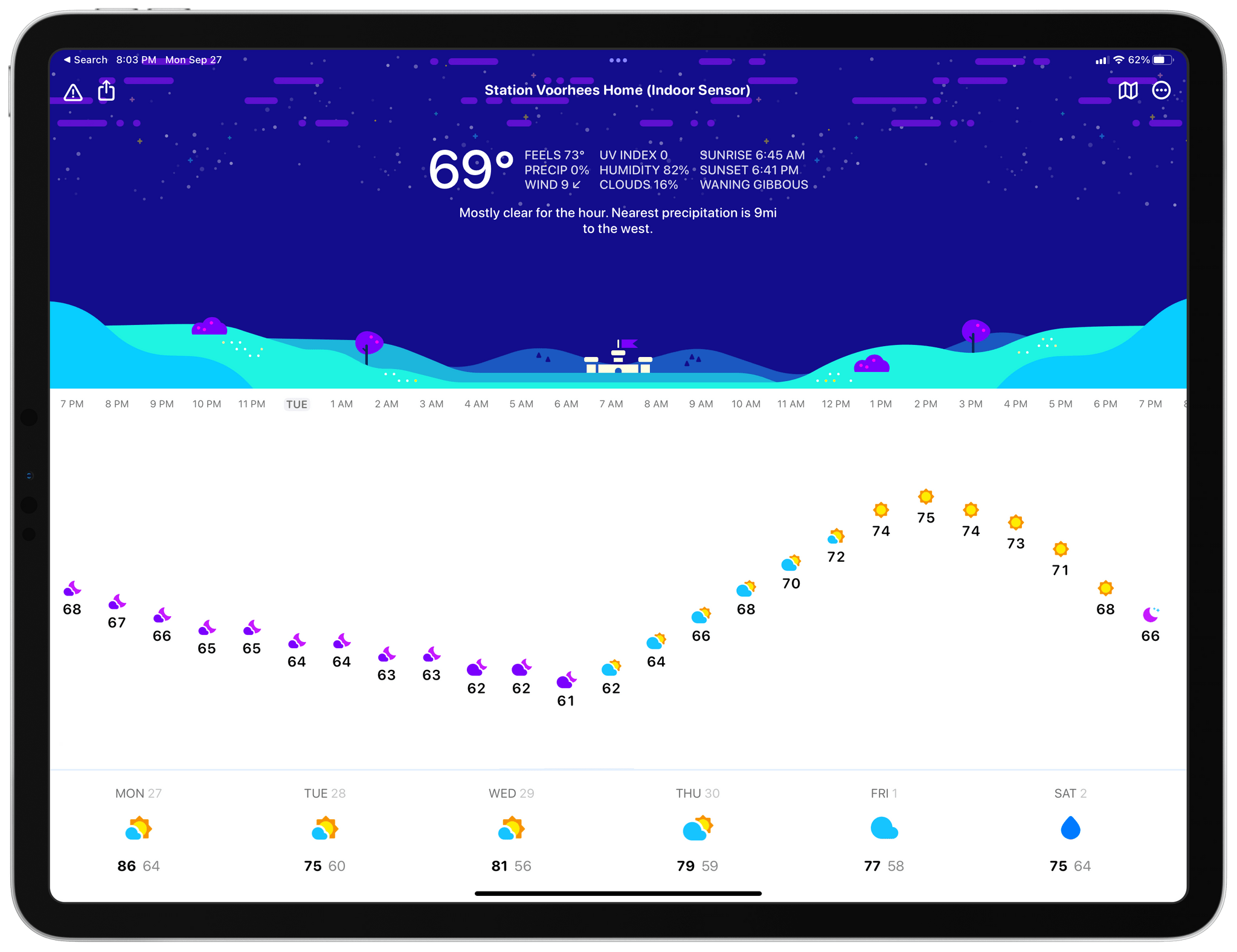
Last week, Brian Mueller released CARROT Weather 5.4 alongside the iOS and iPadOS update. The update takes advantage of new iOS and iPadOS 15 features and continues to put more control in the hands of users with new customization options, themes, and icons.
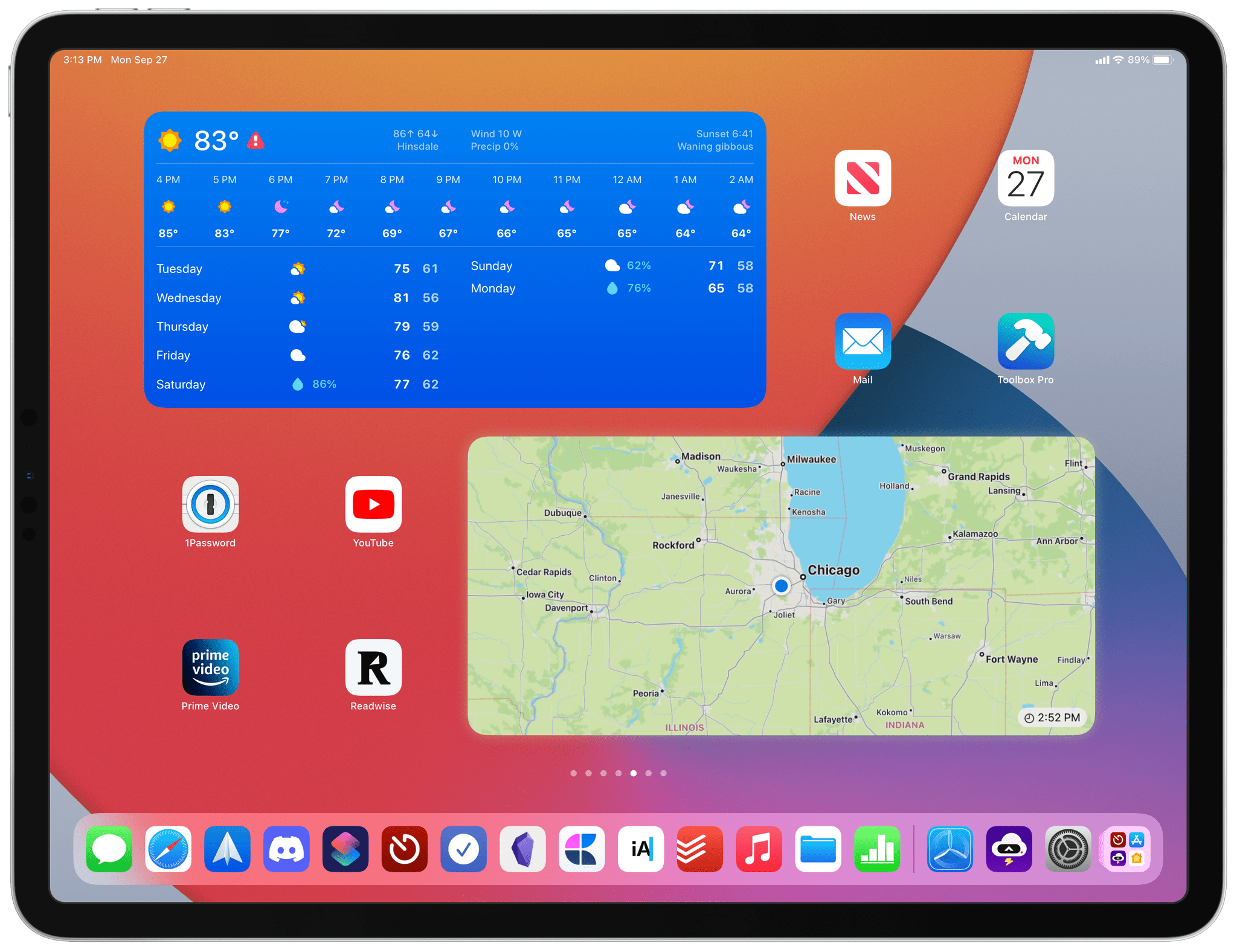
CARROT Weather 5.4 takes advantage of the new XL widgets in iPadOS 15 and the time sensitive notifications on both platforms. On the iPad, CARROT Weather now offers XL Maps and Forecast widgets. The added space allows the XL Maps widget to show weather maps for a wide geographic area. For me here in the Chicago area, that means I can see weather conditions for a big chunk of Illinois as well as parts of Wisconsin, Iowa, Indiana, Ohio, and Michigan, an area covering about 500 miles from east to west and 200 miles north and south.
The XL Forecast widget is big enough to include the:
- Current conditions
- High and low temperatures for the day
- Wind speed and direction
- Chance of precipitation
- Sunrise or sunset times
- Moon phase
- An hourly forecast for the next 10 hours
- A 7-day forecast
With just one widget, you’ve got all the information that most people want in one place without even opening CARROT Weather.
Access Extra Content and Perks
Founded in 2015, Club MacStories has delivered exclusive content every week for nearly a decade.
What started with weekly and monthly email newsletters has blossomed into a family of memberships designed for every MacStories fan.
Club MacStories: Weekly and monthly newsletters via email and the web that are brimming with apps, tips, automation workflows, longform writing, early access to the MacStories Unwind podcast, periodic giveaways, and more;
Club MacStories+: Everything that Club MacStories offers, plus an active Discord community, advanced search and custom RSS features for exploring the Club’s entire back catalog, bonus columns, and dozens of app discounts;
Club Premier: All of the above and AppStories+, an extended version of our flagship podcast that’s delivered early, ad-free, and in high-bitrate audio.
Sofa 3.0 Adds New Ways to Manage Your Media Lists Along With a New Business Model
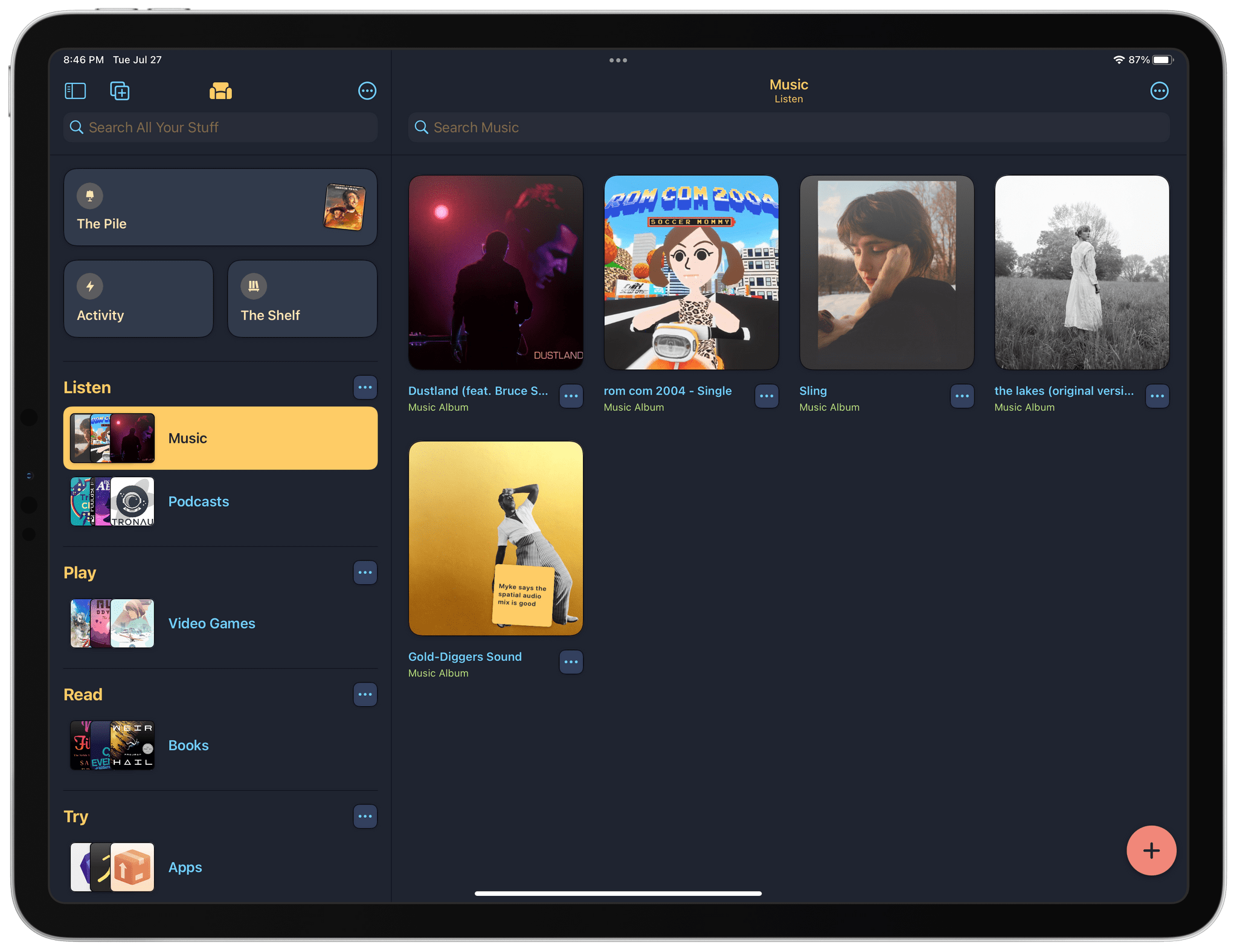
Sofa 3.0, an app that I last reviewed in March, is out with loads of new ways to track, organize, and browse the media lists you create. The app also has a new subscription business model for its pro features.
Media recommendations come at us all from every angle, whether it’s friends and family or sources like reviews. You can save lists of books, movies, videogames, and other media you want to try in lots of ways. You could use an app like Apple’s Notes or Reminders, but they’re general-purpose apps that don’t address the specific needs related to media consumption. Plus, trying to track media in something like a task manager gets out of control and messy fast.
Another option is to turn to an app designed for a specific type of media, and there are many good options available on the App Store. The advantage Sofa has, is that it makes it just as easy to pick a book as a movie or something else when you’re deciding what media to try next. It’s a subtle but important distinction. With single-purpose apps, you need to decide what kind of media you want to consume and then turn to an app to pick something. Sofa dispenses with the first step allowing you to answer a broader question: “How do I want to spend my free time?” That a one-stop approach is one of Sofa’s greatest strengths and one that the app leans into hard with the latest excellent update.
Access Extra Content and Perks
Founded in 2015, Club MacStories has delivered exclusive content every week for nearly a decade.
What started with weekly and monthly email newsletters has blossomed into a family of memberships designed for every MacStories fan.
Club MacStories: Weekly and monthly newsletters via email and the web that are brimming with apps, tips, automation workflows, longform writing, early access to the MacStories Unwind podcast, periodic giveaways, and more;
Club MacStories+: Everything that Club MacStories offers, plus an active Discord community, advanced search and custom RSS features for exploring the Club’s entire back catalog, bonus columns, and dozens of app discounts;
Club Premier: All of the above and AppStories+, an extended version of our flagship podcast that’s delivered early, ad-free, and in high-bitrate audio.
CARROT Weather 5.3 Adds Smart Layouts and a Fun Weather Reports Feature
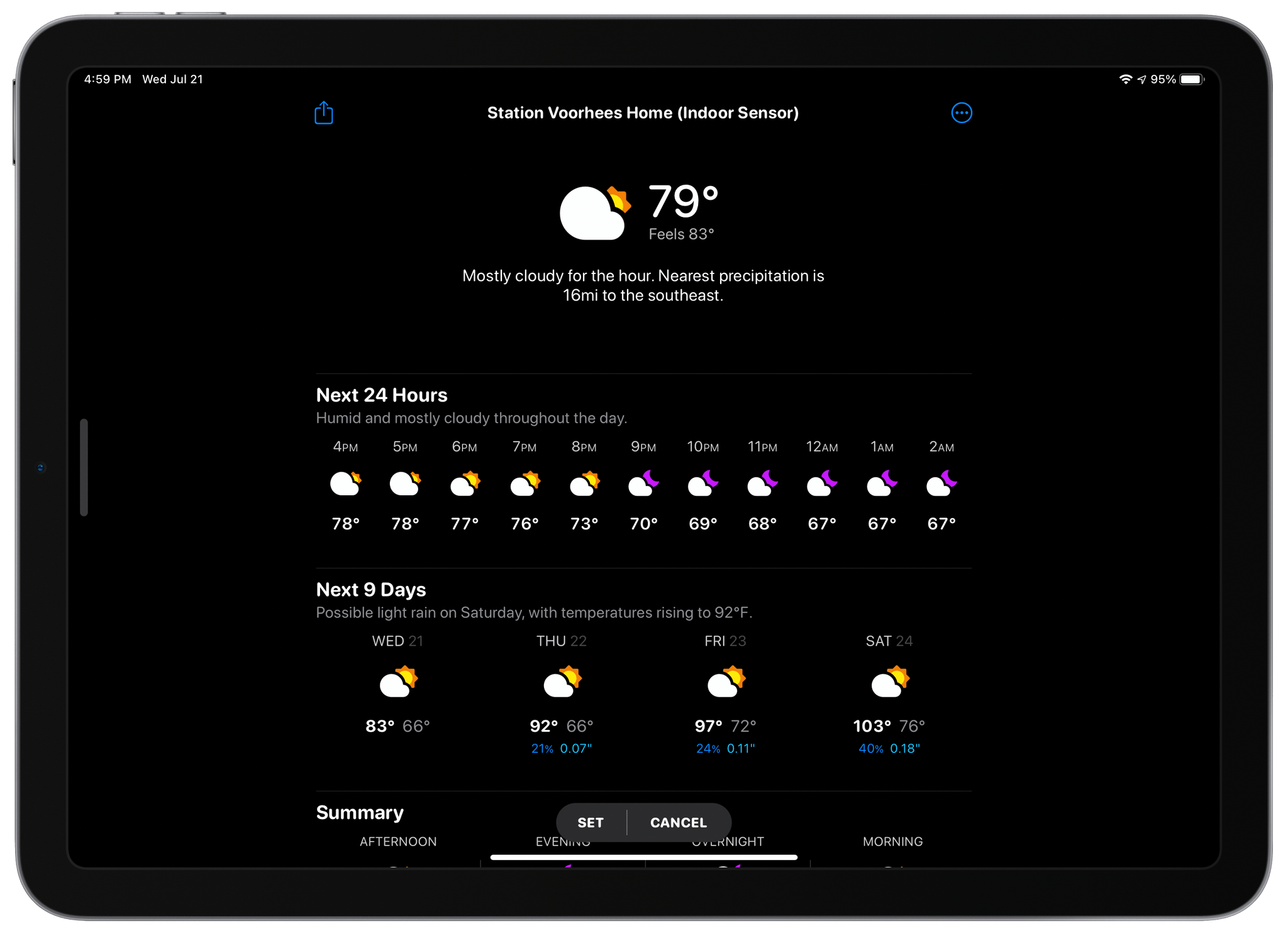
Apple Design Award winner CARROT Weather offers an unprecedented amount of user control over its interface, something which Federico and I recently discussed at length on AppStories and interviewed developer Brian Mueller about last month. The customization options that were introduced in January with version 5 of the app allow users to define the look and layout of multiple weather tiles along with the date presented by each. Since that UI overhaul in January, Mueller has continued to extend the customization system, most recently adding a preview system and other refinements to make it easier to experiment with and create different layouts.
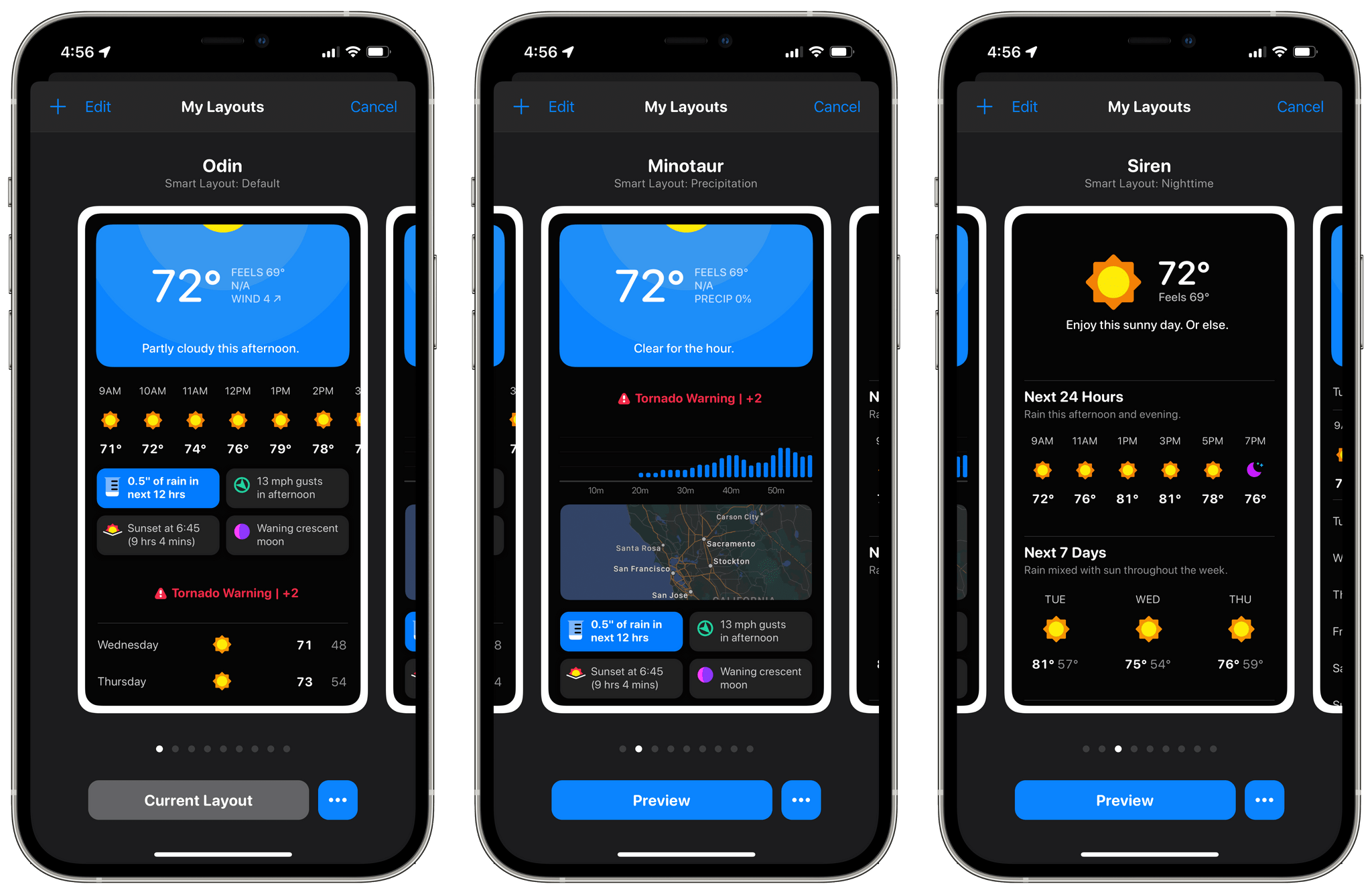
With version 5.3 that was released today, Mueller has added Smart Layouts, allowing users to create different layouts for nighttime and when it’s going to rain. I like these new options a lot for a couple of reasons. The first is practical: if it’s nighttime, you probably don’t care about the day’s high temperature because it likely happened hours ago. Likewise, if it’s going to rain, a graph of when the rain is going to start and when it will be most intense is far more important to you than on a beautiful, sunny day.
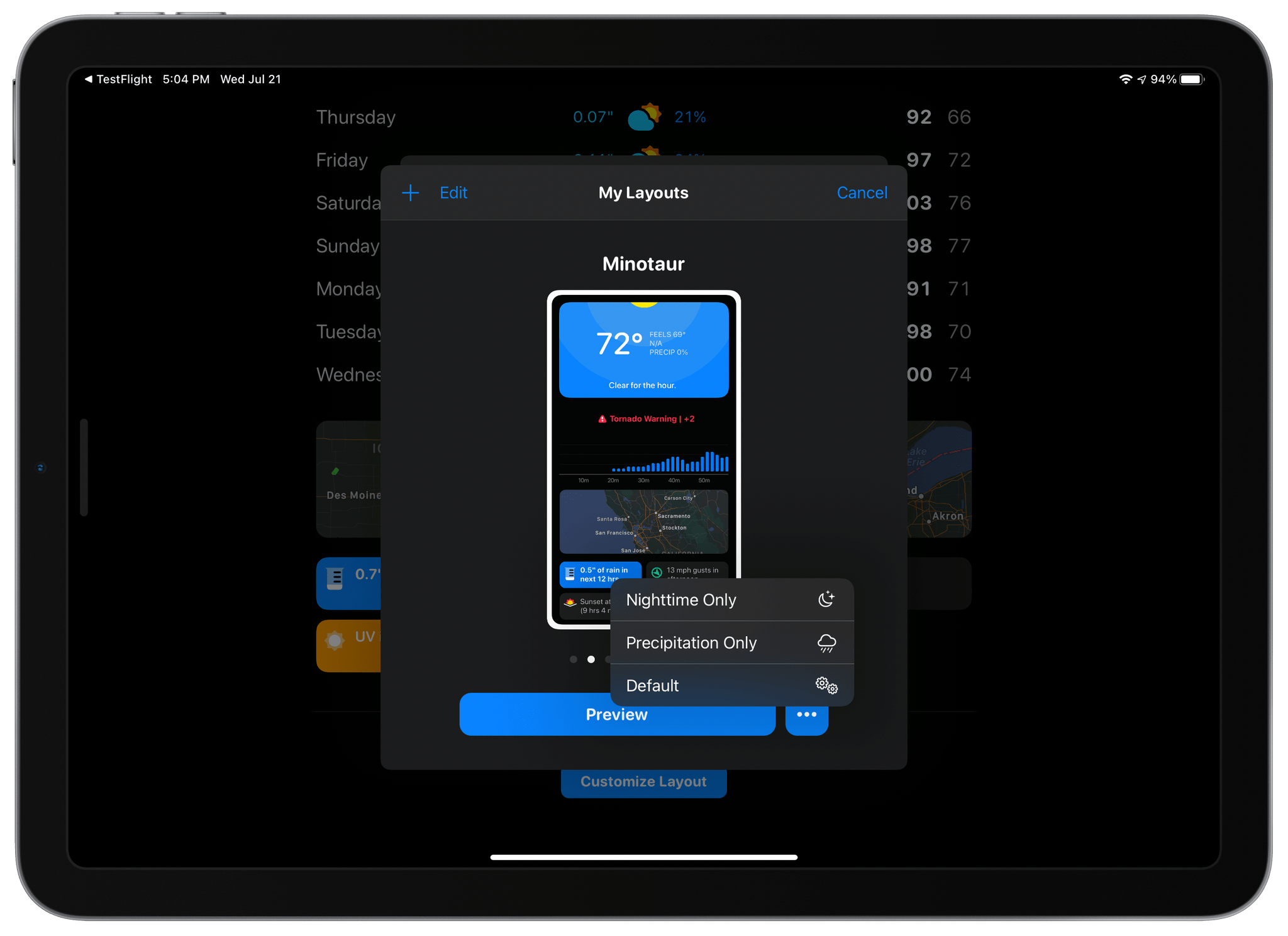
With Smart Layouts, you can adjust your weather layouts for each circumstance. For example, I created a Smart Layout for nighttime based on the Siren template that emphasizes the current conditions followed by the hourly and daily forecasts. When rain is in the forecast, I’ve got a layout that moves a precipitation graph and radar view to the spots just below the current conditions. The changes I made were relatively minor but have made CARROT Weather more relevant as conditions change.
I also enjoy Smart Layouts because they’re another outlet for trying new layout templates and experimenting with setup options. The process is fun and adds an extra touch of personalization and variety that I enjoy. Smart Layouts require a Premium Club subscription to CARROT Weather.
The other headline feature of CARROT Weather’s update is Weather Reports, which lets you create 30-second weather report videos and share them. Whether you’re flexing from the beach on vacation or just want to complain about how hot it is to your friends, Weather Reports are a ton of fun. Videos are recorded with the front-facing camera, and CARROT Weather lends a hand by providing an overlay to help frame yourself. Videos can be scripted randomly by CARROT or unscripted, and you can even pick a funny weatherperson name if you’d like. If you pick a scripted video, the words scroll up the screen as you record yourself teleprompter-style. Here’s one I did from my backyard yesterday afternoon:
Weather Reports are a blast to create and will undoubtedly show up in droves on social media networks before you finish reading this.
Today’s update also adds a variety of smaller updates, including new layout components and multiple formats for taking screenshots of weather conditions for sharing.
CARROT Weather 5.3 is available as a free update on the App Store.
Access Extra Content and Perks
Founded in 2015, Club MacStories has delivered exclusive content every week for nearly a decade.
What started with weekly and monthly email newsletters has blossomed into a family of memberships designed for every MacStories fan.
Club MacStories: Weekly and monthly newsletters via email and the web that are brimming with apps, tips, automation workflows, longform writing, early access to the MacStories Unwind podcast, periodic giveaways, and more;
Club MacStories+: Everything that Club MacStories offers, plus an active Discord community, advanced search and custom RSS features for exploring the Club’s entire back catalog, bonus columns, and dozens of app discounts;
Club Premier: All of the above and AppStories+, an extended version of our flagship podcast that’s delivered early, ad-free, and in high-bitrate audio.
Transloader 3: A Simple, Versatile Way to Remotely Manage Mac File Downloads from an iPhone or iPad
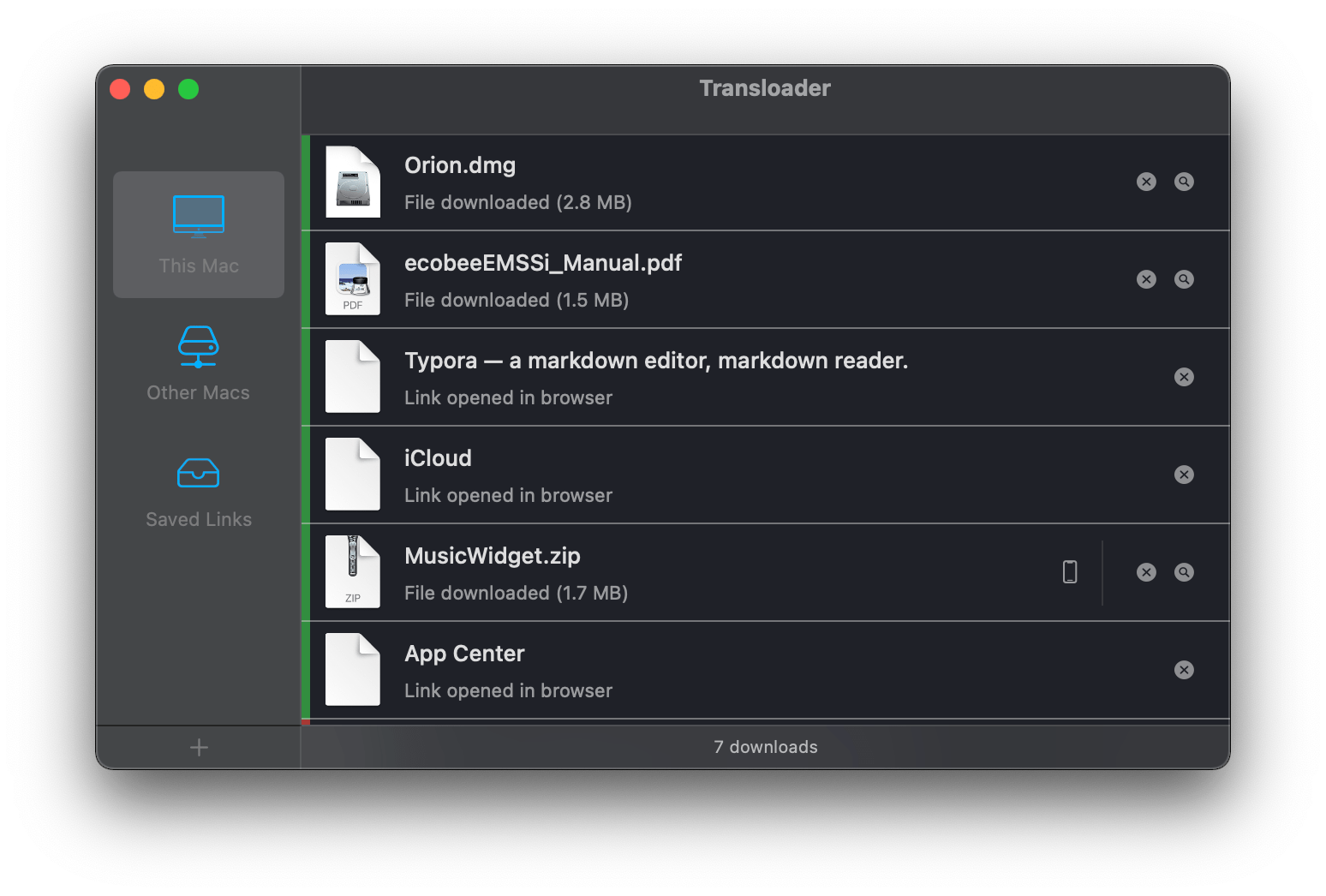
Matthias Gansrigler of Eternal Storms Software recently released Transloader 3, an app for remotely controlling Mac file downloads from an iPhone or iPad. Although the app has been around for a long time, version 3 might as well be a completely new app because it’s packed with new features, making it worth revisiting if you haven’t tried it in a while.
Transloader is one of those utilities that reduces the friction of working on multiple devices by solving a common problem that Apple’s OSes could handle better: cross-device downloads. There are a couple of scenarios where I run into this all the time. The first is with email. With no TestFlight for Mac yet, developers often send me links to a ZIP or DMG file of their apps to try. Going through email messages is one of those tasks that I often leave until late in the day when I’m away from my desk, using my iPad or iPhone. The second scenario is when I’m researching apps and find one or a related press kit I want to download to check out later.
In both cases, I could save the app or other files to iCloud Drive’s Downloads folder and revisit the materials the next time I’m at my Mac. However, with Transloader, I’ve got many more options thanks to its built-in automation tools as well as other features that make managing downloaded files easier.
Access Extra Content and Perks
Founded in 2015, Club MacStories has delivered exclusive content every week for nearly a decade.
What started with weekly and monthly email newsletters has blossomed into a family of memberships designed for every MacStories fan.
Club MacStories: Weekly and monthly newsletters via email and the web that are brimming with apps, tips, automation workflows, longform writing, early access to the MacStories Unwind podcast, periodic giveaways, and more;
Club MacStories+: Everything that Club MacStories offers, plus an active Discord community, advanced search and custom RSS features for exploring the Club’s entire back catalog, bonus columns, and dozens of app discounts;
Club Premier: All of the above and AppStories+, an extended version of our flagship podcast that’s delivered early, ad-free, and in high-bitrate audio.