Posts tagged with "mac"

Default Browser: A Mac Menu Bar Utility for Quickly Switching Browsers

Sindre Sorhus has released more apps than most indie developers I’ve covered, and many are among my favorite utilities. I suspect that a big part of Sorhus’ success is the tight focus of most of those apps, which are designed to eliminate specific points of friction for users.

Sorhus’ latest utility is called Default Browser. It’s a Mac menu bar app that, as the name suggests, lets you change your Mac’s default browser on demand. Just head to the menu bar, and with a couple of clicks, you can switch between any browsers you have installed.

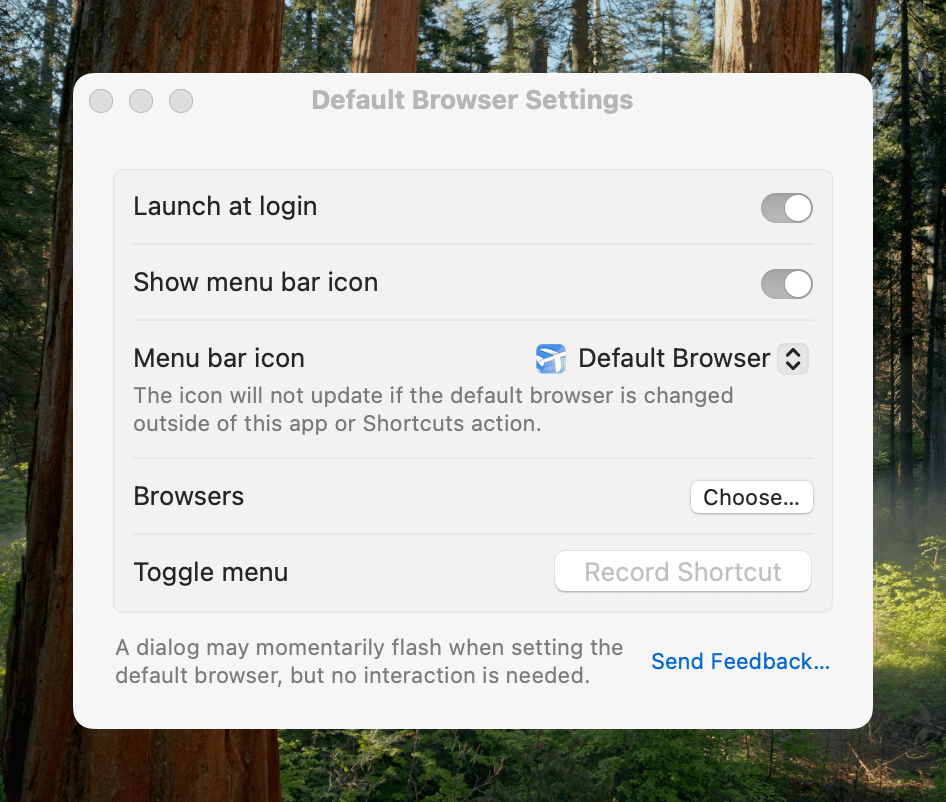
Switching default browsers can be simplified even further by setting a hotkey to reveal the app’s menu and then hitting the number associated with the desired browser. Alternatively, holding down Option as you click on a browser opens it without making it the default. Another nice touch is that, among the multiple menu bar icon options in the app’s settings, there’s an option to use the icon of the currently active default browser, a great reminder of which is active.

Default Browser includes several handy settings.

Default Browser includes several handy settings.

Default Browser works with Shortcuts, too, with actions to get and set your default browser programmatically with actions. That makes it easy to assign browsers to a device like a Stream Deck or Logitech Creative Console for push-button convenience. As Sorhus suggests in the app’s documentation, combining Default Browser with an app like Shortery, which has shortcut triggers for Mac events like connecting to a Wi-Fi network or launching a particular app, opens up a wide array of possibilities as well.

Default Browser also offers a Focus filter, giving you the ability to associate a particular browser with a Focus mode. I don’t have Focus modes for contexts where using a different browser would be useful, but I can imagine it working well for separating web browsing at home from browsing at your workplace or school, for example.

I primarily use Safari, but I’ve been experimenting with Microsoft Edge more, and I’m testing Surf, a browser fused with an AI assistant. I expect we’ll see many more browsers like Surf that aim to combine traditional search and web browsing with the best of what AI can do to organize and provide insights into data. That’s why I purchased Default Browser. The app is available directly from Sorhus for $4, and it makes it easy to quickly switch between browsers whether you’re testing them like me, you’re a developer testing code in different browsers, or you simply prefer certain browsers for certain tasks.


Espresso Displays Announces the 4K 15 Pro Portable Display

Source: espresso Displays.

Source: espresso Displays.

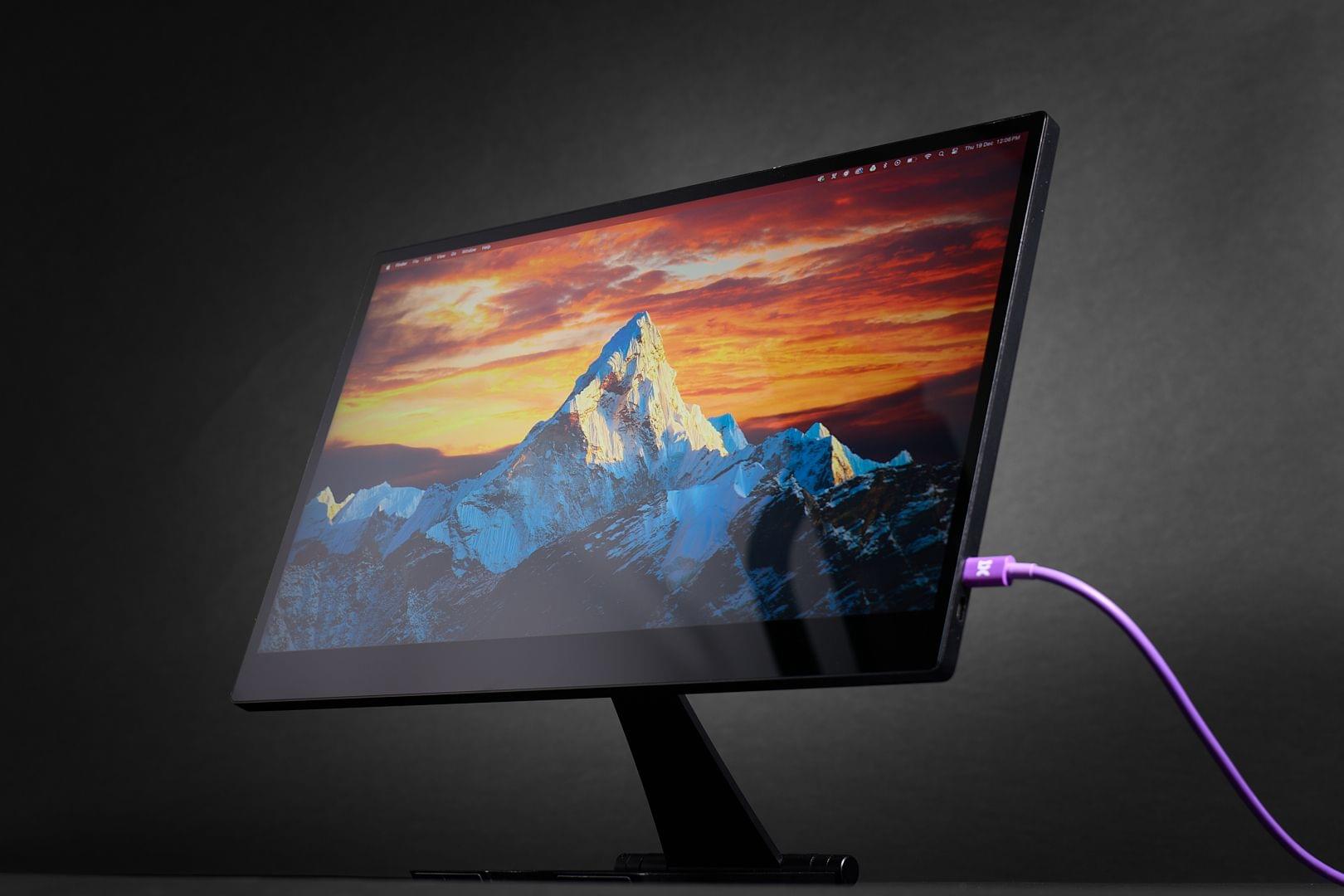
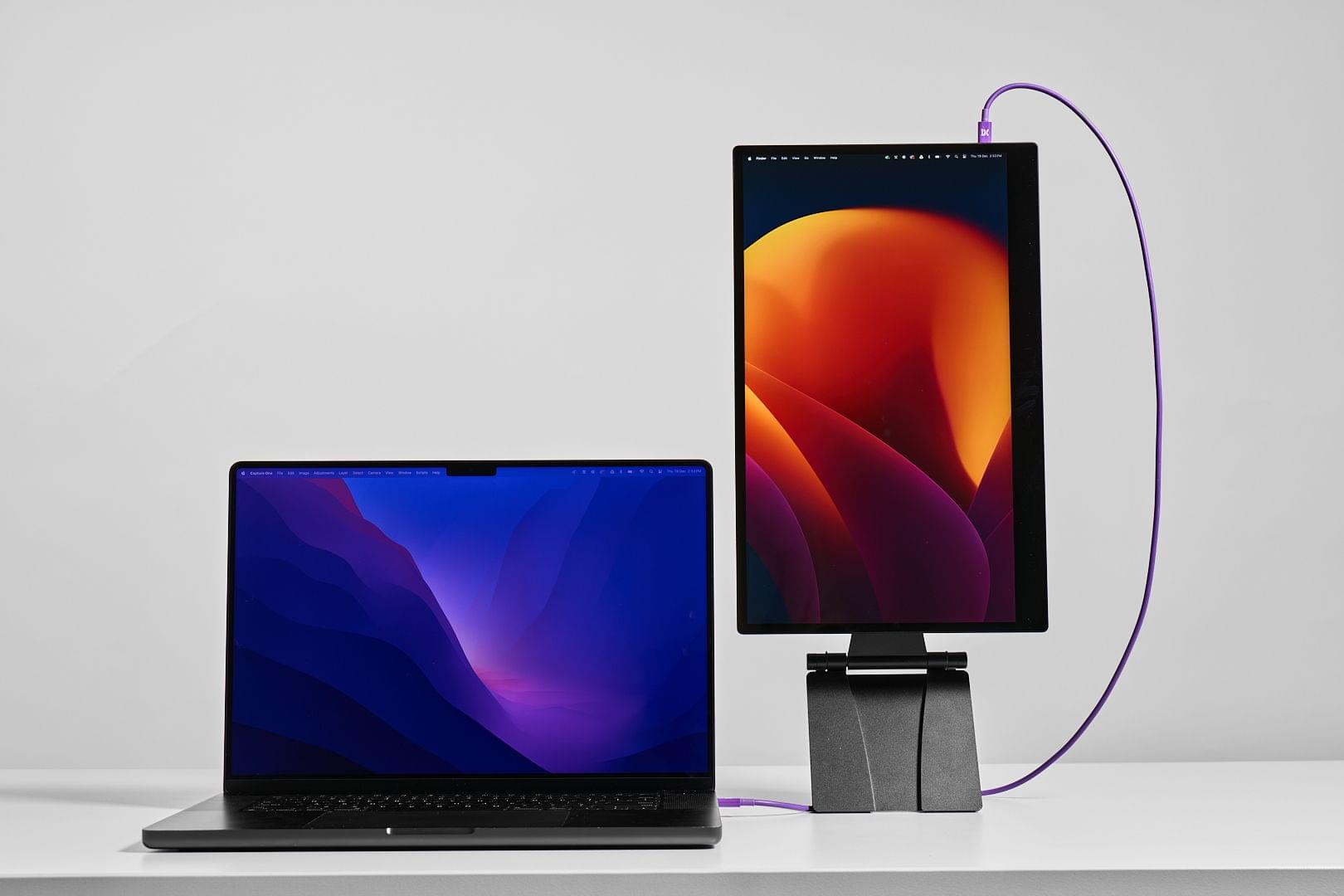
Late yesterday, espresso Displays announced the addition of a new portable display to its Pro lineup. The espresso 15 Pro joins the company’s 17 Pro, which was released last year. Highlights of the 15.6” display include a brighter 60Hz 4K screen and a new stand, along with features from the 17 Pro like touch sensitivity.

Source: espresso Displays.

Source: espresso Displays.

The display, which is enclosed in an aluminum body with two USB-C ports, is capable of 550 nits of brightness over a single USB-C cable, a 100-nit improvement over the larger 17 Pro display. The new Stand+ will enable the screen to be elevated much higher, too, thanks to a clever design that can be folded up into a travel-friendly configuration.

The espresso 15 Pro will be shown off at CES starting tomorrow, where I’m hoping to spend some hands-on time with it. Although I haven’t seen the 15 Pro yet, I have tried the 17 Pro and espresso Display’s standard 1080p 15” portable display, which came with the same Stand+ as the 15 Pro model. Both displays are well-built, lightweight, and easy to use, making them great complements to a Mac, iPad, or even an iPhone for anyone who wants a second screen. I’m particularly interested in the 15 Pro, though, because despite its great resolution, the 17 Pro is a little bigger than I typically want to carry with me, and I expect the added brightness of the 15 Pro will be a nice addition, too.


A Fun Way to Add Holiday Cheer to Your Mac

If you’re looking to add a little holiday cheer to your Mac, be sure to check out Festivitas by developer Simon Støvring. The app lives in your Mac’s menu bar where you can switch between displaying colorful blinking holiday lights along your menu bar, dock, or both.

The app requires access to accessibility permission to tell where your Mac’s dock is, which it will ask permission for when you first start it. Once that’s out of the way, you can turn the lights on and off from the menu bar, where you can also access settings to customize things like the size of the lights, their spacing, and the thickness of the wire that connects them.

The app is available via Gumroad for 4 euros.

Permalink

Control Ultimate Edition Is Coming to the Mac Early Next Year

Source: Remedy Entertainment.

Source: Remedy Entertainment.

At WWDC this year, Apple announced that Control Ultimate Edition from Remedy Entertainment would be coming to the Mac. At the time, no release date was announced, but thanks to a Remedy investor event, we now know that the game is slated to arrive on February 12, 2025.

A few days ago, Tom Polanco of Tom’s Guide got a brief demo of the game and came away optimistic about how it will run on the latest Macs:

I briefly played Control Ultimate Edition on the new Mac mini M4, which was the first time I’ve played the game since it originally launched in 2019. The high-resolution textures and buttery-smooth gameplay make it feel like a completely different game from the PS4 version I remember.

According to Polanco:

Apple says that Control Ultimate Edition has been optimized for Macs and will have smooth performance, precise gameplay, and support HDR and MetalFX Upscaling. The game will also support hardware-accelerated ray tracing on Macs with M3 and M4 processors.

Although Control is a five-year-old game, its demanding visuals are still a benchmark against which hardware is often measured, so those details are encouraging. It’s also great to hear that Remedy has gone to the trouble of adapting the game for Apple’s latest videogame APIs. Apple’s hardware has become increasingly capable of playing AAA games, but cooperation from publishers like Remedy is necessary, too.

I expect it will take a while before the entire Mac lineup can run the most demanding games. However, as Apple silicon continues to make advances that trickle throughout the Mac lineup, the market for videogame publishers like Remedy will expand. If Remedy can show that the Mac can deliver a great experience with a game like Control, I’m cautiously optimistic about the platform’s long-term prospects as a high-end gaming platform.

Update: Control Ultimate Edition is available to pre-order on the Mac App Store for $39.99.


The Mac mini Excels as a Videogame Emulation System

Over at Retro Game Corps, Russ Crandall put the new M4 Mac mini through its paces to see how it handled videogame emulation. As Crandall’s video demonstrates, even the base model version of Apple’s tiny Mac did very well:

Crandall walks viewers through the basics of setting up Emulation Station Desktop Edition on a Mac, which serves as a front-end that uses a variety of emulators to play classic systems. It’s not surprising that the M4 mini didn’t break a sweat emulating the oldest systems like Nintendo’s NES and Game Boy. However, it also did well with more modern systems like GameCube, running at six times the native resolution at 4K.

The mini struggled at times with the most modern systems Crandall tested, like Xbox, but the takeaway is clear: the Mac mini is a capable videogame emulation system. That will be true for other M4 Macs, too, but what’s unique about the mini is its size. The computer’s small footprint lends itself to sitting under a TV or pairing with a portable monitor to play games wherever you have the space.

Uses like Crandall’s are what make the Mac mini such a compelling update. It’s always been small, but by shrinking the mini even further and significantly improving its power, Apple has opened up new possibilities for its smallest Mac.

Permalink

Apple Releases Updates to Final Cut Pro and Logic Pro for the Mac and iPad

The Magnetic Mask. Source: Apple.

The Magnetic Mask. Source: Apple.

Today, Apple revealed the latest updates to Final Cut Pro for the Mac and iPad, with both offering a variety of new features and simplified workflows.

Final Cut Pro 11 for the Mac has added magnetic masks, extending the “magnetic” metaphor used for clips placed on your timeline. Apple says the new feature will allow you to quickly mask people and objects in a shot to color grade them or add effects separately from the rest of a scene.

Final Cut Pro for Mac creating closed captions. Source: Apple.

Final Cut Pro for Mac creating closed captions. Source: Apple.

The app can automatically generate closed captions now, too. The feature, which was briefly shown off in a video published alongside the announcement of the new Mac mini, uses artificial intelligence to convert dialogue into text.

Final Cut Pro 11 is also now capable of editing spatial video for the Apple Vision Pro. In its press release, Apple says:

Final Cut Pro 11 now supports spatial video editing, allowing editors to import their footage and add effects, make color corrections, and enhance their projects with titles. The depth position of titles and captured footage can also be adjusted during the editing process. Spatial video clips can be captured directly with Vision Pro, or on iPhone 15 Pro, iPhone 16, iPhone 16 Pro, and Canon’s new RF-S7.8mm F4 STM DUAL lens paired with Canon R7.

Enhance Light and Color in action. Source: Apple.

Enhance Light and Color in action. Source: Apple.

Final Cut Pro for the iPad has been updated to version 2.1 with several new features. I’ve been using Final Cut Pro more regularly since we started the MacStories YouTube channel, and one of the limitations I noticed immediately is that the color correction tools in the iPad version weren’t nearly as good as on the Mac. The iPad’s color tools still aren’t as sophisticated as what’s available on the Mac, but this update does add new color grading presets as well as a new Enhance Light and Color feature that intelligently applies color, contrast, brightness, and color balance to a video and works with SDR, HDR, RAW, and Log-encoded media.

One of Final Cut Pro for iPad's new brushes. Source: Apple.

One of Final Cut Pro for iPad’s new brushes. Source: Apple.

Live Drawing on a video has been expanded with new brushes, too. There are new watercolor, crayon, fountain pen, and monoline pen brushes, letting users create a greater variety of looks for their videos. Other new effects include a picture-in-picture effect, callouts, and a set of built-in soundtracks. I’m eager to try picture-in-picture, which should be a good way to create tutorials and other types of videos and callouts; it’s an effect available from multiple third-party effects vendors on the Mac, but new to the iPad.

The iPad version of Final Cut Pro is also adding a host of other new features, including:

  • the ability to expand clips in the timeline vertically with a pinch gesture,
  • dynamic adjustments to the size of the picture-in-picture window,
  • support for editing high-frame-rate video, and
  • Apple Pencil Pro haptic feedback for timeline scrubbing and dropping effects onto the timeline.

Read more


Raycast Overhauls Its Notes Feature

Raycast has always been more than an app launcher. From the start, it has included a multitude of other handy utilities, including Floating Notes. I’ve used Floating Notes now and then to park a bit of text where I knew I’d be able to find it later. Because the note floated above other windows, it was easy to access, but Floating Notes always felt a little too rudimentary to use for much more than that.

Today, Raycast released an extensive update to the feature and renamed it Raycast Notes. Your notes still occupy a floating window, but now, the window auto-resizes to fit the content by default. The window’s width is fixed, but you can always resize its height to adjust how much space it occupies on your screen.

Read more


CoverSutra Adds a Standalone Apple Music Client to Your Mac’s Menu Bar

CoverSutra by Sophiestication is a name that may sound familiar if you’re as ancient as Federico, who last reviewed the app on MacStories in January 2010. At the time, the app was a fully-featured iTunes controller. It could display your music in the menu bar as well on the Desktop. It also used to act as a Last.fm client and ship with a bunch of customization features.

This month, CoverSutra is back with version 4.0. This new version was rewritten from the ground up with a different approach: instead of being a controller for Apple’s native Music app, CoverSutra is now a standalone client for Apple Music on the Mac. In practice, this means that you can search your Apple Music library, pick any album or playlist, and start listening without ever having to launch the Music app.

Search is CoverSutra’s highlight feature. Using CoverSutra for the past week on my Mac has made me realize how much more time I usually spend in the Music app just searching through my library. Searching with CoverSutra, on the other hand, is fast and persistent. You can start typing part of an artist’s name, album, or song title, and search results will instantly appear in the menu bar popover window. And as long as you don’t start a new search, your search results will not disappear, even if you click away from the menu bar.

CoverSutra's layout for search results puts the emphasis on album and playlist covers.

CoverSutra’s layout for search results puts the emphasis on album and playlist covers.

I’ve also found that CoverSutra suits my listening habits pretty well. As the kind of person who likes to play albums from front to back and rarely relies on curated playlists, I’ve enjoyed how CoverSutra allows me to quickly bring up an album and play it from the beginning. The layout emphasizes album and playlist covers and makes it easy to instantly spot the album you are looking for.

In its current shape, CoverSutra 4.0 is pretty basic. Apart from search, playback controls, and the ability to set your own global keyboard shortcuts, there are no additional features or settings. However, I’m hopeful that the app can start fresh from this new foundation. Unlike similar alternatives on the Mac like Neptunes or Sleeve, CoverSutra’s potential as a standalone player in the menu bar may enable a range of more advanced features.

CoverSutra supports custom global keyboard shortcuts.

CoverSutra supports custom global keyboard shortcuts.

CoverSutra 4.0 is available on the Mac App Store. For a limited time, the app is available at an introductory price of $4.99. If you’ve purchased CoverSutra on the Mac App Store in the past, the upgrade to version 4.0 is free.


Apple Reveals New M4 MacBook Pros

Source: Apple.

Source: Apple.

In its third and likely last Mac announcement this week, Apple revealed updates to the MacBook Pro line of laptops, which includes Pro and Max variants of the M4 chipsets in the same 14-inch and 16-inch form factors we’ve seen in the MacBook Pro line for the past few years.

According to John Ternus, Apple’s senior vice president of Hardware Engineering:

MacBook Pro is an incredibly powerful tool that millions of people use to do their life’s best work, and today we’re making it even better. With the powerful M4 family of chips, and packed with pro features like Thunderbolt 5, an advanced 12MP Center Stage camera, an all-new nano-texture display option, and Apple Intelligence, the new MacBook Pro continues to be, by far, the world’s best pro laptop.

Source: Apple.

Source: Apple.

Regarding the M4 family of chips, Apple says:

Built using second-generation 3-nanometer technology, the M4 family is the most advanced lineup of chips for a personal computer. The M4 family features phenomenal single-threaded CPU performance with the world’s fastest CPU core,2 along with outstanding multithreaded CPU performance for the most demanding workloads. Combined with machine learning accelerators in the CPU, an advanced GPU, and a faster and more efficient Neural Engine, Apple silicon is built from the ground up to deliver incredible performance for AI. Together with faster unified memory, each chip also includes increased memory bandwidth, so large language models (LLMs) and other large projects run smoothly and on device.

The company also released a video touting the changes to the MacBook Pro line:

Highlights of the revised MacBook Pro line include:

  • Thunderbolt 5 ports on the Pro and Max models
  • Thunderbolt 4 on the base model M4 MacBook Pro, including an additional third port
  • Storage options ranging from 1TB to 8TB depending on the model you choose
  • A nano-texture display option
  • Support for two external displays
  • A 12MP Center Stage Camera like the one on the iMac released earlier this week
  • Up to 24 hours of battery life
  • A 10-core CPU, 10-core GPU, and 16–32GB of memory with 120GB/s of bandwidth on the entry-level M4 MacBook Pro
  • A 14-core CPU and a 20-core GPU on the M4 Pro version of the MacBook Pro
  • A 16-core CPU, 40-core GPU, and up to 128GB of memory on the M4 Max version of the MacBook Pro
  • Wi-Fi 6E and Bluetooth 5.3
Source: Apple.

Source: Apple.

I’ve been using an M3 MacBook Pro for about a year, and it’s a fantastic laptop. With the added speed and Thunderbolt 5, the latest MacBook Pros should be an attractive upgrade for a lot of users. I look forward to seeing how they stack up in real-world tests against previous models of Apple’s high-end laptop.

The new MacBook Pro is available for pre-order today, with deliveries and in-store availability beginning on November 8th. The M4 MacBook Pro starts at $1,599, the M4 Pro model starts at $1,999, and the M4 Max model starts at $2,299.