Posts tagged with "mac"

Is Electron Really That Bad?

I’ve been thinking about this video by Theo Browne for the past few days, especially in the aftermath of my story about working on the iPad and realizing its best apps are actually web apps.

I think Theo did a great job contextualizing the history of Electron and how we got to this point where the majority of desktop apps are built with it. There are two sections of the video that stood out to me and I want to highlight here. First, this observation – which I strongly agree with – regarding the desktop apps we ended up having thanks to Electron and why we often consider them “buggy”:

There wouldn’t be a ChatGPT desktop app if we didn’t have something like Electron. There wouldn’t be a good Spotify player if we didn’t have something like Electron. There wouldn’t be all of these awesome things we use every day. All these apps… Notion could never have existed without Electron. VS Code and now Cursor could never have existed without Electron. Discord absolutely could never have existed without Electron.

All of these apps are able to exist and be multi-platform and ship and theoretically build greater and greater software as a result of using this technology. That has resulted in some painful side effects, like the companies growing way faster than expected because they can be adopted so easily. So they hire a bunch of engineers who don’t know what they’re doing, and the software falls apart. But if they had somehow magically found a way to do that natively, it would have happened the same exact way.

This has nothing to do with Electron causing the software to be bad and everything to do with the software being so successful that the companies hire too aggressively and then kill their own software in the process.

The second section of the video I want to call out is the part where Theo links to an old thread from the developer of BoltAI, a native SwiftUI app for Mac that went through multiple updates – and a lot of work on the developer’s part – to ensure the app wouldn’t hit 100% CPU usage when simply loading a conversation with ChatGPT. As documented in the thread from late 2023, this is a common issue for the majority of AI clients built with SwiftUI, which is often less efficient than Electron when it comes to rendering real-time chat messages. Ironic.

Theo argues:

You guys need to understand something. You are not better at rendering text than the Chromium team is. These people have spent decades making the world’s fastest method for rendering documents across platforms because the goal was to make Chrome as fast as possible regardless of what machine you’re using it on. Electron is cool because we can build on top of all of the efforts that they put in to make Electron and specifically to make Chromium as effective as it is. The results are effective.

The fact that you can swap out the native layer with SwiftUI with even just a web view, which is like Electron but worse, and the performance is this much better, is hilarious. Also notice there’s a couple more Electron apps he has open here, including Spotify, which is only using less than 3% of his CPU. Electron apps don’t have to be slow. In fact, a lot of the time, a well-written Electron app is actually going to perform better than an equivalently well-written native app because you don’t get to build rendering as effectively as Google does.

Even if you think you made up your mind about Electron years ago, I suggest watching the entire video and considering whether this crusade against more accessible, more frequently updated (and often more performant) desktop software still makes sense in 2025.

Permalink

AI Adds a New Dimension to DEVONthink 4

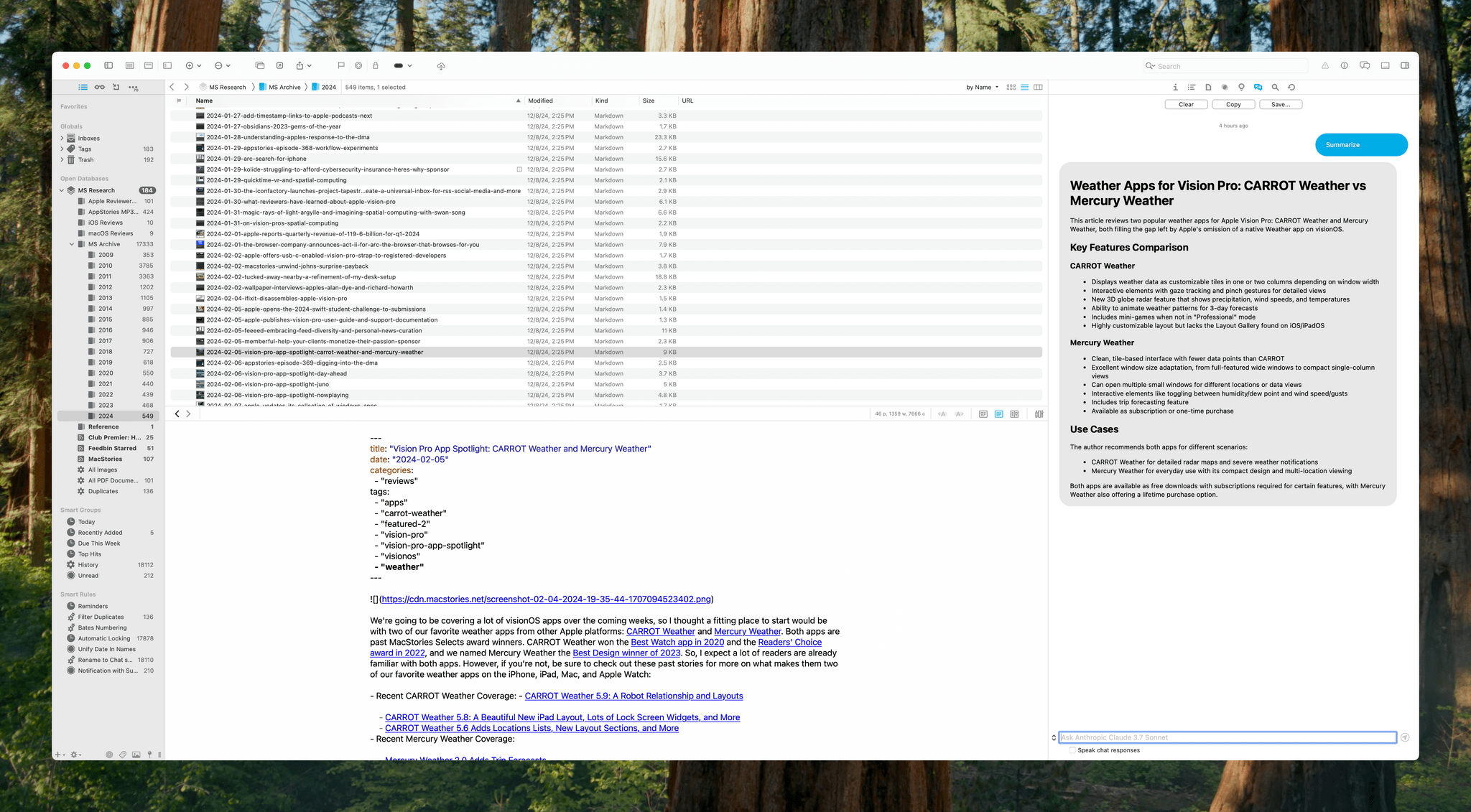
DEVONthink is a difficult app to review because its flexibility means it can serve a wide variety of purposes. I’ve been using it for the past few weeks as an archive and research companion that houses thousands of plain text files, but the app is capable of effectively replacing your Mac’s file system, storing and cataloging all sorts of files. With lightning-fast search, tagging, and a plethora of other organization methods, DEVONthink 3 has a well-earned reputation as a premier tool for researchers working with lots of files. However, DEVONthink’s capabilities are so varied that it can also serve as a text editor, an RSS reader, a read-later app, and a lot more.

Today, DEVONtechnologies is releasing a public beta of DEVONthink 4, a big update with a focus on AI, but with other new features and refinements to existing capabilities, too. Which of these features matters most to you will depend in large measure on how you use the app. I’m going to focus on the new AI tools because those are the additions that have had the greatest impact on the way I use DEVONthink, but it’s worth keeping in mind that the app offers many other tools that may suit your needs better.

Read more


How I Fixed Switching Between Safari Profiles with BetterTouchTool and a Hyper Key

A lot has changed in my professional life over the past year. As of today, I am working fully from home on three separate long-running projects, and now more than ever, the web browser has become central for all three. Since the M2 MacBook Air is my only computer, I found myself in urgent need of a way to allow these virtual workspaces to coexist on the same device.

Fortunately, Apple added profiles to Safari in macOS 14 Sonoma, iOS 17, and iPadOS 17 (then later in visionOS 2). Profiles offer a way to keep your bookmarks, cookies, extensions, and browsing history separate between, say, a Personal profile and a Work profile. Even though Google Chrome and Firefox have had similar solutions in place for a while, Safari remains my web browser of choice, so I wanted to take full advantage of the new feature.

In my prolonged usage, Safari profiles work exactly as intended. I’ve set up four different profiles: a Personal profile and three separate work profiles. They are each logged into a different Google account, and they each have their own set of bookmarks, their own pinned tabs for quick access to relevant tools and web apps, and their own set of extensions. Safari makes it easy enough to tell profile windows apart by allowing you to assign a custom icon and color to each one.

That being said, Safari’s implementation of profiles has one major UI flaw: Apple has made it unusually cumbersome to switch between them on the fly, or even to launch Safari into a specific profile directly. So, to no one’s surprise, I have once again attempted to leverage the power of Mac automation utility BetterTouchTool to come up with a workaround. The solution I’ve arrived at is simple, but it makes a huge difference.

Let me show you.

Read more


Scratchpad: The Cross-Device Text Utility That Pairs Perfectly with Your Clipboard Manager

One of the best indicators of how sticky a cross-device utility will be in my setup is how quickly I install it everywhere. For Sindre SorhusScratchpad, the answer was “very sticky.” The simple text utility works on the iPhone, iPad, Mac, Apple Watch, and Vision Pro (via iPad compatibility mode), and as soon as I tried it on my desktop Mac, I grabbed all of my other devices and installed it on them, too.

At its core, Scratchpad is a single view for typing or pasting plain text that syncs everywhere. What sets it apart from similar apps is its many small touches that demonstrate a deep understanding of the way people use a scratchpad app.

Read more


Getting Away from Your Desk with JSAUX’s FlipGo Pro Dual Display

JSAUX’s 16” FlipGo Pro Dual Portable Monitor is the sort of gadget that I expect most people will look at and either understand immediately or dismiss, which makes it the kind of hardware I love. I have a fascination with portable displays borne of too many hours sitting at a desk staring at the same screen. I love my desk setup, but an occasional change of scenery goes a long way toward improving my day. It clears the cobwebs, sparks creativity, and is just nice.

So when JSAUX offered to send me their 16” FlipGo Pro dual-screen portable display after CES, I took them up on it. I’ve tried other portable displays, a journey that began with the C-Force CF015 15.6” portable OLED display and more recently led me to try 15.6” 1080p and 17” touch-enabled 4K displays from espresso. Each has had its strengths and weaknesses, but all were roughly laptop-sized displays. There’s a place for that; however, I was intrigued by the idea of something that’s even bigger yet still portable.

That’s exactly what the FlipGo Pro is aiming for by taking two 16” IPS displays and joining them with a hinge. The result is a big, bright display that can adapt to a number of use cases. Yet, while the FlipGo Pro is portable, it’s still a lot of display that will make you think twice before throwing it in your bag. That isn’t a deal-breaker, but it’s a factor worth examining more closely, along with the display’s full specs and the situations where it works best.

Read more


Hands-On with Raycast’s New AI Extensions

Yesterday, Raycast unveiled AI Extensions as yet another addition to the app’s ever-expanding feature set. As we’ve covered on MacStories before, Raycast is a powerful launcher and command bar for the Mac with a sizable ecosystem of built-in and third-party extensions. Extensions allow the launcher to integrate with apps installed on your Mac as well as a multitude of online services such as Google Calendar, translation tools like DeepL, and even handy development tools like Color Picker and Git Commands.

Starting this week, Raycast says it will be possible for any of these extensions to integrate with AI so they can be invoked with natural language directly from the app’s main command window and even chained together as part of complex workflows.

Here are my first impressions.

Read more


How I’m Learning Japanese 14 Days In

Brendon Bigley, my co-host on NPC: Next Portable Console, is getting married soon and planning a honeymoon to Japan. Before leaving, he and his partner decided to learn Japanese together. In doing so, Brendon has done a ton of research, quizzing friends who have learned the language, and trying a long list of resources, which he’s published on Wavelengths.

I love the idea that one of the biggest steps in learning Japanese is to learn how to learn Japanese:

So there are about one million different ways to go from here, and because every person is different it means you’ll need to try a few different things to get going. Many people say the first step of learning Japanese is to learn how to learn Japanese, and I’d say that’s almost correct. The first step, once again, is to learn hiragana and katakana… second is learning how to learn Japanese.

The reason things get so wild here is that people will say that you need to start learning kanji, vocab, and grammar simultaneously and it’s not not true. Learning even the most basic grammar helps make sense of sentence structure, which enables you to discern kanji and vocab words in the context of real written language. Conversely, the more kanji and vocab you learn the easier it will become to intuitively parse new grammatical rules as they’re introduced.

Learning how to learn something is a crucial step to any new and complicated undertaking but often gets overlooked. That’s because, as Brendon points out, everyone’s path to expertise in anything is different. It pays to listen to the advice of people you trust, as he did, but it’s just as important to listen to yourself and understand how you learn.

Brendon’s story has great advice for learning anything, but in particular, it’s packed with resources for learning Japanese. There are Mac and iOS apps, web apps, Android apps, textbooks, and more. As someone who has a kid traveling around Tokyo and Kyoto right now, I immediately sent him the link. It’s a great one to file away if you’ve ever thought to yourself, “Maybe I’ll try to learn Japanese some day.”

Permalink

Hyperspace: Quickly Recover Mac Storage Without Deleting Files

Earlier today, John Siracusa released a Mac app called Hyperspace. The app scans any folder on your Mac, identifying duplicates. When the scan is finished, you can review the results and choose whether to reclaim the unnecessary space taken up by the duplicates.

Ready to scan.

Ready to scan.

Because of the way Apple’s APFS file system works on the Mac, Hyperspace’s deduplication of files doesn’t delete or move anything. How APFS does this is complicated and explained on the app’s website if you want to learn more, but to over-simplify a bit, APFS allows Hyperspace to eliminate duplicative data without changing the location of the files or their metadata. That means it’s a non-destructive operation, allowing you to reclaim drive space at no cost to your data’s integrity.

Hyperspace gives you a chance to review the files it has identified as duplicates.

Hyperspace gives you a chance to review the files it has identified as duplicates.

The app has safety measures in place so system files aren’t affected, and users can label certain folders as ‘Source’ folders that will never be altered. You also have an opportunity to review the results of Hyperspace’s scan before the app does anything to your files.

Hyperspace requires a subscription or one-time purchase to reclaim space.

Hyperspace requires a subscription or one-time purchase to reclaim space.

I took Hyperspace for a spin to see what it could find on my Mac Studio, which stores about 2.5 TB of data. The scan was impressively fast at around 30 seconds, identifying 4.04 GB of data that it could free up. That’s not a lot in the grand scheme of things, but it was also nice to know that I don’t generate a lot of duplicate files with my workflows.

Hyperspace is free to download from the Mac App Store. The free version allows you to scan the folders on your system. However, to recover space, you need to subscribe for $9.99 per month or $19.99 per year, or purchase a lifetime license for $49.99. There are also options to purchase a single month license for $9.99 or a single year for $19.99.


Our MacStories Setups: Updates Covering Video Production, Gaming, and More

The second half of 2024 saw a lot of change to my setup and Federico’s. We launched the MacStories YouTube channel, expanded our family of podcasts, and spent time chasing the ultimate portable gaming setup for NPC: Next Portable Console. The result was that our setups have evolved rapidly. So, today, we thought we’d catch folks up on what’s changed.

Our Setups page has all the details, but you’ll notice a couple of trends from the changes we’ve made recently. As Federico recounted in iPad Pro for Everything: How I Rethought My Entire Workflow Around the New 11” iPad Pro, the linchpin to ditching his Mac altogether was recording audio and video to SD cards. He already had a solution for audio in place, but video required additional hardware, including the Sony ZV-E10 II camera.

Federico's White OLED Steam Deck and Lenovo Legion y700 tablet.

Federico’s White OLED Steam Deck and Lenovo Legion y700 tablet.

Federico’s gaming setup has evolved, too. The Sony PS5 Pro replaced the original PS5, and he swapped the limited edition white Steam Deck in for the standard OLED version. He also revealed on NPC: Next Portable Console this week that he’s using a Lenovo y700 2024 gaming tablet imported from China to emulate Nintendo DS and 3DS games, which will be available worldwide later this year as the Lenovo Legion Tab Gen 3. Other upgrades to existing hardware Federico uses include a move from the iPhone 16 Plus to the iPhone 16 Pro Max and an upgrade of the XREAL Airs to the XREAL One glasses.

My portable video recording setup

My portable video recording setup

As for myself, CES and its bag size limitations pushed me to rethink my portable video and audio recording setups. For recording when I’m away from home I added several items to my kit that I detailed in What’s in My CES Bag?, including:

On the gaming side of things I added a white TrimUI Brick and GameCube-inspired Retroid Pocket 5.

2024 was a big year for setup updates for both of us. We already have new hardware incoming for testing, so keep an eye on the Setups page. I expect we’ll update it several times in 2025 too.

Permalink