As I hinted in my story on the issues of iPadOS last week, I upgraded from an 11” iPad Pro to a 13” iPad Pro (1 TB, Wi-Fi-only model). While I was very happy with the 11” form factor, I decided to return to the larger model for two reasons:
I wanted to have maximum thinness with the ultimate iPad Pro model Apple makes.
I sacrificed the physical comfort of the 11” iPad Pro to get a larger display for my MacPad as well as portable gaming.
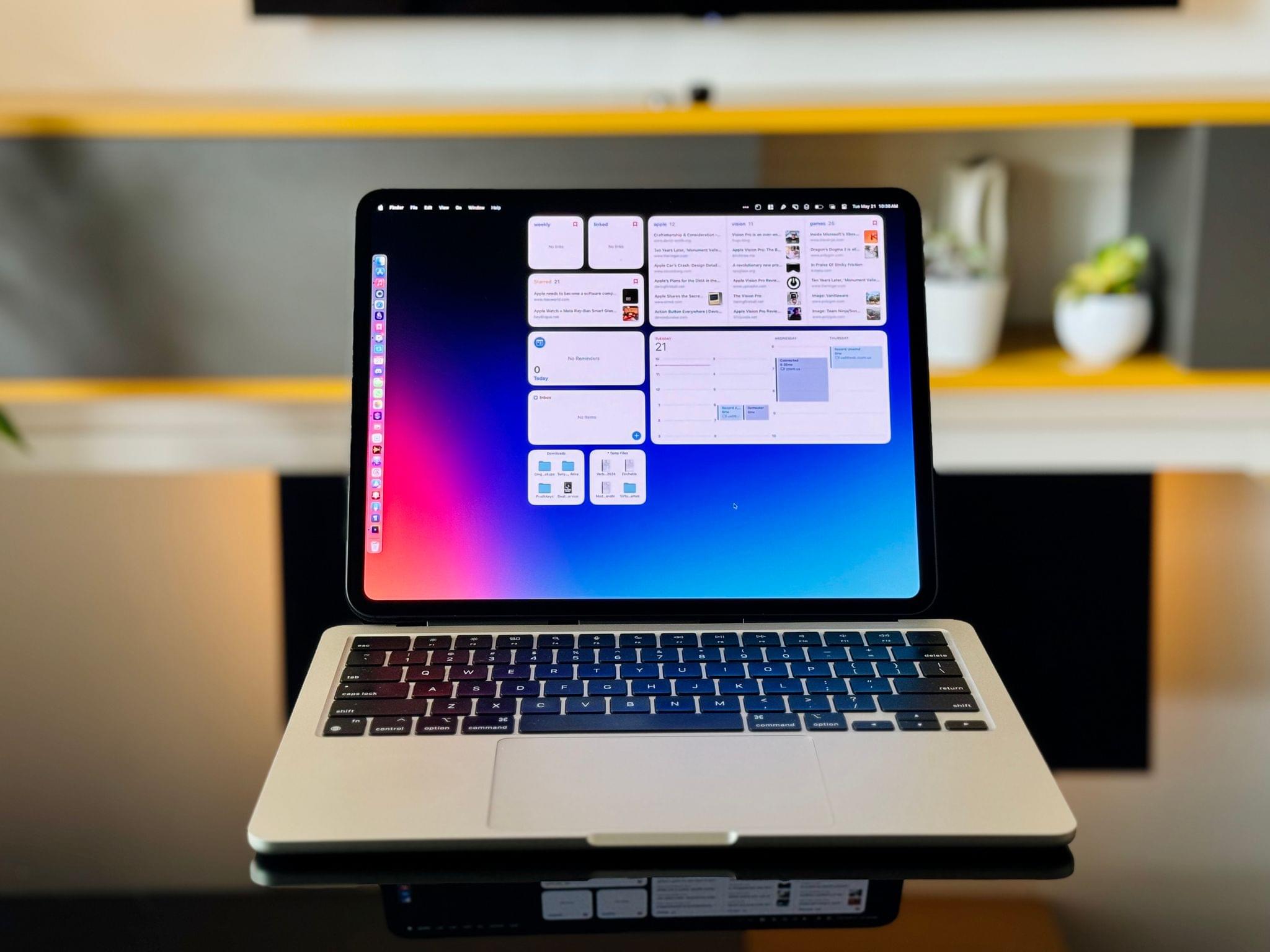
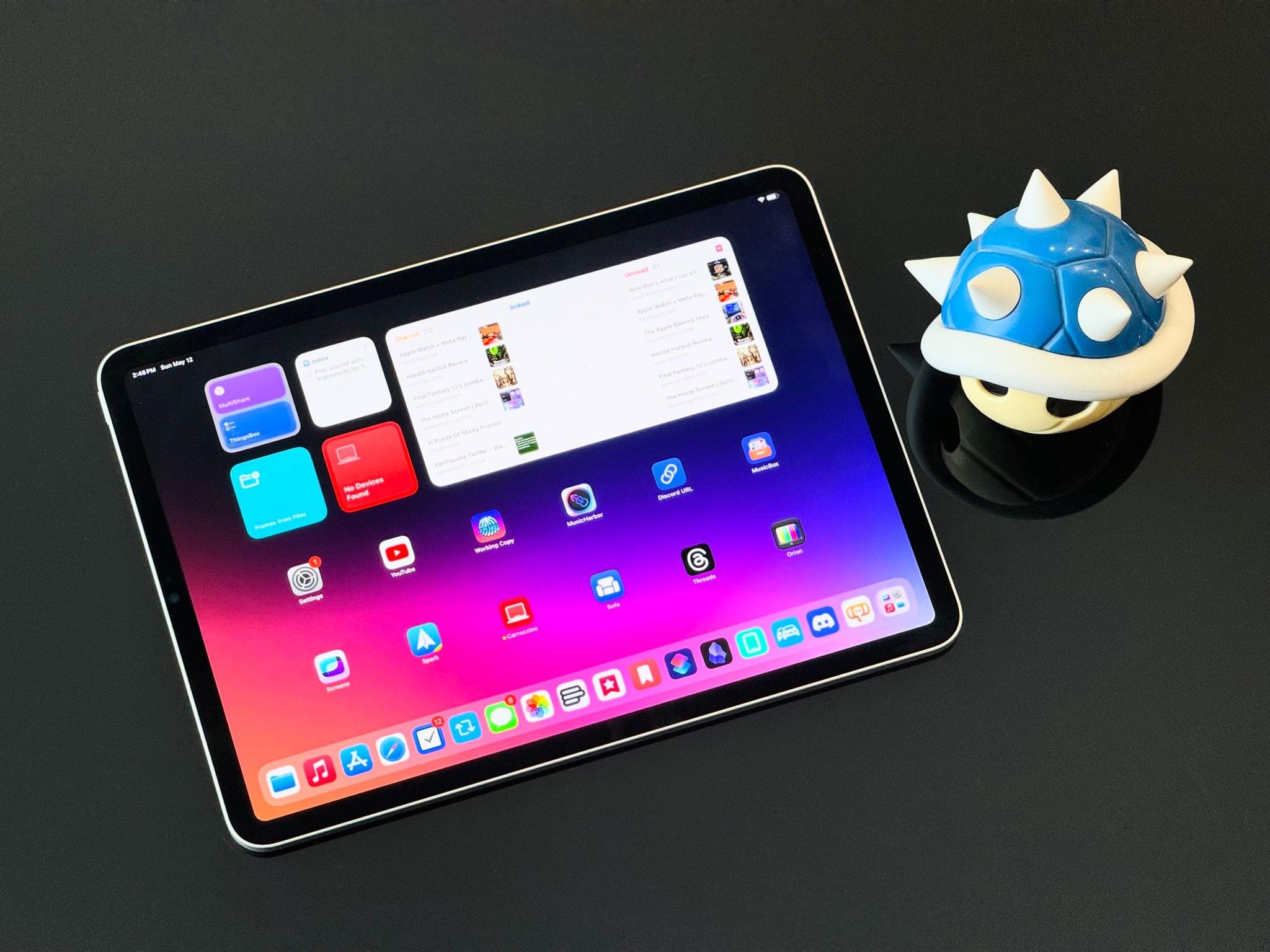
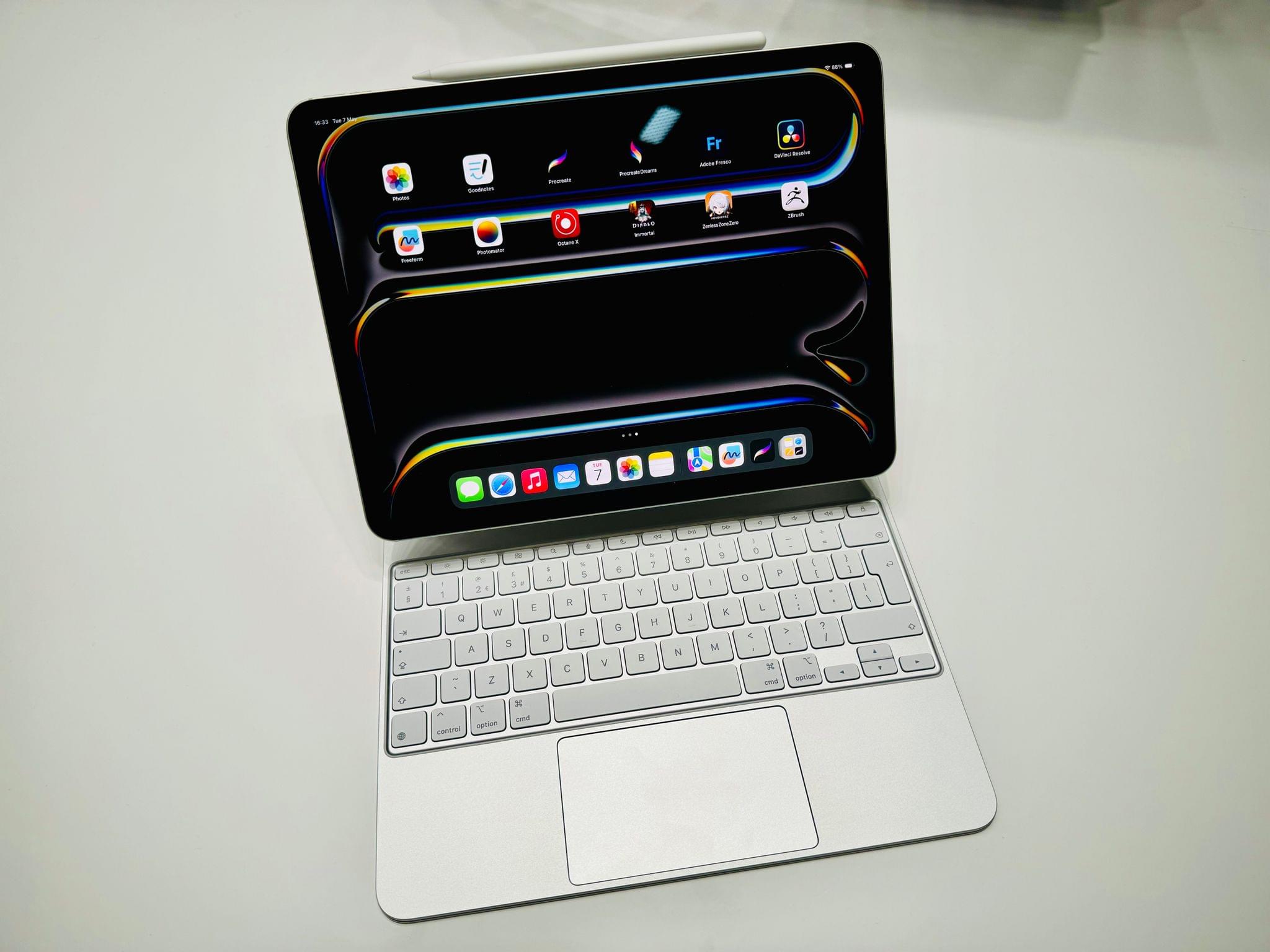
Today, I will explain how I was able to immediately turn the brand-new 13” iPad Pro into a convertible MacPad using a combination of accessories and some new techniques I’ve been exploring. I’ll also share my experience with using the iPad’s glorious Tandem OLED display in a variety of gaming setups ranging from streaming to emulators.
Let me cut to the chase: sadly, I don’t have a new iPad Pro to review today on MacStories.
I was able to try one in London last week, and, as I wrote, I came away impressed with the hardware. However, I didn’t get a chance to use a new iPad Pro over the past six days ahead of today’s review embargo.
I know that many of you were expecting a deeper look at the iPad Pro on MacStories this week, but that will have to come later. I still plan on upgrading to a 13” iPad Pro myself; I’ve decided I want to return to the larger size after a few months with the 11” iPad Pro. If you’re interested in checking out reviews of the new iPad Pros from heavy iPad users like yours truly right now, I highly recommend reading and watching what my friends Jason Snell and Chris Lawley have prepared.
Still, as I was thinking about my usage of the iPad and why I enjoy using the device so much despite its limitations, I realized that I have never actually written about all of those “limitations” in a single, comprehensive article. In our community, we often hear about the issues of iPadOS and the obstacles people like me run into when working on the platform, but I’ve been guilty in the past of taking context for granted and assuming that you, dear reader, also know precisely what I’m talking about.
Today, I will rectify that. Instead of reviewing the new iPad Pro, I took the time to put together a list of all the common problems I’ve run into over the past…checks notes…12 years of working on the iPad, before its operating system was even called iPadOS.
My goal with this story was threefold. First, as I’ve said multiple times, I love my iPad and want the platform to get better. If you care about something or someone, sometimes you have to tell them what’s wrong in order to improve and find a new path forward. I hope this story can serve as a reference for those with the power to steer iPadOS in a different direction in the future.
Second, lately I’ve seen some people argue on Mastodon and Threads that folks who criticize iPadOS do so because their ultimate goal is to have macOS on iPads, and I wanted to clarify this misunderstanding. While I’m on the record as thinking that a hybrid macOS/iPadOS environment would be terrific (I know, because I use it), that is not the point. The reality is that, regardless of whether macOS runs on iPads or not, iPadOS is the ideal OS for touch interactions. But it still gets many basic computing features wrong, and there is plenty of low-hanging fruit for Apple to pick. We don’t need to talk about macOS to cover these issues.
Lastly, I wanted to provide readers with the necessary context to understand what I mean when I mention the limitations of iPadOS. My iPad setup and workflow have changed enough times over the years that I think some of you may have lost track of the issues I (and others) have been experiencing. This article is a chance to collect them all in one place.
I just came back to my hotel from the media event Apple held earlier today in London at their Battersea Power Station headquarters. I had high expectations for the new generation of iPad Pros that Apple unveiled today – some of which were exceeded by reality (hardware), and others that were, regrettably but unsurprisingly, faced with the reality of the iPad platform (software).
What follows is a loose collection of notes and impressions from the event, where I was able to try both iPad Pro models multiple times and spend some quality time with their accessories.
You’re Warren, and your job is to deliver newspapers.
Apple anniversaries come and go. Some mark important milestones in the company’s history. Others celebrate products that have had outsized impacts on the world. Both have their place, but I prefer Door Number 3: Weird Apple Anniversaries.
That’s why today, on its fifth anniversary, it’s worth taking a moment to solemnly reflect on the legacy of one of Apple’s least culturally significant software releases ever: Warren Buffet’s Paper Wizard. I regret to say that I didn’t cover Warren Buffet’s namesake paper-tossing arcade game in 2019. So, to make amends, let’s take a look back at this gem that dropped out of nowhere five years ago today.
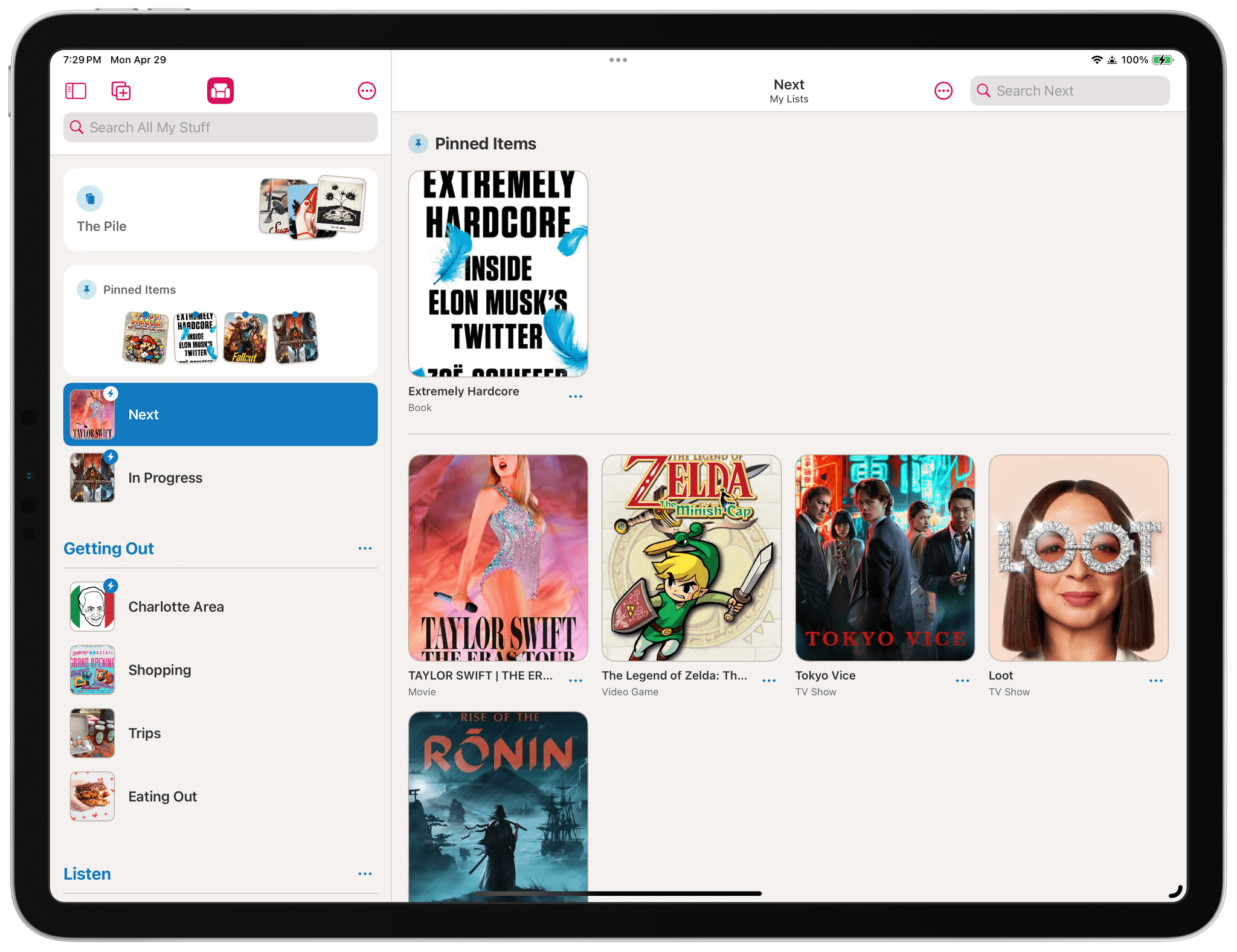
I’ve written about media-tracking apps a lot in the past, and they tend to fall into one of two categories: there are ‘generalist apps’ that cover multiple types of media, and there are ‘specialist apps’ that go much deeper into one particular kind. The benefit of the former is having a one-stop destination for all your media tracking, while the latter usually goes further, focusing on the unique characteristics of one media type. There are advantages to each approach, but they’re serving two different kinds of users, so it’s not that surprising that apps don’t try to do both.
That’s why I was intrigued when I heard about Sofa 4.0 and its custom Categories and Ingredients features, which launch today. Sofa has always been oneof myfavoriteapps for tracking multiple types of media, but as soon as I saw custom Categories and Ingredients, I knew the app had the potential to transcend the media tracker category by letting users have a greater say in how it’s used. That’s exactly what its developer, Shawn Hickman, has done, and the results are fantastic.
A couple of weeks ago, the MacStories team shared our favorite indoor HomeKit devices. The HomeKit accessory universe is more limited outdoors, but with spring easing into summer in the Northern Hemisphere, we thought we’d share the devices that we use outside, too.
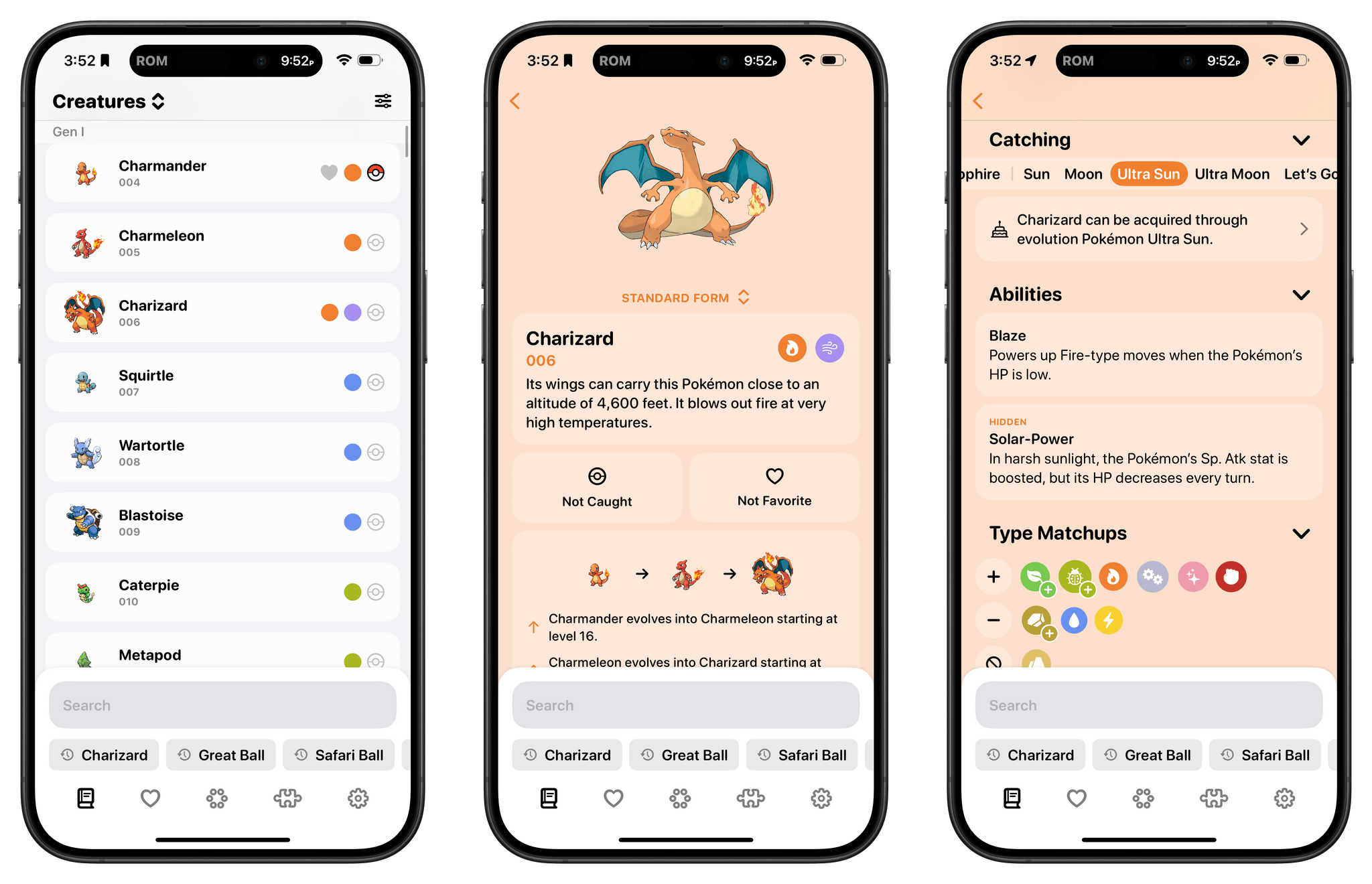
As any Pokémon fan knows, the series is all about data – lots and lots of data. So much data that entire websites and apps are dedicated to helping players keep track of it all. That’s a big design challenge for any app developer, which is why I was so glad to see it taken on by Ben McCarthy, whose apps, including the camera app Obscura, are some of the best designed on the App Store.
Ben’s new app is called Ketchup, and it’s a comprehensive compendium of every generation of Pokémon that incorporates powerful search, caught and favorite Pokémon tracking, a battle match-up utility, and a quiz game all in one app. But what makes it special and sets the app apart from others I’ve tried over the years is the design, which makes it easy to find what you’re looking for and presents it in a coherent, understandable, and modern interface.
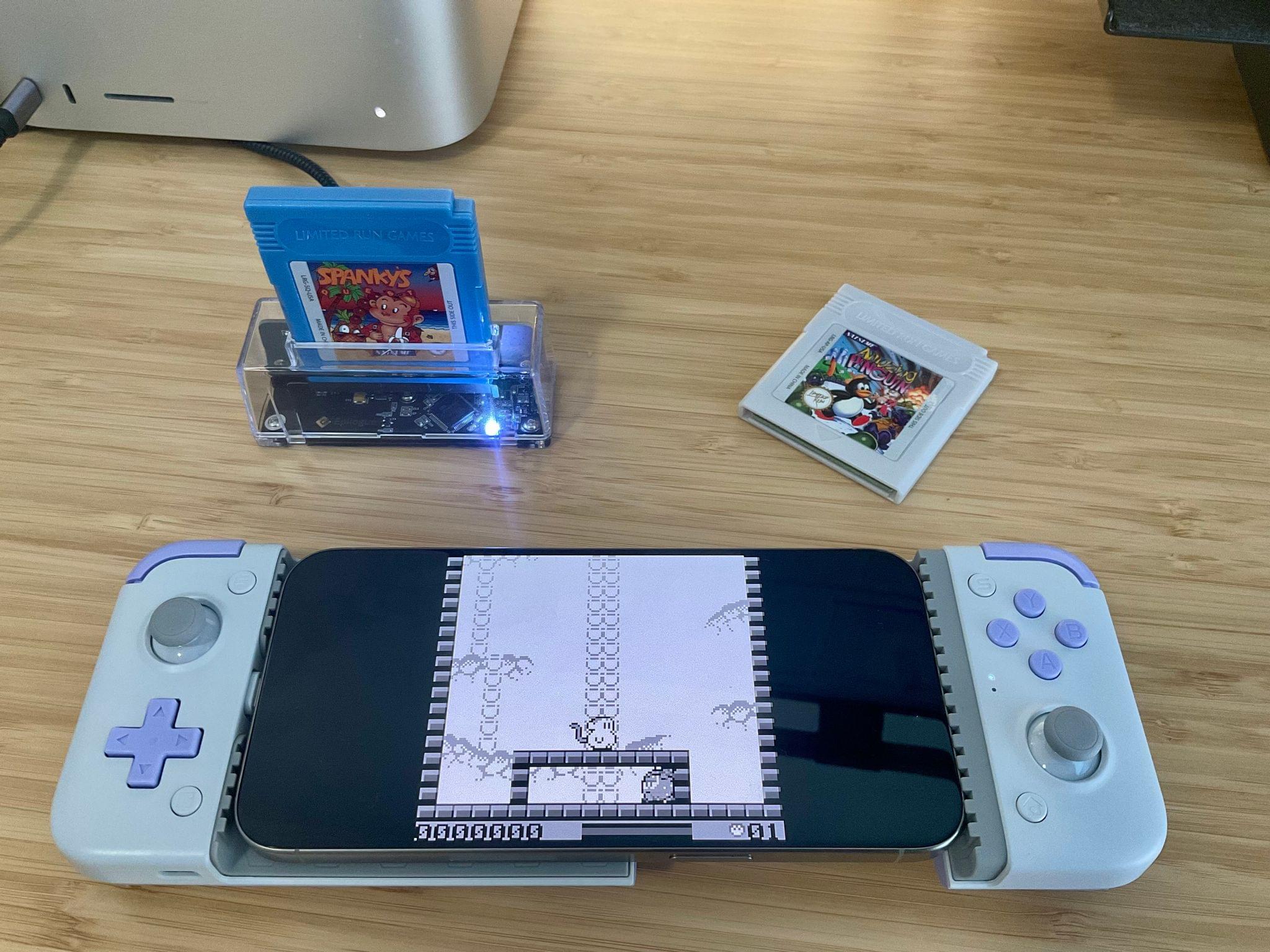
So, you’ve probably seen the (totally justified) hype surrounding the Delta emulator’s launch on the App Store and downloaded it because, why not, it’s free. You may have also recalled that, like a lot of people, you have a box of old Game Boy cartridges stored somewhere that are gathering dust. Or, like me, maybe you spent way too much money on second-hand videogame sites during the COVID lockdown. Regardless of your Game Boy cartridge origin story, today I’m going to show you a simple way to breathe new life into those games by bringing them, along with your save files, to your iPhone.
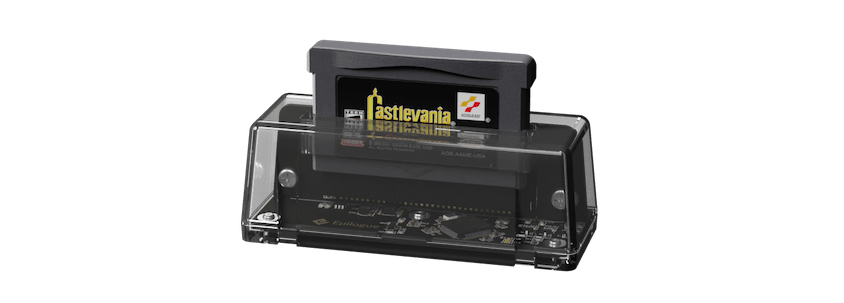
The GB Operator. Source: Epilogue.
The easiest way I’ve found to pull the game files from a Game Boy, Game Boy Color, or Game Boy Advance cartridge is with a little USB-C accessory called the GB Operator by Epilogue, or as I like to call it the Game Boy Toaster. That’s because the device looks like a top-loading transparent toaster that takes game cartridges instead of bread. If you have a big collection of game cartridges, the GB Operator is a great investment at $50 because it allows you to both play and back up your games using a Mac.
John: Everyone on the MacStories team is deep into HomeKit devices. For me, smart home gadgets tick all the boxes:
Hardware
Software
Automation
It’s really as simple as that.
However, as fun as HomeKit devices can be, they can also be frustrating. The best accessories fit comfortably into your household, making life a little easier but falling back gracefully to a simple solution for anyone in your home who isn’t interested in automation. It sounds easy, but it’s a tough balancing act that few companies get right.
We’ve all tried our share of HomeKit and other smart home devices. Some have worked out, and others have fallen by the wayside as failed experiments. Today, we thought we’d pool our collective experience and share with you the MacStories team’s favorite smart home gadgets.
We have a lot of ground to cover, so this story will focus on indoor gadgets. Soon, we’ll shift our focus to the great outdoors.