

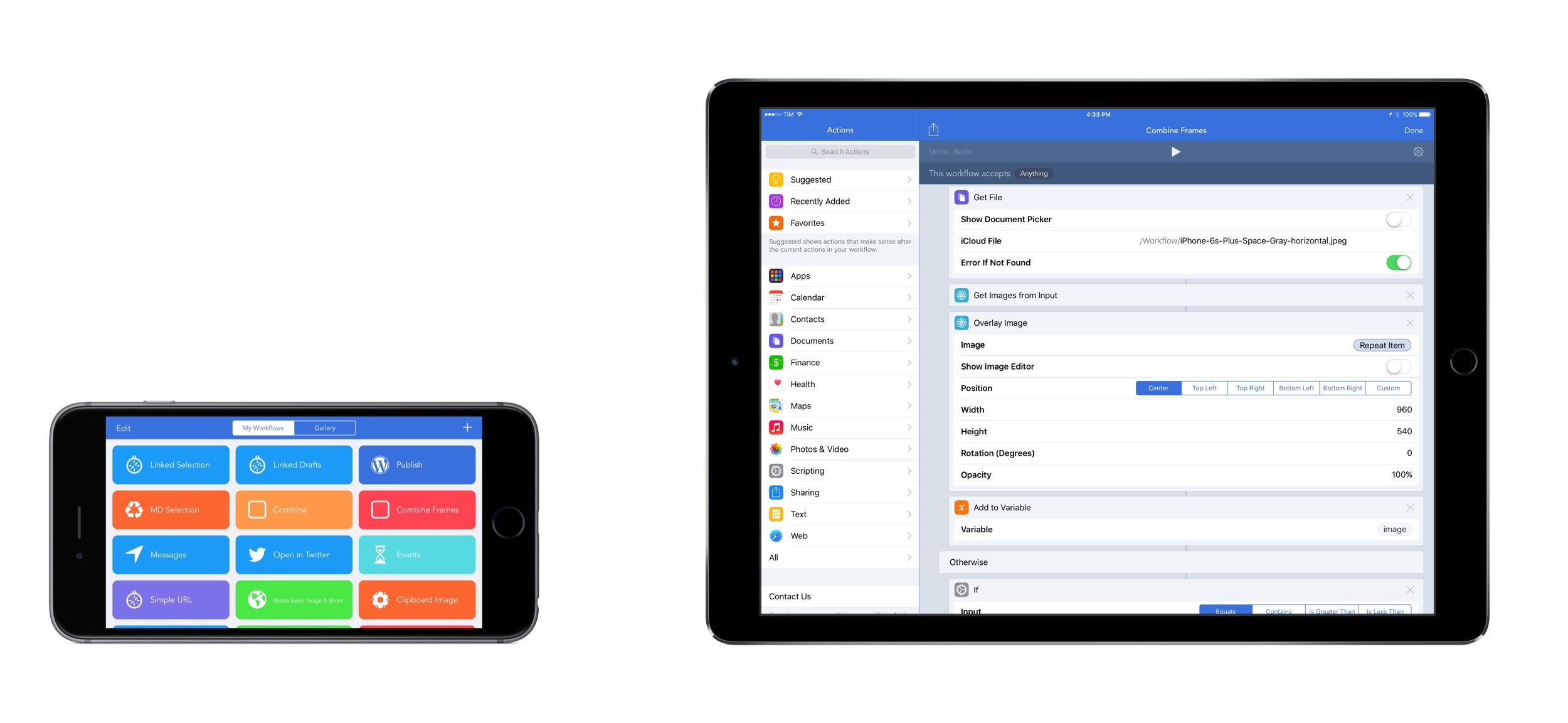
As much as I like to use Workflow for every task I don’t want to perform manually, until last week there were still some things I couldn’t automate with the app. Those tasks were utterly specific: converting HTML and rich text back to Markdown (with my beloved html2text in Python), or assembling iOS screenshots with pretty device frames (with LongScreen). With the release of Workflow 1.4.4 today, I can finally integrate these two key tasks into Workflow’s automation, and I’m in love with the results.
Posts tagged with "automation"
Workflow 1.4.4 Brings More Image Automation, HTML to Markdown Conversion
Pythonista 2.0 Brings Action Extension, iPad Pro Support, Code Editor Improvements, and More
Back in the Fall of 2012, a few months after I had taken it upon myself to start moving all my work from OS X to iOS, I came across Ole Zorn’s Pythonista. A Python interpreter for iPhone and iPad that could natively integrate with iOS system features, Pythonista opened up a new world to me, demonstrating how I could automate tedious tasks on iOS devices via scripting. Since then, other apps have come along and shown how iOS tasks can be automated with visual interfaces and pre-packaged actions (above all, Workflow and Launch Center Pro), but Pythonista is, in many ways, the crown jewel of iOS automation and scripting for advanced users.
There’s nothing quite like Pythonista on iOS. As I’ve documented over the past three years, Ole Zorn has slowly but steadily extended the app’s capabilities with native ties to iOS interfaces via a UIKit bridge, support for location and the Reminders database, and even matplotlib and motion sensors. As it stands today, Pythonista is, by far, the richest and most powerful scripting app to integrate with native iOS features. Despite the variety of options now available for iOS automation and the continued evolution of iOS that cut down the number of tasks I need to automate (case in point: Split View and using two apps at once), I love keeping Pythonista around for key aspects of my workflow that can’t be automated in any other way.
For the past several months, I’ve been using version 2.0 of Pythonista on my iPhone and iPad, which, after a few rejections from Apple, has been approved and is launching today on the App Store. A free update for existing customers, Pythonista 2.0 brings a refreshed UI, support for the iPad Pro, new modules, and, more importantly, a redesigned code editor and an action extension.
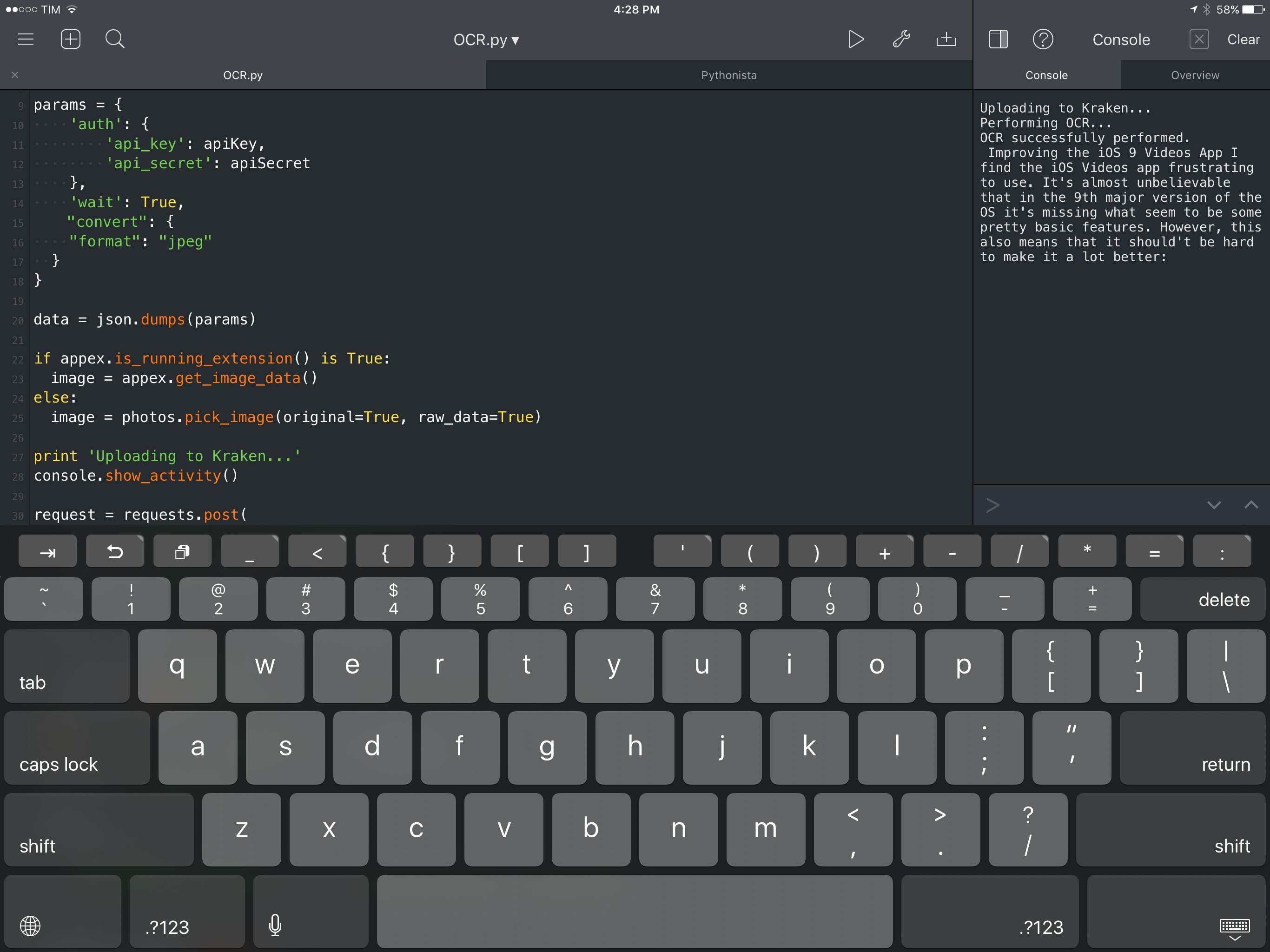
Behind the scenes, Pythonista 2.0 has played an essential role in helping me assemble my reviews of iOS 9 and the iPad Pro, with an action extension I rely upon for all my image uploads, OCR, text statistics, and more.
Publishing Articles to WordPress with Workflow on iOS
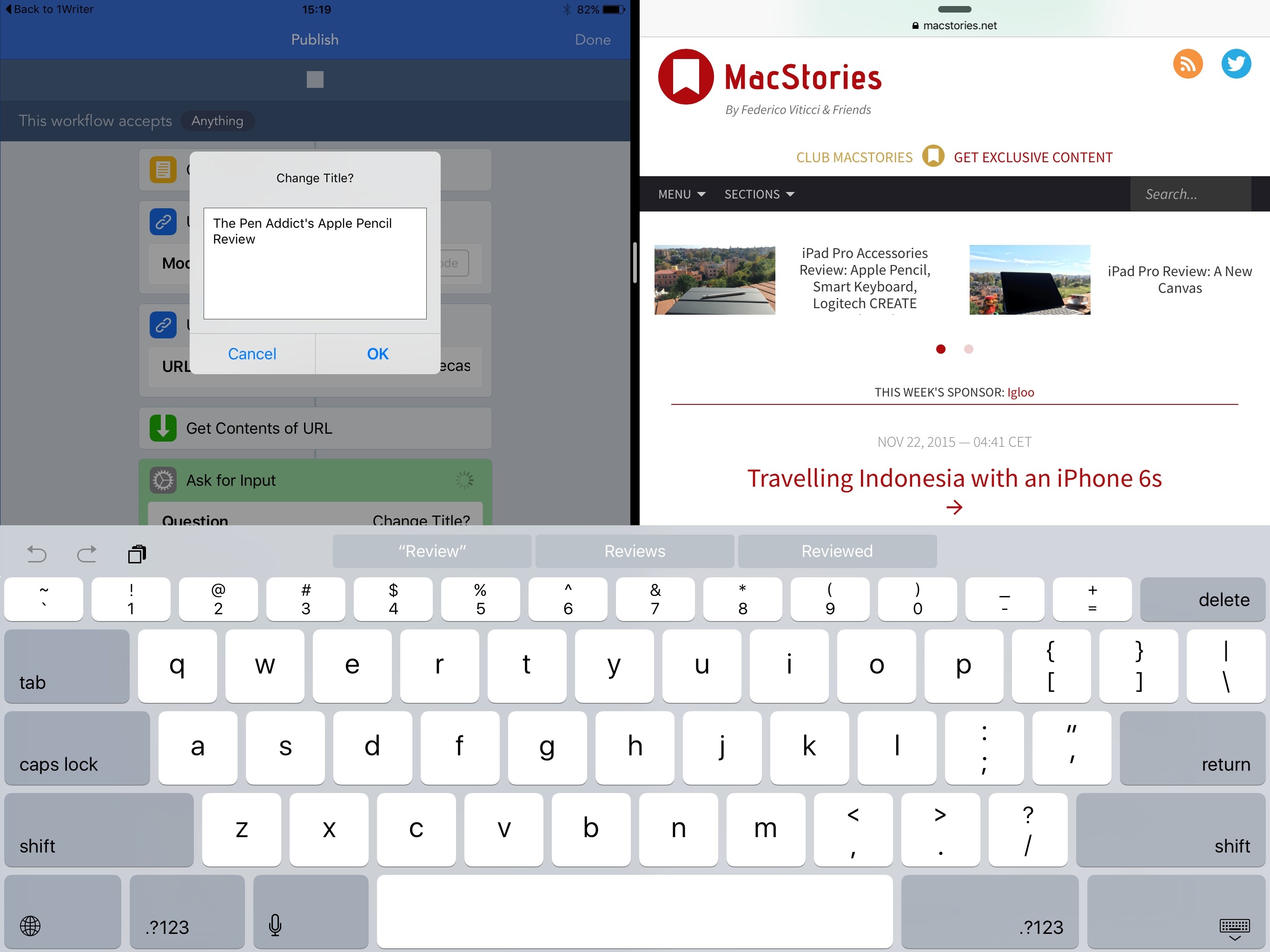
For the past two years, I’ve been publishing articles and linked posts on MacStories via Python. This inelegant solution was my only option to automate the process of publishing directly from Editorial (most recently, 1Writer): when it comes to writing on iOS, I’m too fussy to accept primitive copy & paste into WordPress’ official client. Despite its minimal GUI, crude Python code, and lack of advanced features, my ‘Publish to WordPress’ script served me well for two years.1 99% of my MacStories articles since late 2013 have been published with it.
Still, I knew that something better would come along eventually. When the Workflow team pinged me about a new action they were developing to enable WordPress publishing from the app, I couldn’t believe they were considering it. Workflow, an app that I employ on a daily basis to speed up core parts of my job, combined with the single task that powers my entire business – posting new content. It was almost too good to be true.
Fortunately, great things do happen in the third-party iOS ecosystem. Today’s update to Workflow (version 1.4.2) adds, among more actions, a brand new WordPress action to publish posts and pages to configured WordPress blogs (both wordpress.com and self-hosted ones) and which can be combined with any other existing action or workflow for deeper automaton. After using a beta of this action for the past few weeks, I can say that it’s, by far, the best automated publishing workflow I’ve ever had, and I don’t want to go back to anything else.
Markdown and Automation Experiments with 1Writer
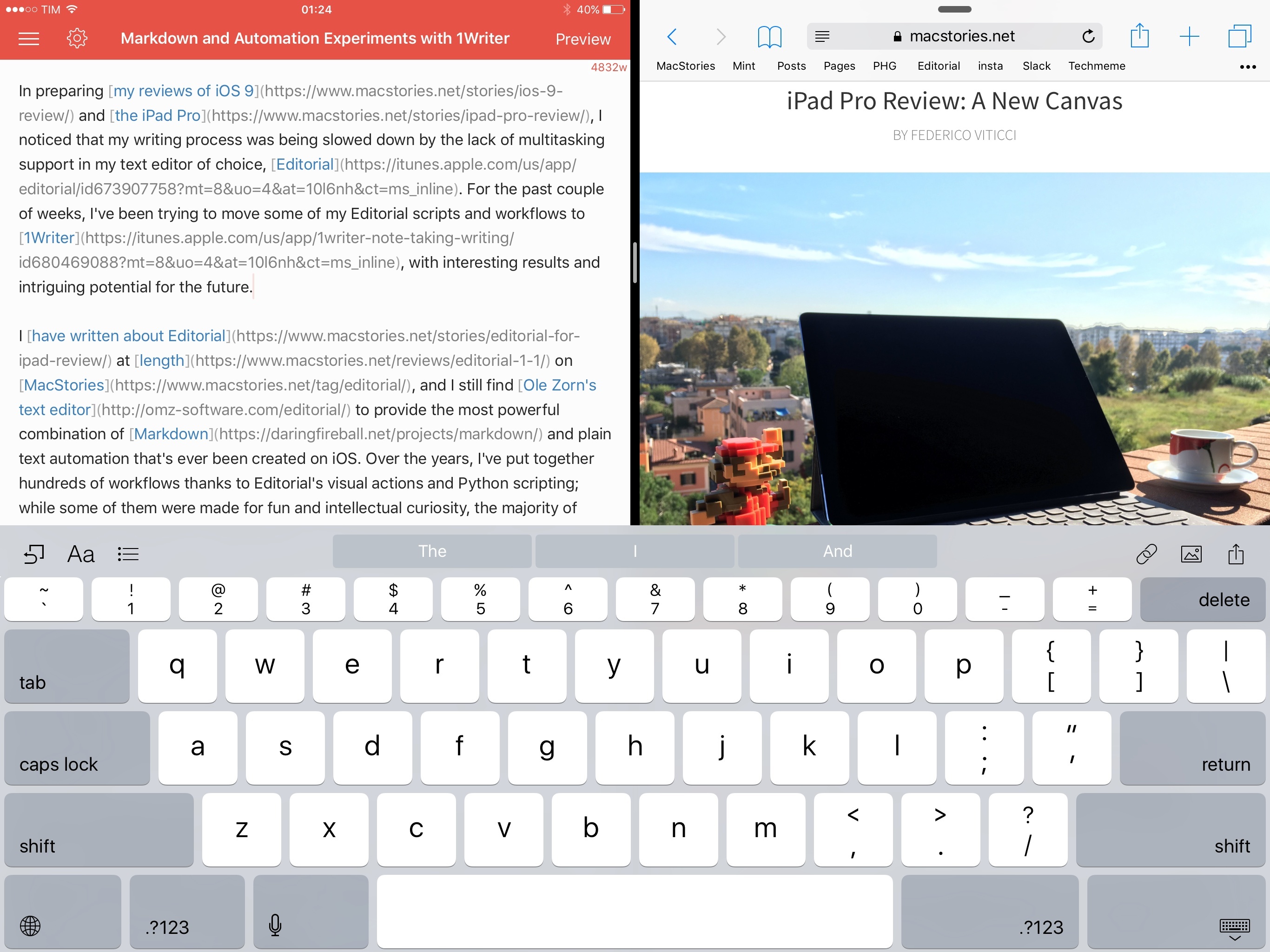
In preparing my reviews of iOS 9 and the iPad Pro, I noticed that my writing process was being slowed down by the lack of multitasking support in my text editor of choice, Editorial. For the past couple of weeks, I’ve been trying to move some of my Editorial scripts and workflows to 1Writer, with interesting results and potential for the future.
I have written about Editorial at length on MacStories, and I still find Ole Zorn’s text editor to provide the most powerful combination of Markdown and plain text automation that’s ever been created on iOS. Over the years, I’ve put together hundreds of workflows thanks to Editorial’s visual actions and Python scripting; while some of them were made for fun and intellectual curiosity, the majority of them helped me save time when doing actual work for this website, Relay FM, and Club MacStories. There is no other app with the same feature set and rich Markdown support of Editorial.
Since iOS 9, however, I’ve been wondering whether part of Editorial’s automation could be taken somewhere else, possibly in another app that offered full integration with iOS 9 multitasking. I may have several workflows in Editorial, but I only use a tiny fraction of them on a daily basis for regular work on this website. I’d rather use a text editor that excels at a subset of Markdown workflows and integrates with iOS 9 than a single text editor with every imaginable workflow without proper iOS 9 integration.
It was this realization that pushed me to give 1Writer another look. I first bought the app years ago, but because I had no excuse to explore the world outside of Editorial, I didn’t try to recreate any workflows in it. This time around, I was motivated to rebuild the core of my setup in 1Writer, so I took a deep dive into the app’s automation engine.
Things will likely change again once Editorial supports iOS 9, but in the meantime I’ve developed an appreciation for 1Writer’s design and features that helped me understand the app better.
Workflow 1.3 Brings Powerful Widget, Sync, Health Actions, and More
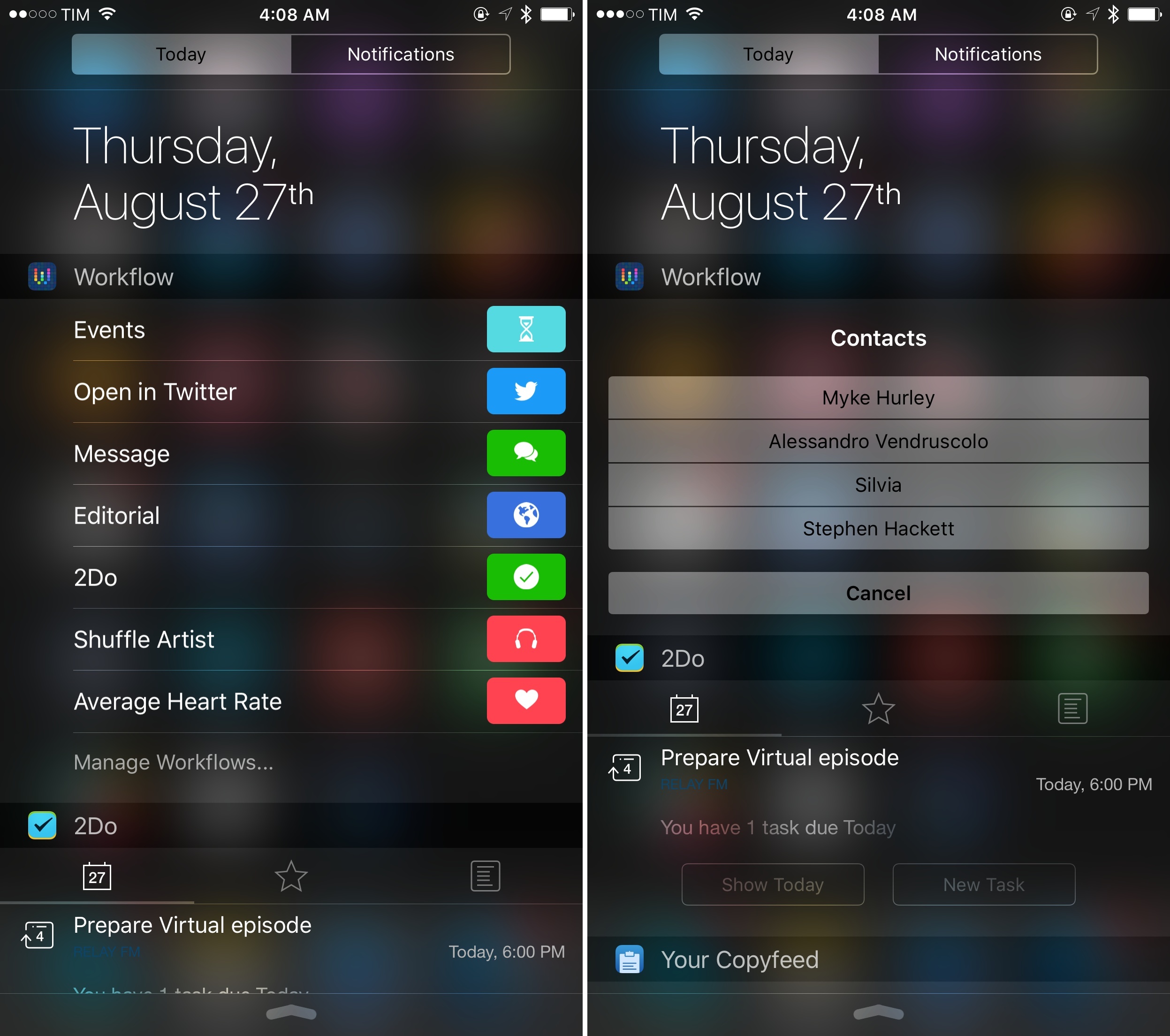
Since its debut on the App Store last year, Workflow has established a new paradigm for automation on iOS.
By deeply integrating with iOS apps, device hardware and sensors, an array of web services, and advanced actions for scripting and control flows, Workflow has shown how automation – for many an area of computing that evokes thoughts of old desktop apps and arcane scripting languages – can be reimagined for the iPhone and iPad while being fun and powerful. Workflow is one of the reasons behind my decision to go all-in with the iPad as my primary computer, and the Apple Design Award it won in June is testament to the amazing work by the app’s young and prolific team.
Workflow 1.3, launching today on the App Store, is another major step forward for the app, bringing a powerful Today widget, sync between devices, new Health actions, and more.
Editorial 1.2 Brings Powerful New Text Editing Features, More iOS Automation
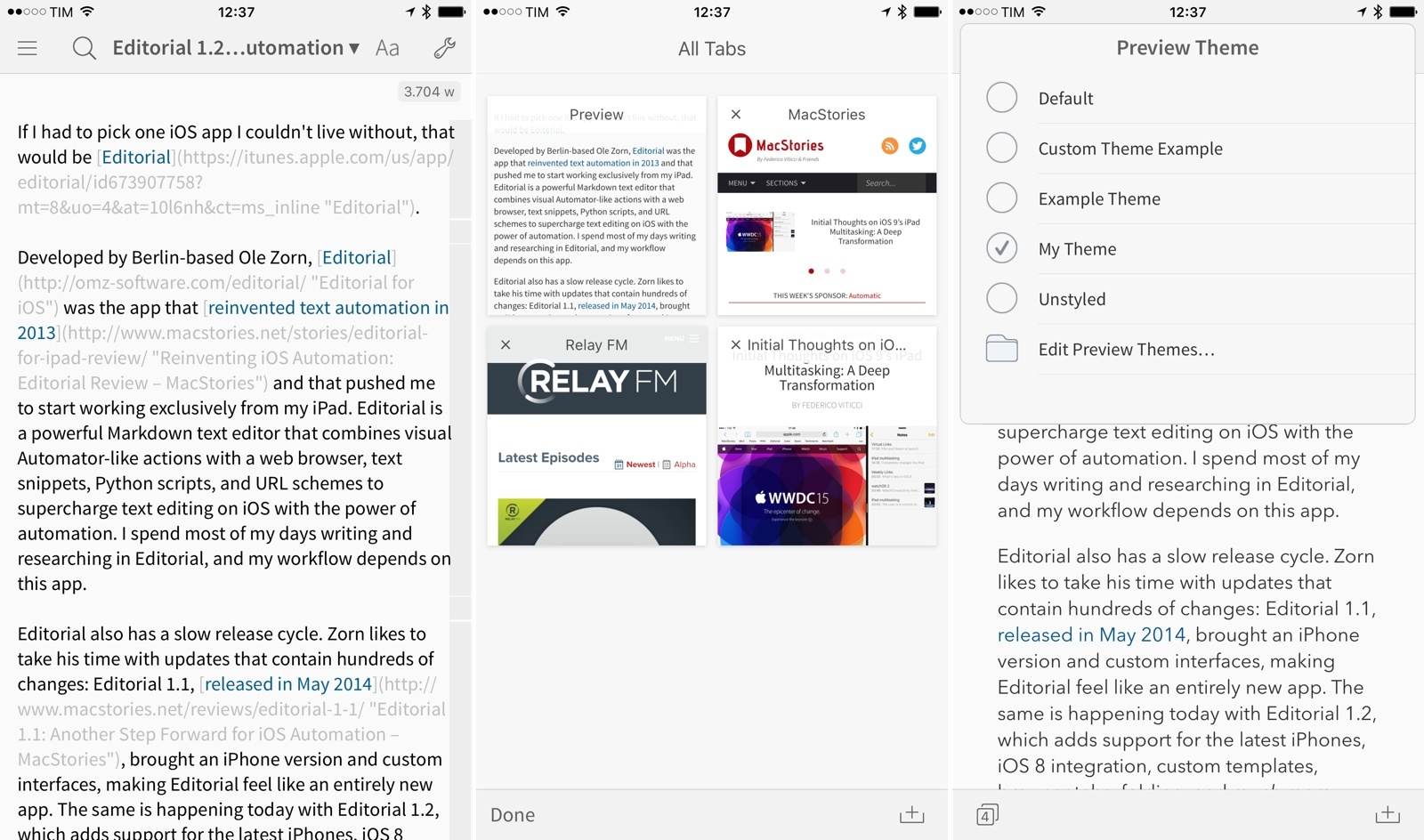
If I had to pick one iOS app I couldn’t live without, that would be Editorial.
Developed by Berlin-based Ole Zorn, Editorial was the app that reinvented text automation in 2013 and that pushed me to start working exclusively from my iPad. Editorial is a powerful Markdown text editor that combines visual Automator-like actions with a web browser, text snippets, Python scripts, and URL schemes to supercharge text editing on iOS with the power of automation. I spend most of my days writing and researching in Editorial, and my workflow depends on this app.
Editorial also has a slow release cycle. Zorn likes to take his time with updates that contain hundreds of changes: Editorial 1.1, released in May 2014, brought an iPhone version and custom interfaces, making Editorial feel like an entirely new app. The same is happening today with Editorial 1.2, which adds support for the latest iPhones, iOS 8 integration, custom templates, browser tabs, folding, and much more.
Editorial 1.2 with iOS 8 support is launching right after Apple’s announcement of iOS 9, but the wait has been worth it. The new version builds upon the excellent foundation of Editorial 1.1, and the enhancements it brings vastly improve the app for users who rely on its automation features and Python interpreter.
Rather than covering every single change, I’ll focus on the 10 new features that have most impacted the way I get work done with Editorial on a daily basis.
Workflow 1.1: Deeper iOS Automation
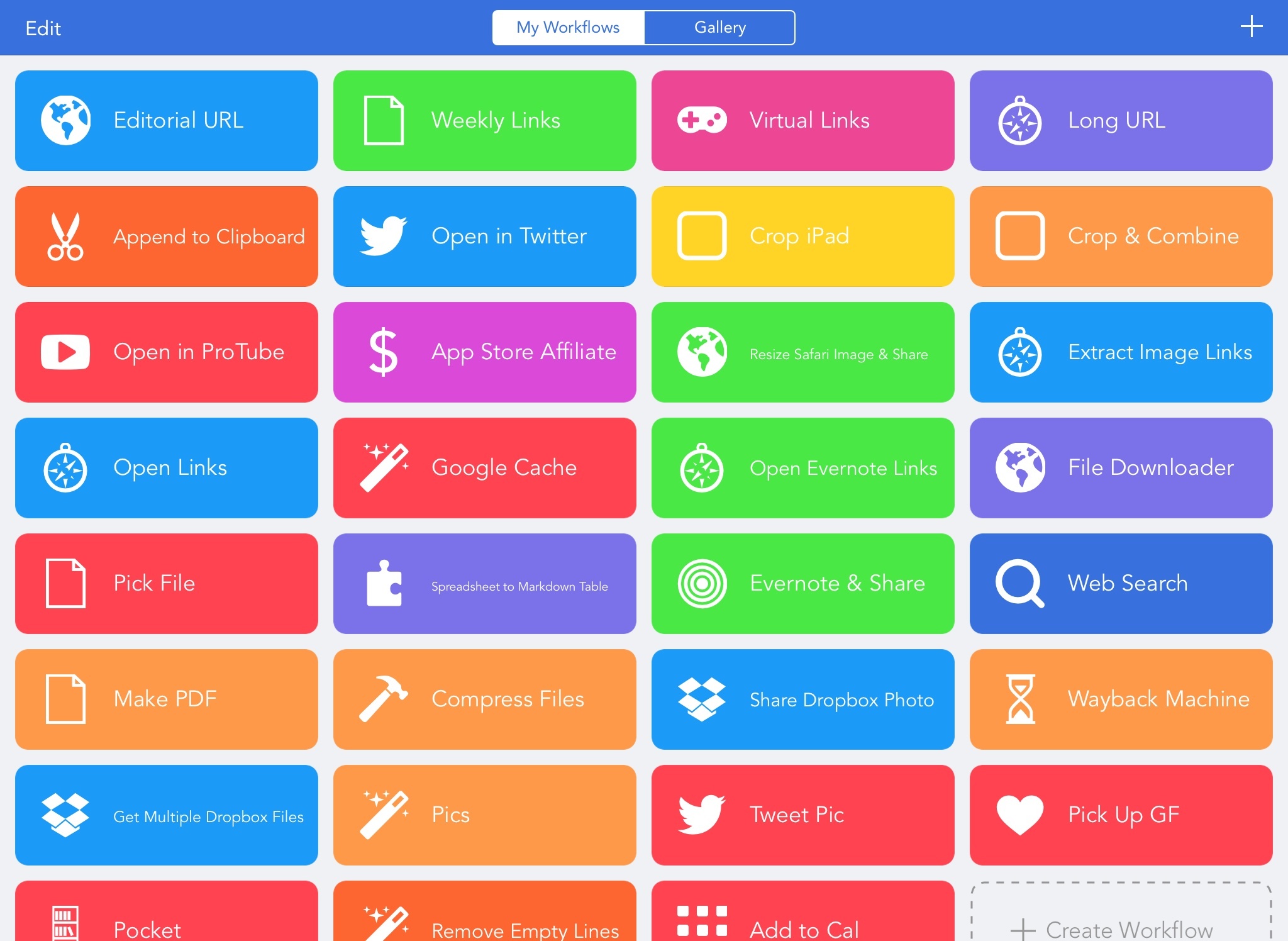
Released by a small team of indies in December 2014, Workflow reinvented iOS automation. Combining an interface reminiscent of Apple’s Automator for OS X with easy access to native iOS features such as Safari, the photo library, and iOS 8 extensions, Workflow promised to make automating tasks on an iPhone and iPad a simple and pleasant affair. The results spoke for themselves: Apple selected Workflow as Editor’s Choice, the app trended for weeks in the App Store’s Top Charts, and thousands of users released interesting and useful workflows in various online communities. MacStories readers may remember that Workflow was my iPad app of the year.
Workflow is one of those few apps that have dramatically changed how I work on my iPad. For me, the point of using Workflow isn’t to put together chains of actions to show off the app’s power – I just want to save time I can spend doing something else. While I have fun experimenting with Workflow and understanding its capabilities, ultimately the app just sits there in the background, waiting for me to call a series of actions I need. I love Workflow the most when it’s summoned for those two seconds and it does something magic that would have normally required minutes of manual interaction. Things like appending links to Evernote, converting spreadsheets to Markdown tables, or adding text to the clipboard.
Workflow fits my routine like a glove. I’ve used it every day to automate aspects of my work that speed up how I write and communicate on my iOS devices. And with Workflow 1.1, released today on the App Store, its developers are further expanding the app’s capabilities with powerful new functionality that includes filtering, better conditionals and image manipulation, URL expansion and deeper calendar access, and even the ability to open multiple links at once in a web browser.
Version 1.1 of Workflow includes over 50 new actions and dozens of fixes, improvements, and changes to existing actions. Core parts of the app have been revised for a faster experience and the foundation laid with the Content Graph has started to pay off with the addition of metadata and filters. Because I’ve been playing around with Workflow 1.1 since the app’s original release two months ago, I’m going to offer some practical examples with a high-level overview of the changes.
Workflow: Convert Spreadsheets to MultiMarkdown Tables
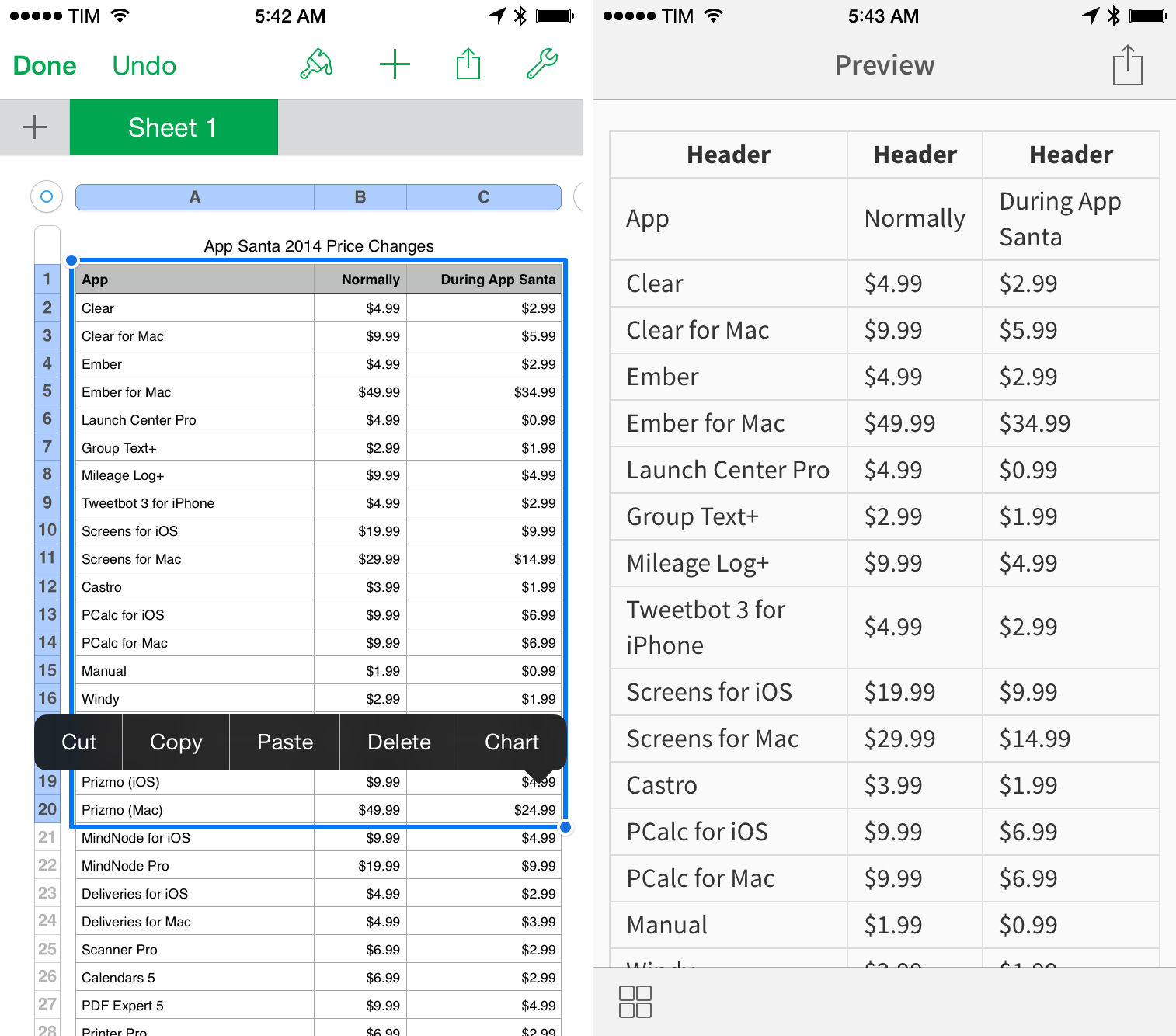
This is a proof of concept that I put together out of curiosity today, and it’ll likely break for some documents or Microsoft Excel, but it’s been working well for me, and I thought I’d share it.
I created a workflow that converts colums/rows copied from spreadsheets in Numbers and Google Sheets to a MultiMarkdown table.
Workflow Tip: Append Text to the iOS Clipboard
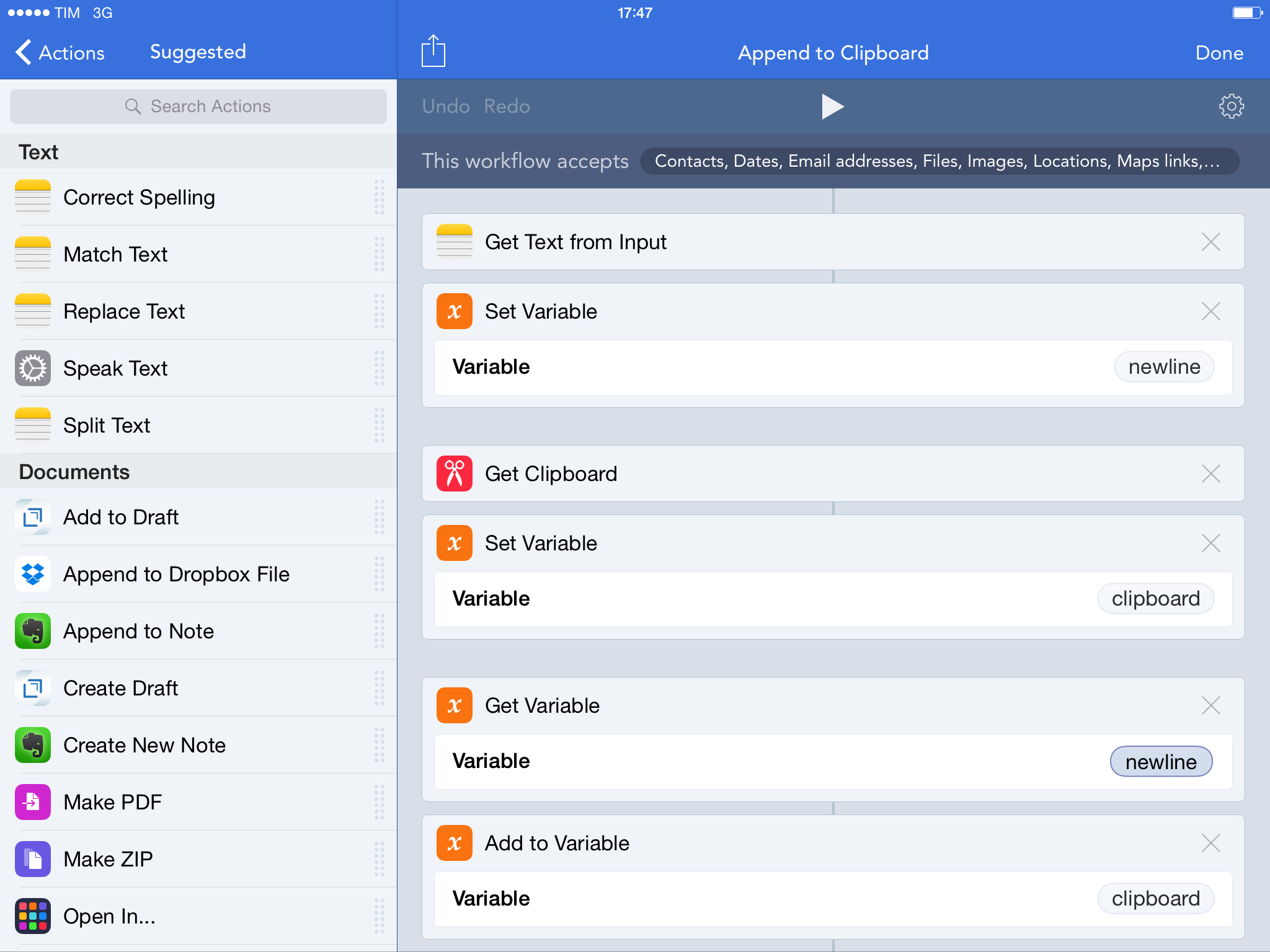
If you do any sort of note-taking or writing on iOS, you probably find yourself wishing you’d be able to copy separate bits of text in the clipboard simultaneously. While that’s still not possible because the iOS clipboard only supports one entry at a time, the process can be sped up with Workflow.
A few weeks ago, I wrote about how I was looking for an extension to append links to an existing note through the system share sheet. I eventually downloaded NoteBox, which has an iOS 8 extension that can quickly capture any string of text and that has a merge feature to collect separate notes into a single one. That wasn’t perfect, but it allowed me to collect dozens of tweets and prepare them for a blog post on MacStories in just a couple of minutes.
With Workflow, I came up with a better system that uses extensions and the ability to append text to the iOS clipboard. This is the workflow I use, which does three simple things:
- Receives input (text) from the Workflow action extension;
- Adds the input to your existing clipboard;
- Updates the system clipboard with the added input text.
In practice, this means that, using any app capable of showing the share sheet, you can add some text to your clipboard as a new line without convoluted steps of manual copy & paste. Want to add some tweets to a link you copied? In Twitterrific, run the workflow on those tweets and they will be added to the clipboard. Multiple links in Safari or RSS? Copy the first one as you’d normally do, then add more through the workflow. You won’t have to manually merge the contents of the clipboard as long as you use the Workflow action extension to append text.
I’m using this workflow every day to end up with a clipboard that contains multiple links, email addresses, or generic strings of text, and it’s been a great timesaver. You can download the workflow here.