

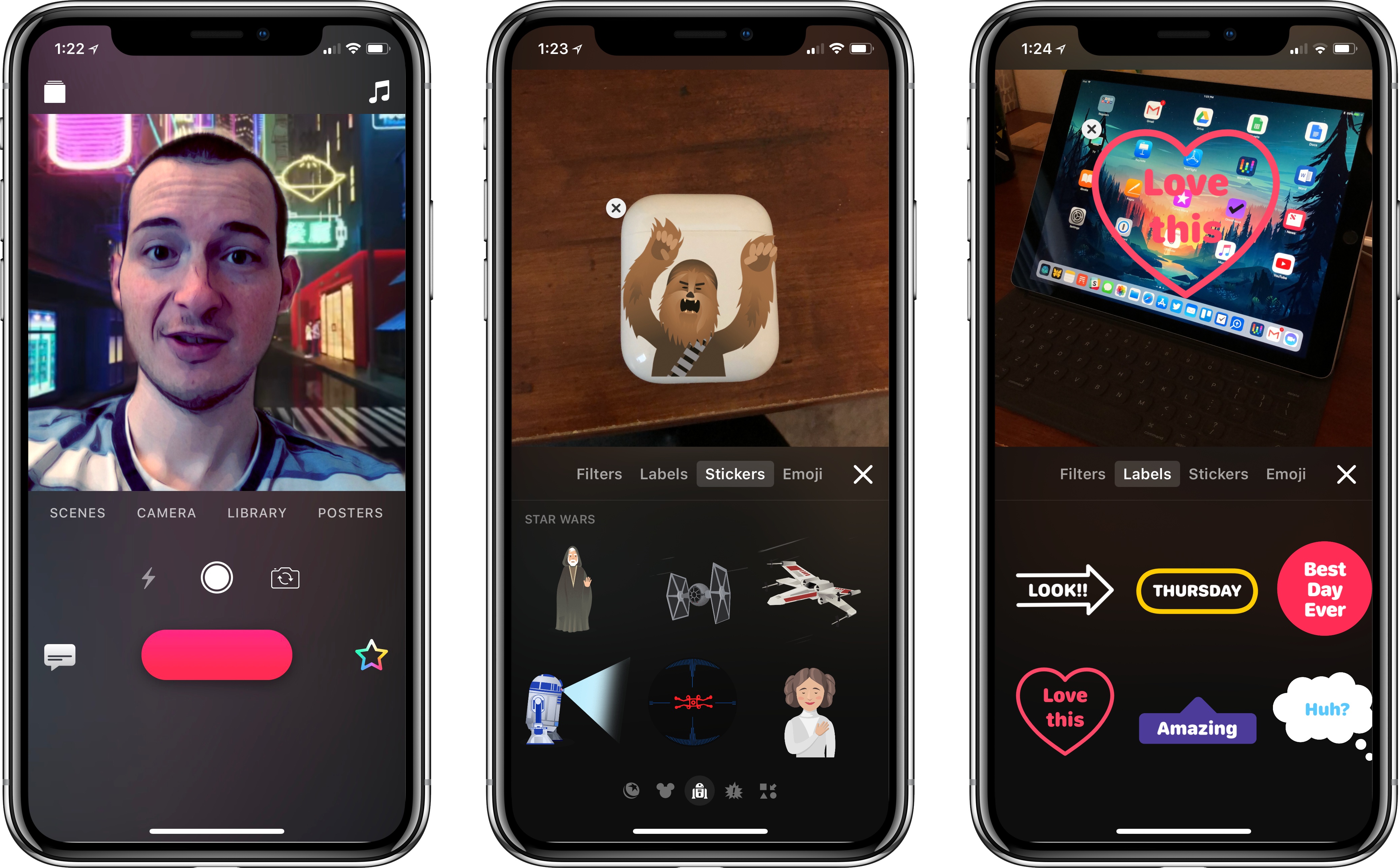
In a major update released today, Apple’s Clips app for iOS received a redesigned user interface, Star Wars stickers and scenes, iCloud support for syncing clips between iPhone and iPad, and a big iPhone X feature exclusive: Selfie Scenes.
Clips 2.0 Introduces Selfie Scenes for iPhone X, Star Wars Content, iCloud Syncing, and More
iPhone X App Roundup: The Innovative, Beautiful, and Practical

The iPhone X’s display poses a challenge to app developers. Similar to when the iPhone 6 and 6 Plus debuted, there’s a different screen size to work with here, which requires app layout adjustments. But more than simply the new size, the iPhone X brings two extra complications: the notch and an extra tall orientation. In order to best optimize for Apple’s current flagship phone, developers need to carefully consider these two factors – failure to do so can result in a particularly unsightly notch, or a UI that’s difficult to navigate one-handed.
We’re only a week out from the iPhone X’s debut, so what we see from X-ready apps today will likely evolve over time as developers are able to live with the device longer. But despite it being early days still, there are several apps that stand out among the best the App Store has to offer for iPhone X.
iPad Diaries: Working with Drag and Drop – Bear and Gladys
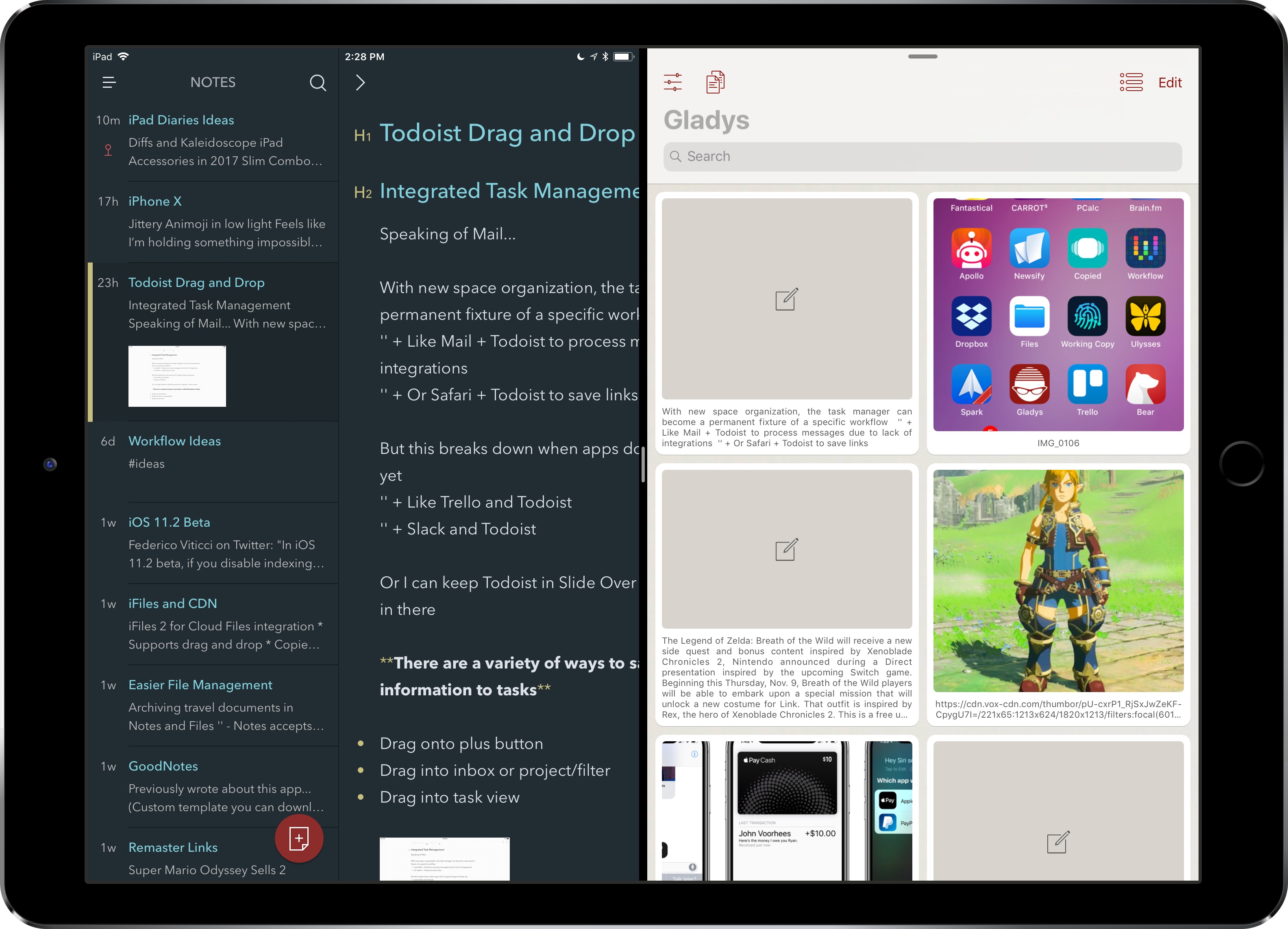
iPad Diaries is a regular series about using the iPad as a primary computer. You can find more installments here and subscribe to the dedicated RSS feed.
In my review of iOS 11, I noted that the impact of drag and drop – arguably, the most powerful addition to the iPad – would be best measured in the following weeks, after developers had the time to update their apps with richer implementations of the framework. I dedicated a large portion of my review to drag and drop as I felt the feature would fundamentally reshape our interactions with iPad apps and the entire OS altogether. However, I knew that wouldn’t happen right away. With iOS 11 having been available for nearly two months now, I think it’s time to reassess the effect of drag and drop on the iPad’s app ecosystem.
Starting this week, I’m going to take a look at some of the most important tasks I perform on my iPad and how drag and drop is helping me rethink them for my typical workflow. For the comeback of this column, I chose to focus on Bear and Gladys – a note-taking app and a shelf app, respectively – as I’ve been impressed with their developers’ understanding of iOS 11 and intricacies of drag and drop.
When I started researching this mini-series, I assumed that drag and drop hadn’t dramatically affected my favorite third-party apps yet. I was wrong. Drag and drop has started to trickle down into several areas of my daily iPad usage, often with surprising and powerful results.
Reeder 3.1 Adds iPhone X Support→
Reeder got me into reading RSS feeds on my iPhone several years ago. The app isn’t updated often these days, but developer Silvio Rizzi always makes sure to release updates that support the latest Apple hardware and iOS versions, which I appreciate. Reeder is as smooth and elegant as the day it came out (specifically, version 2 in 2013), and today’s 3.1 update is a welcome one as it brings support for iOS 11 and the iPhone X.
There are no new features in this version, but I recommend trying it out on an iPhone X if only to look at the “pure black” theme on the device’s OLED display. It’s glorious. I’m looking at Reeder now as I’m reading some articles in bed, and I can’t tell where the display and the bezels meet. I wish more apps would implement dark themes like this on the iPhone X. And as always, it’s great to see that Reeder is still around.
SuperDuper! Updated for macOS High Sierra and APFS
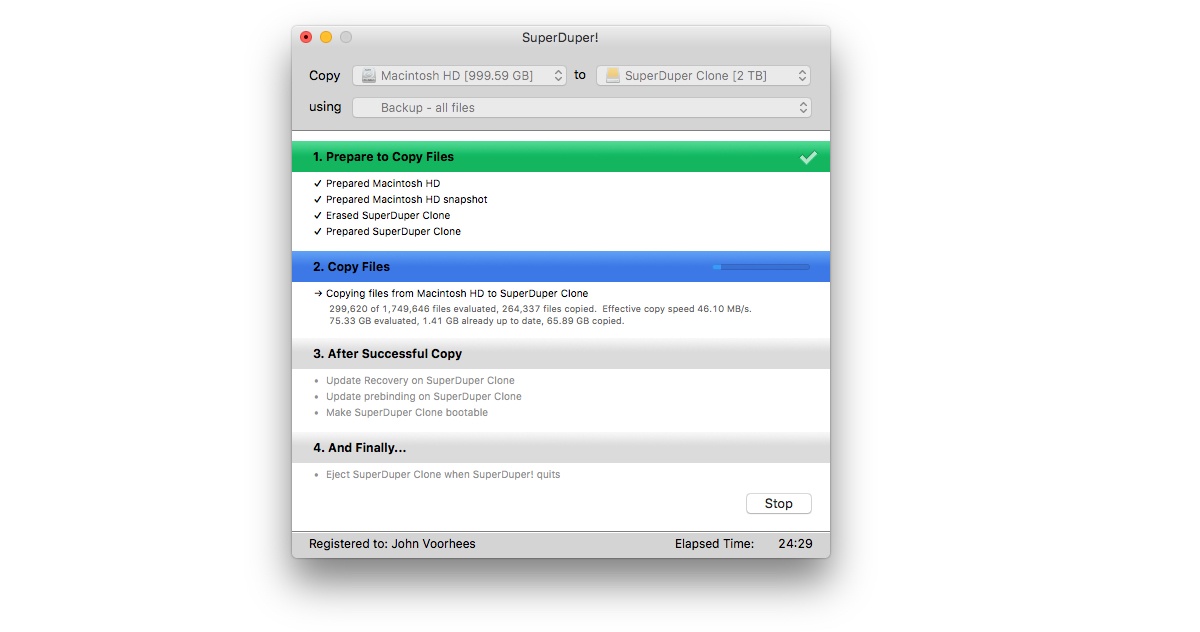
High Sierra introduced APFS, Apple’s first entirely new file system on the Mac in decades. Today, Shirt Pocket Software announced an update to its backup utility SuperDuper! that is compatible with APFS. In fact, the app can create a bootable clone for any Mac running Mac OS X 10.9 and later.
Supporting a brand new file system is a tall order. As Dave Nanian explains on the Shirt Pocket blog, APFS volumes are handled differently by macOS than HFS+ ones were. That complicated the update of SuperDuper!, but as with earlier OS updates, Shirt Pocket has solved the issues and is ready with an update that works with Apple’s latest version of macOS.
If you’re not already making a bootable backup of your Mac’s drive, the update to SuperDuper! is the perfect time to download the app and get started.
Tweetbot for iOS Adds 280-Character Tweet Support
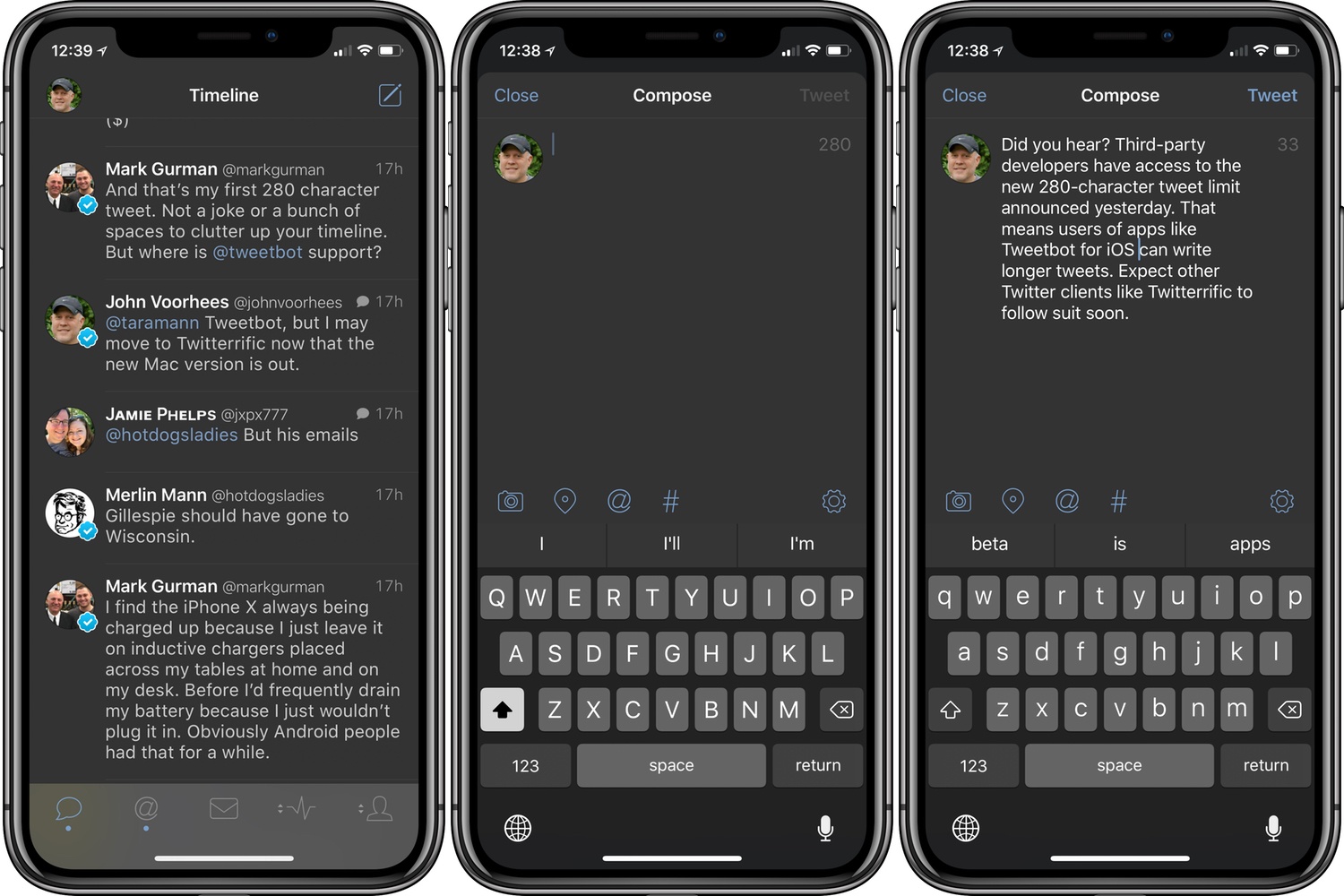
Yesterday, Twitter extended the character limit of tweets to 280. Unlike some features, Twitter has made the new tweet length available to all third-party developers.
First out of the gate is Tweetbot by Tapbots. Less than 24 hours after Twitter’s announcement, Tweetbot users can use a full 280 characters in tweets. I expect we’ll see additional updates from other Twitter client developers soon.
Tweetbot is available on the App Store.
Workflow 1.7.7 Brings Drag and Drop Integration, iPhone X Support, and More iOS 11 Changes
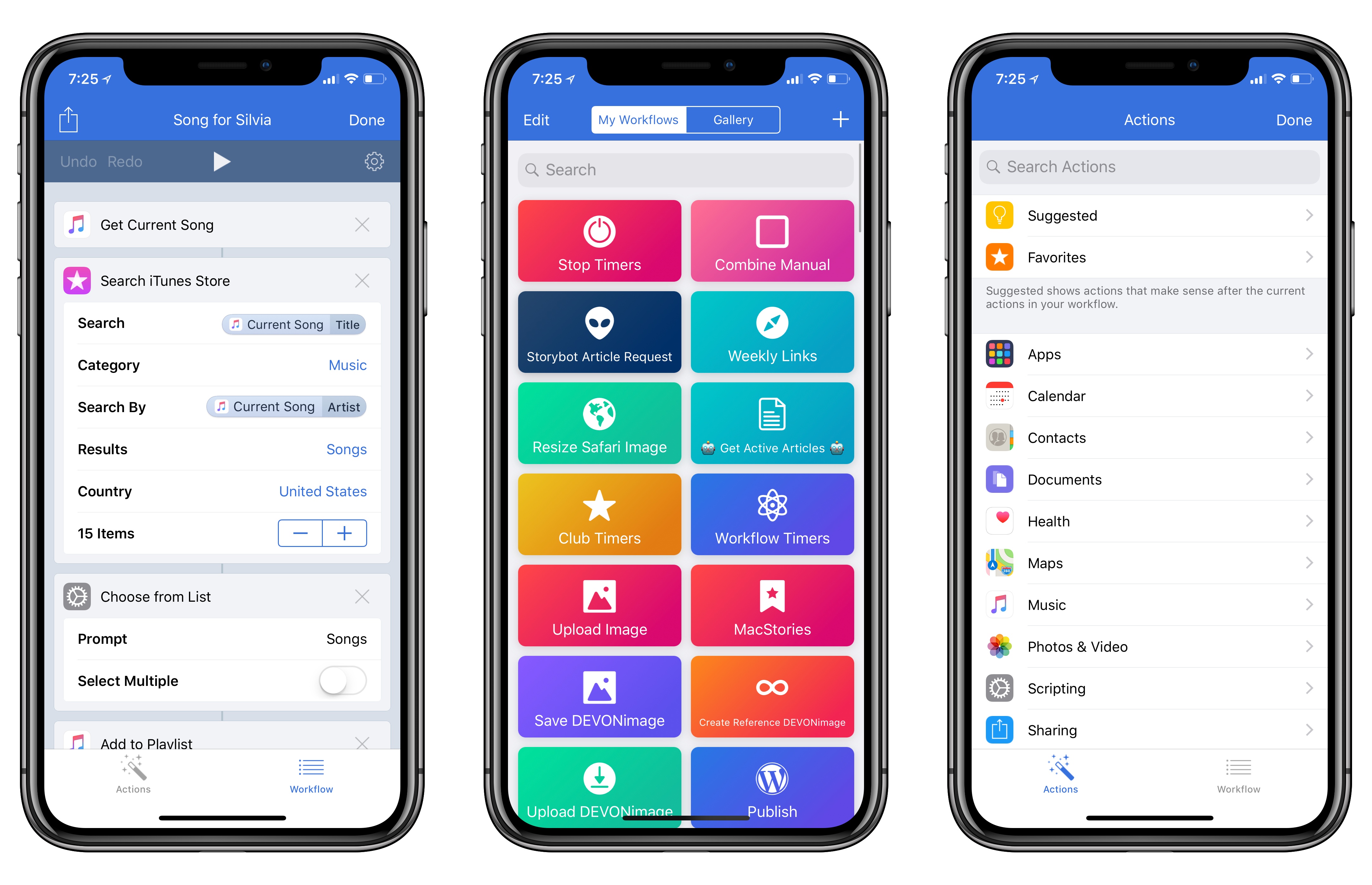
Workflow, the iOS automation app acquired by Apple earlier this year, received a major update today, adding support for the iPhone X and a variety of iOS 11-only features.
AppStories, Episode 30 – The Apps and Workflows We Use to Cover Apple Earnings Calls→
On this week’s episode of AppStories, we explain the apps and workflows we use to cover Apple earnings calls and then cover updates to Newsify on iOS and Twitterrific for macOS.
Sponsored by:
- Balance - A wallet for all the worlds currencies and tokens.

AppStories Episode 30 - The Apps and Workflows We Use to Cover Apple Earnings Calls
0:00
34:31
34:31






Twitterrific for macOS Adds Poll Support and Other Refinements
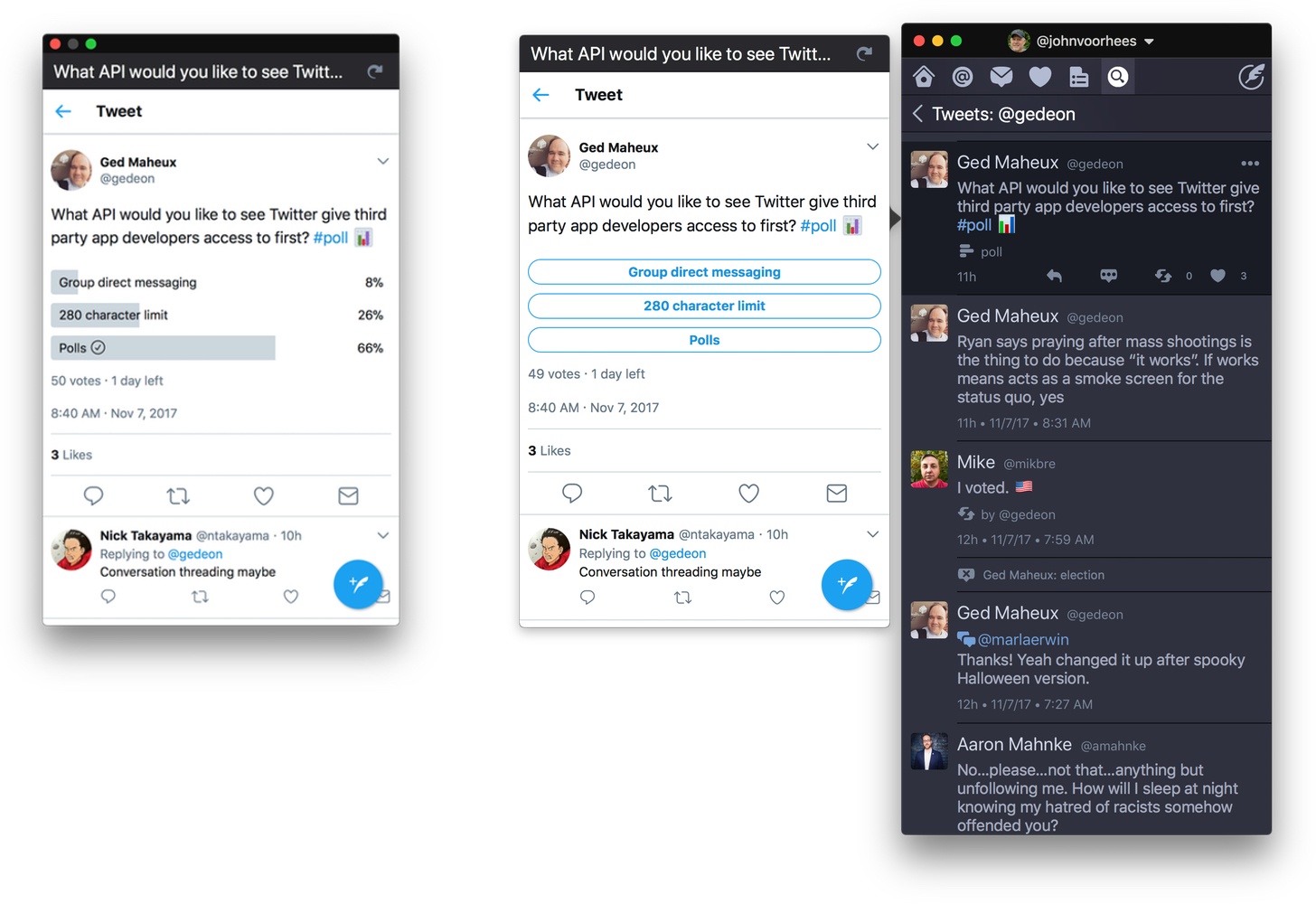
The Iconfactory is on a tear with Twitterrific for macOS updates. Version 5.0, the crowdfunded rebirth of the app, launched less than a month ago. A couple of weeks later, Twitterrific 5.1 added muffles and mutes, which we discussed on AppStories this week. Then yesterday, Twitterrific 5.2 dropped, with support for polls and and an enhancement of its user search functionality.
Poll support is notable because third-party developers don’t have access to Twitter’s polling APIs. Instead, users of third-party Twitter clients have had to go to the official Twitter client or the web to vote in polls, which I rarely bothered to do. Lack of API support hasn’t stopped The Iconfactory from implementing a workaround to make polls available to its users though. The feature isn’t perfect, but in my preliminary testing, I’ve been impressed with how well it works.
Twitterrific detects tweets that include polls by looking for clues like whether ‘#poll’ or the graph or ballot box emoji are used. The app also looks at the format of the question posed. If a tweet looks like a poll, Twitterrific displays a button below the text of the tweet. When the poll button is clicked, a popover with a mini-browser opens the poll so you can vote and see the results. If you want to monitor a poll, drag the popover away from your timeline to transform it into a standalone window that will stay put and can be refreshed with the latest results.
Poll creation still requires Twitter’s app or website, which cannot be avoided. Nonetheless, I can already tell that being able to open a poll, vote, and view results all from Twitterrific is going to increase my participation in them. For now, the feature is available on macOS only, but it is under consideration for the iOS app depending on how well it is received by users on the Mac.

Twitterrific also added fast user searching via the Cmd+U keyboard shortcut and has improved syncing of your timeline position between iOS and macOS. Next up for both versions of the app is support for Twitter’s new 280-character tweet limit, which, unlike polls, is available to third-party developers.
If you’re interested in trying a new Twitter client, Twitterrific is an excellent choice. The handful of gaps in the macOS version’s original feature set are being addressed rapidly and innovative approaches to things like polls set it apart from its competitors.
Twitterrific 5.2 is available on the Mac App Store.