Tim Cook Doesn’t Believe Users Want Apple to Merge the Mac and iPad

Peter Wells has an interesting story in The Sydney Morning Herald about the much-rumored merger of Macs and iOS devices. Wells interviewed Apple CEO Tim Cook at the education event that was held late last month in Chicago. During the conversation, Wells asked Cook about Microsoft’s convertible Windows 10 strategy and how it compared to Apple’s approach to OSes. Cook responded:

“We don’t believe in sort of watering down one for the other. Both [The Mac and iPad] are incredible. One of the reasons that both of them are incredible is because we pushed them to do what they do well. And if you begin to merge the two … you begin to make trade offs and compromises.

”So maybe the company would be more efficient at the end of the day. But that’s not what it’s about. You know it’s about giving people things that they can then use to help them change the world or express their passion or express their creativity. So this merger thing that some folks are fixated on, I don’t think that’s what users want.”

Especially since Mark Gurman of Bloomberg reported on rumors of an Apple initiative codenamed Project Marzipan designed to bring aspects of iOS to the Mac, there has been speculation about whether it might be the first step in an eventual merger of the two operating systems. Although Cook’s comments are interesting in the context of the rumors that have circulated, he was asked about Microsoft’s Windows 10 strategy, not Apple’s plans for its platforms. I think it’s safe to say that Cook believes iOS devices and Macs are good for different tasks, which suggests that the Mac’s form factor isn’t at imminent risk, but I don’t think you can draw any conclusions from his comments about the chipsets or operating system that may drive Macs in the future.

Permalink

Connected, Episode 189: Nah, Hummus!

Stephen and Myke are still recovering from a trip to Atlanta, and it shows in this discussion of the future of iOS and digital magazines. Federico thankfully saves the episode by sharing some about Drafts 5.

On this week’s episode of Connected, we try to understand the role of digital magazines in the modern web landscape and talk about Drafts 5. You can listen here.

Sponsored by:

  • Linode: High performance SSD Linux servers for all of your infrastructure needs. Get a $20 credit with promo code ‘connected2018’
  • Pingdom: Start monitoring your websites and servers today. Use offer code CONNECTED to get 30% off.
  • Hover: Show the world what you’re passionate about with 10% off your first purchase
Permalink

Game Day: Trick Shot 2

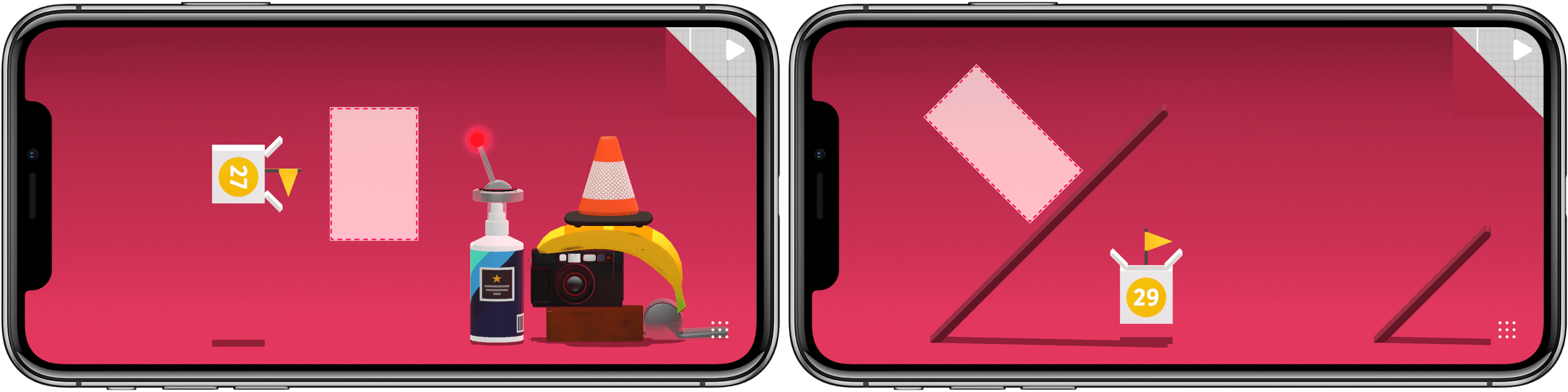
Trick Shot 2 is a physics puzzle game from Jonathan Topf, the lead designer of Monument Valley 2. This isn’t a game that breaks new ground, but it’s one that is executed wonderfully on all levels and has some great extras, instantly endearing itself as a fun diversion.

The goal is simple: shoot a ball into a box. You launch the ball by sliding your finger back inside an outlined launch area and releasing. The action is similar to the slingshot mechanic used in Angry Birds. The trick is to get the perfect angle, velocity, and timing to land the ball in the box. The process is complicated by the fact that the ball is incredibly bouncy and there is often a maze of household and other objects between you and the ball’s destination.

Trick Shot 2 is one of those casual games that works extremely well on a mobile device. The game is easy to play in short spurts, and it can serve as a way to pass idle time, like a sort of digital fidget spinner. However, that sells Trick Shot short because it has more to offer than similar games.

First, Trick Shot looks and sounds fantastic. Everything from the beautifully rendered 3D obstacles and smooth animations to the jazzy soundtrack is top notch. The game is split across 9 chapters each of which are made up of multiple levels. As the chapters unfold, the game introduces new mechanics like switches and teleportation machines that keep the gameplay challenging. If you get stuck, you can spend coins to get a hint from a helpful robot. When you run out of the coins that come with the game, you can purchase more as an In-App Purchase, but they aren’t necessary to complete the game.

Second, and most critical, is that you can build your own levels. The level builder drops you into a blueprint-style view where you can place, move, and rotate all 48 game elements into your own Rube Goldberg creation. If starting with a blank slate is too intimidating, you can copy and adapt an existing level. It’s a wonderful addition that creates an extra dimension and sophistication to the game.

I imagine that almost anyone who’s played iOS games has tried physics-based games like Trick Shot 2, but not all such games are created equal. The trouble is finding the best examples of the genre. Trick Shot 2 qualifies hands down as one of my favorites and one I recommend to anyone looking for a new low-key iOS game to try.

Trick Shot 2 is available on the App Store.


Dropbox iOS App Receives Drag and Drop Support, Fullscreen iPad Navigation

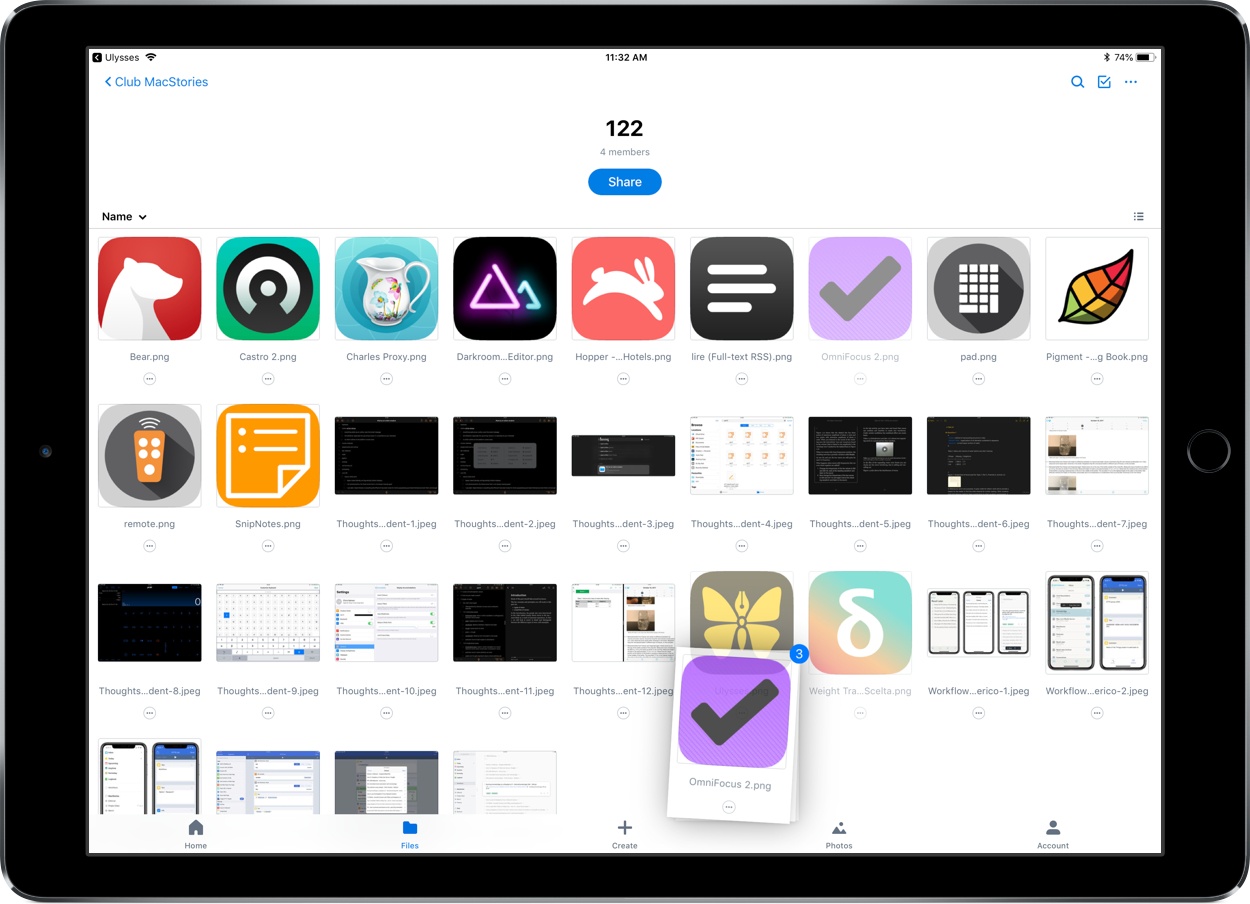
The latest version of Dropbox for iOS includes some nice improvements, the most noteworthy of which is drag and drop support.

Now if you need to add files to your Dropbox from another app, you can just pick them up and drop them right into the Dropbox app in exactly the folder you want. Equally exciting to me personally is that you can also use drag and drop for file management inside the app – just tap and hold on a file or folder and it will lift from its place, letting you drag it around and move it to other locations inside the app. I’ve always felt Dropbox’s method of moving files required too many taps, so drag and drop is a perfect solution for that. Also, I’m happy to report that file moving via drag and drop works on both iPad and iPhone.

Drag and drop capabilities have technically been available already for Dropbox users via managing your documents in Apple’s Files app, but if you need or simply prefer to use Dropbox’s own app, these are great features to have.

Another change in today’s update is that on the iPad, you can now close the file previewing pane to get a fullscreen browsing experience with your files – just hit the X in the upper left portion of the preview pane to get fullscreen navigation. I find that this feature is especially helpful when you’re using the grid view for files, but it could also be of benefit in list view if you have a lot of long file names that will no longer be truncated.

The app’s release notes also state that there is improved previewing and new text editing abilities for more than 120 file extensions, but the specifics of those extensions are unknown. I was hoping one of them would be Markdown (.md) files, but unfortunately those still can’t be edited in-app.

Despite the fact that Dropbox users can now do most document management inside the Files app, Dropbox continues to improve its app and make it a solid option for those who prefer not to use Files.


Rethinking iOS Notifications

Dieter Bohn at The Verge has some fantastic observations about notifications on Android and iOS, concluding that the iPhone’s notification system needs to be reworked. Bohn believes both OSes offer too many ways to tweak notifications, but he sees a broader issue with iOS in particular:

On both of those platforms, the question isn’t (or isn’t just) whether or not there are too many options. It’s whether or not the end state of those options are any good. The difference, I’ve found, is that Android has a way of doing things that make notifications more “humane” than what’s possible on the iPhone.

In his video and accompanying article, Bohn points to a handful of critical areas where Android does a better job with notifications than iOS:

  • Notifications can be set to appear silently in Android’s notification tray and on the lock screen.
  • Text messages and other notifications from actual people are prioritized.
  • Similar notifications are grouped so they’re only a couple of lines long and can be dismissed together.
  • Users can jump to an app’s notification settings from the notification itself.

Of those features, I agree with Bohn that adding the ability to jump directly to an app’s notification settings from the notification itself would go a long way on iOS. As Federico and I discussed recently on AppStories, periodically evaluating and adjusting notifications is essential to avoiding notification overload on iOS, but it’s also something that becomes a project because it requires a lot of hunting and tapping. With a system like Android’s, I can imagine making fine-tuned adjustments to notifications more frequently because doing so would be less likely to disrupt what I was doing when I’m interrupted.

Permalink

Drafts 5: The MacStories Review

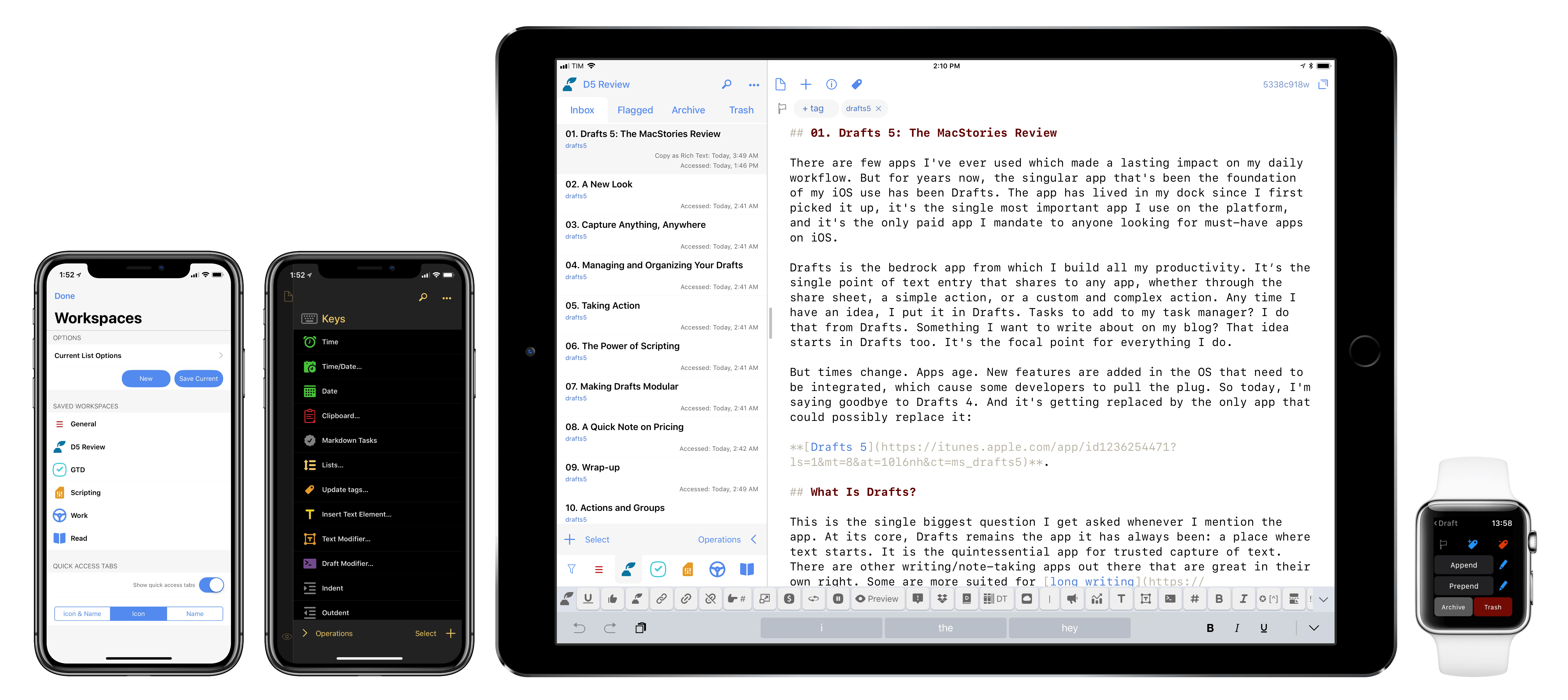
There are few apps I’ve ever used which made a lasting impact on my daily workflow. But for years now, the singular app that’s been the foundation of my iOS use has been Drafts. The app has lived in my dock since I first picked it up, it’s the single most important app I use on the platform, and it’s the only paid app I mandate to anyone looking for must-have apps on iOS.

Drafts is the bedrock app from which I build all my productivity. It’s the single point of text entry that shares to any app, whether through the share sheet, a simple action, or a custom and complex action. Any time I have an idea, I put it in Drafts. Tasks to add to my task manager? I do that from Drafts. Something I want to write about on my blog? That idea starts in Drafts too. It’s the focal point for everything I do.

But times change. Apps age. New features are added in the OS that need to be integrated, which cause some developers to pull the plug. So today, I’m saying goodbye to Drafts 4. And it’s getting replaced by the only app that could possibly replace it: Drafts 5.

Read more


    Things 3.5 Brings UI Refinements, Tagging and Automation Improvements, Clipboard Integration

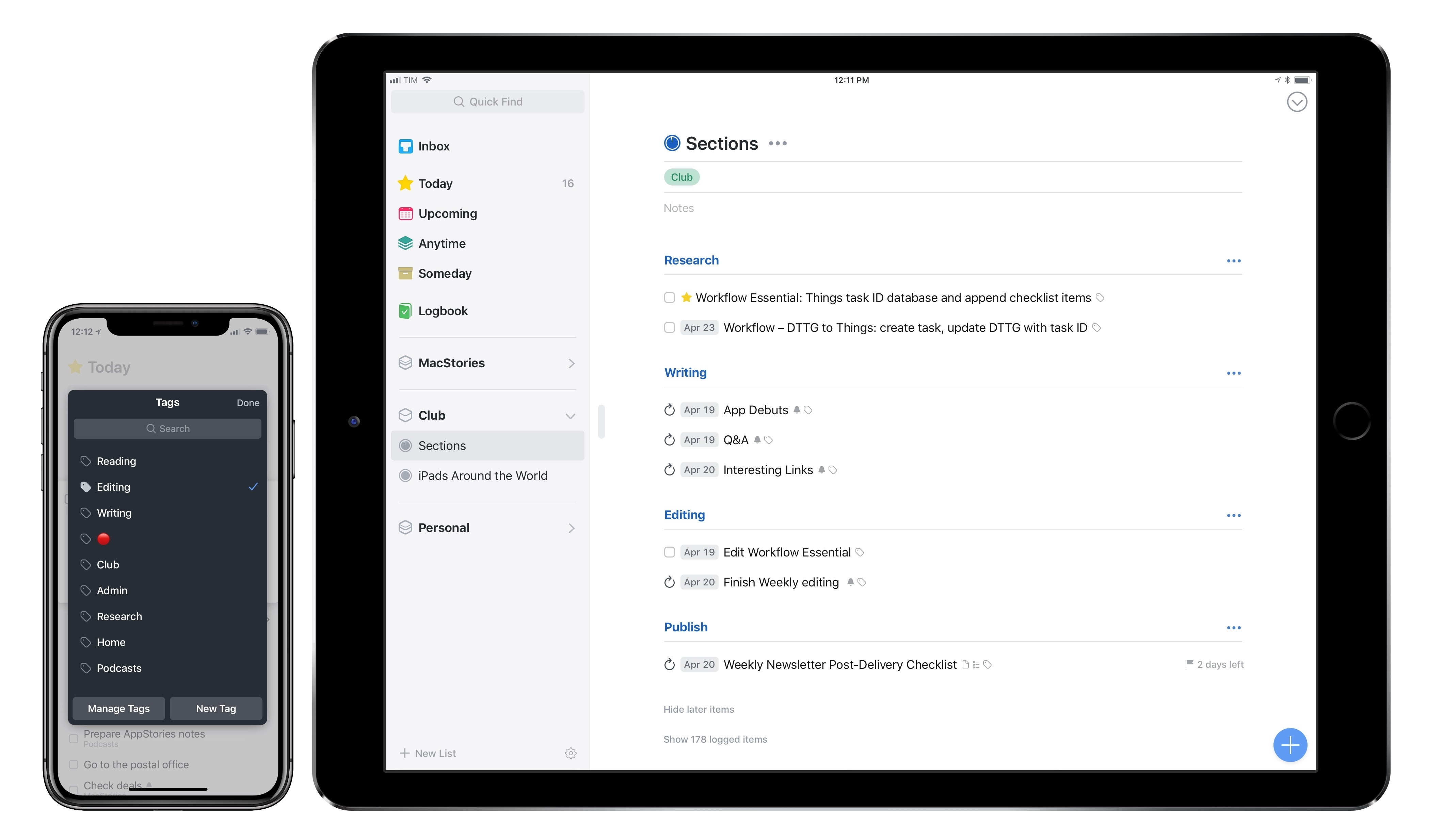
    It’s been a busy 2018 so far for Cultured Code, makers of Things for Mac and iOS. Earlier this year, the company shipped Things 3.4, which, thanks to app integrations and a toolkit for third-party developers, propelled the task manager into the elite of automation-capable apps on iOS. It doesn’t happen very often that a task manager becomes so flexible it lets you build your own natural language interpreter; Things 3.4 made it possible without having to be a programmer by trade.

    Today, Cultured Code is launching Things 3.5, a mid-cycle update that refines several aspects of the app and prepares its foundation for other major upgrades down the road. There isn’t a single all-encompassing change in Things 3.5 – nor is this version going to convince users to switch to Things like, say, version 3.4 or 3.0 might have. However, Things 3.5 is a collection of smaller yet welcome improvements that are worth outlining because they all contribute to making Things more powerful, intuitive, and consistent with its macOS counterpart.

    Read more


    MacStadium: Hosting Solutions for Apple Mac Infrastructure [Sponsor]

    MacStadium is the premier Mac hosting company that provides dedicated Mac hardware and private cloud services. They have multiple data centers where your hardware is secure, always available, and supported by a team of Mac experts.

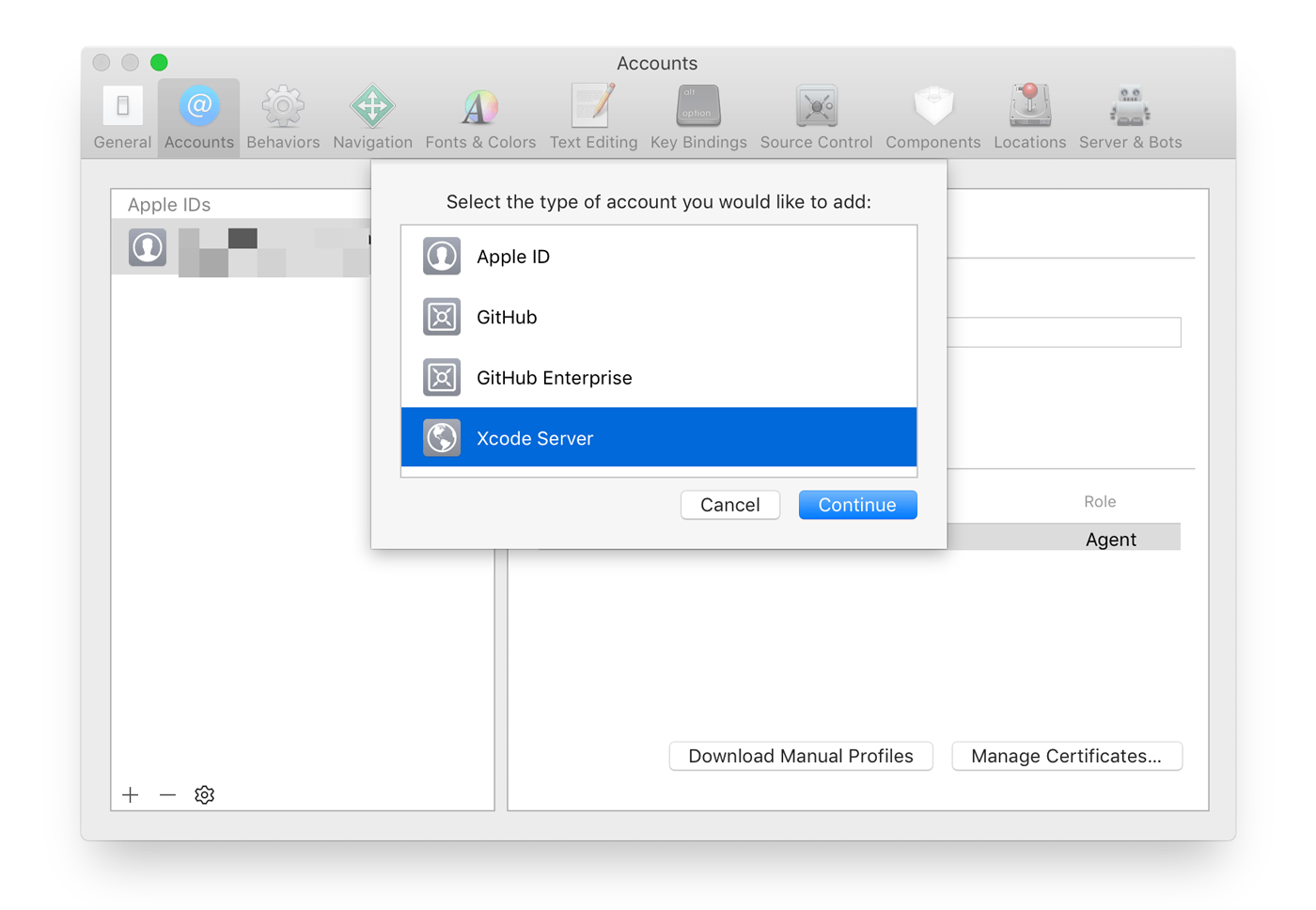
    The ways you can use a Mac mini server are only limited by your imagination. For example, developers from small indie shops to some of the biggest companies in the world use MacStadium minis as build servers. With Xcode 9, it’s easy to set up an Xcode Server bot to handle your builds.

    A Mac mini server is also a fantastic option for hosting a website. MacStories has run on a Mac mini at MacStadium for years, and it’s always been fast and reliable.

    MacStadium’s servers work great with tools like Transmit, Sendy, Yourls, for storing files, sending email newsletters, and shortening URLs. You can even create a private Dropbox-like service with ownCloud and bill clients with tools like Pancake. Those are just a few of the possibilities available when you use a Mac mini server.

    The folks at MacStadium are running a special promotion for MacStories readers who want to try a Mac mini server for themselves. You can trial a Mac mini server in their data center for a full month at no cost. Sign up to rent a Mac mini using coupon code “MACSTORIES,” and you’ll be all set.

    You can check out the details here.

    Our thanks to MacStadium for sponsoring MacStories this week.