This Week's Sponsor:

Dropzone 5

Improve your Drag-and-Drop Workflow


Sticker Drop Lets You Use iOS 16’s Subject Isolation Feature to Make iMessage Stickers

Years ago, when the iMessage Store first debuted, I covered the best sticker packs every week in MacStories Weekly, our Club MacStories newsletter. It wasn’t long before I had more sticker packs than Messages could manage. Finding individual sticker packs became a chore, so I gradually stopped using them, except on rare occasions.

One of my favorite categories of sticker apps from those early days was apps that allowed me to make my own stickers from photos. However, the process was too laborious and fiddly to justify making more than a handful of my own stickers.

That’s changed with the release of Sticker Drop, a DIY sticker creation utility for the iPhone that leverages iOS 16’s new subject isolation technology for images. What sets Sticker Drop apart is how easy it is to make and manage your own stickers.

Read more


AppStories, Episode 295 – iOS 16: The MacStories Review

This week on AppStories, we dig into Federico’s iOS 16 review, discussing the all-new Lock Screen, wallpaper creation, Focus modes and filters, App Shortcuts, and some of the smaller changes you might have missed.

Sponsored by:

  • Pillow – Sleeping better, made simple.
  • Memberful – Monetize your passion with membership.

On AppStories+, we take a behind-the-scenes look at the making of this year’s iOS 16 review.

We deliver AppStories+ to subscribers with bonus content, ad-free, and at a high bitrate early every week.

To learn more about the benefits included with an AppStories+ subscription, visit our Plans page, or read the AppStories+ FAQ.


iPhone 14 and 14 Pro Review Roundup

The reviews for the new iPhones are out, and I’m not surprised that the greatest buzz is around the iPhone 14 Pro and Pro Max. It’s worth digging into each of these reviews to get each author’s full take on the new iPhones, but here are a handful of observations that I thought were particularly interesting.

Nilay Patel, writing for The Verge explains how the iPhone 14 Pro Max’s Dynamic Island works:

Apple’s built a new dynamic subpixel antialiasing system that makes the edges of the island up to three times crisper than all the other animations in iOS, which antialias at the pixel level. In normal room lighting, this really works: it feels like the cutout on the display is getting bigger and smaller, and the animations are really fun. (In sunlight or brighter light, you can see the camera sensors, and the illusion goes away, but it’s still cool.)

Patel is also intrigued by the new ideas Apple is experimenting with in the iPhone 14 Pro:

The iPhone 14 Pro, on the other hand, is the clear beginning of lots of new ideas, like the Dynamic Island, the new camera, and that satellite connectivity system. Because these ideas are new, they’re inherently incomplete. But they’re worth criticizing, which is its own kind of victory and a sign that Apple isn’t holding still with the future of the iPhone. I think we could all stand to think more deeply about how our smartphones work, and things like the Dynamic Island are evidence that Apple is still thinking deeply about parts of the iPhone experience.

Allison Johnson wrote a review of the iPhone 14 for The Verge and concluded that its appeal is going to be limited if you have a more recent model iPhone:

Most people should consider other options, but there is an argument for the iPhone 14 if you meet a narrow set of criteria: you’re on an iPhone 12 or older, you really want the satellite SOS feature, you prefer a 6.1-inch screen size (it is, after all, the right one), you want the best camera quality at this price point, you just need a new phone right now, and your carrier is offering a sweet trade-in deal. For this particular set of circumstances, the iPhone 14 will suit you just fine. Otherwise, it’s well worth taking a look at your other options.

Joanna Stern’s story for The Wall Street Journal explains that Apple is doing more than just offering better cameras to entice consumers to move up to the Pro models this year:

The Pro upgrade used to be about the third camera with the telephoto lens. That still matters, but now so does the new multitasking capabilities and a screen you don’t have to keep tapping.

Read more


Widgetsmith Is Coming for Your iOS 16 Lock Screen Too

It’s been two years since Widgetsmith took the App Store by storm. The app, which was created by long-time indie developer David Smith, lets users create custom Home Screen widgets. Then, shortly after the app’s release, it went viral when TikTokers discovered it and dropped Dave and his app squarely in the center of the Home Screen aesthetic phenomenon.

Two years later, it’s fair to say that few people know widgets like Dave knows widgets. He’s spent the past two years refining Widgetsmith. Also, Widgetsmith is just one of many apps Dave has released over the years, many of which included some of the best Apple Watch apps available. That unique combination of experience uniquely positioned Dave to take advantage of iOS 16’s Lock Screen widgets.

If you’ve used Widgetsmith to create Home Screen widgets, you’ll hit the ground running with Lock Screen widgets. There’s a new segmented control near the top of the iPhone app’s Widgets tab that toggles between Home Screen and Lock Screen widget creation. The Lock Screen view is divided between the inline text widgets that fit above the time on the Lock Screen and circular and rectangular widgets that sit below the time.

It's true, read the Messages section of his iOS 16 review.

It’s true, read the Messages section of his iOS 16 review.

When you tap to add an inline text widget, Widgetsmith opens its editor, which offers 11 categories of widgets, each which has its own set of options. The inline text widget can be used display whatever text you want that fits. Other options include multiple time, date, weather, calendar, fitness, and reminder widgets.

Setting up a circular widget.

Setting up a circular widget.

The circular widget offers six categories: photo, time, weather, step counting, reminders, and astronomy, each with multiple styles and available themes. Photos, which is also available to use with rectangular widgets, is interesting. It allows you to add a photo to the widget itself. Of course, the photo is rendered as a monochrome image when added to a widget, which can make images that aren’t high-contrast hard to see, but there’s also an option to isolate people from their backgrounds, which can help. The photo widget isn’t for me, but I can imagine situations where someone might want to add one. The rectangular widget category includes even more categories from which to choose. Between the overlap with other widget types, plus the Battery and Tides widgets, there are a total of 13 widget types that can be added to a rectangular widget and themed.

One of the best parts of Widgetsmith is browsing through its extensive catalog of widget types and then tweaking your favorites to make them fit with your own style. There are so many possibilities that I’d wager that the app has something to offer for everyone. If you want to dive deep in iOS 16 Lock Screen customization, Widgetsmith is a great place to start.

Widgetsmith is a free update on the App Store. The app offers a time-limited free trial after which it requires a $1.99/month or $19.99/year subscription.


LockFlow: A Simple Way to Add Shortcuts to the iOS 16 Lock Screen

A shortcut isn’t worth building if invoking it is more trouble than doing the same thing another way. Fortunately, that’s rarely the case because shortcuts can be triggered in so many ways. Still, you can never have too many options because more options mean more contexts where running the shortcut saves time. That’s why I was glad to see a brand new app called LockFlow released alongside the iOS 16 release. The app makes it incredibly simple to add shortcut widgets to your iPhone Lock Screen.

There are a couple of ways to set up your shortcuts to work with LockFlow. The first option is to use a special helper shortcut that’s bundled with the app. When you run it, the shortcut prompts you to pick the shortcuts for which you’d like to make Lock Screen widgets. The shortcuts you pick will then be listed in the LockFlow app for turning into widgets.

One word of warning, though. If you have hundreds of shortcuts, the scrolling performance of the helper shortcut isn’t great. However, because Lock Screen widget space is limited, I expect that most people won’t need to use the helper shortcut often. You also have the option of adding shortcuts by hand inside LockFlow, but you need to be careful to enter the exact name of the shortcut for the widget to work.

Adding a shortcut to LockFlow can be accomplished in the app or with a helper shortcut.

Adding a shortcut to LockFlow can be accomplished in the app or with a helper shortcut.

When you’re finished adding shortcuts to LockFlow, tap on one to give it an icon and test it if you’d like. That’s it. There’s nothing else to do other than head to your Lock Screen and add one of your new widgets.

When you add a LockFlow widget to your Lock Screen, it will be a generic circle with the word Edit in the middle. Tap it and pick the shortcut you want the widget to launch, which will replace the generic graphic with the icon you picked in LockFlow. Now, whenever you tap that widget, it will run your shortcut. My only quibble with this part of the app is that I think the widget’s iconography should be a little bigger than it is.

There are a lot of interesting use cases for LockFlow. You can use the widget as an app launcher with a single-action shortcut using the Open App action. Other options include controlling HomeKit scenes, switching Focus modes, starting a favorite playlist, and a lot more.

Personally, I’ve been using LockFlow with a shortcut that I adapted from one Federico made for Club MacStories members that appends text to a dedicated section of a Markdown note in Obsidian. I’ve also used it to shuffle a playlist of every song I’ve ever marked as ‘Loved’ in Apple Music. Both are the kind of actions I want to get to as quickly as possible with little effort, which is precisely where LockFlow excels.

LockFlow is available on the App Store as a free download.


watchOS 9: The MacStories Review

Watch Faces

From left: the new Metropolitan, Playtime, Lunar, and Astronomy watch faces in watchOS 9. Source: Apple.

From left: the new Metropolitan, Playtime, Lunar, and Astronomy watch faces in watchOS 9. Source: Apple.

As always, Apple has some new watch faces for us. Also as always, most of them are extremely niche or novelty faces. There is one new option this year which may be a legitimate contender for your watch face, though.

Metropolitan

The Metropolitan face may be my favorite new face of the last few years. It features four complications — one on each corner — and a very clean central dial. When you spin the Digital Crown, the numerals either stretch or squish in a fun effect to fidget with. Four is a decent number of complications, and the face has some very nice customization options for the dial and background colors, allowing you to design some very interesting faces via color combinations.

Metropolitan still isn’t going to pull me off of my long-running favorite Infograph watch face, as I don’t want to miss out on the nice central complications. For users who care less about complications than I do though, this is a really nice watch face option that is well worth your consideration.

Playtime

Playtime is another of Apple’s strange novelty faces. It shows the time as four ballon-like characters with eyes and feet. In the background is some confetti. You can spin the Digital Crown to twirl the confetti, and you can tap the screen to “bump” the balloons. They will be playfully nudged around for a bit before coming back to their main positions. If you tap fast enough for a long time, generally using two fingers, you can get the balloons agitated enough that they will occasionally do a full backflip or spin all the way around.

This watch face looks like it was a very fun exercise for Chicago-based designer Joi Fulton. As an official watch face on the Apple Watch though, I have no idea why it exists. At first glance it looks like it would be entertaining to kids at least, but the interactivity is honestly underwhelming to degree that I think even kids would get bored quickly. It takes far too much tapping to make the balloons do anything particularly interesting, and even then all you get is a slow flip before they return to position. Maybe if furious tapping caused the balloons to go absolutely crazy, or if spinning the Digital Crown did something better than mildly rotating the background noise, then this face could at least be fun.

Lunar

The Lunar watch face is pretty straightforward. It celebrates the Lunar calendar by placing it on your watch face, and it includes support for the Chinese, Hebrew, and Islamic calendars. You can spin the Digital Crown to rotate through the lunar dates.

This watch face does have four corner complications, but overall it’s extremely busy. If you need to check in on the Lunar calendar frequently then I suppose this is the face you’ve been waiting for. Otherwise, it’s just another novelty face.

Astronomy

The best I can say about the Astronomy watch face is that it sent me down a mildly entertaining research rabbit hole trying to find out how many years I’d need to go backwards or forwards in time to see all eight of the little planet icons line up perfectly with each other. (Sadly, this apparently never happens.)

This watch face has three different views: Earth, Moon, and Solar System. Each view shows an up-close depiction of its subject layered behind the digital time, and includes a complication at the top and another at the bottom. If you spin the Digital Crown, you’ll see each view zoom out so that you can see the entire subject. Continuing to spin the Crown will take you backwards or forwards by hours or days at a time. The Earth view will show the sunlight rotating around the planet throughout each day, the Moon view will show the phase of the moon, and the Solar System view will show the rotation of the planets around the Sun.

My teasing aside, this face does look really nice. If you’re really into astronomy then it’s probably exactly the kind of watch face that you’ll love. Outside of that niche though, I doubt it has much staying power.

First-Party Apps

While the only brand-new first-party app this year is Medications, Apple also has some updates to existing apps ready for watchOS 9.

Calendar

The watchOS Calendar app can now be zoomed out to week or month views, rather than only displaying single day views. Just spin the Digital Crown to swipe to scroll up and down between weeks or months. Tap to drill down to the day view, which has been updated with a new hovering ‘…’ button. You can tap the button to access a menu of options, with a ‘New Event’ button at the top and a list of view options beneath it.

The view options aren’t new, but they were previously only accessible from the Calendar panel in the watchOS settings app. Bringing those to the app itself should make them a lot more accessible, which is good since I think the ‘List’ view (which now appears to the be default) is a lot better than the previous default ‘Up Next’ view. In the List view, only events show up, so you no longer have to swipe through empty days just to get to the next day with an event.

The ability to create events within the Calendar app is new this year, and it’s great to see Apple build out this core app with such a necessary feature. You can configure new events with titles, locations, start and end date and times, repeats, and more. Essentially every feature of Calendar events from iOS can now be configured in watchOS.

When configuring an event’s location, you have options to use the locations you’re currently at, or to type in a search term. The search option will display a list of results from Maps, so you can search for and add locations by name, which is a nice option.

If you tap into an event with a location, you can tap on the location to open it in the Maps app for Apple Watch, and then activate navigation directions to the location from there.

The updates to Calendar are excellent, especially in the age of the full-size keyboard for Series 7 Apple Watches and later. With text input becoming more accessible, as well as with modern Apple Watches being less connected to iPhones, it’s vital for Apple to start empowering the operating system to do more.

The one miss here is that, while you can add new calendar events, you can’t edit them once they exist. This feels like an oversight, since the entire interface to edit them is already there. I hope Apple adds this feature in a dot update.

Reminders

Reminders has also been updated with the ability to edit existing reminders. Just tap on a reminder to open a menu with an option to edit it. Tapping the ‘Edit’ button will bring you to a new interface in the app, from which you can change the reminder’s title, notes, due date/time, and more.

Oddly enough, the interface for adding a reminder, which was already present and allowed adding them with only a name, has not changed. So you can only create reminders with a name, but then you can find the created reminder and edit it to have all of the details that you’d like.

This whole thing is very strange, as Calendar allows creating with full details but no editing, while Reminders allows editing with full details but only extremely basic creation. These two apps combined would have all the features that we want from them.

Regardless of the oversimple creation flow, it’s great that we finally have some avenue to set up more complicated reminders from the wrist. Siri still works too, but the new editing interface makes even more features available.

Podcasts

Finally, the Podcasts app has been updated to go fully independent from the iPhone in watchOS 9. The new version allows you to search for, follow, and unfollow new shows directly from your Apple Watch. Selecting particular episodes to download is also supported, and the new Listen Now section will make suggestions for new shows you might like to listen to.

With Apple pushing harder on its Family Setup feature this year, these improvements to Podcasts make a lot of sense. Family Setup allows kids to be given Apple Watches without requiring a paired iPhone, and now they’ll have access to their favorite shows from the first-party Podcasts app for the first time.

Left: watchOS 8 pop-up notification. Center: watchOS 9 banner notification. Right: expanded banner notification.

Left: watchOS 8 pop-up notification. Center: watchOS 9 banner notification. Right: expanded banner notification.

This year’s new system feature is the debut of drop-down banner notifications. When you’re actively using your Apple Watch in watchOS 9 and a notification comes in, it will slide down as a small banner from the top of the screen, rather than taking over as a full-screen notification.

This is a huge improvement over the old setup, and it has actively made the experience of using my Apple Watch more convenient and comfortable. Full-screen notifications popping up while you’re trying to do something else makes the whole device feel more like a notification machine than an actual computer on your wrist. With banner notifications, Apple is giving control back to the user to determine whether or not the incoming notification is more important than their current task.

The implementation of this feature is perfect. While you have your wrist raised, notifications come in as banners. You can easily swipe up on them to dismiss the banner if you don’t want to deal with it, or tap it to expand to the usual full-screen view. However, when your wrist is not raised and a notification comes in, it will show up in its normal full-screen form immediately when you raise your wrist. In practice, this has been exactly the behavior that I want every single time.

Miscellany

  • Low Power Mode is now available on watchOS, and can be activated by opening Control Center and tapping the battery percentage icon. The new mode will preserve battery life by disabling certain features such as the always-on display — a far nicer alternative to Power Reserve mode.
  • The Compass app has been updated in watchOS 9 to support waypoints and a new Backtrack feature. While available on the Apple Watch Series 4 and later, most of the new Compass features require an Apple Watch Series 6, so I wasn’t able to test them out. MacRumors has more details.
  • The Portrait watch face now supports photos of dogs and cats.
  • The special Nike watch faces which used to only be available if you purchased a Nike-branded Apple Watch are now available to all Apple Watch users.
  • Apple Watches configured as independent devices by Family Setup can now be given access to HomeKit-enabled devices, allowing these users to control lights, lock and unlock doors, and more right from their wrist.
  • The Siri UI in watchOS 9 now overlays the small Siri bubble on top of other watchOS content, rather than immediately initiating a full-screen UI change.
  • The full-size keyboard on the Apple Watch Series 7 now supports more languages.
  • The wobble interface for adding or removing items in watchOS Control Center now shows text labels, making for a convenient way to remember what all of the icons actually do.

Conclusion

Recently, I’ve found my excitement for the future of watchOS rekindling. The Apple Watch hardware is far stronger than it was in the early days, from larger screens to far more powerful processors. Will improved text input via the full-size keyboard pave the way for a new evolution of the Friends interface, or some other unique modicum of communication2? Will Glances return and gain interactivity now that the Apple Watch could actually handle third-party apps operating from the watch face3?

Obviously we can’t answer those questions yet, but in the last couple years we’ve seen Apple bring back colorful iMacs, ports (ports!) on the MacBook Pro, Clarus the Dogcow, and more. In many ways it has felt like a loosening up of the strict professionalism that we saw from Apple throughout the 2010s. Perhaps they’ll point some of that new energy at watchOS in the coming years as well. I want Apple to make watchOS weird again.

Maybe I’m reading too much into a sample size of one, but I think watchOS 9 may already show signs of new life in this area. Banner notifications make watchOS feel like a software platform again rather than a high-end Fitbit. The ability to create and edit calendar events and reminders, and to discover and follow new podcasts, aid in this vibe shift as well. I hope we continue to see more features like these in the coming years.

While OS-level advancements are always going to be my personal favorites, there’s no argument that the health and fitness features of Apple Watch will always be of more importance. In these areas, Apple is saving and improving lives by bringing more and more advancements to personal healthcare and healthy living. In watchOS 9, Apple hit it out of the park here.

The improvements to the Workout app are excellent, and arrived with a surprising level of sophistication for brand-new watchOS features. The same can be said of the Medications feature, which I think will be enormously popular (although they really need to make those notifications sticky). I’m pleased to see sleep tracking growing more in-depth too, especially since the new data points don’t require new hardware.

On the watch face front, Apple continues to drain what is clearly a significant amount of effort into new watch faces every year, but they just keep creating weird novelty faces, or faces for extremely niche groups. If this is what Apple wants to do, I just don’t understand why they remain stoically unwilling to open up the device to third-party watch faces. Allow developers to fill in the gaps of actually good general-purpose watch faces, and I will immediately stop minding that Apple invests its limited focus into accurately depicting planetary rotations or collaborating with designers.

Watch faces are almost always bad though, so I can barely even bring myself to ding watchOS 9 on them at this point. Overall, I think I’m ready to call this one of the best Apple Watch updates in years. We saw great new features across the board, filled in some longstanding gaps in functionality, and finally dropped support for the Apple Watch Series 3. The last may seem like a minor footnote, but it actually should free up watchOS developers to make even better apps going forward now that they don’t need to support that very flawed, outdated hardware.

watchOS 9 was released this week, and is available for free to all users with Apple Watches Series 4 and above.


  1. Remember Walkie-Talkie? While only useful in niche situations, that was a legitimately cool new feature which felt perfect for the Apple Watch. I want to see Apple try out more weird ideas like that. 
  2. Apple removed Glances from watchOS while the Apple Watch Series 3 was still a top-of-the-line device, rather than a relic whose end of life was recently celebrated by developers. The idea of having customizable third-party mini-interfaces available via swipes directly on the watch face was always a great one, but the hardware back then just couldn't handle it. 

CARROT Weather 5.8: A Beautiful New iPad Layout, Lots of Lock Screen Widgets, and More

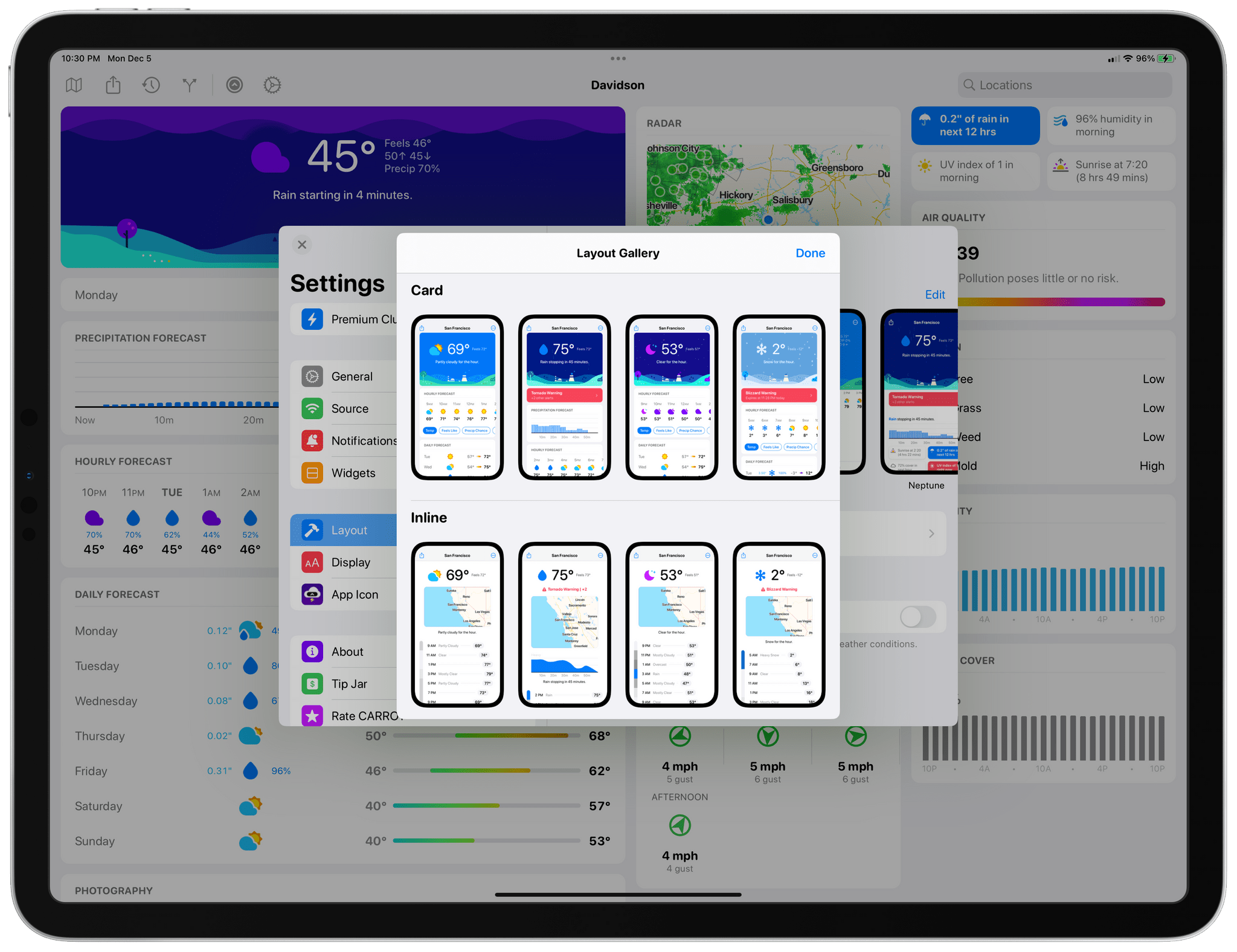
If you use CARROT Weather and have an iPad, stop. Go update CARROT, dig into its Layout settings, and pick the Multi-Column Layout Style before you read any further. I’ll wait.

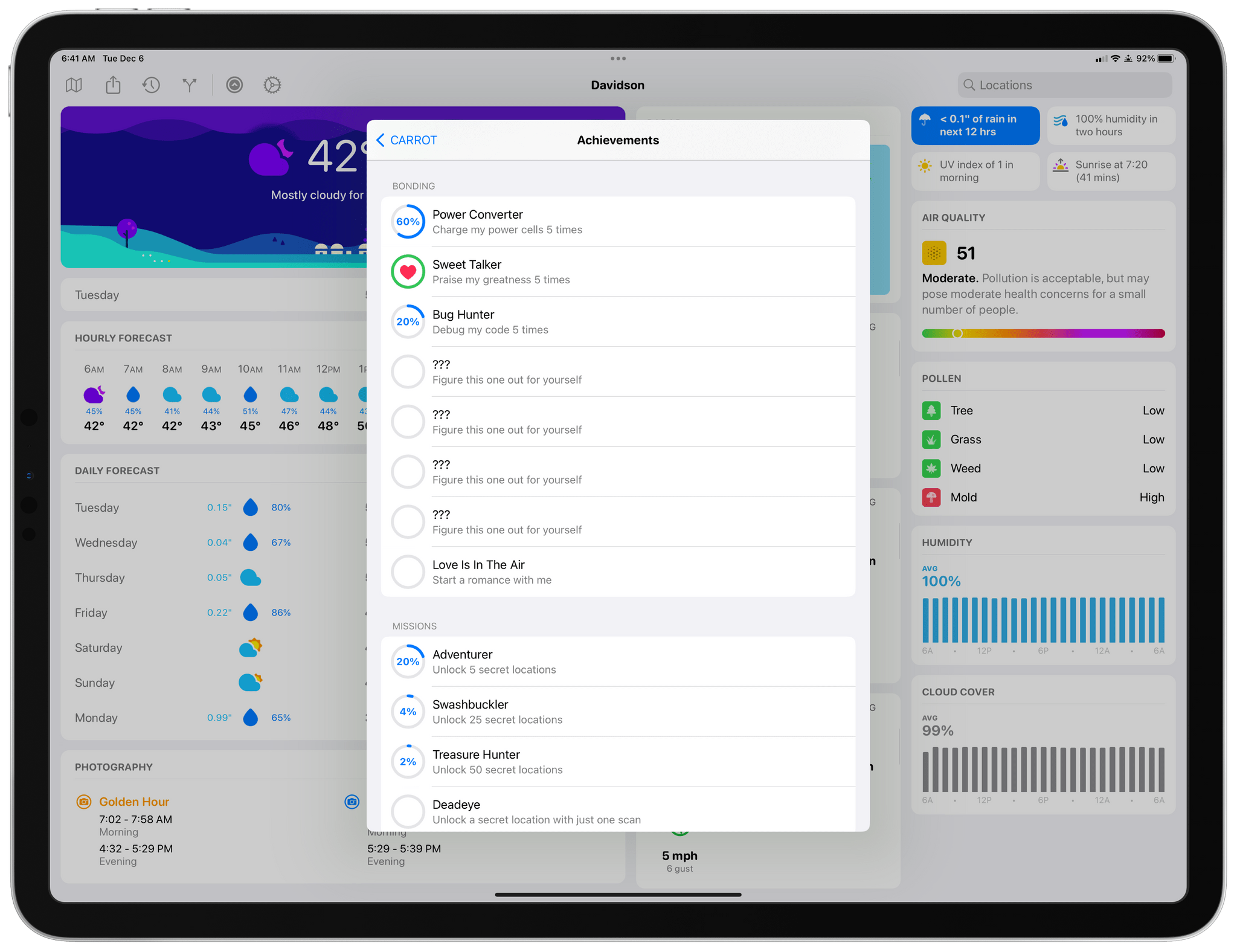
It’s good, right? Even if you don’t customize it at all, CARROT’s new three-column layout will excite your inner weather geek. The layout is a natural extension of the card-like interface of CARROT’s iOS app, expanded to multiple columns. It’s a terrific update that makes much better use of the iPad’s bigger screen.

Picking Multi-Column from CARROT Weather's Layout settings.

Picking Multi-Column from CARROT Weather’s Layout settings.

The app’s signature card-like customization scheme is the perfect fit with the iPad, allowing users to pick and choose the data that’s most important to them, adjusting each component to fit nicely onscreen. In narrower Split View configurations, CARROT Weather falls back to the single-column, Plain style layout.

CARROT Weather's columns are completely customizable.

CARROT Weather’s columns are completely customizable.

The update also adds another 10 sections of weather data that can be displayed in a variety of ways, including as line and bar charts. With the existing sections, which we’ve covered before, there are more than enough data points and display choices to fill three-columns to your personal tastes.

Apple itself has headed in a similar direction, designing the new Weather app for iPadOS and macOS as a grid of tiles that offer more details when tapped. However, I prefer CARROT Weather because it lets me choose what to display and where. CARROT also lets me save multiple layouts, which opens up the option to customize layouts for each season or for different activities.

Examples of CARROT Weather's rectangular Lock Screen widgets.

Examples of CARROT Weather’s rectangular Lock Screen widgets.

A few of CARROT Weather's circular Lock Screen widgets.

A few of CARROT Weather’s circular Lock Screen widgets.

In addition to the new iPad design and new sections available in the iPhone and iPad versions of the app, CARROT Weather now comes with a whopping 20 Lock Screen widgets for the iPhone. Four of those widgets, Snark, Custom Conditions, Hourly Forecast, and Daily Forecast, are the larger rectangular variety. The remainder of the widgets are circular ones that offer a long list of data points like the current conditions, the current temperature along with the forecast high and low, the change of precipitation, wind speed, UV Index, Air Quality, and more. Whatever is most important to you, there’s bound to be a widget for it in CARROT Weather.

Finally, CARROT Weather has added another weather data provider: Apple’s own WeatherKit service. All weather data providers seem to be strong in some parts of the world and weaker in others, including WeatherKit, but it’s good to have another choice, especially since Dark Sky will no longer offer forecasts beginning next year.

I’ve been spending a lot of time pairing Lock Screens with Focus modes, and CARROT’s weather widgets have been a staple when I head out for a long walk or bike ride. Along with the redesign of the iPad app, version 5.8 is another excellent update from CARROT that I encourage everyone to check out.

CARROT Weather 5.8 is available for download now on the App Store. Some of the app’s features require a subscription, the details of which you can learn about on the App Store.


Last Week, on Club MacStories: An Apple Event Town Hall, the Best Keynote Moments, a Markdown Library Shortcut, and iOS 16 Details

Because Club MacStories now encompasses more than just newsletters, we’ve created a guide to the past week’s happenings along with a look at what’s coming up next:

An Apple Event Town Hall

After last week’s Apple event, we held a special live Club MacStories+ Town Hall in the Club MacStories+ Discord community. Federico, Alex, and I covered the iPhones, Apple Watches, and the new AirPods Pro announced by Apple last week.

If you missed the live event, the audio of the Town Hall is available as a podcast from the Club podcasts page.

MacStories Weekly: Issue 335

Up Next

Every year when Federico publishes his iOS review, we share special perks with Club MacStories members. This year is no different. Here’s what’s already available and what is coming later this week with a special Saturday edition of MacStories Weekly:

Available now:

Available this Saturday:

  • A special issue of MacStories Weekly including:
    • A “Making Of” story from Federico about this year’s review writing and production process
    • Two advanced shortcuts that take advantage of Shortcuts features that debuted with iOS 16
    • A featured story from Michael Steeber about the animation and artwork he designed for Federico’s review

Learn more, and join Club MacStories at plus.club.


iOS 16 Review Extras: eBooks, Shortcuts, Making Of, and an Obsidian Plugin

Today, Federico published his iOS 16 review. As in past years, we’re releasing a wide variety of perks exclusively for Club MacStories members throughout the week, including an eBook version of the review, an eBook compilation of our 2022 OS Preview Series, two advanced shortcuts, two behind-the-scenes making of the review stories, and an update to one of our Club-exclusive Obsidian plugin.

What’s more, because Apple won’t be releasing iPadOS 16 until later this fall, we’ll have more perks for Club members when it’s released too.

Read more