macOS Sonoma: The MacStories Review

Conclusion

As I wrap up this review at my desk with an iPad Pro on one side using Universal Control and my iPhone on the other in StandBy mode, I’m struck by how well these three devices work in concert as well as individually. That’s no small feat, and it highlights how well-integrated Apple’s systems are now.

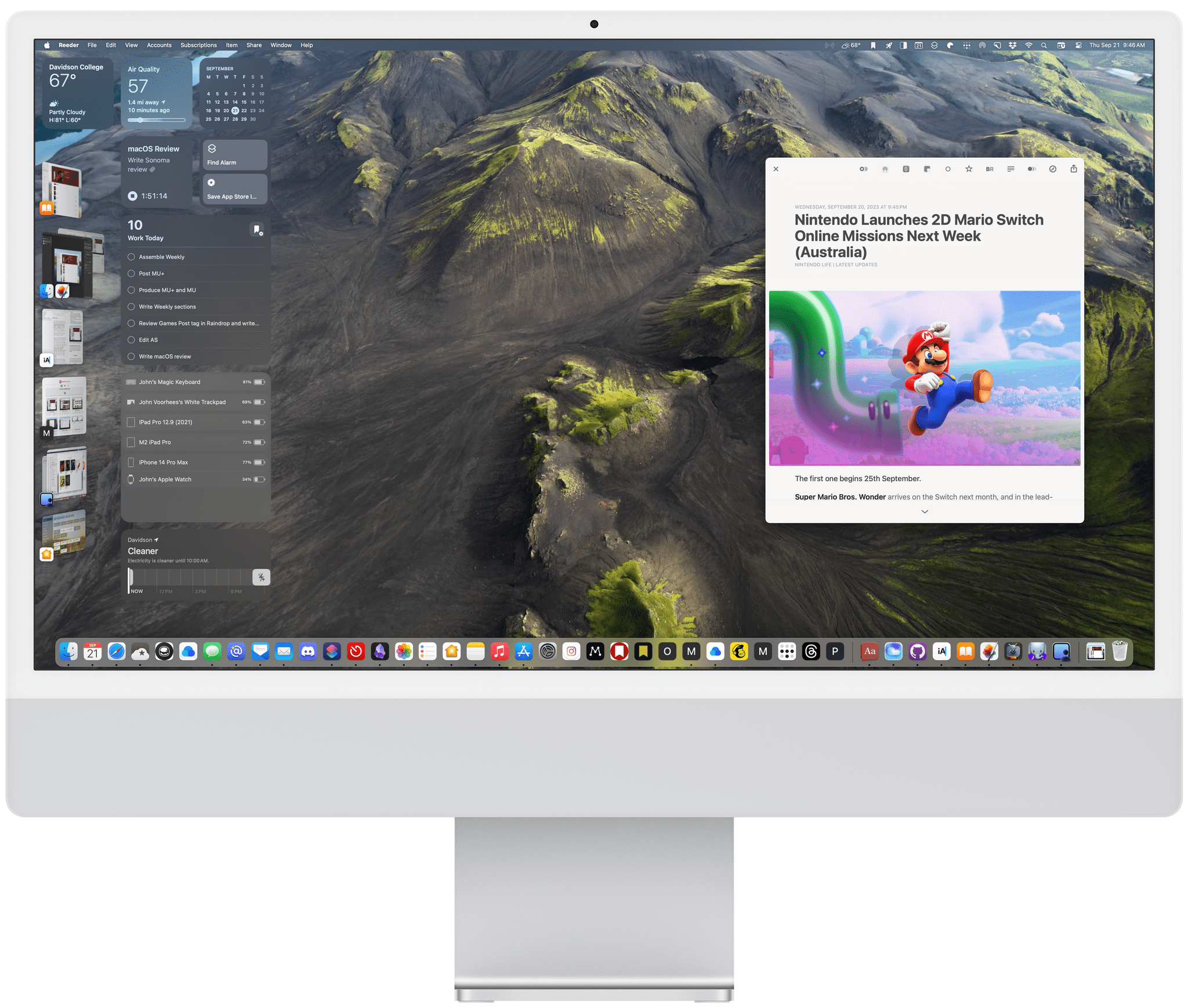
A big part of that integration is widgets. Apps vary from system to system based on screen size and device capabilities, but widgets are the same system-wide. They’re the glue that links an iPhone to an iPad to a Mac. They provide continuity across devices, allowing you to spread your work out across any number of them. Yet, at the same time, widgets work just as well on a single device.

That wasn’t really true before Sonoma. Sure, we’ve had widgets on the Mac for a while, but I’ve yet to meet someone who used them a lot before Sonoma because they were hidden away behind the menu bar’s clock. Desktop widgets won’t be everyone’s cup of tea, and you may prefer to stick with widgets on an iPhone or iPad as you work at your Mac, but with Sonoma, desktop widgets are a critical link in a mixed device environment that recognizes that for many people, the Mac isn’t their only work tool. I’ve never worked solely on a Mac, which is why I’m such a big fan of widgets on the desktop.

I’m also struck by how far apps like Reminders and Notes have come from their origins. There was a time when Reminders was a barebones checklist tool, and Notes didn’t support formatting. Now, they’re both worthy competitors to some of the best alternatives available from third-party developers. What’s more, they scale elegantly from their original, simple use cases to more complex ones, which is a testament to their thoughtful, considered design.

Widgets everywhere.

Widgets everywhere.

Safari single-site web apps complete the Sonoma triumvirate of my favorite features. I’m sure it’s a product of when I began using computers more than anything else, but I can’t help it. I prefer native apps to web apps. However, in my hierarchy of computing needs, I prefer the best tool for a job over anything else, and increasingly, in recent years, that’s a web app. Still, I’ve never enjoyed working in browser tabs, whether they’re at the top, on the side, or part of a special-purpose profile. There are third-party apps with more bells and whistles, but over the past few months with Sonoma, I’ve found that Safari web apps have been the perfect lightweight solution to the internal MacStories web tools we use, as well as a laundry list of third-party services. I’d still prefer native apps that take advantage of macOS-specific features like the share menu and Shortcuts, but I’m glad Apple has embraced the reality of web apps and given me and other users a practical solution.

Those are my personal favorites among the many Sonoma updates, but the best part is that there’s something in this release for everyone, from significant improvements to video calling to gaming to password management. It’s a grab bag of utility that’s only marred this year by the neglect of Shortcuts and Stage Manager, both of which got off to a good start when they debuted but have felt stuck in first gear ever since then.

On balance, though, there’s never been a better time to be a Mac user who also uses other Apple devices. It wasn’t that long ago that the Mac seemed like an also-ran platform without much of a future. Computing has changed. Mobile is dominant, and web apps are a growing segment of the app landscape. There’s still plenty of room for the great native Mac app experiences we’ve enjoyed for years, but with Sonoma, Apple has shown it can adapt. Bringing the Mac further into the fold of its other OSes with the help of widgets and giving users a better way to use web apps. Paired with Apple silicon, it’s an exciting, dynamic time on the Mac again, and I can’t wait to see what the future holds.

Apple Podcasts Adds Shows From Apple Music and News, Plus a Selection of Third-Party, Subscription-Based Apps

Apple Podcasts significantly expanded its Apple Music and Apple News podcast channels late yesterday and introduced podcasts for subscribers to a variety of third-party apps. In all, Apple says there are over 60 new shows comprised of over 2,500 episodes.

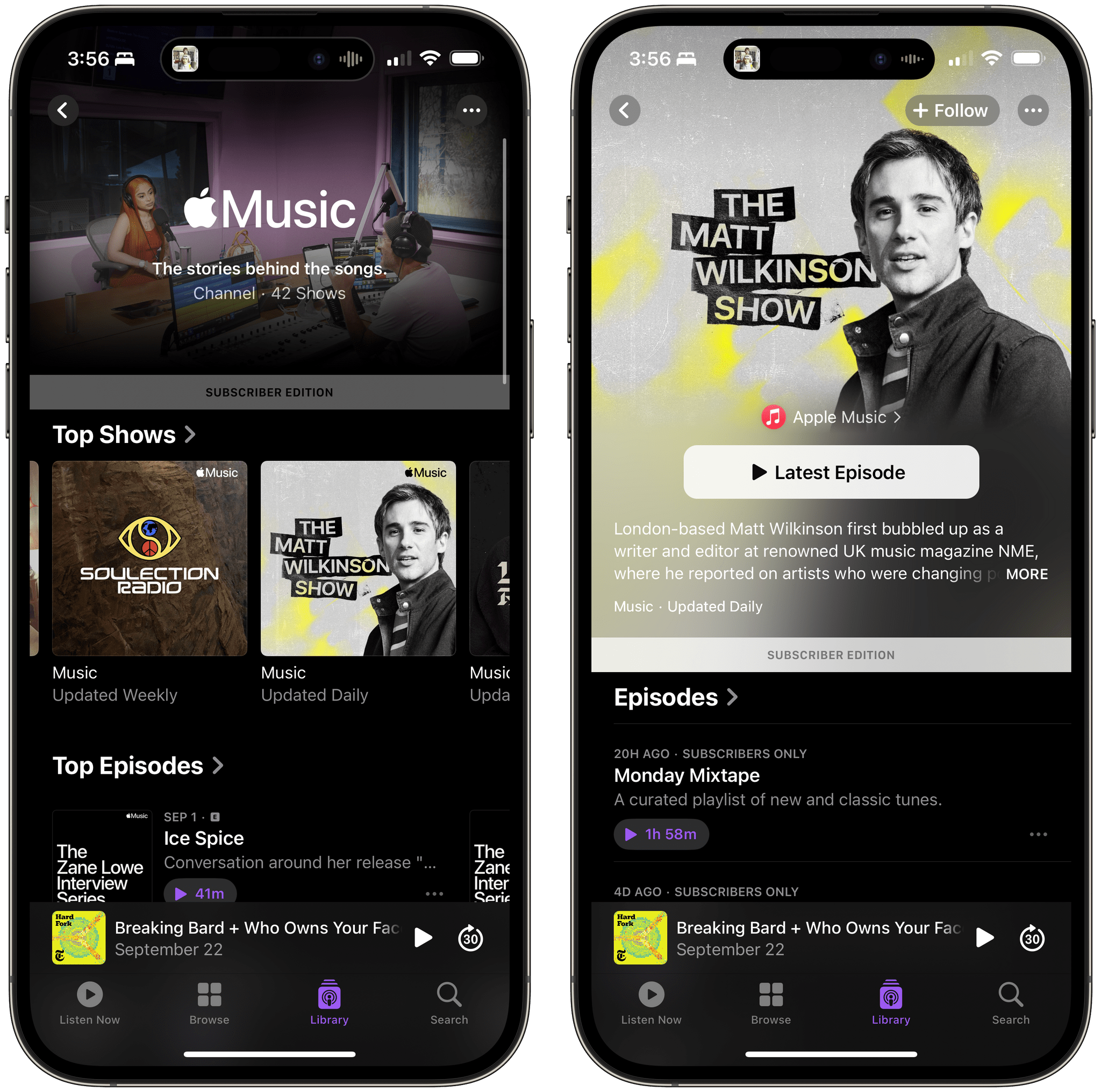
The Apple Music channel new features 42 shows, a significant increase from the handful that were available before. The lineup includes a mix of host-driven shows from Apple Music 1, interviews, music commentary, specials, and more, most of which are exclusive to Apple Music subscribers.

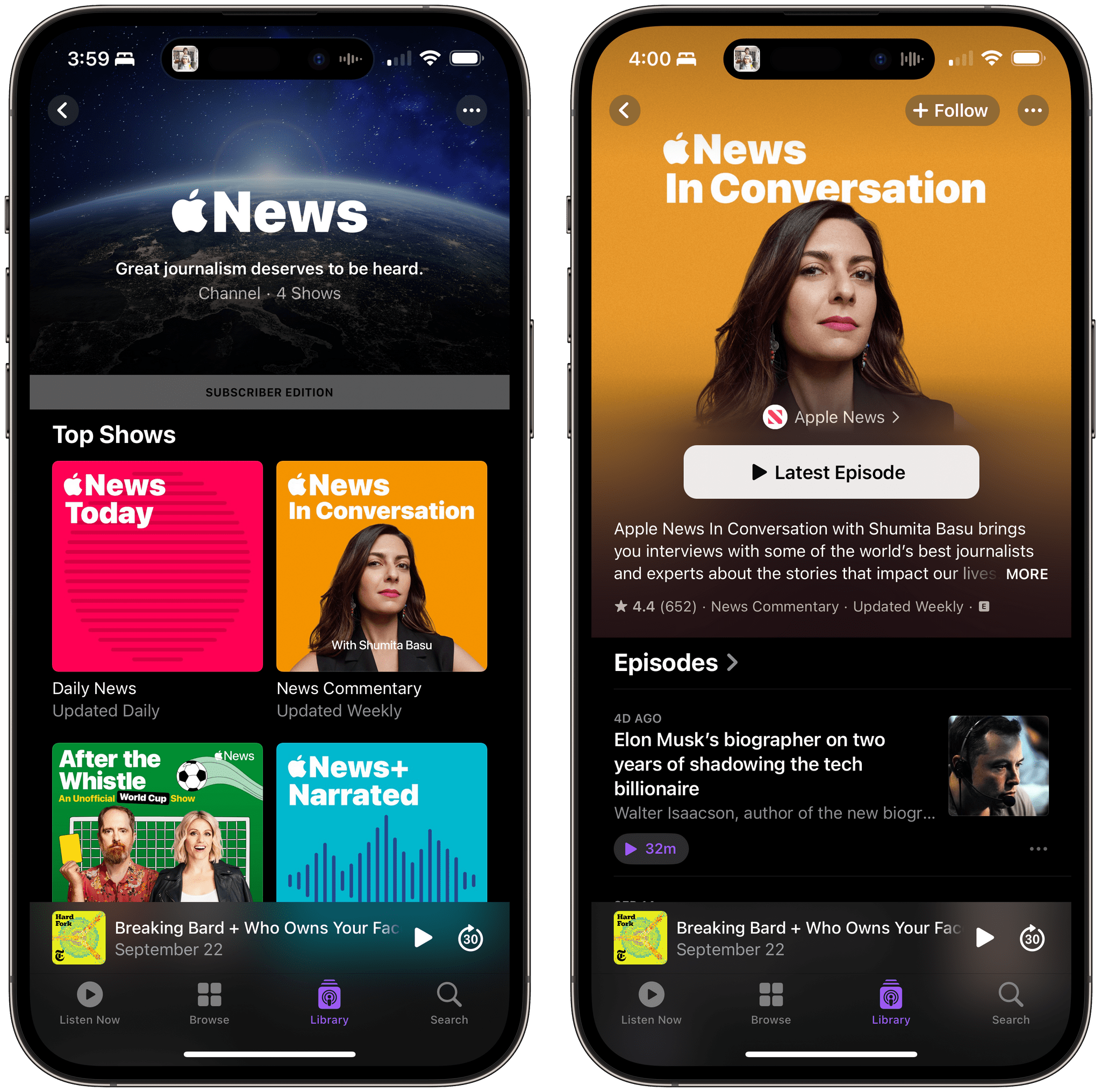
Apple News features four podcasts. News Today features a short, daily rundown of headlines from around the world; After the Whistle follows the World Cup; Apple News In Conversation is a weekly news commentary show; and Narrated News is an Apple News+ subscriber exclusive that presents audio narration of longform writing, something previously only available in the News app.

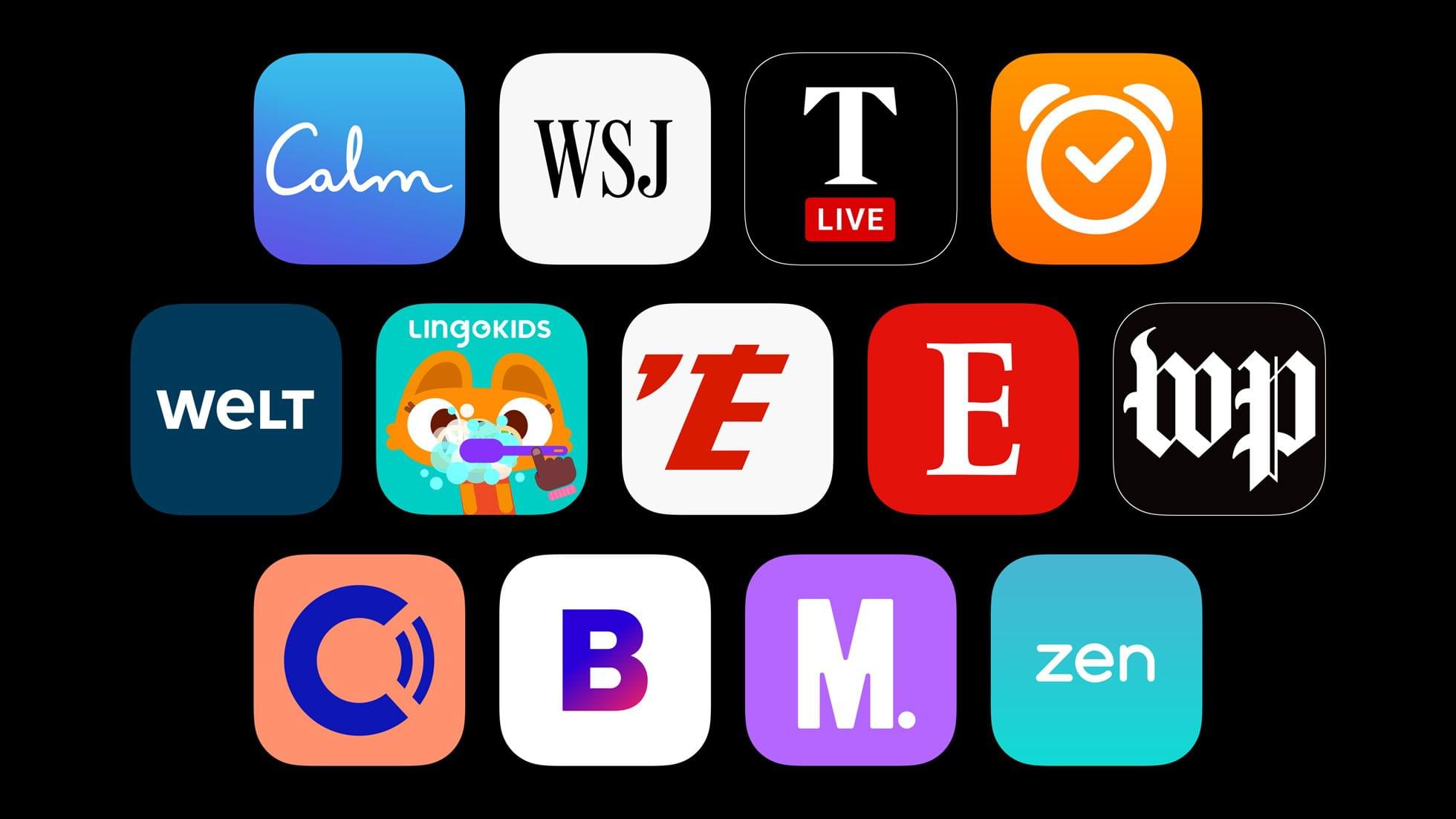
Some of the subscription-based apps that are offering podcasts. Source: Apple.

Some of the subscription-based apps that are offering podcasts. Source: Apple.

Among the subscription apps that are adding podcasts to their offerings are The Washington Post, Calm, Lingokids, Bloomberg, Sleep Cycle, and several others.

I haven’t had a chance to try any of the app add-on shows because I don’t subscribe to any of the participating apps. However, I spent some time this morning browsing through the Apple Music and Apple News offerings. Most of what is now available from Apple Music or Apple News in Podcasts was already available in their own apps. Still, I like having it available in Podcasts, where both channels’ shows fit in naturally with the other podcasts I enjoy, making Podcasts a one-stop destination for spoken audio. Listening in the Podcasts app also has the advantage of allowing listeners to receive notifications when a new episode is released and queue episodes for playback.

One thing I’d love to see the Apple Music and Apple News shows add is show notes. Links to songs played so they can be added to a listener’s library would be a useful addition to the Apple Music podcasts, as would links to materials on the topics covered by Apple News.


Apple’s Revised AirPods Pro 2 and Lossless Audio Support on Vision Pro

Soon after Apple’s Wonderlust event, it became clear that the company’s revised AirPods Pro with a USB-C case offered more than an updated connector. As detailed in a press release, the upgraded version of the second-generation AirPods Pro “unlocks powerful 20-bit, 48 kHz Lossless Audio with a massive reduction in audio latency”. But how?

Here’s Joe Rossignol, reporting at MacRumors:

In a video interview with Brian Tong, Apple’s VP of Sensing and Connectivity Ron Huang explained why only the updated second-generation AirPods Pro with a USB-C charging case support lossless audio with Apple’s upcoming Vision Pro headset.

Huang revealed that the H2 chip in the USB-C AirPods Pro supports the 5GHz band of wireless frequencies for ultra-low latency and less interference, while the H2 chip in the original second-generation AirPods Pro with a Lightning case is limited to the 2.4GHz band. Apple says it is this 5GHz support that enables the updated AirPods Pro to support lossless audio with the Vision Pro, which is slated for release in the U.S. in early 2024.

You can watch the video below:

The addition of 5GHz wireless makes complete sense in hindsight, and it doesn’t surprise me that Apple prioritized sound quality and latency reduction for a platform where full immersion is key to the experience.

Beyond Vision Pro, however, I wonder whether we’ll ever have any updates on the lossless audio front regarding Apple Music and AirPods Pro.

We know that Apple Music’s lossless catalog supports resolutions “ranging from 16-bit/44.1 kHz (CD Quality) up to 24-bit/192 kHz”. The new AirPods Pro fall short of supporting hi-res lossless playback at 24-bit/192 kHz, but so-called CD Quality lossless playback should now be within the capabilities of the device. Last time Apple gave a statement on the lack of lossless playback in AirPods Pro, they mentioned there are “other elements” to improve sound quality that aren’t necessarily about Bluetooth codecs. Is Apple waiting until they can support full 24-bit/192 kHz playback in future AirPods Pro hardware, or are there more audio-related changes coming with the launch of Vision Pro?

Permalink

Stupid Companies Make AI Promises. Smart Companies Have AI Policies [Sponsor]

It seems like every company is scrambling to stake their claim in the AI goldrush–check out the CEO of Kroger promising to bring LLMs into the dairy aisle. And front line workers are following suit–experimenting with AI so they can work faster and do more.

In the few short months since ChatGPT debuted, hundreds of AI-powered tools have come on the market. But while AI-based tools have genuinely helpful applications, they also pose profound security risks. Unfortunately, most companies still haven’t come up with policies to manage those risks. In the absence of clear guidance around responsible AI use, employees are blithely handing over sensitive data to untrustworthy tools. 

AI-based browser extensions offer the clearest illustration of this phenomenon. The Chrome store is overflowing with extensions that (claim to) harness ChatGPT to do all manner of tasks: punching up emails, designing graphics, transcribing meetings, and writing code. But these tools are prone to at least three types of risk.

  1. Malware: Security researchers keep uncovering AI-based extensions that steal user data. These extensions play on users’ trust of the big tech platforms (“it can’t be dangerous if Google lets it on the Chrome store!”) and they often appear to work, by hooking up to ChatGPT et al’s APIs. 
  2. Data Governance: Companies including Apple and Verizon have banned their employees from using LLMs because these products rarely offer a guarantee that a user’s inputs won’t be used as training data.
  3. Prompt Injection Attacks: In this little known but potentially unsolvable attack, hidden text on a webpage directs an AI tool to perform malicious actions–such as exfiltrate data and then delete the records. 

Up until now, most companies have been caught flat-footed by AI, but these risks are too serious to ignore. 

At Kolide, we’re taking a two-part approach to governing AI use.

  1. Draft AI policies as a team. We don’t want to totally ban our team from using AI, we just want to use it safely. So our first step is meeting with representatives from multiple teams to figure out what they’re getting out of AI-based tools, and how we can provide them with secure options that don’t expose critical data or infrastructure.
  2. Use Kolide to block malicious tools. Kolide lets IT and security teams write Checks that detect device compliance issues, and we’ve already started creating Checks for malicious (or dubious) AI-based tools. Now if an employee accidentally downloads malware, they’ll be prevented from logging into our cloud apps until they’ve removed it.

Every company will have to craft policies based on their unique needs and concerns, but the important thing is to start now. There’s still time to seize the reins of AI, before it gallops away with your company’s data.

To learn more about how Kolide enforces device compliance for companies with Okta, click here to watch an on-demand demo.

Our thank to Kolide for sponsoring MacStories this week.


MacStories Unwind: Preparing for Downtime and a Roadtrip Audiobook About Dragons

AppStories+ Deeper into the world of apps
0:00
0:00

AppStories+ Deeper into the world of apps


This week on MacStories Unwind, Federico preps for some serious downtime by planning a mod of his ASUS ROG Ally handheld gaming PC and I listened to Fourth Wing by Rebecca Yarros on a drive from Philadelphia back to North Carolina.

  • Kolide – It ensures that if a device isn’t secure it can’t access your apps.  It’s Device Trust for Okta. Watch the demo today!

Federico’s Season of Sci-Fi and Tech:

John’s Pick:

MacStories Unwind+

We deliver MacStories Unwind+ to Club MacStories subscribers ad-free and early with high bitrate audio every week.

To learn more about the benefits of a Club MacStories subscription, visit our Plans page.


The Mighty Mini Returns: Productivity Powerhouse at 34,000 feet

I’m sitting on an American Airlines flight, crammed in a window seat in economy class. I brought my iPad mini to catch up on some reading while I’m away, but at the last minute, I threw my Logitech K380 Bluetooth keyboard and a Twelve South Compass Pro. I cleared my task list for this trip, but it’s also been a while since I used the iPad mini for any productivity tasks, so I thought I’d bring it and the accessories along in case I had some downtime to do things like catch up on email.

I didn’t expect to do anything on the flight, especially writing. Tray tables are too shallow these days for even my M1 MacBook Air, let alone a mini in a stand with a separate keyboard. But when I settled into my seat, Jennifer pointed out the phone holder in the seatback in front of me. They’re meant for entertainment, replacing the in-seat screens airplanes used to have.

However, I discovered something arguably better that was also a fun opportunity to publish a story from 34,000 feet in the sky. When I pulled the little phone shelf out from the seatback, I saw the top bracket extended high enough that I could use it with my iPad mini. I signed up for in-flight Wi-Fi, paired the Logitech keyboard, and I was good to go.

The ergonomics are surprisingly good. The iPad is at eye level, and with nothing but the keyboard on the tray table, I can shove it closer to the seat in front of me, so my arms can extend to a comfortable position. The only downside is that without a pointing device, I have to reach up to log into websites and interact with some parts of apps, but it’s been far better than trying to type on a laptop or an iPad Pro in a Magic Keyboard. I highly recommend trying this the next time you need to work on an American Airlines flight.


iPhone 15, USB-C, and External Displays

Apple published an extensive support document about the USB-C connector on the new iPhone 15 lineup (we should be receiving our new iPhones later this week at MacStories, so stay tuned for our coverage), and a few details about compatibility with external displays caught my attention.

For starters, yes – Apple implemented DisplayPort connections over USB-C just like on the iPad Pro. The iPhone, however, is limited to a lower resolution:

iPhone uses the DisplayPort protocol to support connections to USB-C displays at up to 4K resolution and 60Hz.

Note that the latest iPad Pros support connections up to 6K, allowing you to connect an iPad Pro to a Pro Display XDR if you hate your wallet. You can try this with an iPhone 15 too, but display resolution is going to be limited to 4K. The Studio Display will be supported too, obviously.

Another tidbit from Apple’s support document:

You can connect your iPhone to an HDMI display or TV with a USB-C to HDMI adapter or cable. Adapters and cables that support HDMI 2.0 can output video from your iPhone at 4K resolution and 60Hz.

The Apple USB-C Digital AV Multiport Adapter is compatible with iPhone. This adapter can output video from iPhone at up to 4K resolution and 60Hz, including content in HDR10 or Dolby Vision if your display or TV supports HDR.

If my theory is correct, we should soon be able to connect an iPhone to an HDMI capture card (such as the ones I covered in my iPadOS 17 review) via Apple’s adapter and an HDMI cable, connect the capture card to an iPad, and use a compatible app to see the iPhone’s display on your iPad. That could be used for screencasts, playing videos from an iPhone on the iPad’s display, or, better yet, play a videogame from the iPhone in a Stage Manager window on the iPad.

The iPhone itself doesn’t support Stage Manager, so, unlike Samsung phones, it can’t be turned into a desktop workstation when plugged into an external monitor (I hope this happens down the road though). However, I do believe we’re going to start seeing some interesting experiments with iPhones being used as handheld gaming consoles with external monitors. Whether you’ll be using a capture card to turn an iPad into an external monitor for an iPhone using apps like Orion1 or Genki Studio2 or connect it to a portable OLED display, I think this newfound hardware modularity is going to be fascinating to observe.


  1. I tested the new app by the makers of Halide today shortly before it came out, and while I found its onboarding and UI delightful and the app worked well at standard resolutions, its built-in upscaling mode didn’t work for me. I tried displaying Nintendo Switch games on my iPad Pro using Orion and 4K upscaling, but the feature made games unplayable due to 3-4 seconds of added latency. I hope the Orion developers can work on a fix for this since software-based upscaling that doesn’t require a separate dongle could be a fantastic reason to use an iPad as a monitor. 
  2. This is the app that I covered as Capture Pro in my iPadOS 17 review. As it turns out, the developer teamed up with the folks at Genki (makers of the excellent Covert Dock Mini that I use with my Switch) and released the app under the name Genki Studio on the App Store this week. The functionality of the app is unchanged, and I still recommend it. 
Permalink

Widgle’s Four Photo-Based Widget Games Deliver Simple, Fun Interactive Diversions

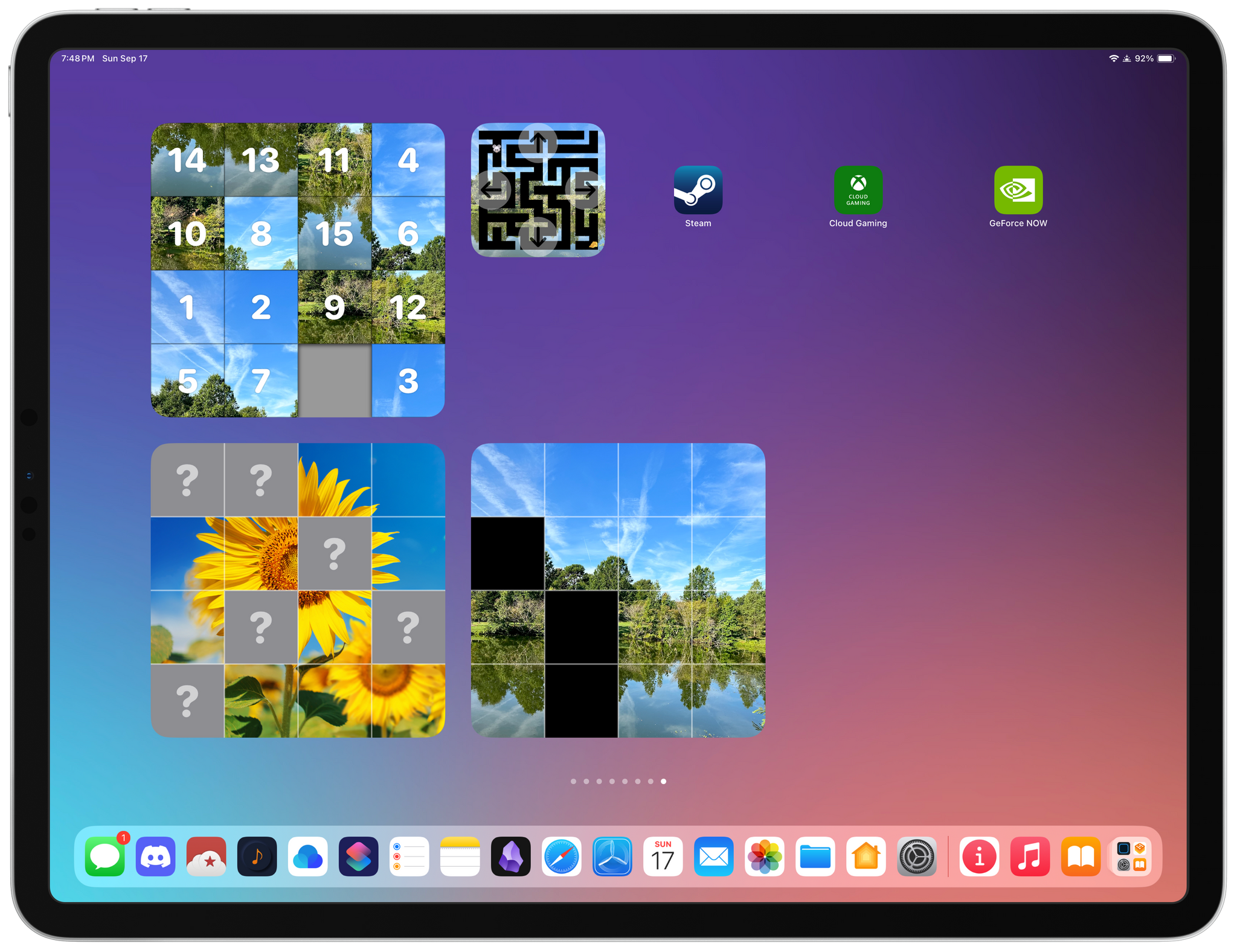
Widgle is a collection of four simple puzzle games for the iPhone and iPad that integrate with your photos. As I mentioned in connection with Widgetsmith’s Tile game, interactive widgets’ system-imposed button and toggle limitation severely constrains the kinds of games that can be built as a widget, but that doesn’t mean they can’t still be fun. Widgle’s four games, a tile sliding puzzle, a maze, a lights out-style game, and a matching game each come in small and large sizes.

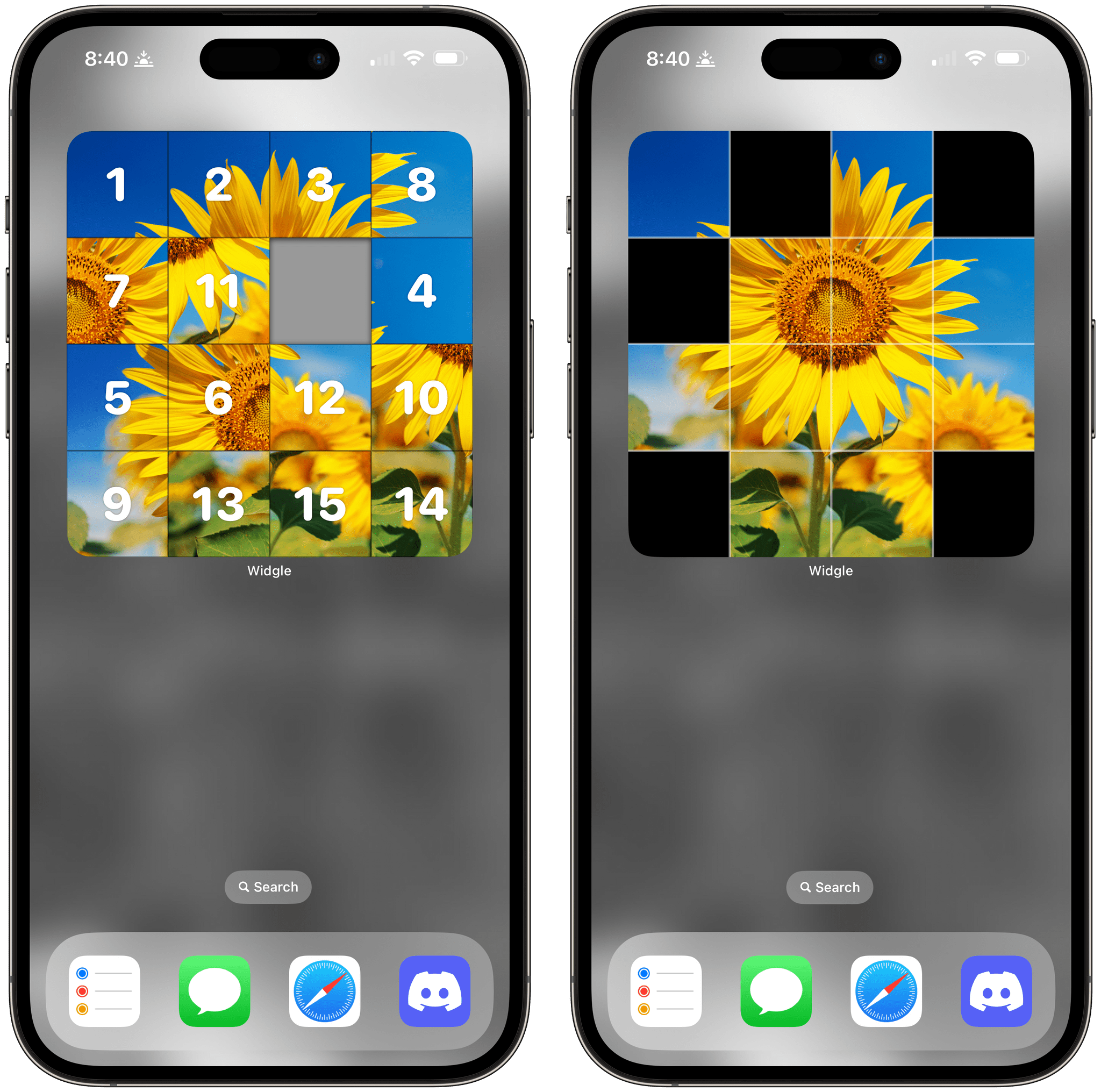
Tile Slide (left) and Lights On (right).

Tile Slide (left) and Lights On (right).

The Tile Slide game uses a photo of your choosing, scrambles the tiles, and overlays numbers, which can optionally be turned off in the widget’s settings. There’s one free space, and by tapping tiles, you can try to put them back in the correct order, reassembling your image. There are four grid options, too, a couple of which are only available in the large version of the widget.

Lights On begins with one of your photos divided into a grid with some of the squares missing. Tapping on a square inverts the others around it, and with some careful poking, you can reassemble your entire photo so it includes no blanks. Like Tile Slide, there are four grid size options, with two exclusive to the large-sized widget.

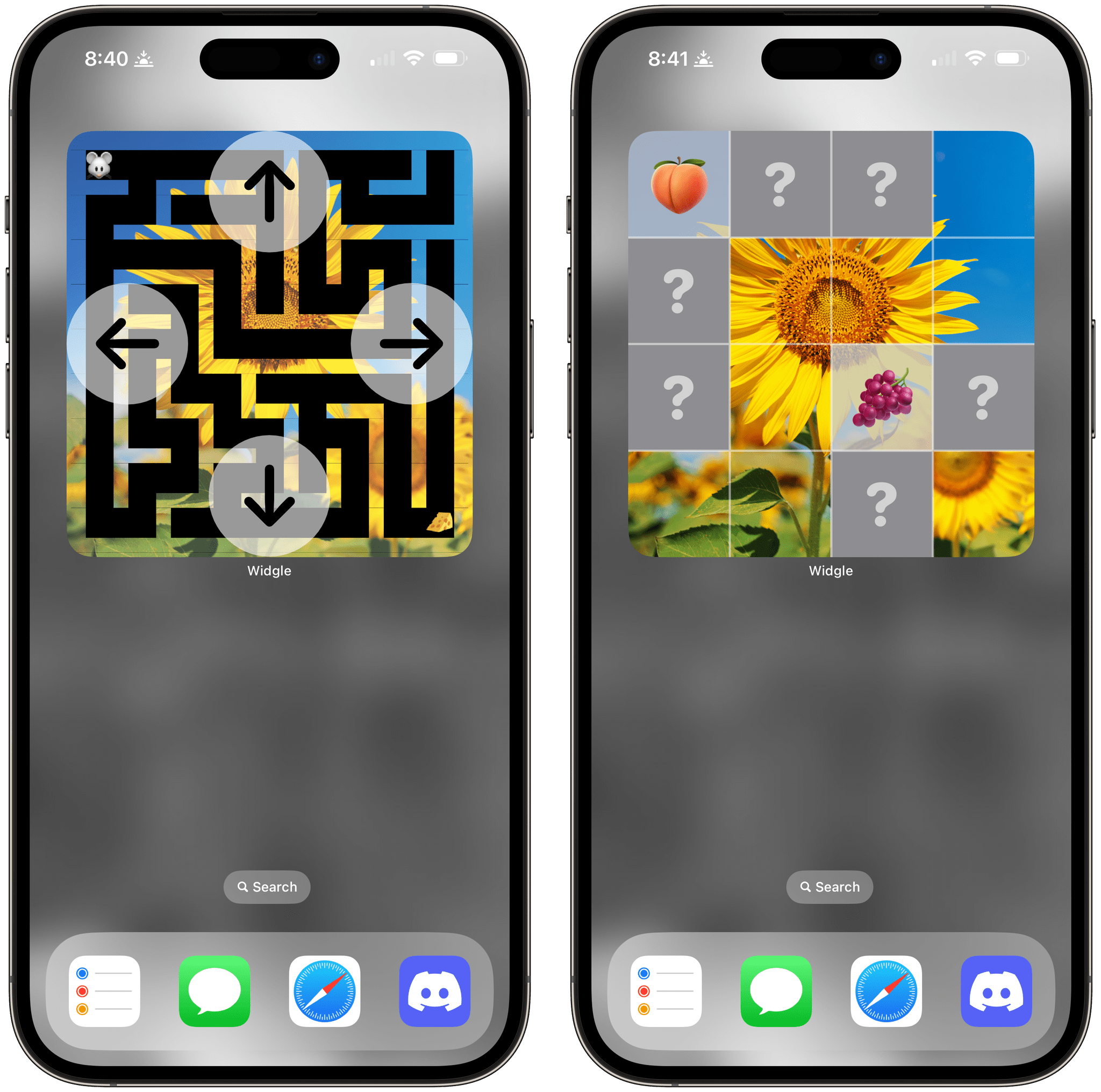
Maze Master (left) and Match Up (right).

Maze Master (left) and Match Up (right).

Maze Master overlays directional arrows around the edges of the widget, so you can guide your character through a maze backed by one of your photos. There are three difficulty levels to choose from and six different emoji characters available.

Finally, Match Up starts with a grid of squares with question marks in their centers. Tap squares to reveal the hidden emoji underneath. Find a matching pair of emoji, and the squares reveal part of one of your photos.

As I mentioned at the top. Widgle’s games are very simple classics, but I’ve still enjoyed idly playing with them when I need a break. The inclusion of photos, which can be picked in the main Widgle app, makes each game feel more personal.

Widgle is available on the App Store as a free download with an In-App Purchase of $1.99 to customize the puzzle with your photos.