CloudApp Raindrop for Acorn

Acorn and CloudApp are two essential pieces of software in my daily Mac workflow, so it really helps that Adam Preble has built a CloudApp raindrop that grabs the image you’re working on in Acorn and directly uploads it to CloudApp.

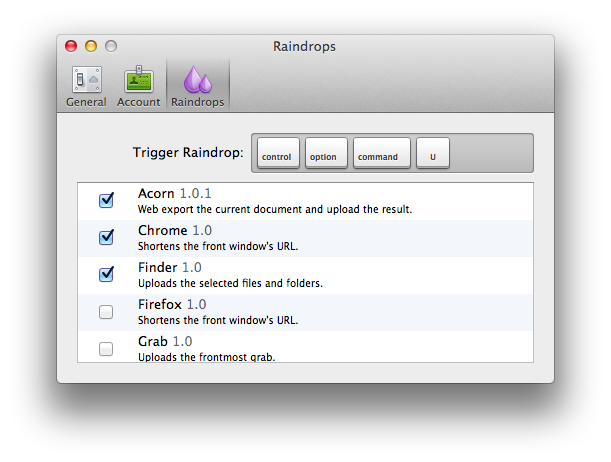
AcornRaindrop exports the active document in Acorn as a PNG and uploads it using CloudApp. It’s a Raindrop, which is a plugin for CloudApp.

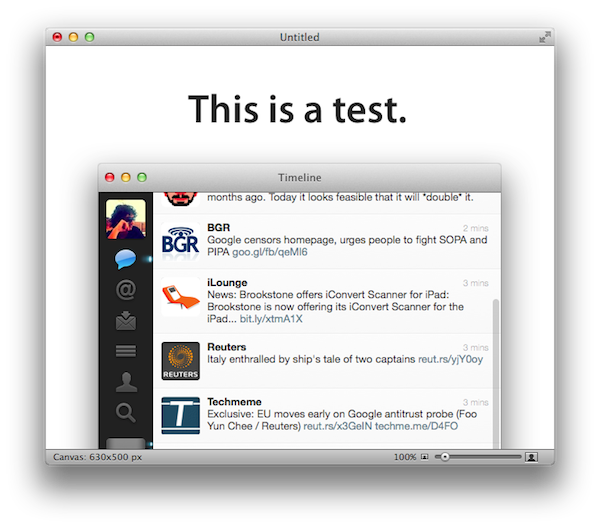
For those who missed our previous CloudApp coverage (here’s our 1.5 review), the app can be extended with plugins that are assigned a different shortcut than CloudApp’s default clipboard action, which is configured in the General tab under Preferences. With AcornRaindrop installed, an image you’re working on in Acorn that looks like this:

Will be exported to PNG and uploaded to CloudApp with a link automatically pasted in your system clipboard that will result in something like this.

If you use both Acorn and CloudApp, this raindrop is a must-have. You can download the latest version of AcornRaindrop over at GitHub.


Why I Use Todo.txt

I’d like to briefly elaborate on my Todo.txt setup, which I only started using last month as a way to keep my “todo articles” separate from general “todos” that I now keep organized and synced through Remember The Milk. Several readers have emailed me asking why I chose Todo.txt of all text editors and task management systems, so here it goes.

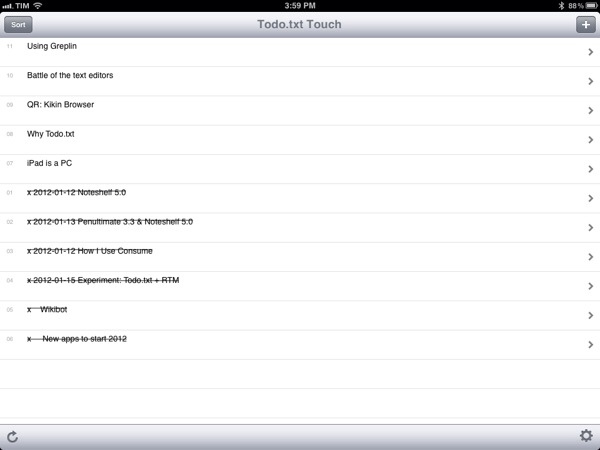
Todo.txt has a simple syntax that requires no learning curve. I can fire up Todo.txt’s iOS app or TextEdit on my Mac, and add a new line for a new todo, which in my case is an article I’m working on or I know I’ll be working on in the immediate future (this week or next week, I try not to project too distant in the future as blogging priorities can rapidly change). I’ve tried other text-based todo solutions like TaskAgent and TaskPaper, and I like them a lot as apps with outstanding support from their developers, but I just feel more comfortable using Todo.txt’s syntax, which appends new lines as todos and marks those beginning with an “x” as complete. Obviously, Todo.txt comes with much more complex possibilities and interfaces such as a full-featured CLI and support for contexts and priorities, but I use none of these features. To me, Todo.txt is the easiest way to maintain a list of “todo” Vs. “not done yet” articles that I want to have on MacStories.

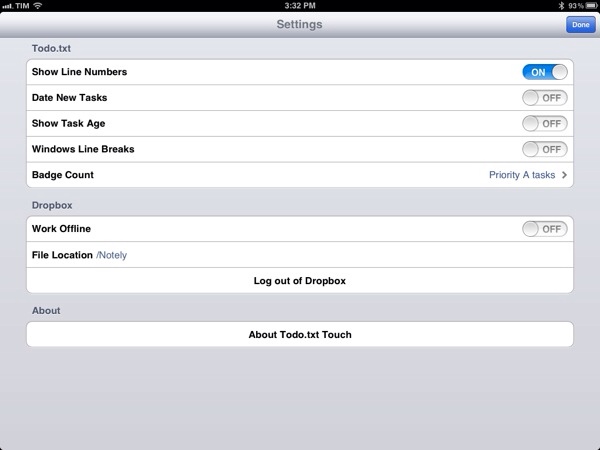
For this reason, I keep the Todo.txt iOS apps (on my iPhone and iPad) as simple and clutter-free as possible. Developer Gina Trapani made sure that you can sort by date and todo ID, enable app badges and date new tasks but, again, I haven’t found myself needing any of these (I could have enabled badges on the Mac too). In the Todo.txt iOS app, I chose to display line numbers to give me an easily scannable overview of just how many items I have, and I’ve disabled everything else as you can see in the screenshot. With this setup, it takes 30 seconds to open the app, quickly see what’s up while it’s syncing (takes a few seconds as the file to load is very lightweight) and enter a new todo. I don’t use contexts and projects either: as I mentioned last week, I don’t need a “context” for my MacStories articles, and the project is always the same, writing for the site.

If possible, things are even simpler on my Mac. Todo.txt is synced via Dropbox and alias’d on my desktop. When I need to check on the articles I have in my queue I can use TextEdit or, better, nvALT, which also displays all my other Dropbox notes synced inside a “Notely” folder (no particular app preference here, I just liked the name). Adding new todos to the file requires a few seconds, but if I’m feeling really keyboard-junkie I can append a new todo to the end of the file using an Alfred extension. I use Alfred for a lot of different tasks on my Mac (adding items to Remember The Milk, converting currencies, generating new random passwords, etc.), so it helps that I’ve found a way to integrate Todo.txt with my existing workflow.

And when an article is done and a todo is complete? I just delete it. I don’t archive, “review”, flag or categorize. Articles are just there and it’s up to me to write them.

Text-based todo management systems go back a long way. In learning about Todo.txt’s history, I stumbled upon relatively old articles that described how it was popular “back in the day” (we’re talking pre-Tiger days as well) to keep everything, from notes to passwords to long-form articles, inside a giant .txt file formatted in some way for easy scanning. These days we’re using the modern versions of those systems, which may be Evernote, Yojimbo, or other anything buckets. These services come with a fantastic set of features – I’m a huge fan of Evernote myself – but as far as my articles go, I want them to be highly portable in an environment that’s open to any other app for access and modifications. With plain text, I can have my MacStories-related todos synced in a text file that can be opened and correctly read by any text editor – and I’m sure it’ll remain that way for the next 20 years when .docx files will be corrupted and biting the dust.

Some parts of Todo.txt are modeled after David Allen’s GTD methodology and, at least for my articles, I’m not using GTD at all. But I am getting things done, for real, with a system that I can trust, is reliable and works anywhere.


Logging with Day One and Alfred

Yesterday, Brett Terpstra posted a fantastic little script to leverage Day One’s built-in CLI (command line interface, more information available here) to create new journal entries from the Terminal or an app launcher. Brett has posted instructions on how to use Launchbar with the script, or skip the app launcher part altogether and go with the Mac’s Terminal instead:

Day One already has a quick entry palette in the menubar. It also has a command line interface (/usr/local/bin/dayone)1 which provides some geeky options (try dayone in Terminal) and the flexibility needed to replace my current logging system. You can create entries quickly with either method, but I wanted just a little bit more out of it. I built a quick script which allows a basic syntax for starring entries and defining dates (using natural language) inline in the entry itself. It can be used from the command line, from LaunchBar (or similar) and can be incorporated into just about any scriptable workflow.

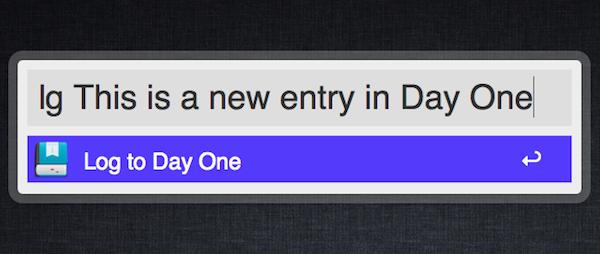
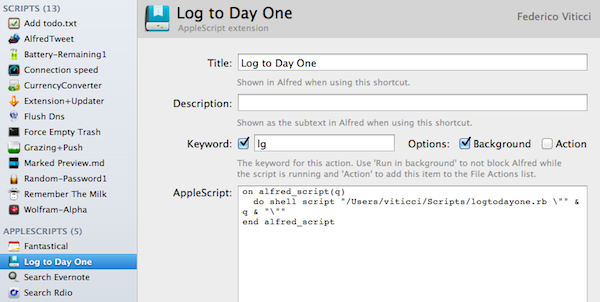
I wanted to make the script work with Alfred, my app launcher and navigation tool of choice, and it turns out the effort to modify Brett’s script is equal to zero. I simply replaced “on handle_string(message)” with “on alfred_script(q)” and ”end handle_string” with ”end alfred_script” to make it work in Alfred. Obviously, you’ll need to fill in the path to your script after you’ve followed Brett’s instructions.

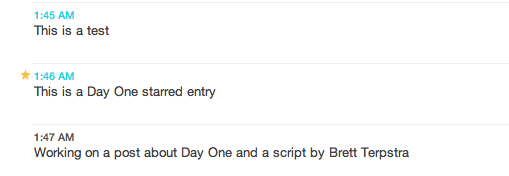
The three Day One entries above were created (and starred) using Alfred.

Before you create a new Applescript extension in Alfred, don’t forget to download Brett’s script and make it executable in your desired location, and create a symlink for Day One’s CLI (Show Package Contents on Day One, then navigate to Contents/MacOS/dayone - that’s the CLI you have to symlink) in your usr/local/bin/ directory.

You can check out Brett’s post here, and catch up on our coverage for the latest version of the app, Day One 1.5 (Mac and iOS).


Apple Expands iTunes Match To 19 Countries Across South America & Europe

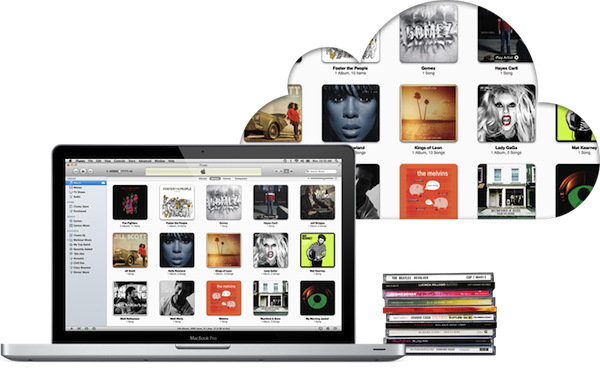
iTunes Match has today gone live in 19 more countries across South America and Europe, taking the total number of countries that now have iTunes Match to 37. iTunes Match first launched in the US just over two months ago, followed by Brazil and then Canada, Australia and some European countries in December. Today’s launch brings iTunes Match to the following countries:

Argentina, Bolivia, Chile, Colombia, Costa Rica, Dominican Republic, Ecuador, El Salvador, Estonia, Guatemala, Honduras, Latvia, Lithuania, Netherlands, Nicaragua, Panama, Paraguay, Peru, and Venezuela.

Most of these countries already had support for iTunes in the Cloud (the ability to re-download iTunes Music purchases for free), but Estonia, Latvia, Lithuania, and the Netherlands did not until today.

Apple is making quick work of finalising licensing agreements for iTunes Match, the service is certainly rolling out faster internationally than some of their previous efforts. The iBookstore or even the availability of TV Shows (which is still only available in a small selection of international iTunes Stores) come to mind as examples of Apple taking a long time to seal agreements internationally.

[Via MacRumors]


Apple To Announce “GarageBand For E-Books”?

Apple is holding an education-themed media event at the Guggenheim Museum in New York on Thursday, with rumours suggesting it will heavily revolve around textbooks and the iBooks platform. Ars Technica is this morning reporting that part of the event will also be the announcement of a “GarageBand for e-books”.

The gist of this idea is that whilst anyone can create an ePub for iBooks distribution, the process is not simple - particularly if you want to go beyond the basics and add multimedia or other interactive elements. Ars Technica’s sources say Apple will announce a tool on Thursday that makes the process of creating iBooks easier. Ars points out that Apple doesn’t want to get in the textbook or book industry, just like they don’t want to enter the movie industry as content creators. Instead they have offered tools from GarageBand and iMovie to Logic and Final Cut Pro to allow anyone from consumers to professionals to create content.

The current state of software tools continues to frustrate authors and publishers alike, with several authors telling Ars that they wish Apple or some other vendor would make a simple app that makes the process as easy as creating a song in GarageBand.

Ars also believes that Apple will announce support for the ePub 3 standard in iBooks on Thursday. Apple had used the ePub 2 standard along with some HTML5-based extensions for further multimedia and interactive elements, but the new standard removes the need for the proprietary extensions - ensuring that ePubs are compatible across platforms.

[Via Ars Technica]


Quick Review: Wikibot

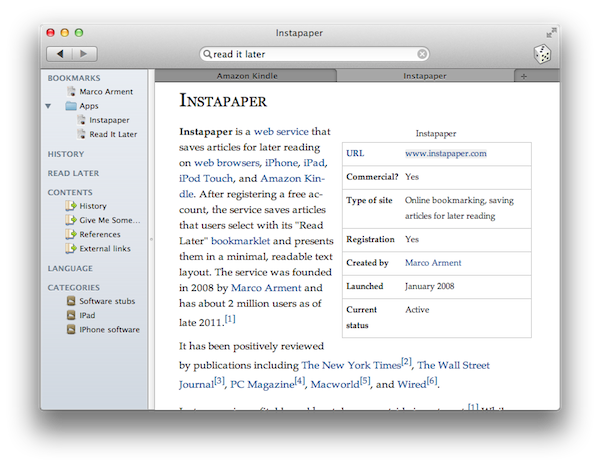
Aside from jokes about a name that sounds like a Tapbots app, I’ve been using Wikibot, a Wikipedia client by Avocado Hills, on my iPhone, iPad and Mac regularly, earning a spot on my Mac’s dock as well. Whilst Wikipedia’s website is mostly fine to quickly check on something you don’t know (albeit I’d refrain from lacking particular amounts of knowledge on January 18) and desktop launchers like Alfred made it extremely easy to query the service for anything you need, Wikibot stood out to me because of its clean interface and integrated approach to languages, history and bookmarks.

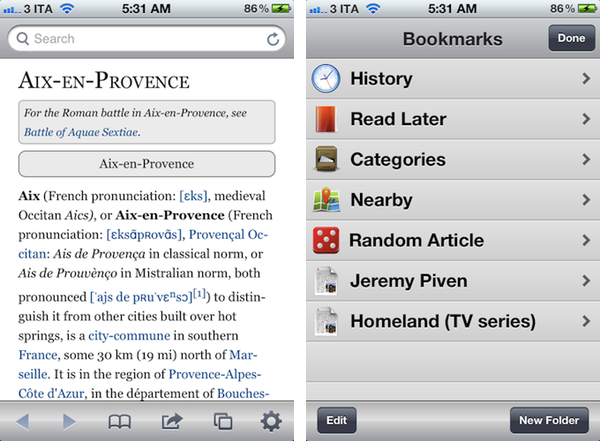
On the Mac, Wikibot starts up as a minimal window onto Wikipedia’s database with a button in the upper toolbar to display the app through Lion’s full-screen mode, one to load a random article, and a search bar. Search is where you’ll be entering your keywords and there is an option to visualize results as text (title + preview) or just title. You can open multiple tabs (CMD+T), change your preferred language from the menubar item, and “copy link” or “open in browser” via a keyboard shortcut.

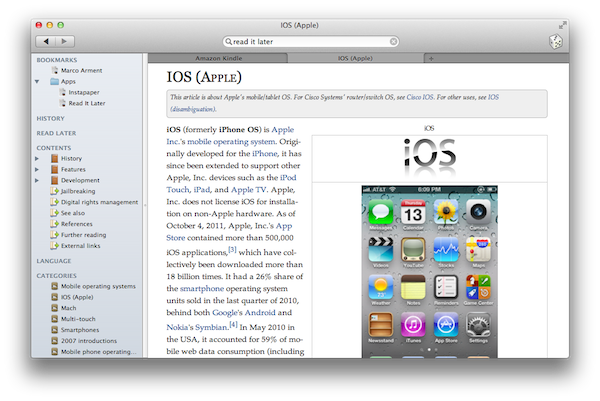
The nicest features of Wikibot on the Mac, however, are Favorites, History, Read Later and the overall page design, which as I mentioned above is very uncluttered and clean. Not Articles-clean, but still very readable. As for the other functionalities, you can tell Wikibot to add a page to your favorite items, or access your entire history for all the things you looked up. These options are located in a sidebar, which can also display contents of an article (such as sections and references) and categories (as you can see in Instapaper’s case, “iPad” and “iPhone software”). Favorites can be organized in folders, and it’s easy to add a page to your bookmarks using a keyboard shortcut or drag & drop. If you, however, don’t feel like building a permanent database of bookmarks while you’re using Wikibot, but just want to quickly save a link for later inside the app, you can use the local queue functionality.

At $2.99, Wikibot for Mac is a fine desktop app for Wikipedia meant for those who don’t want to keep lots of tabs open in their default web browsers.

I, however, very much prefer the iOS versions of Wikibot, which work like their Mac counterpart but add iCloud sync for History, Favorites and Settings across devices, intuitive font size controls, visual history, gallery for images, sharing options for Twitter and Facebook and offline caching. Wikibot for iOS is a powerful Wikipedia client with a simple interface, and I’m told iCloud sync will soon come to the desktop as well. I especially like the app on my iPad, where visual search and image galleries have more room to shine and “it just feels right” to spend hours augmenting your knowledge.

Plus, Wikibot for iOS is $0.99 right now, which is a great price. Get it here.


Apple Planning “Nearly Transparent Store” For France

Apple Planning “Nearly Transparent Store” For France

Today’s cool Apple retail news comes from ifoAppleStore’s Gary Allen, who points to an article first appeared on AixEvProvence.fr magazine, which claims Apple is planning a nearly-transparent, all-glass retail store for the town located in the south of France.

A rendering posted by the magazine shows a one-level structure set back on a broad stone plaza, with a tan-colored rear wall, and all other encompassing walls made of glass. A second rendering shows the store is an extension of a design roughly based on the Upper West Side (NYC) store. Typically for Apple, the rendering does not show any Apple-like features and there are no visible Apple logos. According to the magazine, the city required Apple to build to new earthquake standards, and harmonize with the surrounding picturesque streets.

Of course, Apple isn’t new to state-of-the-art glass engineering. Steve Jobs famously said that they’ve been able to design Apple’s proposed future campus in Cupertino thanks to their expertise in durable glass constructions, which date back to 10 years ago when the company started opening retail stores featuring Apple’s distinctive glass. Most recently, Apple launched a redesign of its 5th Ave. Store in New York City using less glass panels and a patent for glass staircases was attributed to the company’s late CEO Steve Jobs.

This is a photo of the current Office de Tourisme in Aix en Provence.

Permalink

Jeff Broderick’s “QuickContact” Creates Call & Message Home Screen Icons

It appears a new trend among independent iOS developers is that of creating shortcuts to save time on tedious iOS tasks such as activating WiFi and Bluetooth, open third-party applications, or call someone. First came a bunch of web-based tools to create this kind of home screen shortcuts, including design extraordinaire Jeff Broderick’s Settings. We’ve covered this whole shortcut phenomenon quite extensively on MacStories, including Siri and the iPhone’s URL schemes (links that redirect iOS to apps or specific sections inside an app) and Launch Center, an app that spurred a debate around shortcuts and Apple’s review policies after the app was rejected from the App Store, whereas similar tools had been approved for sale. It was also discovered that Apple plans on making Settings unaccessible via URL schemes on the upcoming iOS 5.1.

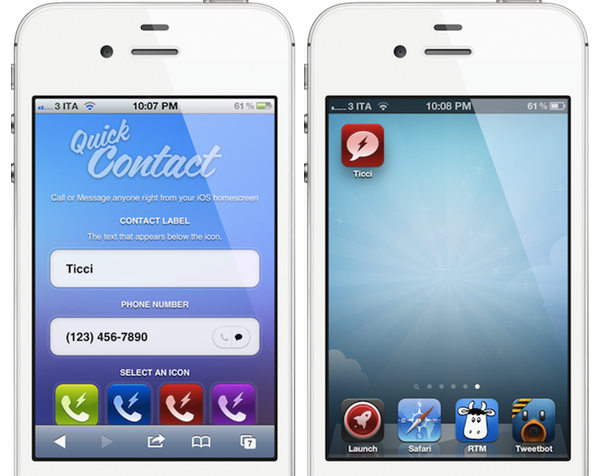
Now Jeff Broderick is back at it, pouring his typical style and attention to detail into a new project called QuickContact. QuickContact allows you to create Home screen icons for people to call or send a text message to; you can choose between 15 icons designed by Broderick or upload your own upon creating a new shortcut, which is done through Safari on your iPhone or iPod touch. I won’t lie – I like Jeff’s style a lot, but I wish the web app was capable of supporting email addresses, too, besides phone numbers; I’d also like to launch the Phone or Messages apps directly without opening Mobile Safari first. Last, the app requires you to install a certificate on your device for this automation to work, and Broderick specifies on his website that “No information is saved”.

For those interested in trying out this first version of QuickContact, you can check out the project’s page here.