Apple Posts Initial WWDC 2012 Schedule, Releases Official App

With less than two weeks to go until WWDC 2012 kicks off, Apple has this morning released the conference schedule as well as the official iOS app and some guides for the conference goers. Developers who were lucky enough to snag tickets to WWDC ‘12 can access the schedule here. There are over 100 sessions and labs that have been categorised into six technical tracks covering:

  • Essentials
  • App Services
  • Developer Tools
  • Graphics, Media and Games
  • Safari and Web
  • Core OS

One interesting change is that the Apple Design Awards will this year be held on Monday at 3:45 PM - usually the event was held later in the event and during the evening.

The official WWDC app is also live now, featuring a detailed schedule, daily news and photos, a map of Moscone West and the ability to plan your week by favoriting sessions and detecting session conflicts. For those who might be new to the WWDC experience, Apple has also created a handy ‘Attendee Guide’ for WWDC that you can access here - it’s nothing huge but does have handy links to other resources that will likely be useful to new attendees. Lastly, there is guide to the WWDC labs including what they will cover, when and where they run and which require a reservation.


Espionage 3: Effortless Encryption for your Mac

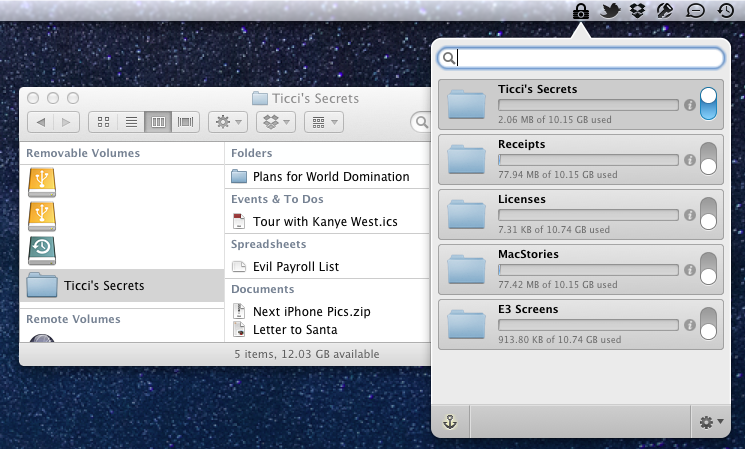
Tao Effect’s Espionage has always taken a novel approach to encrypting data on OS X. In contrast to applications like TrueCrypt or Knox that protect data in individually encrypted virtual disks or vaults, Espionage does its best to mask encrypted disks from the end user. Rather than interfacing with virtual disks that are individually encrypted, Espionage uses the folders you want to protect as a reference point and applies a 1Password approach to the protected folders on your system. Espionage solves two problems: it centralizes all of your protected data and makes that data easy to access through a single master password. Espionage’s approach to securing your data means that you can interface with folders on OS X as if they were regular folders — tasks like mounting and unmounting encrypted volumes are taken care of for you in the background through a streamlined interface. Protecting your data shouldn’t have to come at the cost of convenience.

Read more


Quickly Share iOS Photos With Your Mac (And iOS Devices)

Quickly Share iOS Photos With Your Mac (And iOS Devices)

Kirk McElhearn at Macworld shares an interesting method to automatically import iOS photos on OS X, originally via The Iconmaster:

I gave up on Image Capture and used Dropbox. But if you’ve used Dropbox for this purpose, you know it involves several steps: launch the app, tap the Uploads tab, tap the add button, tap the photo, etc. etc. It works, but it wasn’t convenient enough.

I wanted something instantaneous. Fortunately, Ryan McCuaig was able to point me in the right direction.

Photo Stream is great, but it’s not 100% reliable. While I can typically wait a couple of minutes for iOS screenshots to show up in iPhoto (or Finder, based on the tip above), sometimes I don’t have that kind of flexibility, as I need access to those images right away. For those times, I use Scotty.

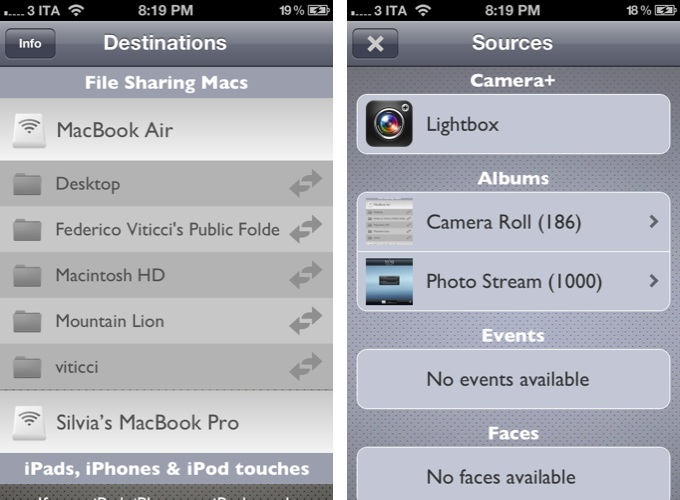
Developed by Galarina, Scotty (my review) is a $1.99 universal app that can send images to computers (on OS X, it uses File Sharing) and other iOS devices. Scotty is fast, well designed, and remarkably intuitive – it is even integrated with the Camera+ lightbox. I also use Scotty as Photo Stream doesn’t work on 3G, and I couldn’t find a better way to send iPhone screenshots to my iPad over Bluetooth.

The screenshots above were imported with Scotty, and processed with Keyboard Maestro.

Permalink

Using an iPad to Report from Pit Row

Using an iPad to Report from Pit Row

I upgraded to the iPad 2 over the winter for the weight break and camera, and all has gone smoothly in 2012. I no longer bring my MacBook Air on the road, and am thrilled that the TSA doesn’t require that the iPad be removed from my carry on! Using the iPad for what I do has proven to be efficient and entertaining. And, as usual for an Apple product, IT JUST WORKS. I’ve had to put a baggie over it a time or two in a rain situation, but other than that it absolutely does the job.

Jordan Golson of MacRumors has written a fantastic report on Dave Burns, a Pit Reporter for ESPN who covers NASCAR Nationwide and Sprint Cup series races with his iPad. Burns’ use of the iPad is the focus of the story here, and he does an excellent job explaining how he ended up choosing the gear and accessories that best suited his needs on the track. Not wanting to deal with the bulk of paper, but then having to compensate for sun glare, heat, and occasional rain showers, Burns had to devise a system that helped him stay mobile yet offered the greatest potential benefit. Equally as important as the process that Burns’ shares, the report gives insight into just how adaptable the iPad is. Proven to be much more than a generic business tool, the iPad is being used in unexpected places for unique applications: in this case it’s being used to bring you coverage from pit road in America’s most exciting motorsport.

Permalink

Mailsum Enhances Your Mail Account Surveillance

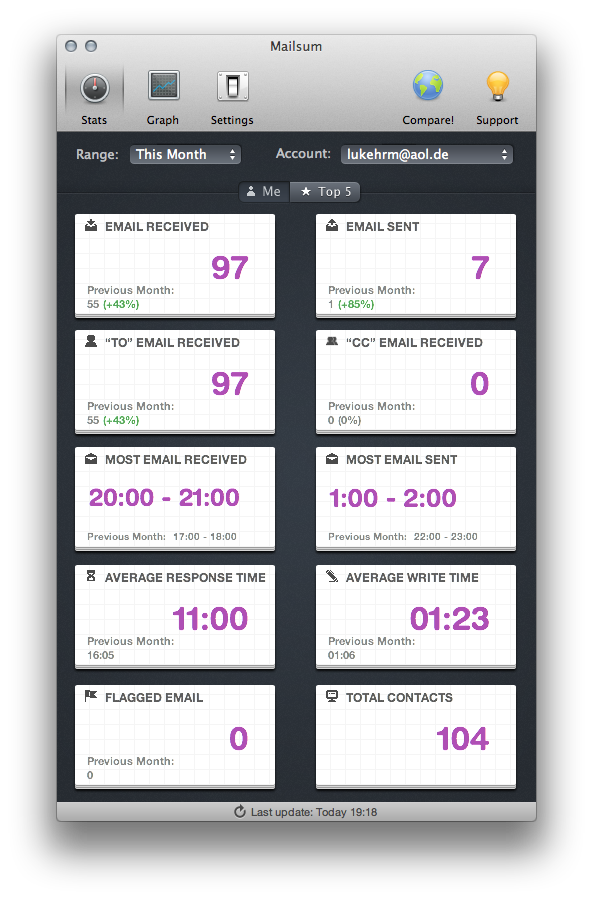
When it comes to email clients, most Mac users still stick to Apple Mail as their client of choice, although there are plenty good alternatives available. The reasons for that are clear: over years of constant development, improvement and changes, Apple managed to create a powerful, but still clearly laid out program, which fits the needs of both private and professional business users. Diversified labelling options, multiple mail signatures, folders, and diversified reply and creation features are just some examples. Nevertheless, there are still some people out there demanding one specific feature Apple mail lacks: statistics. But, as you know, there’s always an app for that. In this case, it’s Mailsum by Appmasters. Read more


Inkflow Has One Great Idea

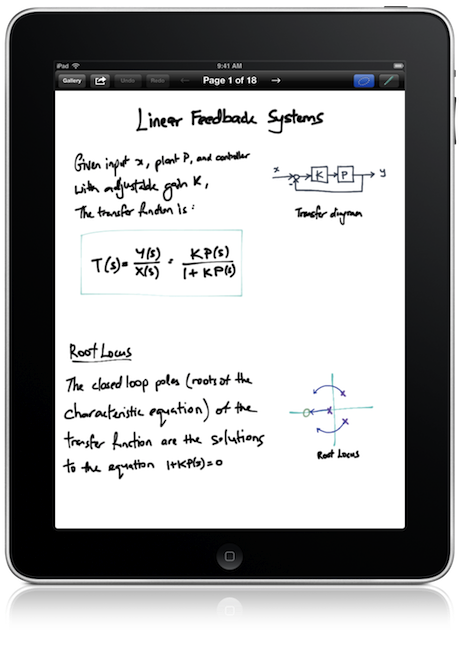
When we talk about hotly contested app markets for the iPad, we’re either talking about iOS text editors or sketching apps — today we’re focusing on the latter. Between Adobe, Autodesk, Paper, and Penultimate, something needs to be dramatically imaginative and different to make it stand out in a section of the App Store that is well contested and already populated with great apps. Sometimes an app like SyncPad stands out by providing new and interesting features (in this case it’s immensely useful for presentations), but very rarely does an app come along that can compete with these established tools on the iPad. Similar to how Instapaper and Pocket (once Read It Later) have captured the “read later” space, the aforementioned apps broadly cover everything you’d likely need or want when it comes to writing, drawing, and sketching.

Read more


A Web Developer’s look at Diet Coda

A Web Developer’s look at Diet Coda

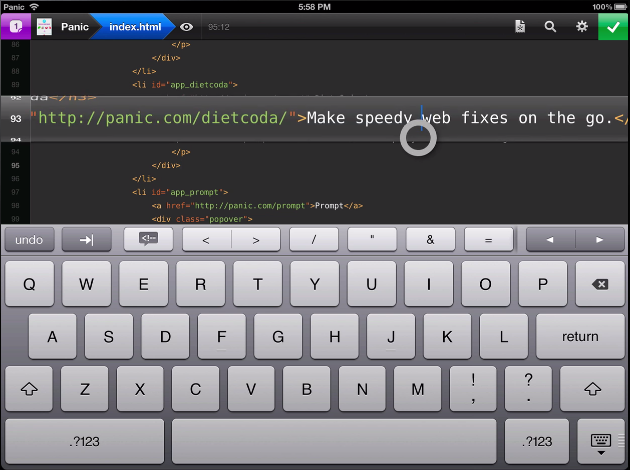
Diet Coda is great. Seriously. This app might not be your first choice to do serious work on (yet). However, if the only reason you’re taking your huge, heavy laptop with you on that otherwise relaxing vacation is just in case you get the 5-alarm-fire call from your boss because of a major bug that needs to get fixed RIGHT NOW (don’t they all?), Diet Coda and an iPad with an LTE/3G connection could be all you need.

Joesph Schmitt gives an honest perspective of the good, the bad, and what he’d like to see come down the pipeline for Diet Coda in the future. Diet Coda isn’t and shouldn’t be your replacement for a desktop app like Coda 2 or Espresso, but it is a fantastic companion touchscreen editor that it makes it relatively easy to dart around your projects and apply changes as needed. I’m trying not to take for granted having an always on-hand iPad app that lets me seamlessly implement changes as they come to mind — I think people forget that even having a tool like Diet Coda on the iPad is something special (especially when it has that quality Panic user interface behind it). If you’re looking for a reasonable review that weighs the pros and cons of Diet Coda, I’d say Schmitt does a good job of summarizing the praises and complaints — you’ll be well prepared as to what to expect concerning a mobile editor. As of now, Diet Coda is still $9.99 on the App Store, half-off during its initial launch period.

Permalink

Facebook Releases Standalone Camera App

Facebook Releases Standalone Camera App

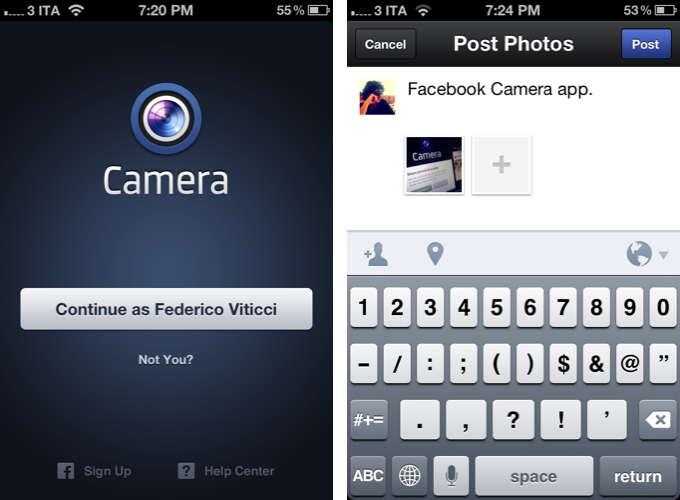
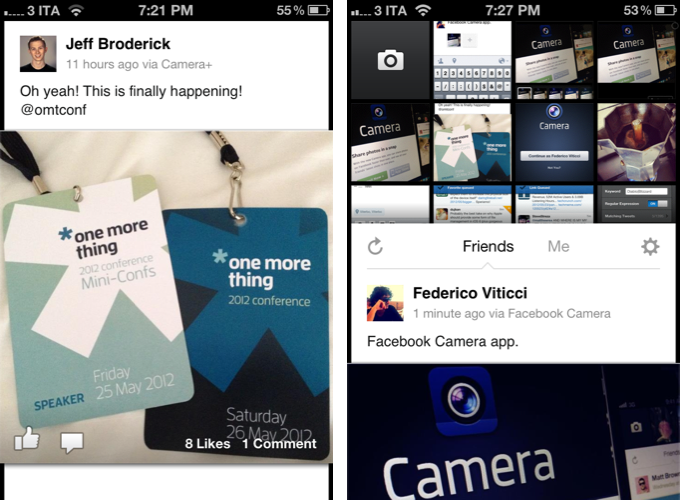
Facebook’s acquisition of Instagram raised eyebrows and foreshadowed the launch of a Facebook branded camera app, separate from the official Facebook application just as Facebook Messenger and Facebook Pages Manager are. Combined with the dream team of developers from Sofa, Facebook’s previous talent pull seems to have paid off with Facebook Camera, a central app dedicated to taking pictures, lightly editing photos, and uploading pictures to your Facebook profile. With cropping and straightening tools, the ability apply stylish filters, batch upload multiple photographs at a time, and view your friend’s photos in fluid streams a la the camera roll, we’re left astonishingly impressed with Facebook’s latest mobile application.

Facebook’s app makes it easy to take photographs, batch upload your images (up to 2048 x 2048 pixels), tag them, and apply up to fifteen different filters not dissimilar from Instagram. A vertical feed of large photos, expansive album views, and an engaging progression of composing photos to uploading your favorite shots makes Facebook Camera feel like a solid camera application. Many unexpected elements can be pulled and pushed onscreen to reveal or hide information, and the app is simple enough to be intuitive without feeling crowded like you would expect a management app to be. Facebook has a well balanced, thoughtful, and overall enjoyable app on their hands. Facebook users should love it.

From Ellis Hamburger at The Verge:

Facebook Camera just became instantly the best way to upload photos to the social network, just ahead of Batch and other competitors. It’s simple to take photos, tag them, and upload them en masse, which is something we’ve been asking for for a long time.

Animations throughout Facebook Camera are fluid, the app is fast, and there’s a lot of clever interaction to take advantage of throughout the interface — clearly Facebook’s acquired talents have been hard at work in making the app to not just feel like a boring extension of Facebook, but rather a necessary addition that belongs, no, deserves to be on a Facebook user’s smartphone. Facebook has made an incredibly bold statement with Facebook Camera — they’ve stepped up to the plate to deliver a solid application that doesn’t feel tacked on or only done for the sake of their platform. It’s a serious release. Just look at their landing page.

All Things D and The New York Times both have introductory pieces on Facebook’s latest app release alongside Facebook’s official announcement on their blog. We recommend trying the app for yourself by downloading Facebook Camera from the App Store. A lot of care went into this app, and we’ll have more coverage after we spend some time using what’s already given us a great impression.

Permalink

Tweetbot 2.4 Brings New Search View, Keyword Mute Filters, Refinements

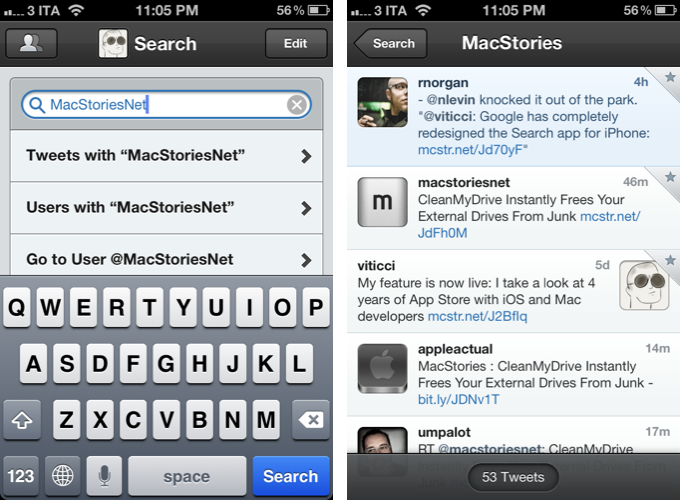
Following updates focused on iCloud sync and gestures, Tweetbot 2.4, released today on the App Store (iPhone, iPad), brings an updated search view with additional location features, relocated Trends and People categories, and various improvements that make the client’s search functionality more powerful and intuitive.

The new Search tab unifies Trends, People, and Top Tweets under a Browse section, with Saved Searches and the classic search box still available at the top of the screen. The dedicated Top Tweets option is quite enjoyable – I have indeed found myself browsing such flow of status updates on a couple of times for the occasional laugh or remarkably snarky tweet. Top tweets now also show up in regular search results, and they are marked by a silver star indicator.

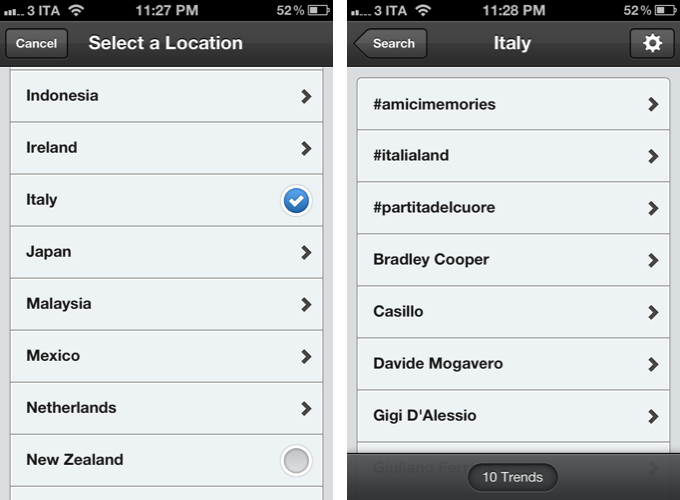
Trends, on the other hand, can be changed to another location directly from the search view of Tweetbot 2.4 – I don’t use Trends, but I assume the option will come in handy for those who, for some reason, like to check the recurring #Buongiorno trend in Italy.

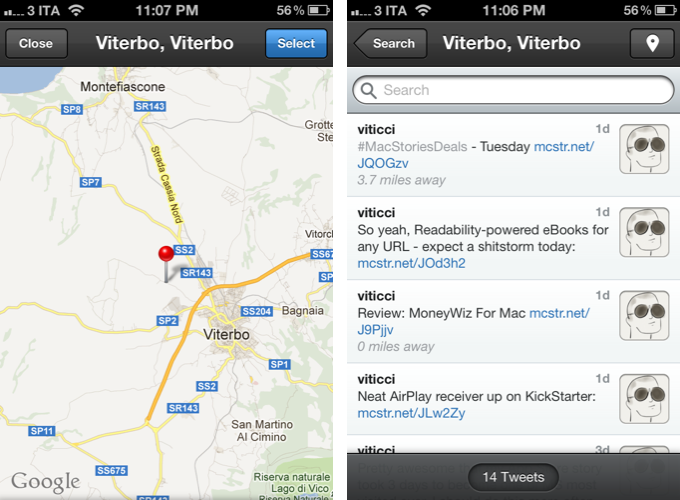
The big addition in Tweetbot’s new search interface is support for nearby tweets. Here, you can view nearby tweets with the ability to change your location (just tap on the embedded Google Map), and you can perform location-based keyword searches for tweets containing specific words that also happen to be located near you. Unfortunately, Viterbo resembles a ghost town when it comes to looking for fellow local MacStories readers. I asked Tapbots, and they confirmed my town’s insistence of loading @viticci as the only local MacStories tweeter isn’t an app’s bug.

There are two more little touches I like in Tweetbot 2.4: you can double-tap the search tab to open search with the keyboard, and the search box has been optimized to let you easily jump to tweets, users, or a specific @user without additional taps.

Keyword Mute Filters

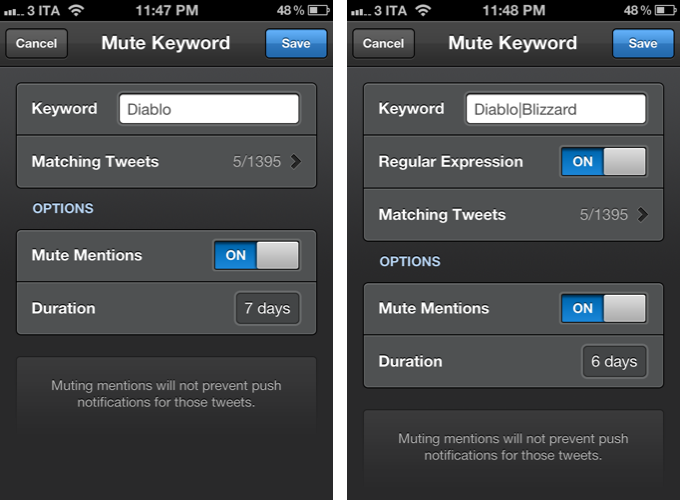
Tweetbot has been offering advanced mute filtering options for quite some time now. Version 2.4 now allows you to block specific keywords – not just users or clients – and there’s even support for regular expression if you really want to make sure you’re not reading about the latest spoilers in Game Of Thrones. Mentions can be muted as well.

Miscellaneous

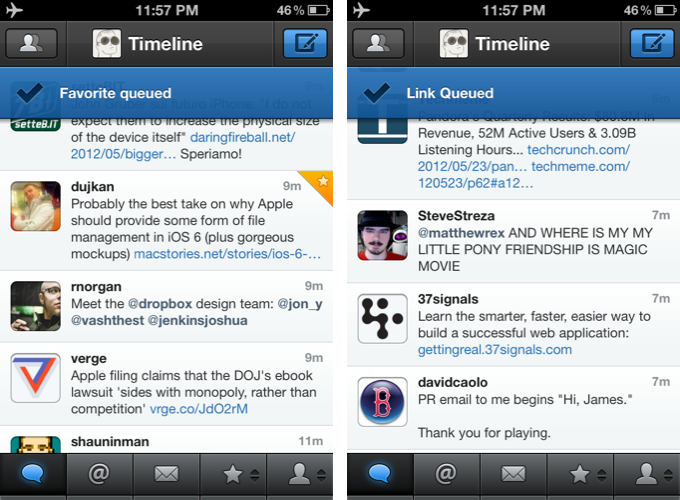
There are plenty of other refinements in Tweetbot 2.4. Offline support, for instance, will ensure tweets marked as favorite or sent to a Read Later service when no Internet connection is available will get “queued”, then sent/favorited as soon as you come back online. Sure enough, while browsing my timeline in Airplane mode, I fave’d a couple of tweets, sent some links to Pocket, and Tweetbot queued them. When I turned WiFi back on, the app refreshed, the tweets were marked as favorites in my account, and they appeared in my Pocket.

On the iPad, web and map views can now be dismissed with a two-finger swipe down gesture, which I found incredibly convenient and faster than reaching out for the Close button in the upper left corner. Also on the iPad, list views show one line of a list or profile description, and when viewing an image in full-screen, you can hold down for options.

Additionally, aside from the usual bug fixes, you can now swipe to the right on profile views to go back; items sent to Pinboard are marked as unread; and last, the compose screen comes with basic smart quote support (for quotes, em dash, and ellipsis).

With powerful new features and UI refinements added to an existing set of great functionalities, Tweetbot 2.4 retains familiarity while striving to remain the best third-party Twitter app for iOS. Get it from the App Store today.