Posts in stories

iOS 5 Reminders From an OmniFocus User’s Perspective

When I first got my hands on the new Reminders app in iOS 5, I launched it and scoffed under my breath. Sure it was cute but it was not for me. I have spent so much time developing a bond with OmniFocus that I don’t know if it could ever be broken. It probably sounds dramatic but OmniFocus and I have been through some hard times together, probably some of the worst in my life.

My wife hates when she sees OmniFocus projects related to something personal in our marriage but it is my trusted system and I use it for everything. I have never found a suite of applications that can do for me what OmniFocus does. I have tried so many productivity and task management apps that I refuse to count them for fear of realizing the amount of money I have wasted. I have a natural (or unnatural if you ask my wife) attraction to this genre of apps so of course I was excited to take a look at the new Reminders app.

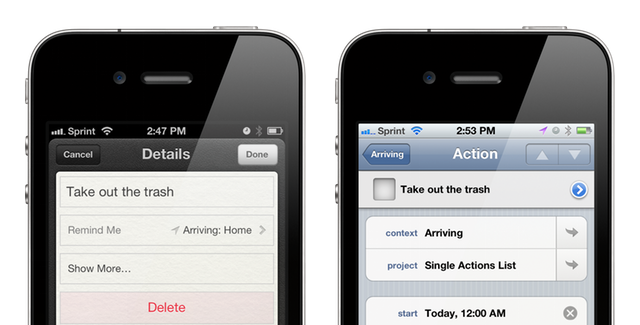
Reminders is a simple, albeit extremely well done, list-making application. Its main appeal is the “geo-fencing” feature that will trigger a reminder based on your proximity to a predefined location. The concept is amazing to me. The only problem is Reminders does not easily integrate in to my existing system, thus I probably won’t be able to truly utilize it.

Enter Siri. Read more


iOS 5 & iCloud Tips: Sharing an Apple ID With Your Family

With the launch of iOS 5 and iCloud on Wednesday, Apple took another huge step towards the Post-PC era. They have increasingly made the PC less important and iCloud has meant that it is no longer the ‘hub’ to which your devices sync to - iCloud is now that hub and importantly, it is all tied to an Apple ID. As many are realizing as they update to iOS 5 and begin to use iCloud, this can be somewhat problematic when iCloud is used with the Apple ID that is shared by their whole family.

Prior to iOS 5, sharing an Apple ID wasn’t really a problem because its main purpose was for purchasing content on iTunes, using it for support purposes and purchasing items on the online Apple Store - all tasks that worked fine when sharing an ID. Now that Apple ID is tied to a bunch of services, a lot of which involve personal and private data that you don’t necessarily want to share with others - even family members. The other issue is that iCloud involves a lot of data synchronization and this doesn’t work well with multiple people as it results in data conflicts and devices syncing data (such as calendar events) that are meant for another person in the family.

Fortunately there are a number of ways to resolve these issues, whilst still benefiting from all of the new iOS 5 and iCloud features. Jump the break to see all of our tips in dealing with this issue.

Read more


iOS 5: Newsstand Overview

Sitting on every user’s iPad, iPhone or iPod touch when they update to iOS 5 is a new “app” called Newsstand which organises all of your magazine and newspaper subscriptions in one place. Whilst this might sound pretty underwhelming at first, it is actually a fairly significant feature addition that actually contains a lot of ‘behind-the-scenes’ changes to how iOS devices and the App Store deals with magazines and newspapers.

I called it in “app” in quotes because visually it looks no more than an iOS folder with a new skin that turns it into something that looks like iBooks with its cedar bookshelves. In fact all it does is store all your magazines and newspapers so that they can be found in a centralised location, as well as give users a shortcut to the Newsstand section of the App Store.

Jump the break to read our overview of Newsstand and how it’s much more than just a pretty iOS folder.
Read more


iCloud: The Future of Apple’s Ecosystem

With the launch of iCloud, Apple is fundamentally challenging the old concepts of computing and “file”, changing the way people interact with computers and devices.

iCloud as a service presents itself as a very straightforward idea: iCloud stores your content and wirelessly pushes it to all your devices. iCloud works with the apps you use every day on your Mac, iPhone or iPad, so you don’t have to worry about syncing your music, photos, documents, contacts and calendars again. iCloud is the evolution of MobileMe, rebuilt from the ground up and re-engineered to take advantage of persistent connections and the concept of “push”, rather than visible, sometimes manual sync. iCloud is not just a big hard disk in the sky, as Steve Jobs joked at WWDC ‘11: iCloud is an invisible service that’s just there, and is now allowing Apple to virtually connect more than 200 million iOS devices.

It just works. Read more


iOS 5: iMessage

With today’s release of iOS 5, Apple has added a significant new feature to their Messages app with the introduction of iMessage. Seamlessly integrating into the existing Messages application, iMessage is a new service from Apple that acts as a replacement for the traditional text message service that comes with mobile phones.

In actual fact, a more accurate description of the Messages app with iMessage on iOS 5 would be that it improves on the traditional text messaging service whilst maintaining compatibility with it. The new iMessage service works by associating a person with an Apple ID - rather than a particular device or SIM card as the traditional text message service does. This is one of iMessage’s advantages, you are not restricted to a single device and you can now use your iPad or iPod touch (and hopefully Mac soon) for receiving and sending messages to other people.

Jump the break to read the rest of our iMessage overview.
Read more


An Overview Of PC Free In iOS 5

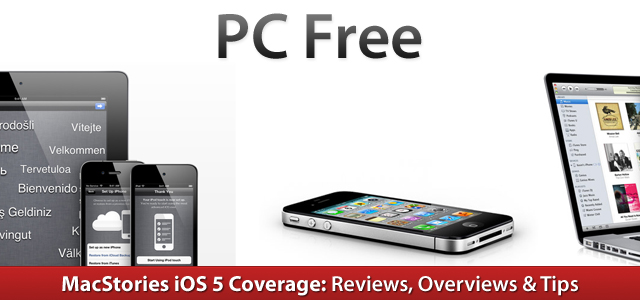
A core focus of iOS 5 is the introduction of iCloud (be sure to read our overview of it here), and one could say that the fundamental goal of iCloud is to free the iPhone and iPad from its reliance on a Mac or PC, making them more independent and powerful devices. iCloud goes along way in achieving this and reducing the need to sync devices (through features such as Photo Stream, iCloud Backup, iTunes Match etc.), but it doesn’t completely remove the requirement of syncing - particularly for those in regions that don’t yet have iTunes Match or don’t have Internet speeds capable of utilising iCloud Backup.

To fully accomplish this goal of making the iOS devices independent, Apple has added two additional features that complement iCloud, even if they aren’t technically deemed to be a feature of iCloud. These features are PC-Free and Wi-Fi syncing with iTunes; jump the break to view our full overview of these features.

Read more


iOS 5: Improvements In Safari, Camera, Photos, Mail, Calendar, Music & Video

Today’s release of iOS 5 sees the inclusion of new apps such as Reminders, significant upgrades to existing apps such as the integration of iMessage in Messages and the introduction of iCloud, which is set to change the way we use our iOS devices. Yet amidst all these significant changes to the iOS platform, Apple hasn’t forgotten about the apps that have existed since day 1 of the first iPhone.

The Safari, Mail, Camera, Calendar, Music and Video apps have all received updates in iOS 5 and the updates range from addressing common complaints, tweaking the user interfaces, adding iCloud support to adding features that improve productivity and usability. Be sure to jump through the break to view the entire overview of changes to these apps.

Read more


Stream Wirelessly to Your HDTV with AirPlay Mirroring

AirPlay Mirroring is a new feature to iOS 5 that allows you to stream anything on your iPad 2 or iPhone 4S directly to your HDTV with the help of an Apple TV.

This feature will appeal to all types of consumers. Businesses will find great value in AirPlay Mirroring because of the versatility that it brings to presentations in the workplace. As someone that works in an office setting I can tell you that there are not many affordable and reliable wireless presentation options. At a price of only $99, the Apple TV is inexpensive enough that businesses can have one in every conference room readily available for employees to stream presentations, PDFs, and even multimedia files from their compatible iOS devices. Educational institutions will be able to provide an even greater and immersive learning experience for students. Gamers will enjoy their favorite iOS games on their big screen TVs. The list goes on and on.

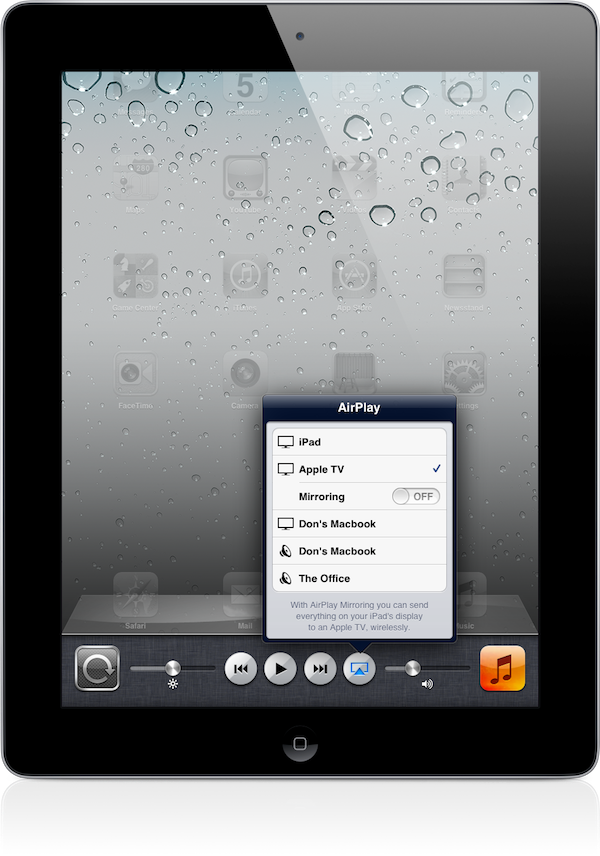
So how does AirPlay Mirroring work? First the iOS device and the Apple TV must be on the same wireless network. Then from the iOS device simply double tap the Home button and swipe all the way to the right. There you will find the AirPlay button that when tapped will display all of the AirPlay enabled devices on the network. As shown below, The Apple TV now has a new option labeled Mirroring. This option is off by default and you can actually continue to use AirPlay with no obligation to stream your screen to the television. Enabling the Mirroring option will immediately transmit whatever is on the screen up on to the television. The status bar at the top of the device will turn blue indicating that device is currently streaming to the Apple TV. When the device is rotated the image on the TV is rotated. When a key is pressed the software keyboard on the TV shows the key being pressed. It is quite impressive.

I found the performance of AirPlay Mirroring to be incredible. The setup I tested was an Apple TV connected over Ethernet to an Apple Airport Extreme and the iPad 2 obviously connected over WiFi. I immediately tried a few apps like Safari, FaceTime, and Photo Booth. All of them performed flawlessly on the HDTV. I remember thinking how impressive it was the first time I saw Photo Booth running on an iPad 2 and it had nine separate boxes each with a live video filter running. It was even more impressive to see the iPad mirror all of those live video filters wirelessly to my television. I also opened multiple types of files from my Dropbox app and they looked great on the big screen. When I started a video the iPad exited Mirroring mode and only played the video on the TV. When the video was stopped it switched right back in to Mirroring mode without any troubles.

Next I fired up ShadowGun to test the performance of a graphic intensive game. Once again AirPlay Mirroring did not dissapoint. It was difficult at first to look at the TV and use the controls on the iPad because they are not physical buttons but luckily you still see the controls on the television. It was a whole new experience to the play the game with audio booming out of my home theater sound system. I really enjoyed it.

AirPlay Mirroring unlocks a new array of uses for iOS devices and is a shining example of amazing integration between Apple’s products. It is just one of many new and exciting features that ship with iOS 5 for the iPad 2 and the iPhone 4S.


iOS 5: Reminders


With iOS 5, Apple has decided to tackle the to-do and reminder app market by offering its own solution that’s tightly integrated with iCloud, calendars, and Address Book. Reminders, a new system app in iOS 5, allows users to easily and quickly jot down their to-dos and organize them in “lists” that are stored and backed up to the cloud in real-time. Reminders are constantly pushed across devices and the web on iCloud.com, and they come with a series of options to give them date-based alarms, a location, or notes.

Reminders is a straightforward app that can’t be compared to more complex to-do and project management solutions like OmniFocus or Things, but it doesn’t need to achieve or aspire to such complexity as it’s a utility aimed at making it extremely simple to quickly create a reminder, and forget about the existence of the app itself. You won’t spend time “tweaking” or “customizing” Reminders; you can’t assign “tags” to to-dos and move them around between folders. The app has got a single theme (as per Apple’s recent skeuomorphic trends, the app resembles an old leather-bound agenda with the heavy use of textures) and two functionalities besides reminder creation: lists and search. Read more