This Week's Sponsor:

SoundSource

New Year, New Audio Setup: SoundSource 6 from Rogue Amoeba


Posts in reviews

Opener Adopts Drag and Drop on the iPad

I’m particular about where links open. I want to open Instagram links in its app. I’d rather watch YouTube videos in ProTube, while it still works (RIP). I never want links to tweets to open in the official Twitter app. The point is, I want to follow links the way I prefer, not according to someone else’s defaults.

Fortunately, if you’re picky about this sort of thing too, there’s an app made just for you: Opener by Tim Johnsen. The strength of Opener is its action extension, which I keep in easy reach near the front of the system share sheet on my iOS devices. With the extension, you can send a link to any compatible app you have installed. With support for over 200 apps, it’s a rare occasion that I run into a URL that Opener can’t send to where I want it to open.

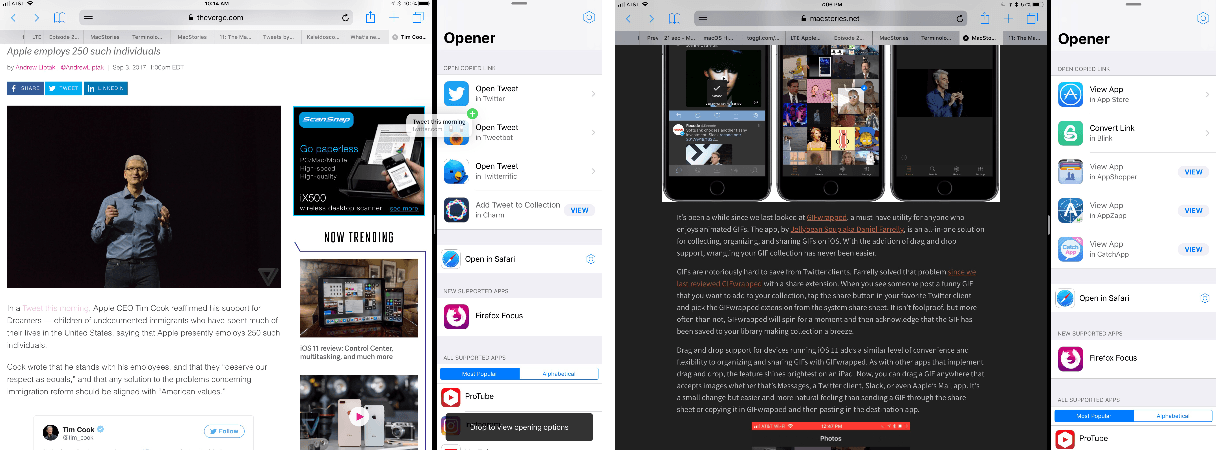
Opener has introduced new drag and drop functionality along with an iOS 11-style redesign. The new functionality makes Opener’s main app as easy to use as its extension and is particularly handy when researching. With Opener in Split View with Safari, I can manage where links open on the fly as I find materials I want to dig into in a certain app. Dragging in a link displays all the available apps on your iOS device in which you can open the link along with other supported apps with a link to them in the App Store. You can also drag links out of Opener into any compatible app.

Opener has adopted the design cues of system apps like Music, Apple News, and Messages with a big bold title and buttons that link to apps on the App Store that mirror the style used in that app. One additional new feature that I appreciate is keyboard shortcuts for external keyboards. There are shortcuts for Settings, Browser Settings, and numbered shortcuts for each app that can open the URL you feed to Opener.

Drag and drop is about reducing friction. Opener stands in between links and their final destination directing traffic by giving you options that the system won’t. That’s valuable if you care about where links open, but it’s also a step that needs to be as low friction as possible to make it worth the effort to use, which is why I’m glad to see that drag and drop has been adopted by Opener.

Opener is available in the App Store.


tvOS 11: The MacStories Review


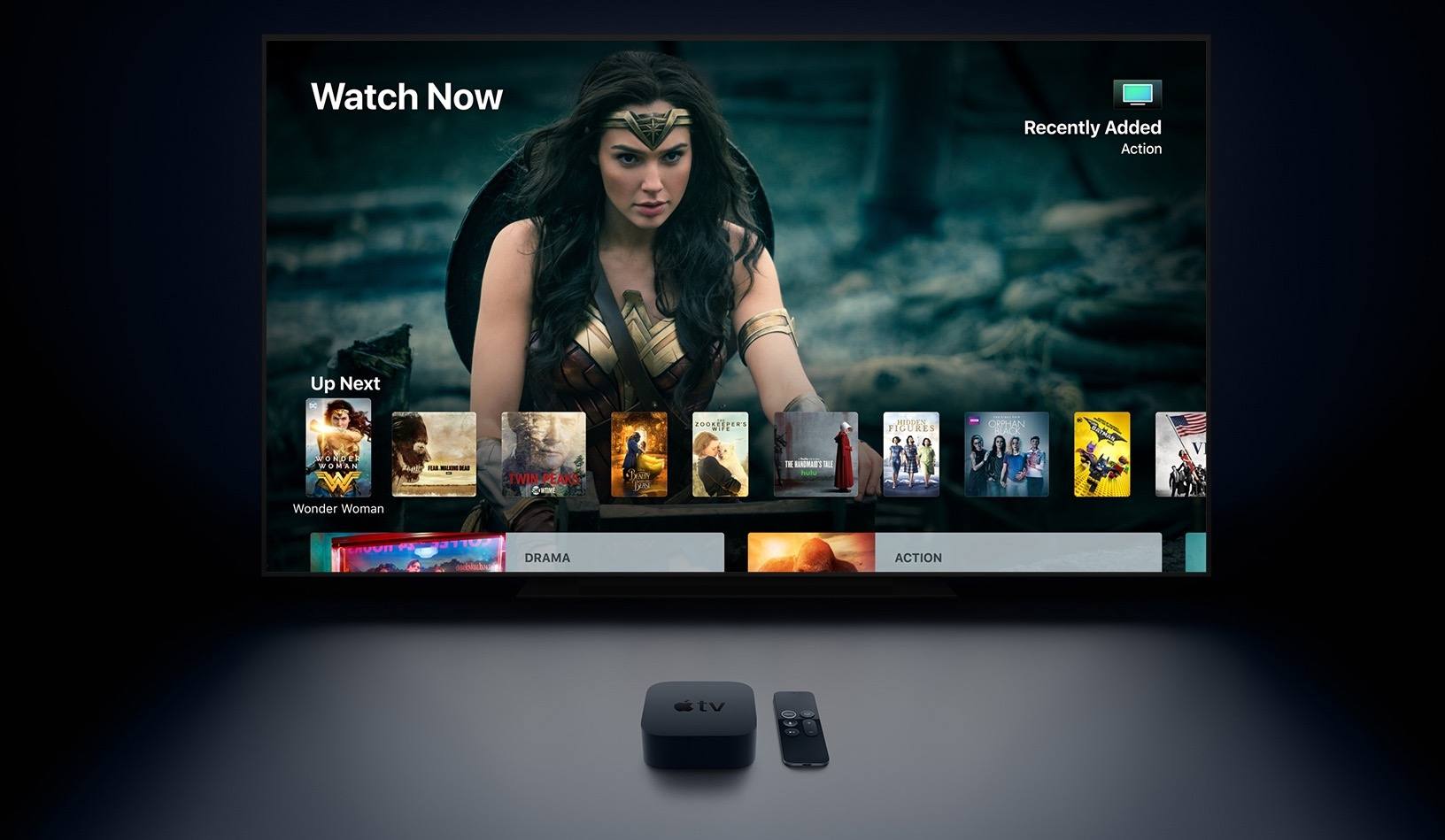
WWDC was big this year, introducing new iPad and Mac hardware, Apple’s arrival into the smart speaker market with HomePod, and a variety of exciting software releases across iOS, macOS, and watchOS. But one of Apple’s main platforms was almost entirely overlooked: tvOS. During the WWDC keynote we received word that Amazon Prime Video would be coming to the Apple TV, but nothing else. Sessions held later in the conference revealed that a new version of tvOS did exist, and that it would be coming this year, but the details prove that it’s the smallest release in the OS’s young life. You could say that the focus of tvOS 11 is incremental improvements; the updates here are nice, but they hardly merit a major numbered release.

Read more


GIFwrapped Adds Powerful Drag and Drop Organization and Sharing

It’s been a while since we last looked at GIFwrapped, a must-have utility for anyone who enjoys animated GIFs. The app, by Jellybean Soup aka Daniel Farrelly, is an all-in-one solution for collecting, organizing, and sharing GIFs on iOS. With the addition of drag and drop support, wrangling your GIF collection has never been easier.

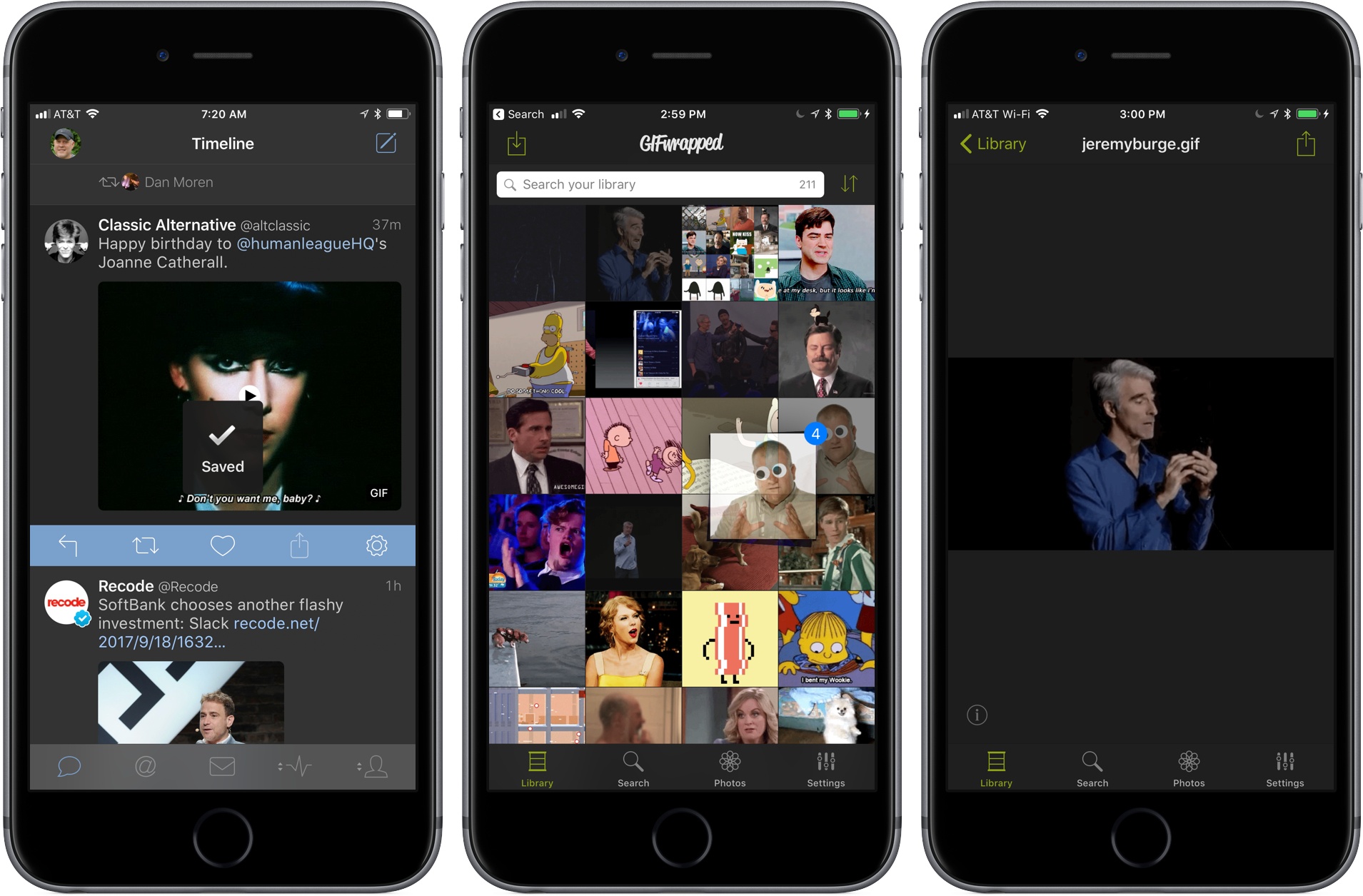
GIFs are notoriously hard to save from Twitter clients. Farrelly solved that problem since we last reviewed GIFwrapped with a share extension. When you see someone post a funny GIF that you want to add to your collection, tap the share button in your favorite Twitter client and pick the GIFwrapped extension from the system share sheet. It isn’t foolproof, but more often than not, GIFwrapped will spin for a moment and then acknowledge that the GIF has been saved to your library making collection a breeze.

Drag and drop support for devices running iOS 11 adds a similar level of convenience and flexibility to organizing and sharing GIFs with GIFwrapped. As with other apps that implement drag and drop, the feature shines brightest on an iPad. Now, you can drag a GIF anywhere that accepts images whether that’s Messages, a Twitter client, Slack, or even Apple’s Mail app. It’s a small change but easier and more natural feeling than sending a GIF through the share sheet or copying it in GIFwrapped and then pasting in the destination app.

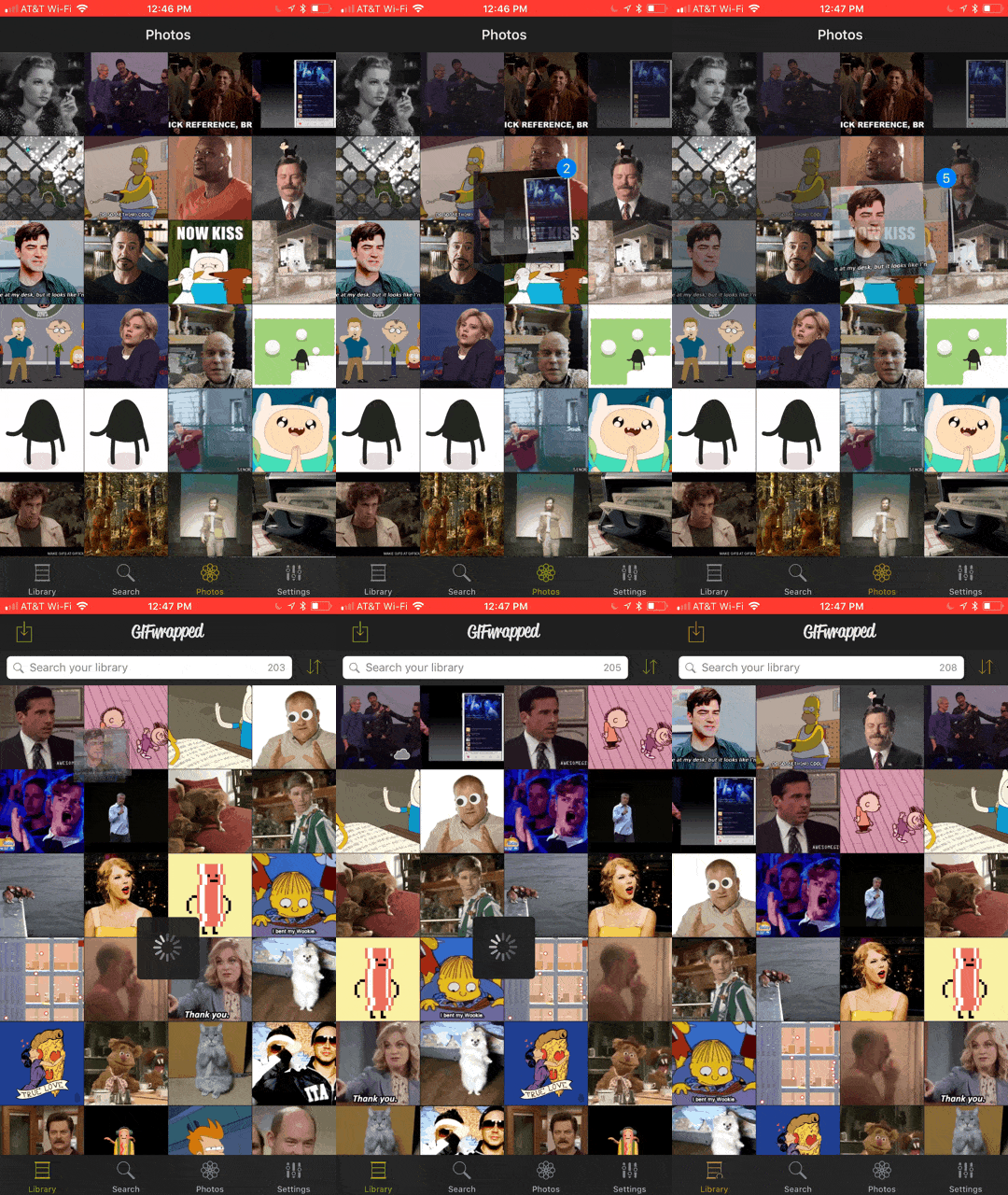
Importing several GIFs from Photos into my GIFwrapped library.

Importing several GIFs from Photos into my GIFwrapped library.

GIFwrapped’s drag and drop functionality is not limited to the iPad though. Apple only allows drag and drop on the iPhone within a single app. However, if you have GIFs stored in your iPhone’s photo library, you can access them in GIFwrapped’s Photos tab and use drag and drop to pick up and drag multiple GIFs into GIFwrapped’s Library tab importing the whole stack at one time. The one thing I’d like to see added to GIFwrapped is the ability to manually organize my GIF by dragging them into an order of my choosing. Currently, you can sort your library by file name or date modified only.

GIFwrapped demonstrates just how powerful drag and drop is. Copying and pasting GIFs was not an enormous burden, but the iPad is designed for interaction with the content on the screen and the multiple steps needed to send a GIF where you wanted it before iOS 11 felt clunky. Now, I can pick my Dancing Eddy GIF right up off the screen of my iPad and drop it into Tweetbot for the 100th time with newfound ease.

GIFwrapped is available on the App Store.

Terminology’s Versatility Expanded With Drag and Drop Support

Terminology by Agile Tortoise is my go-to dictionary and thesaurus app on iOS. Early this year, the app got a major update that transformed it into a full-featured language research tool, complete with customizable actions for searching Wikipedia, online dictionaries, and other resources. That update also added a powerful share extension that makes it easy to look up words you find on the web or in any other app.

You can mark words as favorites in Terminology so they are easy to return to but until now, your choices for extracting information from Terminology has been limited. There is a dedicated button in the app’s toolbar for copying words you look up. You can also select, copy, and paste definitions into other apps, but Terminology didn’t include a way to export a term and its definition together.

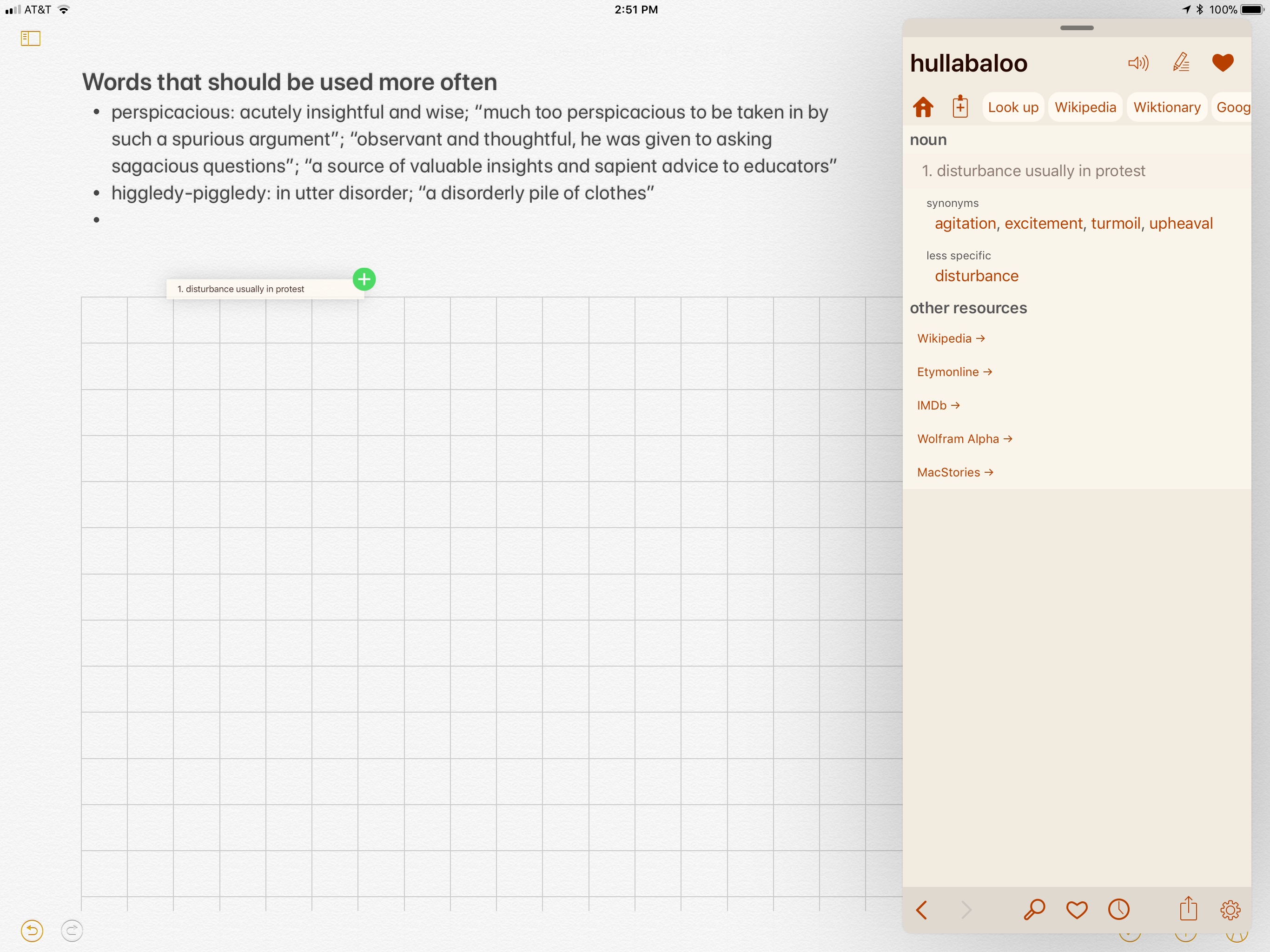
Version 4.1 adds iOS 11’s drag and drop feature, which makes it simple to drag a word and its definition from Terminology to another app on an iPad. When you start the drag, a preview of the definition appears under your finger. One small thing I’d like to see added to the preview is the defined word since it too is pasted into the destination app when you drop the definition. You can also drag a word from another app into Terminology’s search box to look up its definition, but I prefer to use the app’s extension.

If you’re a student or English is your second language, Terminology’s drag and drop functionality makes it easy to create lists of words to study or flashcards for learning definitions. Those may seem like narrow use cases, but combined with Terminology’s extension, custom actions, and other features, the app has become a Swiss Army knife for anyone who works with words from a student developing a broader vocabulary to professional writers.

Terminology is available on the App Store.

Drag and Drop Streamlines Editing Images in Annotable

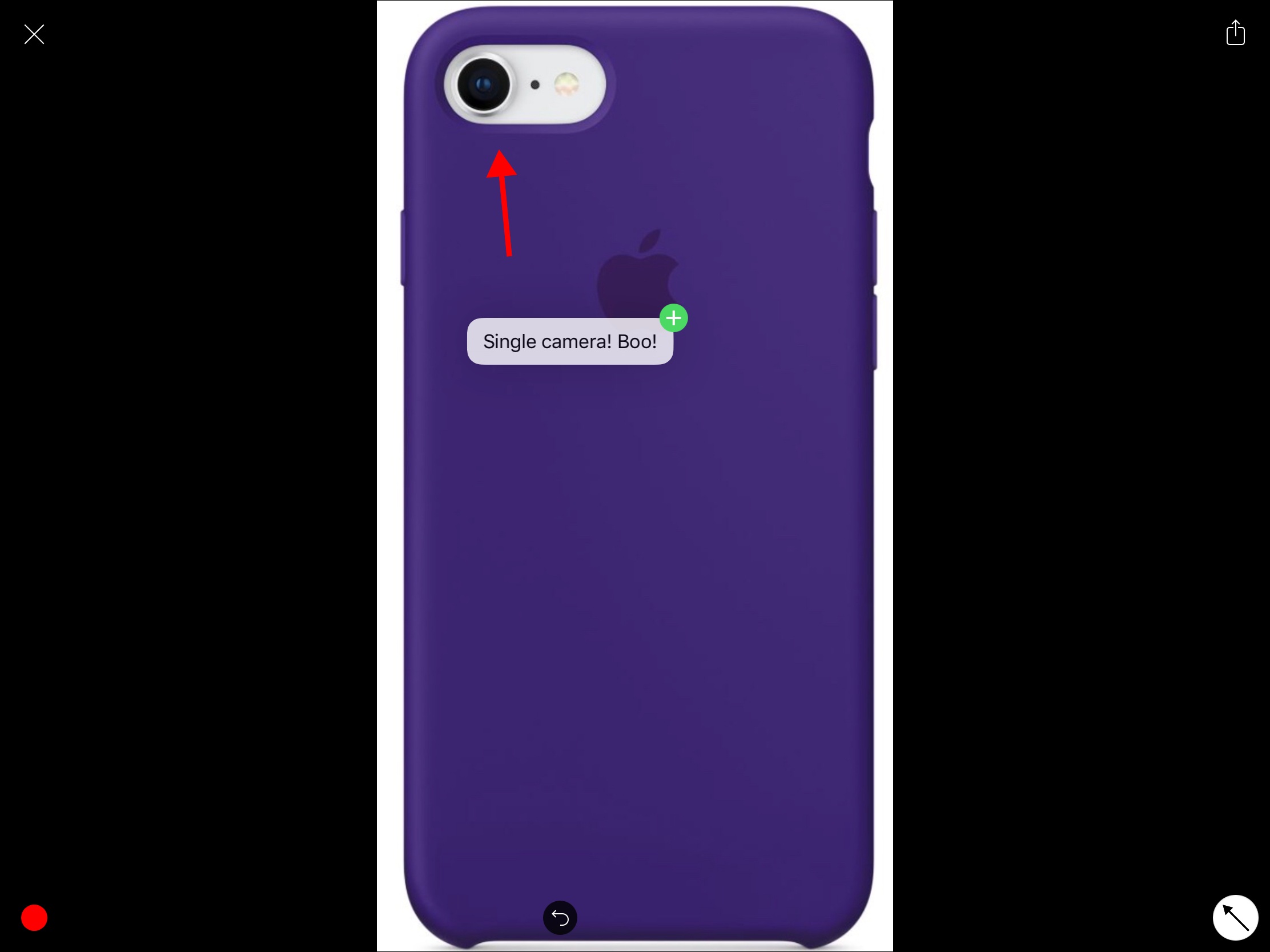
Earlier this year, John called Annotable “my hands-down favorite app for image annotations.” An all-in-one tool for marking up your images, Annotable serves as an interim stop for importing images and then exporting annotated versions to another app. With an iOS 11 update, images can now be dragged into and out of Annotable, making the annotation process simpler than ever before.

Let’s say you’re browsing the web on your iPad and you find an image online that you want to share with a friend, but you need to point out a detail. In Safari, you press and hold on the picture to pick it up, open Annotable, and drop it into the app when the green plus sign appears in the bottom right corner. The image will open in Annotable’s editor where you can apply any of the tools the app offers. You can even drag and drop text from another app onto an image in Annotable as an annotation. When you’re finished, tap save, and the image will be added to your camera roll, or drag the image into another app.

When you want to export photos, you can grab multiple from Annotable’s photo viewer and drag them to your app of choice. Of course, you could also head over to Photos to accomplish this, but I’ve found it convenient just to stay in the same app when I’m finished annotating my images.

Overall, the implementation of drag and drop into Annotable saves multiple steps, creating a more seamless way to get images into and out of this MacStories favorite.

Annotable is available on the App Store.


PCalc’s Delightfully Insane About Screen

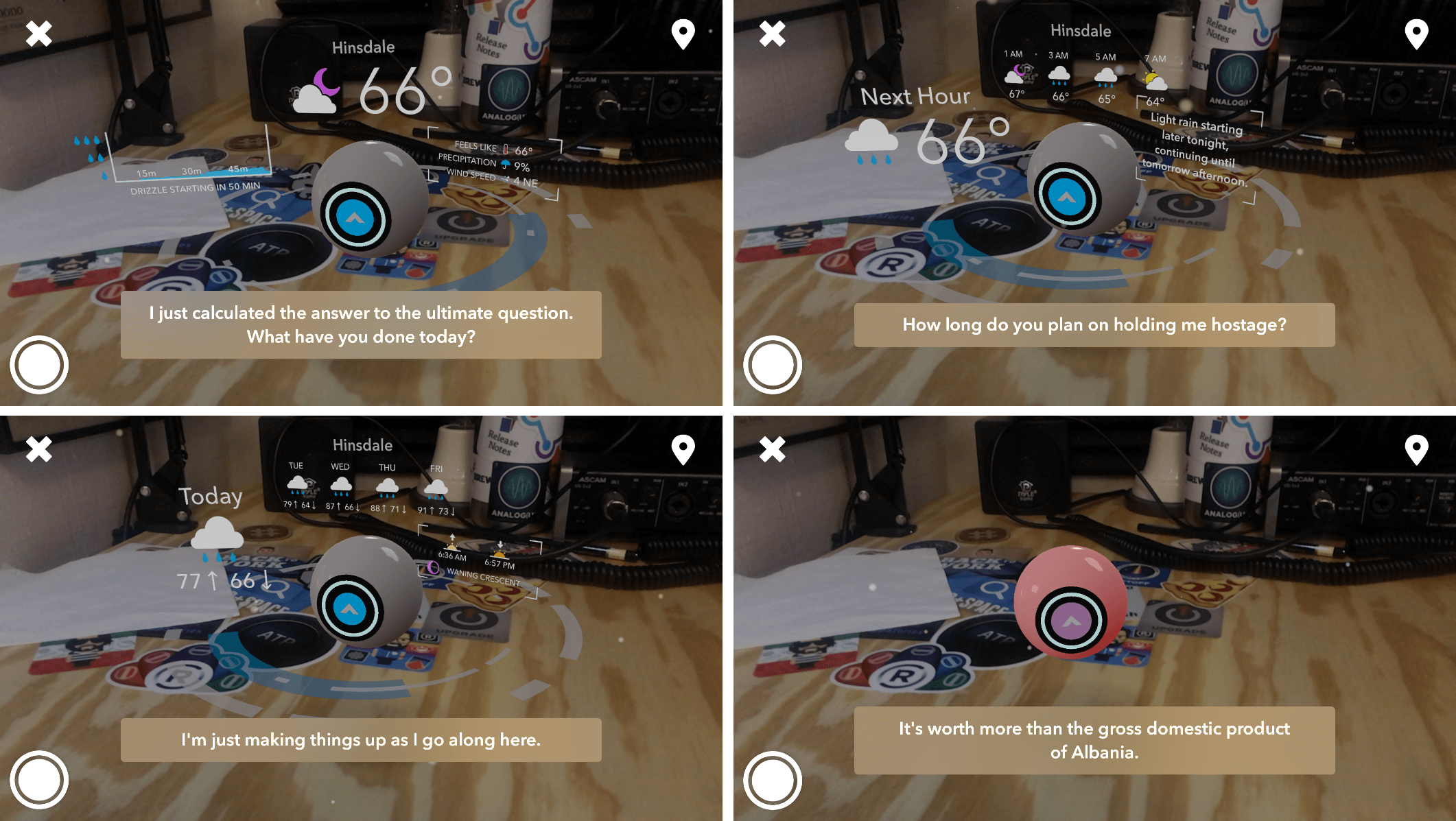
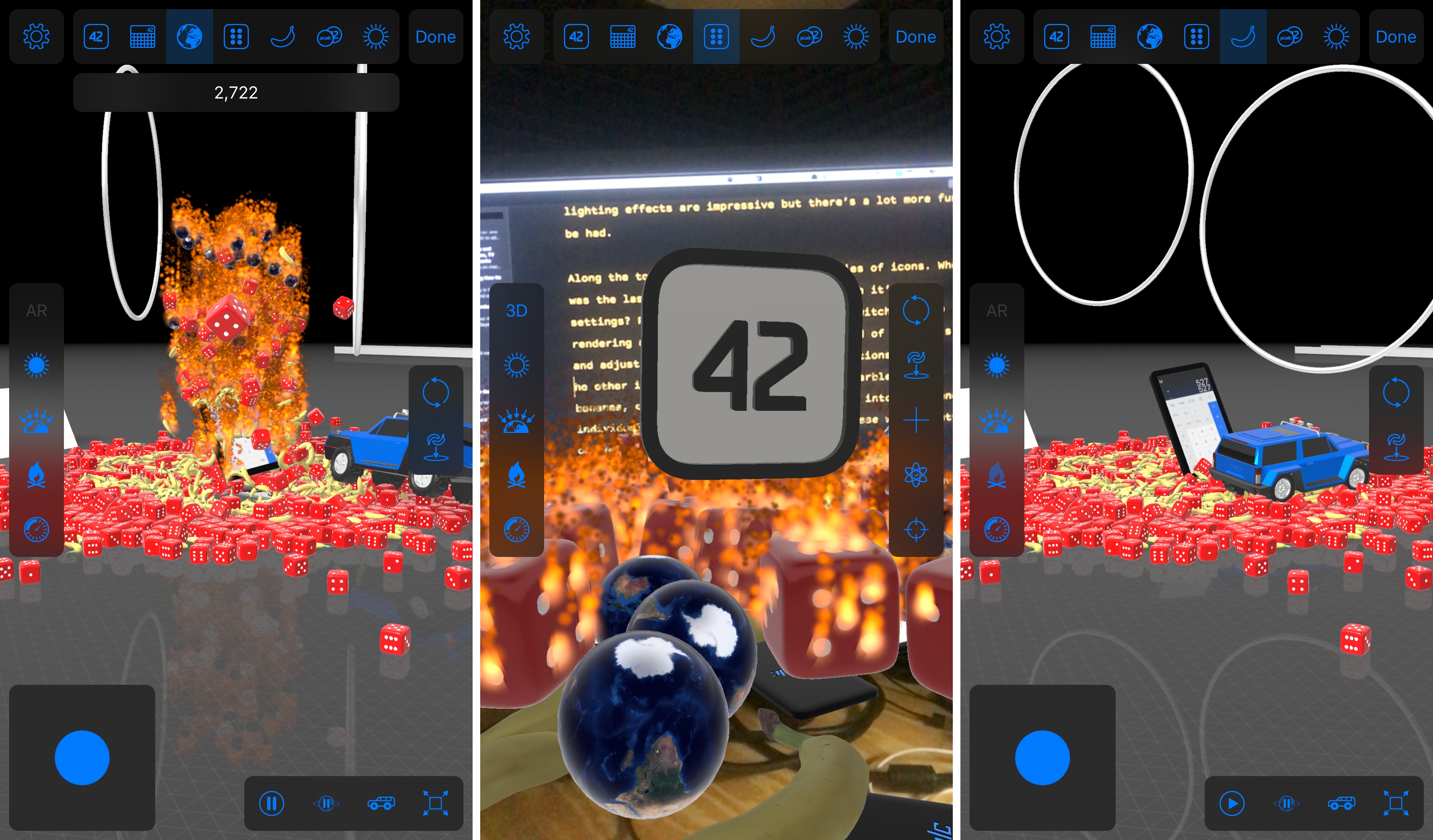
As apps updated for iOS 11 begin to trickle out onto the App Store, it’s fitting that the first of what will be many reviews on MacStories in the coming days features ARKit, which from all indications is a big hit with developers. Even more fitting though, is that the app reviewed is PCalc by James Thomson. PCalc is an excellent calculator app that was one of Federico’s ‘Must Have’ apps of 2016. It’s available on iOS devices, the Apple Watch, and even the Apple TV. Still, you wouldn’t expect it to incorporate 3D animation or augmented reality, but that is exactly what the latest version of PCalc has tucked away in its settings.

Read more


Whink Review: Taking Beautiful Notes

I take extraordinarily ugly notes, a combination of terrible handwriting and the inability to organize my notes properly. Even as I’ve moved primarily to digital notes, I still struggle putting attractive and useful documents together.

Whink is almost everything we’ve come to expect from a modern note-taking app – Apple Pencil support, multimedia integration, document exporting, and more – assembled in one of the most aesthetically pleasing packages I’ve seen in its genre. By adding minor design flourishes around content, Whink transforms your notes into beautiful resources.

Read more


Elk Adds Lock Screen Currency Conversion

Elk, the currency converter app that we reviewed earlier this year has been updated with a smart feature that allows you to access a currency conversion table from the Lock screen of your iPhone. The feature is a hack in the best sense of the word. By leveraging your iPhone’s Lock screen wallpaper, Elk allows you to quickly get a ballpark sense of what something costs in another currency without unlocking your phone and navigating to the app.

The simple feature grew out of the developers’ practice of manually creating a currency conversion table and setting it as their Lock screen wallpapers. Like many tedious tasks though, there was a better solution through software that eliminated typing a conversion table before every trip.

To create a currency conversion wallpaper, open the currency table you want to show on your Lock screen in Elk and tap the share icon. By default, the app will show you the system wallpapers available on your iPhone along with previews of three different currency tables overlaid on the selected wallpaper. You can also navigate to the photos on your iPhone and pick one of those for your wallpaper. After you select an image, you can save it to your photo library with the currency conversion overlay as a still or Live Photo wallpaper. Finally, open up the Settings app and set your newly created image as the lock screen wallpaper.

That’s all there is to the feature, but it’s extraordinarily handy when you want to get a rough idea of a conversion on the go. I particularly like the Live Photo version of the wallpaper because I can enjoy the image on my Lock screen, but still get to the currency table with a short press on the screen.

Of course, the data overlaid on the wallpaper cannot be updated, but it’s close enough for short trips, and you can always regenerate the wallpaper periodically with the latest rates.

Elk is available on the App Store.