Posts in reviews

Scenecuts Adds Effortless Access to HomeKit Scenes in Your Mac’s Menu Bar

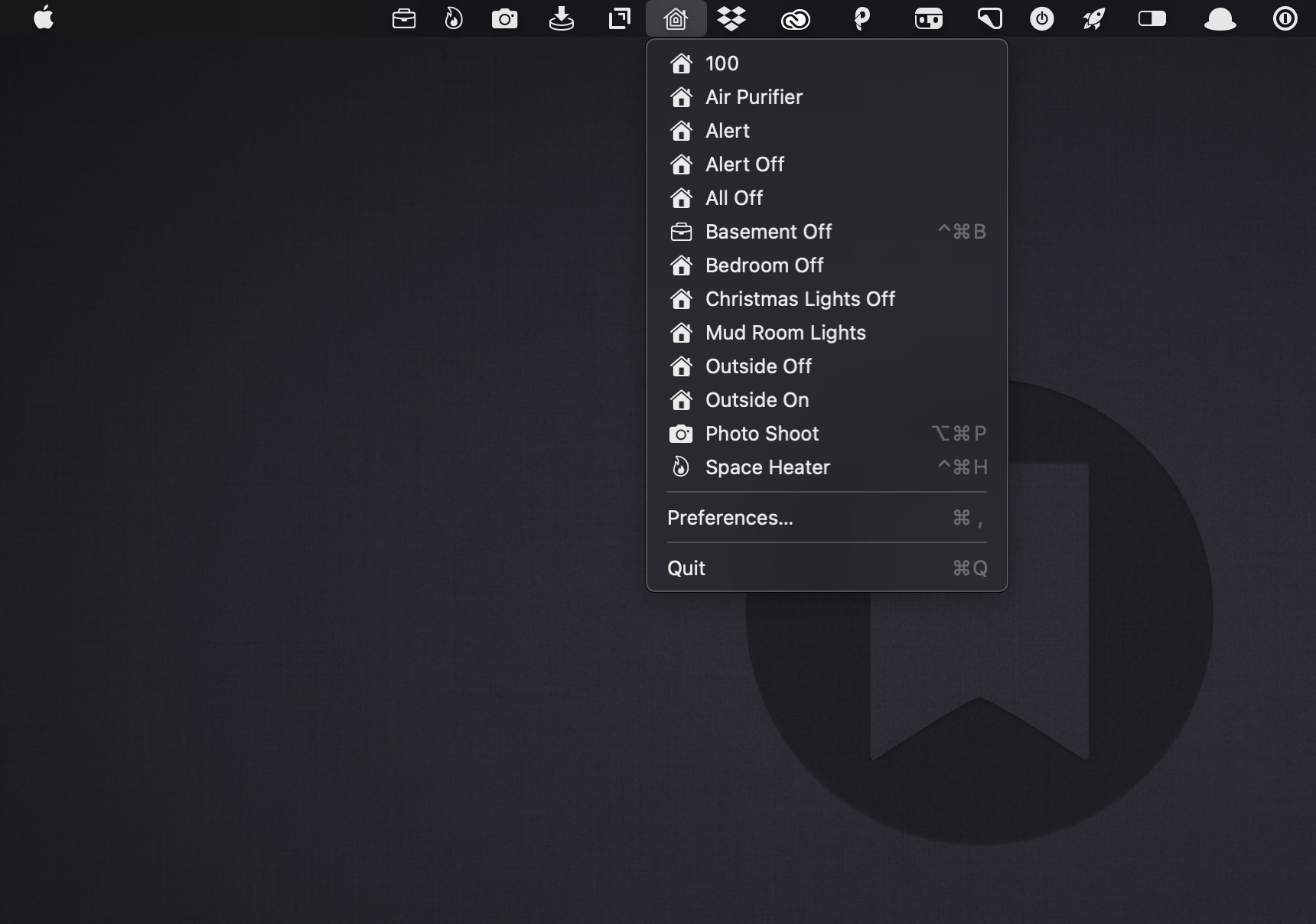
Scenecuts is a new utility app for controlling HomeKit devices from your Mac’s menu bar. The free, open source app, by Seattle developer Nick Hayward can control HomeKit scenes from the menu bar app’s drop-down menu, customizable per-scene menu bar icons, or the keyboard. It’s a terrific trio of options that makes controlling your smart devices immediate by freeing them from the confines of the Home app.

In its default configuration, Scenecuts adds its icon to your menu bar, and clicking on it reveals a drop-down menu of all the HomeKit scenes you’ve created in Apple’s Home app for controlling your smart devices. However, the app’s real power lies in its preferences, where you can edit Scenecuts’ drop-down menu, add individual scenes to your menu bar, and assign them to global keyboard shortcuts.
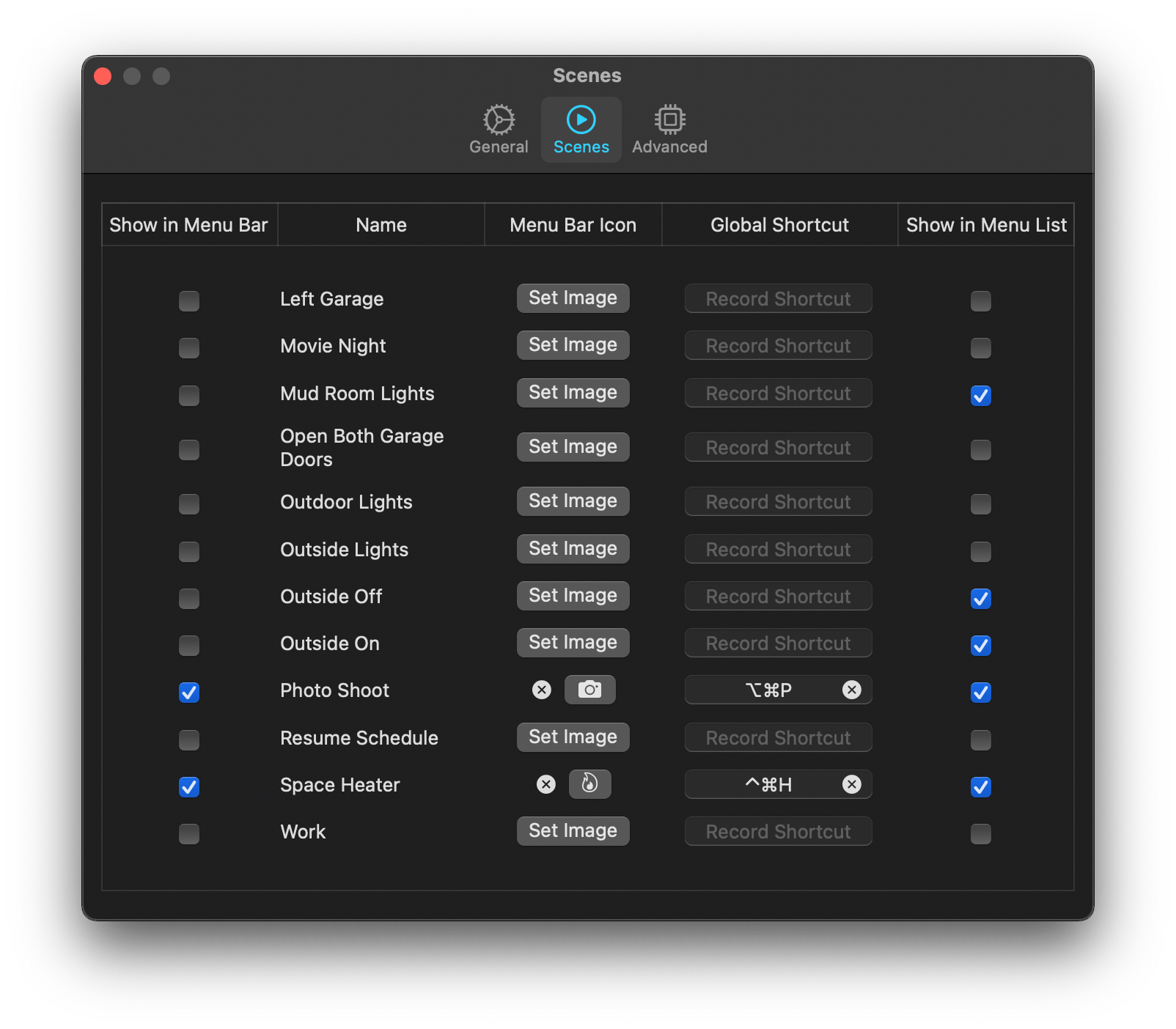
Scenecuts' preferences.

Scenecuts’ preferences.

The HomeKit scenes you want to control with a particular Mac may vary. For instance, you may only care about the lights in the room where your desktop Mac sits, but want to control any of the lights in your home with a laptop that you carry with you. Scenecuts recognizes this by providing checkboxes next to every scene in its preferences. By default, all of your scenes are available in Scenecuts’ drop-down menu, but each of them can be turned off by unchecking its checkbox, which is a nice way to tidy up a long list of scenes. I turned off a bunch of scenes to make it easier to quickly locate the ones I use most often.
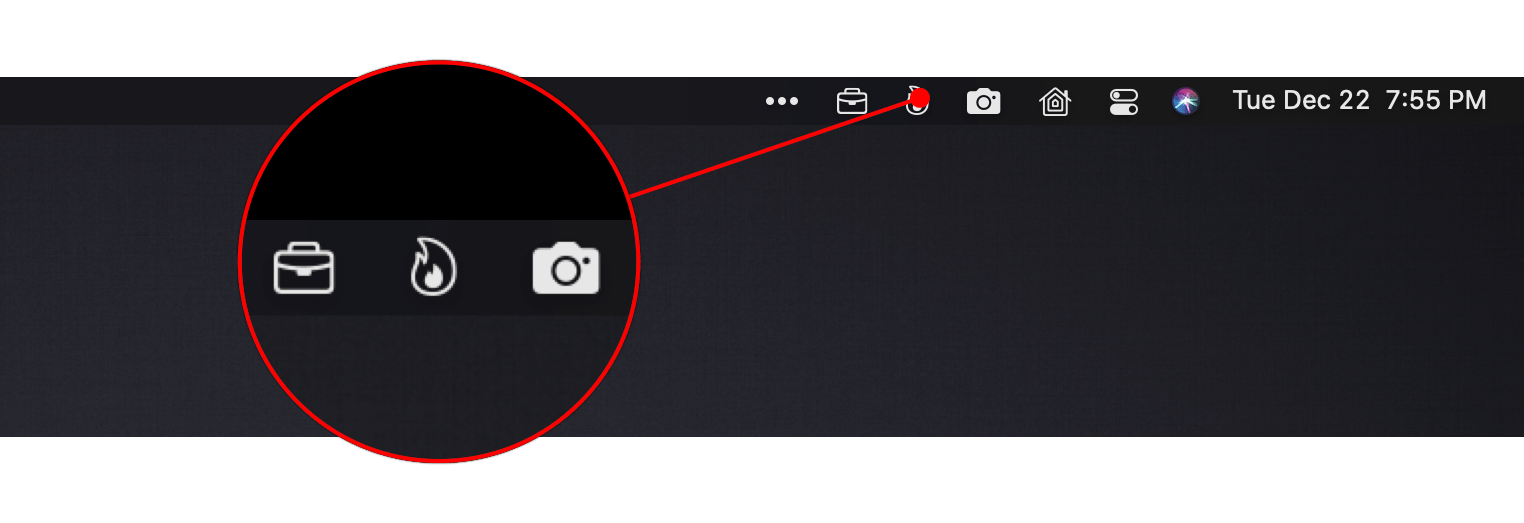
Scenes turned into individual menu bar items with SF Symbols icons.

Scenes turned into individual menu bar items with SF Symbols icons.

Another series of checkboxes, which are unchecked by default, controls whether scenes are shown as individual menu bar items. The feature is a lot like the ability to drag items out of Control Center to the menu bar. You can also add an icon for any of the scenes you add to the menu bar using Apple’s SF Symbols. I immediately added separate menu bar items for the space heater in my office and the settings for my overhead lights that I use for product photography because those are two scenes I find myself wanting to trigger from my desk regularly. The use of SF Symbols is an excellent way to pick something that is meaningful and memorable for triggering scenes.

The third way to use Scenecuts to trigger scenes is by using global keyboard shortcuts. Keyboard shortcuts are optional but extremely handy when you’re working with the keyboard instead of a trackpad or mouse. I appreciate, too, that Scenecuts displays the keyboard shortcuts you’ve assigned in its drop-down menu. The visibility provides a little reminder that has helped me memorize the shortcuts faster than I might otherwise have.

I’ve leveled my fair share of criticisms against the Home app, especially on the iPhone, but it’s grown on me when using my Mac. There’s more screen real estate than on the iPhone, which means its tile UI is less of an issue. Still, for quickly toggling my space heater or switching off a set of lights, opening a full-blown Mac app is overkill. By surfacing individual scenes in the menu bar, Scenecuts is the perfect complement to Apple’s Home app.

Scenecuts also highlights the anemic state of Control Center on the Mac. As I explained in my Big Sur review, I like the concept of Control Center on the Mac a lot, but it’s disappointing that so much of the functionality found in iOS is unavailable. Until Apple expands Control Center to incorporate scene support, Scenecuts is an excellent solution.
You can download Scenecuts for free from the Mac App Store.

Access Extra Content and Perks

Founded in 2015, Club MacStories has delivered exclusive content every week for nearly a decade.

What started with weekly and monthly email newsletters has blossomed into a family of memberships designed for every MacStories fan.

Learn more here and from our Club FAQs.

Club MacStories: Weekly and monthly newsletters via email and the web that are brimming with apps, tips, automation workflows, longform writing, early access to the MacStories Unwind podcast, periodic giveaways, and more;

Club MacStories+: Everything that Club MacStories offers, plus an active Discord community, advanced search and custom RSS features for exploring the Club’s entire back catalog, bonus columns, and dozens of app discounts;

Club Premier: All of the above and AppStories+, an extended version of our flagship podcast that’s delivered early, ad-free, and in high-bitrate audio.

Learn more here and from our Club FAQs.


Fitness Totals Review: Effortlessly Surface Fitness Data and Track Your Progress

The Apple Watch and iPhone can collect a lot of fitness data. The trouble is, there’s so much information available that it can be a little overwhelming and difficult to sift through in Apple’s Health app. The situation has left an opening for third-party apps like Fitness Totals that use smart design and leverage new features like widgets to make sense of the piles of data and provide useful insights.

Fitness Totals benefits from its tight focus on applying a consistent approach to 16 fitness metrics using its app and companion widgets. The app compares fitness data over daily, weekly, monthly, and annual time periods, providing answers to questions like ‘Have I burned as many calories today as yesterday? and ‘Is my step count higher or lower this week than last?’ The data is available in the app, but its greatest strength is its widgets.

As much as I like Fitness Totals’ widgets, though, I want to start with the app. This is where you set up which metrics you want to track, and you can view even more data than is available in the widgets. Fitness Totals can track:

  • Steps
  • Walking and Running distance
  • Walking workouts
  • Running workouts
  • Hiking workouts
  • Cycling
  • Wheelchair distance
  • Wheelchair pushes
  • Swimming strokes
  • Swimming distance
  • Downhill snow sports
  • Resting calories burned
  • Active calories burned
  • Flights of stairs climbed
  • Exercising minutes
  • Standing minutes

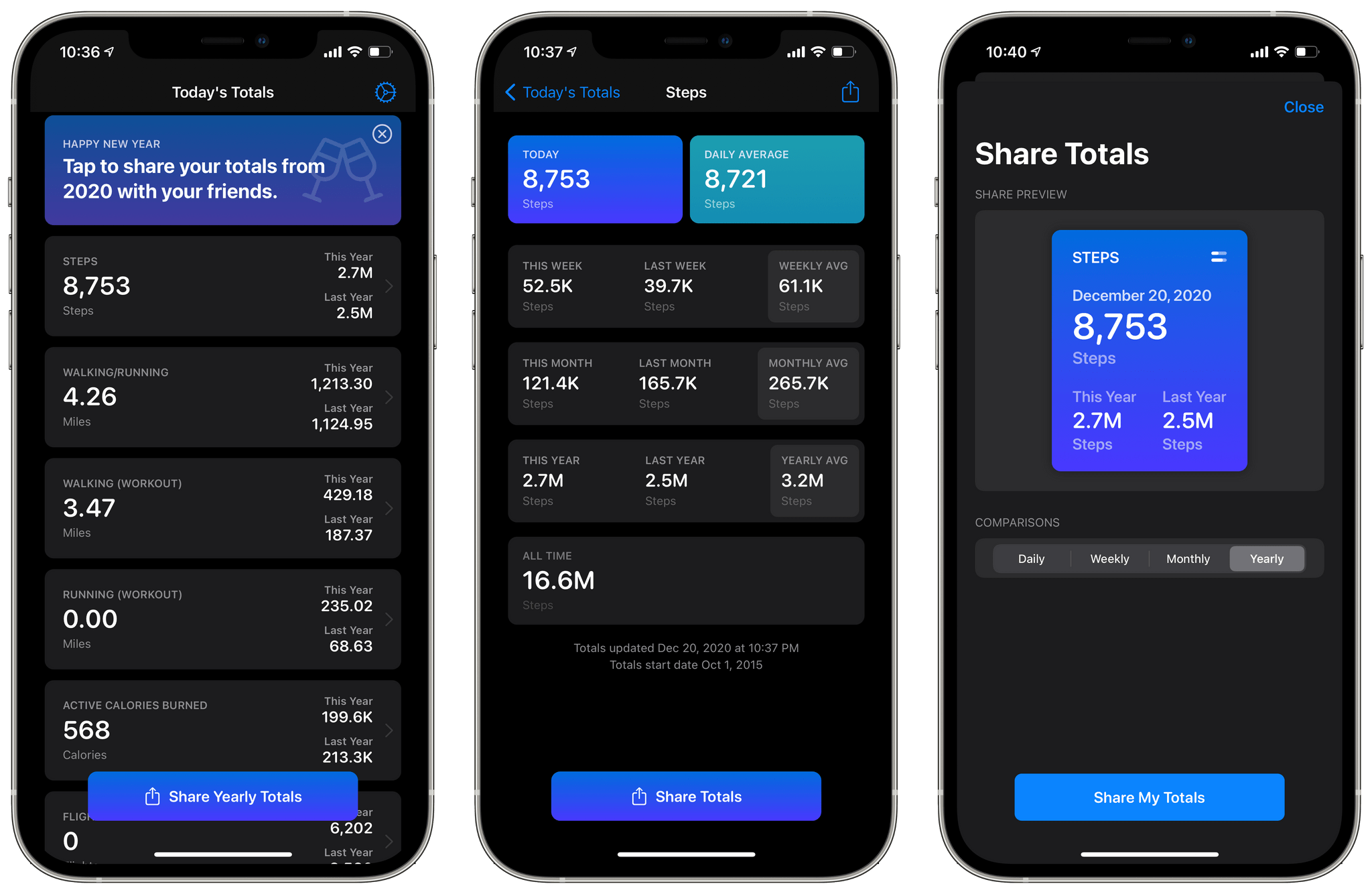
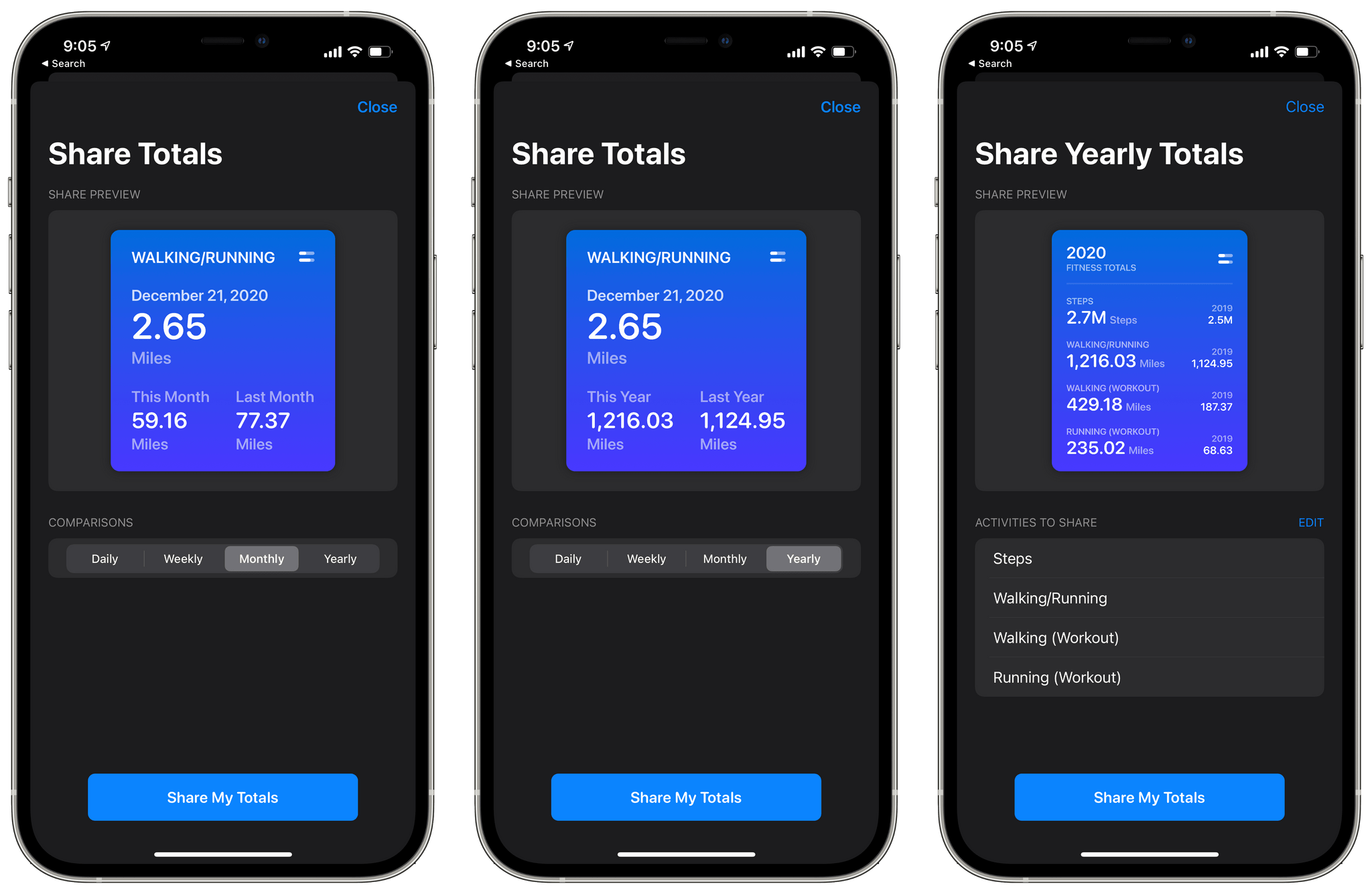
The app’s main view displays a series of cards for each category you’ve chosen to track. Each card lists your total for the day and the current year compared to last year. Tapping a card opens a detailed view with more statistics. For example, my step details included today’s total and my daily average along with totals for this week, month, and year compared to last week, month, and year, and the averages for each. Finally, there’s an all-time number totaling all the data recorded and a button for sharing a daily, weekly, monthly, or yearly summary with a colorful graphic.

Sharing your stats.

Sharing your stats.

The main view of the app also has a share button that lets you compose a graphic showing your yearly totals for any of the metrics you’re tracking. Currently, there’s also a banner at the top of the app prompting users to share their yearly totals, which does the same thing as the share button at the bottom of the screen.

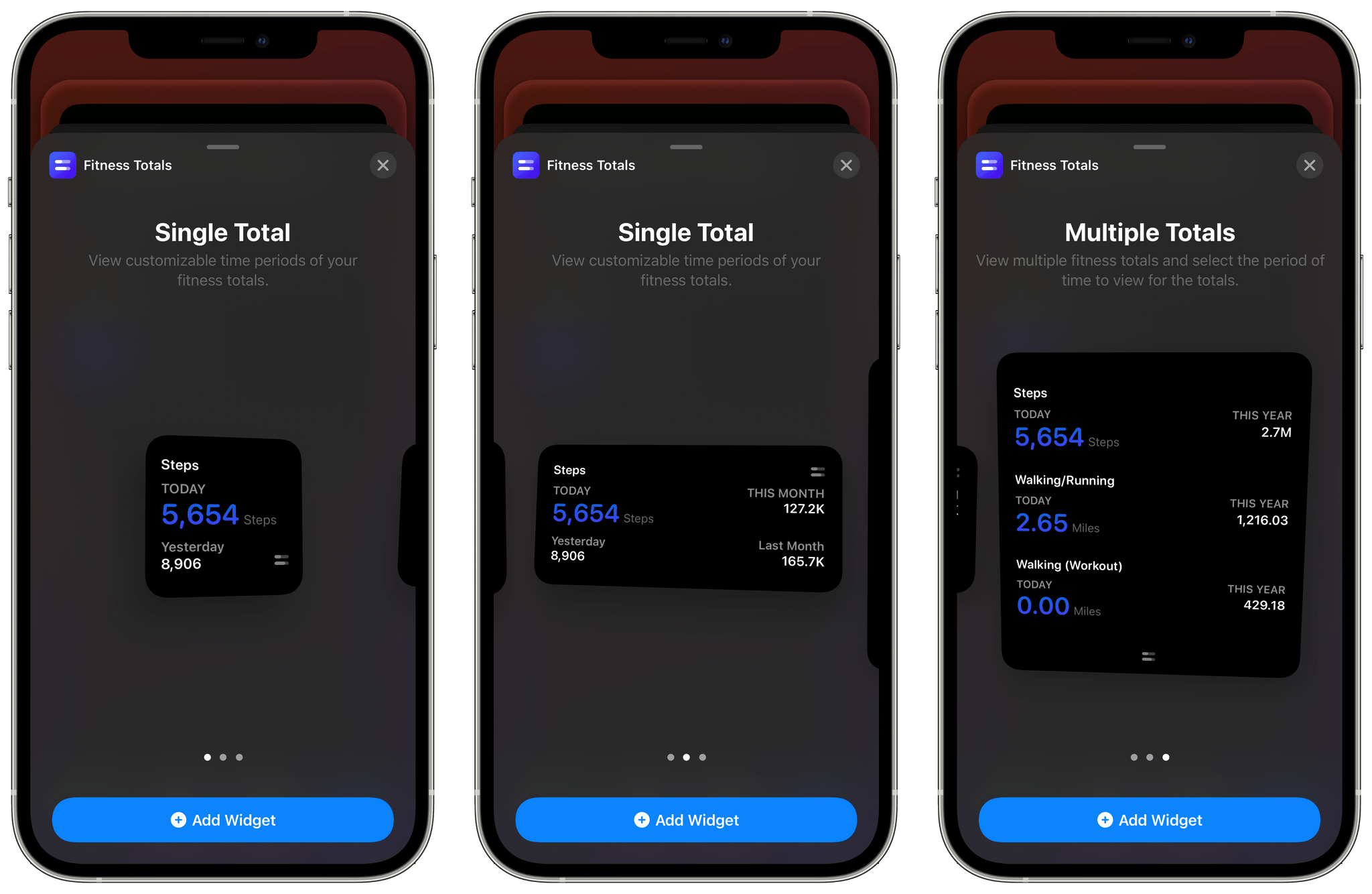
The app’s three sizes of widgets are similar to the graphics its share functionality creates. The primary difference between each widget size is how much data it can display. The small widget displays one pair of statistics: today compared to yesterday or this week, month, or year compared to last week, month, or year. The medium widget adds a second set of data points, and the large one allows for three points of comparison.

Fitness Totals' widgets.

Fitness Totals’ widgets.

I’ve been using a medium widget to remind me of my step count for today, yesterday, and last week versus this week. The widget serves as a quick way to gauge how active I’ve been as the week progresses and is a nice addition to the health and fitness stack that I’ve created on a secondary Home Screen. I may add additional Fitness Totals widgets over time, but for now, the step count widget is doing a good job of reminding me to stay active.

The one thing I’d like to see added to Fitness Totals’ widgets is color and typeface customization options. The widgets are pure black, and some statistics are a dark purple that looks good but doesn’t offer much contrast against the black, which can make the numbers difficult to read. The black background can also be a bit stark against some wallpapers.

Even so, Fitness Totals fills a nice gap Apple has left wide open. Apple’s Health app has all the data Fitness Totals displays, but the company doesn’t offer a Health widget. Fitness Totals also benefits from its focus on just a handful of fitness metrics that can be turned on or off by users surfacing the data far better than the Health app. If you’re looking for a periodic Home Screen reminder to keep you on track with your fitness plans for 2021, Fitness Totals is an excellent choice.

Fitness Totals is available on the App Store for $2.99.

Access Extra Content and Perks

Founded in 2015, Club MacStories has delivered exclusive content every week for nearly a decade.

What started with weekly and monthly email newsletters has blossomed into a family of memberships designed for every MacStories fan.

Learn more here and from our Club FAQs.

Club MacStories: Weekly and monthly newsletters via email and the web that are brimming with apps, tips, automation workflows, longform writing, early access to the MacStories Unwind podcast, periodic giveaways, and more;

Club MacStories+: Everything that Club MacStories offers, plus an active Discord community, advanced search and custom RSS features for exploring the Club’s entire back catalog, bonus columns, and dozens of app discounts;

Club Premier: All of the above and AppStories+, an extended version of our flagship podcast that’s delivered early, ad-free, and in high-bitrate audio.

Learn more here and from our Club FAQs.


Level Touch: A HomeKit-Enabled Smart Lock That Everyone in Your Household Can Appreciate

Source: Level.

Source: Level.

I’m fairly conservative about the HomeKit devices I add to my home these days. Most of my early HomeKit experiments were limited to my studio, where the impact on the rest of my family was minimal. That approach has worked well for many accessories, but it’s not possible to do with everything.

My studio doesn’t have an exterior door, so although I’ve been intrigued by smart locks for what feels like forever, I’ve been hesitant to test them. Security is clearly a question, but so is convenience. I didn’t want to subject my family to a HomeKit experiment that had the potential to cause headaches for them as they were coming or going throughout the day. Smart locks need to be simple, easy, and reliable while also offering real benefits above and beyond the tried and true method of locking a door.

As a result of these concerns, I sat on the HomeKit lock sidelines for a long time. So, when the makers of the Level Touch smart lock contacted me and offered to send me one to try, I thought long and hard about it. Ultimately, though, my curiosity got the best of me.

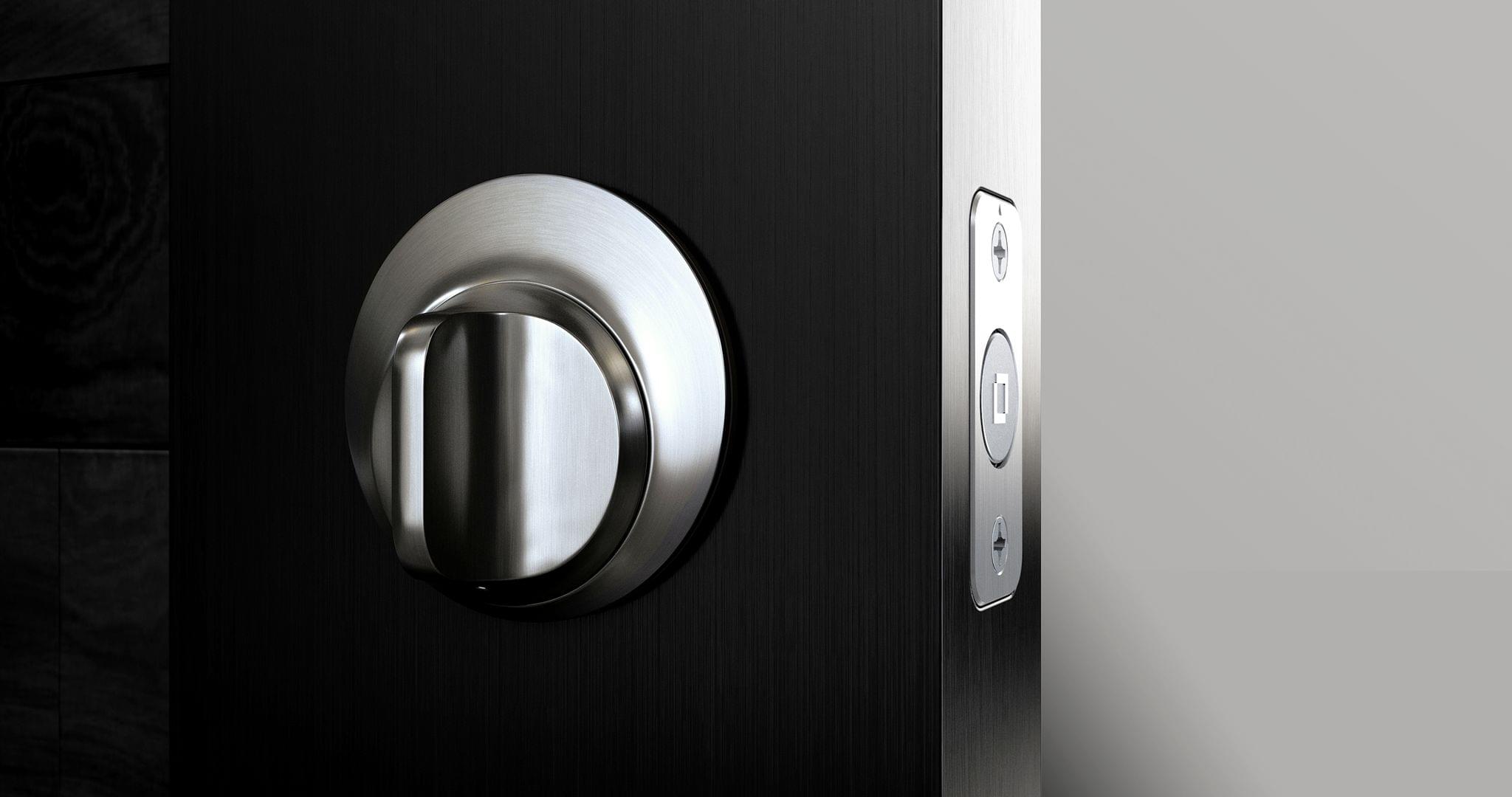
The first thing that caught my eye was what the Level Touch isn’t. The lock isn’t one of those big bulky smart locks that you may have seen before. Instead, the Level Touch is ordinary in the sense that it looks like a normal lock on the outside. That’s because the smarts are cleverly hidden inside the lock mechanism itself.

So, a few weekends ago, I took the plunge and installed the Level Touch on an exterior door that gets a lot of use daily. Since then, I’ve been impressed with not only what the Level Touch enables as a HomeKit-enabled device, but also how well it performs as a plain old standard lock. It’s a combination that too few smart home devices accomplish, putting it in a pretty exclusive club.

Read more

Access Extra Content and Perks

Founded in 2015, Club MacStories has delivered exclusive content every week for nearly a decade.

What started with weekly and monthly email newsletters has blossomed into a family of memberships designed for every MacStories fan.

Learn more here and from our Club FAQs.

Club MacStories: Weekly and monthly newsletters via email and the web that are brimming with apps, tips, automation workflows, longform writing, early access to the MacStories Unwind podcast, periodic giveaways, and more;

Club MacStories+: Everything that Club MacStories offers, plus an active Discord community, advanced search and custom RSS features for exploring the Club’s entire back catalog, bonus columns, and dozens of app discounts;

Club Premier: All of the above and AppStories+, an extended version of our flagship podcast that’s delivered early, ad-free, and in high-bitrate audio.

Learn more here and from our Club FAQs.


macOS Big Sur: Widget Roundup

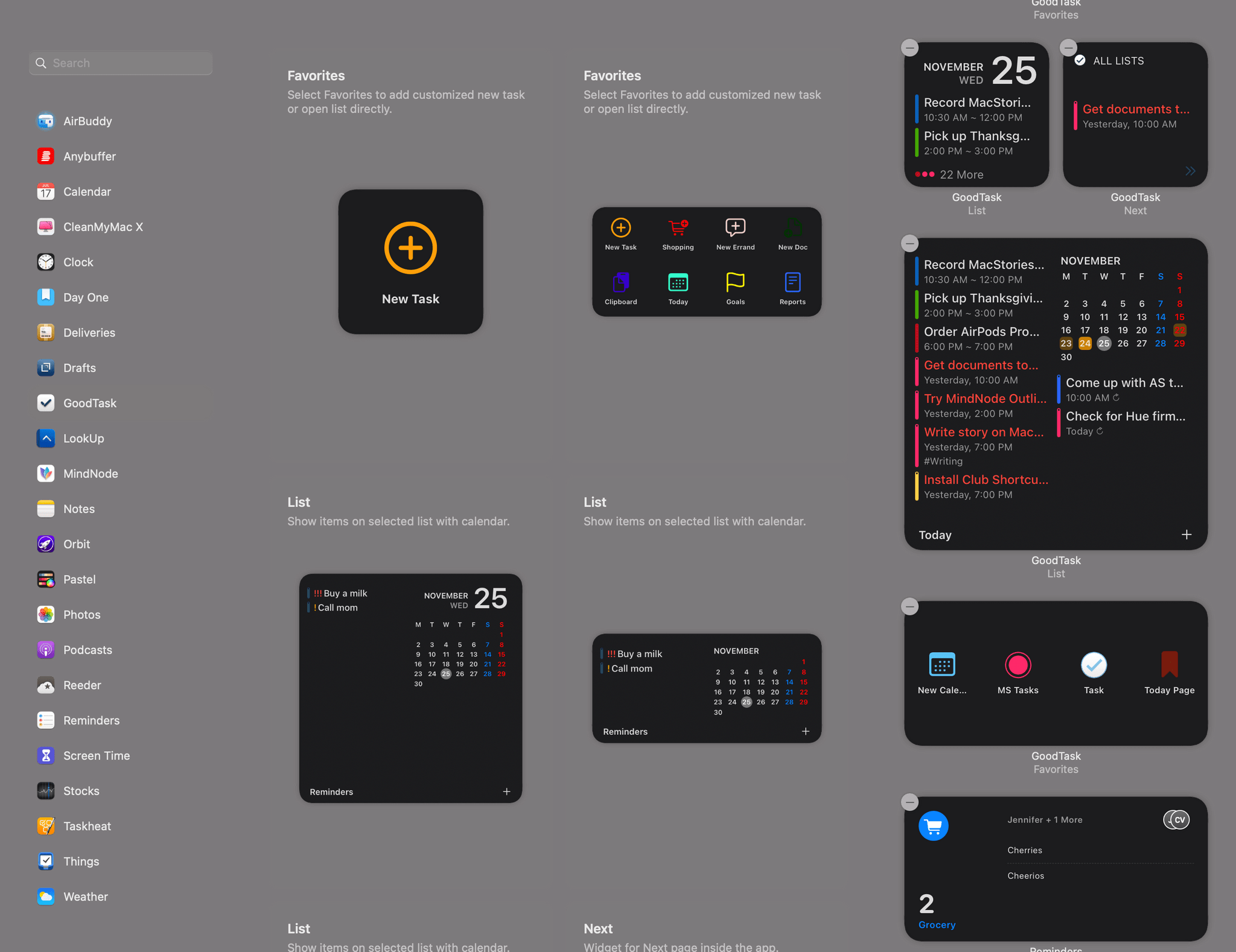
Developer adoption of new macOS features is often a little slower than it is on iOS and iPadOS. However, that hasn’t been the case with Big Sur widgets. Apple wisely took the same SwiftUI-based system used for creating widgets on the iPhone and iPad and implemented it on the Mac, providing a relatively simple approach for developers to bring their existing widgets to the Mac. The result has been an immediate explosion of widget options for Mac users.

Over the course of the summer and fall, I tried several different widgets as I ran the Big Sur betas. A few of those widgets — which have been in development the longest and were highlighted in my Big Sur review — remain some of my favorites and are recapped below. However, many more terrific widgets have been released since and deserve consideration as well, so let’s dig in.

Read more

Access Extra Content and Perks

Founded in 2015, Club MacStories has delivered exclusive content every week for nearly a decade.

What started with weekly and monthly email newsletters has blossomed into a family of memberships designed for every MacStories fan.

Learn more here and from our Club FAQs.

Club MacStories: Weekly and monthly newsletters via email and the web that are brimming with apps, tips, automation workflows, longform writing, early access to the MacStories Unwind podcast, periodic giveaways, and more;

Club MacStories+: Everything that Club MacStories offers, plus an active Discord community, advanced search and custom RSS features for exploring the Club’s entire back catalog, bonus columns, and dozens of app discounts;

Club Premier: All of the above and AppStories+, an extended version of our flagship podcast that’s delivered early, ad-free, and in high-bitrate audio.

Learn more here and from our Club FAQs.


Sofa Adds New Design, Widgets, More Themes, and “The Pile”

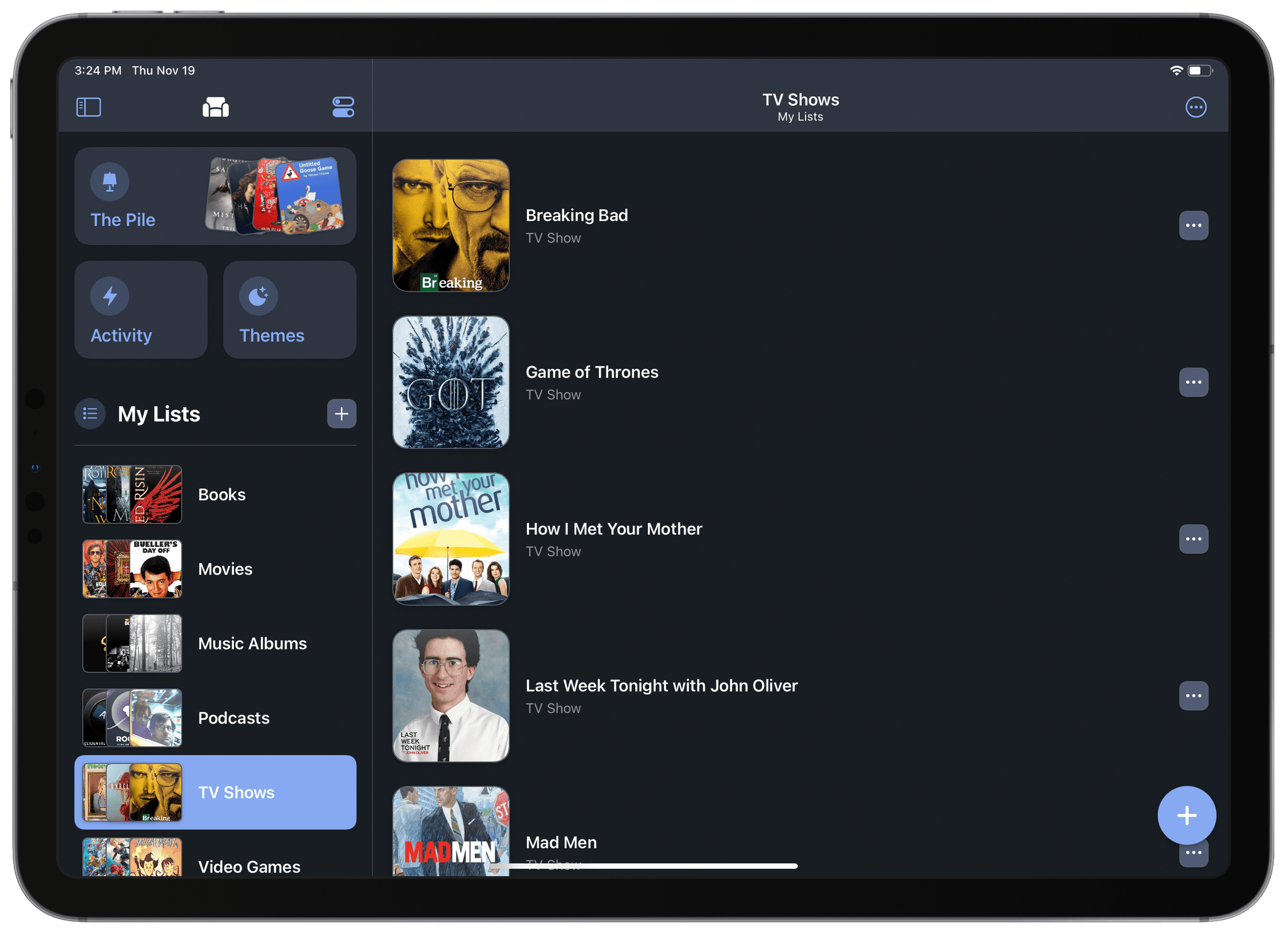
Sofa is an organization app for media which we last covered earlier this year. It provides a nice interface in which you can store TV shows, movies, books, podcasts, music, and videogames. I’ve been using it mostly to organize media that I’ve already seen, for record-keeping purposes. Another option is certainly to store media that you’re planning on consuming at some point in the future.

This week marked the release of Sofa 2.12, a huge update for iOS 14 which includes a refreshed design, widgets, new themes, an “Activity” list, and a brand new element which has been dubbed “The Pile.”

Read more

Access Extra Content and Perks

Founded in 2015, Club MacStories has delivered exclusive content every week for nearly a decade.

What started with weekly and monthly email newsletters has blossomed into a family of memberships designed for every MacStories fan.

Learn more here and from our Club FAQs.

Club MacStories: Weekly and monthly newsletters via email and the web that are brimming with apps, tips, automation workflows, longform writing, early access to the MacStories Unwind podcast, periodic giveaways, and more;

Club MacStories+: Everything that Club MacStories offers, plus an active Discord community, advanced search and custom RSS features for exploring the Club’s entire back catalog, bonus columns, and dozens of app discounts;

Club Premier: All of the above and AppStories+, an extended version of our flagship podcast that’s delivered early, ad-free, and in high-bitrate audio.

Learn more here and from our Club FAQs.


Craft Review: A Powerful, Native Notes and Collaboration App

Note-taking apps on Apple platforms have never been in a better place. Apple Notes is a fantastic built-in option with deep system integrations. Bear offers an elegant Markdown experience and powerful note linking features. Agenda takes a unique date-based approach to note-taking. Evernote just launched its long-in-the-works redesign, and Noto provides a great mix of style and substance. There are quality Pencil-based note-takers like Notability and GoodNotes. And certain web-based tools like Notion are starting to put a higher priority on their app experience.

But for all the excellent options already out there, it can never hurt to have another. Especially when that new option is as well done as Craft.

Craft is launching today across iPhone, iPad, and Mac as a new note-taker that blends the block-based approach of Notion with a thoroughly native experience, taking advantage of all the OS technologies you would hope for and throwing in valuable features like real-time collaboration. It’s the most exciting note-taking debut I’ve seen in years.

Read more

Access Extra Content and Perks

Founded in 2015, Club MacStories has delivered exclusive content every week for nearly a decade.

What started with weekly and monthly email newsletters has blossomed into a family of memberships designed for every MacStories fan.

Learn more here and from our Club FAQs.

Club MacStories: Weekly and monthly newsletters via email and the web that are brimming with apps, tips, automation workflows, longform writing, early access to the MacStories Unwind podcast, periodic giveaways, and more;

Club MacStories+: Everything that Club MacStories offers, plus an active Discord community, advanced search and custom RSS features for exploring the Club’s entire back catalog, bonus columns, and dozens of app discounts;

Club Premier: All of the above and AppStories+, an extended version of our flagship podcast that’s delivered early, ad-free, and in high-bitrate audio.

Learn more here and from our Club FAQs.


AirBuddy 2 Review: Fine-Grained, Customizable Control of the Wireless Headphones and Devices Connected to Your Mac

AirBuddy is one of those handy Mac utilities that you don’t know how you’ve lived without until after you’ve tried it. The initial release that I reviewed in early 2019 was primarily designed to manage Bluetooth headphones connected to your Mac and report the status of your headphones’ batteries; something iOS and iPadOS does better than macOS. With AirBuddy 2, developer Guilherme Rambo has added a bunch of new features, including new ways to customize the app and interact with Bluetooth devices other than headphones.

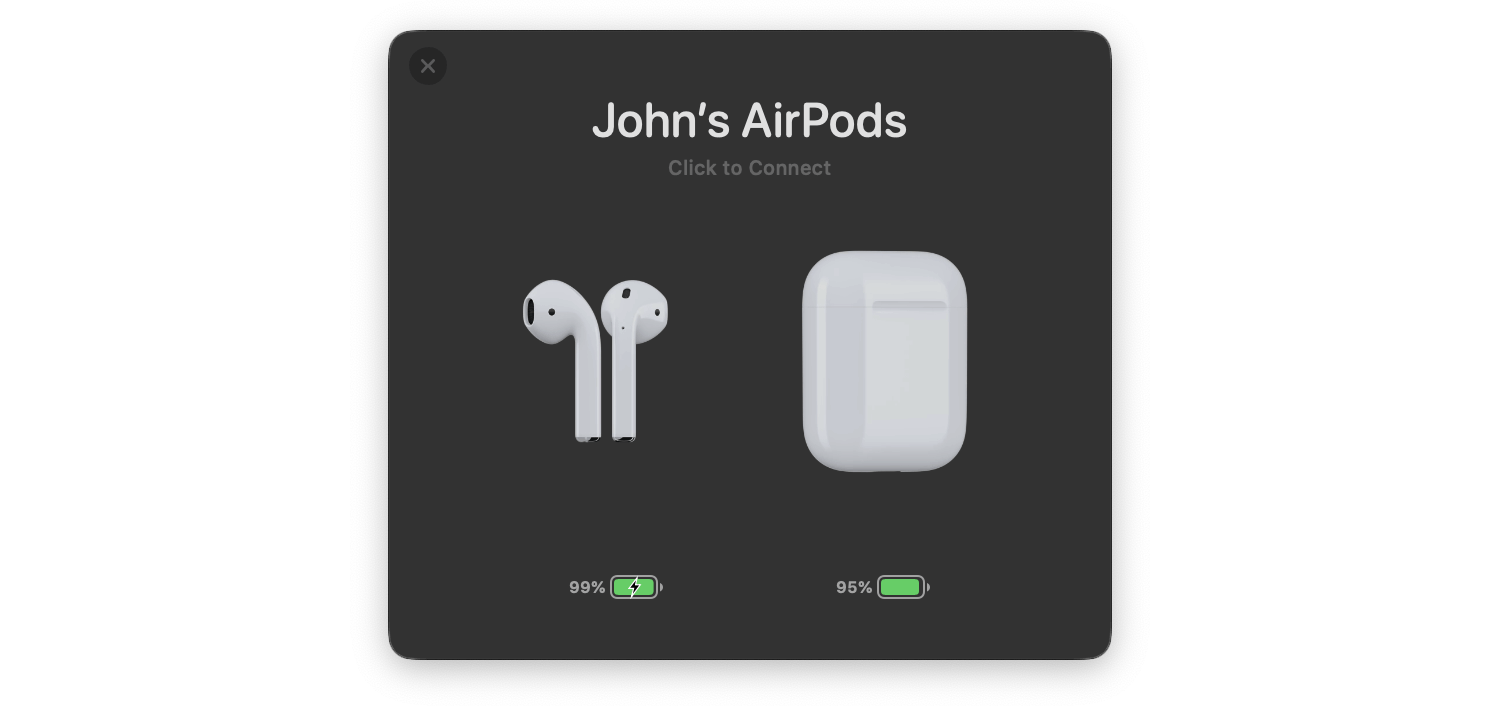
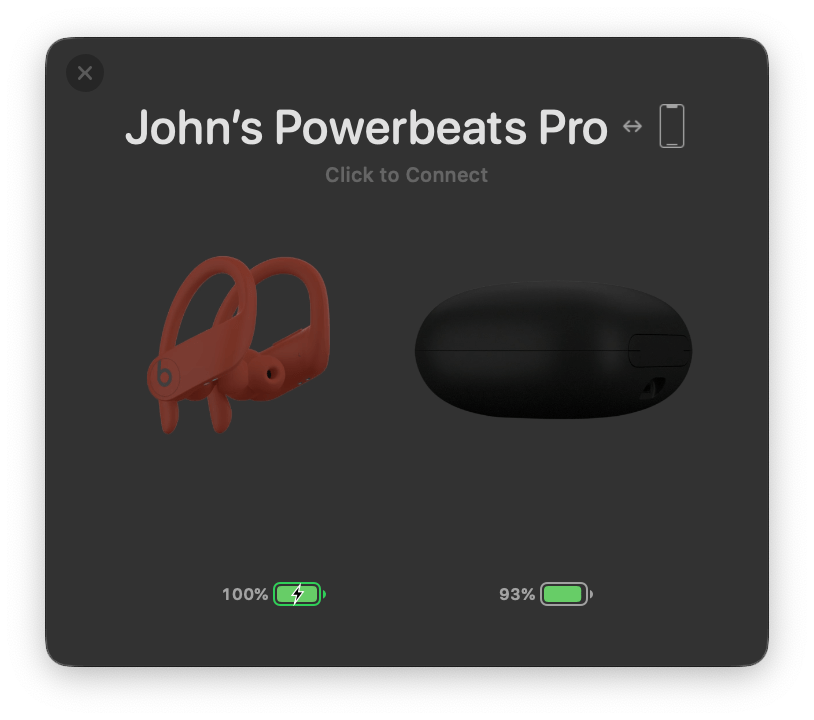
AirBuddy 2 can manage a variety of wireless headphones.

AirBuddy 2 can manage a variety of wireless headphones.

As with the original version of AirBuddy, when you open your AirPods or Beats headphone case near your Mac, a window opens, showing you the status of their batteries and connection. The app also works with Bluetooth headphones that rely on an on/off switch like the Beats Solo line. From AirBuddy’s status window, you can click to connect the headphones to your Mac or swipe to connect and set their listening mode in one gesture.

AirBuddy 2’s listening modes allow you to adjust multiple headphone settings all at once when the app connects your headphones to your Mac. For example, you can turn your headphones’ microphone on for meetings or off for listening to music and set the volume and whether AirPods Pro play audio in Normal, Transparency, or Noise Cancelling modes. The combinations you pick for your listening modes are saved as profiles in the app’s settings.

AirBuddy 2's menu bar app.

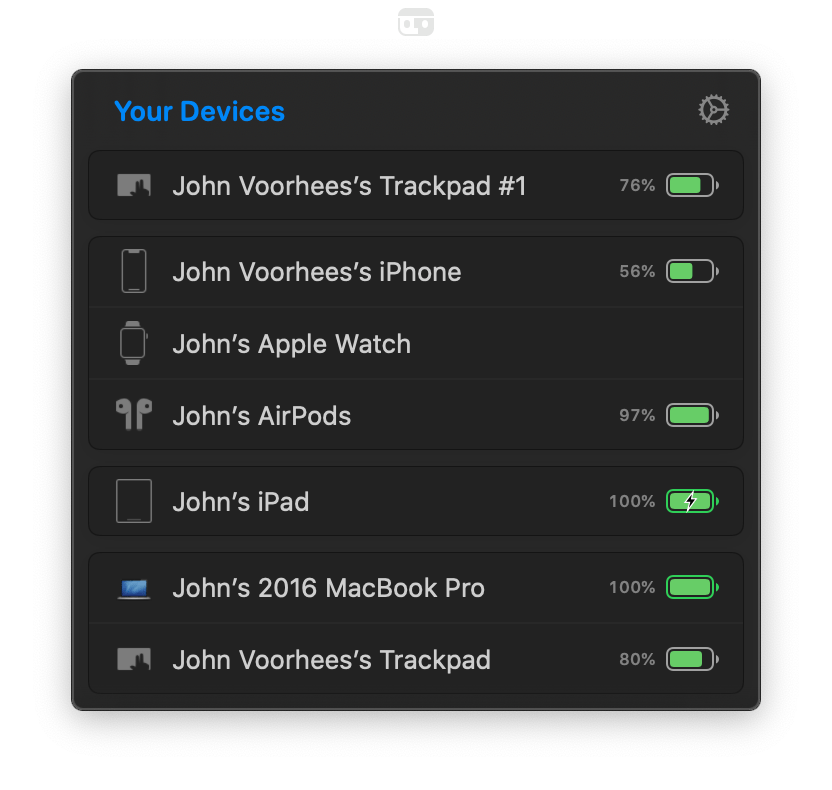
AirBuddy 2’s menu bar app.

AirBuddy 2 is also a menu bar app. Clicking its menu bar icon opens a window that shows all your connected devices and their battery status, including Macs, iPhones, and iPads. The devices are grouped, so, for example, your Apple Watch shows up as connected to your iPhone as would any AirPods you’re currently using with your iPhone. If you run AirBuddy 2 on a second Mac, that Mac will show up here, too, along with any Bluetooth peripherals connected to it.

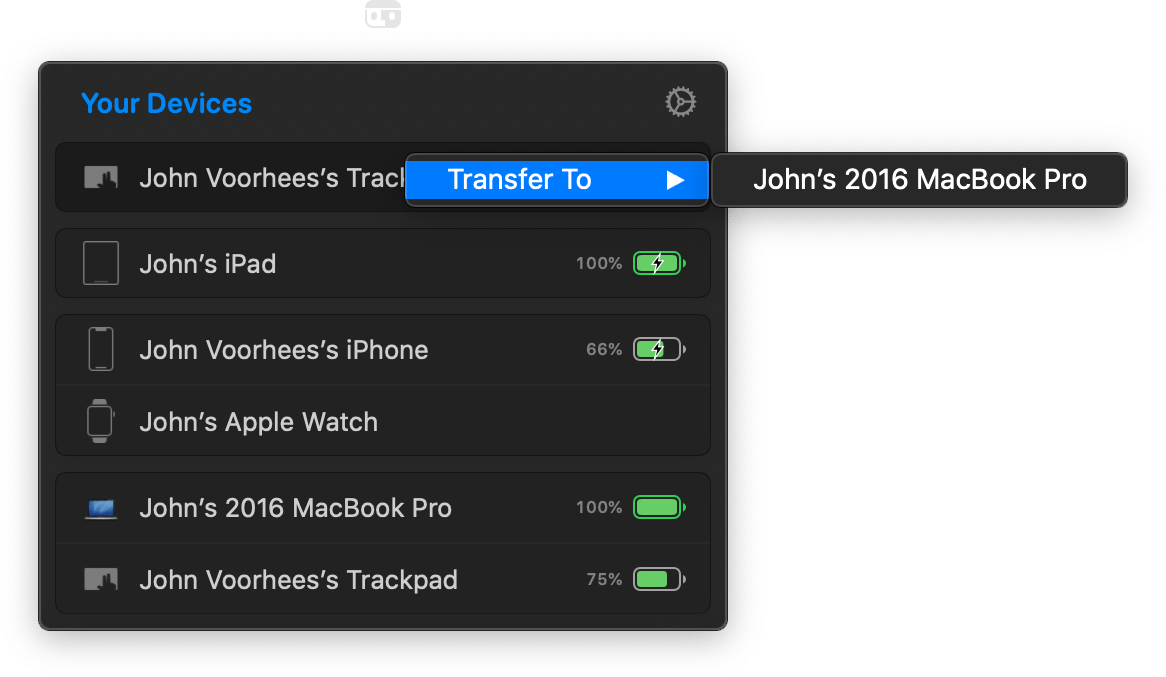
Transferring a connected Magic Trackpad from my Mac mini to my MacBook Pro.

Transferring a connected Magic Trackpad from my Mac mini to my MacBook Pro.

My favorite part of having AirBuddy 2 running on multiple Macs is the ability to transfer Bluetooth connections from one Mac to the other using the app’s Magic Handoff feature. I spent a lot of the summer with separate trackpads connected to two Macs as I switched back and forth, testing Big Sur. AirBuddy 2 provides an alternate desk-clearing option by letting you right-click the AirBuddy entry for a trackpad, mouse, or keyboard connected to the Mac you’re currently using and switch it to the other Mac. For anyone who runs multiple Macs, especially connected to the same display, this is a terrific feature.

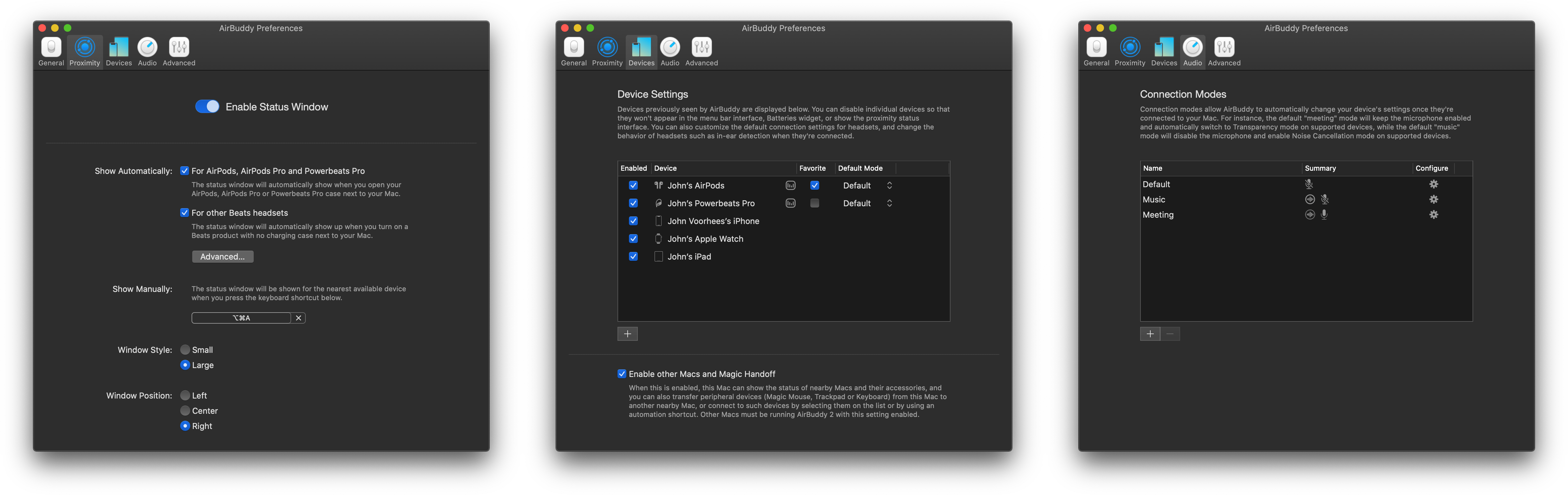
AirBuddy 2 includes extensive settings to customize its behavior to suit your tastes.

AirBuddy 2 includes extensive settings to customize its behavior to suit your tastes.

AirBuddy 2 is highly customizable too. In addition to setting up custom listening modes, which I covered above, you can open the app’s settings from the menu bar and assign keyboard shortcuts to display the headphone status window and to quickly connect to a favorite device, switch listening modes, toggle your microphone on or off, and take other actions. Settings also lets you specify the devices that are shown in the menu bar app, your favorite headphones for quick connection purposes, the status window’s size, and where it appears onscreen, among other things. You can even view historical battery and usage data from the Devices section of the app’s settings.

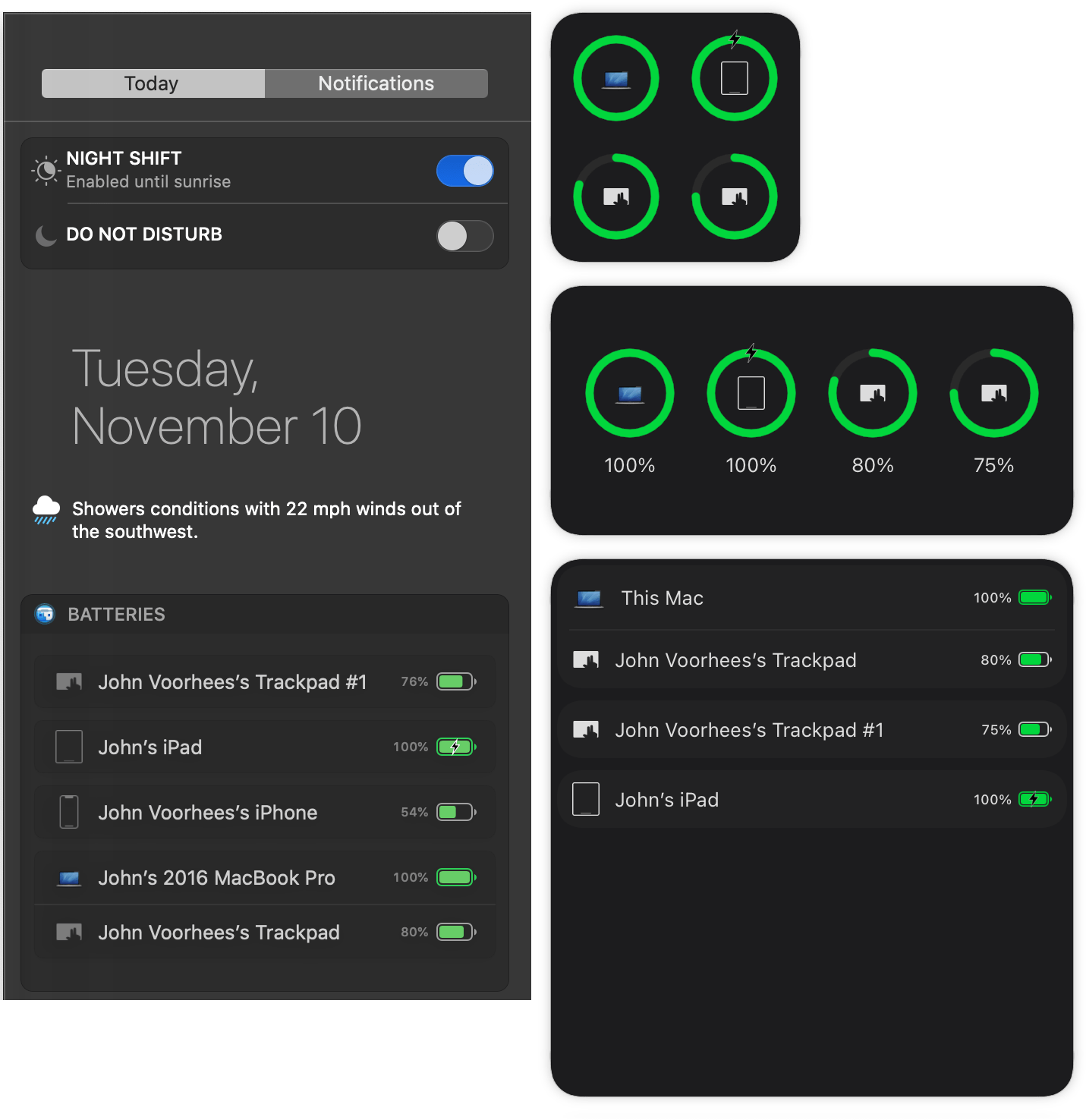
AirBuddy 2's Catalina widget (left) and Big Sur three sizes of widgets (right).

AirBuddy 2’s Catalina widget (left) and Big Sur three sizes of widgets (right).

It’s also worth noting that AirBuddy 2 also includes a widget that works with both Catalina and Big Sur to display the battery status of each of the devices it tracks.

AirBuddy started as an app that brought an iOS feature for headphones to the Mac. With AirBuddy 2, the app’s functionality has been greatly expanded beyond anything Apple offers, making it indispensable for anyone who connects multiple wireless devices to their Macs. Not only can you quickly connect headphones, so they’re immediately ready for a meeting or for listening to music, but the app helps keep you on top of the battery status of every connected device.

AirBuddy has been available for pre-order since last month, but today is its official release date. You can purchase the app directly from the AirBuddy website for $9.99 for new users, $4.99 as an upgrade from the first version of AirBuddy if you bought it in 2019, and for free if you purchased the app in 2020.

Access Extra Content and Perks

Founded in 2015, Club MacStories has delivered exclusive content every week for nearly a decade.

What started with weekly and monthly email newsletters has blossomed into a family of memberships designed for every MacStories fan.

Learn more here and from our Club FAQs.

Club MacStories: Weekly and monthly newsletters via email and the web that are brimming with apps, tips, automation workflows, longform writing, early access to the MacStories Unwind podcast, periodic giveaways, and more;

Club MacStories+: Everything that Club MacStories offers, plus an active Discord community, advanced search and custom RSS features for exploring the Club’s entire back catalog, bonus columns, and dozens of app discounts;

Club Premier: All of the above and AppStories+, an extended version of our flagship podcast that’s delivered early, ad-free, and in high-bitrate audio.

Learn more here and from our Club FAQs.


BestPhotos 3 Introduces Calendar View, A New Compare Interface, and More

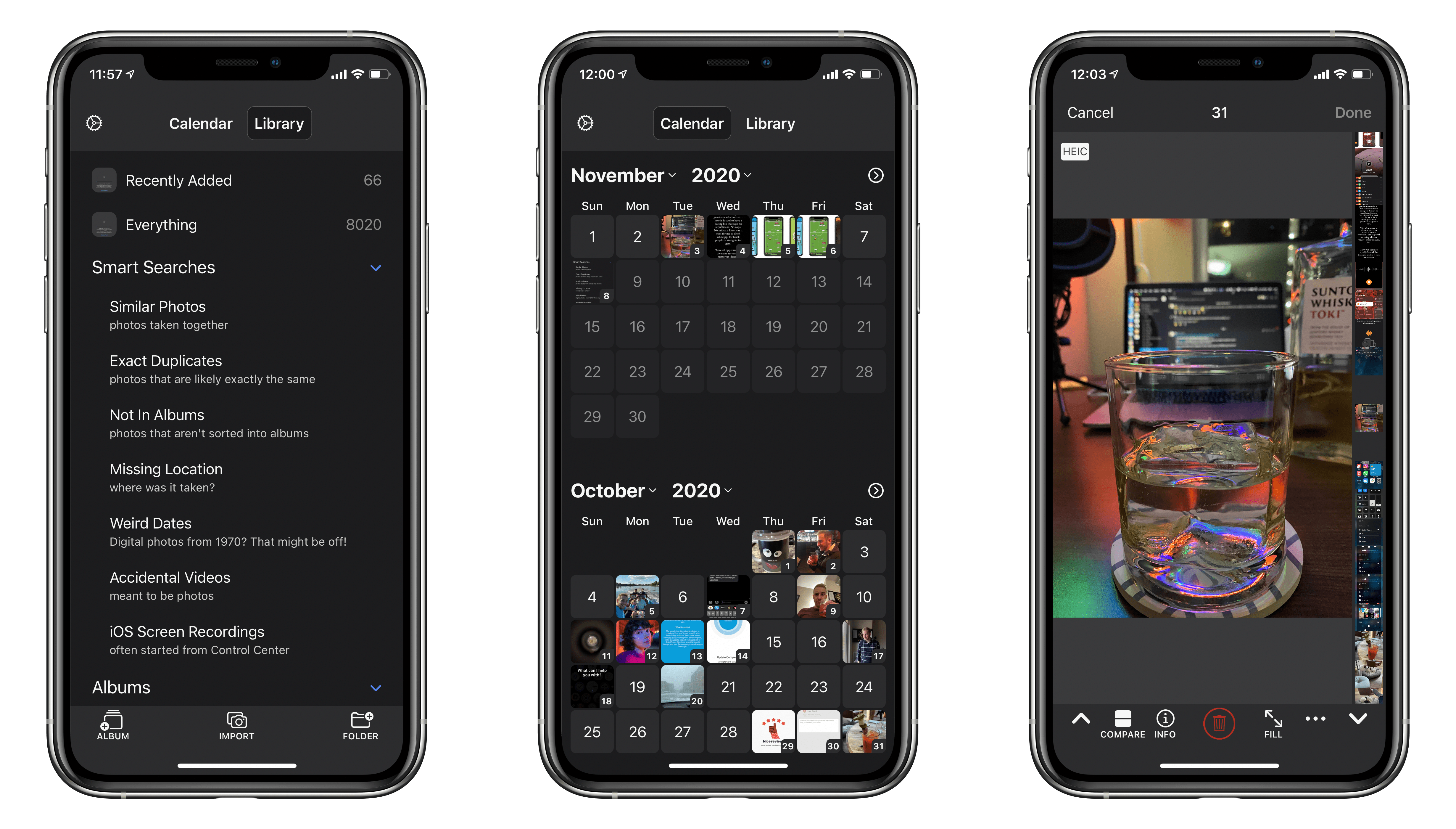
BestPhotos is a streamlined photo management app for iOS and iPadOS, which we last covered a couple years ago. The app seeks to help users clean up their photo libraries using smart searches, photo comparisons, and metadata edits. Today marks the release of BestPhotos 3.0, a major update in which developer Eric Welander has added a variety of useful new features and improvements.

Read more

Access Extra Content and Perks

Founded in 2015, Club MacStories has delivered exclusive content every week for nearly a decade.

What started with weekly and monthly email newsletters has blossomed into a family of memberships designed for every MacStories fan.

Learn more here and from our Club FAQs.

Club MacStories: Weekly and monthly newsletters via email and the web that are brimming with apps, tips, automation workflows, longform writing, early access to the MacStories Unwind podcast, periodic giveaways, and more;

Club MacStories+: Everything that Club MacStories offers, plus an active Discord community, advanced search and custom RSS features for exploring the Club’s entire back catalog, bonus columns, and dozens of app discounts;

Club Premier: All of the above and AppStories+, an extended version of our flagship podcast that’s delivered early, ad-free, and in high-bitrate audio.

Learn more here and from our Club FAQs.


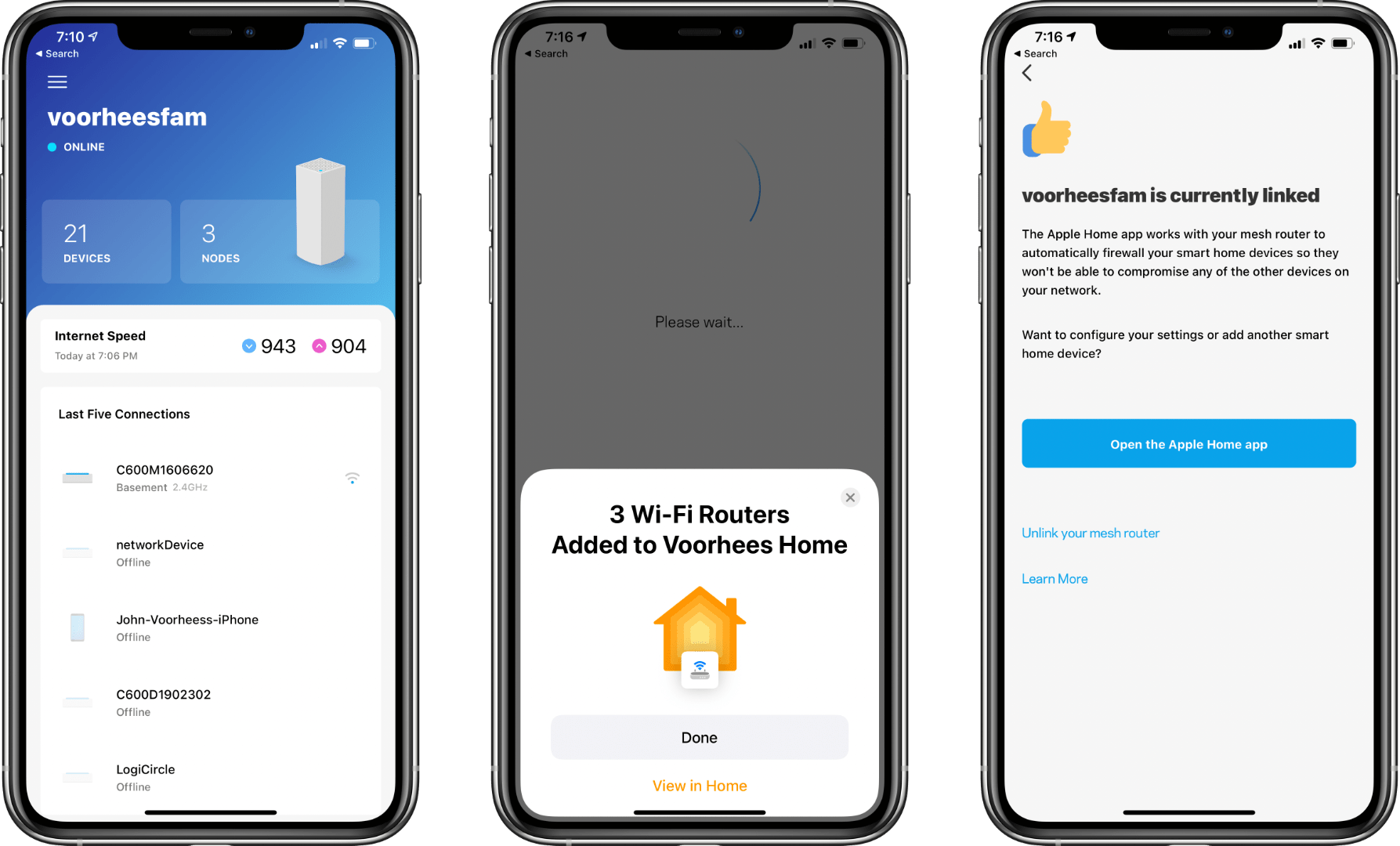
Managing the Internet Access of HomeKit Devices with the Linksys Velop Mesh WiFi Router System

At WWDC 2019, Apple announced that HomeKit support would be coming to WiFi routers. Not a lot was known about what that would entail, until recently, when new and updated routers with HomeKit functionality began to hit store shelves. A few weeks ago, Linksys sent me its Velop Tri-Band Mesh WiFi Router System that added HomeKit support late last month. I’ve been using the system for a few weeks now and want to share the setup process and explain what HomeKit-enabled routers offer that other routers don’t.

Read more

Access Extra Content and Perks

Founded in 2015, Club MacStories has delivered exclusive content every week for nearly a decade.

What started with weekly and monthly email newsletters has blossomed into a family of memberships designed for every MacStories fan.

Learn more here and from our Club FAQs.

Club MacStories: Weekly and monthly newsletters via email and the web that are brimming with apps, tips, automation workflows, longform writing, early access to the MacStories Unwind podcast, periodic giveaways, and more;

Club MacStories+: Everything that Club MacStories offers, plus an active Discord community, advanced search and custom RSS features for exploring the Club’s entire back catalog, bonus columns, and dozens of app discounts;

Club Premier: All of the above and AppStories+, an extended version of our flagship podcast that’s delivered early, ad-free, and in high-bitrate audio.

Learn more here and from our Club FAQs.