
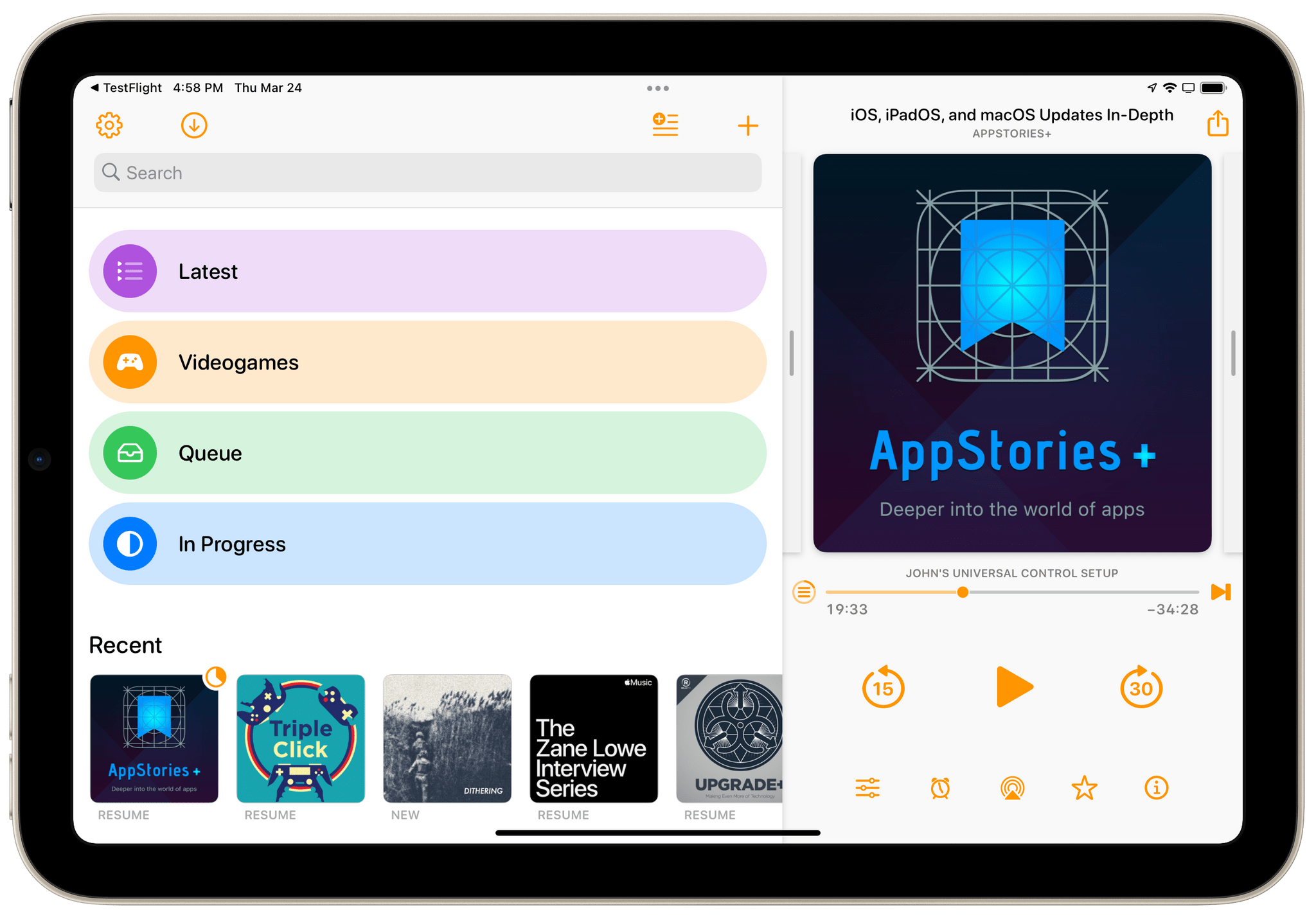
I’ve used a lot of different podcast apps over the years, but the one I return to most often and have used the most is Overcast by Marco Arment. The app’s customizability, Smart Speed and Voice Boost audio enhancement technologies, and Shortcuts support are unrivaled among podcast players. I also appreciate that when episodes of the shows I love are published, they usually appear in Overcast first.
Posts in reviews
Overcast Redesign Enhances Podcast Navigation with an Emphasis on Playlists and Recent Episodes

Access Extra Content and Perks
Founded in 2015, Club MacStories has delivered exclusive content every week for nearly a decade.
What started with weekly and monthly email newsletters has blossomed into a family of memberships designed for every MacStories fan.
Club MacStories: Weekly and monthly newsletters via email and the web that are brimming with apps, tips, automation workflows, longform writing, early access to the MacStories Unwind podcast, periodic giveaways, and more;
Club MacStories+: Everything that Club MacStories offers, plus an active Discord community, advanced search and custom RSS features for exploring the Club’s entire back catalog, bonus columns, and dozens of app discounts;
Club Premier: All of the above and AppStories+, an extended version of our flagship podcast that’s delivered early, ad-free, and in high-bitrate audio.
ComicTrack: A Beautifully-Designed, Flexible Way to Organize Your Comic Book Reading
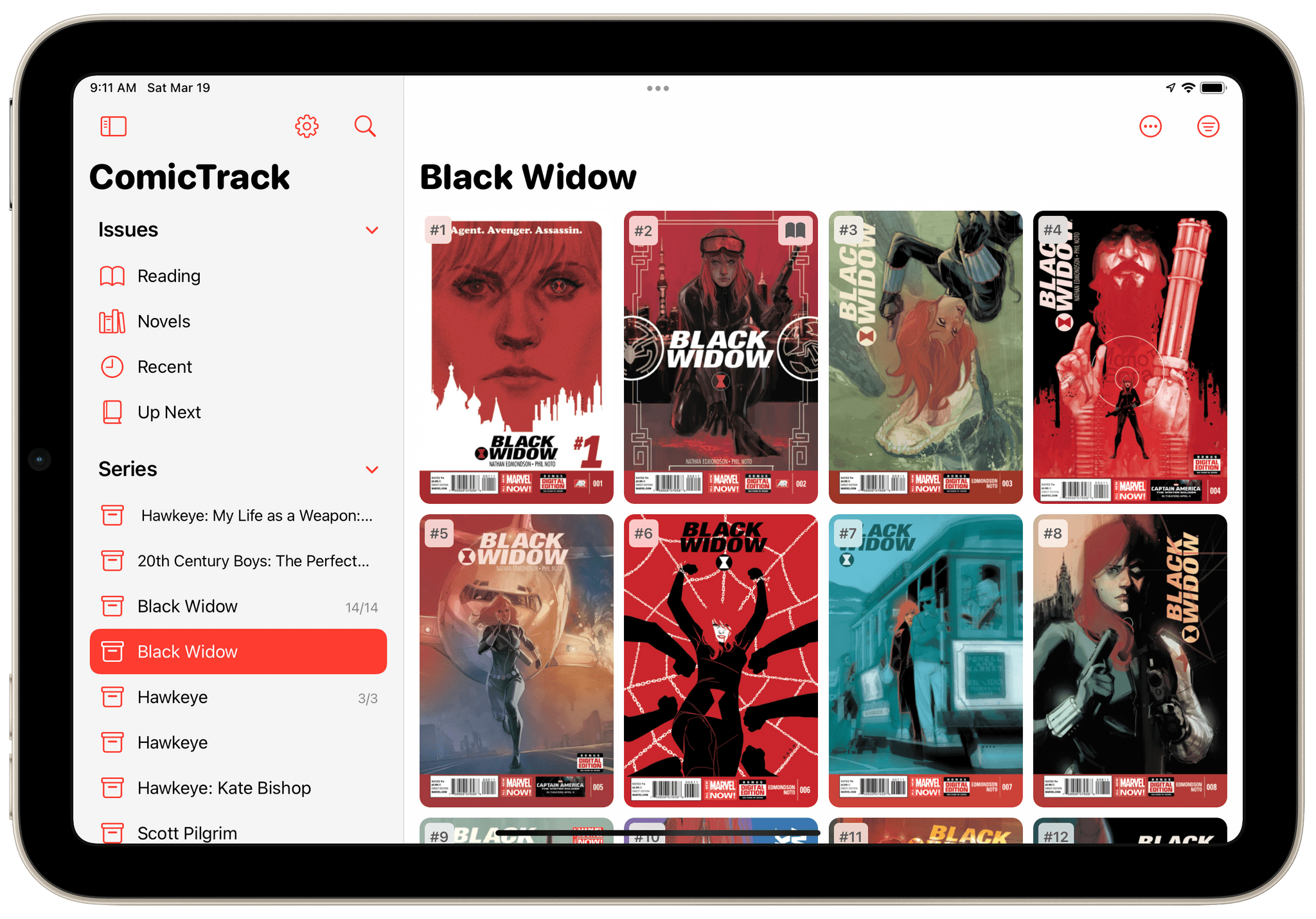
ComicTrack is a new app from Joe Kimberlin for tracking and organizing the comic books you’ve read, are currently reading, and want to read. The idea is similar to his excellent videogame tracking app, GameTrack, but applied to comics. I’ve been using ComicTrack for a couple of weeks now, and it’s excellent. Of course, you’ll also need a separate app to read your comics, but having a dedicated app to organize what I’m reading and plan to read has single-handedly gotten me back into reading comics more regularly.
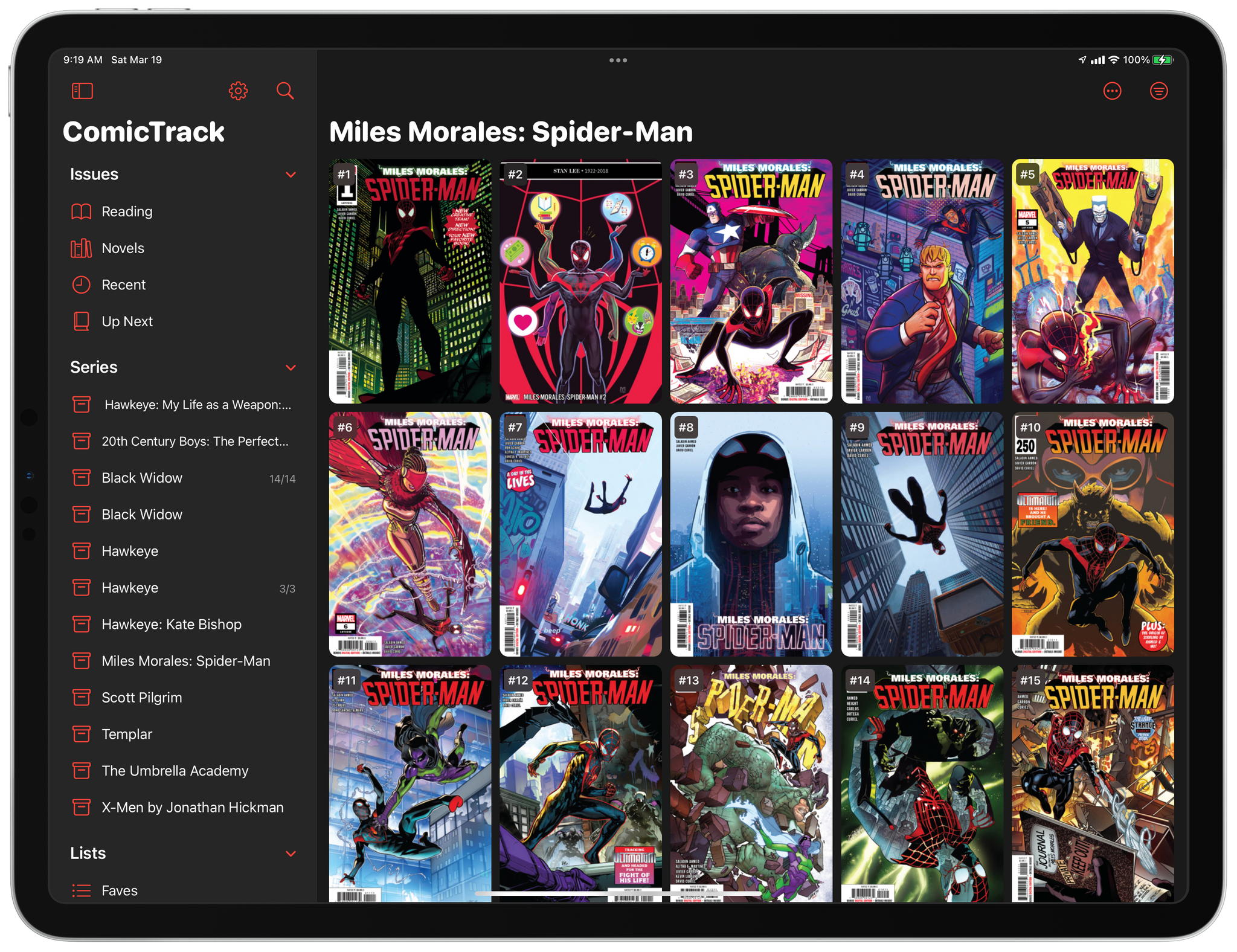
For context, I’ve always been a very casual comic book fan. I have Comixology and Shonen Jump installed on my iPad mini, but I often go weeks or months without touching either. It’s not a lack of interest, so much as a combination of not knowing where to start and having limited free time. ComicTrack hasn’t magically granted me more free time, but it has made getting started much easier by reducing the friction of picking something to read.
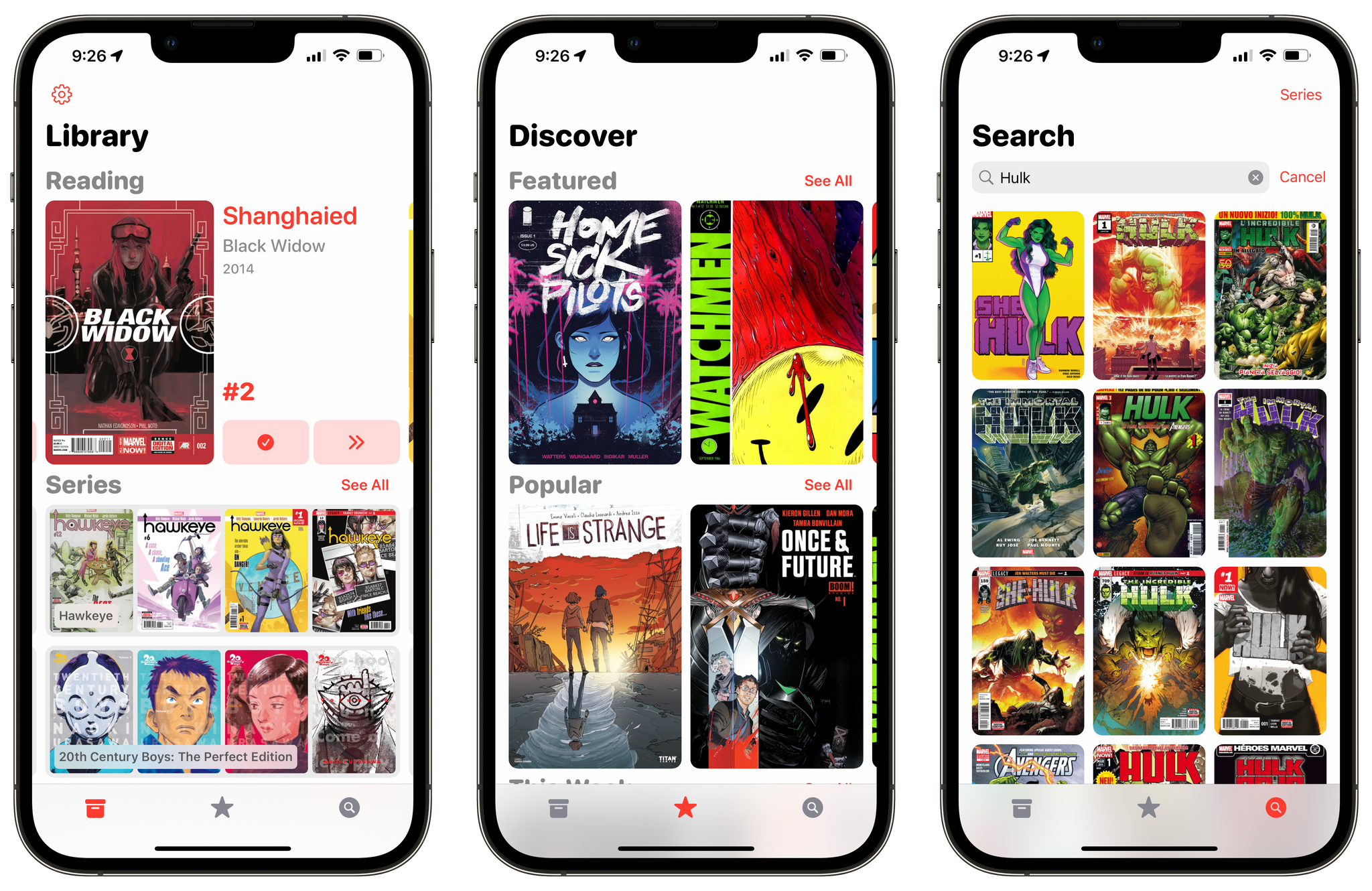
I’m going to focus on the iPad version of ComicTrack because that’s where I read most of my comics, but the app also works and looks great on the iPhone and Mac, as you’ll see in the screenshots below. Everything syncs over iCloud too. Also, although I spend most of my time using the iPad version of ComicTrack, I find the iPhone and Mac apps indispensable for collecting new ideas of things to read. I run across comic books all the time via RSS, Twitter, podcasts, and friends’ recommendations. That doesn’t just happen when I’m using my iPad, but with ComicTrack on all the platforms I use, it’s easy to add something that catches my eye.
Access Extra Content and Perks
Founded in 2015, Club MacStories has delivered exclusive content every week for nearly a decade.
What started with weekly and monthly email newsletters has blossomed into a family of memberships designed for every MacStories fan.
Club MacStories: Weekly and monthly newsletters via email and the web that are brimming with apps, tips, automation workflows, longform writing, early access to the MacStories Unwind podcast, periodic giveaways, and more;
Club MacStories+: Everything that Club MacStories offers, plus an active Discord community, advanced search and custom RSS features for exploring the Club’s entire back catalog, bonus columns, and dozens of app discounts;
Club Premier: All of the above and AppStories+, an extended version of our flagship podcast that’s delivered early, ad-free, and in high-bitrate audio.
WaterMinder 5.1 Delivers a Ground-Up Redesign of Its Apple Watch App and More
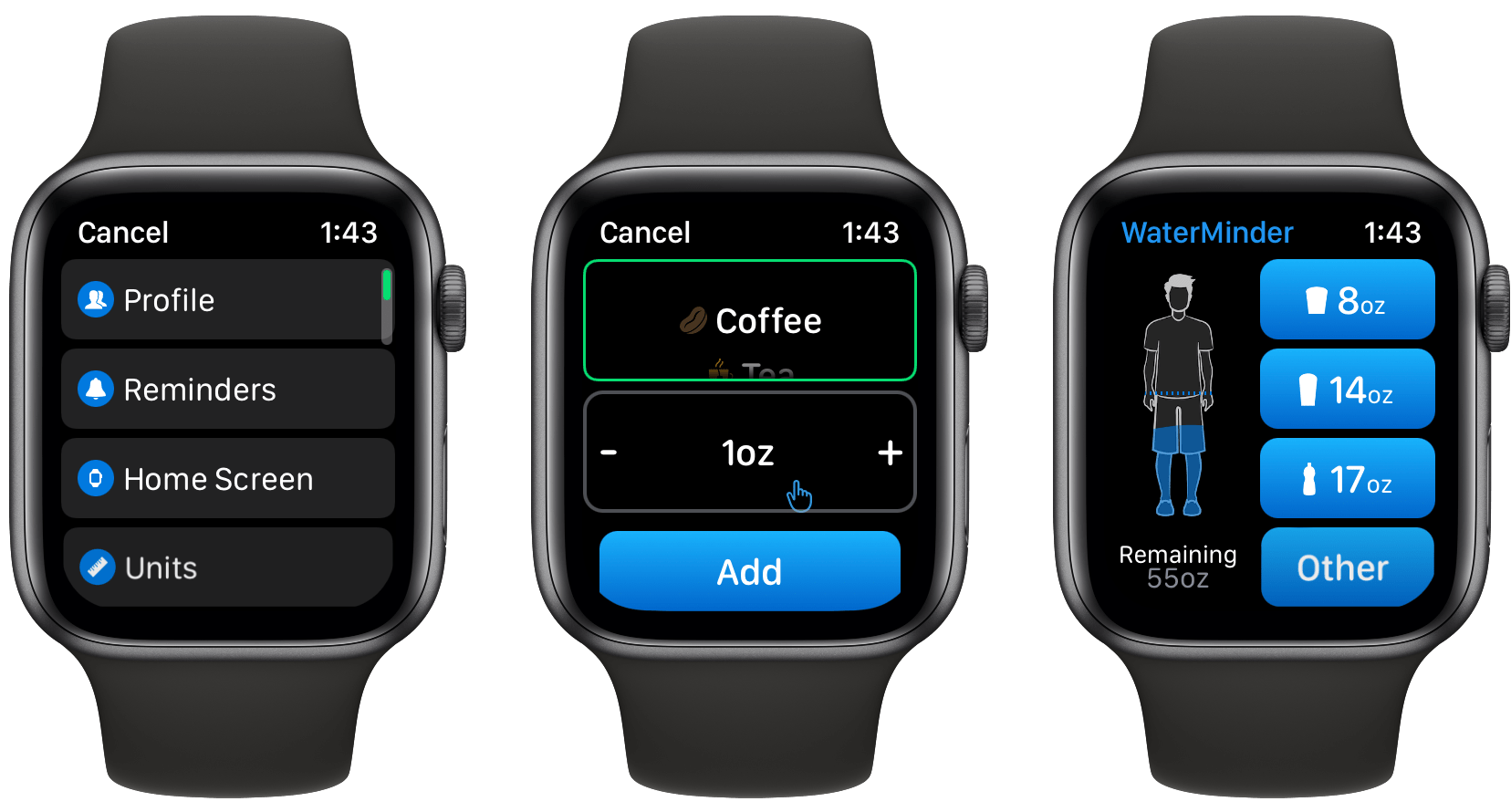
Today, there are a lot of apps that track hydration, but for me, the standard-bearer for the category has always been and remains WaterMinder by Funn Media. The app has evolved a lot since we first covered it in 2016, but what hasn’t changed is its emphasis on fast data entry, a clear, easy-to-use interface, and the adoption of the latest Apple technologies. With version 5.1, the WaterMinder watchOS app has been rebuilt from the ground up using SwiftUI. A handful of other nice additions have found their way into the iPhone and iPad apps too.
Access Extra Content and Perks
Founded in 2015, Club MacStories has delivered exclusive content every week for nearly a decade.
What started with weekly and monthly email newsletters has blossomed into a family of memberships designed for every MacStories fan.
Club MacStories: Weekly and monthly newsletters via email and the web that are brimming with apps, tips, automation workflows, longform writing, early access to the MacStories Unwind podcast, periodic giveaways, and more;
Club MacStories+: Everything that Club MacStories offers, plus an active Discord community, advanced search and custom RSS features for exploring the Club’s entire back catalog, bonus columns, and dozens of app discounts;
Club Premier: All of the above and AppStories+, an extended version of our flagship podcast that’s delivered early, ad-free, and in high-bitrate audio.
Tripsy 2.10 Adds Web-Based Itineraries and Expanded Travel Email Forwarding
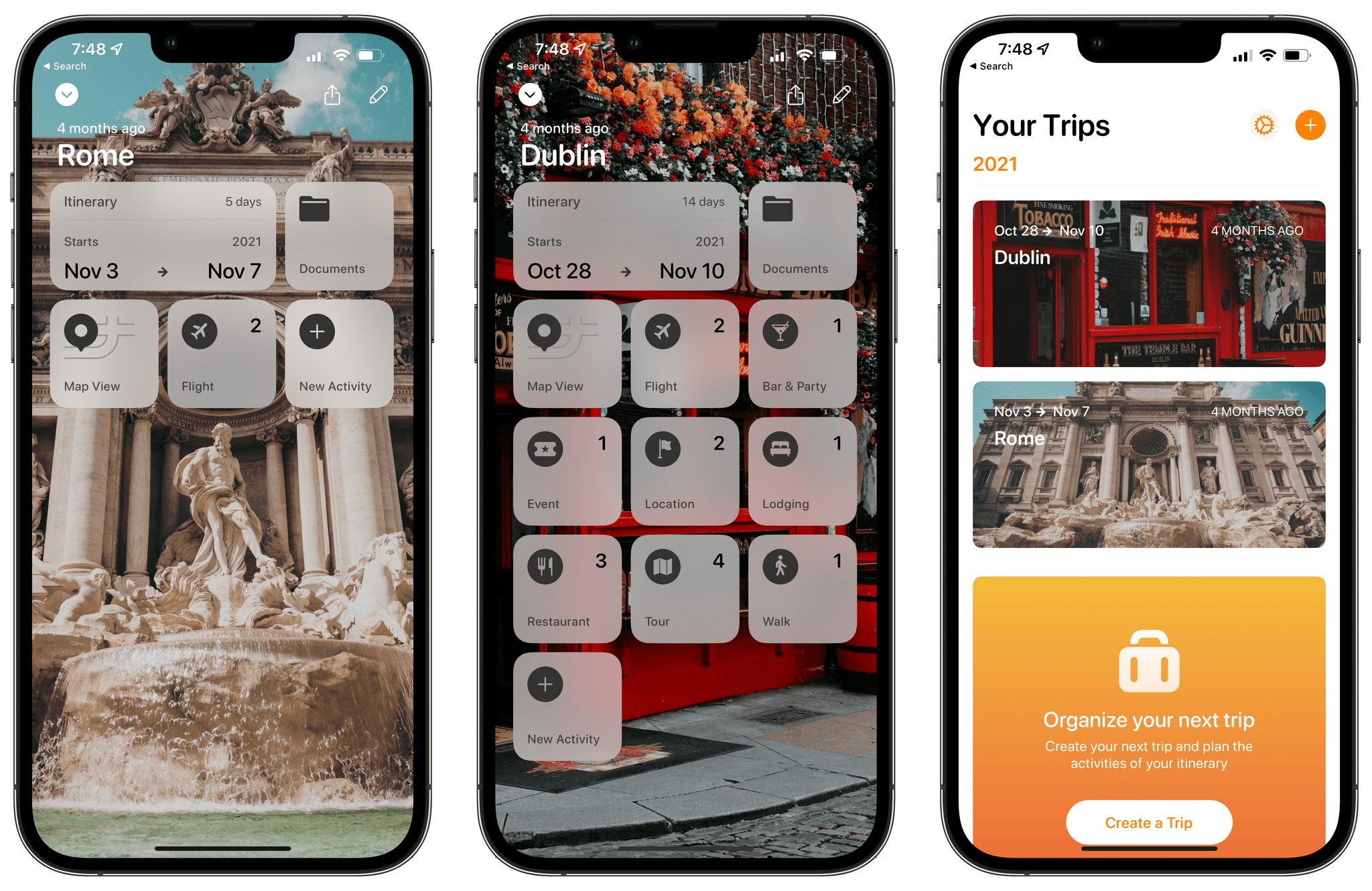
Tripsy is my favorite travel app because it’s not just about getting from Point A to Point B. To me, the app defines the difference between trips and travel. Lots of apps can track travel information about your flights or show you where your hotel is on a map. Tripsy can do those things too, and it’s good at them. However, where Tripsy shines brightest and sets itself apart from other apps is by going beyond those nuts and bolts essentials and focusing the things you want to do and see on your trip.
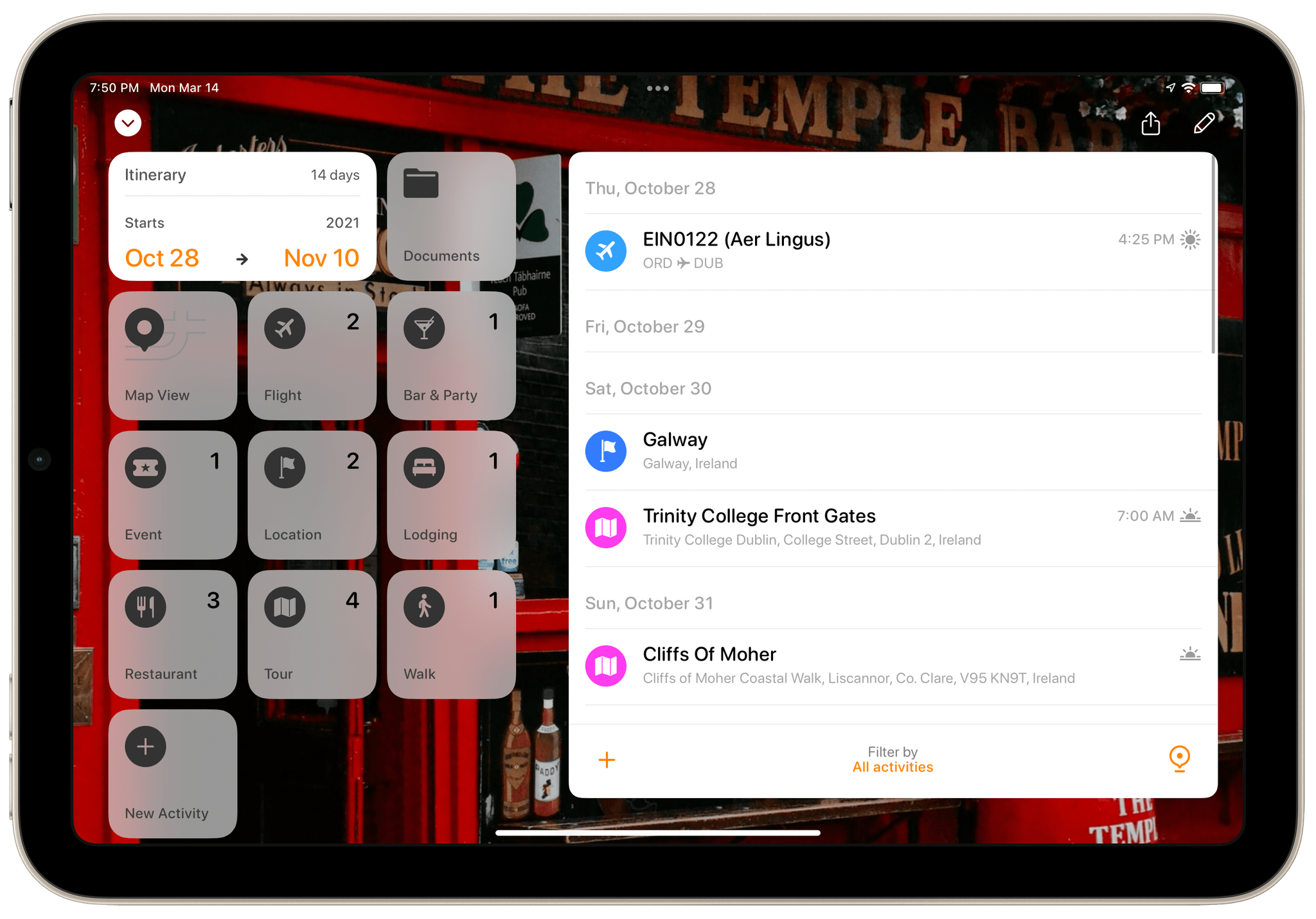
We’ve covered Tripsy before, so if you’re brand new to the app, be sure to check out that review, which covered the app’s 2.0 release. That update featured a beautiful modern card-style design, loads of trip inspiration and planning tools to organize travel, lodging, activities, dining, and more in one neatly organized app that works on the iPhone, iPad, Apple Watch, and more recently, the Mac.
Unfortunately, that update was also released in the fall of 2019, so I only got a chance to use it once before COVID ended my travel plans for a while. However, the travel outlook is brighter in many corners of the world today, and pent-up demand has people revisiting deferred trips, me included. If you’re in a similar situation and have a trip in your future, I encourage you to give today’s Tripsy update a look because, with version 2.10, Tripsy makes it easier to organize a trip than ever before.
Access Extra Content and Perks
Founded in 2015, Club MacStories has delivered exclusive content every week for nearly a decade.
What started with weekly and monthly email newsletters has blossomed into a family of memberships designed for every MacStories fan.
Club MacStories: Weekly and monthly newsletters via email and the web that are brimming with apps, tips, automation workflows, longform writing, early access to the MacStories Unwind podcast, periodic giveaways, and more;
Club MacStories+: Everything that Club MacStories offers, plus an active Discord community, advanced search and custom RSS features for exploring the Club’s entire back catalog, bonus columns, and dozens of app discounts;
Club Premier: All of the above and AppStories+, an extended version of our flagship podcast that’s delivered early, ad-free, and in high-bitrate audio.
Logger Is the Missing Console for Shortcuts Power Users
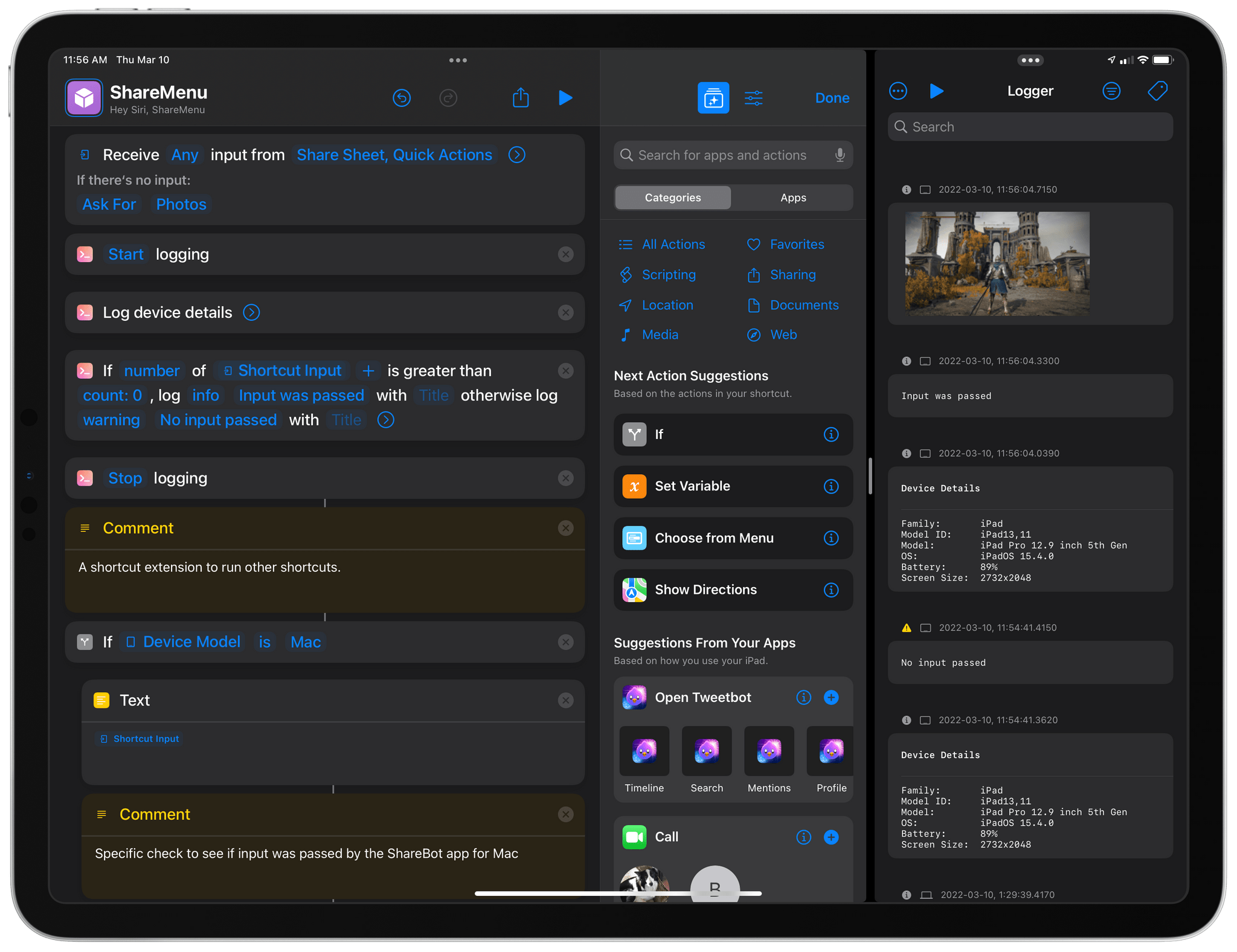
Indie developer Alex Hay has long pushed the boundaries of what third-party developers can build with the SiriKit framework and Shortcuts integrations on Apple platforms.
In late 2019, his Toolbox Pro app redefined what it means to complement Apple’s Shortcuts app with additional actions, creating an entirely new sub-genre of headless utilities designed to provide additional actions with configurable parameters. Recently, Hay introduced Nautomate, another utility that provides users with Shortcuts actions to integrate with the Notion API without having to write a single line of code. And today, Hay is launching Logger, another Shortcuts-compatible app that is similar to his previous ones, but with a twist: rather than adding actions for external services or apps such as Apple Music and Notion, Logger offers actions to create the troubleshooting console that has always been missing from Shortcuts.
Access Extra Content and Perks
Founded in 2015, Club MacStories has delivered exclusive content every week for nearly a decade.
What started with weekly and monthly email newsletters has blossomed into a family of memberships designed for every MacStories fan.
Club MacStories: Weekly and monthly newsletters via email and the web that are brimming with apps, tips, automation workflows, longform writing, early access to the MacStories Unwind podcast, periodic giveaways, and more;
Club MacStories+: Everything that Club MacStories offers, plus an active Discord community, advanced search and custom RSS features for exploring the Club’s entire back catalog, bonus columns, and dozens of app discounts;
Club Premier: All of the above and AppStories+, an extended version of our flagship podcast that’s delivered early, ad-free, and in high-bitrate audio.
Nintendo Switch Online 2.0 Gets a Redesign and Adds a Few New Features
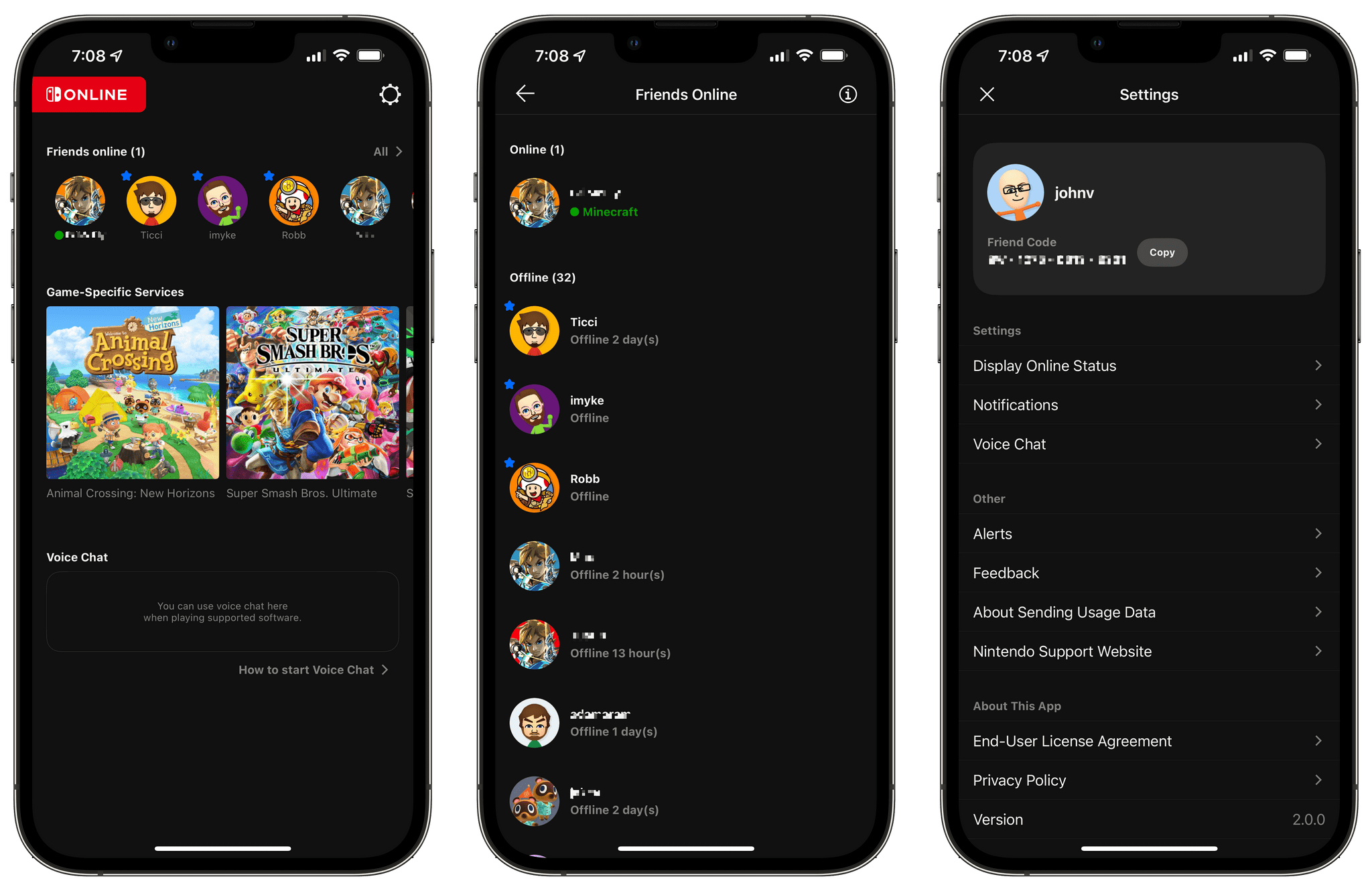
Since it debuted, Nintendo Switch Online’s utility has been primarily limited to initiating voice chats and other online features in the Switch games that support them. That’s still the core of version 2.0, but the app has been redesigned and adds a couple of nice new features.
The new design divides the screen into a scrolling row of friends along the top, thumbnails of the games you own that support online services, like Animal Crossing, Super Smash Brothers Ultimate, and Splatoon 2, and the app’s Voice Chat feature. It’s a simple, good-looking design, but the abundance of blank space, if you’re not using voice chat, reveals just how little else the app has to offer.
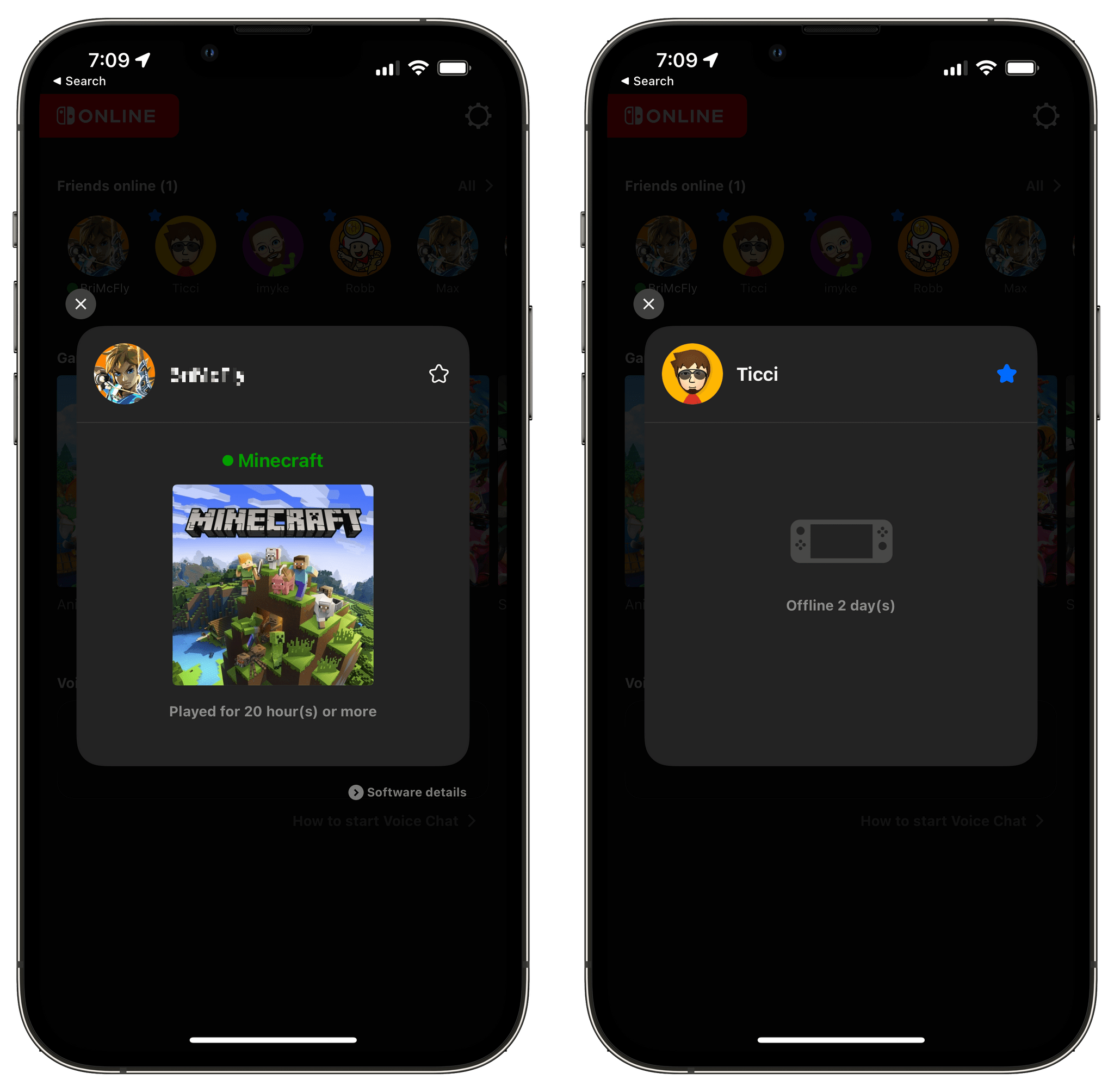
The row of friends indicates who is currently online and who you’ve marked as a ‘Best Friend,’ which pins their Mii avatars to the beginning of your friends list. Tapping on a Mii shows you what someone who is online is playing or when they were last online. The game-specific thumbnails act as launchers for each game’s service, and voice chat is only activated if you first start a game on the Switch in a mode that supports it.
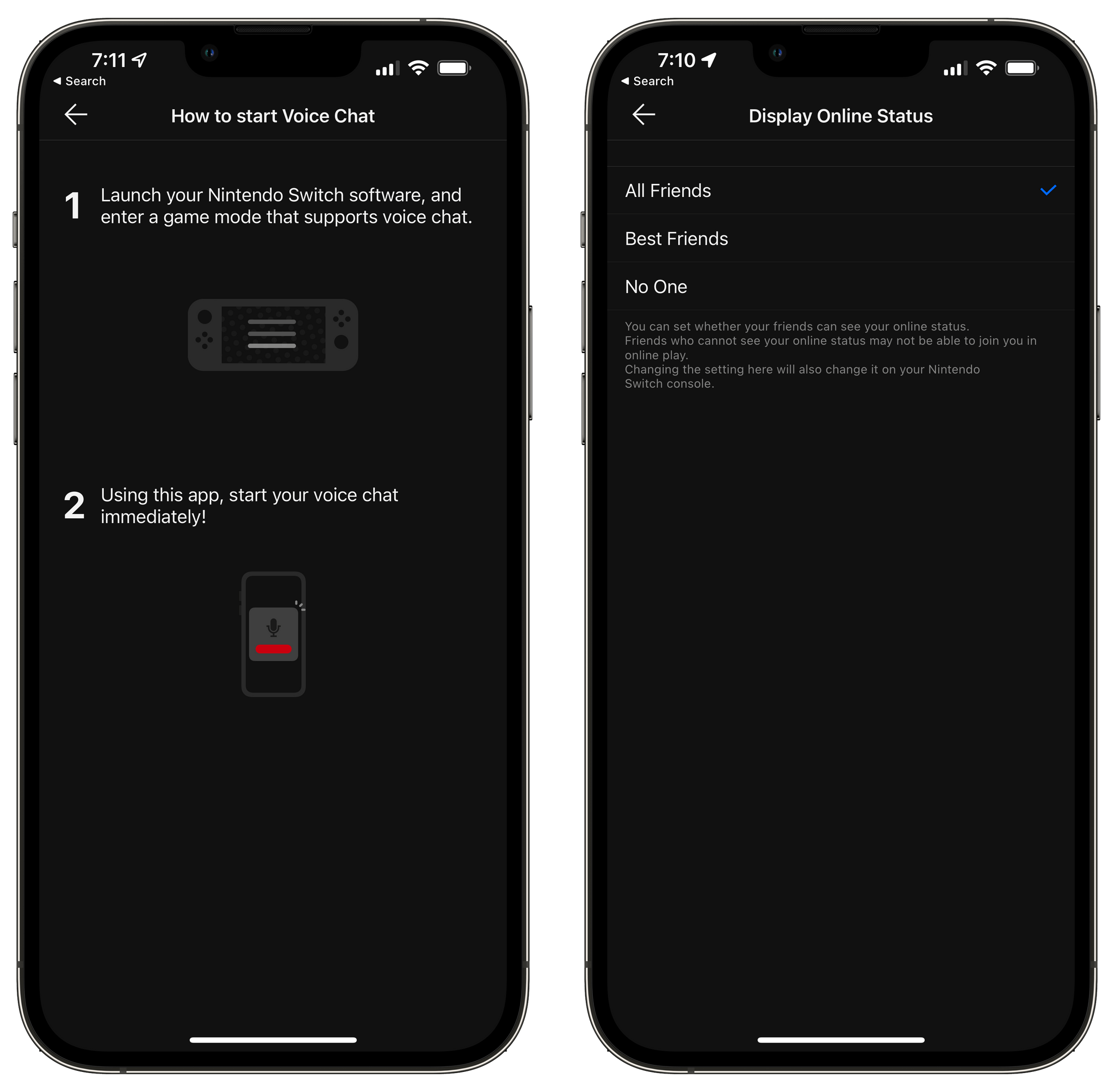
Nintendo Switch Online walks you through the process of starting a voice chat and lets you manage your visibility to friends.
A small but welcome touch is the ability to copy your friend code in the app’s settings. Previously you had to grab your Switch, dig into your profile, and manually copy the information if you wanted to send it to someone. Personally, that’s been a huge drag on how often I share my friend code, so I appreciate the change.
It’s good to see Nintendo Switch Online updated, but it’s still a little disheartening to think that it took the company five years to get to a version 2.0 with such modest feature additions. Still, the update is an improvement, and hopefully, it’s also a sign that Nintendo is prepared to invest more time and effort into the app as a way to enhance the Switch experience.
Nintendo Switch Online is available as a free update on the App Store.
Access Extra Content and Perks
Founded in 2015, Club MacStories has delivered exclusive content every week for nearly a decade.
What started with weekly and monthly email newsletters has blossomed into a family of memberships designed for every MacStories fan.
Club MacStories: Weekly and monthly newsletters via email and the web that are brimming with apps, tips, automation workflows, longform writing, early access to the MacStories Unwind podcast, periodic giveaways, and more;
Club MacStories+: Everything that Club MacStories offers, plus an active Discord community, advanced search and custom RSS features for exploring the Club’s entire back catalog, bonus columns, and dozens of app discounts;
Club Premier: All of the above and AppStories+, an extended version of our flagship podcast that’s delivered early, ad-free, and in high-bitrate audio.
OutlineEdit 3 Offers a Fast, Keyboard-Driven Way to Outline Your Thoughts
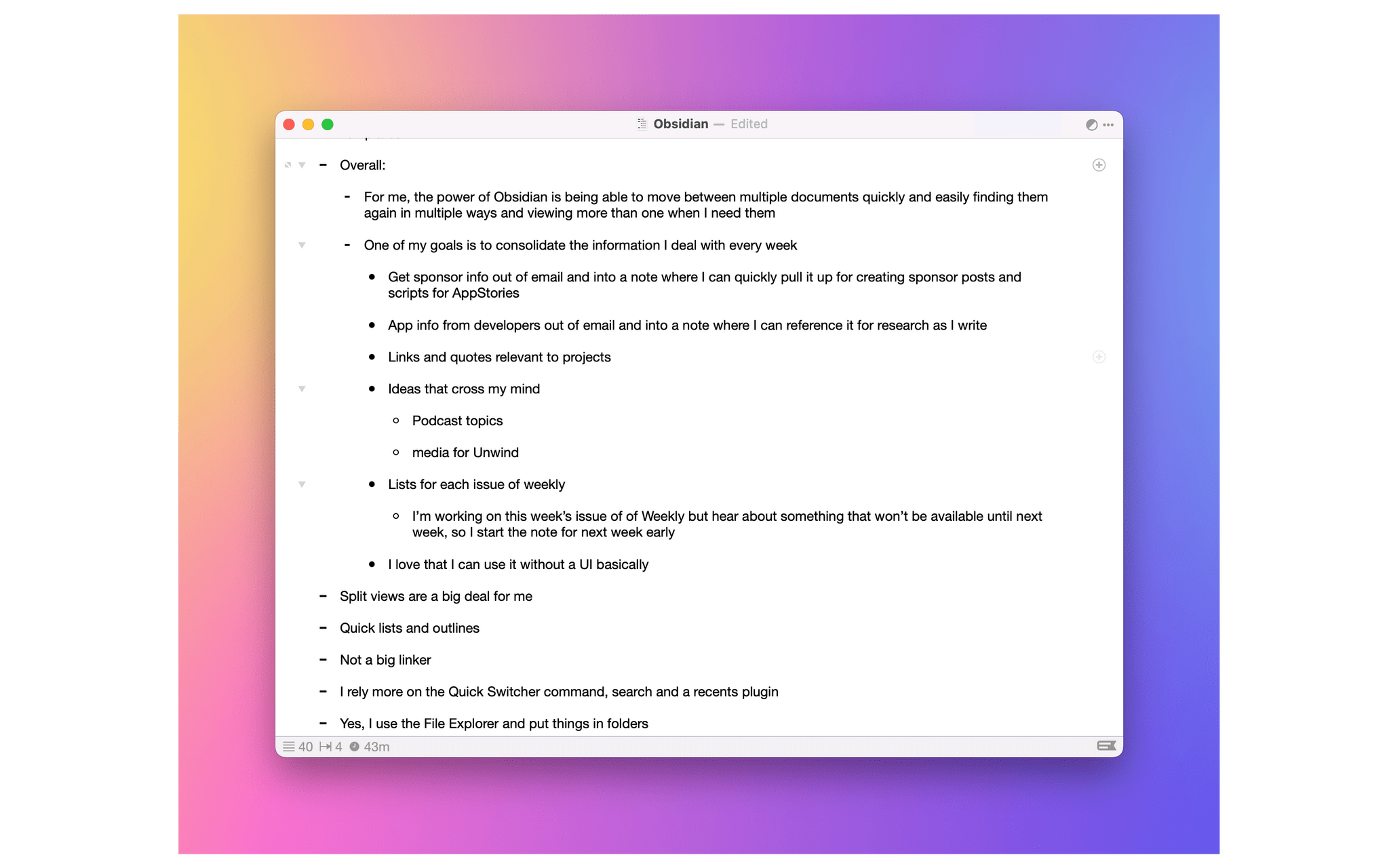
One of my earliest MacStories reviews was of OutlineEdit 1.0, a Mac-only outlining app that caught my eye with its attention to the kind of details that are a must for creating carefully structured outlines quickly. Version 3.0 recently landed on the Mac App Store and at its core, OutlineEdit is just as capable as ever at effortlessly turning ideas into outlines. The changes introduced with version 3.0 include refinements to existing features, as well as a handful of new features that extend OutlineEdit’s capabilities. Let’s take a look.
Access Extra Content and Perks
Founded in 2015, Club MacStories has delivered exclusive content every week for nearly a decade.
What started with weekly and monthly email newsletters has blossomed into a family of memberships designed for every MacStories fan.
Club MacStories: Weekly and monthly newsletters via email and the web that are brimming with apps, tips, automation workflows, longform writing, early access to the MacStories Unwind podcast, periodic giveaways, and more;
Club MacStories+: Everything that Club MacStories offers, plus an active Discord community, advanced search and custom RSS features for exploring the Club’s entire back catalog, bonus columns, and dozens of app discounts;
Club Premier: All of the above and AppStories+, an extended version of our flagship podcast that’s delivered early, ad-free, and in high-bitrate audio.
Obscura 3 Takes the App’s Design in a New Direction
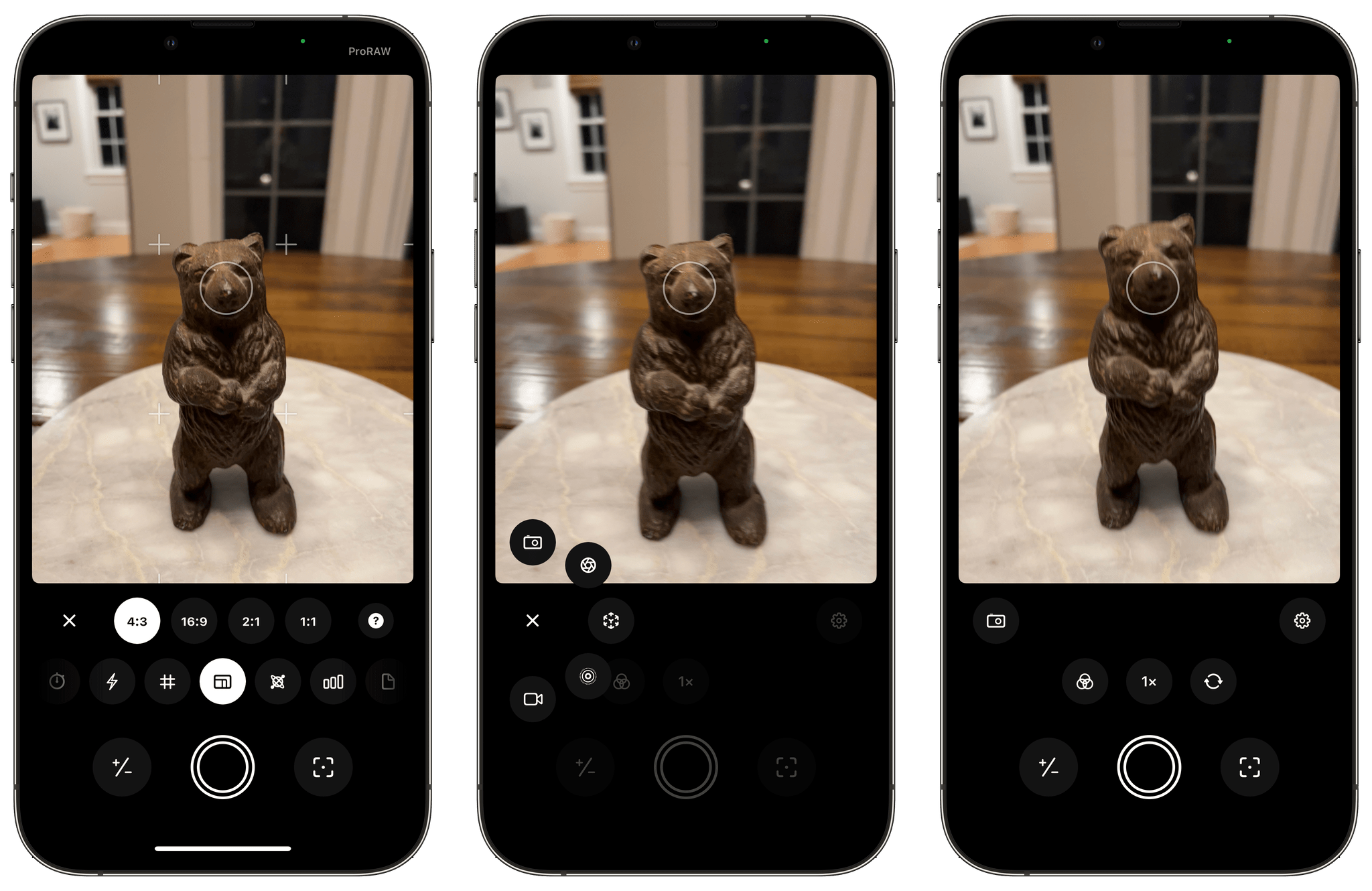
I’ve been following Ben McCarthy’s journey with Obscura since the app first launched in 2015, watching the app as it has evolved alongside changes to Apple’s camera hardware. Camera apps pose unique design challenges, especially for camera apps like Obscura, which has consistently aimed to deliver pro features that can be used one-handed on an iPhone. Those challenges have only continued to multiply since I wrote about Obscura 2 and its innovative Control Wheel.
With Obscura 3, which is a brand new app, McCarthy and the Obscura team have taken a new direction with the app’s design that’s better suited for the capabilities of Apple’s modern camera hardware. It’s a direction that remains true to the app’s historical design aesthetic and user experience while making changes that I expect will provide greater flexibility to quickly adapt to future camera innovations.
I’m going to focus on Obscura 3’s design because I haven’t tested every possible combination of features the app offers. It’s winter in the Chicago area and not the best time for photo walks. Still, I’ve spent enough time with the app to know that the new design works well, allowing users to step through its myriad of features with ease, so let’s take a closer look.
Access Extra Content and Perks
Founded in 2015, Club MacStories has delivered exclusive content every week for nearly a decade.
What started with weekly and monthly email newsletters has blossomed into a family of memberships designed for every MacStories fan.
Club MacStories: Weekly and monthly newsletters via email and the web that are brimming with apps, tips, automation workflows, longform writing, early access to the MacStories Unwind podcast, periodic giveaways, and more;
Club MacStories+: Everything that Club MacStories offers, plus an active Discord community, advanced search and custom RSS features for exploring the Club’s entire back catalog, bonus columns, and dozens of app discounts;
Club Premier: All of the above and AppStories+, an extended version of our flagship podcast that’s delivered early, ad-free, and in high-bitrate audio.
Fantastical 3.6 Adds In-App Scheduling and Quarter View
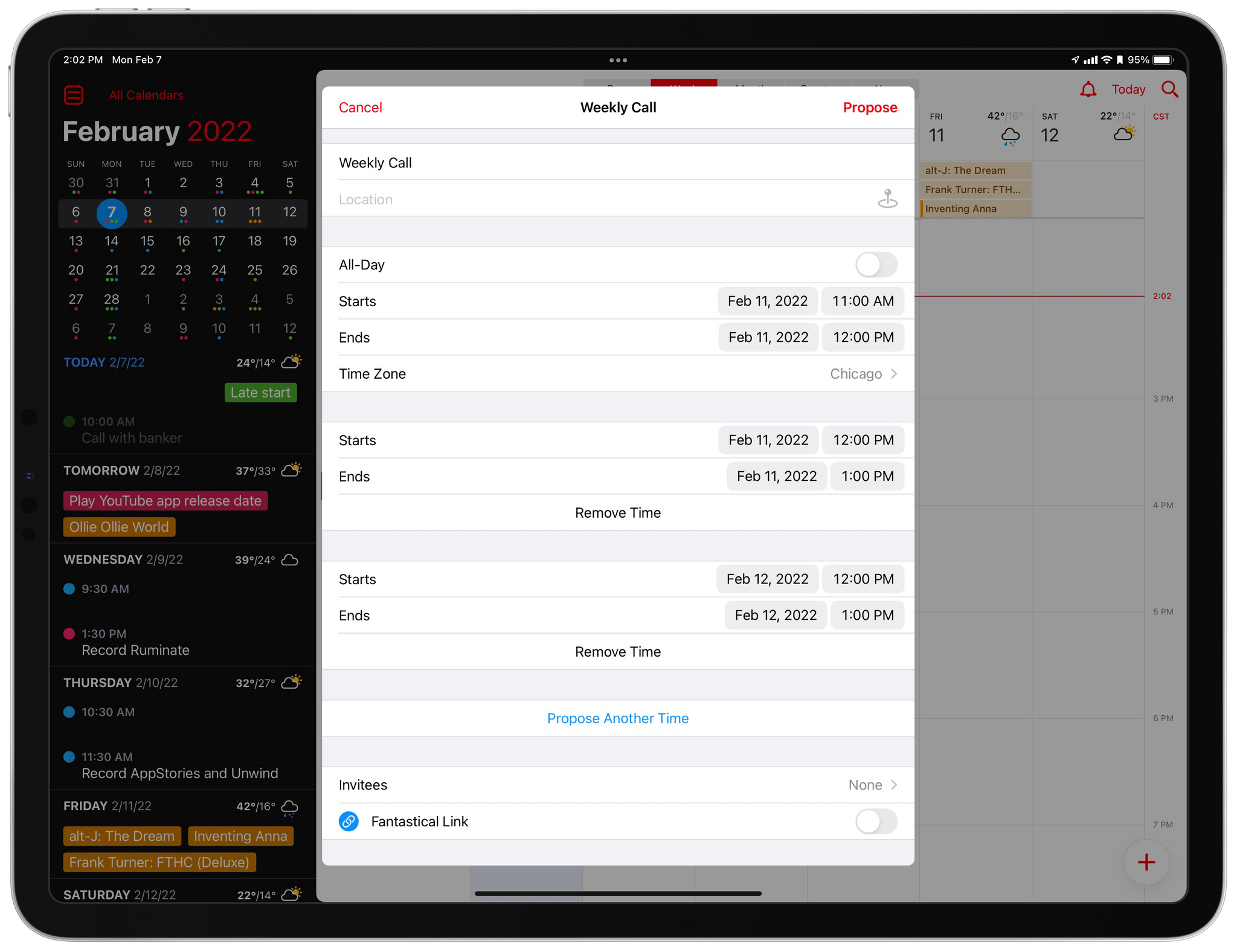
Calendar app Fantastical has added new and redesigned scheduling features that should improve short-term and long-term event planning for many of its users. Openings is a brand new feature for letting others know when they can schedule time on your calendar. Fantastical’s Calendly-like meeting organizing system has been refined too, and the app now includes a new quarter view for long-term planning.
Access Extra Content and Perks
Founded in 2015, Club MacStories has delivered exclusive content every week for nearly a decade.
What started with weekly and monthly email newsletters has blossomed into a family of memberships designed for every MacStories fan.
Club MacStories: Weekly and monthly newsletters via email and the web that are brimming with apps, tips, automation workflows, longform writing, early access to the MacStories Unwind podcast, periodic giveaways, and more;
Club MacStories+: Everything that Club MacStories offers, plus an active Discord community, advanced search and custom RSS features for exploring the Club’s entire back catalog, bonus columns, and dozens of app discounts;
Club Premier: All of the above and AppStories+, an extended version of our flagship podcast that’s delivered early, ad-free, and in high-bitrate audio.