This Week's Sponsor:

Copilot Money

Copilot Money, The Best Money Tracker, Launches on the Web – Limited-Time: Get 26% Off + 2 Months Free


Posts in reviews

Archiving Thoughts with Day One

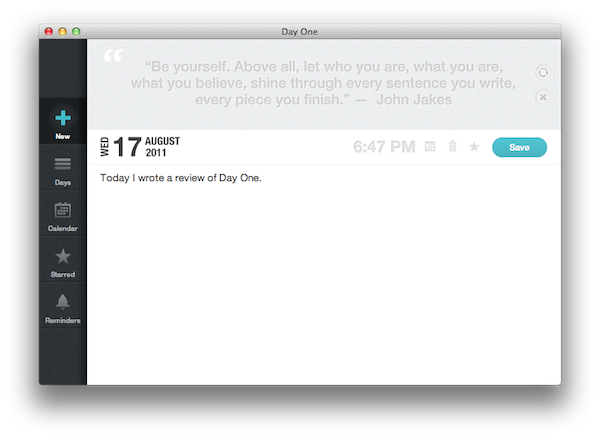
For me, the best way to remember things has always been to write them down somewhere. When I was in high school, I was that kind of student always taking notes on his notebook - furiously jotting down stuff fearing I might forget some important detail. With MacStories today, I try to keep my to-do list neatly organized in OmniFocus by quickly entering anything I have to do at any given time of the day or the week – OmniFocus makes it incredibly easy to enter tasks with a few keystrokes, and I “trust” the system to remember, collect and sort tasks for me so my brain can focus on getting those tasks done or something else entirely. I try to keep my memory in good shape, but when information becomes too much to handle I know I can rely on OmniFocus, Evernote and Dropbox to store all my tasks, notes and documents – the great thing about apps nowadays is that I’m not forced to exercise my brain for this kind of activity.

There’s one thing I never really considered storing in a digital archiving app – memories. I’m talking about things like “what did I enjoy doing today” or “I decided to take a walk with my girlfriend” – specific moments that matter in life, that are important, but which our brains often blur and forget after some time to make room for new data to process and maintain. Let’s be honest: do you remember the exact day and context when you ate that fantastic Italian pizza seven months ago? You probably have a vague recollection of what it tasted like and maybe you even remember the restaurant owner’s Italian accent, but you can’t quite get your mind around every single detail that made that moment so special. Either that, or you were busy tweeting a photo of your pizza while you were eating it.

I try to enjoy every moment, but there’s so much the human brain can remember and it’s perfectly normal something will get lost in the process of assimilating thoughts and processing them to turn them into memories and experiences. Read more


Luminance Is An Elegant Photo Editor for iOS

On the Mac, there’s no shortage of photo editors: from Aperture and Lightroom for those users who want more control over how their photos are processed and organized to more lightweight and user-friendly solutions like FX Photo Studio or The Iconfactory’s Flare, one can stay assured photos imported on a Mac will always find a proper companion app to be edited, sorted in collections, and shared online on Facebook or Flickr. On iOS, the situation is quite different: because the iPhone is a portable camera itself, there’s been a surge of apps like Instagram or Camera+, which allow users to shoot, edit, and upload photos using a single interface to do it all. Whereas the insanely successful Instagram has managed to gain millions of users because of its simple approach to lightweight photo editing and one-tap uploading, others apps like the aforementioned Camera+ or Camera Genius give users more options and functionalities such as advanced image filter adjustments, effects, and presets. And with iOS 5 on the horizon, it looks like developers of photo taking/editing apps for the iPhone and iPad will have even more tools and APIs to play with in order to natively integrate their software with new built-in image editing functions offered by iOS.

Being able to shoot a photo, quickly edit it and upload it in seconds from your iPhone is fine, but sometimes you want to sit down, check out all the photos you’ve taken, and take your time to process them, adjust them to your liking, and file them away onto a collection or social network of choice. That’s what desktop image editing tools are for – they give you the peace of mind to go through hundreds of photos without needing to quickly fire them off to your Instagram followers. You could argue that image editors are meant for a desktop computer (you sit down with your laptop, connect your camera, and start editing), but why avoid the fact that iPhones and iPads are powerful devices capable of doing just about anything nowadays? PhotoForge 2, an image editor I’ve reviewed before here on MacStories, proved that it’s possible to work with a full-featured image editing environment on iOS without feeling constrained by real screen estate and lack of mouse cursor.

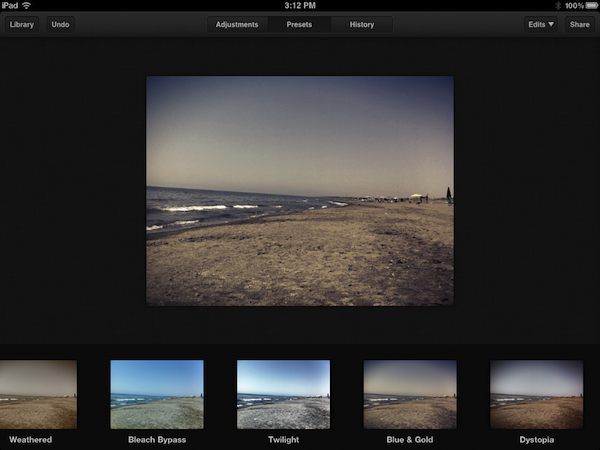
Luminance, a new image editing app for the iPhone and iPad available at $0.99 on the App Store, provides a more streamlined alternative to PhotoForge and other image editors I’ve tried on iOS, offering an interesting set of effects, presets and basic versioning system that makes it easy to import photos from a device’s camera roll, and start editing in a focused space right away. Read more


QuickShot 1.6 Overview & Giveaway

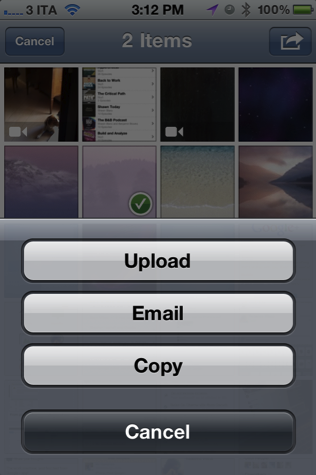
You’re already familiar with QuickShot as the photo app that integrates with your Dropbox, and now it does video too. That’s right: shoot video,  have it appear in your Dropbox via upload video from your photo library (WiFi only is an option for 3G users), and navigate more quickly through the app thanks to some shortcuts utilizing the the settings button (just tap and hold to quickly access your photo library). The Photo Library itself has a hot new update for the iPad, which makes navigation even more finger friendly. For those who like to leave their orientation lock on but would prefer that their camera remain free, QuickShot is now independent of the device so you can still browse email in portrait but take pictures in landscape. QuickShot also has some new abilities under the hood for sharing your media with friends — you can upload photos, email, and copy them from the library (to paste in OmniOutliner for the iPad for example).

QuickShot is a $1.99 universal application available on the App Store, and we’re giving away ten copies to lucky readers who follow the rules after the break.

Read more


Toshl Review: Your Personal Mobile Expense Tracker

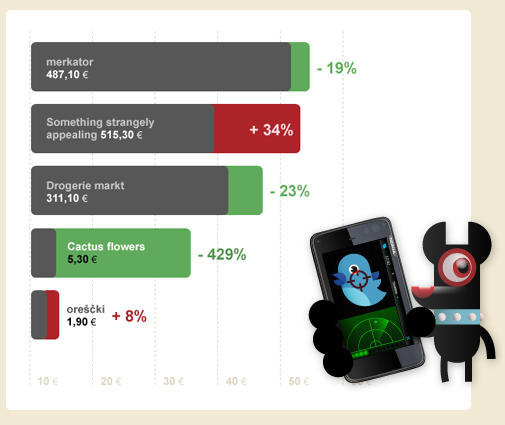
Call me old fashioned: I like to track my spending habits by writing down (with a pen and paper — more recently OmniOutliner) my purchases. The purpose in tracking your expenses by hand is so you can better verify your purchases against paper or digital statements you get in the middle or at the end of each month, and it also has the side-effect of making you better aware of the money you’re actually spending. If you’re buying a Starbucks coffee everyday, you’re running upwards of $150 a month, minus the lunch you eat out (an additional $400+ if we take $15 meals into account) and evenings spent out at the bar. Money adds up, and that’s not realized when you’re letting a computer do a lot of that work for you. Maybe you can afford it, but imagine how much money you could save to spend on all the awesome iOS apps we review? See.

Read more


Let Auto-Correct Beep in Lion with AutocorrectBeeper

Auto-Correction in Lion is similar to iOS: if the word isn’t automatically corrected, then you get a small notifier allowing you to dismiss the correction before you continue typing. Normally, this happens to me with lowercase abbreviations when typing to friends on SMS or email, and on iOS it isn’t a problem since your typing speed is considerable slower (and more careful) than on a desktop or laptop keyboard, and the pop-up is generally easy-to-see and easy-to-catch. While I think this behavior is backwards (I think tapping on the corrected word should accept that word instead of ignoring it), the same behavior on iOS has been translated to Lion. My typing speed on Lion is significantly faster than on my iPad or iPod touch, and catching the error before I hit the spacebar often results in an auto-correction I didn’t want to make. Whose going to catch a correction when typing upwards of 90 WPM? I don’t necessarily want to turn it off (some corrections can be helpful), but I want Lion to be smarter at helping me make the right corrections.

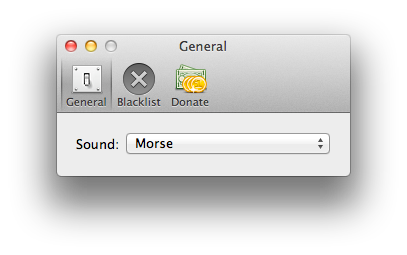
A user at AskDifferent asked whether a sound could be enabled to better inform him that an auto-correction was about to take place, and a friendly developer quickly whipped up an app to solve the problem. Joshua Garnham of Squared Tiki (Joshua on AskDifferent) created AutocorrectBeeper as a way for Lion to beep you when an auto-correction takes place: the simple app can simple be dragged to the Applications folder at the root of your drive, and running it provides you with simple preferences for choosing between the default sounds available on OS X Lion. As an auto-correct happens, your Mac will beep at you when a correction for a misspelled word is offered. A handy blacklist function is available so you can get beeped in some apps, but not others. The app is free, but donating to the developer if you find the app useful is definitely welcome (available through the app).

Check out the AskDifferent thread here (you can download the app in the middle of the page), and we’ve included a link to the direct download if you just want the app to hit your Downloads folder.

Thanks Joshua for getting in touch with us!


Twitterrific 4.3 Syncs Timeline Position With Tweet Marker

Twitterrific 4.3 is now available on the iOS App Store and on the Mac App Store, featuring timeline sync via Tweet Marker. Tweet Marker is a service that enables developers to remember where you stopped reading your timeline on one device, so you can start where you left off on another. If you value reading every tweet (and not just what’s happening right now), Tweet Marker gives Twitterrific tremendous value. There’s virtually very little users have to do on their end to enable Tweet Marker, but we’ll break down all the juicy details pertaining the purple bookmark past the break.

Read more


Sparrow 1.3.2: Drag & Drop to Labels, Conversation & Reply Redesigns, and Gradients!

Sparrow has a really sweet Mac update available this afternoon from the Mac App Store, bringing lots of new features and tons of bug fixes to improve its game and interface on Lion. The last update brought full-screen support and a redesigned sidebar that’s significantly improved my workflow, and now that sidebar is getting some additional use thanks to drag & drop. Whether you’re on an IMAP account or using Gmail, you can drag and drop emails into a folder or label to quickly move and archive messages. That alone makes us really happy, but check out what else Sparrow has added past the break.

Read more


13-inch MacBook Air Review

The new MacBook Air is the best Mac I’ve ever owned. This machine is shaping the future of OS X, both as an operating system and a bridge between iOS and the desktop.

In October 2008, I bought my first Mac. I had been a Windows PC user for seven years, and I was accustomed to using a PC at home for my browsing and writing needs, and at work – where my boss demanded we used PCs as he said they were more “reliable” and “fast”. After months of reading and peeking through Apple’s FAQ pages and video tutorials, I decided to buy a MacBook Pro. It was a 15-inch Unibody model with glossy screen, 4 GB of RAM, multi-touch trackpad, and Core 2 Duo processor. Back then, it was my first Mac but also the best computer I ever had. The moment I took it out of the box – and I was immediately impressed by Apple’s attention to detail in packaging and overall presentation – I knew that machine was going to change the way I “did work” on a computer. And it did. A few months later my boss fired me, and I started MacStories.

That MacBook Pro has been with me until last week.

Last year, I bought an iMac. Being the kind of Mac user that travels back and forth every day between his office (where I spend most of my day writing and managing the site) and his home, I was tired of being constantly forced to pack my MacBook Pro inside a bag, carry it around, gently place it on the passenger seat of my car, and pray that the hard drive wouldn’t die because of the terrible roads we have here in Viterbo. In spite of the fact that the MacBook Pro was the best computer I ever had, I slowly came to a point where I couldn’t stand carrying it around anymore. I decided to buy an iMac and make it my “home computer” so that I could offload media on it, backup documents, and do all those other things you’re supposed to do on “a home computer”. I bought a 21.5-inch model – again with a glossy screen – as I thought I wouldn’t ever need anything bigger than that. I was right. I’m happy with my purchase – the iMac is the finest piece of desktop hardware Apple has come up with in the past decade. Sure, my 2009 iMac doesn’t feature a Thunderbolt port and won’t get the performance boost of a Sandy Bridge-enabled machine, but it’s a trusted companion that I plan to keep for at least the next two years (that is, unless something really bad happens to the hardware, or Apple comes out with a desktop computer so revolutionary that it’ll be impossible to say no and don’t buy it).

For me, an iMac is the perfect desktop computer. It sits there, it makes my desk more elegant and classy than it could ever be, and more importantly it never failed me.

But I still had a problem with the MacBook Pro being a clumsy machine I didn’t want to carry around with me all the time. Read more


Tweetbot 1.4.3: Sleep Time for Notifications, Hiding Spam, and Mentions from only People You Follow

Tweetbot 1.4.3 has been approved and is now waiting for your loving fingers to tap Update in the App Store. With push notifications now open to everyone who uses Tweetbot (in case you haven’t heard), you’ll now have access to realtime updates for when a tweet is favorited, retweeted, replied to, when you’re mentioned, or when you receive a direct message. With so many notification types available (and our forgetfulness to put our devices on mute before going to sleep), Tweetbot also adds features to help curate what kinds of notifications you receive, and when you receive them.

Read more