This Week's Sponsor:

Copilot Money

Copilot Money, The Best Money Tracker, Launches on the Web – Limited-Time: Get 26% Off + 2 Months Free


Posts in reviews

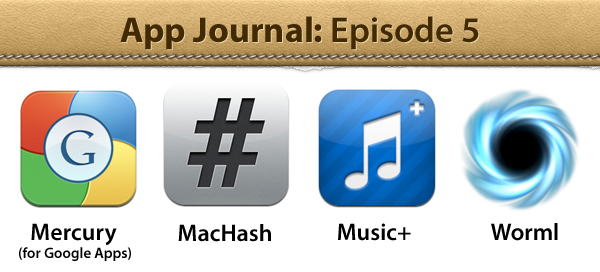
App Journal, Episode 5: Mercury, MacHash, Music+, Worml

App Journal is a weekly series aimed at showcasing apps we have enjoyed using on our iPhones, iPads, and Macs, but decided not to feature in a standalone, lengthy review here on MacStories. App Journal is a mix of classic reviews, weekly app recommendations, and a diary of our experiences with apps that still deserve a proper mention.

Amidst iPhone 4S and Siri announcements, the sad news of Steve Jobs’ passing and iPhone pre-orders, App Journal took a break last week and is back this week with quick episode in preparation of the app releases that will follow after the launch of iOS 5 and iCloud on October 12th. You can expect a whole new category of apps for iPhone, iPad and Mac once iOS 5 and iCloud will be available to all users – developers have been spending all summer studying the new APIs, which include pretty neat things like Twitter integration, Newsstand, and iCloud Storage.

In the meantime, I’ve collected four simple apps that I’ve been trying in between Apple keynotes and iPhone 4S news. Check them out after the break, and stay tuned for more App Journal episodes in the next weeks. Read more


Tweet Speaker: Listen To Your Twitter Timeline

At the “Let’s talk iPhone” media event earlier this week, Apple officially previewed Siri, a voice assistant that will be integrated with several functionalities and apps of iOS 5 on the new iPhone 4S: Siri is a new way to get things done and obtain information just by asking. In the Siri demo, Senior VP of iOS Software Scott Forstall showed that it’ll be possible to get word definitions, look up anything on the Internet, do basic currency conversion, create reminders, and more. In fact, the list of Siri commands seems quite impressive, and the fact that the system is integrated with online services like Yelp and Wolfram Alpha should allow for always up-to-date, reliable and real-time data that lives outside the iPhone itself, but it’s immediately accessible.

What Apple didn’t preview during the Siri demo, and which I’m not sure will ship with the final version of the app next week, is Twitter integration. In iOS 5, Twitter is integrated systemwide to let you tweet photos and webpages, update your Address Book contacts and sign in with any Twitter enabled app. But will Siri be able to read your Twitter timeline? Or send a mention to a specific user? Or, again, will Siri eventually get these capabilities, if not next week perhaps in a few months?

I don’t know, but right now, there’s this sweet new app by App Cubby out in the App Store, it’s called Tweet Speaker and it lets listen to your Twitter timeline for $2.99.

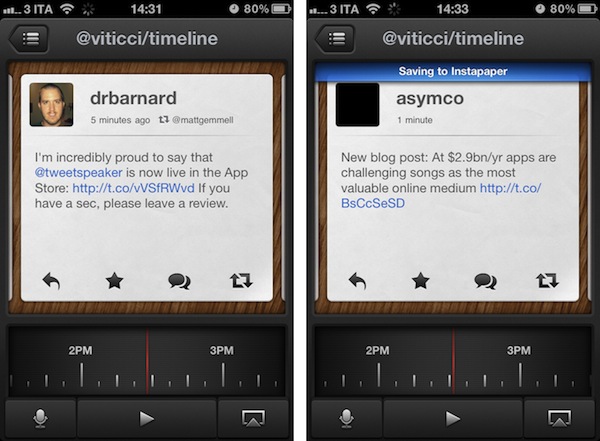
Both App Cubby’s website and iPhone app share a beautiful design and attention to detail. Tweet Speaker offers an interesting mix of dark UI elements, clean and simple tweets and 3D buttons that provide a nice contrast again the wood texture in the background. Tweet Speaker looks great, and its interface is functional to the app’s main feature. Once authenticated with your Twitter account, Tweet Speaker will begin loading tweets from your timeline; alternatively, you can switch to mentions or a specific Twitter list. In the timeline view, a bar at the bottom lets you move between hours of the day and jump to, say, tweets from the afternoon or early in the morning. Tweet Speaker is fast at loading tweets and it’s even got support for Tweet Marker, if you’re already using the service in apps like Twitterrific or Tweetbot. A nice touch in Tweet Speaker’s UI are the small notification popups that will appear on screen as tweets are loaded or items sent to Instapaper (natively supported), and I also like the app’s horizontal pull-to-refresh that appears as you reach the most recent tweet in your timeline.

As you hit the play button, Twitter Speaker will start reading your tweets. There’s only one male voice available now (more will be coming soon), and it sounds pretty natural. I like how this voice treats retweets and mentions differently, saying “Mark retweeted  from Chris” or “Tim said in reply to Sofia” – it even goes as far as trying to fetch the title of an http:// link when available (like the title of an article on this site). Perhaps the touch functionality of Tweet Speaker won’t be used much when jogging or driving, but the app enables you to reply to tweets, retweet them, mark them as favorites, and load conversations between users. You can follow/unfollow users directly from Tweet Speaker, configure a tap&hold action for Safari or Instapaper – you can also send your iPhone’s audio to AirPlay to listen to tweets on the big screen or through your favorite speakers.

Tweet Speaker isn’t your regular Twitter client, it’s a Twitter companion that you might find useful if you’ve ever wanted to be able to listen to your Twitter stream while looking at a beautifully designed app. Get it here.


Sparrow 1.4 Gets CloudApp Integration, Pull to Refresh

Sparrow, the minimal email client for the Mac that recently gained with full Lion compatibility, received a new update in the Mac App Store, this time adding native integration with file sharing service CloudApp, a “pull to refresh” gesture to check for new messages, and a number of fixes and improvements aimed at enhancing the email experience and make it faster and more stable.

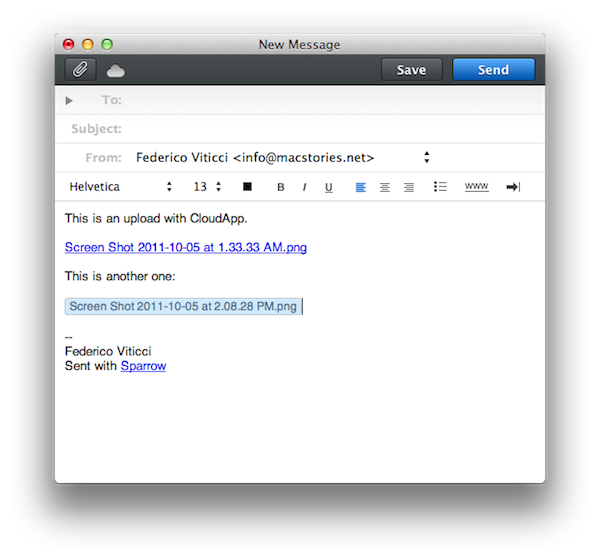
With CloudApp support, users are now able to drag & drop files into Sparrow’s compose window, and have the app automatically upload them to CloudApp and insert a clickable link in the message. Once authenticated with your CloudApp account in Sparrow’s preferences, every time you’d like to send an attachment through CloudApp, you won’t need to have CloudApp installed on your Mac: Sparrow will directly communicate with CloudApp’s servers and upload the file for you. The UI for this action is very simple – the top section of the message is a CloudApp “drop zone”, while the lower part at the bottom is for classic email attachments as explained by the developers in this article. There is a new cloud indicator in the top toolbar of the compose window to show the status of an upload, which will turn blue after it’s complete. Overall, CloudApp integration is well done, simple and useful if you share with CloudApp on a daily basis.

Sparrow 1.4 also comes with the “pull to refresh” gesture made popular by Loren Brichter’s Tweetie on the iPhone years ago, and later implemented by thousands of other App Store apps. In Sparrow, you can pull the inbox to check for new messages, and whilst I don’t think I’ll ever use this functionality as I like my email client to stay in the background and refresh every few minutes automatically, I assume some people who want to manually check for new messages will like this option.

As usual with every Sparrow update, there’s a series of bug fixes and improvements under the hood. Sparrow now syncs and sends emails faster than before, and Gmail-like reverse threads have been implemented in the conversation view. Sparrow is now compatible with Zoho and Lotus Domino, it’s got a new draft management system and the mail database has been improved, too.

Sparrow 1.4 can be considered a minor update, but it’ll make those who rely on CloudApp for their file sharing needs more efficient when dealing with email. You can get Sparrow 1.4 on the Mac App Store.


Grazing 2.1 & Grazing for OS X: Push Links Back to the Mac

When Grazing 2.0 was released in July, I wrote it was my favorite iOS browser. Three months into this summer’s major update, it still is: Grazing, available on the iPhone and iPad, managed to find the right combination between offering “alternative features” that would make a paid app worth its price (Apple’s Safari, a more than fine browser, comes pre-installed on all iOS devices and is gaining some sweet improvements in iOS 5), while at the same time being simple enough for the average user to be able to approach it without feeling overwhelmed by a custom interface and overly designed functionalities. Grazing doesn’t look like Safari and it’s got a few more buttons and actions than Apple’s browser, but it does feel and work like a regular desktop browser, only ported to the iPhone and iPad. Things I loved about Grazing included tabs, gestures, combined search/address bar, possibility to push links between devices, and several customization options for the sharing menu and settings.

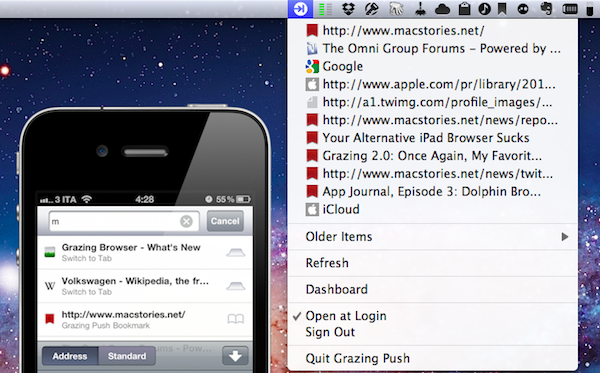
With the 2.1 update released last week and a new free Mac companion app for push notifications, my favorite features of Grazing have been taken to the next level, offering a simple solution for something I’ve been looking for since February. Read more


Diminish Debt with DebtMinder

DebtMinder is the latest creation from the talented developers over at Return7 and aims to help users eliminate their debt. You might already be familiar with their successful BillMinder app that helps users keep track of when bills are due to ensure that late fees are a thing of the past. BillMinder is known for being polished, reliable, and incredibly easy to keep multiple devices in sync. Thankfully the developers were able to bring those features and more to DebtMinder all wrapped up in a familiar interface.

DebtMinder allows you to input multiple accounts of debt into the app and it will help calculate the best payment plan to reduce your debt as quickly as possible. You can also customize this plan by telling DebtMinder that you either want to focus on debt that has the highest interest rate or debt with the lowest balance. This is known as the debt-snowball method. You basically pay off the smallest debt first while paying the minimum payment on the larger debt. It is the quickest way to decrease your total number of bills. Once a payment plan is created your monthly minimum payment is calculated and you can begin paying off you bills.

If you are a user of BillMinder then you will be able to pick up DebtMinder and feel as if you already know how to use the app. I was able to log in with my BillMinder credentials (new users will have to set up an account). As I added accounts to DebtMinder I had the option to link them with accounts that I had already set up in BillMinder. It was hard to appreciate this at first because it was so easy to set up, only two clicks. Once the account was linked and I added a payment to DebtMinder, I was able to launch BillMinder and see that the bill had already been paid. And not just on my phone, but on my iPad and on my wife’s phone as well because all devices are kept in sync under one account.

DebtMinder is my favorite kind of app for iOS because it is inexpensive, useful, and easy on the eyes. It will more than pay for itself when your credit card gets paid off ahead of schedule and unnecessary interest fees are avoided.

BillMinder is available in the iTunes App Store today for only $1.99


Gradient for Mac Public Beta: Creating Simple CSS Gradients

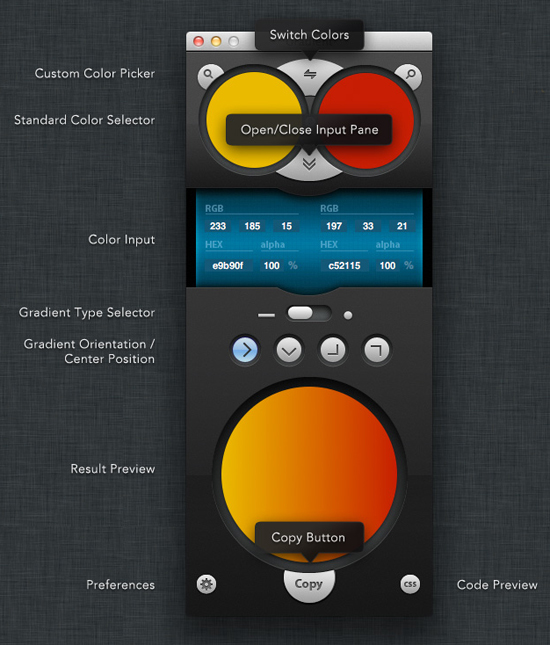
Gradient, made by JUMPZERO, is a simple yet powerful Mac OS X app that lets you easily create CSS gradients by getting rid of the clumsiness of vendor prefixes. The user interface is beautiful and works wonderfully. Gradient is in open beta for any designer that wants to help test the app out or see what Gradient will be able to do.  In Gradient, you can pick/select/input the colors and then define which type of gradient you’re looking for; click the Copy button near the bottom of the application window and paste the generated code into your favorite editor.

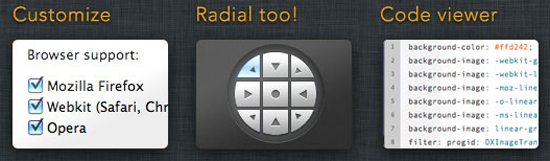
Gradient is customizeable as to which browser needs support by opening the preference pane and activating the radio buttons for the browsers you are going to support. No need for Internet Explorer? Simply uncheck the button. Gradient not only supports linear gradients but radial as well, just move the slider over to the type you need. The gradients’ directions can be altered by the directional arrows for linear and by using the radial-center-matrix-button for radial gradients. Before you decide to copy the CSS, you can preview the code in-app by clicking the CSS button. A hovering code box pops up and displays your code all within Gradient.

Gradient lives in your dock, menubar, or whatever mix you want. You can click the menu bar icon to activate the app and get to work. You can also click either of the two large top colors to bring up the OS X built-in color selector or click the magnifying glass icon to bring up the zoom tool to use on every pixel of your Mac’s screen.

Gradient feels very polished for only being in beta 2, and it looks like this will be a great tool for web designers looking for a simple yet intuitive way to create CSS gradients. Gradient’s development roadmap consists of adding HSL input & output, SASS syntax and multiple step gradients. No details on the app’s release date have been provided, but it should be soon according to the website.


ClickToPlugin Brings AirPlay Support to Safari for Mac

ClickToFlash, the popular plugin to block Adobe Flash content in Safari and make videos play in higher quality through HTML5, had to go through a series of changes after Apple released Safari 5.1, which dropped support for WebKit Plugins. Those of you who use ClickToFlash on a daily basis may have noticed that ClickToFlash for Safari 5.1 recently got a new home, and it’s been developed by Marc Hoyois as a Safari extension called ClickToPlugin.

Marc Hoyois actually offers both ClickToPlugin and ClickToFlash rewritten as a Safari extension – the former is simply a broader version of ClickToFlash that doesn’t stop at Flash content, but prevents Safari from launching a variety of plugins, including Facebook Video Calling and Java. The same functionality of ClickToFlash is still there, only it’s been split in two versions depending on what you need (if you only want to block Flash, get the new ClickToFlash extension) with a new settings page. As usual, the extension replaces content with a placeholder that doesn’t load automatically and, when possible, allows for a direct plugin-to-HTML5 conversion that, in the case of YouTube, will allow you to load a video’s source in higher quality. ClickToFlash/ClickToPlugin comes with several preferences to tweak and support for many video websites – you should check out the complete list of features and screenshots of the settings at the developer’s website.

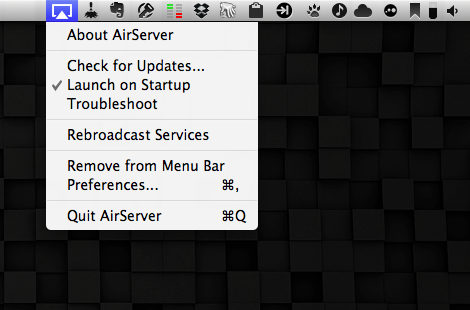
An update released earlier this week for the ClickToPlugin/ClickToFlash extensions adds a feature Mac users have been requesting since the introduction of iOS 4.2 last year – AirPlay support in Safari for Mac. While AirPlay had been enabled first in Apple’s iOS apps, then the Mobile Safari browser and third-party apps, Mac users were only given AirPlay support for audio in iTunes, but nothing related to video streaming on OS X. A number of hacks and utilities surfaced to send Mac video to an Apple TV or AirPlay receiver and even turn a Mac into an AirPlay-compatible device, but there’s never been a way to easily select a video in the browser, and instantly beam it to an Apple TV with the click of a button.

The latest ClickToPlugin adds exactly this feature in combination with its built-in HTML5 video recognition and a second utility available on Marc Hoyois’ website called Media Center. Version 2.5.2 of Hoyois’ extension adds a new “AirPlay” option in the HTML5 media player (the one you get if you, say, decide to replace Flash content on YouTube with HTML5 video), enabling you to send video to an Apple TV on your network. The Apple TV’s hostname or IP address needs to be specified in ClickToPlugin’s settings, but it’s set by default to apple-tv.local, which is what Apple gives you with an Apple TV out of the box. The default hostname worked for me and found my Apple TV (connected with WiFi first, then via Ethernet to my AirPort Extreme).

Once ClickToPlugin is set to fetch HTML5 video instead of Flash (you can optionally choose a default resolution – I picked 720p) and the Apple TV is configured to accept incoming AirPlay streams (the extension has support for AirPlay passwords, too), you’ll be able to try AirPlay in Safari by opening a YouTube video, like this one, and choose AirPlay from the source selector on the top left. If your settings are correct, the video should start playing on your Apple TV.

Media Center works in conjunction with the latest ClickToPlugin in that it adds a contextual menu item to links and HTML5 media to download a video file, open it in QuickTime, or send it to an Apple TV via AirPlay. Some of these functionalities are already provided by ClickToPlugin, but I like Media Center’s AirPlay action on right-click and, more importantly, the toolbar button that allows you to stop a a video from being streamed to the Apple TV.

In my tests, ClickToPlugin and Media Center have been fairly reliable, streaming 720p content from YouTube to my Apple TV, although I’ve experienced some connection drops (the video would stop playing after a few minutes on the Apple TV) and errors with the Vimeo website. I need to mention, though, that I’m running OS X, Safari and Apple TV beta software, so that might be the culprit. Even with these betas (OS X 10.7.2, Safari 5.1.1, Apple TV Software beta 6), ClickToPlugin’s AirPlay support worked fine most of the time, and I’m sure optimizations for the new OS and Safari will be available once Apple publicly releases the updates. I’ve also noticed you don’t have to keep a tab open after the video starts playing with AirPlay, but Safari can’t be quit or you’ll lose the AirPlay stream.

I wouldn’t be surprised to see native AirPlay support by Apple in a future version of Safari for Mac (or, even better, systemwide AirPlay support on OS X), but right now, ClickToPlugin and Media Center provide an interesting solution for those who want to comfortably enjoy video from their web browser on a widescreen TV. The extensions surely need some work and refinements, and it would be great to see them land on Chrome someday (if it’s even possible, I don’t know).

Go download ClickToPlugin and Media Center on Marc Hoyois’ website.


Control Multiple Macs with Teleport

I don’t always use two Macs simultaneously, but when I do, either there’s an Apple keynote or I’m trying new apps.

That’s how I stumbled upon Teleport, a free OS X utility, last year when I needed to switch back and forth between MacBooks during an Apple keynote, and why I decided to take the app for a spin again now that’s been updated for Lion. Teleport isn’t new to Mac users – in fact, it’s been around since Tiger and it’s probably the most popular app to control two Macs on the same local network. Now that version 1.1 is out with support for Lion and multi-touch gestures, I thought a fresh mention would be appropriate.

Teleport is extremely simple in what it does, although it uses some advanced technology to accomplish it: once installed in System Preferences, Teleport allows you to move your cursor (and keyboard) between multiple Macs. Teleport recognizes Macs “shared” on the same network, and through a system similar to Apple’s “hot corners” and based on Bonjour, it lets you “teleport” the mouse across screens.

Shared Macs that have Teleport activated in the settings will show up with their respective desktops in the app’s panel; you can arrange Macs placing them next to a main computer’s screen so you’ll remember how to switch displays, and configure options in a dedicated sub-menu. These options include handy things like “switch only if key is pressed” or “share pasteboard”. In this latest version of Teleport you can assign a keyboard shortcut to switch to another Mac, and Lion’s gestures are fully supported so you’ll be able to perform three-finger swipes and other Mission Control trickery on a Mac running Lion.

When controlling my iMac through my MacBook Air’s trackpad and keyboard, I was able to drag & drop files using Teleport, and have the contents of the pasteboard from my MacBook Air automatically synced on my iMac. There are several utilities to control how the pasteboard is shared and synced across local Macs, but Teleport manages to make the whole process “invisible” in a package that also happens to do much more.

For instance, Teleport supports encryption for file transfers, and you can read more about it on Abyssoft’s website and the ReadMe file included in the download. Long story short: you can generate your own certificate to activate encryption and it’s even easier if you already have a .Mac account. Also in Teleport’s settings, you can enable a menubar item, bezel, and sound notifications. The sound effect is particularly neat when you switch between Macs, as it really gives you the sense of something “travelling” between two spaces (Teleport also displays a quick animation at the side of your screen). Control requests are also handled well between shared Macs, with options to “ask me if host can be trusted”, “reject if host not already trusted” and “automatically accept”. If you leave Teleport always running, when a shared Mac comes back online a red indicator will flash on the previously configured side of the screen.

Version 1.1 includes a few more features like:

  • Host specific options: you can define the switching and sharing options per host, to have different settings.
  • Propagated options: the options you set for a host also apply when coming back from it.
  • Full multi-screens support: all screens of shared Macs are now visible, so pairing a secondary screen is much easier than before.

Teleport isn’t new, but it’s nice to see the app working well on Lion with gestures and multiple displays. If you happen to control multiple Macs every once in a while, give Teleport a try. It’s a free download (and make sure to donate if you really like it).


Realmac’s Analog: Apply Filters & Share Your Photos

Released today on the Mac App Store after months of teaser videos and private betas, Analog is the latest creation by Realmac Software, makers of great apps for the Mac like Courier and LittleSnapper. As the early preview videos suggested, Analog is an application to quickly edit and “beautify” your photos in a way that has been made popular recently by iOS apps like Instagram and Camera+ or, on the Mac, Flare by The Iconfactory. Whilst Analog undoubtedly shares some similarities in the main concept with these applications (pick a photo, apply a filter, share it), the execution and attention to detail of the Realmac team makes sure Analog can stand out from the crowd of post-processing utilities.

I’ve been playing with Analog, and I like it because it is extremely simple, focused, and elegant. Everything from choosing a filter to cropping an image has been made intuitive and fast, with some graphical elements (like the sharing menu) inspired by recent iOS interface guidelines brought over to OS X by Apple. Most of all, Analog is fast: I tried the app on my 13-inch MacBook Air (entry model), and filters were applied in less than a second – Analog is very snappy and responsive.

When you fire up Analog for the first time, you’re presented with a large “drop” area on the left, and a sidebar for filters and borders on the right. To start editing an image, you have to drop it into Analog’s main window; once an image is in there, you can start choosing filters and borders to “give your photo some soul”, and share it with your friends. The typical navigation and usage pattern of Analog is fairly simple: import photo, process, share.

Analog offers 20 filters, which have been carefully researched by Realmac over the past months to make sure each one of them has its own personality (something we know that matters in this kind of apps) and will make your photos look great. Now I’m no photography expert, but I can recognize a nice filter when I see it. Analog’s filters range from washed out (Hefga, Golden Hour) to black & white (Noir, Dark Knight, Bromide – three B&W variations with different grey scales and contrast) to contrasty (Memory, XProcess) and other interesting options that I can’t quite classify (Kyoto, Hawkeye). Analog’s filters look good, and I definitely like the choice of 20 different filters offered by Realmac. You might argue some of them look similar to each other, but the developers have also implemented a system that ensures scratches, noise and other effects are always randomized on each processing session.

A photo processed and exported using Analog

To switch between effects you simply have to click on them; a switch button at the top of the sidebar enables you to choose borders, which will look instantly familiar if you’ve used other apps like Instagram and Flare. Read more