This Week's Sponsor:

Copilot Money

Copilot Money, The Best Money Tracker, Launches on the Web – Limited-Time: Get 26% Off + 2 Months Free


Posts in reviews

Fancy: A Social Network Curating Contemporary Product Design

Why exactly is creating new social networks still hip? In times where Facebook and Twitter are the central points in our social web life, new competitors seem to be doomed to fail the second they are unveiled. You need a huge, mind-blowing new idea with new UI features and ideas to be really unique and not seem to just copy and rename existing features like sharing options, like buttons, retweets, and followers. To be honest, I’ve never seen a product reaching this. And although it features great content and a quite elaborate iPad app environment, the network called Fancy (it’s been around since 2010, but still did not rise to real big prominence) is not an exception from that.

So why writing a post on Fancy, if it’s nothing new concerning UI and customer features? Because sometimes you don’t have to be unique in designing nice interfaces – you just let your content speak for you. On the interface side , Fancy follows the Facebook/Twitter concept of having friends, liking (here called “Fancying”) stuff, and saving it for later. But the service distinguishes itself via the content and the idea of combining the advantages of social networks with selling products to create a special mobile shopping experience.

Read more


Favs for iPhone

I don’t normally begin articles with puns, but Favs has become one of my new favorite apps. Developed by Dirk Holtwick, Favs is “an app for your Internet favorites” – it collects items you’ve liked, starred, or marked as favorite on a variety of social networks and online services. In my review of the Mac version, I wrote:

Services like Instapaper and Pinboard empower you to “read later” and “bookmark” the things you like. Favs runs at a higher level, collecting favorites from other services that already enable you to save favorites. As I said, this kind of app is a web nerd’s dream come true for me.

Released yesterday, Favs for iPhone is a $2.99 mobile companion that serves the same purpose of Favs for Mac – it offers a unified interface to browse favorite items from multiple sources. The main screen features three general tabs for All items, Inbox, and Archive. However, I never use Favs’ own read/unread indicators, because I don’t want to “feel the guilt” of having too many favorites in my accounts. For this reason, I am glad Favs for iPhone lets me hide unread counts from the Settings, which also reveal iCloud sync will be coming soon to keep account information synced across Mac and iOS devices. I very much prefer to browse favorites by their original source.

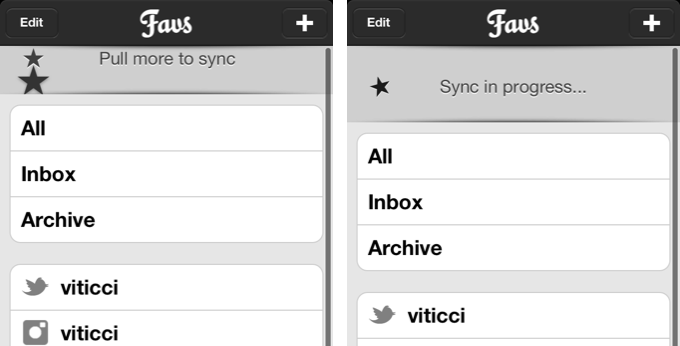
The main screen of Favs also reveals a custom “pull to refresh” implementation that uses two stars that need to be aligned to initiate a new sync session. This action will refresh all your sources and check for new favorite items (single sources can be refreshed as well).

Like the Mac app, Favs for iPhone supports the following services:

  • Delicious
  • Dribbble
  • Facebook
  • Flattr
  • Flickr
  • GitHub
  • Google Reader
  • Instagram
  • Instapaper
  • Pinboard
  • Pocket
  • Readability
  • StackOverflow
  • Twitter
  • Vimeo
  • YouTube
  • Zootool

Tapping on items containing links will open an embedded web view in the lower portion of the screen. An option to load the Readability version of an article is present, as well as buttons to email a URL, tweet it, copy it, or launch it in Safari.

The app’s performances are good, but not perfect. I found Favs to be slightly slowed down when scrolling through thousands of Twitter favorites, though I recognize I may be an edge case here. However, after the initial refresh, the app was quite smooth at switching between Twitter, Google Reader, Facebook, and the main view. The sync animation could use some further optimizations.

If you already use Favs on the Mac, there’s no question you’ll want to take a look at the iPhone version. Favs for iPhone has a clean design, works with a lot of services, and, overall, leverages the convenience of having all your Internet favorites always with you. Favs is $2.99 on the App Store.


Ecclesia Is A Stunning Audiovisual App Experiment

Usually, I’m a quite drastic purist when it comes to music. Music is art for the ear, and made for distraction-free listening. That’s the reason why I consider music visualization as rubbish most of the time. I never liked to look at computer-generated 3D figures, which are randomly moving without being truly connected to the music.

But then I found an interesting interview on Overlapps with Eric Wahlforss, the founder and CTO of SoundCloud, the well-known social sound sharing network. He is musically active under the pseudonym Forss and recently released a new album titled Ecclesia. The record is available for free (when you sign up to Forss’ newsletter) on his website, where you can also listen to every song off it completely. But his real engagement with this album lays in the idea of making it multi-layered by creating a visualization app with 3D graphics, effects, and movement connected to the music. Together with the design studio untouch.fm and designer Leo Lass, he created an iPad app with extensive visuals to enhance his newest record with some stunning 3D artwork. Read more


Review: DM1 Drum Machine for iPad

The day the iPad was unveiled, the whole Apple community screamed that the device would change the way we look at arts and be the center of any kind of creation process in mankind’s mobile future. While this mainly came true for writing and visual arts (think of apps like iA writer or procreate), it still lacks when it comes to mobile music making. Due to the absence of multiple optical inputs like FireWire, the iPad is not suited to be the only mobile recording studio. After the first wave of electronic music software with the KORG line (iElectribe, iMS-20, iKaossilator etc.) as the most prominent example, new electronic music production environments got very rare. I was very excited, however, when I saw this new iPad drum machine on Beautiful Pixels called DM1 Drum Machine. The demo video of Fingerlab’s new product promised a decent, easy, but powerful workstation on the road for a very fair price, so I downloaded it.

And DM1 didn’t disappoint me. The DM1 was the very first drum machine software I ever bought for iOS devices; I tried iElectribe once on a friend’s iPad, but even that iconic (and expensive) app seemed more like a toy than a serious musical instrument to me. On the iPad, I am after professional software, something that encourages me to create awesome music. And because you cannot impress through the haptic feel of a synth on a flat screen, you need UI simplicity combined with a stunning feature set to get your product to the user. With the DM1, I  finally found a music app that fulfills those needs.

In their demo video, Fingerlab shows a 3D animation of the DM1 as a Little Phatty-like workstation with several areas for its five different main features: a step sequencer, drum pads to manually enter beats, a mixer for each sequenced kit part, effects, and song information with structuring options. In the real app, those five features are available via the top selection bar right beside the three most basic selecting options to set the basis for a song – BPM, selected sound, and the currently played pattern, and a play button. In the following lines, I’ll firstly dive into each of these parts, and cover the visual arrangement, DM1’s production possibilities, and some features I’d wish for in future app updates to make the app even more pro-oriented.

Step Sequencer and Sounds

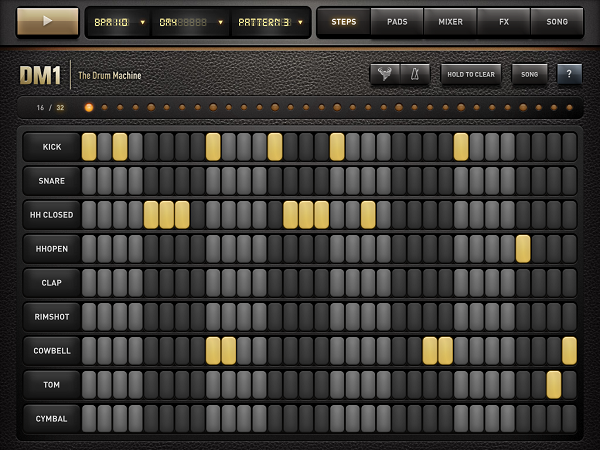
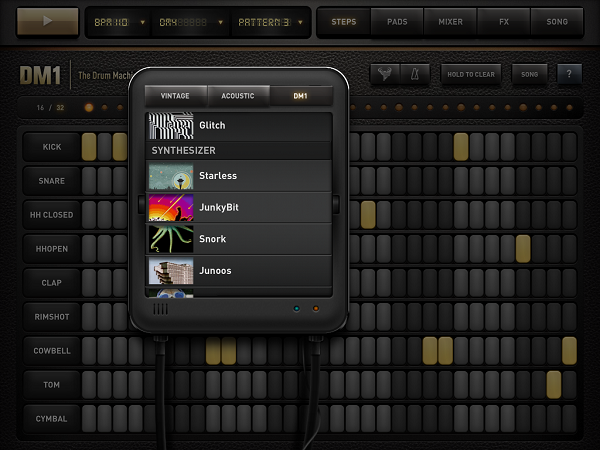
In terms of the provided variety of sounds, DM1 is the most professional effort I’ve seen to date. 19 classic drum kits (e.g. the iconic Roland machines TR-808 and TR-606), 19 acoustic sets from Ludwig drum kits to Cello sounds and Wurlitzer pianos, and 26 DM1-only kit including Bristol-styled beats and freaky synth sounds speak for themselves. In the 16/32-step sequencer, these sounds are divided into 9 kit parts: kick, snare, open and closed Hi-Hat, clap, rimshot, cowbell, tom, and cymbal. The sounds connected to these parts vary a lot, so it can occur (especially when using a synth sound) that the app plays melodic elements on the rimshot and cowbell steps.

This brings us to creating sequences with the step sequencer. In both 16 and 32 mode (which is twice as long, not twice as fast) tapping single steps works flawlessly; aiming and selecting is easy. The 4 bars are separated using different shades of grey, and they can also be easily identified using the LEDs on top, where each beginning bar is indicated with a bigger one.

Clearing steps is just as simple; you can even drag you finger around the whole screen and every step you swipe over is getting activated or de-activated, depending on what your first tap did. If this still is not fast enough for you, ou can also use the “hold to clear” button below the feature selection panel. This and the nearest three buttons (metronome, a very functional random rhythm creator, and the obligatory, very neatly implemented help menu) are also available over multiple screens.

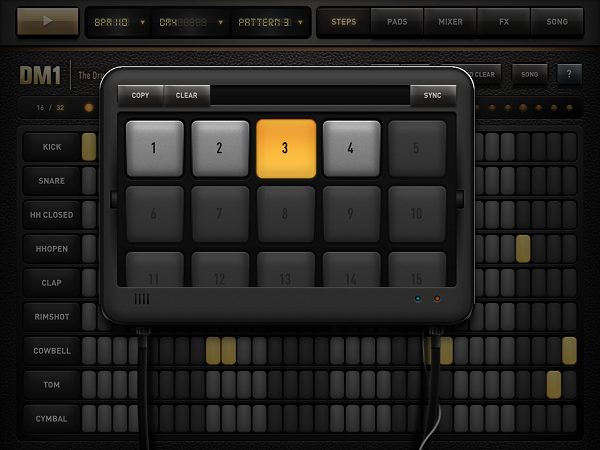
Any time you change a single step, it is automatically saved in the activated pattern. You can create up to 25 different patterns, which then can be arranged to a final piece in the “song” section (I’ll come to that later). If you want multiple patterns (which are built upon each other to create an evolving rhythm), you can also copy one pattern into another slot, add some elements to it, and the basic beat will still be the same.

Drumpads

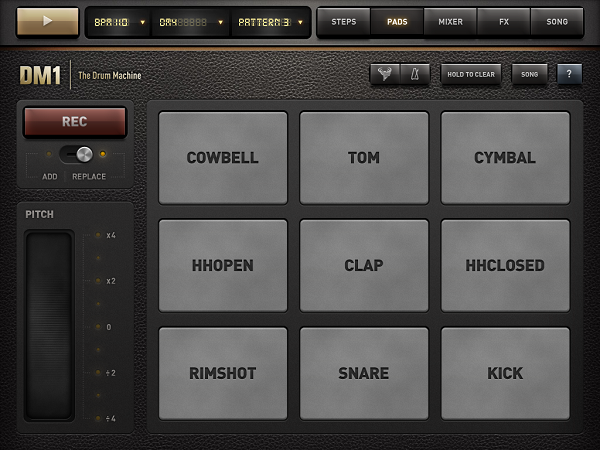
If you’re better at playing than imagining or experimenting with new rhythms using the sequencer (when you come from drumming for instance), you can use the drumpads combined with the integrated quantized recorder to teach the sequencer the rhythms you have in your head. The pads are really big and very responsive, even when double-tapping with two fingers to create a 16 step Hi-Hat beat.

Unfortunately, the app doesn’t play a bar solely with the metronome before a recording begins, so you have to wait four whole bars until you can input your beats properly. But the conversion into the single steps works perfectly and instantly. To make the recorded beats even more personal, there’s a large, functional pitch-shifting ribbon to customize the sequence further (this can also be applied after the four bars are recorded).

Mixing and Customizing Single Steps

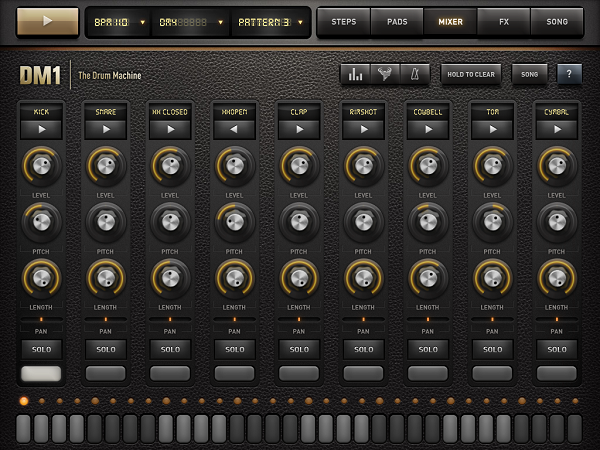
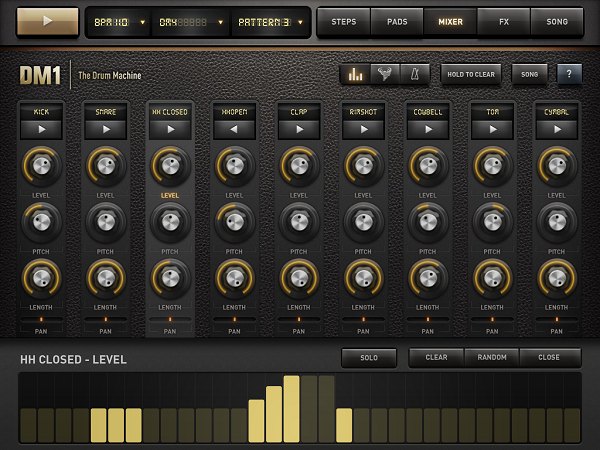
The third big feature is the most used out one, with which you can edit any part of the available kit anyhow you can imagine: the kit mixer. In a moog-styled layout you can customize every sound in level, pitch, and length to make it sounds just the way you want it. You can reverse the whole sound of a step by holding the play button, and pan the part to the right or left to create a stereo effect. Set the sound on solo mode and use the bottom bar to add or delete steps for a specific track. But the to me, the most powerful feature is the velocity leveler that you can bring up by tapping the diagram-like button in the nav bar. Although the upcoming vertical bars (of which lighter ones indicate active, changeable steps) are not perfectly responsive to sliding to change their level, you can create crescendos and decrescendos with one tap here, something I always use when I start a new project.

FX and Song Timeline

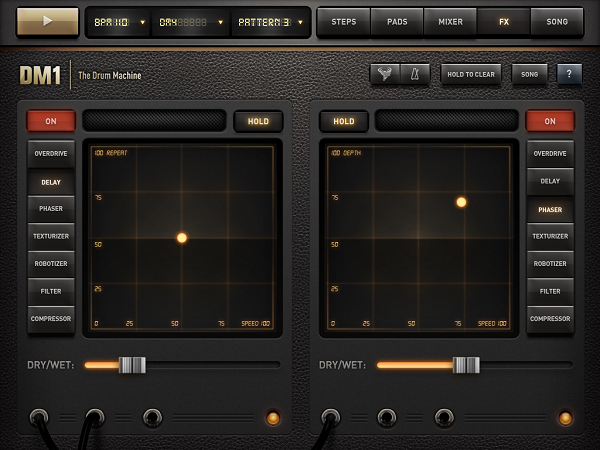
The fourth way to customize your sequences is the FX section. It’s powerful, but also pretty hard to handle properly. Here’s why: you can select an effect (overdrive, delay, phaser, etc.), set the dry/wet mix portion, tap the red “on” button, and the effect is immediately applied to your mix. Yet most of the time, you’ll then think: “This is destroying the whole thing”. The reason for that lies within the two-axis field which is used to set the two main parameters of the effects; for instance, when using the delay, these parameters are Repeat (y-axis) and Speed (x-axis) with respective values from 0 to 100. Unlike the velocity columns, this is very responsive. Every time you move the LED dot indicating the current setting just a little bit, the sound changes more or less completely. As you see, this offers both a huge amount of treasured sounds, but can be completely counterproductive.

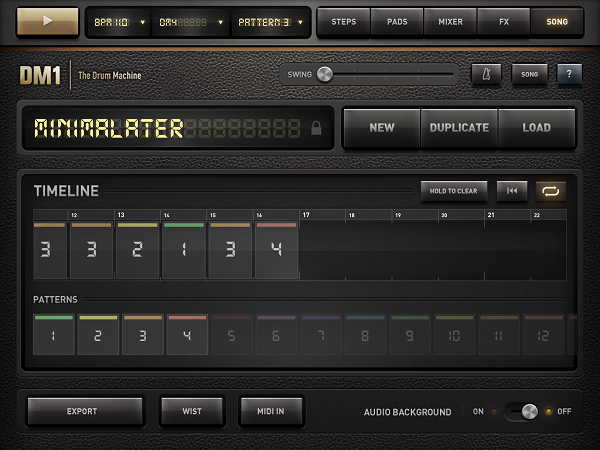
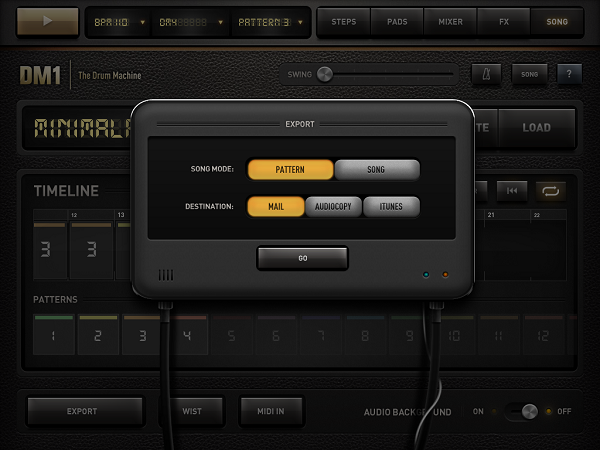
If you’re done creating, editing and customizing your sounds, tap the song panel to turn “just playing around with a drum machine app” into serious business. Here you can make an actual song out of your single beats; just drag and drop patterns into the timeline, and tap the play button to listen to your arrangement. If you like what you hear, you can export the song (or single patterns)as a .wav file to iTunes or send it via mail. You can even sync in via WIST to another device with the DM1 installed to have it on all of your devices or share your work with friends or colleagues.

Fingerlab also integrated AudioCopy to send the created beats to a variety of other music production apps like FourTrack or AirWrench. Other features in the song panel include MIDI Input (using auto or pre-selected channels to enable plug and play using a USB Camera Connection kit) and a swing option to play around with the overall song rhythm.

User Interface

The biggest issue I had with the app’s design was a really impudent one considering the immense feature set: the DM1 does not have Retina graphics. The features all worked great – my problem with the app was that it didn’t look nice. But this would need just an update, and considering the rest of the UI, I definitely excuse this lack.

I mentioned the 3D version of the machine the devs designed to visualize the feature set. This also makes the UI more understandable. Using the cool designed popups and the top navigation bars is easy after watching the demo video – don’t get me wrong, the app is very intuitive even if you don’t watch any demo, but it takes some time to find out how every feature works.

The leather background fits very well with the sepia tones the designers used for the buttons, text panels, and other controls. I disliked some buttons’ 3D look though, especially the square ones like the play button. Nevertheless, the UI design fits the needs of the feature set, making it understandable and flexible, and – what’s most important – it never privileges any feature to ensure that you will equally find and use all of them. Ultimately, this is the most intriguing aspect of the DM1: you always use every part of it and are thrown into a very clear but flexible workflow – which is optimized for mobile use, but still feels very professional and delivers great outputs.

Wish List

What follows now is something I normally avoid; I consider myself in a position to review and criticize existing features, but not suggest new ones. With music apps, though, it’s a little different. I use several desktop products including GarageBand and Ableton Live, and I always think about which features could be transferred to mobile apps while using them. DM1 offers many of such features, but some – even quite simple and obvious ones – are still missing in my opinion, and they could be easily added to make the app even more stunning.

First: better organization. If you like the app as much as I do, you will create many projects to dive into all those sounds and effects. And you’ll enjoy that for sure. What you won’t enjoy, however, is finding your favorite sounds and saved songs again. Both are displayed in one single list with dividers for categories which completely lack of folders, tags or anything. And especially the list of saved songs is designed way to small for the iPad’s large screen. A simple folder structure within this list could solve this problem, and having a separate list for your favorite sounds would also be pretty useful.

Secondly, I would like to remind developers of such professional software that iOS devices have multitouch. Please make use of it. It would’ve been both intuitive, very cool, and useful to use, say, two-finger swipe to switch between panels.

Last, but certainly not least, I imagined many possible extra features while using the DM1 to extend it up to the situation where you can have it it as your sole production platform, not just on the road, but also at home. In my opinion, the app doesn’t need not that much to reach that position. What it misses are basically just three things: 1) more options to create melodies like more synth kits (or maybe just indicating existing melodic steps better) to create whole songs with beat, basslines and hooks, 2) the creation of own drum kits on the go, and 3) the capability of applying different effects to different patterns. Currently, the two effects you set are applied to the whole song, whether you like it or not (they even cannot been disabled for single patterns). Some ideas in this direction would turn this drum machine into a full-featured workstation.

Wrap Up

I urge you to get DM1 Drum Machine for your iPad. If you’re into music and rhythm and whether you have experience in using sequencers or not, you will have a lot of fun with the app. It is flexible and offers an incredible amount of directions your sound can go. And, believe it or not, this whole package is available for just $4.99 in the App Store.


Quip: A New iPad Twitter App With A Focus On Conversations

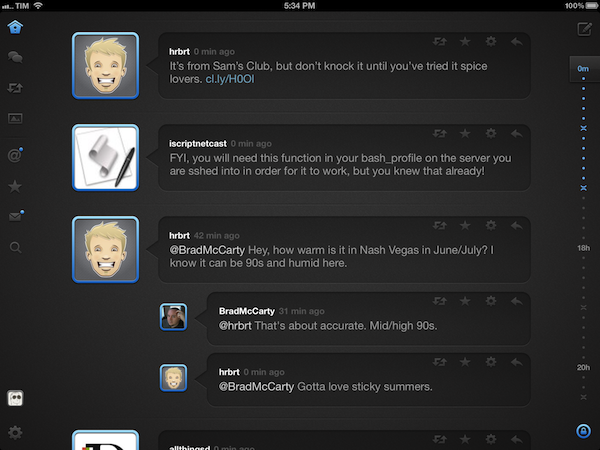
I have often written about the need for developers of third-party Twitter clients to focus on different, fresh experiences aimed at providing a new take on mobile tweeting. On iOS, as I have previously argued, apps like Tweetbot, Twitterrific, and Twitter’s official client have managed to capture a large portion of a devoted userbase split in those seeking a wide array of functionalities, a streamlined interface, or the free price tag. Quip, a new Twitter app by Glasshouse Apps (makers of The Early Edition), takes a unique approach at filtering the typical Twitter timeline by conversations, images, and retweets.

I have been testing Quip since its early beta versions, and the app has been no replacement for Tweetbot on my iPad. But that’s exactly Quip’s greatest strength and, I believe, one of its most valid points alongside a care for beautiful UI design and ease of use. While capable of being an average user’s primary iPad client because of its support for basic Twitter functionalities such as direct messages, search, and favorites, I think Quip works best as an attractive companion for catching up on Twitter and browsing certain sections/tweets that could otherwise get easily lost in a “regular” timeline. Quip doesn’t support Twitter lists, its search features are limited, and you won’t find the same degree of link and tweet manipulation options of Tweetbot.

Rather than contributing to the app’s possible detriment when compared to more advanced clients, however, Quip’s extremely specific feature set catalyzes the convenience of those Twitter-based functionalities that Glasshouse implemented. Read more


Fantastical 1.3 Adds Reminders Integration

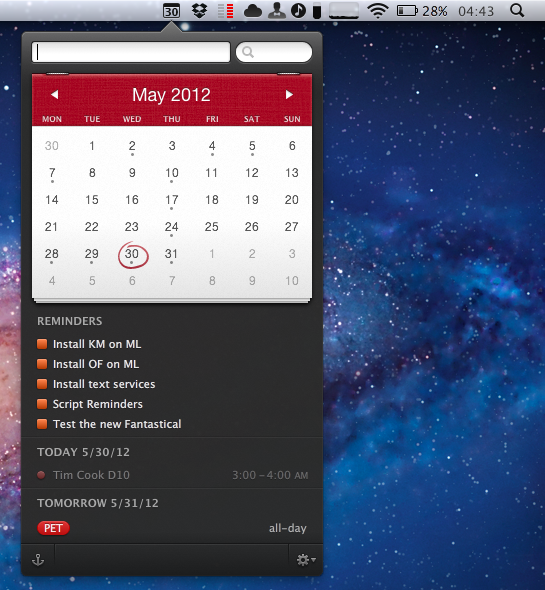
Flexibits’ Fantastical, a menubar-based calendar application to quickly enter new events with natural language recognition, has today been updated to include native integration with Reminders, a feature that Apple rolled out with its own app in iOS 5 last year. I have been testing the new Fantastical (version 1.3) for the past weeks, and its integration with calendars, reminders, and natural language input is as solid as ever.

One of Fantastical’s biggest advantages over similar apps to quickly add items to synced calendars is its built-in CalDAV engine, which ensures the app can directly communicate with online calendars without having to leave iCal open in the background. As with events, Fantastical 1.3 lets you create reminders with a few keystrokes, using reminder lists already configured in your calendar app of choice, such as iCal or Outlook. Because Fantastical is capable of directly communicating with the syncing engine behind Reminders – not just the calendar application that displays them on the desktop – you’ll be able to add reminders in Fantastical and have them synced across devices without leaving iCal open. In my tests, Fantastical 1.3 indeed took reminders I added from the menubar, and synced them to iCloud.com and other iOS devices within seconds. If iCal opens, as Flexibits explains in the FAQ, it’s because of a Lion default setting related to push; switching iCal’s refresh rate to 30 minutes doesn’t compromise Fantastical’s ability to create events and reminders independently of iCal.

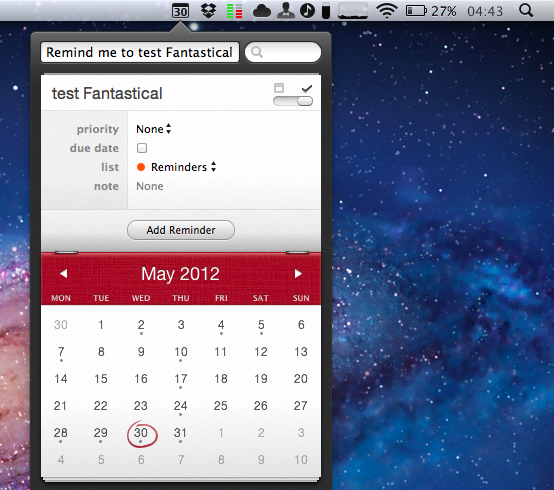
Fantastical can create, edit, and delete reminders with natural language recognition. In testing the app, I told Fantastical to “remind me to take out the trash”, and the app intelligently parsed the command as just “take out the trash”, interpreting the initial portion of the sentence as a reminder input. Similarly, commands like “remind” and “todo” will trigger reminder creation in Fantastical 1.3, which, generally speaking, tries to associate every new item without a date to a reminder list. This, however, can be reverted at any time, as the interface to switch between reminders and events includes a handy switch to jump through both options.

Reminders can be given a specific date or priority, assigned a note, but they don’t support location and time-based alerts, as those features are exclusive to iOS’s Reminders and Siri. In the app’s UI, reminders are displayed alongside calendar events, and they use the same floating popover windows for modifications.

In testing Fantastical 1.3 with my iCloud calendar and reminders, I found the app to be remarkably fast and reliable. As you would expect from Fantastical, adding new reminders takes seconds thanks to keyboard navigation and shortcuts, and the syncing engine didn’t miss a beat when communicating with iCloud and iOS. Unsurprisingly considering previous versions of the app, the parser doesn’t disappoint when it comes to automatically switching between event and reminder creation (try to add a date to a reminder, and check out the animation).

Fantastical 1.3 is a great update if you’ve been looking forward to Reminders integration, and another solid release for an app we’ve previously recommended. Fantastical is $19.99 on the App Store.

Change Displays Your Stock’s Current Value

Every time I think that there are enough stock and weather apps for iOS, I find a new one. And every time, I think something like “Please, let this one be cool”. Of all the apps that I regularly check out as a possible new topics, just 1% of them is usually worth a try. The rest is rubbish. When it comes to weather and stock apps, though, that rubbish part is also somehow twice as large. It’s as rare as an edelweiss in the Sahara that a new app with such purposes can offer a unique concept. Change by Jon Wheatley, however, is a perfect example of uniqueness and simplicity applied to stock UIs on the iPhone.

Wheatley reduced his app’s feature set to the question any stock owner always asks himself: have I gained or lost money with the stocks I own? Nothing more, because let’s be honest – more data is typically for the intellectual academics who call themselves stock analysts when reviewing iOS apps. Change is divided in two parts: a main information window, and a detailed list view to add or delete stocks you own. No preferences, no graphs, no predictions – just the current situation of your investments.

After the first launch, you have to enter the information about the stocks you own. Adding new ones afterwards is just a tap on the top right + button away. In the second panel, you have to type in the amount of stocks you own, the price you paid for them, and the stock symbol (like AAPL) of the respective company. Although the developer kindly implemented number fields for the first two panels, he did not manage to implement a search feature for the symbols, something which is totally common and useful, and definitely needs to be added in future updates.

What follows is an easy calculation in the background. The overall difference (all entered stocks are included in the main window) between your stocks’ value today and the time you bought them is then displayed in a large circle in the center of the screen. If it’s red, you lost money; if it’s green, you gained some. Additionally, you get your total gain (or loss) over time and the total value of your stocks via smaller numbers below the circle.

Tap on the diagram button in the top left corner, and you get to the mentioned list view where you can also add new stocks you recently purchased. Here, a more detailed look at single stocks is provided: you can see which part of your portfolio was more profitable today and over time.

Besides the fact I had to restart Change the first time I tested it (it crashed when I refreshed the calculation by tapping the circle), Change ran flawlessly on my iPod touch 3rd Gen. The simplicity in functionality can also be seen in the app’s UI. There are no distracting tones except for the aforementioned red and blue colorization of the circle. This way, nothing is distracting the user from the app’s purpose: easily displaying changes in stock value. The rest of the app is monochrome and easy to overview – this is mainly the case due to the very tastefully chosen sans-serif typefaces in which the headlines and information are set, and the subtle, but unique background texture.

Change takes the area of stock surveillance into a whole new direction: simplicity. And another great decision Wheatley made with Change is the app’s price: you can get Change for free on the App Store.

Cleaning Mona Lisa: Showcasing the Potential for iBooks

Cleaning Mona Lisa Book Cover

Cleaning Mona Lisa Book Cover

Behind a beautiful portrait of Mona Lisa and a blue ribbon denoting its newness to my iBooks shelf, I discovered a world of rich and vivacious color drowned out by the ill effects of aging varnish, dust, and improper lighting. Restoring the world’s most famous paintings requires not only an understanding of the fine arts, but an even deeper understanding of the tools artists used to create the wildly vivid and awe-inspiring paintings we often observe in museums and art galleries. As you’ll come to learn in Lee Sandstead’s interactive iBook, preserving a painting is an art itself.

Sandstead’s 30-page digital iBook is nothing short of an exemplary example of what iBooks Author can produce when great minds meet great developers. The concise text, coupled with interactive images, galleries, and interviews, provides a much more personal platform for learning and engagement than my history textbooks ever could. That’s not to say “Cleaning Mona Lisa” was written for study — it’s an intriguing, personalized story from a passionate and talented art historian.

Cleaning Mona Lisa Lighting Page

Cleaning Mona Lisa Lighting Page

Covering the history of painting techniques from tempera to oil painting, Sandstead has to first recreate the methods artists used to create their paintings. As you’ll learn, the tools artists used and our neglect about how these paintings were intended to be preserved has been detrimental to the quality of the paintings themselves. Sandstead made it his mission to understand both what affects the quality of a painting and how to do undo the toll of time itself to reveal what are truly beautiful masterpieces.

iBooks Author has enabled the creation of an interactive e-book, that as Apple intended, flows perfectly no matter what orientation you decide to read it in. Videos guide you through the author’s investigative process, while interactive word bubbles clue you in on the observations made on a particular painting. Tapity’s iteration of engagement immerses you with the content — it doesn’t detract you from the author’s message. The author’s prose, combined with the layout of images and interactive content, make for an ebook that’s accessible and clever.

Cleaning Mona Lisa” is an iBook for all ages that can be read in an evening. It didn’t take me long to read through, but the material was genuinely interesting, and I have nothing but good things to say about the book’s presentation and content. Only $2.99 on the iBookstore, “Cleaning Mona Lisa” sets the example for what an iBook should aspire to be.


Espionage 3: Effortless Encryption for your Mac

Tao Effect’s Espionage has always taken a novel approach to encrypting data on OS X. In contrast to applications like TrueCrypt or Knox that protect data in individually encrypted virtual disks or vaults, Espionage does its best to mask encrypted disks from the end user. Rather than interfacing with virtual disks that are individually encrypted, Espionage uses the folders you want to protect as a reference point and applies a 1Password approach to the protected folders on your system. Espionage solves two problems: it centralizes all of your protected data and makes that data easy to access through a single master password. Espionage’s approach to securing your data means that you can interface with folders on OS X as if they were regular folders — tasks like mounting and unmounting encrypted volumes are taken care of for you in the background through a streamlined interface. Protecting your data shouldn’t have to come at the cost of convenience.

Read more