This Week's Sponsor:

Copilot Money

Copilot Money, The Best Money Tracker, Launches on the Web – Limited-Time: Get 26% Off + 2 Months Free


Posts in reviews

Review: Tyype HD for iPad

Text editors on iOS are always difficult to review. More or less everyone who writes on a computer or other digital device has a favorite mobile and desktop text editor, and is accustomed to the workflows connected to it. To give an example, I am totally in love with iA Writer. Its easy iCloud sync options, readable typography, and Focus Mode fit my needs. I don’t need Markdown, lots of different fonts, or an extensive amount of settings. I just want to write, and with iA writer I found the perfect, distraction-free environment to do so.

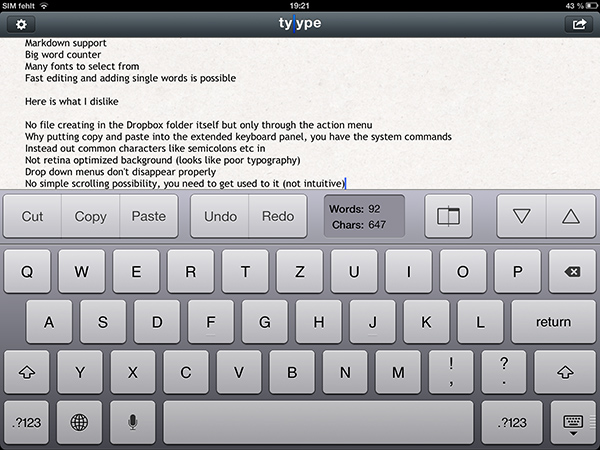
However, when I recently discovered Tyype, a new iOS text editor by Polish app development company Appvetica (who also developed apps like QRSight, an OS X QR code scanner), I got curious. Their clean, minimalist website and product video promise a text editor with easy text navigation, selection, and copying using custom gestures. Its interface seemed easy to understand, and the icon looks gorgeous. So I went ahead, downloaded Tyype HD for the iPad (which I’ll refer to as “Tyype”) and starting writing with it. Unfortunately, I have to say that Tyype does not work as great as it is shown in the demo video on the app’s website. But it’s certainly not a bad app either. Read more


Some Brief Thoughts on Apple’s New EarPods

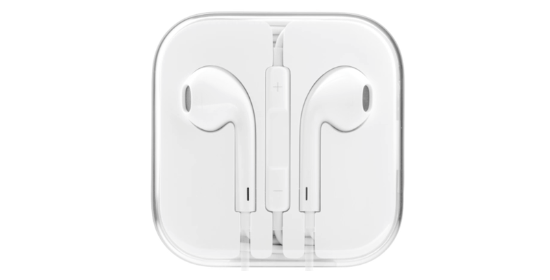
Apple's EarPods in their packaging

Apple’s EarPods in their packaging

They’re the most comfortable pair of earbuds I’ve owned. I feel like the EarPods were shaped just for my ears. The buttons on the remote are fatter and have a satisfying click. There’s some bass where there really wasn’t any before. Mids and highs sound balanced, even if detail found in more expensive in-ear headphones is lacking. Comparatively to Apple’s old buds they’re much better. Personally I think they look sharp — it’s like having two tiny spaceships dock with your aural receptors.

The EarPods’ design gives it a unique benefit over traditional earbuds: they block more outside noise and are similar to in-ear headphones in this manner, which provide complete noise isolation by the means of fitted plugs. My ears are small, and I’ve had consistently bad luck with in-ear headphones, the smallest plugs always being too large and uncomfortable. Plus, I’m not one who sits still — noise from brushing the headphone cable bothers me. With the exception of maybe the old stocky earbuds that came with the iPod video, Apple’s earbuds have been the most comfortable for me. The new EarPods don’t leave my ears sore after a few hours of wearing them while writing, doing chores, or whatever. A good in-ear pair of headphones (even a pair of $99 Shures from Best Buy) will likely be much more impressive sounding for discerning music lovers, but I’ll take comfort over the omg-my-ears-feel-stuffed-and-my-head-is-going-to-split-open feeling. Everyone’s ears are different (e.g. they fit loosely in Gabe’s ears.)

I’m not a fan of how Apple wraps their cable at the plug and (now at) each stem of the EarPods. The small gray sleeve wrapping around the rubber cable still feels thin and will eventually tear as they have with all my older Apple earbuds, whereas the latest Apple Dock Connector to USB Cables have thick textured end sleeves that feel tough and durable.

Apple’s EarPods are convenient, add extra thump to bass and drums in your music, and come bundled with a new iPhone 5, iPod touch, or iPod nano. Are they worth $29 by themselves? When my current pair wears out or if I lose them, I’ll buy a new pair (I haven’t worn anything else that’s as comfortable). Although you should probably listen to the technology savants from The Wirecutter if you want to save some money or equip yourself with better sounding buds. My choice simply comes down to comfort and having headphones for when I’m traveling, need my hands free during a private call, and for when I need to tune out or not disturb someone else from something.


Tube+ Is A Clean and Fast YouTube Client for iPhone

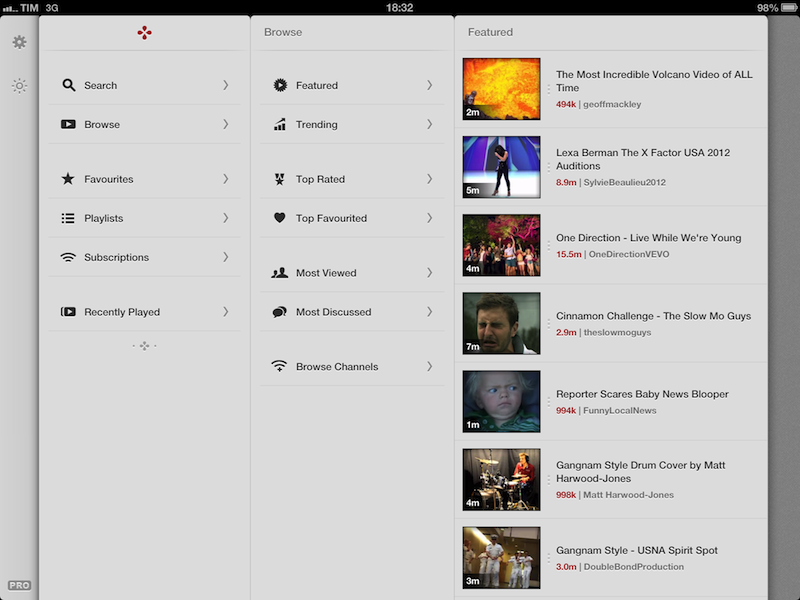
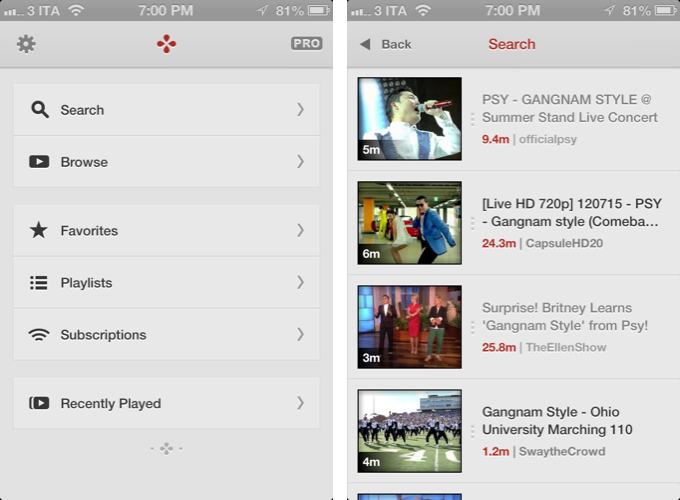
With Apple removing the built-in YouTube app from iOS 6 and Google releasing its own (pretty good) official app on the App Store, we should expect a renewed interest in third-party YouTube clients offering alternative features and designs. Tube+ is one of the first apps to hit with the “new wave” of YouTube clients, and I like it.

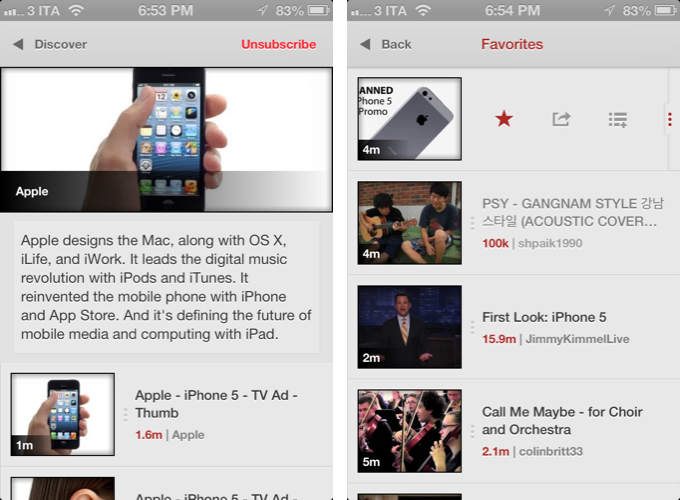
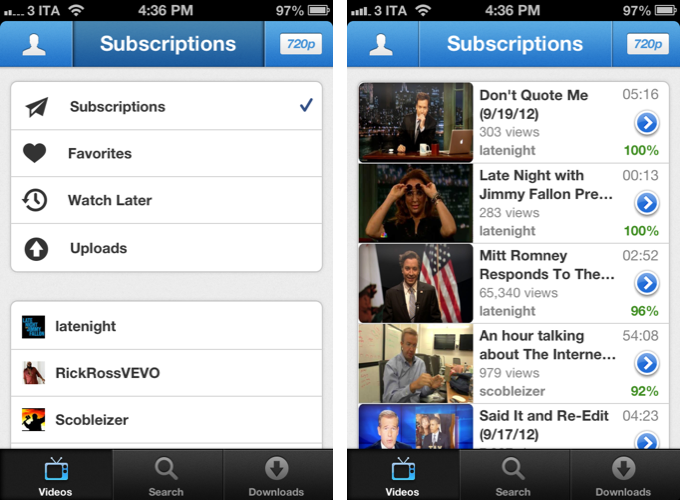
Developed by Chocomoko, Tube+ is simpler, both in terms of design and functionalities, than YouTube’s own app, or my favorite third-party client to date, FoxTube. You shouldn’t judge Tube+ by its streamlined appearance, however, as the app has access to some features and options that not even the official YouTube app has (for now). You can use Tube+ with or without a YouTube account; if you log in with your credentials, you’ll gain the possibility to check out your subscriptions, favorites, watch later videos. and uploads. If you don’t log in, you’ll still get access to regular search, Featured, Top Rated, Top Favorites, and Most Popular videos. To get the best experience, I obviously recommend logging into the service with your account.

The interface of Tube+ revolves around three tabs: Videos, Search, and Downloads. I’d like to focus on Downloads right away: unlike many other apps that had to remove a similar functionality, Tube+ (still?) allows you to download videos and keep them in a local cache so you can watch them offline. And the best part is, when you hit the download button on a video page, you’ll be asked to choose the “format you prefer” – you can download at 360p, 720p, 1080p, and all the in-between options YouTube provides. Tube+’s offline caching functionality is simple and effective, but you won’t be able to organize downloaded videos in local playlists or folders.

The main tab, Videos, is where you’ll spend most of your time. Here, you have various options to navigate around YouTube content using the top bar, which, similarly to Tweetbot, is actually made of buttons to change sections. The left button, a profile icon, is used to switch between public contents-only or your account; the button on the right lets you choose the default quality of YouTube videos you’ll stream, from 240p and up to 1080p with an “auto” option that loads videos depending on your Internet connection. Last, the main area of the top bar lets you switch between the aforementioned supported YouTube sections, your subscriptions, and videos you’ve liked or saved for later.

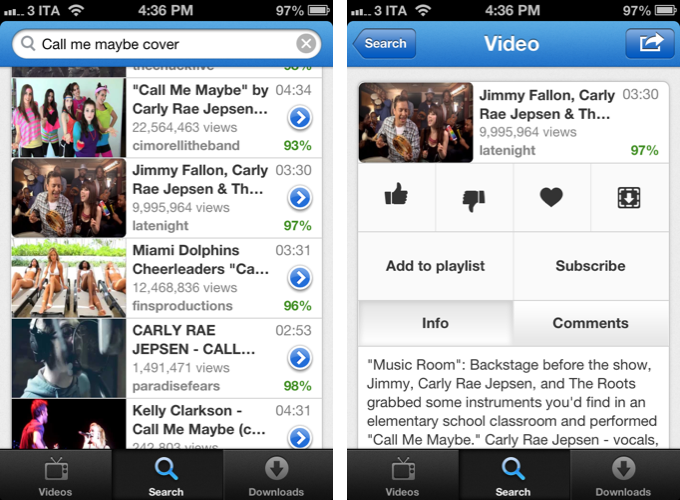
What I like about Tube+ is the control it gives me over the quality of videos I stream and download, but, more importantly, its speed and responsiveness. Tube+ is fast: sections load in a snap, video thumbnails load instantaneously when searching. There is a “load more” button to fetch more content from search, and the developers implemented the new iOS 6 pull-to-refresh mechanism to make it easy to check for updates or simply reload a page (note: Tube+ requires iOS 6). Alongside with notable performance, I appreciate the decisions behind the feature set of Tube+: again, it’s not as rich as YouTube or FoxTube, but you can still subscribe to channels and add videos to playlists, share videos with your friends, write comments, like, dislike, and mark a video as favorite.

There are some things I think Tube+ could do better. Firstly, I don’t like how, when sharing on Facebook or iMessage, the app uses its own short URL instead of regular YouTube links. This is particularly inconvenient for services that generate thumbnail previews only for YouTube URLs, like Twitter and Facebook. Second, I’d like to see an option to easily open an uploader’s video page – this is something that FoxTube still gets perfectly right in my opinion.

Overall, Tube+ offers a clean and fast experience – particularly if you use search a lot, you’re going to notice the speed of the app compared to Google’s official YouTube client. Tube+ doesn’t have the same amount of features YouTube and FoxTube have (for instance, there’s no separation of videos and channels in search results), but at $0.99 with offline caching, a good feature set and an elegant design, you should definitely consider Tube+.


iOS 6: Mail, Phone and Safari Feature Additions

Mail, Phone and Safari have all been around since the original iPhone launched in 2007. They all have seen subtle changes here and there over the years and in iOS 6 that trend continues but with the addition of some really neat new features.

The big new thing for Mail is VIPs which gives you more control over how you deal with your inbox and who you pay most attention to – but there’s also the addition of the pull to refresh gesture and the ability to add images directly to a new message. Phone gets two really useful and practical features: the ability to reject a call and then quickly reply to them or set a reminder to call back, and the new “Do Not Disturb” feature. Finally, the core of what made the iPhone a ‘smartphone’ in the early days, Safari, gets a new full-screen landscape mode, the ability to sync tabs across devices, upload photos and videos, and offline mode for Reading List.

To get the full overview of these new features and some neat tips, jump after the break.

More iOS 6 coverage here.

Read more


Hands On with iOS 6 Maps

When Apple launched the iPhone in 2007, Google was a partner and not a competitor. Apple’s Maps, with data supplied by Google, was famously demoed by Steve Jobs when he searched for nearby Starbucks establishments and made a prank phone call with a tap of his finger. When Apple unveiled their iPad three years later in 2010, Steve Jobs was equally delighted to show off Maps, as he pinched the display to get a bigger overhead view of the Eiffel tower.

Initially, Maps was a simple mobile companion to Google Maps. Standard, hybrid, and satellite views were there, as was the ability to show traffic congestion and get driving directions between two locations of interest. It wasn’t until just over a year later with iOS 2.2 that Maps was improved with walking directions, public transit information, and street view. On the iPad, a terrain view was added. Alternate routes for directions came later in iOS 5 alongside estimated time of arrival and the ability to print directions via AirPrint. Over time, it became a robust Maps application that was better than Google Maps on the web.

What Apple did with Google Maps was pretty incredible when it was first introduced with the iPhone and later on the iPad. In contrast to using sliders and buttons on the web, Apple demonstrated that maps could be intuitive to navigate with just your fingertips. Panning around a map with your finger, tapping on search results to pull up business information, and navigating the world with Street View simply felt right on a touchscreen. Google provided often accurate search results and map data, while Apple provided a delightful interface to show their world through.

Today, using maps on our smartphones to find our way is an everyday habit. Frequent fliers rely on their smartphones to find their way in new locales, while city dwellers actively use smartphones to request public transit information. The convenience offered by our smartphones makes it possible for us to actively plan our days around city schedules, plan road trips, and get directions to a business for an all important interview. Beyond Apple’s Maps, companies like TomTom, Garmin, and Navigon added to the iPhone’s capabilities by providing real-time navigation and voice-guided directions through apps from the App Store. Yet competitors, such as Android with Google Maps and Google Maps Navigation, and Windows Phone 7 with Bing Maps and Nokia Drive, were offering GPS navigation on their ecosystems for free. For iOS 6, the missing piece to be filled-in for Apple’s Maps would have to be such a feature.

In iOS 6, Apple’s Maps is a headlining feature. During this year’s WWDC 2012 Keynote on June 11th, turn-by-turn navigation was showcased for Apple’s brand new Maps application in concert with the display of real-time traffic conditions. Apple added interactive 3D views and Flyover to select cities, giving maps a 3rd dimension on top of a traditional satellite view. As impressive as Apple’s demonstrations were, the most interesting feature are Apple’s new vector based maps, completely redesigned “from the ground up” as a replacement for Google’s Map data.

Read more


Uberlayer Is A Handy Tool For Pixel-Perfect Design

Twelve Twenty, the Dutch maker of the print-size checking OS X app Will It Fit and the iOS calendaring tool Get Together, recently published their third app, Uberlayer. Uberlayer is a small tool for UI and web designers on Mac OS X to quickly overlay images of a new design work onto your desktop.

Let’s say you just designed a mockup of an update to an existing website or application. Drop it onto Uberlayer to bring it on the screen. Using shortcuts you can move it around in pixel steps, make it more or less transparent, and activate click-through options. If you make the design half-transparent and you have the current version of an app or website just behind it, you can easily check how the current design changes will affect the overall look of the whole product. Using the click-through option, it’s easy to select certain parts you want to change to copy or delete them in the “real” version of your product.

I tried Uberlayer on my personal website by trying out a different style for an ad I currently have on it. This is what a half transparent “uberlayed” image looks like:

It’s actually pretty hard to describe how the app works using only words and pictures. If you’re curious, I recommend you head over the Twelve Twenty website and check out their Uberlayer demo video. I think Uberlayer can be a useful tool in a web or application designer’s workflow. Uberlayer is $1.99 on the Mac App Store.


App.net’s First Two iOS Clients: Rhino and Adian

Speaking of App.net, the developer community has been busy building iOS, Mac, and web clients for the service, which promises it’ll never try to purposefully harm or limit the third-party ecosystem. Of all the iOS and Mac clients currently in development (I’m testing a bunch of them, and good things are coming soon), two are currently available on the App Store: Rhino and Adian.

As John Gruber wrote in 2009, Twitter clients used to be a UI design playground for developers attracted to the service that was just about to become mainstream. The App.net clients available today sit in the middle ground of leveraging the conventions established by Tweetie, Twitterrific, and Tweetbot while working with a service that’s not nearly as popular as the Twitter of 2009, when third-party clients exploded in terms of popularity and usage.

Most of the App.net clients currently in development look and perform exactly like Twitter clients, but they are working with a platform with a much smaller scale, even by 2009 Twitter standards. This is perhaps indicative of the current status of App.net – a service that uses the foundation of Twitter while quickly adding its own unique features – and is undoubtedly helping with creating these clients (a smaller community means easier scaling and lots of feedback), but it also leaves a strange feeling of “seen that, done that”.

App.net clients will have to find their own identity just like App.net will have to grow into a different yet solid alternative to Twitter. Developers need time to figure this out. Read more


Living Earth HD — My First Mac OS X Weather App

I’ve never seen the need for a desktop weather application. I’ve always considered it way easier to fire up Chrome, go to the website of my favorite German weather forecast provider, look up the forecast, then get to work. So why should I clutter my menu bar or even my desktop with another app I have to update and look at to justify its purchase? On iOS the situation is completely different: I need a weather app on my iPad for quick glance without the hassle of typing in a web address into Mobile Safari.

Living Earth HD is one of the newest iPad weather apps featuring an interactive 3D animated world globe with live weather forecasts. After testing it, I realized that this concept didn’t suit me on the road, although the app looked pretty awesome on a Retina Display. I want precise forecasts I could quickly glance at, just like Weather HD 2’s new Quick View feature. So although I like Living Earth HD for iOS, it didn’t have any chance to become my default weather app. Two weeks ago, Ryan and Moshen from Radiantlabs published a port of Living Earth HD to Mac OS X, which I will refer to as Living Earth Desktop throughout this review. I got curious and started testing it. After more than a week now it is still in my menu bar, right beside the Dropbox and Tweetbot icon, which means it’s a really good app.

Read more


Quick, Effective Reminders with Sticky Notifications

Sticky Notifications by Matt Gemmell is a utility to create “sticky” reminders on the OS X desktop using Mountain Lion’s Notification Center (Growl is also supported, and the app runs on 10.7 as well).

OS X comes with Stickies, but, admittedly, Apple’s own app feels outdated and out of shape. By integrating with a system-wide feature users are already accustomed to, and adding neat integrations like Automator and hotkey support, Sticky Notifications greatly simplifies the process of putting information on the desktop for later. And it has a lot of clever touches that, in spite of the app’s simplicity, show a profound attention to detail and care for optimal experience.

By default, Sticky Notifications sits in the menubar. Upon clicking its icon, a post-it, sharing sheet-like menu pops up, allowing you to write down your reminder. You can write down a title, hit Enter, and the reminder will be created on the desktop using Notification Center’s “alert” style, which is sticky and is displayed until manually dismissed.

Obviously, because it’s based on a native functionality, you can head over Notification Center’s preferences to set the app’s style to banner, but that would defeat the purpose of Sticky Notifications, at least partially (banners will be dismissed after a few seconds, but they’ll still be saved in Notification Center). You can also attach a subtitle and a message, and create multiple stickies to sit on your Desktop.

That would be it as long as the main functionality goes. But developer Matt Gemmell was clever enough to bake in some sweet integrations with system and third-party utilities to extend the capabilities of Sticky Notifications.

There is an Automator service to create workflows that trigger new reminders using the app. I would love to see AppleScript support in a future version of the app in order to further improve scriptability.

You can select any text on your Mac, and use a system Service (optionally paired with a keyboard shortcut) to save it as a message in a reminder.

Too, the app is smart enough to recognize URLs saved in a reminder’s message, so when clicking on one, the URL will automatically open in the default browser. I find this to be an excellent solution to save links for later without bookmarking them.

Speaking of URLs, Sticky Notification has a URL scheme. By URL-encoding parameters in a single string (just concatenate them using &), you can create new reminders outside of Sticky Notifications in the background, or bring up the app’s menu by using the prepare option in the URL. Because of this URL scheme, you can combine Sticky Notifications with Alfred (or LaunchBar) to set up custom searches. I really like having custom URL schemes in the apps I use daily, as they allow me to fiddle and build custom workflows tailored to my needs.

Sticky Notifications is the perfect example of a fairly complex piece of software presented as a simple and intuitive app. This doesn’t come as a surprise, considering, again, the amount of thought and work that Gemmell put into this app. As Matt wrote, it’s the little things.

Sticky Notifications is only $2.99, either from the Mac App Store or the developer’s website. If you’re looking for a modern, easy to use, and powerful Stickies replacement, you can’t go wrong with Sticky Notifications. Recommended.