This Week's Sponsor:

Copilot Money

Copilot Money, The Best Money Tracker, Launches on the Web – Limited-Time: Get 26% Off + 2 Months Free


Posts in reviews

1Password 4.1: Password Fields, A New Classic View, A New Login Prompt, and More

It was October when AgileBits first launched 1Password 4 for the Mac, engineered and redesigned to be just as functional and beautiful as its iOS counterpart. 1Password 4 shipped with a ton of new features, which included iCloud sync, favorites, multiple vaults, Security Audit, and 1Password Mini. Today, our favorite password manager for the Mac is getting even more features in what AgileBits is calling, “The Little Big Update.” While this update is packed with lots of goodies, three stand out to me as the big ones.

New features

First up: one of my own requested features. A great feature on the iOS side lets you add password fields to items, and this feature has finally been brought over to the Mac. If you’ve been adding things like security answers as text fields, you can also convert them into concealed password fields as well. 1Password Mini makes these fields especially easy to get to if you ever need to answer any of your security questions.

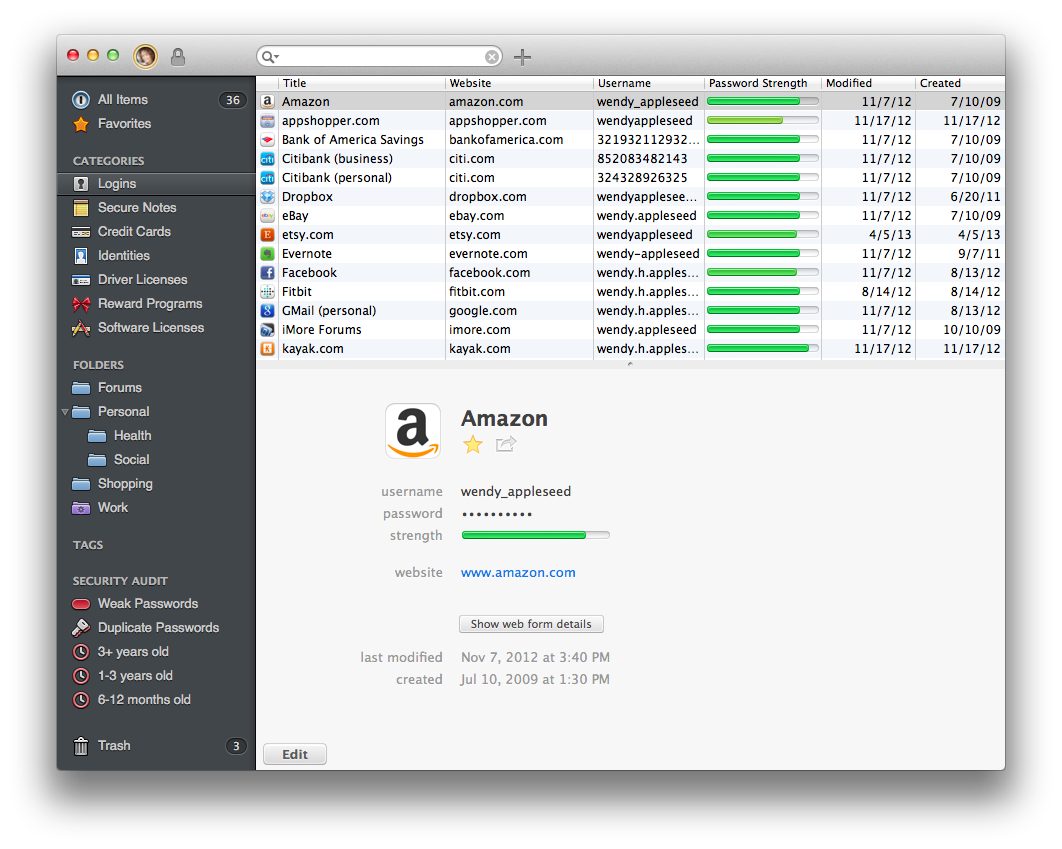
Next up is a new option for viewing items. A new Top Item List Layout view (found under View > Item List Layout > Top) organizes items into multiple columns. It condenses a lot of information into a classic list, making it easy to view logins, dates, and password strength at a glance. Fans of MailMate should will appreciate the formal look.

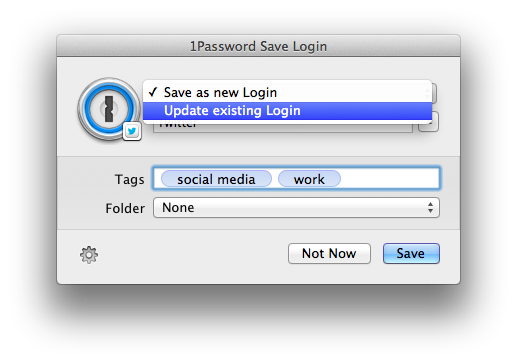
Lastly, 1Password 4.1 has overhauled how Logins are saved and updated. When you change a password on a site, the 1Password extension will let you choose which Login to update if there’s more than one, while additionally letting you set tags and file Logins into folders. The new dialog box is much more like a save prompt for a Mac app, making it easier to save and sort your Logins on the spot.

There’s a few other notable little features that are worth mentioning as well. When you search, you’ll have the option to expand an existing search across all fields in items if what you’re looking for can’t be found by title alone. If you’re printing out items, you’ll be able to do so individually through their share menus. Lastly, lots of bugs have been squashed for WiFi syncing for those who prefer to keep their 1Password databases out of the cloud.

When can you get your hands on it?

You can download 1Password 4.1 from AgileBits’ website at 12pm Pacific Time / 3pm Eastern Time. If you purchased 1Password 4 directly from AgileBits, then you can grab it this afternoon.

Mac App Store customers can download 1Password 4.1 once it’s approved. Basically, “Soon.”

Looking to learn more about 1Password? Check out everything we’ve had to say, including news and reviews on one of our must-have apps.


PDF Expert 5 Brings Updated Design, More PDF Editing Features to iPad

PDF Expert

PDF Expert

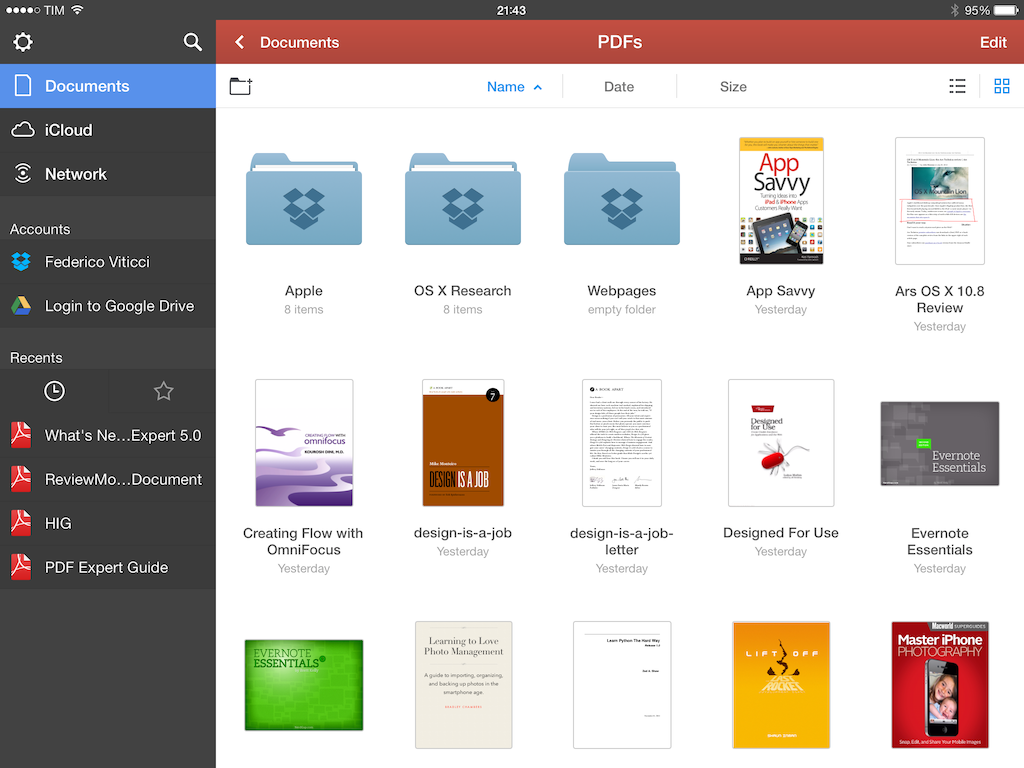
Released today on the App Store, PDF Expert 5 is Readdle’s new version of the popular PDF Expert for iPad, a feature-rich PDF manager and reader that I’ve been using on my iPad for years. PDF Expert 5, a separate app sold at $9.99 on the App Store, brings a cleaner design for iOS 7 and, more importantly, new functionalities such as better document management, an improved sidebar and document viewer, Review mode, and more. Read more


MindNode 3

MindNode 3

MindNode 3

When I’m writing for MacStories, I tend to prepare articles as outlines in Evernote, where I’ll also throw in some images and hyperlinks. For pieces that are focused on a single subject (like an app review, a tutorial, or an opinion piece), the simple outline system works well because Evernote can keep everything in one place and show inline previews.

For longer articles that require deeper research and span a variety of topics, however, I like mind maps. Since I was in middle school and especially in high school, I got used to remember topics by creating mind maps (“concept maps”, as our teachers called them) with pen and paper for classes like History, Ancient Greek, English Literature, or Philosophy. Back then I had no iPhone or iPad and the school’s computers were some cheap Pentium 4s that the school administration couldn’t upgrade due to lack of regional funds, so I spent hours drawing little boxes and coloring them with highlighters. I made hundreds of them over the years.

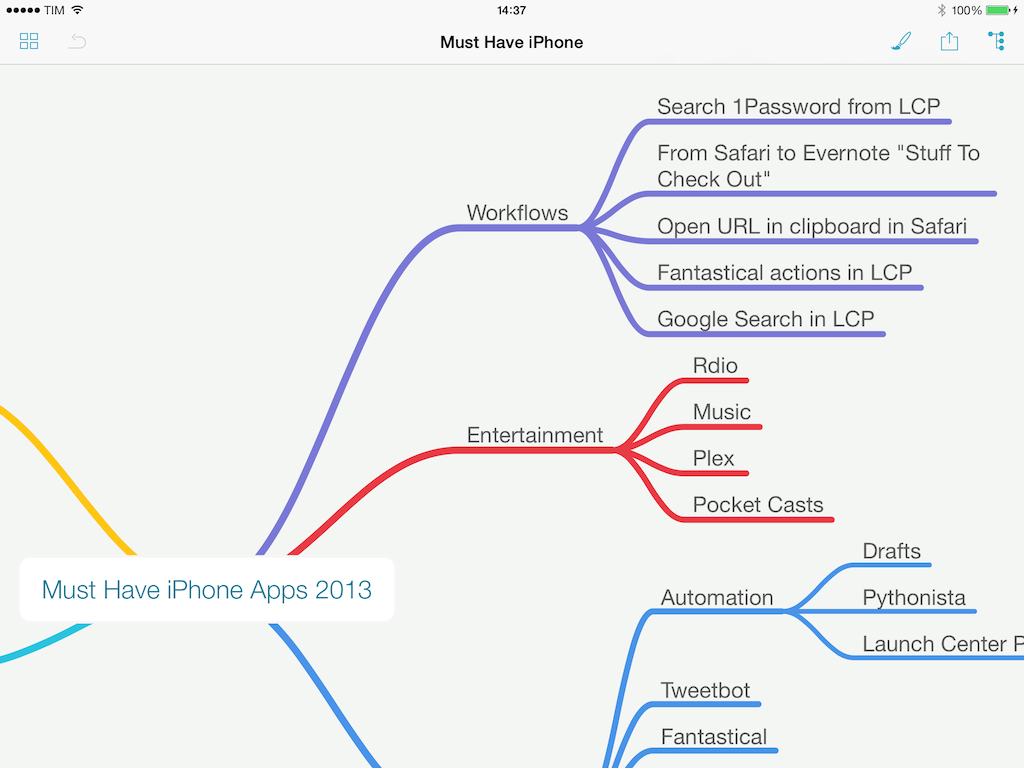
When my brain has to jump from point to point several times and a text outline isn’t enough, I like the visual approach of mind maps. And in the modern age, unless I need specific advanced features of iThoughts, I usually open MindNode – IdeasOnCanvas’ app for the iPhone, iPad, and Mac. MindNode for iOS gets the 3.0 treatment today with a major update that redesigns the app, makes it iOS 7-only, adds new features, and cleans up some old ones while staying free for existing customers. Read more


Unbound: A Photo Viewer for Dropbox

Unbound

Unbound

I’ve been keeping my photos in Dropbox for over a year now. I’ve remained loyal to a folder structure that organizes photos in years and months (Bradley would be proud of me) and I still use Hazel and CameraSync to upload my photos. While I’ve been happy with the uploading/organizing process of this photo backup workflow, the experience of browsing photos was never great. And I’d rather not talk about my brief, emotionally intense, and ultimately sad affair with Everpix.

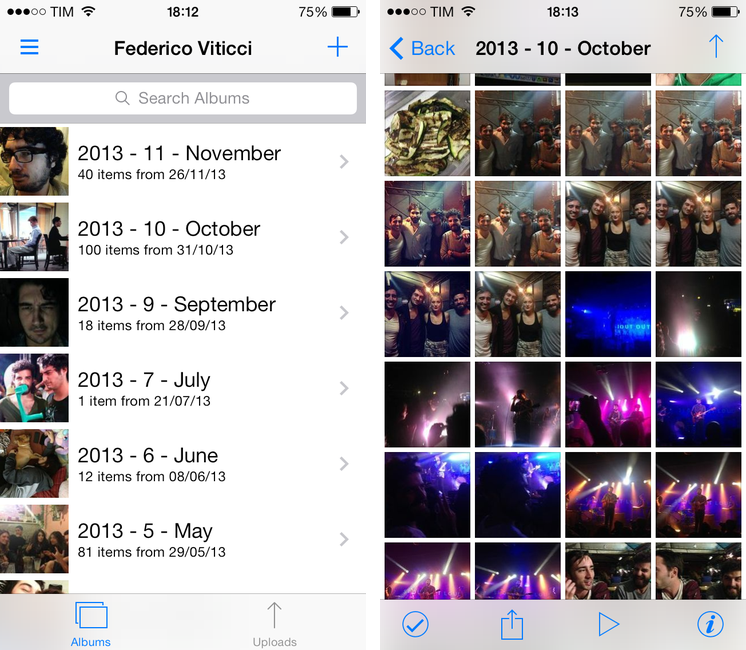
Unbound by Pixite is a photo viewer for people who keep their photos in Dropbox. Unlike recent App Store trends, it comes as separate purchases for the iPhone and iPad priced at $2.99. The app is built for iOS 7, and it comes with viewing and sharing features that, right now, make it my best option to browse photos I’m storing on Dropbox. Read more


Automate iOS Contacts, Location Services, and Open In Menu with Pythonista 1.4

Pythonista 1.4

Pythonista 1.4

Pythonista is the app that changed my iOS workflow a year ago. A Python interpreter with native access to iOS system features like photos, URLs, and interface elements, Pythonista allowed me to convert the scripts and macros that I was using on OS X to the iPad, automating iOS in better and sometimes unexpected ways. Pythonista eventually led to Editorial, also developed by Ole Zorn, which changed the way I write and work on my iPad every day.

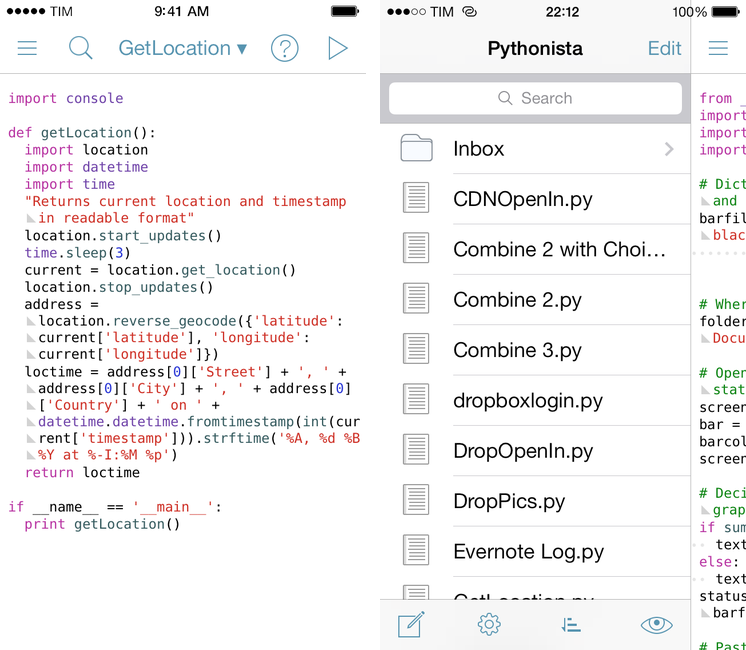
Pythonista 1.4, available today on the App Store, is the biggest update to Zorn’s app to date. It includes a new UI for iOS 7 (the app is also iOS 7-only starting today), new modules and enhancements to existing ones, and, more importantly, it doubles down on iOS integration by bringing native support for contacts, location, and Open In. Read more


TextTool: Text Manipulation On iOS

TextTool

TextTool

It used to be that, to do nerd stuff, you had to get a Mac or PC. As iOS progressed over the years, however, developers saw that users were spending a lot of time trying to do work on their iPhones and iPads, and started building utilities that packed powerful functionalities in what looked like “just an app”. We got Drafts and Launch Center Pro, calendar apps and password managers just as powerful as their desktop counterparts, and, of course, apps to script iOS and a text editor with its own workflow system. To sum up: iOS is still maturing, but there’s no shortage of nerdy apps and utilities at this point.

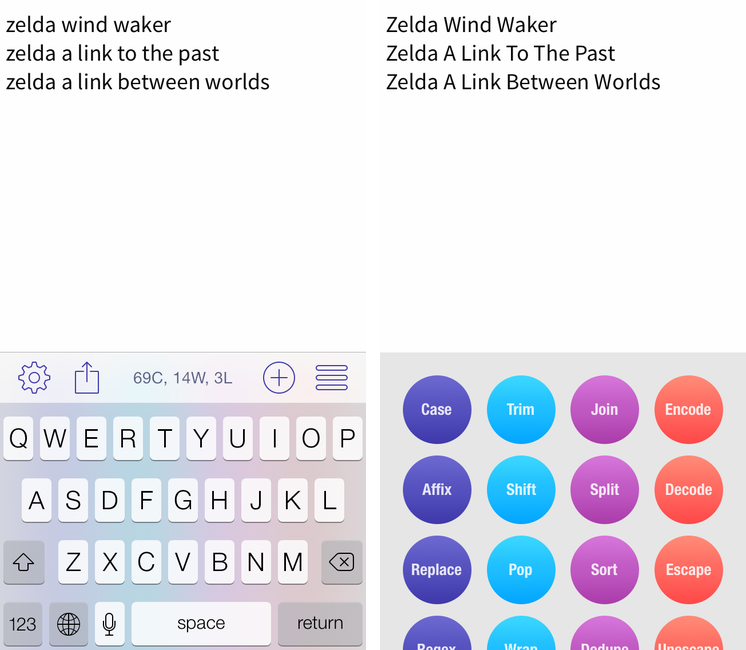
iOS is great for quick text entry thanks to the portability of an iPhone or iPad mini, but doing advanced text manipulation is a bit tricky unless you want to get dirty with Editorial and Python scripts. On the Mac, it’s easy to fire up Automator and create a workflow that takes a line of text and turns it Into Title Case or UPPERCASE; even going the extra mile and building services to take selected text and indent it or swap spaces with tabs takes a few minutes, but it’s doable with a basic knowledge of built-in OS X tools. On iOS? There’s no Automator (yet?), so, until today, if you wanted to do automated text transformations you’d have to get Editorial and Pythonista or use some of Launch Center Pro’s (limited) text filters.

Craig Pearlman noticed this problem and built TextTool, a $4.99 Universal app that comes with 28 built-in text transformations that you can use inside the app’s text editor or chain to other iOS apps with URL schemes and workflows.

Read more


Thoughts on Nike+ Move for the iPhone

The waveform as shown in motion. It’s mesmerizing.

While not their own, it seems strange that an app Apple showcased on stage in September wouldn’t be available until early November, especially since it’s a major bullet point for one of the iPhone 5s’ key features. Designed exclusively[1] for use with the M7 coprocessor, Nike+ Move is one of the iPhone 5s’ most anticipated apps, expected to set the bar for fitness apps and demonstrate how useful Apple’s new motion technology actually is.

While Nike has stated the app provides an introductory experience into the Nike+ ecosystem, I’m not sure if I’m left wanting more. The app is pretty good, despite being an obvious gateway to other Nike products such as the FuelBand[2].

There’s two things I’ve learned about NikeFuel, the universal system used to measure your activity throughout the day: it’s a much better way to measure activity than step count, and it’s much more adaptable to a wider variety of exercises. NikeFuel doesn’t discriminate against how you move, so long as you get off your butt and get active.

Ultimately, the Nike+ Move app on the iPhone 5s, provided you have one, makes me question wether you need a separate wearable device. My opinion boils down to the M7 coprocessor and how it’s able to determine what you’re doing at any given time.

The problem with wearable fitness devices is that they’re geared towards urbanites, with companies suggesting potential buyers to get fit by stepping out of the office and taking a stroll around the block. They record steps counted, calories burned, and distance climbed, but that’s a rather narrow view into the world of activity and personal fitness[3]. And they’re step counters tied to your wrist, which don’t yet have robust algorithms to differentiate between walking and other activity to be considered reliable pedometers.

Apple’s M7 coprocessor is baked into a device you already have with you. It knows when you’re driving, and it knows when you’re walking vs. running[4]. Being in a phone, it’s also not locked to your body, and it doesn’t (hopefully) end up in the wash. Combined with NikeFuel, you end up with a surprisingly honest fitness device.

Adding to that potency is Game Center support. I don’t have to sign into a separate social network, join a new community, or find my friends. They automatically show up in the Nike+ Move app, and suddenly the idea of gaming my fitness vs. my friends actually works. Not only do I want to get active, I’m motivated to stay active.

Nike+ Move adds a ton of value to the iPhone 5s. It’s free, and for most people, it obviates the need to purchase a separate fitness device[5].

There’s six sections in the Nike+ Move app that break down your activity into various charts and info graphs. At its worst, Nike+ Move is a marketing tool disguised as a fitness app. At its most, it’s the iPhone’s best fitness app solely because the concept is simple: beat your score.

Apple keeps a log of your movement data on the iPhone so that other apps can tap into it at a moment’s notice. This means that you’ll effectively have a good baseline of fitness data to start with when you open a fitness app on the iPhone, and Nike+ Move is certainly no different, which averages the prior week’s total from the get-go.

The app encourages you to get moving, not only to match the prior day’s score, but to go above and beyond. It’ll tell you when you’re behind your average, remind you to “win the hour” by staying continually active for a 5 minute workout, and pit your score against people nearby in addition to Game Center friends to up the ante.

Nike+ Move provides a very similar experience to the Nike+ FuelBand App, lacking only a few features such as move reminders, session recordings (useful for tracking specific workout activity), and sharing successes with the Nike+ community. I’m impressed that the Nike+ Move app offers so much.

The downside is that the app is borderline an advertisement for other Nike+ products. Nike really wants to get people who download in the app to further invest themselves in their community and products, but I really need a solid reason to own a FuelBand considering this app has all the key features in place. I feel a bigger opportunity would be having a shop link in the app menu for directing people to Nike’s store for shoes and apparel[6] so people can gear up in ways that are more beneficial. With the phone having access to location data, there’s a lot you can do there with local and seasonal apparel suggestions.

Fortunately the ads are tucked into menus or hidden in stat info that you don’t have to tap on. In fact, the app is pretty good about just relaying your activity info. There’s no pressure to buy, and I’m sort of interested to see if Nike begins to add advanced features via in-app purchases for people like me who don’t see a need for the hardware component.

The app does require you to sign in via a Nike+ or Facebook login, and I chose the former rather than the latter. The login process feels like an unnecessary step for an otherwise good app, but on the bright side all of your activity data can then be taken to another device if you upgrade to a FuelBand or switch phones down the road.

Once you log in, Nike+ Move requires you to get moving before you can poke around and view your baseline data. A set of jumping jacks with the phone in hand will do the trick.

I don’t know if I need to go through all of the charts and graphs the app offers since they’re all self explanatory. There’s a few different ways Nike+ Move relays your activity, including a central NikeFuel counter, a daily line graph, and a weekly bar graph, but the one that people might raise questions is the location graph.

Nike+ Move asks to keep tabs on your location throughout the day, effectively keeping the location indicator in your status bar on all the time. While the app keeps tabs of your location in the background, I haven’t noticed any real noticeable battery drain (and I’m already running apps like Automatic in the background in addition to other apps that take advantage of geofencing).

These circles get bigger depending on how much you got active, not necessarily outlining the entirety of where you got active.

You can opt out of Nike+ Move’s location features, but they’re perhaps Nike+ Move’s coolest. Basically, the location graph puts big activity bubbles over (very general) areas that you’ve got active in. If you choose to compete with people nearby, you’ll likely end up competing regionally rather than hyper locally. It’s less like a FourSquare check-in and more like a neighborhood scoreboard. Just keep in mind your Game Center name and photo will be public.

I’ve talked a lot about an app that’s free, so at this point you should just download it if you haven’t already. I’m surprised that the app isn’t featured in this week’s Featured top banners on the App Store, but at least it’s found a spot in the enhanced collection.

Nike’s polish on Nike+ Move is remarkable, especially for the price of free. Lots of graphs and activity info is in motion, and Nike’s color palette is bright and captivating. Complaints about the app boil down to login issues, and I have to admit I’ve been logged out of the app at least once (but with no loss in recorded data).

The bigger story here is that the iPhone 5s is now officially a serious fitness device to be contended with. I’ve said before that the M7 in the iPhone 5s is Apple’s testbed for a potential wearable, but now I’m asking if they even need one.

Nike+ Move doesn’t break down nuanced data, calories burned, or supplement data with lifestyle information with nutritional plans. What it does do is encourage people to be just a little bit more active each day, and I think that’s absolutely enough for most people. Athletes who want more can have more, and that’s where the FuelBand, GPS running watches, and other fitness devices like heart rate monitors become compelling. For the rest of us? I’d say we’re set.

Download Nike+ Move from the App Store.


  1. While the App Store’s compatibility information states the app is ready for iPod touches and iPads running iOS 7 as well, Nike’s app description states: “iPhone 5S is required to get motivated with Nike+ Move.” ↩︎
  2. Can we talk about something Nike? On the product page it’s spelled Fuelband. On the press release and store page it’s spelled FuelBand. Standardize the CamelCase yo. ↩︎
  3. Personally, I find fitness programs like Wii Fit and Nike+ Kinect Training much more interesting than wearable technologies. Wearable devices don’t account for where people are, how people are moving, or reliably count steps. For suburbanites, wearables (aka pedometers) are a hard sell because the time to conveniently get active is going to be at a shopping center or around the neighborhood before or after work (large chunks of time are spent commuting). I don’t know about you, but it’s also not so easy to get outside in the cold of Winter. ↩︎
  4. I had to stop using the Jawbone UP because I got frustrated with the fact that it counted steps when I was driving. Plus the band ultimately gets in the way when you want to type at a keyboard, and while its sleeping data was useful, the textured band snags too much on bedding to be comfortable. If you sleep on your side on a box spring mattress, the UP’s morning alarm will loudly vibrate the bed, potentially waking your significant other. ↩︎
  5. I talked about this a little bit when I was invited onto The Menu Bar, but to me, the M7 coprocessor is the iPhone 5s’ most interesting feature. Yes: more so than Touch ID. ↩︎
  6. One of the views reveals how you moved, breaking down running, walking, and other movement statistics. Depending on what stat you tap on, you’ll get a pop-up telling you which product would better track that stat. ↩︎

Resolve and Clean URLs with Clean Links for iOS

Clean Links

Clean Links

In July, I wrote about my Pythonista script to resolve and clean URLs copied from apps that used shortening services. Clean Links, developed by Griffin Caprio, is a free iOS app that does more than my script as it resolves URLs, removes useless parameters, and supports x-callback-url for inter-app communication.

Clean Links’ sole purpose is to receive a URL that was shortened, put behind a proxy, or cluttered with parameters/tokens and turn it into the clean, basic version that’s the one you want to share with your friends and followers.1 Clean Links can resolve YouTube URLs, links to blog posts generated by FeedBurner, classic Bitly URLs, and more. In my tests, Clean Links never failed to clean up a URL that I gave to it – the recent addition of YouTube URL support is extremely welcome as YouTube mobile redirects are particularly annoying. By default, Clean Links cleans a URL you’ve copied and puts the cleaned version back in the iOS clipboard.

With callbacks, Clean Links can be used with other apps as a “URL cleaning service” in the middle of a workflow. Here’s an example: I’ve found a link in Tweetbot and I want to tweet it, but the URL is ugly. With Clean Links, I can copy the URL and launch this Launch Center Pro action to have it cleaned up and return to Tweetbot’s Compose screen automatically. Or, with this action, you can resolve a URL and automatically add it to the “URL” field of a new event in Fantastical 2.

A tip for x-callback-url power users: when chained to other apps, Clean Links can automatically insert text not by using clipboard hacks, but through a “return parameter” called retParam. If you take a look at the URL schemes that power the actions above, you’ll see that, for Tweetbot, the text parameter is omitted from the Tweetbot URL scheme and given to retParam (same concept for Fantastical). If you want to pass along cleaned URLs with x-callback-url keep this in mind and take a look at the app’s documentation.

Clean Links has a very utilitarian approach to the problem it solves: it’s powerful, but it doesn’t come with a pretty UI for iOS 7. You’re not supposed to be looking at Clean Links all the time though, and the app’s functionality makes it the best solution to clean URLs and send them to other apps I’ve found. Clean Links is Universal and available for free on the App Store.


  1. Tweeting URLs with “mobile.” domains and UTM tokens is comparable to this↩︎


Banca: A Simple Currency Converter Reimagined for iOS 7


You need no introduction to Banca, a beautiful converter that lets you quickly get the exchange rate between any currency currently in use. Redesigned from the ground up, Banca repurposes the best parts from apps like Convert and marries them with the functionality of a basic calculator for quick conversions. Fluid animations, a stowaway units pad, and thoughtful touches such as the option to flip conversions with a tap of the arrow reveals an app made with care. The app refreshes the world’s exchange rates automatically, providing up to date information in a simple, customizable interface. A free update on the App Store for previous customers, Banca can currently be downloaded for $1.99.