This Week's Sponsor:

Copilot Money

Copilot Money, The Best Money Tracker, Launches on the Web – Limited-Time: Get 26% Off + 2 Months Free


Posts in reviews

Disco Zoo is Part Battleship, Part Get Your Groove On

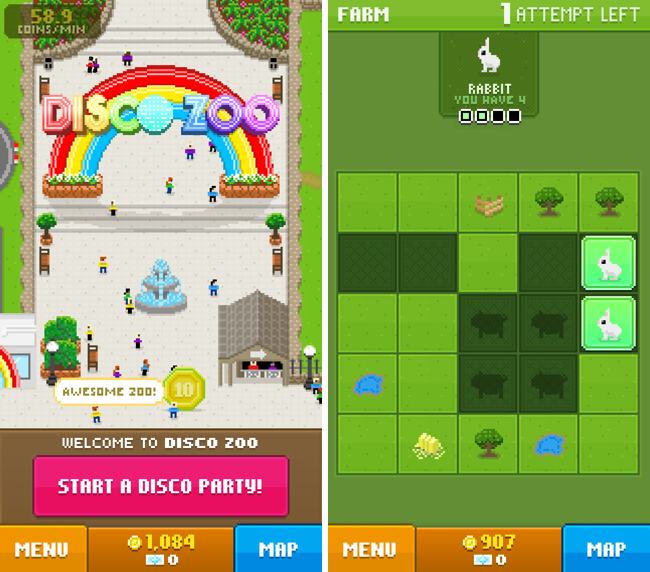
I don’t know who opens a Zoo before putting animals in it, but nonetheless, you’re given a pile of money, a hot air balloon, and a mini-map where you have ten attempts to find a given animal in an old-school game of battleship. You read that right.

I mean, this is what the whole game inside the game really is. To find an animal you have to uncover a number of squares revealing it, and you have ten attempts to do it on a 5 x 5 grid. Each rescue, or ten attempts, costs a certain amount of gold, and you’ll initially be given enough gold to fail a few times and get a general gist for common patterns and shapes that animals can be found in. Each time you uncover an animal, it’s added to your zoo, and it’ll begin generating gold in its exhibit.

Back at the zoo, the animals you’ve rescued are throwing a party. They hop around. They say cute things. They pass out and you have to wake them back up. The more animals you have in your exhibits, the more money you make as a result. Pleased visitors will sometimes throw money at you. Sometimes you’ll earn cash for random contests that you didn’t even know where going on.

It’s a continuous cycle. Rescue animals. Get coins. Rinse and repeat. Oh sure, you’ll be required to wake your animals back up from time to time — animals that are asleep don’t generate any revenue at their exhibits — similar to how stocking and deliveries worked in NimbleBits’ Tiny Tower.

To keep your animals partying, you can throw a disco party. Throwing disco parties requires “bux,” a super currency common in NimbleBit titles that gives you some immediate benefit. In the case of Disco Zoo, you can use bux to throw a disco party, where animals will dance and groove for an extended period of time without falling asleep, whilst generating twice the revenue. Things get crazy in the best way possible.

Bux can also be used to add attempts to any given rescue, especially helpful if you’re trying to find rare or mythical creatures… like unicorns. If you’re out of bux, they can be purchased with real money. (A ha! There’s the revenue model!)

Soon enough you’ll have enough coins to get something better than a hot air balloon, which will allow you to expand your zoo and rescue more animals from different regions. The more animals you have, the longer they’ll stay awake, the better the ratings you’ll get, the more money you’ll make, etc. etc.

Remember how addicting Tiny Tower was when it landed on the iPhone? If you want to relive that addiction, but with zoo animals instead, get ready to lose hours of your life in Disco Zoo.

That said it’s ridiculous and fun and is clearly a trademark NimbleBit game through and through. Download it from the App Store for free.


Google Music for Mac Brings the Web Player to the Desktop

One of the least talked about music services is Google’s Play Music service, a combination music store and digital locker that can match up to 20,000 songs from your local library and stream them to your devices over the web for free. With All Access, you can stream Google’s entire catalog of music for $9.99 a month.

I’ve dabbled with the service before, using it with my previous storage limited MacBook and giving it an honest shot when away from home. The service has some nice touches, such as a miniature spectrum visualizer that designates the currently playing track and album in a variety of views, thumbs-up and thumbs-down ratings in contrast to stars, and instant mixes that create Genius-like playlists from your music library on the fly. I’ve always thought the player itself was good, and it’s certainly a usable alternative to iTunes for those listening on their work machine or Chromebook. The separate manager for matching songs is a little clumsy, but it’s not a deal breaker.

While the service offers a proper mobile experience on iOS and Android, the desktop experience is limited to the browser. At least that was until Google Music for Mac, an open source application that wraps the experience in a native player and binds the app to your Mac’s media keys.

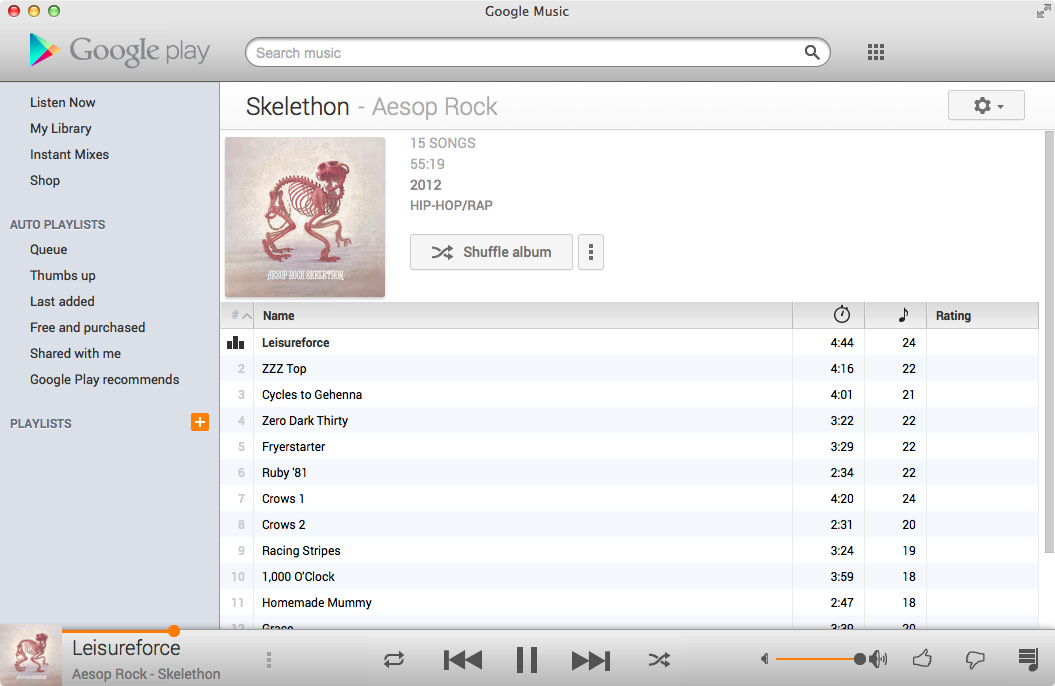
The app lets you play your music Library through its native experience or, like Fluid, simply present the web app in a window. The experience largely reminds of Pocket for Mac, with the Google Play logo, search, and popover menus comprising the native wrapper.

I like the player. While I don’t see the purpose of including a button for other Google apps, the player rightfully does Google’s service justice on the desktop. You’ll have to log into the app using your username and password, and for those who are security conscious, the app does display your email address in the top right. Regardless, the app itself does a swell job of presenting your music (and Free from Google tunes) in a presentable interface. Small touches reformat the sidebar into something more appealing for OS X. All the little details from the web service have been carried over as-is, such as how album artwork fades into view, how soft shadows bring artists and albums forward, and Google’s distinct orange highlights. Shortcuts are peppered throughout the app, letting you create playlists or jump to an artist view without having to go through library links or categories. Highlighting the scrubber brings up the play timer, and takes to you whatever point in the song you click.

The app’s free to download from Google Music for Mac’s project page, letting you skip Github if you’re not interested in the repository.

Download it here.

[Hat tip @smileykeith]


Multiple Counters with Touch Counters

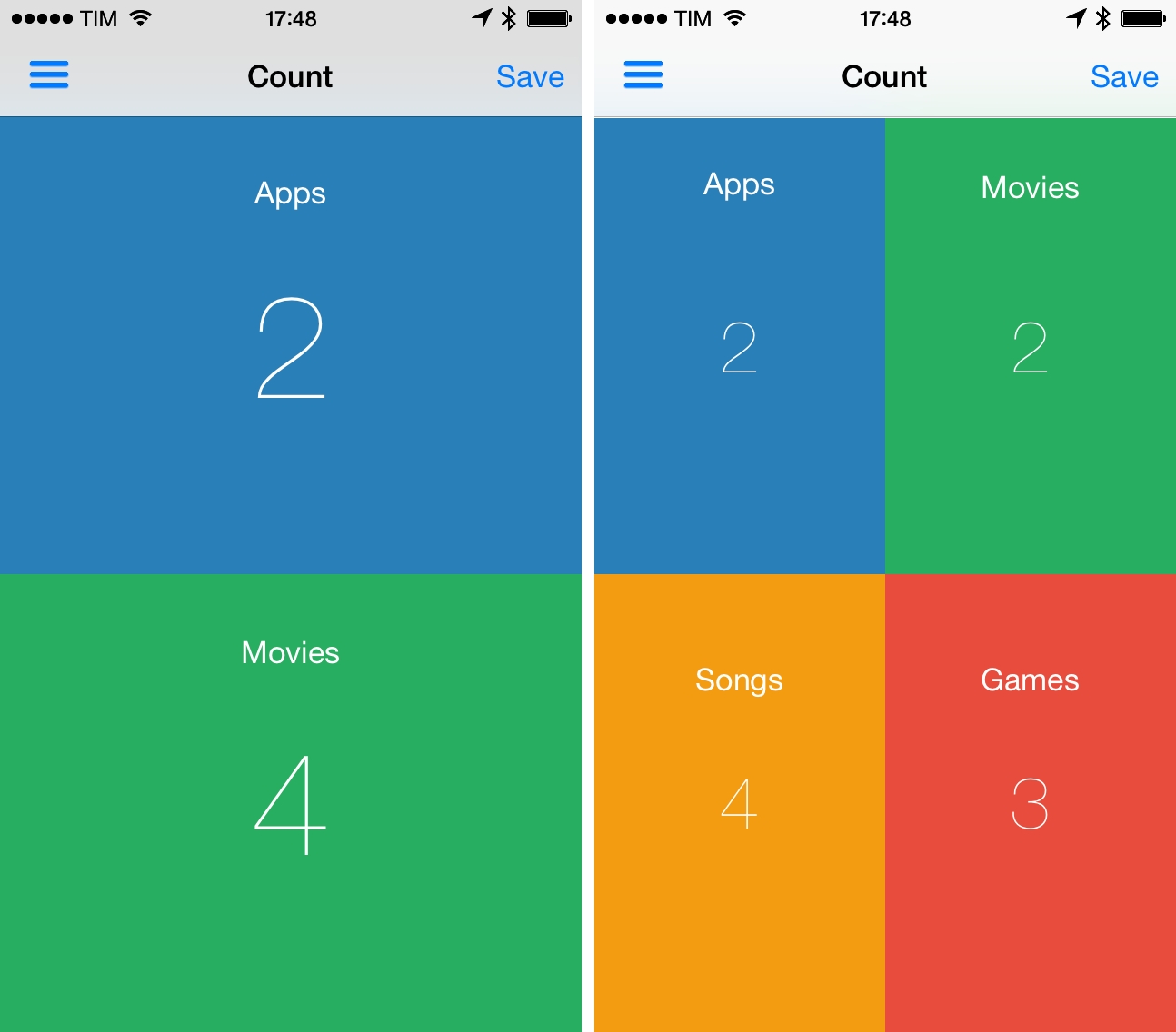
In episode 34 of The Prompt, I mentioned Touch Counters as my app pick. Touch Counters is a simple counter for iPhone that lets you display up to four counters simultaneously on screen, touching each corner to count up or down.

Touch Counters is the only iPhone app with support for multiple counters I could find on the App Store, and it could be improved in several ways. Some of the UI assets aren’t Retina-ready (seriously), there are typos in the interface, and sometimes the app plays the sound associated with taps when you just want to swipe the sidebar away. From a design perspective, it’s not great.

However, in spite of these flaws and general lack of polish, Touch Counters works as advertised: when I need to count different sets of items at the same time, I can create counters and tap on separate areas of the screen, which are visualized with different colors. Each counter can have a text label, and you can customize the background and font color in a counter’s settings; counters can be saved with totals and notes, but they can’t be exported from the app. You can even change the default increment or decrement of individual counters in the Settings.

There are probably other apps that do what Touch Counters does with a more refined UI, but Touch Counters works and I wish I used it when I had to compile posts like this. Touch Counters is $0.99 on the App Store, and I hope the developer will soon release an update.


Time Zone Conversions with TimeZlider

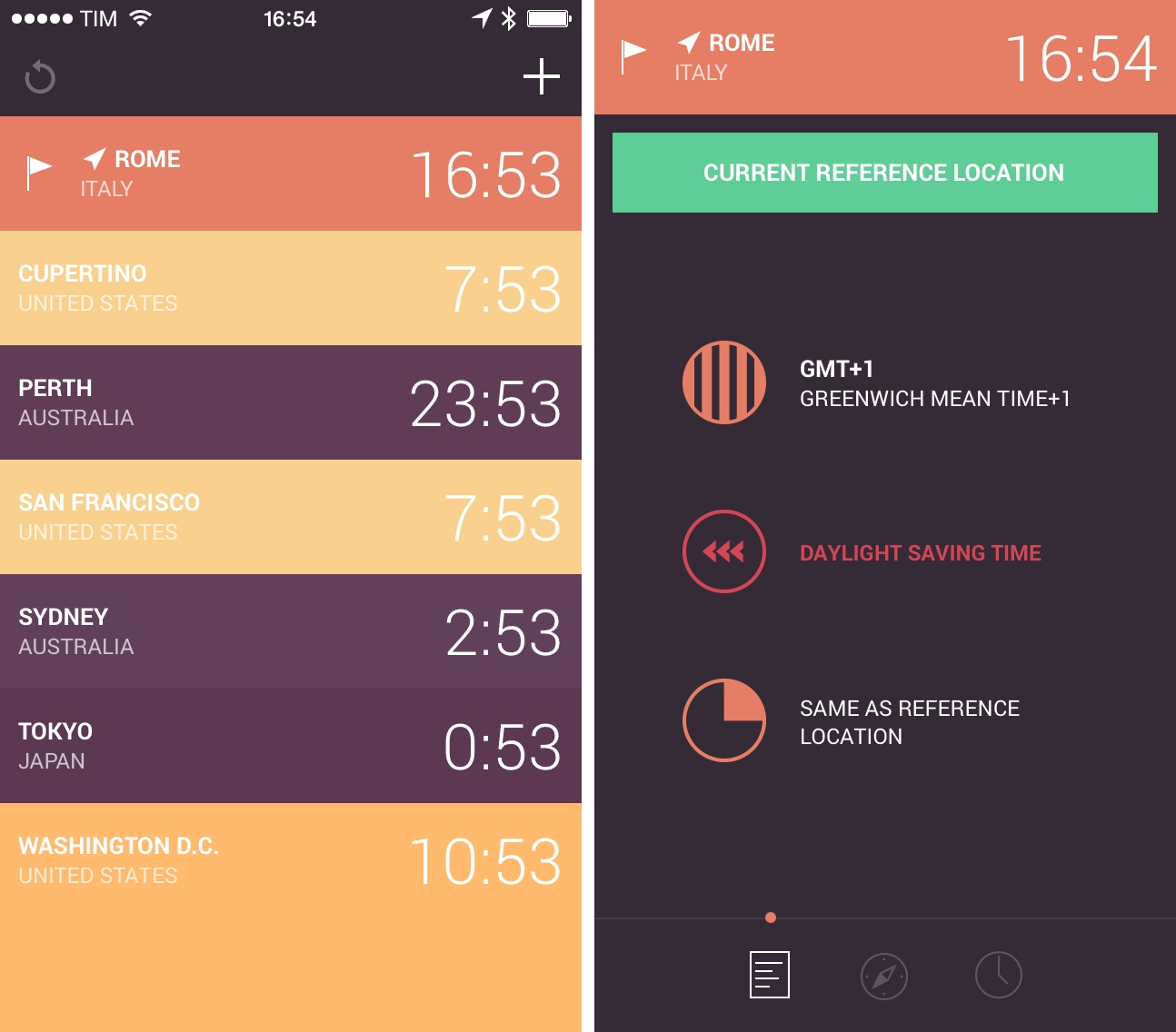
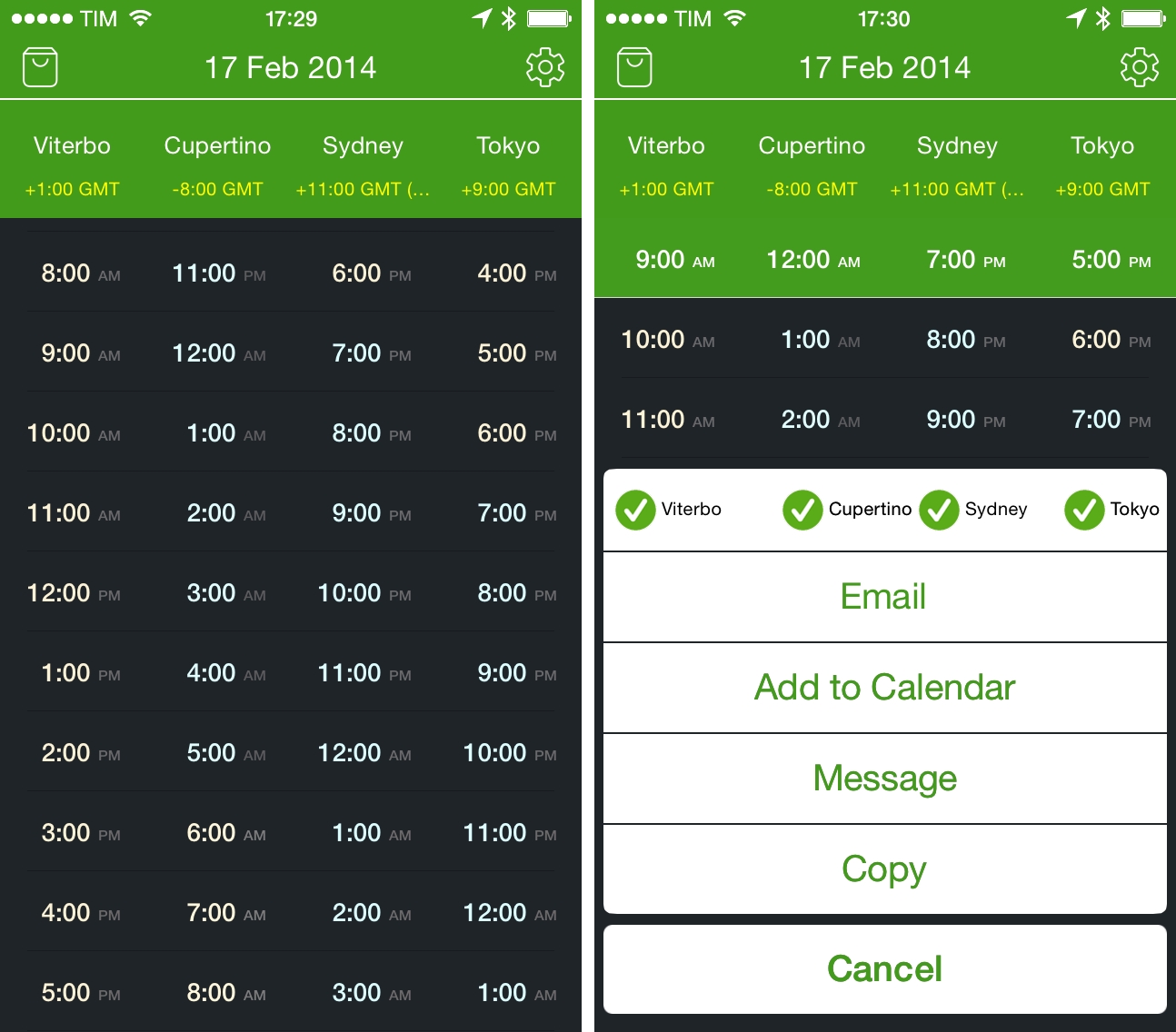
I previously wrote about my need for a time zone conversion utility for iOS when I covered Living Earth, an app that mixes global weather information with regular clock functionalities. I’ve been using Living Earth regularly, and I like it a lot, especially because I find its design polished and interesting. I’ve been wondering, though, whether a simpler approach to quick time zone conversions could work better for me, and I came across World TimeZlider, developed by Creo and available at $0.99 on the App Store.

Read more


Numerical for iPhone

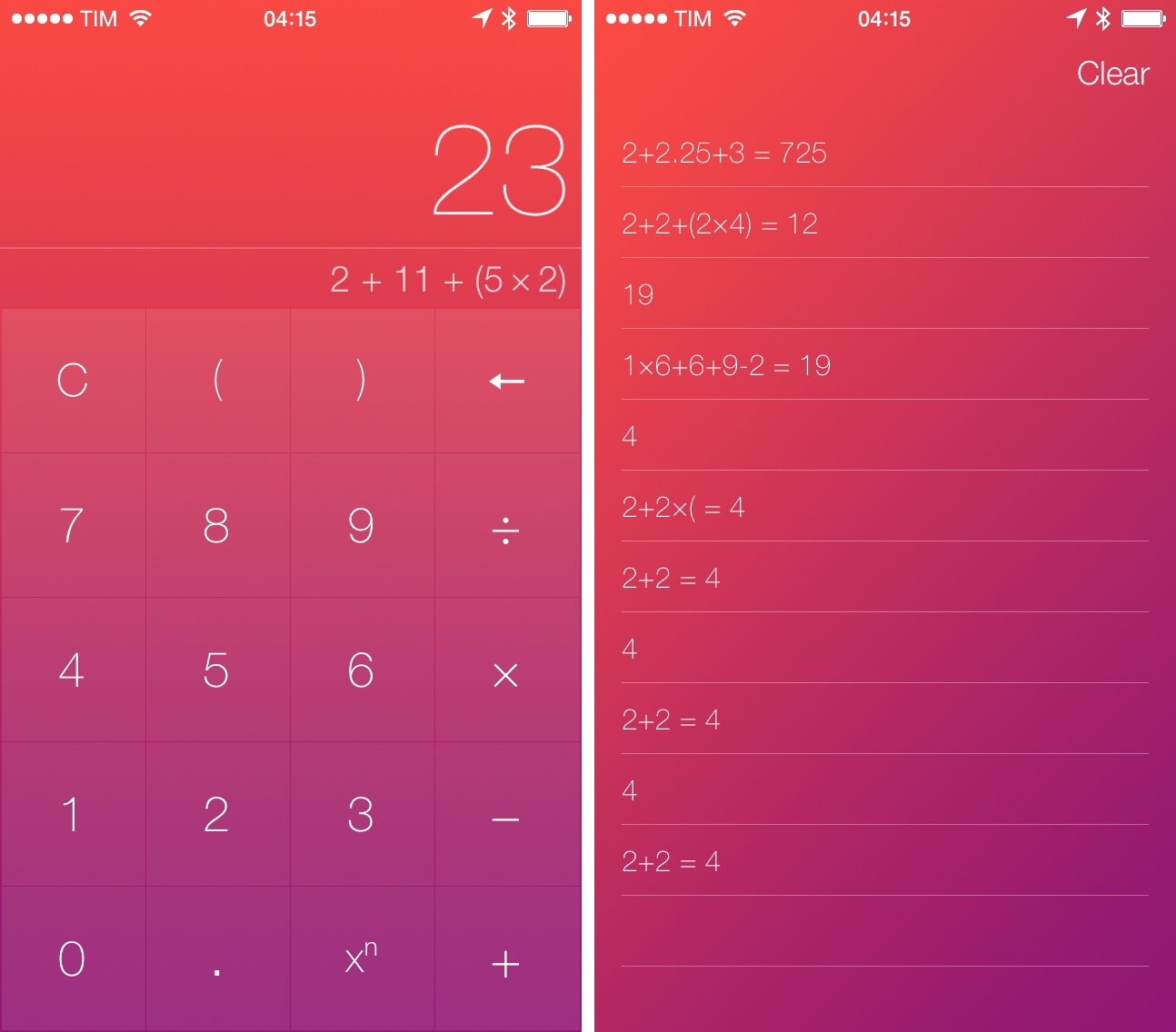
Developed by Andrew J. Clark, Numerical is a new iPhone calculator designed for iOS 7. I’ve covered a lot of calculator apps over the years, and, while many of them sport unique features aimed at bringing more functionality to the genre, I tend to always go back to Apple’s Calculator app for its simplicity, ease of use, and, with iOS 7, fast access thanks to Control Center. I don’t have high requirements for my calculator: I’m not an engineer, and like most people I just need to perform simple operations while I’m working, grocery shopping, or splitting a bill with friends. Apple’s Calculator app covers the basics well and I’m mostly fine with it. Read more


Threes: A Game of Multiples

Threes is a game of multiples. It’s a game of combining pairs of numbers to make even bigger numbers. It plays on idea of a sliding puzzle, except the board becomes more populated the longer you play. A new piece falls onto the board after every slide, until the board is completely populated. The end goal is to end up with a board full of large numbers, hopefully in the greater double digits, and maybe even a triple, for a high score.

You play on a 4 x 4 grid, shaped like mahjong pieces, where you slide pieces up, down, left, and right. The game doesn’t really start until you begin combining your blue ones and red twos to create threes. Threes combine to make sixes, which combine to make twelves, etc. Every time you combine two numbers, the result doubles. Only multiples of three count towards your end score, thus the name of the game.

While Threes is largely a game about numbers, there’s lots of little touches in the game, including an unintended achievement system, where creating bigger multiples of three unlocks new personalities. Each multiple of three has a different face, and they’ll smile at each other if they can combine. Threes maintains a history of your previous scores, and includes a toggle to reduce animation frame-rate to save battery life if you’re out and about.

If you love games like Letterpress and Dots, you’ll love Threes. It’s easy to grasp and hard to master. It’s classy.

Threes is $1.99 on the App Store.