

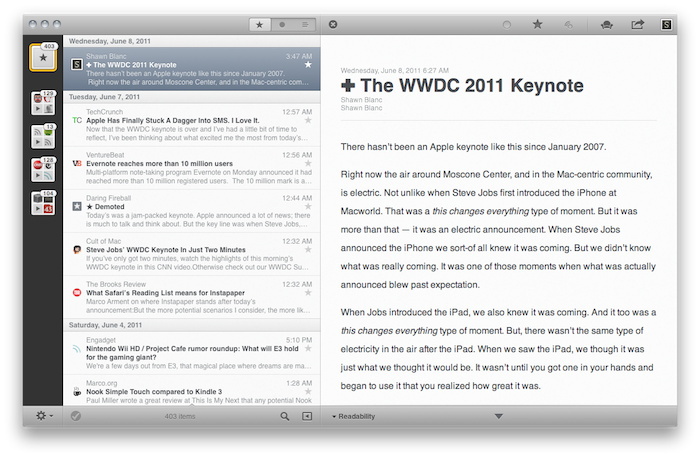
Over the past eight months, I’ve been following very closely the development of Reeder for Mac, a port of the popular Google Reader client for iOS to the OS X platform. As I was one of the first people to try the original Reeder for iPhone back in 2009, I immediately accepted Silvio Rizzi’s invite to join the beta testing group of Reeder for Mac in September 2010. Lots of things have changed since then. Sure, I never stopped using Reeder for Mac as my default desktop client, but there’s no doubt the app has gone through so many interface changes, design overhauls and feature additions I had to re-calibrate my workflow every time the developer updated something. That’s what you get by beta-testing things, but the evolution of Reeder for Mac was different: from our exclusive preview, to the first public beta and the one we reviewed last month, you can see how the app turned into something completely different from the experience I initially fell in love with. And that’s a good thing – the last full rewrite made Reeder for Mac insanely fast on Snow Leopard and ready to go on Lion. But enough with the beta talk. Read more
Posts in news
Reeder for Mac: Now Available On The Mac App Store
Configure An iCloud Email Account on Snow Leopard
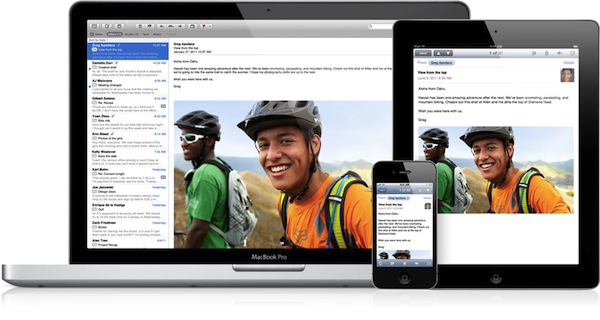
Magician Software has posted a handy tip to configure an iCloud email account on Mail.app for Snow Leopard which, with the provided instructions, should work on any email program that supports IMAP as well. With the iCloud settings panel on iOS 5, Apple offers the possibility to associate a new iCloud-based @me.com email address to an Apple ID. So, for example, say you have an Apple ID with your Gmail account, you can create a new iCloud address to go alongside the Apple ID you use for your iTunes purchases, apps, and everything else. Unlike old @me.com email accounts that will need to migrate to the new iCloud infrastructure, these new addresses offered on iOS devices are already running on iCloud, allowing to receive and send messages using iOS 5 and OS X Lion DP 4 with an iCloud add-on, not available for older OS X versions.
For other OSes and email programs, Magician Software explains you’ll have to configure a custom IMAP server and MobileMe SMTP to get iCloud’s email up and running. On Snow Leopard’s Mail.app, for instance, you’ll have to start by adding a new account (@me.com) and using the same password of your Apple ID. In fact, iOS 5 doesn’t let you choose a password for now, it just simply assigns your Apple ID’s existing one to the new iCloud email address.
You will receive an error saying that it couldn’t reach the mail.me.com server, just ignore it and hit continue. At this part, it should be very similar to setting up a regular IMAP email. I can’t show you the next screen on setting up the incoming and outgoing servers as Lion doesn’t let me because of the support for iCloud. What you will need to do is change the drop down menu from the top (Currently saying: MobileMe) to IMAP, and changing the mail.me.com to
p02-imap.mail.me.com
the username should just be the name before the @me.com and the password, or course, your password.
Ignore all the errors that Mail.app will display, and use “smtp.me.com” (without quotes) for the SMTP settings. Take the account online, and you should be able to use your iCloud email account on any IMAP-enabled email client. As Apple explains, mail counts against the 5 GB of free storage provided with every iCloud account. [via]
iOS 5: 10 Videos From Around The Web

We have covered all the iOS 5 announcements in the past few days in our roundups and daily coverage, but there are so many new things about the new OS for iPhone and iPad that it would be impossible to list them all in a single article. So we have collected 10 videos from YouTube that show some of the most interesting aspects of iOS 5, such as Notification Center or the new custom vibration alerts for your Address Book contacts.
Check out the video gallery after the break.
Apple Releases iMac Graphic Firmware Update 2.0
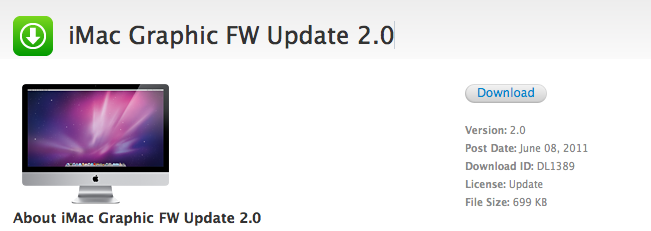
Owners of an iMac might want to fire up Software Update or head over Apple’s Downloads website to get the latest Graphic Firmware Update released a few minutes ago. Less than one megabyte in size, the update should fix an issue that, according to Apple, in “rare cases” may cause an iMac to hang either during startup or when waking from sleep. As usual, Apple recommends to not shut off the computer during a firmware update as that may result in computers failing to start up.
Go download iMac Graphic Firmware Update 2.0 here.
OnLive To Bring Cloud Gaming to iPad This Fall

OnLive, the cloud-based gaming platform that allows you to play a variety of PC and console games from a web browser on your computer or any TV through a cheap set-top box always connected to the Internet, has announced that the official app for iPad and Android tablets will be available this Fall in both the United States and Europe. Teased several times in the past, it appears the final version of the OnLive Player app has been completely rewritten to fully take avantage of cloud gaming features such as voice chat and multiplayer, but more importantly the developers have figured out a way to run PC games on a server, send video to the iPad, and let iPad owners interact with the game using touch input – not just buttons. In fact, it’ll be possible to enjoy OnLive on the iPad with a standard controller, but according to OnLive CEO Steve Perlman some games will be updated to support touch controls on the iPad and the server. This means that whilst you’ll be playing a game that doesn’t actually run on your local machine and doesn’t normally support touch on consoles and PCs, thanks to the iPad app (and developers’ support) it will.
The power of the cloud is definitely the theme this week, displacing what had been assumed to be platforms that could never be displaced,” said Steve Perlman, Founder and CEO of OnLive. “The OnLive Player App for iPad and Android shows how with the power of the cloud, the question is not whether cloud gaming will be able to catch up to consoles, it will be whether consoles will be able to catch up to cloud gaming.
Check out the demo video from OnLive CEO after the break. Currently, OnLive comes with a native Mac app that enables gamers to play the rather large selection of title available through the platform.
Apple to Reject Apps that Identify DUI Checkpoints

After four US Senators sent a letter to Apple’s Scott Forstall concerning apps that reveal DUI Checkpoints, Apple has updated their App Store Review Guidelines to reject apps that aid drunk drivers (and sober drives who just don’t want to be bothered by the delay) from evading the law. Senators Harry Reid, Charles Schumer, Frank Lautenberg and Tom Udall expressed grave concerns about apps that enabled those who drink and drive to escape law enforcement, and cited the apps as harmful to public safety. Apple’s new rules can be found in section 22.8:
Apps which contain DUI checkpoints that are not published by law enforcement agencies, or encourage and enable drunk driving, will be rejected.
If flashing your lights to alert oncoming drivers to a speed trap is against the law in the United States, why shouldn’t these iPhone apps be banned as well? This certainly opens up the opportunity for drunk drivers to break the law, but what about other iPhone apps that can check into police radio and point out speed traps? Just like with sexually explicit apps, this is going to be another hot topic of debate as Apple curates content on the App Store.
[via Autoblog]
iOS 5 To Bring FaceTime on 3G? Better Video Quality?
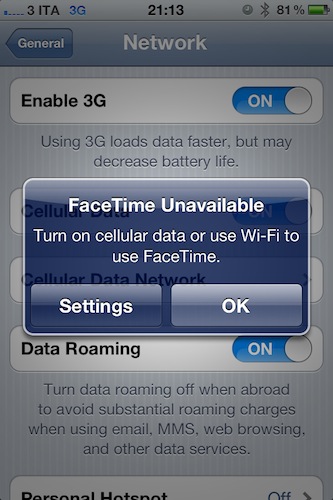
9to5mac has posted a screenshot passed along by a reader, in which iOS 5 shows an alert box asking the user to turn on cellular data or WiFi to use FaceTime. By playing around with the iOS 5 preferences in Settings->General->Network, we’ve found how to replicate the “issue”: turn off Cellular Data in the Network tab, open FaceTime’s prefs inside the Settings app, and you should get the alert box. If it doesn’t come up, try to turn FaceTime off and on again, making sure Cellular Data is still set to off. iOS 5 will tell you that you need data (3G) or WiFi to use FaceTime.
This could be big news for iPhone and iPad owners as FaceTime is currently restricted to WiFi networks, with many obviously speculating that the carriers forced Apple to make FaceTime available only on faster WiFi connections. On the other hand though, it needs to be mentioned that the jailbreak tweaks that enabled FaceTime on 3G on iOS 4.3 proved that, with less than optimal 3G speeds, FaceTime could be pretty terrible without WiFi.
However, there’s one last piece to consider: at the WWDC ‘11 keynote, a slide showed by Scott Forstall on stage briefly hinted at improved video quality coming in FaceTime on iOS 5, alongside mid-call invitation alerts. See the image from This Is My Next’s liveblog:
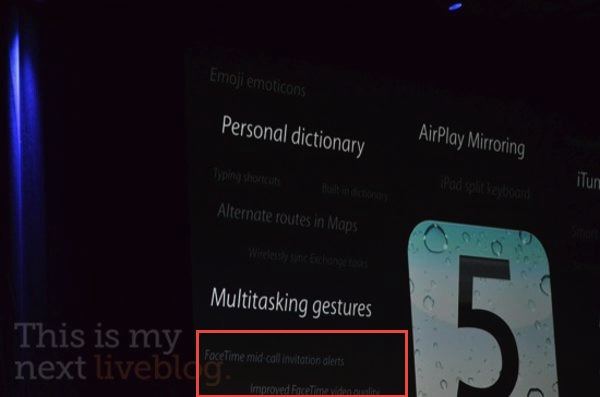
Whether this means iOS 5 will finally bring the possibility to video call on the go it’s unclear at this point, and there’s a very good chance the alert box above is simply an iOS bug from the first beta. Or, Apple could be really working closely with selected carriers to enable FaceTime on 3G, at no additional costs.
iPhone 4 Ousts BlackBerry For Top Spot→
IPhone 4 Dethrones BlackBerry for Top Spot

Despite RIM’s gradual slide in market share as Apple’s iOS and Google’s Android platforms grow, the company still has three of the top ten models. The 9700, meanwhile, plunged to sixth – the first time in two years that RIM didn’t have a model in the top three, suggesting that it needs to get its next-generation of QNX-based handsets out the door sooner rather than later to stop the bleeding.
RIM’s top selling BlackBerry has now fallen to the iPhone 4, according to a report from Strategy Analytics. The iPhone 4 has sold the most smartphones in the first quarter of 2011, surprisingly followed by Nokia’s N8. Nokia also has two other phones competing in the top ten. The iPhone is available through 200 carriers worldwide, and iOS has captivated 44% of the mobile market, while RIM holds on to 19%.
Introducing Evernote Peek: An App that Helps you Study with Apple’s Smart Cover

“What’s the best Apple blog on the Internet?” Hopefully “MacStories” is the answer to be revealed by Apple’s Smart Cover, via an app that’s from the same folks who help translate business cards to text and take notes on the fly. Evernote Peek is a brand new app that’s now available for free on the App Store. As a study aid designed specifically around Apple’s Smart Cover, Evernote Peek integrates with your Evernote account: create a new notebook with a subject title, with note titles as the question and note bodies as the answer. Evernote peek is designed to help you strengthen your memory, retain information, all while utilizing the best accessory for your iPad. As you answer questions, Evernote Peek will keep score of the questions you got right and wrong, and you can even add in images for visual aids. Since closing the iPad lid will lock the iPad, Evernote recommends the following.
There are two quick iPad adjustments that we recommend. First, turn up your iPad brightness to about 75%. Second, turn off your iPad’s auto-lock. Now, start studying.
While not completely magic, the idea behind Evernote Peek is pretty great. No more holding your hand over a study sheet or wasting index cards – the iPad’s Smart Cover reveals clues then unfolds as you answer the question. Past the break, we have a quick promotional video of Evernote Peek in action – we think it’s pretty great. When you’re done watching the vid, you can download it here.
[TechCrunch via Evernote Blog]