Posts in Featured

Microsoft Office For iPad Coming Within Weeks? [Updated]

Microsoft’s Office Suite could be launching on the iPad App Store within weeks according to a new report in The Daily. Originally rumoured in November of last year by The Daily, Matt Hickey today says that the design team has “wrapped up the project” but an exact launch date was not known.

Hickey claims to have had a brief hands-on with a working prototype of the Office Suite app and notes that whilst the UI is similar to OneNote for iPad, it has hints of Metro. He notes that Word, Excel and PowerPoint files can be created and edited either locally on the iPad or online (presumably using Microsoft’s SkyDrive cloud service).

According to his sources, OneNote will also receive an update soon to reflect the Metro design. Those same sources also noted that no Android version was in the works.

[The Daily via The Next Web]

Jump the break to view all updates to this story.

Read more

Access Extra Content and Perks

Founded in 2015, Club MacStories has delivered exclusive content every week for nearly a decade.

What started with weekly and monthly email newsletters has blossomed into a family of memberships designed for every MacStories fan.

Learn more here and from our Club FAQs.

Club MacStories: Weekly and monthly newsletters via email and the web that are brimming with apps, tips, automation workflows, longform writing, early access to the MacStories Unwind podcast, periodic giveaways, and more;

Club MacStories+: Everything that Club MacStories offers, plus an active Discord community, advanced search and custom RSS features for exploring the Club’s entire back catalog, bonus columns, and dozens of app discounts;

Club Premier: All of the above and AppStories+, an extended version of our flagship podcast that’s delivered early, ad-free, and in high-bitrate audio.

Learn more here and from our Club FAQs.


Interview: The Omni Group’s Ken Case

I had the pleasure of enjoying a casual talk with The Omni Group CEO Ken Case and took the opportunity to ask him some questions on their upcoming release, OmniPlan for iPad. We also had some time to talk about potential updates to other Omni products, as well as projects Ken would like to work on, given more time and resources.

Don: First off, what where some of the challenges you had porting the OmniPlan for Mac experience to the iPad?

Ken: One of the challenges we have had with all of our apps is that the Mac has more screen real-estate available, or at least the design we have used for our apps use a lot more screen real-estate than we have available on the iPad. We had already started noticing that some of our apps were starting to feel a bit squished on laptops – we have typically designed them to work with large desktop displays. When we watched people try to struggle through using some of our apps on the nice new MacBook Airs like the ones we’re starting to use here we found it just felt too cramped. So starting with OmniGraffle we had to re-picture what is the focus of the activity and how can we get rid of the physical controls without burying them so deep that they are no longer accessible. We faced this challenge even more so in OmniPlan for iPad because OmniPlan typically uses more screen real-estate due to its task outline on the left and the large visual GANTT chart timeline on the right. So we decided that the most relevant part of using OmniPlan is not the outline which may be of interest for structuring your plan data, but what people are most interested in is the GANTT chart timeline; so, for Omniplan for the iPad we just focused on that being the entire contents of the screen and working with that and trying to create the content in the visual timeline in ways we would normally rely on the outline for doing. If you wanted to have a task and break it down into subtasks, on the Mac we’d have you go over to the outline and create new rows and indent them underneaths as they were subtasks. If we’re only using the GANTT chart, we want to be adding subtasks – be able to show containment of subtasks under the parent task right there in that live timeline. I’m not saying we’re going to be giving up the outline, we’re not done yet, that’s the struggle we’re trying to work with and maybe the real ultimate answer is to flip back and forth between the two but there’s definitely not room to have both at the same time. Screen real-estate is a real challenge.

Don: Now when you guys released OmniFocus for the iPad, there were some things that a lot people thought the iPad did better than the Mac version. Is there anything in OmniPlan you guys feel is better suited for the iPad?

Ken: There is, but not quite as strongly as there was with OmniFocus. The biggest benefit of OmniPlan on the iPad is that it’s mobile, so you can bring it around with you and have it everywhere. But there isn’t – there aren’t any big features like the forecast and review modes we added to OmniFocus on the iPad where we could say “Oh no, now you can use the app in a whole other way that you couldn’t use it before”

Don: I read on your blog around the release of OmniOutliner for iPad that you wanted to offer 90% of the functionality that people wanted with about 10% of the effort. Do you think that also applies to OmniPlan, were you able to fit as much in without sacrificing the usability?

Ken: I think we were able to get a lot of the info in we wanted – it was a little bit harder, this was a specific challenge to OmniPlan – with OmniGraffle or OmniFocus it was easier to find parts of the application you could live without on the iPad on Day 1 or maybe forever, and just leave that out altogether and maybe bring back in later or maybe not, but you have a useable, cohesive, coherent application you can sit down and work with. With OmniPlan, you’re talking about an audience of project managers who really need to have all the same project details they’re used to typically. If we left out some piece, like, say, cost accounting, then people who are trying to do cost accounting will be stuck, and they can’t do it at all anymore. They can’t partially use it and then go up to their desktop later. If you have that then you probably want to bring all those details to a meeting that you are bringing your mobile device to. That was another challenge with OmniPlan – it was harder to find things we could cut out. We couldn’t cut out any of the data model, which we had done with all the other apps. With OmniFocus we left out time estimates altogether on the iPad – most people didn’t use it and it was more cluttered to try and fit in there. With OmniPlan we have all those fields, all those details, and the change tracking, mechanisms and so on. We did find some areas we could cut out and leave out, like printing. Our hope is, part of the reason you’re bringing this around with you on a mobile device is so you don’t have to bring paper around with you. Showing people the plan right there, live and making changes – you couldn’t do that with a printed document.

Don: So it sounds like it could be a great addition to the current OmniPlan for Mac product.

Ken: Yes, we really wanted it to be as complete as the Mac version and try to leave as little out as possible, but we did have to in some situations. For example, in version 1.0 we are not providing printing because we are not trying to make it do everything the Mac version can do. We do want it to be a standalone tool so if all you’re using is OmniPlan on the iPad, you’re still able to do the complete project management and planning you would’ve done on the Mac including collaborative editing. Plus, change-tracking is there, so you can review other people’s changes, accept and reject them and so on.

Don: Is there anything you can tell me about the tentative release or pricing for OmniPlan iPad app?

Ken: We haven’t announced pricing yet because we like to finish what we’re building, and then decide how much it costs, but if you look at our pricing to date it has been remarkably consistent. The iPad app – every single one – is half the price of the corresponding Mac app. Read more

Access Extra Content and Perks

Founded in 2015, Club MacStories has delivered exclusive content every week for nearly a decade.

What started with weekly and monthly email newsletters has blossomed into a family of memberships designed for every MacStories fan.

Learn more here and from our Club FAQs.

Club MacStories: Weekly and monthly newsletters via email and the web that are brimming with apps, tips, automation workflows, longform writing, early access to the MacStories Unwind podcast, periodic giveaways, and more;

Club MacStories+: Everything that Club MacStories offers, plus an active Discord community, advanced search and custom RSS features for exploring the Club’s entire back catalog, bonus columns, and dozens of app discounts;

Club Premier: All of the above and AppStories+, an extended version of our flagship podcast that’s delivered early, ad-free, and in high-bitrate audio.

Learn more here and from our Club FAQs.


VLC 2.0 Released: What’s New, And An Interview With VideoLAN Developers

Back in February 2010, I wrote a post for MacStories about Lunettes, a codename of a new interface for VideoLAN’s popular media player VLC. Back then, I used to spend a good portion of my days fiddling with media players and skins for VLC, which I used to access a well-organized media library on my MacBook Pro and various external hard drives. Lunettes was promising, and it proved that VLC could have an interface design more suitable for the needs of the Mac community. I didn’t know, however, that work on the next major version of VLC, VLC 2.0, had already begun in 2008 with the first concepts and technical drafts, with Lunettes being the complete rewrite of the application that stemmed  from that original vision that eventually led to VLC version 2.0, released today.

Available for Mac, Windows, and Linux machines, VLC 2.0 is a major update that brings several new optimizations on the technical side, new features, and a brand-new Mac interface that we’ve already covered here on MacStories. It can be downloaded for free from VideoLAN’s website.

Often regarded as “the media player that can open almost anything”, VLC has indeed become many’s de-facto choice over the years when it comes to dealing with a variety of video file formats, or audio files that other media players such as iTunes won’t open. If you weren’t aware of all its functionalities and secrets, you’d say VLC’s best feat is the fact that it can launch almost any kind of file you throw at it. From the strong foundation of VLC 1.x, VLC 2.0 introduces support for new formats – as well as enhancements and fixes for the currently supported ones – with better handling of H.264, MPEG-4/Xvid and WebM thanks to multi-threaded decoding, support for 10bits codes and WMV image, completely rewritten support for images, changes in RealVideo and Real Format integration, correct support for FLAC, RV and Hi10p in MKV, and a plethora of other minor adjustments and refinements that contribute to making VLC one of the most (if not the most) versatile and customizable media players around. For instance, professional users will find support for ProRes 422 and 4444, AVC/Intra, Jpeg-2000 and DNxHD/VC-3 in 10bits and a new, faster Dirac/VC-2 encoder, whilst anime fans will be pleased to know VLC 2.0 features a “vastly improved” MKV demuxer. If you simply care about formats and the stuff VLC can open or has been optimized for, this release shouldn’t disappoint you.

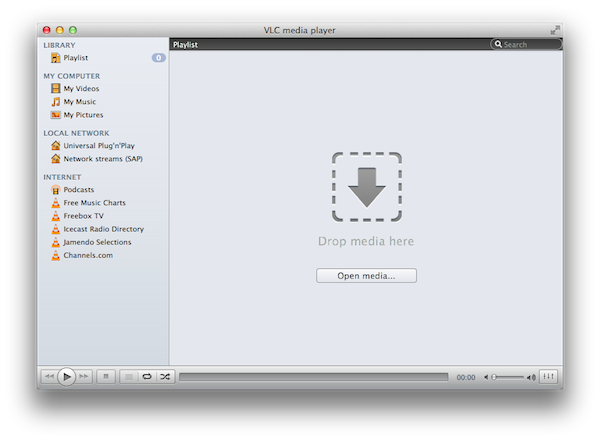
With over 7000 commits to the open source project and 160 contributing volunteers in the past couple of years, however, VLC 2.0 isn’t only focused on making its media player capabilities play nicer with audio and video formats. As we detailed in our previous coverage, one of VLC’s new visible changes is the application’s design on the Mac, a radical change aimed at unifying VLC’s file management and playback functionalities in a single window that, among other things, also happens to support Lion’s native full-screen mode. Available in two color schemes – Lion gray and QTX black – VLC’s new single window interface integrates playback and browsing in a way that, for example, allows you to start playing a movie, hit a button, and go back to the browsing UI with the movie still playing in the background. In my tests, transitioning from a movie (streamed off the MacBook Pro mentioned above, now used as a media server in my house as I upgraded to a MacBook Air) to VLC’s new Library was immediate, and the footprint on system memory minimal, or not visible at all. Because the new VLC for Mac integrates media, sources, and playback in the same window, you’ll be able to open a file, invoke the Playlist shortcut from the Window menu (CMD + Shift + P), look for another file (either manually or from the integrated search view), and adjust its position in the media queue right away.

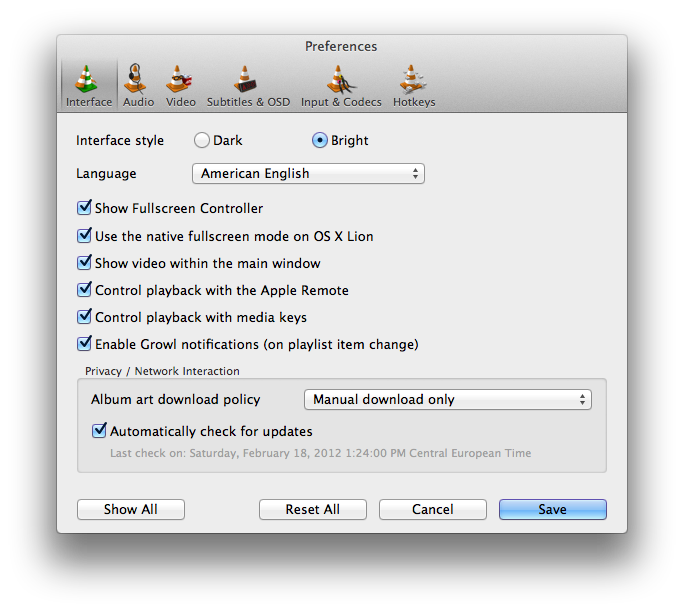
Thankfully, those who don’t like the change to a unified window will be able to revert back to VLC’s standard multi-window system with an option in the app’s Preferences. The Preferences menu has also been overhauled with a new design and more settings, including one to disable Apple’s full-screen mode for OS X Lion and enable Growl notifications on playlist item change. As usual, there’s a lot to explore within VLC’s settings if you really want to adjust the app to your tastes (and media configuration).

What I’ve always liked about VLC since I started using it in 2003 is that it can be extremely simple and accessible, or extremely complex and “advanced” thanks to the amount of options and settings it brings at your fingertips. If you really want to get geeky with video formats, inputs, codecs and streaming sessions, VLC 2.0 will most definitely have you covered with its variety of new features and tweaks to the underlying engine. If you, however, simply prefer a lightweight, elegant and powerful alternative to iTunes and QuickTime for browsing and playing your music and movies, VLC is an equally great alternative as it’s easy to use, fast, and stable. And whilst the new Mac interface will be heavily criticized (especially in its black version) by those that dislike change on principle, I think change is good, as it confirms that VideoLAN and its community strive for innovation in order to bring VLC to an even broader audience. The single window interface is useful, simple to understand, and helps you save time; performances in version 2.0 have been dramatically improved, and there’s lots more to come. Go download VLC 2.0 here.

For the release of the new VLC, I was able to chat with VideoLAN’s President Jean-Baptiste Kempf and lead Mac developer Felix Paul Kühne about the 2.0 milestone, the process that went into developing this new major release, and what’s in store for the future. Check out the interview, as well as a visualization of VLC’s development activity in 2011, after the break. Read more

Access Extra Content and Perks

Founded in 2015, Club MacStories has delivered exclusive content every week for nearly a decade.

What started with weekly and monthly email newsletters has blossomed into a family of memberships designed for every MacStories fan.

Learn more here and from our Club FAQs.

Club MacStories: Weekly and monthly newsletters via email and the web that are brimming with apps, tips, automation workflows, longform writing, early access to the MacStories Unwind podcast, periodic giveaways, and more;

Club MacStories+: Everything that Club MacStories offers, plus an active Discord community, advanced search and custom RSS features for exploring the Club’s entire back catalog, bonus columns, and dozens of app discounts;

Club Premier: All of the above and AppStories+, an extended version of our flagship podcast that’s delivered early, ad-free, and in high-bitrate audio.

Learn more here and from our Club FAQs.


Review: Osfoora for Mac

Osfoora Default Timeline.png

Osfoora Default Timeline.png

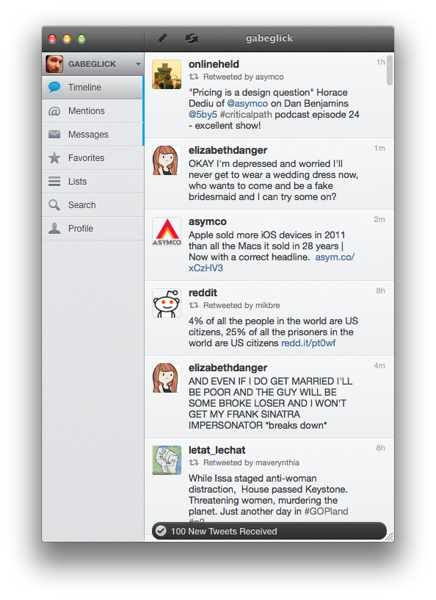
I have been a heavy user of Twitter for Mac since it was first released over a year ago. While certainly not perfect, for me, it is the gold standard of desktop Twitter apps. As such, it is impossible for me to be objective when reviewing a new client, as I will inevitably end up comparing it to Twitter for Mac (hereafter Twitter.app), so I’m telling you here and now that I didn’t even try to do otherwise. As a result, much of this review consists of comparisons between Osfoora and Twitter.app, and the best I can hope for is that other long-time Twitter.app users find it useful. So let’s get into it. Read more

Access Extra Content and Perks

Founded in 2015, Club MacStories has delivered exclusive content every week for nearly a decade.

What started with weekly and monthly email newsletters has blossomed into a family of memberships designed for every MacStories fan.

Learn more here and from our Club FAQs.

Club MacStories: Weekly and monthly newsletters via email and the web that are brimming with apps, tips, automation workflows, longform writing, early access to the MacStories Unwind podcast, periodic giveaways, and more;

Club MacStories+: Everything that Club MacStories offers, plus an active Discord community, advanced search and custom RSS features for exploring the Club’s entire back catalog, bonus columns, and dozens of app discounts;

Club Premier: All of the above and AppStories+, an extended version of our flagship podcast that’s delivered early, ad-free, and in high-bitrate audio.

Learn more here and from our Club FAQs.


The iOS Permission Dialog Dilemma

For anyone who used Windows Vista, you will be well aware of the frustration that UAC (User Account Control) caused. That permission dialog popped up far too frequently, constantly asking the user for permission to execute a particular task. In theory, it was a good idea: give the user more control over what was allowed to run. The problem was that because the dialog box popped up far too often, people quickly learned to ignore it and blindly click “Allow” whenever it appeared - nullifying any of the security benefits of UAC. Thankfully Microsoft relaxed the pervasiveness of UAC in Windows 7 and it is now a far more useful security tool.

Why did I just spend a paragraph talking about UAC? Because to a certain degree, Apple is facing a similar dilemma with iOS and its permission dialogs. It recently faced scrutiny after it was revealed that a number of apps were accessing a user’s entire address book and even uploading it to their servers - without any user approval. Apple has now pushed back and announced it will soon require user permission for apps to access a user’s Contacts. But will it resemble yet another blue dialog box, just like access to Location, Push Notifications and Twitter already do? If so a user will face a barrage of those dialog boxes, asking for permission, one on top of the other.

It’s after reading Marco Arment’s thoughts on this issue earlier today that I thought I would weigh into the discussion and suggest one idea that may (or may not) be a potential ‘solution’. While there can never be a single solution that will be perfect for everyone (what may be overly cautious for one user may be overly lenient for another) the goal as I see it is to arrive at a solution somewhere in the middle ground; one that achieves an acceptable mix of precaution and freedom.

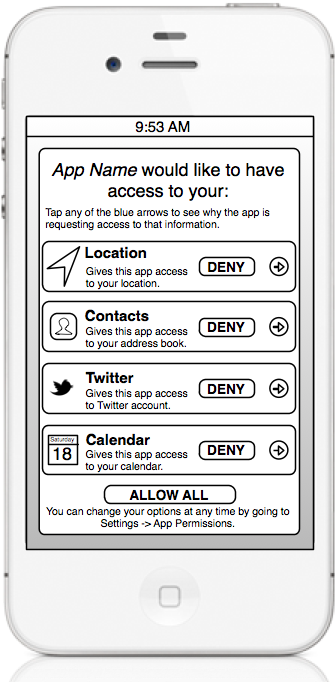
Essentially, my suggestion is that rather than let users face a stacked barrage of blue permission dialogs, is to flatten them all out on one clear screen when they first launch an app after installation. Users would see a list of what the app would like permission to access and the user would be able to (with one tap) allow all, or individually deny permission for the various databases. Furthermore, with one tap, a user could see a short justification from the developer for why the app is requesting that particular access - giving a little bit more control and peace of mind to the user. If a developer lied on this page it would almost certainly be grounds for expulsion from the App Store. The one final goal of my proposal is that it would also inform the user that these options can be changed the Settings, something many users may not be aware of at the moment.

I myself am not sure this is the best option, because there is one critical weakness. With my design, an app would have to upfront ask for permissions for whatever it might want to access in the future - but as Marco points out, some apps (like Instapaper) require access to something like Location for a minor feature that not everyone would even use (in that case it is to determine if it’s night at the users location, in which case it can switch automatically to dark mode).

If I asked most careful people if Instapaper could have their location, they’d refuse, because there’s no obvious good reason. But if the app asks right when they enable a location-based setting from a screen that shows why it’s asking for their location, they can make a more educated decision. Similarly, if an app doesn’t seem to have a good reason when it asks for Contacts, a skeptical person can decline.

Although to counter that point, I would note that not only can a user choose to individually deny Instapaper access to their location, but if they were curious as to why Instapaper would need access to their location, they could quickly read Marco’s explanation with one tap. Furthermore, my suggestion wouldn’t entirely remove the blue permissions dialog, as an app could ask again for permission later on if access was initially denied but a user is trying to use a feature that requires permission – in that case, the app could trigger the dialog to ask the user permission again.

Accompanying my suggestion would be something similar to Rene Ritchie’s app permission sheet in Settings. It would list all apps that have asked for permissions and you could dive in and edit those original options from when you first installed the app. As for allowing an app to send push notifications, I would probably keep that separate, as its own blue dialog box. My permissions “screen” would be solely dedicated to access permissions, to information that is privately stored on your device. One big benefit of such a permissions screen of course is that Apple could theoretically add more things that require permission to be accessed by apps, without a user becoming too overwhelmed, because such a layout is far better than stacking dialog boxes. Think about access to NFC or perhaps your music library.

Access Extra Content and Perks

Founded in 2015, Club MacStories has delivered exclusive content every week for nearly a decade.

What started with weekly and monthly email newsletters has blossomed into a family of memberships designed for every MacStories fan.

Learn more here and from our Club FAQs.

Club MacStories: Weekly and monthly newsletters via email and the web that are brimming with apps, tips, automation workflows, longform writing, early access to the MacStories Unwind podcast, periodic giveaways, and more;

Club MacStories+: Everything that Club MacStories offers, plus an active Discord community, advanced search and custom RSS features for exploring the Club’s entire back catalog, bonus columns, and dozens of app discounts;

Club Premier: All of the above and AppStories+, an extended version of our flagship podcast that’s delivered early, ad-free, and in high-bitrate audio.

Learn more here and from our Club FAQs.


OS X Mountain Lion: The iOS-ification Continues This Summer

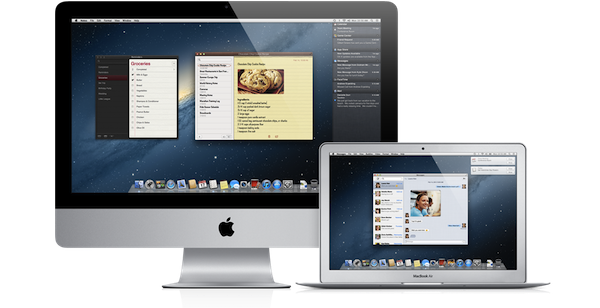
Earlier this morning Apple caught the Internet by surprise with a series of major announcements regarding the future of OS X. To put it simply, Apple officially unveiled OS X Mountain Lion, or version 10.8, the next major iteration of OS X that will become available later this year – the initial targeted release date is a vague “this summer” – through the Mac App Store. A preview of Mountain Lion was given to a few selected tech blogs, including The Verge, Macworld, Daring Fireball, and The Loop, which we are linking back to summarize the new features of Mountain Lion and reflect upon the changes previewed by Apple.

The basic theme of Mountain Lion is iOS-ification.

Apple took the best features of iOS, and in particular iOS 5, and brought them “back to the Mac”, giving them a desktop-class facelift to make applications and services suitable for the Mac environment. Mountain Lion will feature some familiar faces for iOS users: iChat has been renamed Messages and integrated with the iCloud/iMessage ecosystem from iOS; Notes and Reminders are now standalone apps; Notification Center, Game Center, AirPlay Mirroring, Share Sheets, and a new security system called GateKeeper are now part of OS X as well.

In this post we’ll provide a quick description of the new features, a Storify bundle that aggregates the most interesting links and tweets about Mountain Lion (which is available as developer beta today), and some thoughts on what Mountain Lion means for Apple and its users. Read more

Access Extra Content and Perks

Founded in 2015, Club MacStories has delivered exclusive content every week for nearly a decade.

What started with weekly and monthly email newsletters has blossomed into a family of memberships designed for every MacStories fan.

Learn more here and from our Club FAQs.

Club MacStories: Weekly and monthly newsletters via email and the web that are brimming with apps, tips, automation workflows, longform writing, early access to the MacStories Unwind podcast, periodic giveaways, and more;

Club MacStories+: Everything that Club MacStories offers, plus an active Discord community, advanced search and custom RSS features for exploring the Club’s entire back catalog, bonus columns, and dozens of app discounts;

Club Premier: All of the above and AppStories+, an extended version of our flagship podcast that’s delivered early, ad-free, and in high-bitrate audio.

Learn more here and from our Club FAQs.


Apple Releases Messages Beta, An Early Taste Of Mountain Lion

Update: I’ve included initial impressions of the new Messages app for OS X below the break. Links also added to our OS X Mountain Lion coverage.

Apple has today released a developer preview of Mountain Lion, the next version of OS X. We have full coverage of that in this article, but in short, a big part of this release will be how iOS and OS X continue to merge and interweave. One aspect of that will include Apple removing the iChat app from OS X and replacing it with a new app, simply called Messages.

The new app will allow users to chat with someone using either their Apple ID or phone number, that should ring a bell because that’s exactly what iMessage does. It’ll also retain the traditional chat services such as AIM, Yahoo, Google Talk and Jabber - so don’t worry about your old iChat handle, it’ll continue to exist.As should be expected, Messages will keep conversations synced across all your devices.

Download Messages Beta and get a taste of what’s coming in OS X Mountain Lion. When you install Messages, it replaces iChat. But iChat services will continue to work. And Messages brings iMessage to the Mac — just like on iPad, iPhone, and iPod touch running iOS 5. Here are the features you can expect with Messages:

  • Send unlimited iMessages to any Mac, iPad, iPhone, or iPod touch.*
  • Start an iMessage conversation on your Mac and continue it on your iPad, iPhone, or iPod touch.
  • Send photos, videos, attachments, contacts, locations, and more.
  • Launch a FaceTime video call and bring the conversation face-to-face.
  • Messages supports iMessage, AIM, Yahoo!, Google Talk, and Jabber accounts

Better yet, a Messages beta is now available from Apple’s website. Just note that it will replace your install of iChat. Jump the break for some first impressions and screenshots.

[Via The Loop]

Read more

Access Extra Content and Perks

Founded in 2015, Club MacStories has delivered exclusive content every week for nearly a decade.

What started with weekly and monthly email newsletters has blossomed into a family of memberships designed for every MacStories fan.

Learn more here and from our Club FAQs.

Club MacStories: Weekly and monthly newsletters via email and the web that are brimming with apps, tips, automation workflows, longform writing, early access to the MacStories Unwind podcast, periodic giveaways, and more;

Club MacStories+: Everything that Club MacStories offers, plus an active Discord community, advanced search and custom RSS features for exploring the Club’s entire back catalog, bonus columns, and dozens of app discounts;

Club Premier: All of the above and AppStories+, an extended version of our flagship podcast that’s delivered early, ad-free, and in high-bitrate audio.

Learn more here and from our Club FAQs.


#MacStoriesDeals - Wednesday

Here are today’s @MacStoriesDeals on iOS, Mac, and Mac App Store apps that are on sale for a limited time, so get them before they end!

Read more

Access Extra Content and Perks

Founded in 2015, Club MacStories has delivered exclusive content every week for nearly a decade.

What started with weekly and monthly email newsletters has blossomed into a family of memberships designed for every MacStories fan.

Learn more here and from our Club FAQs.

Club MacStories: Weekly and monthly newsletters via email and the web that are brimming with apps, tips, automation workflows, longform writing, early access to the MacStories Unwind podcast, periodic giveaways, and more;

Club MacStories+: Everything that Club MacStories offers, plus an active Discord community, advanced search and custom RSS features for exploring the Club’s entire back catalog, bonus columns, and dozens of app discounts;

Club Premier: All of the above and AppStories+, an extended version of our flagship podcast that’s delivered early, ad-free, and in high-bitrate audio.

Learn more here and from our Club FAQs.


Clear: A Delightful and Clever Todo App

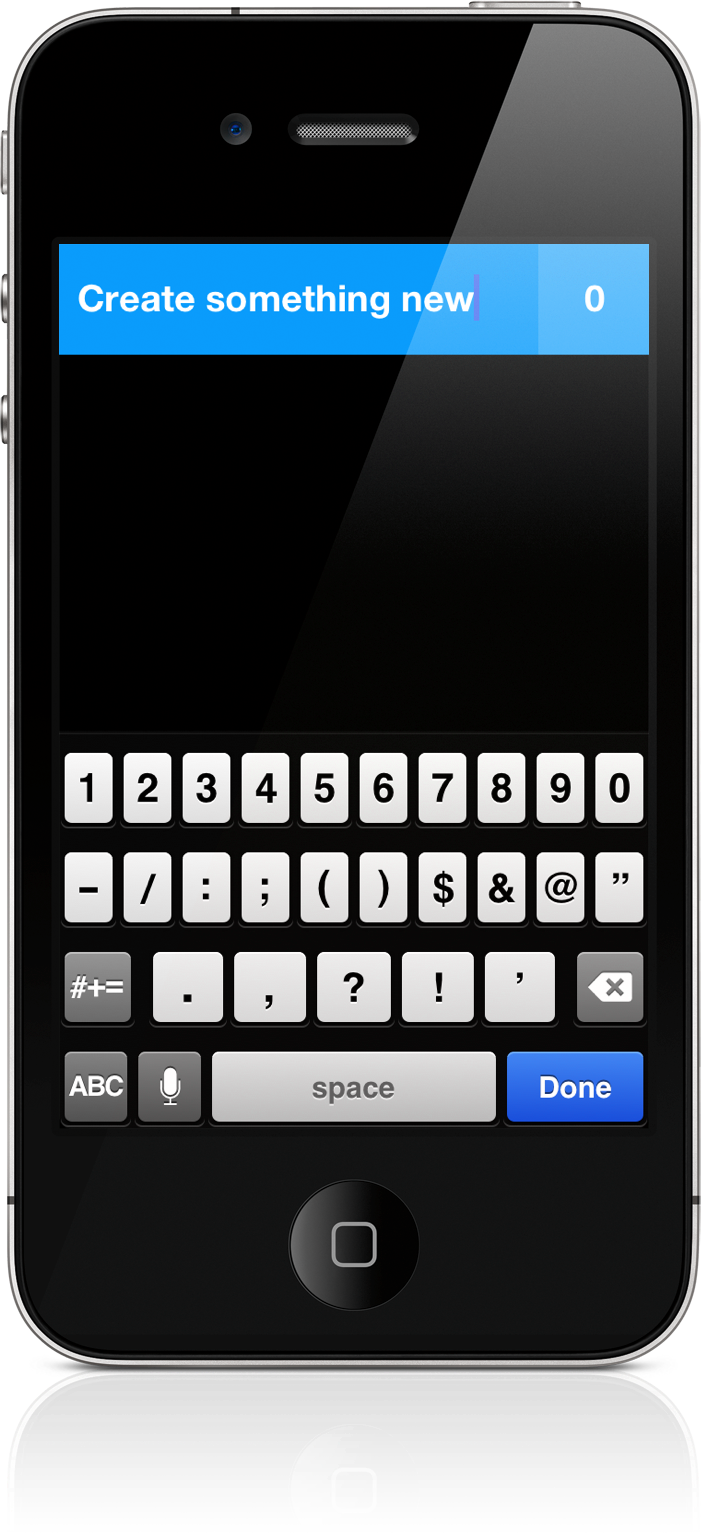
Some apps deliver a certain joy that simply comes from swiping and swooshing through the interface, poking at various elements, and pinching things onscreen. Clear is delightful — it will make you smile. It makes you reconsider the necessity of navigation bars and tool bars and tab bars. We’re used to switching views by tapping at back buttons or icons, but what happens when you take away these common navigational tools? You end up relying on your own honesty and the customer’s intuition. And an honest interface can bring about some terrific ideas.

Read more

Access Extra Content and Perks

Founded in 2015, Club MacStories has delivered exclusive content every week for nearly a decade.

What started with weekly and monthly email newsletters has blossomed into a family of memberships designed for every MacStories fan.

Learn more here and from our Club FAQs.

Club MacStories: Weekly and monthly newsletters via email and the web that are brimming with apps, tips, automation workflows, longform writing, early access to the MacStories Unwind podcast, periodic giveaways, and more;

Club MacStories+: Everything that Club MacStories offers, plus an active Discord community, advanced search and custom RSS features for exploring the Club’s entire back catalog, bonus columns, and dozens of app discounts;

Club Premier: All of the above and AppStories+, an extended version of our flagship podcast that’s delivered early, ad-free, and in high-bitrate audio.

Learn more here and from our Club FAQs.