Federico Viticci

10776 posts on MacStories since April 2009

Federico is the founder and Editor-in-Chief of MacStories, where he writes about Apple with a focus on apps, developers, iPad, and iOS productivity. He founded MacStories in April 2009 and has been writing about Apple since. Federico is also the co-host of AppStories, a weekly podcast exploring the world of apps, Unwind, a fun exploration of media and more, and NPC: Next Portable Console, a show about portable gaming and the handheld revolution.

TweetMag 1.1 Released: Faster, Full Readability Integration

When I first reviewed TweetMag back in December, I called it the “most beautiful Twitter app” for the iPad. Lots of things have changed since then, but I stand by my statement: the iPad 2 is now available and Flipboard went under a major update that refined the UI and added Instagram integration, yet TweetMag still holds up as a gorgeous way to consume Twitter as a magazine specifically built for the tablet. There are some similarities with the iPad app of the year 2010, Flipboard, but with the recent 1.1 update TweetMag takes another important step to become the most beautiful alternative Twitter app.

TweetMag 1.1 is faster. The backend was entirely rewritten, and you can immediately tell the difference in speed – especially on an iPad 2. Images load faster, tweets are parsed in seconds, content appears within moments after choosing a magazine from the top “rack”. The speed issues encountered by several users in the first version have been fixed, and rarely did I stumble upon wrong headlines or non-loaded images in TweetMag 1.1. There are still some minor issues here and there (1.1.1 update coming soon?), but this thing is simply faster now. The new system that powers TweetMag definitely shows its capabilities.

Two new features in TweetMag 1.1 allow you to create a magazine out of your favorite tweets (and consequently add tweets to Favorites directly within the app) and link to your Readability account to create a Read Later mag. We’re big fans of Readability here at MacStories, and full integration with the service is more than welcome. You can add articles to your reading queue or simply head over to the rack to check out your Read Later mag – made of articles you have saved in your online Readability account. Instapaper support is gone, but it might be coming back in a future update. We appreciate the developers’ choice to support publishers by adding Readability right into TweetMag – which still grabs links off any Twitter timeline to present articles in a uncluttered layout with great-looking typography.

Other new features in 1.1 include a Featured section with the top publications worth following, and the possibility to add or remove friends from the app. TweetMag is a $2.99 purchase in the App Store for a limited time, and it’s still the most beautiful Twitter app, now with a faster engine. Recommended.


Prevent Accidental Quit In Google Chrome

In my typical work day, I keep a lot of browser tabs open in the background. MacStories articles, links from Google Reader, Twitter, Reddit and many others are always sitting there in the browser, which is an essential tool in my workflow. Perhaps the most important one. So when I accidentally hit CMD+Q instead of CMD+W and I lose the contents of an article I’m writing in my online visual editor, I usually would like to smash my computer’s keyboard. It actually never happened (otherwise I wouldn’t be here typing on this keyboard), and luckily for me it looks like such a situation won’t ever take place thanks to a subtle, yet life-saving feature implemented in the Dev version of Google Chrome: quit warning.

Enabled by default in the early dev versions (latest one is 11.0.696.14) and now available as an option in Chrome’s settings, the quit warning works a little bit different from what you’d expect: instead of putting a dialogue box up on the screen that asks you “if you really want to quit”, Google thought that it’d be best to implement a system that would prevent accidental clicking of CMD+Q. So instead of just hitting the shortcut to quit Chrome, you have to click & hold CMD+Q for a few seconds. Pure genius: this way, if I accidentally hit “Q” instead of “W”, my browser won’t quit.

To enable the feature, type “about:flags” (without quotes) in the Chrome Omnibox and activate “Confirm to Quit. Enjoy. [Mac OS X Hints]


How To Use A Smart Cover With The iPad 1

The Smart Cover is undoubtedly one of the reasons why people will consider upgrading to the iPad 2: it’s lightweight, it’s got magnets, it automatically attaches to the device to cover its screen and also happens to have a microfiber cloth for cleaning purposes. It doubles as a stand to prop your iPad for typing or movie watching, and thanks to the hardware implemented by Apple it can wake or put the iPad’s display to sleep. It’s genius.

Those people who don’t want to upgrade to the iPad 2 just yet, however, might be out of luck when trying to “retrofit” the Smart Cover for the iPad 1. The original iPad doesn’t have magnets, nor does it come with a system to automatically recognize whether or not a cover is lifted off the screen. Plus, it’s slightly heavier and it’s got a different design lacking tapered edges. Many thought it would be impossible to use a Smart Cover with the iPad 1.

It turns out though, with a bit of hacking and custom magnets it is possible to “install” the Smart Cover on the iPad 1. By placing a series of magnets on the iPad 1’s flat side so the Smart Cover’s hinge can fit, the guys at The Russians Used A Pencil managed to make it all work together. Sure, the iPad doesn’t automatically wake from sleep and the stand functionality is a little bit off because of the old design, but it works.

To place the magnets, I stuck them first to the magnetized hinge of the Smart Cover. I slid them around until they became locked into a position. This ended being asymmetrical, but I didn’t mind. I then lined up the cover with the iPad and used masking tape to mark where the magnets should be placed. I wanted this to be a somewhat permanent solution, so I used super glue to affix the magnets to the iPad. If you are not so daring, or want to test it out to make sure you like it, just use transparent tape. Even though the super glue keeps the magnets secure and in place, they are actually pretty easy to remove by just “chipping” them off with a flathead screwdriver and a very light tap of the hammer.

You’ll need glue to attach the magnets to the iPad, and I’m pretty sure the whole “automatic aligning process” isn’t as magical as Apple’s implementation in the iPad 2. Still, check out the video below if you, too, want to have a Smart Cover on your original 2010 iPad. [via The Brooks Review]
Read more


SkyView: Explore The Universe with Augmented Reality

Thanks to the camera built into every iPhone (and now iPad), we have seen clever implementations of augmented reality applications in the past. Augmented Reality software, also known as “AR apps”, is meant to literally “augment” real-life objects you see on the device’s screen through the camera by adding digital information or other items. A navigation app like Where To, for example, places virtual directions on a real map captured by the iPhone’s camera. These experiments are very cool and show off the capabilities of iOS devices when combined with software that takes advantage of modern technologies.

SkyView, an iPhone app by Terminal Eleven, lets you explore the universe from your iPhone by simply pointing the camera to the sky. Using GPS coordinates, gyroscope rotation and 3D graphics, SkyView augments what you see by adding stars, planets, satellites, space stations and constellations on the screen.

Once you point the iPhone’s camera to the sky and the app fetches information correctly via GPS, you’ll see a variety of sky objects popping up on screen – like stars, the sun, satellites and so forth, depending on where you are in the world. If you tap on an item, a bar appears at the bottom of the screen revealing its name; tap again, and the bar will expand to show RA and DEC location. Tap the arrow, and SkyView will let you flick through a detailed description of the object you’ve discovered. If you select the Sun, Moon or another planet, you can also see the path they’ll follow during a 24 hour period. In the Settings, you can choose how many 3D layers to display or hide (including dwarf planets) and adjust time and date basing on your location.

At $0.99 in the App Store, SkyView is a neat experiment that makes great use of the iPhone’s camera. Check it out here, free version available as well.


iOS 4.3.1 Coming Within Two Weeks with iPad 2 Jailbreak Fix?

According to BGR – who has a good track record on iOS releases and rumors – Apple is preparing to launch a new version of iOS, 4.3.1, “within one to two weeks”. The release, a minor one as usual following the “point upgrade”, will contain a series of fixes for the baseband and will also patch a vulnerability in the iPad 2 that enabled hackers to jailbreak the device.

BGR reports:

  • Baseband updates for the 3GS and iPad (original)
  • Fixed memory hang that results in memory corruption when reading large files from USIM filesystem
  • Fixed problem with NTLM authentication in apps and on websites
  • Fixed issue with the Springboard and 3rd party apps not recognizing the gyroscope on the iPad 2
  • Fixed iPad 2 jailbreak vulnerability

iOS 4.3 was released on March 9th ahead of the iPad 2 launch.


iPad 2 Launch Not Delayed in Czech Republic, Still Coming This Friday

Last week several blogs noted that on Apple’s Czech website the iPad 2 was set to launch on April, rather than March as Apple had previously announced at the iPad 2 media event. On the website, Apple wrote “V prodeji od 25 dubna”, which roughly translates to “Coming April 25”. That was a month after Apple’s promised release date, and many speculated it was a sign of the company delaying the launch of the iPad 2 across Europe due to supply constraints.

But it looks like it was just a translation error by Apple’s website design team. The webpage has been updated and now reports “V prodeji od 25 brezna” – which is March 25. The release date that Apple announced and, apparently, was never meant to change.

The iPad 2 will come out later this week in 25 countries (launch was delayed in Japan) and, from what we’re hearing, it’ll follow the steps of the US launch with afternoon availability on Friday and same prices of the original iPad.  [Thanks, Krystian]


SoundTracking: More Than Just “Instagram for Music”

Last week I decided to refine my cloud storage and music streaming setup: I bought a Dropbox Pro 50 account and extended my Spotify subscription until September. In case you don’t know, I store my iTunes library on Dropbox so I can sync my iOS devices effortlessly across all the computers I’ve installed Dropbox on. But why using iTunes and Spotify together for storing and streaming music? For as much as I love Spotify – in fact, it changed my music listening habits since I started using it – not every artist I like is available on it. That’s why I care about keeping a well-organized iTunes library with the albums and songs not available on Spotify. This library is pretty huge and stored on Dropbox together with apps, books, movies and anything else that usually goes into iTunes.

With a 16 GB iPhone, the combination of iTunes + Spotify (which also happens to have an offline cache option) gives me the possibility of having any kind of music ready for listening whenever I like. SoundTracking, a new app for iPhone I installed a few days ago, aims at giving you the tools to share the “soundtrack of your life” and discover new songs shared by your friends, directly from your iPhone.

At first, SoundTracking might sound like an “Instagram for music” – that would actually make sense after all the Instagram alternatives and third-party apps we’ve seen recently, not to mention the Instagram for video SocialCam. SoundTracking starts from the same simple concept of Instagram: you open the app, tap on a button in the toolbar and share media with your social graph in seconds. In SoundTracking, that means you’re sharing the song and artist you’re currently listening to with friends using the app you discovered by logging into Twitter, Facebook and Foursquare. But the similarities with Instagram stop at the basic concept, as SoundTracking goes really in-depth to allow you to not only share, but also discover new music and people with your same music tastes worth following. Read more


New Apple Patent: Flat USB & FireWire Cables with LEDs

Of all the designs and inventions Apple patents and trademarks every week, some are really interesting and provide good indication of things to come in Macs and iOS devices. Whilst we’ve recently seen several complex patents detailing social functionalities and smart location features coming to iOS, image editing capabilities for iPhones and a “safe deposit box” for cloud storage, a new patent design uncovered by Patently Apple last week seems to provide a simple solution to a minor, yet annoying problem: cables.

Apple sells a variety of cables on its online store: these cables are usually meant to connect Mac computers to external peripherals like monitors and hard drives, or to devices like iPhones and iPads. From HDMI connectors and FireWire 400 or 800 cables to most standard USB ones and 30-pin dock connectors (the ones that also come bundled with a new iOS device), these cables have one thing in common: they’re not flat. They tangle, they’re difficult to put away and carry around, they’ll very likely break over time as you twist them and, overall, simply use them. This happens because the standard cable circuitry used in the tech industry includes one or more wires placed within a non-conductive enclosure that result in a circular connector – the cable. The problem with a circular cable is that sometimes it’s meant to be used in a specific orientation, and if the cable bends in the opposite way (example: when you tangle it to put it away) the internal wires or external enclosure could break. Read more


Apple Store In Grand Central Not Happening After All?

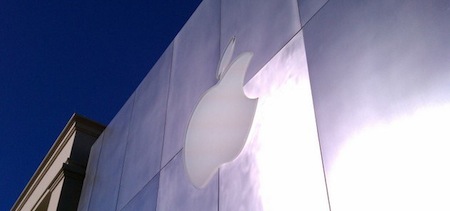
Back in February, several rumors surfaced indicating Apple was planning on opening a major new retail store in Grand Central Terminal, New York in September. To celebrate the 10th anniversary of Apple Retail, reports suggested the Store in Grand Central was set to become the largest Apple Store ever built, likely meant to host thousands of customers every day because of the heavy traffic in Grand Central. Furthermore, to drive traffic away from the popular retail location in 5th Avenue, the rumored new Apple Store in Manhattan would accomplish the double functionality of better managing customers across retail stores, and being an impressive construction in Grand Central. This, on top of the Retail anniversary, lead many people to believe that September would indeed see the launch of an Apple Store, Grand Central. Read more