Federico Viticci

10935 posts on MacStories since April 2009

Federico is the founder and Editor-in-Chief of MacStories, where he writes about Apple with a focus on apps, developers, iPad, and iOS productivity. He founded MacStories in April 2009 and has been writing about Apple since. Federico is also the co-host of AppStories, a weekly podcast exploring the world of apps, Unwind, a fun exploration of media and more, and NPC: Next Portable Console, a show about portable gaming and the handheld revolution.

This Week's Sponsor:

SaneBox

Clear the Clutter, Keep What Matters.


Tweetbot for Mac: Public Alpha Review

Today, Tapbots released the first public alpha of Tweetbot for Mac. This is not a final review of the app: being in the development stage – albeit ready to be tested by the public – Tweetbot for Mac is still lacking several features that will be available in the final Mac App Store version (such as iCloud sync and Notification Center support), and for this reason I’ll save my full analysis of the app for the future.

However, I have been testing Tweetbot for the past week, and I can say that it already is the best Twitter client available on the Mac. Read more


FoxTube: A Great YouTube App Replacement for iOS→

FoxTube: A Great YouTube App Replacement for iOS

I don’t typically discover new apps thanks to word of mouth or by checking out my friends’ Home screeens, and yet I have my friend Andrea to thank for letting me know about FoxTube.

I’m not the biggest fan of the native YouTube app for iOS. In fact, I think it’s actually one of the worst experiences offered to iPhone and iPad users: several YouTube videos aren’t “available on mobile”, search is too simplistic, you can’t copy direct URLs for videos to share them elsewhere, and, generally speaking, it has remained unchanged for the most part since its original launch. Anyone who spends a decent amount of time on YouTube knows that the iPhone app is just a surrogate of the desktop service. I can’t tell you how many times I’ve heard my friends saying “You can’t watch that on YouTube for the iPhone” (quite possibly as many times as “I’m using Facebook through Safari because the app won’t load”).

FoxTube doesn’t look pretty and its icon doesn’t look good, but it is by far the best way to access YouTube I have found on iOS. Firstly, it loads any kind of video – even the ones that the YouTube app won’t open. Especially music videos from “VEVO” channels – FoxTube can display those just fine. And whilst the YouTube mobile website can open them as well, FoxTube has settings to choose between 360, 720p, and 1080p video quality. And it loads fast, unlike the mobile website.

Secondly, FoxTube comes with a plethora of other options including caching, background video player, and background audio. By default, the app caches any video you start playing while it’s also buffering, but there are some settings to adjust its behavior. Videos can be dismissed (with a button or gestures, which the app supports for many other controls) and left playing in a “mini player” at the top that runs while you’re browsing something else in the app. Search is “real” search, with suggested results, history, and sorting options. You can share a video (and also copy its URL), and easily jump to an uploader’s video page, the web video page, or the Related Videos page.

And there’s more: a popup menu on the custom video player lets you toggle mirror mode, pinch to zoom, frame-by-frame navigation, and it even enables you to create bookmarks. If you want to use the app as a music player, FoxTube does background audio (with its icon appearing in the multitasking tray).

Like I said, FoxTube doesn’t look particularly nice, and I don’t like the fact that the iPad version is a separate $4.99 purchase. Yet FoxTube is highly functional, and it brings many of the functionalities I’ve always wanted from the native YouTube app (which is not getting any better).

FoxTube is my new YouTube app on iOS, and I recommend it to anyone who’s been frustrated with the stock app. $2.99 on the App Store.

Permalink

Apple Cracking Down On Sites Selling Access To iOS Betas

Last month, Andy Baio wrote a story for Wired detailing the world of selling access to Apple beta software to non-developers. Specifically, Baio’s piece focused on sites that, for a price, allowed regular people to have their UDID (unique device identifier) activated for installation of iOS betas, which Apple makes available for developers only. To install an iOS beta, a developer has to register his/her account with Apple, which costs $99 per year and allows for the configuration of 100 devices in the so-called “Provisioning Portal” through the aforementioned UDID.

While becoming a registered developer costs $99, sites selling UDID activation did so for a low price, usually within the range of $10. Baio wrote:

For a small developer, unauthorized activations are a lucrative business that’s likely worth the risks. UDID Activation publishes their order queue on their official site, which shows more than 2,300 devices activated in the last week alone. At $8.99 for each activation, that’s more than $20,600 in revenue, with $2,277 paid to Apple for the 23 developer accounts. Their homepage claims that more than 19,000 devices were activated so far, and that’s only one of several services. And since device activations only last for a year, each service can reuse their expired slots with no additional cost.

After noticing several of the sites mentioned in Baio’s article had become unavailable in recent weeks (activatemyios.com, iosudidregistrations.com, activatemyudid.com, udidregistration.com, instantudidactivation.com), we reached out to some of them asking whether Apple was behind the takedown of their “services”, which infringed on Apple’s developer agreement. While most of our emails bounced, we heard back from one of the site owners (who asked to remain anonymous), who confirmed his hosting provider took down the site after a complaint for copyright infringement by Apple. Similarly, the CEO of Fused tweeted in a reply to Andy Baio that Apple had been “fairly heavy-handed” with DMCA requests to UDID-selling sites hosted on their network.

In the email, the site owner said that their website made $75,000 since last June, when Apple released the first beta of iOS 6 to developers. “We do not believe our service was infringing and our services did not violate their guidelines for iOS 6”, the site owner commented, adding that they will soon launch another similar site, “with better and more secure data lines to handle Apple”.

The owner of another site replied to our emails with a “no comment”. According to him, “the Wired article has caused all these sites to go down”.

Indeed, it appears Apple has started taking action against these sites recently, and more precisely after Wired ran the story on UDID activation. Last year, Apple reportedly closed developer accounts of people who sold their available UDID slots to other users; this year, it appears Apple has chosen the more direct path of shutting down websites and their services by filing DMCA requests to their hosting providers.

When Wired published its story, Apple added that “unauthorized distribution is prohibited, and may be subject to both civil and criminal liability”. It is unclear whether Apple terminated memberships to the Developer Program this year as well.

Surprisingly, one of the most popular sites selling access to iOS betas, udidactivation.com, is still online. However, their “UDID order queue” – a webpage displaying the amount of total sales – fails to load, and the same page on their “backup site”, udidactivation.us, displays the latest sales as being from June 28.

Apple seems to have taken action against sites selling access to OS X beta downloads, as well. A popular one, iMZDL.com, put a notice on their website saying “we will no longer be putting up downloads on iMZDL.com for Apple Betas”. Their website is still up, and rather than hosting the download links themselves, they have now switched to torrents for sharing links to iOS and OS X betas.

As we previously wrote, access to Apple beta software should be restricted to developers, as they know how to provide meaningful feedback and report bugs to Apple.


Scanner Pro Gets iCloud Support For Scans→

Scanner Pro Gets iCloud Support For Scans

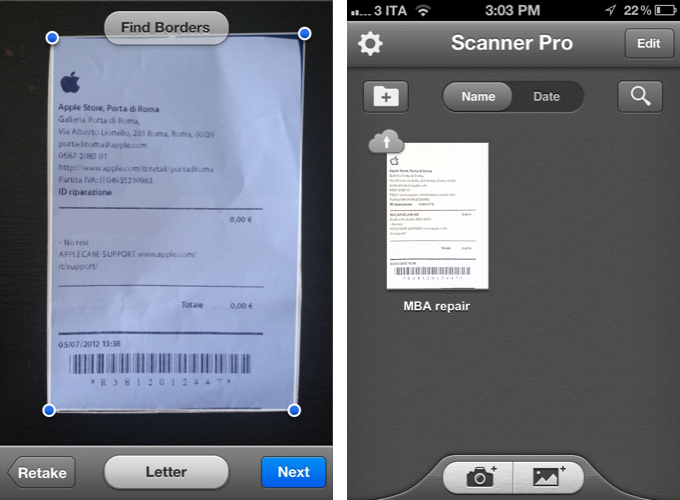
Scanner Pro by Readdle is a powerful application to use your device’s camera to scan receipts or just about any document on the go. When version 4.0 was released, I was positively impressed by the iPad version, which sported an elegant interface and a terrific set of functionalities to turn photos into documents while adjusting borders and colors through multitouch. The app also came with Evernote and Dropbox integration, making it easier to, say, automatically upload scanned items into the same Dropbox folder also used by Readdle’s PDF Expert.

Last night, Readdle released a major 4.1 update to the app that brings the new UI design to the iPhone version, and adds iCloud sync for scans. Readdle writes:

Having introduced Scanner Pro 4 two months ago, we released an iPad version of Scanner Pro (making it universal) with a revamped interface and applied a bunch of new things we’ve learned from Scanner Pro users during the last 3 years. The latest version of Scanner Pro (4.1), brings a completely new interface to the iPhone, focusing on the most important things to make the scanning process easier and more intuitive. With Scanner Pro 4.1 users will enjoy the new design and experience, which are consistent on both iPhone and iPad.

In my tests, I installed Scanner Pro on my iPhone, and scanned a receipt from the Apple Store. After some basic cropping, I went back to the app’s main screen, and noticed an iCloud indicator that made it clear the app was uploading that scan to the cloud. I then updated the iPad app, and, after confirming I wanted to use iCloud, seconds later the scan was there. While it was downloading the item, the thumbnail preview was slightly dimmed and the iCloud indicator progressively filling in blue. This is a good iCloud workflow and seamless presentation to the user.

Scanner Pro was already a solid app, and this latest update adds the convenience of using the iPhone’s camera – particularly with the 4S, you’ll undoubtedly be producing better results than the images returned by the iPad’s camera. All of the features I mentioned in my review of version 4.0 are still there; as a bonus tip, iCloud integration means you’ll find PDF documents on your Mac as well by visiting the Mobile Documents folder inside Library (and perhaps you could set up a Hazel rule to automatically rename those scans or mirror them to Dropbox).

Scanner Pro is $6.99 on the App Store.

Permalink

Launch Center Pro and OmniFocus→

 Launch Center Pro and OmniFocus

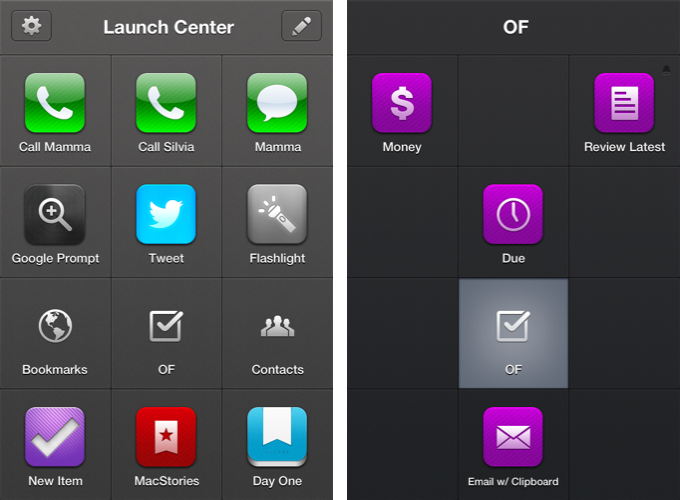
Michael Schechter has created a series of Launch Center Pro templates to speed up the creation process of repetitive tasks in OmniFocus for iPhone, inspired by David Sparks’ snippets for TextExpander and OmniFocus for Mac. With actions to easily attach the contents of the clipboard to a new task or setting up a reminder to follow up on something with a colleague, Michael’s snippets can be huge timesavers if you’ve been looking for a way to automate certain aspects of OmniFocus on the iPhone.

All I’ve done here is create a new group in Launch Center Pro called OF Actions. This allows me to have 11 rapid-fire actions for my most commonly created tasks. Rather than 11 unique actions, I’ve actually created duplicates for most that include whatever I have on the clipboard. This way I have a version that duplicates the Quick Entry field and another that emulates some aspects of the Clipper.

Based on OmniFocus’ new URL scheme and Launch Center Pro’s support for prompts (more details in our review of the app), these snippets won’t offer the same degree of customization found in desktop solutions like the aforementioned TextExpander or Keyboard Maestro, but they surely are the best way to automate OmniFocus on the iPhone for now. Because of the nature of iOS, you won’t be able to set up scripts that, for instance, let OmniFocus communicate with other apps automatically, but at least you’ll be saving some typing and navigation inside the app.

Inspired by Michael’s work, I have set up actions to access my most used perspectives and a new one called “Review Latest” that makes up for the lack of an Inbox perspective on iOS (as it’s project based rather than context based) and displays the latest tasks I may have added without a context or due date using Captio. Furthermore, I have assigned a scheduled reminder to the action, so that every day after dinner I’ll be reminded by Launch Center Pro to process my newest tasks created throughout the day.

The Omni Group’s Ken Case also chimed in on Twitter explaining how OmniFocus URLs work, and Justin Lancy collected the tweets in a Storify bundle. Nick Winja took a look at how it’s possible to access contexts via URL, as well.

You can see the full text for Michael’s Launch Center Pro snippets here.

Permalink

Apple Removes Negative Reviews From Apps Affected By DRM Bug [Updated]

Earlier this week, an error in Apple’s DRM code generation for App Store apps caused a number of app updates to crash on launch. The issue, initially reported by Instapaper developer Marco Arment, began spreading to more than 100 iOS and Mac app updates including GoodReader, Angry Birds HD Free, and The Early Edition. As the bug was causing updated apps to crash immediately after launch without even displaying an error message, several users became upset with the developers of the apps – as they didn’t know the issue was on Apple’s servers – and began leaving negative reviews on the App Store. Developers, on the other hand, had to deal with a issue that they couldn’t fix, while explaining to customers how they should back up their data and wait for a solution.

Last night, Apple officially acknowledged the issue and explained it was associated with DRM code generation on the App Store. Apple said they had fixed the issue, and Macworld reported that, according to their sources, Apple would also remove all negative reviews that had been left during the hours the bug was spreading on various international App Stores.

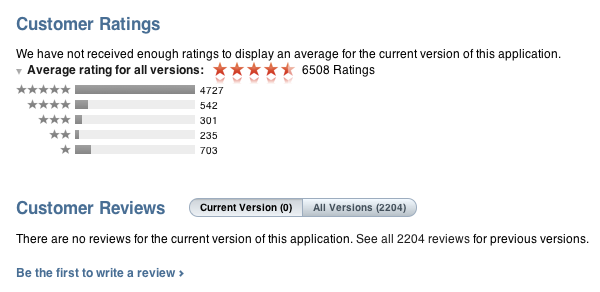
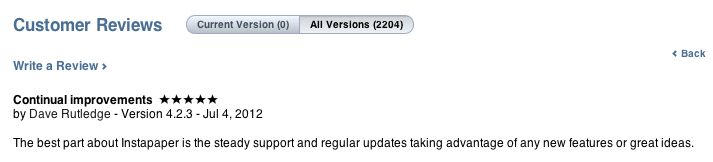
As of this morning, it appears Apple has indeed removed negative reviews from apps affected by the bug. Apps like Instapaper, GoodReader, and The Early Edition are showing no reviews for the latest versions available, which are the ones that were crashing earlier in the week. We haven’t checked on every single app that was affected, but it is safe to assume at this point Apple will remove all reviews (not just negative ones) from any app that received a corrupted update.

Apple hasn’t issued a public apology to developers, but the removal of reviews will definitely help in leaving this issue behind without having to deal with the aftereffects on the App Store as well.

Update: As noted by several readers on Twitter, it appears Apple didn’t completely wipe the old reviews left during the DRM outage – it re-issued app updates for the same version of the app, and moved the “Current Version” reviews to “All Versions”.

In spite of the version being the same – for Instapaper, the affected version was 4.2.3 – the old reviews are not showing up in the Current Version section of the App Store. This helps hiding possible negative reviews from the section that it loaded by default in iTunes.

By re-issuing the old version as an update again, Apple is making sure customers can re-install the fixed version of an app without having to delete it first, as noted by Marco Arment. It is unclear whether the old reviews will still affect overall ranking of an app.


MacStories Interviews: Brett Terpstra

In our ongoing series of interviews with developers and creators in the Apple community, I recently had the chance to talk with Brett Terpstra, developer of Marked, Senior Developer at AOL Tech, TUAW blogger, and “mad scientist” with a knack for finding great solutions through code. When he’s not making awesome things or writing at his personal blog, Brett tweets as @ttscoff.

The interview below was conducted between January 17 and July 4, 2012.

MacStories: Hey Brett! Could you introduce yourself to the readers who haven’t heard about you or haven’t tried any of your apps & scripts before?

Brett Terpstra: Hey Federico,

I’m the original author (now working with Elastic Threads) of a Notational Velocity fork called nvALT, which seems to be what I’m best known for. I also sell an app in the Mac App store called Marked; a MultiMarkdown previewer that watches your text file for changes and updates the preview every time you save it. I’m a bit of a plain text nerd, and a lot of my work focuses on working with and manipulating plain text, as well as keeping data portable and application agnostic. Most of what I do is pure experimentation, coding for the joy of problem solving. Mad science, if you will. Read more


MacStories Interviews: Brett Kelly

In our ongoing series of interviews with developers and creators in the Apple community, I recently had the chance to talk with Brett Kelly, Evernote extraordinaire, founder of NerdGap, and creator of Evernote Essentials. When he’s not making things with words and computers, Brett tweets as @inkedmn.

The interview below was conducted between February 3 and July 3, 2012.

MacStories: Hey Brett! Could you introduce yourself to the readers who haven’t heard about you before?

Brett Kelly: Ahoy Federico! I sure can…

My name is Brett Kelly. I’m a writer, podcaster and software developer from Southern California. By day, I’m the Technical Communications Manager for Evernote where I write user documentation and build cool software tools. I write a blog at nerdgap.com and I’m probably best known as the author of the popular getting started guide for Evernote, Evernote Essentials. I’m happily married to my first wife and we have two crazily wonderful children who are crazy.

MS: I’m a proud Evernote customer myself – I use the service every day – and I have read your Evernote Essentials guide. How did you get started with Evernote in the first place? Getting to work for the company you’re already passionate about sounds like a dream job.

BK: Always nice to meet a fellow Evernote user.

Back in early 2008, a friend of mine send me an invite to the private beta for this thing called “Evernote”. I gave it a brief spin and, as soon as I realized that I could stick stuff in there and it would sync between my work and home computers, I was hooked. Remember this was before the iPhone app, as well as the App Store!

I immediately started using the crap out of it; work stuff, personal stuff, it all ended up in Evernote. Almost four years and over 10,000 notes later, I’m a bigger fan of the product than I was last week and I’m both proud and humbled that I get to work with such a ridiculously smart group of people. Read more


Quickly Send Webpages To Evernote with EverWebClipper

As I explained in my previous look at my writing workflow, I use a selection of tools to save notes and other bits of text to Dropbox and Evernote. While such array of applications and utilities is ever-changing due to the very nature of the App Store, the core intent of being able to distinctively store text in separate locations stays true regardless of app updates and new releases.

I use Evernote as long-term storage for a variety of text and media that isn’t necessarily an article I need to work on inside a dedicated text editor. I keep images and PDFs that I may want to reference in the future in Evernote; I archive my own tweets and favorite tweets in two separate notebooks using IFTTT (thanks to Evernote’s search, I consider this a DIY alternative to Cue, which I also use); I keep digital scrapbooks with screenshots, design inspiration material, and app documentation stored inside Evernote, and often shared with colleagues. Dropbox is for text; Evernote is for other kinds of text and more.

It doesn’t happen very often, but sometimes I want to archive webpages or links in Evernote as well. On my Mac, I use a couple of AppleScripts put together by our Don Southard to quickly archive URLs or text-based versions of webpages in my Evernote inbox for later processing. On iOS, I have been using a simple tool called EverWebClipper to instantly beam webpages from Safari to my Evernote account.

EverWebClipper isn’t pretty but it’s functional. Furthermore, it’s one of those tools that you don’t really need to look at, as much as you need to ensure it can work reliably in performing the functionality it was made for.

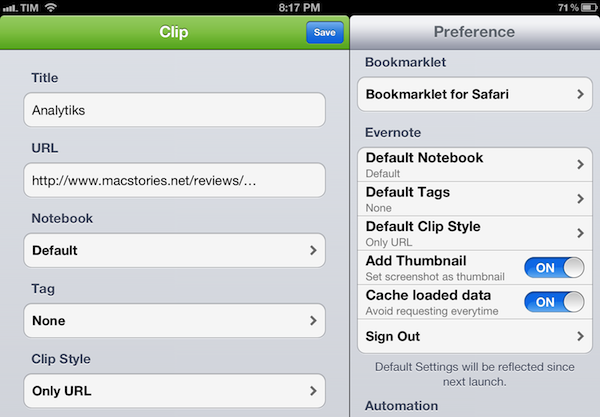
The app can be used to save webpages as URLs, styled pages, or “simple” ones. The styled option will try to preserve the original design of a webpage while allowing you to still edit text and other elements in Evernote; the “simple” clip style will strip out graphics and other elements from webpages, trying to focus on text and hyperlinks.

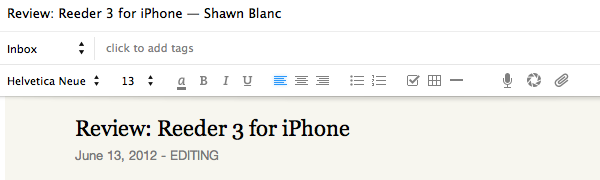
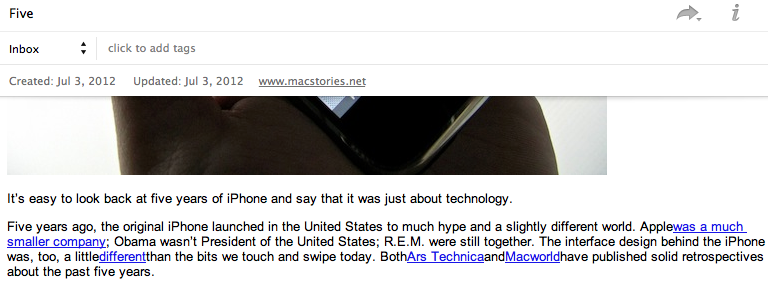
In actual testing, I found the styled setting to work reliably for minimalist sites like ShawnBlanc.net and Marco.org, suffering a bit in rendering graphics afterwards with sites like ours, or The Verge. However, it’s very convenient to be able to archive webpages “as they are”, even if some icons may be misaligned or missing. I’m not the biggest fan of Evernote’s “simple” mode for webpages, so I was bummed to see the app has some issues in saving the styled version of Instapaper-mobilized articles, which I prefer (and often convert to PDF on my iPad using Save2PDF).

Overall, I welcome the URL option; I like the possibilities offered by styled clips (though they’re hit or miss depending on the website); but I wish the “simple” setting would use a more capable parser like Instapaper’s.

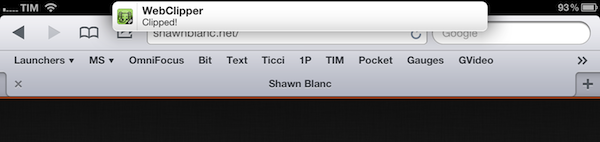
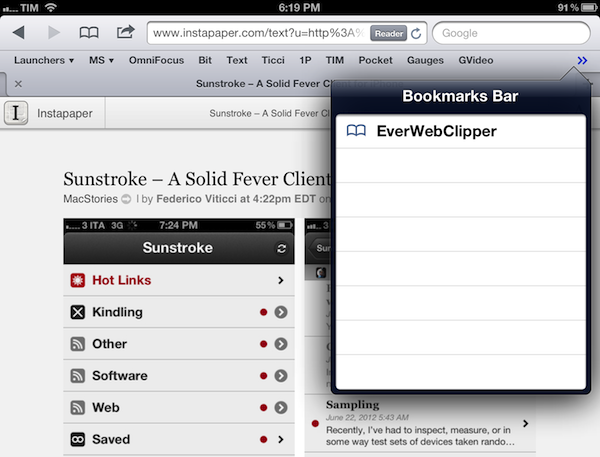
Where EverWebClipper really wins over Evernote’s standard clipper (not optimized for mobile and terrible to use in Safari) is the actual clipping process. It’s entirely automated: you can install a bookmarklet in Safari and save webpages with one tap. This happens thanks to the app’s Automation settings, which enable you to tap on the bookmarklet, and have Safari automatically return in the foreground while EverWebClipper completes the saving process. You can return to Safari “immediately” or “after clipping” – if you choose immediately, the app will send a local notification when it’s done clipping.

There are other settings available in the app, as well as a manual mode to paste URLs and specify notebooks and tags every time, rather than through the bookmarklet.

At $3.99 for the iPad version and $2.99 on the iPhone, I don’t like EverWebClipper’s pricing scheme, and I think the developer should consider making a single universal version – especially considering the minimal differences in terms of features and design between the two. However, EverWebClipper provides a better experience than Evernote’s own bookmarklet for grabbing entire webpages (not portions of them) on iOS, so you should check it out if you’ve been looking for a solid mobile Evernote clipper.