Federico Viticci

10762 posts on MacStories since April 2009

Federico is the founder and Editor-in-Chief of MacStories, where he writes about Apple with a focus on apps, developers, iPad, and iOS productivity. He founded MacStories in April 2009 and has been writing about Apple since. Federico is also the co-host of AppStories, a weekly podcast exploring the world of apps, Unwind, a fun exploration of media and more, and NPC: Next Portable Console, a show about portable gaming and the handheld revolution.

Quickly Send Webpages To Evernote with EverWebClipper

As I explained in my previous look at my writing workflow, I use a selection of tools to save notes and other bits of text to Dropbox and Evernote. While such array of applications and utilities is ever-changing due to the very nature of the App Store, the core intent of being able to distinctively store text in separate locations stays true regardless of app updates and new releases.

I use Evernote as long-term storage for a variety of text and media that isn’t necessarily an article I need to work on inside a dedicated text editor. I keep images and PDFs that I may want to reference in the future in Evernote; I archive my own tweets and favorite tweets in two separate notebooks using IFTTT (thanks to Evernote’s search, I consider this a DIY alternative to Cue, which I also use); I keep digital scrapbooks with screenshots, design inspiration material, and app documentation stored inside Evernote, and often shared with colleagues. Dropbox is for text; Evernote is for other kinds of text and more.

It doesn’t happen very often, but sometimes I want to archive webpages or links in Evernote as well. On my Mac, I use a couple of AppleScripts put together by our Don Southard to quickly archive URLs or text-based versions of webpages in my Evernote inbox for later processing. On iOS, I have been using a simple tool called EverWebClipper to instantly beam webpages from Safari to my Evernote account.

EverWebClipper isn’t pretty but it’s functional. Furthermore, it’s one of those tools that you don’t really need to look at, as much as you need to ensure it can work reliably in performing the functionality it was made for.

The app can be used to save webpages as URLs, styled pages, or “simple” ones. The styled option will try to preserve the original design of a webpage while allowing you to still edit text and other elements in Evernote; the “simple” clip style will strip out graphics and other elements from webpages, trying to focus on text and hyperlinks.
In actual testing, I found the styled setting to work reliably for minimalist sites like ShawnBlanc.net and Marco.org, suffering a bit in rendering graphics afterwards with sites like ours, or The Verge. However, it’s very convenient to be able to archive webpages “as they are”, even if some icons may be misaligned or missing. I’m not the biggest fan of Evernote’s “simple” mode for webpages, so I was bummed to see the app has some issues in saving the styled version of Instapaper-mobilized articles, which I prefer (and often convert to PDF on my iPad using Save2PDF).
Overall, I welcome the URL option; I like the possibilities offered by styled clips (though they’re hit or miss depending on the website); but I wish the “simple” setting would use a more capable parser like Instapaper’s.

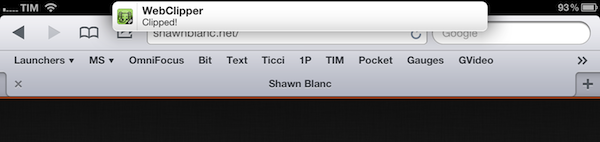
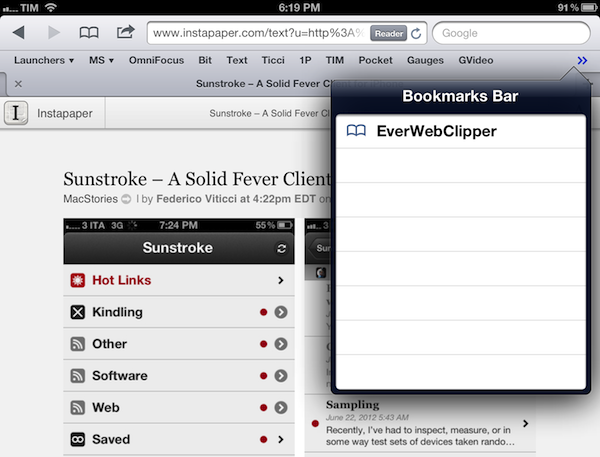
Where EverWebClipper really wins over Evernote’s standard clipper (not optimized for mobile and terrible to use in Safari) is the actual clipping process. It’s entirely automated: you can install a bookmarklet in Safari and save webpages with one tap. This happens thanks to the app’s Automation settings, which enable you to tap on the bookmarklet, and have Safari automatically return in the foreground while EverWebClipper completes the saving process. You can return to Safari “immediately” or “after clipping” – if you choose immediately, the app will send a local notification when it’s done clipping.
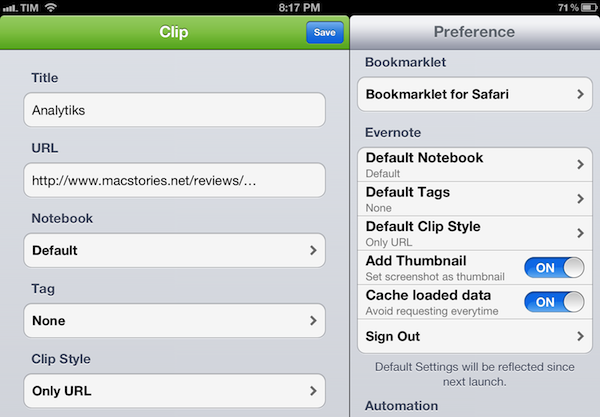
There are other settings available in the app, as well as a manual mode to paste URLs and specify notebooks and tags every time, rather than through the bookmarklet.

At $3.99 for the iPad version and $2.99 on the iPhone, I don’t like EverWebClipper’s pricing scheme, and I think the developer should consider making a single universal version – especially considering the minimal differences in terms of features and design between the two. However, EverWebClipper provides a better experience than Evernote’s own bookmarklet for grabbing entire webpages (not portions of them) on iOS, so you should check it out if you’ve been looking for a solid mobile Evernote clipper.


Analytiks

Released yesterday, Analytiks 2.0 by Stelios Petrakis is an interesting widget-type iOS application to quickly check on your Google Analytics account. Whilst I don’t normally bother delving deep into Google reporting while on my iPhone, I have been looking for fresh alternatives to Garrett Murray’s Ego (which took a substantial hit in terms of daily usage after I stopped using Mint), and Analytiks delivers on the need of providing essential information at a glance with an elegant presentation.

Upon first launch, Analytiks will ask you if you’re using a black or white iPhone: this choice – falling back on user input as there is no way for iOS developers to determine the color of a device – will change the interface of the app accordingly, though it can be reverted in the settings. Using Apple’s widget apps for iPhone as a source of inspiration, Analytiks presents multiple sites associated with a Google account as full-screen “cards” you can horizontally swipe and double-tap to “flip back” and reveal more content. You can access up to 5 sites using the app.

The main screen displays a site’s total pageviews for the day and current month, with smaller counts for traffic sources (Facebook, Twitter, Google), visitors, and change since yesterday/past month. Typography is clean and focused, and I agree with the choice of displaying only an essential portion of Analytics data in this view. Pageviews for the day/month, visitors, and social traffic are the data points I want to check upon on a daily basis.

Double-tap (or hit the Dashboard-like icon in the upper right corner), and you’ll be brought to another screen showing various infographics for the past 30 days, 3 months, half year, or year. Here, you’ll find graphs for demographics, top browsers, desktop vs. mobile and PC vs. Mac users, time spent on your site, and new vs. returning traffic. It’s all incredibly pretty, the animations are cute, and the app updates data fast.

Analytiks looks good and it’s easy to use. If I had to nitpick, I’d argue that the data the developer chose to display gets the job done but there could be a section for top articles and referrals also embedded somewhere else in the app – though I recognize that’s also the kind of data that’s more difficult to visualize with fancy graphics and animations. Analytiks doesn’t let you modify time ranges and other data sets, but it does look great on the iPhone’s Retina display and it serves the purpose of being a simple widget to quickly check on some Google Analytics data.

Only $0.99 on the App Store.

Note: Stats pictured above are from my personal site, not MacStories.


Apple Announces Q3 2012 Conference Call for July 24: Quarter Recap & Estimates

Earlier today, Apple updated its Investor Relations webpage to include a placeholder for the company’s next earnings call, scheduled for July 24. As usual with Apple’s conference calls, the event will be provided as an audio webcast for investors and listeners.

Apple plans to conduct a conference call to discuss financial results of its third fiscal quarter on Tuesday, July 24, 2012 at 2:00 p.m. PT.

Ended on June 30, Apple’s third fiscal quarter will provide insight into the company’s recent performances with the new iPad (launched on March 16 in 10 initial countries), iPhone 4S (which is entering its late-stage product cycle), and revamped Mac line. In the previous quarter, Apple set guidance for Q3 at $34 billion and diluted earnings per share of about $8.68. Currently, consensus by Wall Street analysts averages $37.34 billion in revenues for the third-quarter.

The new iPad has been Apple’s fastest product rollout to date, and Q3 will be the first full quarter for device sales in all the countries where it’s been released. Apple added 56 launch countries in 42 days, and recently expanded to the Middle East and Latin America through official distribution channels and retailers.

With 12 million units sold in Q2 2012, Apple said the new iPad was “off to a great start”, and Q3 2012 will provide the first real opportunity to measure to device’s impact on a wider level. During the past earnings call, CEO Tim Cook noted how he was confident the company would be able to “supply a significant number of iPads during the quarter”.

The iPhone 4S, on the other hand, was released eight months ago, and amidst speculation of a new model coming this Fall – perhaps as soon as October – Q3 2012 will be key to understand the device’s sales over the past four months and, more importantly, its performances in China.

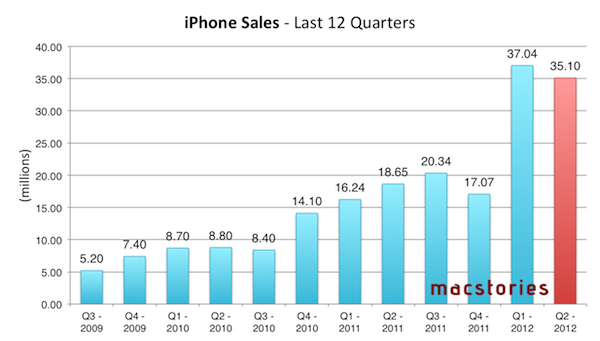
The iPhone 4S launched on its second Chinese carrier – China Telecom – on March 9th, and Q3 2012 will be the first “full quarter” to measure sales in the region. With 35.1 million iPhones sold in the past quarter, Apple reported a 5x growth year-over-year in Greater China, noting how “the incredible quarter” was the result of efforts to understand the market – where more people are moving to the middle class – “as good as we can”.

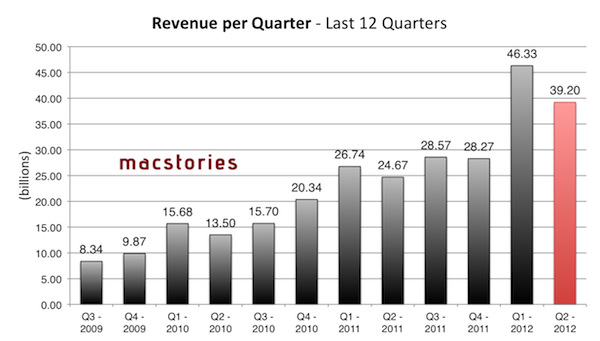
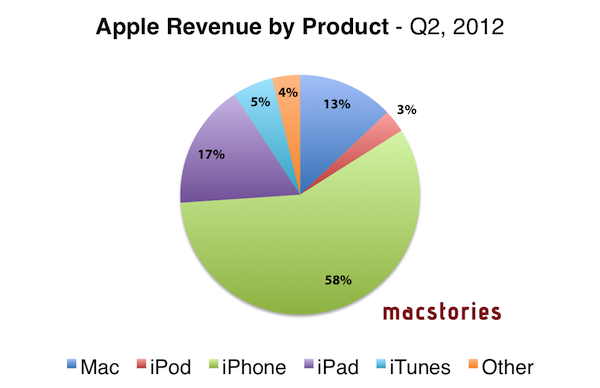
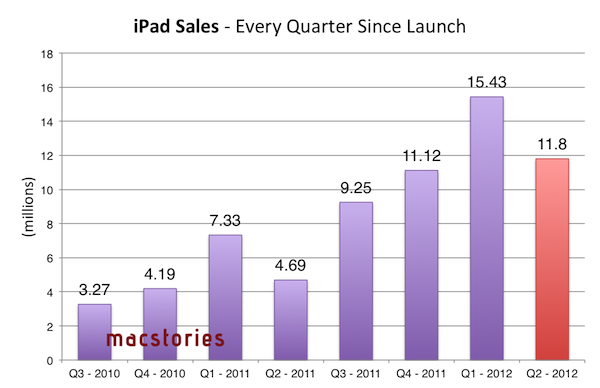
In Q2 2012 – the company’s biggest non-holiday quarter to date – Apple posted revenue of $39.2 billion, with 11.8 million iPads,  35.1 million iPhones and 4 million Macs sold. Apple sold 7.7 million iPods, a 15 percent unit decline from the year-ago quarter. The company posted quarterly net profit of $11.6 billion, or $12.30 per diluted share.

In the year-ago quarter, Apple posted revenue of $28.57 billion, with 9.25 million iPads, 20.34 million iPhones and 3.95 million Macs sold. Apple reported record quarterly net profit of $7.31 billion, or $7.79 per diluted share.

In his own estimates for the upcoming Q3 results, Asymco’s Horace Dediu forecasted the following numbers:

  • iPhone units: 28.5 million (40%)
  • Macs: 4.5 million (15%)
  • iPads: 24 million (160%)
  • iPods: 6 million (-20%)
  • Music (incl. app) rev. growth: 35%
  • Peripherals rev. growth: 20%
  • Software rev. growth: 15%
  • Total revenues: $41.9 billion (46%)
  • GM: 44.8%
  • EPS: $11.54 (48%)

In their initial projections for Q3 2012, Seeking Alpha estimated higher Mac sales due to the new models released during the quarter (Apple also dedicated a new commercial to the Retina MacBook Pro) and quarterly revenues around $39 billion. As noted by Philip Elmer-DeWitt at Fortune, “as usual the indies are more bullish than the pros”, with independent analysts projecting earnings on average $5 billion higher than the Street’s consensus.

To put these possible numbers in better context, here’s a graphical representation of how Apple performed in the past quarters.

Apple’s quarterly dividend won’t begin until the fourth fiscal quarter of 2012. We will provide live updates from the call on our site’s homepage on July 24 starting at 2 PM PT. For a recap of news and events that may have affected Apple’s results in the quarter, check out our Month In Review roundups here.


App Store Adding New “Food & Drink” Category

The App Store will soon be updated with a new “Food & Drink” category, according to developers of existing iOS applications who received an email from Apple today about the upcoming change. “In the next few weeks”, applications will be automatically migrated to the new category; currently, the App Store doesn’t provide a specific category for these types of apps, which have been typically listed under Lifestyle by their developers. According to Apple, the new category will include “apps that help users cook and bake, mix drinks, manage recipes, find new restaurants and bars, and learn what their friends like to eat and drink”. Food & Drink won’t include diet, grocery shopping, coupon clipping, or food-related game apps.

The new category is another change coming to the App Store, which Apple has been tweaking and revamping with new features lately. Ahead of a major redesign coming with iOS 6, Apple re-organized its selection of Editor’s Choice apps and App of the Week selections, providing a standalone category with weekly updates. Recently, Apple also started grouping previous game bundles into a macro category accessible from the App Store’s homepage.

The dedicated Food & Drink category comes after thousands of apps have been successful in using iOS devices as tools to manage recipes and find local restaurants. Notably, iOS 6 will also feature Yelp check-ins in the new Maps applications – a renewed focus on this area that will surely benefit from a new category on the App Store.

Currently, Apple only offers a custom Cooking section to showcase handpicked app selections for recipes, drinks, shopping, and reference material.

Update: the new category will appear “in the next few weeks” according to Apple.


Sunstroke - A Solid Fever Client for iPhone

In my review of Reeder 3.0, I mentioned how the app’s implementation of Fever doesn’t allow you to specify a time range to fetch Hot Links. In the way I use Fever, in fact, the possibility to use the app as a way to catch up on important news – rather than constantly checking for updates throughout the day – is a fundamental advantage over standard Google Reader and third-party Reader clients. I recently took a week off the Internet, and relied exclusively on Fever and Flipboard’s Cover Stories to keep up with the most important news I cared about. Being able to set a time range in Fever’s Hot Links is becoming a must-have for me.

Sunstroke by Gone East delivers on the need of a full-featured Fever client for iPhone with solid sharing options, a good interface, and proper Hot Links support. I recently started using Sunstroke as my main Fever client on the iPhone, and I have been very pleased with its results and integration in my workflow. More importantly, Sunstroke concretely allowed me to keep up on the news thanks to its time range-based Hot Links, providing actual tools to filter news I had missed by time period, thereby ensuring I could be brought up to speed on relevant items no matter my absence.

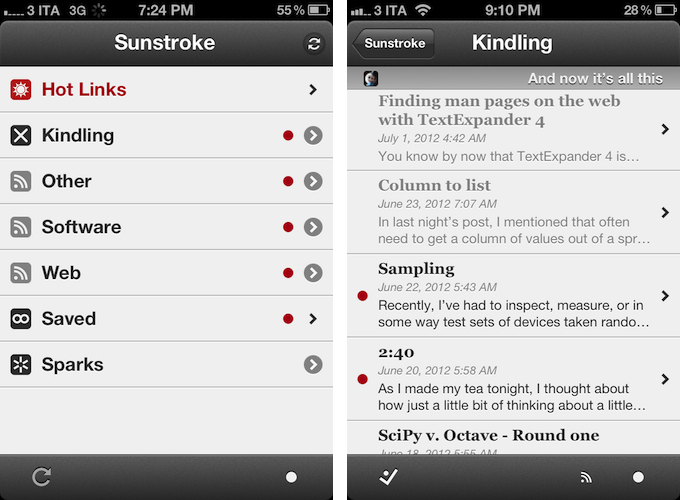
Visually speaking, Sunstroke offers a fairly familiar Fever experience. The main screen hosts Hot Links, Kindling, Saved, and Sparks sections, enabling you to switch between read/unread items and groups configured in your Fever account. I found refresh times to be slightly faster than Reeder’s – albeit it’s worth mentioning how Sunstroke comes with entirely different settings for managing Fever sync.

You can set the app to “sync automatically”, delete items after 2, 4, 6, or 10 weeks, and auto-mark items as read as you scroll. This last feature is extremely well done, with smooth scrolling when skimming through hundreds of subscriptions on my iPhone 4S. Overall, I like Sunstroke’s sync indicators and custom icons in the main screen of the app.

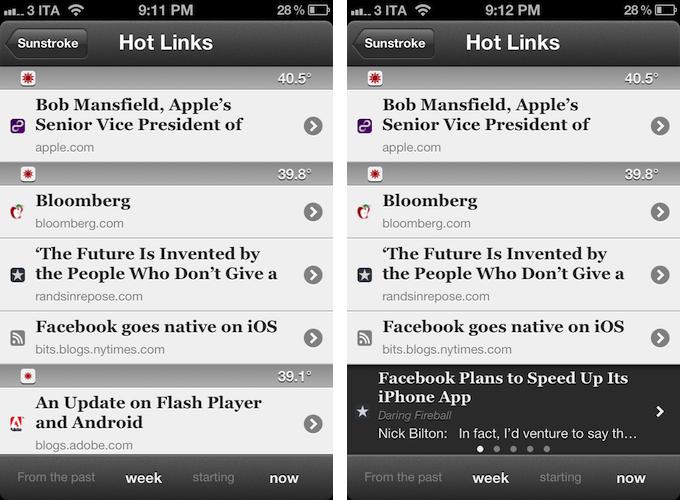
Where Sunstroke really shines is the Hot Links list. Unlike Reeder, a bar across the bottom of the UI lets you display Hot Links “from the past” few days, weeks, and month “starting” now, yesterday, and up to 5 weeks ago. This feature alone made purchasing Sunstroke worth it as it offers a solid yet simple way to set the time range according to which Fever’s hot items will be displayed. Per Fever’s typical presentation, hot items are sorted by “temperature”, and grouped by site.

Sunstroke stores every item from the Fever database on your device, which means every link that contributes to a link’s hotness can be viewed inside the app. This means that a) you can go offline and still tap around links and read articles through Fever’s own mobile viewer (though you can also use the Instapaper mobilizer) and b) you can tap & hold on a hot link to load related items as a swipeable “gallery” inline. The latter option is particularly attractive and well-implemented; my only issue is with the way Fever often cuts off headlines from hot links, but that’s not Sunstroke’s fault.

I found Sunstroke to be very polished in other areas, too. In the settings, you can tell the app to hide unread counts and show newest items first, or to cache images on WiFi-only while also setting a specific cache size.

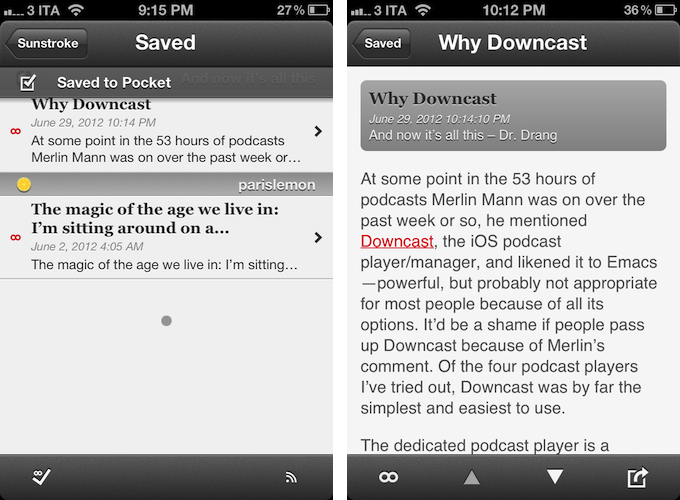
The app supports sharing through a dedicated sharing button and by tapping & holding any link, and the sharing options include Facebook, Twitter, Pocket, Sparrow, and Instapaper. Like Reeder, you can assign toggles for right/left swipe actions – mine are, unsurprisingly, set to Pocket and “Toggle Saved”, but you can also “Toggle Read”. The notification for saved items is also nicely presented and elegant.

Sunstroke is not perfect (the app crashed once in my tests; there is no iPad version for now; options to control font appearance and size would be welcome), but it undoubtedly is the most complete Fever experience currently available on the iPhone. Sunstroke has got good sharing options, great Hot Links implementation, a fast engine and navigation, and, overall, a feature set meant for heavy Fever users that outpaces Reeder’s basic support for the service.

Fever users looking for a solid iPhone client need to check out Sunstroke, which is available at $4.99 on the App Store.


OmniFocus and Calendar Notifications

I recently became tired with the fact that OmniFocus needs to be launched every once in a while in order to get the latest version of its synced database. For almost two years, I synced OmniFocus through The Omni Group’s excellent (and free) Omni Sync Server service, but I switched to a manual WebDAV location hosted on my Macminicolo machine because I like to be in control of the app’s sync sessions, and to fiddle around with ways to better automate the app’s syncing system.

Over the past few months, however, I have found myself increasingly missing notifications for due items because I am not always using the same device to manage OmniFocus, and I tend to forget to launch the app and hit the Sync button. I may go a full week without using OmniFocus for Mac, but I’d still like to be reminded of important items even if I don’t sync my iPhone and iPad all the time. Unfortunately, in the way OmniFocus is structured, the standard sync doesn’t allow items to be “pushed” in the background.

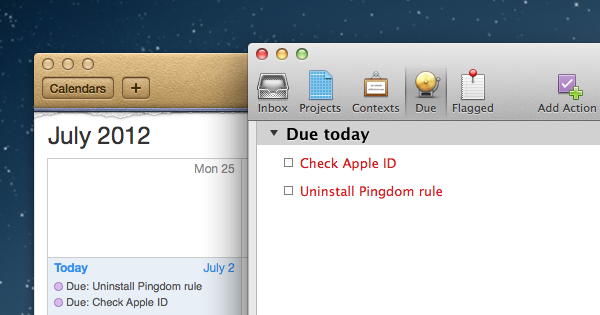
I came up with a way to have OmniFocus’ due reminders synced “in the cloud” and always up-to-date that enables me to keep using the app like I always have, yet staying assured I won’t miss items because I forgot to sync or open the app. It uses OmniFocus’ built-in calendar export functionality, and a mix of automation, Macminicolo hosting, and third-party apps to get the job done reliably and consistently. It’s not perfect (mainly due to Apple’s fault) and it’s likely doable in some other way with some other hosting solution, but I found this method to work perfectly for me in my workflow. Read more


Apple Testing New Genius Bar Layout

Apple Testing New Genius Bar Layout

Gary Allen writes about a new Genius Bar layout over at ifoAppleStore:

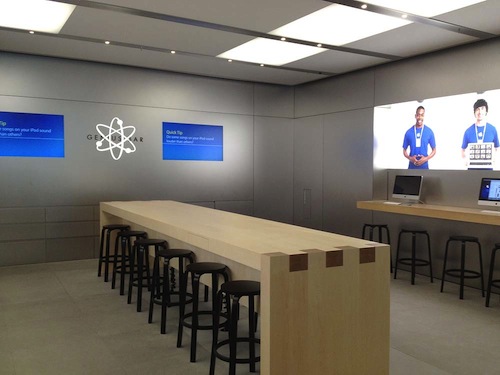
The designers’ solution to Genius Bar crowds was to pivot the GB table by 90-degrees so that it’s perpendicular to the rear wall of the store, and to eliminate the iconic kids seats and tables. A photo of the new set-up has surfaced showing a tall, 10-foot long wood counter at the rear of a store, with black stools on both sides. The table is set about 15 inches out from the rear wall of the store to allow employees to move from one side to another.

Often referred to as the “heart and soul” of an Apple retail store, the Genius Bar has come a long way since the floating notebooks for support staff and iPod-oriented questions and repairs. As Apple has evolved as a company and revamped its product line over the years, the Genius Bar has consequently changed to accommodate new kind of customers, questions, and, ultimately, devices – on both sides of the Bar. Customers’ details are now entirely managed on iPads, check-ins happen through a dedicated iPad app, and even signatures and machine information are being stored inside custom iPad software made for retail.

It’s rare to see a Mac at the Genius Bar these days, and perhaps the new layout is just another sign of the times.

Permalink

Five

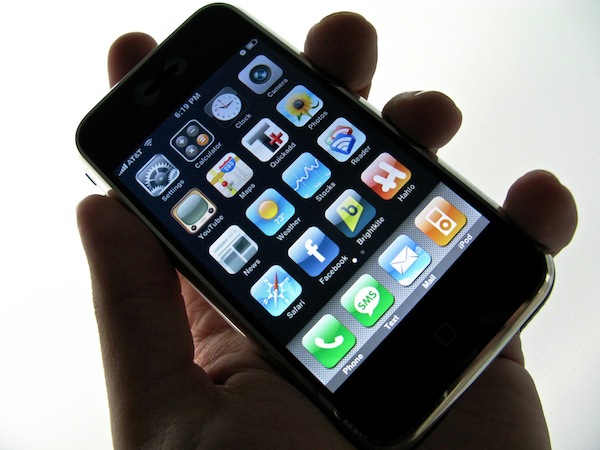
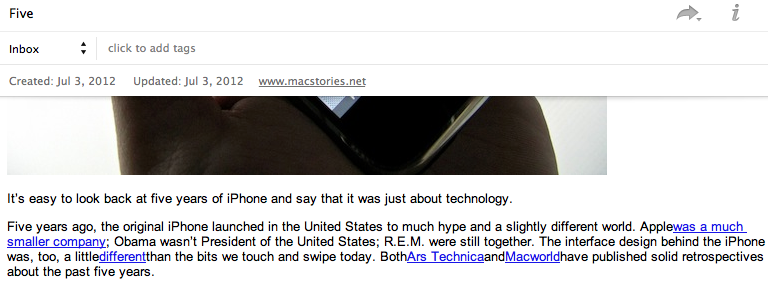
It’s easy to look back at five years of iPhone and say that it was just about technology.

Five years ago, the original iPhone launched in the United States to much hype and a slightly different world. Apple was a much smaller company; Obama wasn’t President of the United States; R.E.M. were still together. The interface design behind the iPhone was, too, a little different than the bits we touch and swipe today. Both Ars Technica and Macworld have published solid retrospectives about the past five years.

The iPhone has created an economy that’s spurring the creation of jobs and new positions all over the globe. It reignited the mobile phone industry, and, in one fell swoop, turned competitors upside down as they struggled to keep their eyes open to the new wind blowing in their direction. The App Store didn’t launch until 2008, but its numbers are the very example of the software revolution spearheaded by the iPhone.

Unlike most inventions of modern history, though, the iPhone created a culture. And that’s because – unlike the ATM or the cordless telephone – the iPhone brought people together. By allowing developers to craft software for consumers willing to pay for it, the iPhone took down the wall between creation and consumption – the virtual barrier that normally separates an inventor from people using a product.

Both sides affected by this change – developers and users – ultimately became the starting point, the goal, and the focus.

The iPhone is about the people.

Like any other company looking for a profit, Apple has always needed to make money with the iPhone. But, after five years, I like to think that there can be a good cause behind profit and industry strategies – that there can be a purpose to “make great products”. And maybe I’m wrong, but I believe the iPhone has proved to be one of those major changes that have made people’s lives better. By combining breakthrough hardware design with the human touch, iPhone didn’t just change the way people communicate, work, and play: it saved lives, improved workplaces, told stories.

Sometimes there’s more to progress than just technology.

[image credit: Flickr]


MobileMe Shuts Down

MobileMe Shuts Down

As initially announced last year with the launch of iCloud, Apple has officially shut down MobileMe – its former cloud-based platform for data syncing and document storage – yesterday, June 30, 2012. Replacing the standard Me.com login page with a shutdown notice for all users, Apple notes that “for a limited time, you can still move your MobileMe account to iCloud and download your Gallery photos and iDisk files at me.com”. The MobileMe login page is still providing links to find a lost device through Find My iPhone, download Gallery and iDisk data, and transition to iCloud. A Transition Q&A page is available here.

As also previously announced, old MobileMe subscribers with 20 GB of storage have received a free upgrade to iCloud until September 30, 2012:

MobileMe members with 20GB of storage receive a complimentary iCloud storage upgrade of 20GB, and accounts with additional purchased storage (40GB to 60GB) receive a complimentary upgrade of 50GB after moving to iCloud. These free upgrades are good through September 30, 2012. After that date, you can continue the upgrade at the regular price or let it expire and use the free 5GB plan.

Wikipedia provides a good summarization of MobileMe’s evolution and changes through the years, leading up to last year’s launch of iCloud, which Apple deemed the platform “for the next decade”.

Permalink