Federico Viticci

10759 posts on MacStories since April 2009

Federico is the founder and Editor-in-Chief of MacStories, where he writes about Apple with a focus on apps, developers, iPad, and iOS productivity. He founded MacStories in April 2009 and has been writing about Apple since. Federico is also the co-host of AppStories, a weekly podcast exploring the world of apps, Unwind, a fun exploration of media and more, and NPC: Next Portable Console, a show about portable gaming and the handheld revolution.

Tweet Library and the Twitter Archive

TweetLibrary

TweetLibrary

Like many others, I got access to my Twitter archive last night.

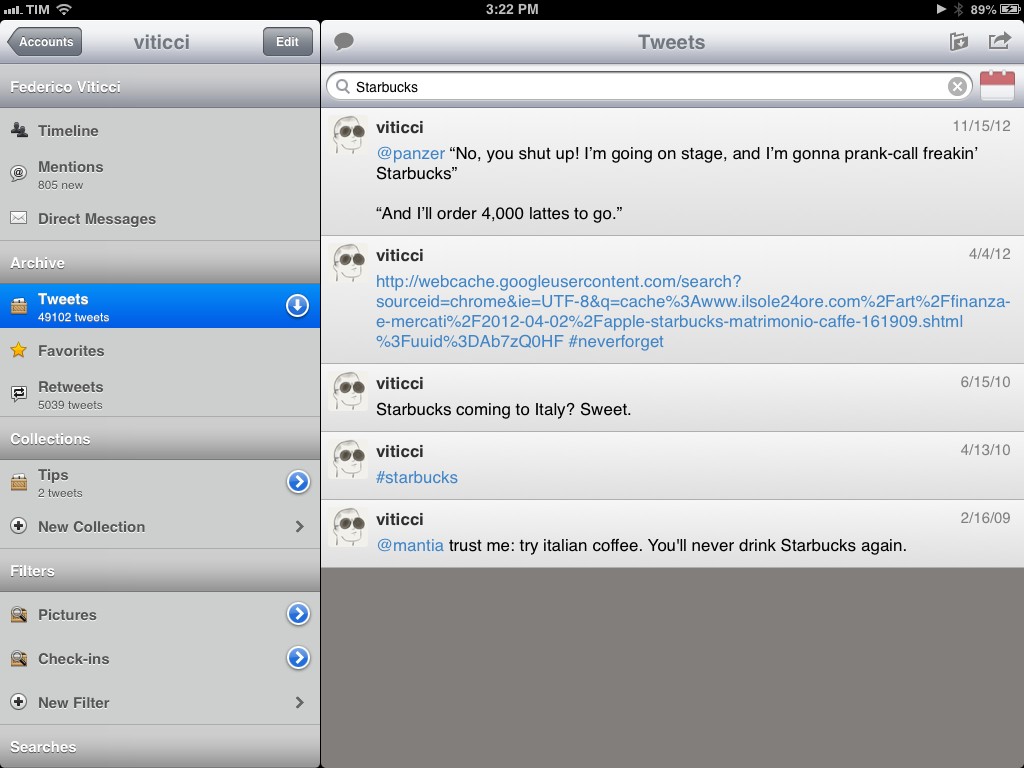
The option, launched a few months ago, enables you to download a complete archive of all your tweets and retweets inside a .zip file that contains CSV and JS archives with a nice HTML page you can browse. With over 50,000 tweets since February 15, 2009, my .zip file weighed at around 9 MB. Seeing tweets from four years ago has a strange effect in that it shows the ephemeral nature of 140 character-long status updates in better context. In other words, I used to tweet “good morning” and “goodnight”; with time, I lost my good Twitter manners.

The Twitter archive was a feature I had been anticipating for quite a while. As you know, I have been a strong proponent of solutions to archive and search your Twitter account – such as Manton Reece’s Tweet Library, Cue (formerly Greplin), and CloudMagic. Prior to the rollout of the Twitter archive, all these solutions allowed you to search your most recent tweets (Cue and CloudMagic) or download the past 3200 (Tweet Library); none of them could, per Twitter’s API limit, access your entire Twitter history.
Read more


Rdio 2.1

Rdio 2.1

Rdio has updated its iOS client to version 2.1 today, adding a number of design tweaks to improve the look and usability of the app.

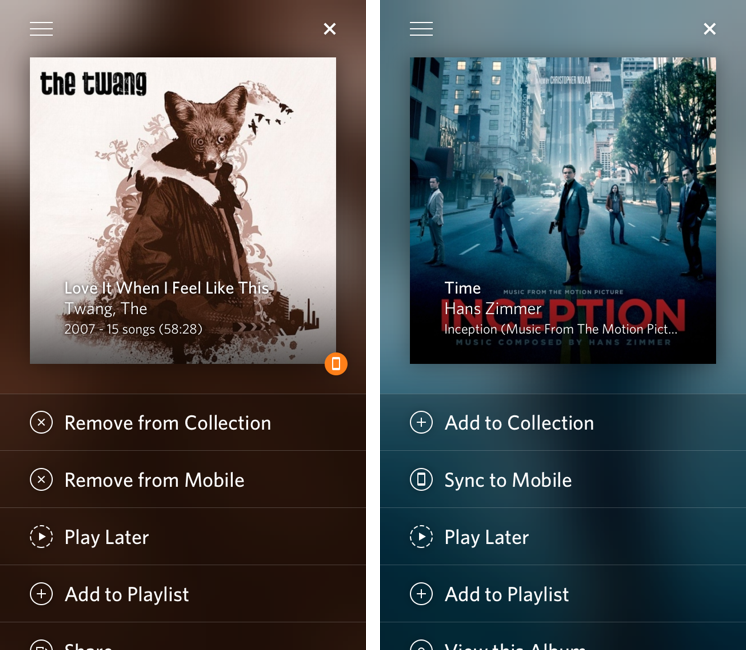
Notably, Rdio now comes with a “long press” gesture to tap & hold any item to bring up a new menu to sync, play, share, subscribe, and more. The new menu will “slide up” an item’s album artwork from the bottom, revealing a color-coded background that seems to be inspired by iTunes 11’s way of using the primary colors of an album to generate a background. Personally, I like how this allows each album to have a very unique sharing menu; I’m also a fan of this addition because the developers put a “More by…” link in the menu. Previously, the link to see more of an artist was only available inside the single album view – daily Rdio users will understand how this can be a welcome timesaver. Overall, I like the design changes with thinner fonts and lines, but I’m not sure about the readability of said thin/light fonts on non-Retina displays (such as the iPad mini).

More importantly, I keep disliking how the iPad app continues to be an afterthought for Rdio. From my original review:

Second, I’d like the iPad version of the app to always show the sidebar. Right now, several areas of the iPad client look like a blown-up iPhone app, whereas others show that the Rdio team took advantage of the larger screen with grid views and modal windows. However, in albums or playlists the interface is made by a vertical list that looks awfully similar to the Android tablet apps Tim Cook made fun of. There’s too much wasted space that could otherwise be used for the sidebar or, perhaps even better, the social ticker that is still exclusive to the Mac app and web player.

This hasn’t been improved in Rdio 2.1, and in this new version the “long press menu” is only available on the iPhone. On the iPad, long pressing gets you a standard popover with a bunch of buttons. In terms of care for a sufficiently unique iPad client, Spotify is still ahead of Rdio.

Rdio 2.1 is available on the App Store.

Permalink

Alex Guyot Chains 5 Apps with Drafts

Alex Guyot Chains 5 Apps with Drafts

As I expected, people have started experimenting with chaining apps and services using Drafts, and Alex Guyot quickly beat me in chaining 5 apps. From his explanation of the workflow:

Follow the bookmark in Chrome and it will take the URL of the webpage you are on, send it to Drafts as a draft, upload it to Dropbox, send it to Due (where you choose a reminder time for it to remind you), take you back to Drafts, send you to Instapaper (Where you choose to save the link to Instapaper), then send you back to Chrome.

He also posted a quick video showing the workflow in action on his iPad. I like how, unlike me, he chained each action as an x-success parameter of the previous one.

As I’ve argued on multiple occasions here on the site, URL schemes are certainly a stopgap solution to a problem – better inter-app communication on iOS – that I wish Apple will tackle in the near future. However, that doesn’t mean people can’t get real work done with URL schemes and apps today. Looking ahead, I can only imagine new possibilities of iOS automation based on URL schemes that, however, abstract the need of manually building URLs from the end user’s workflow – using a more Automator-like interface to visually represent actions. And, who knows, perhaps in a future version of iOS “switching” between apps won’t even be required anymore, as “parts” of other apps will be linked to each other using something like XPC.

Permalink

Today Weather 1.2 Goes Universal

Today Weather 1.2 Goes Universal

Today Weather

Today Weather

Today Weather is my go-to weather app for iPhone – the one I keep on my Home screen – and with the 1.2 version released today, the app has gone Universal adding iPad support.

Those coming from Today Weather for iPhone will instantly be familiar with the iPad app. All the features of the iPhone counterpart have been ported to the iPad, keeping the navigation consistent across versions, but using the iPad’s larger screen to offer more information. My favorite feature of Today Weather was the Forecast view:

What I like the most about Today Weather is the screen on the left. Called Forecast view, it comes with a normal and “geek” mode to visualize temperature and weather for the next week. Unsurprisingly, I like geek mode, which is enabled by tapping on the screen: with a set of vertical bars, the graph displays high and low temperatures for the week using the NOAA color gradients. Normal mode simply displays the highest value, and you can switch between the two with a tap. In doing so you’ll notice the nice animation that brings up the bars one after the other. It’s a fantastic touch. Forecast view is the screen I’ve been checking out every day because I like to know, in simple terms, “what the next days will be like”. Today Weather provides that kind of information in three ways: data (numbers), icons, and colors.

On the iPad, Forecast has two extra days, spanning more than a week worth of visual forecasts. It is, by far, my most used feature in Today Weather.

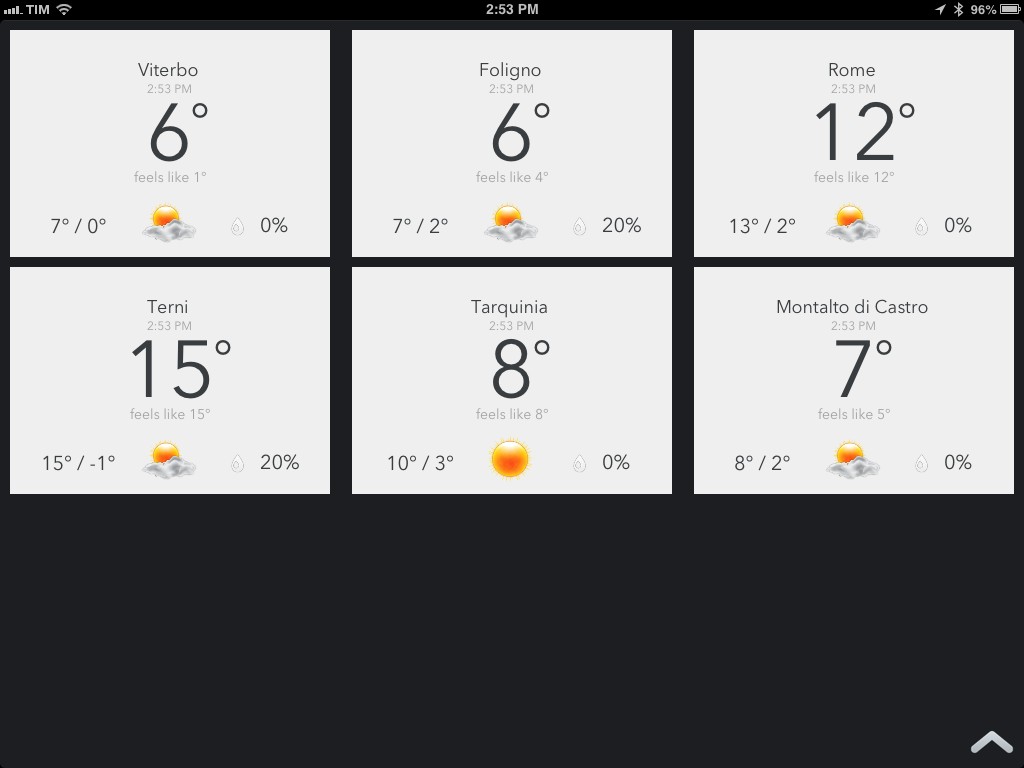
The initial screen has been reworked for the iPad. Instead of presenting multiple locations stacked on top of each other, Today Weather for iPad offers a Dashboard view that takes up the entire screen and lays out the same information with a design that feels more native to the iPad. I really like this idea as it lets me quickly fire up Today Weather and understand in a few seconds what the weather is going to be like in those 5-6 locations that I care about – without having to scroll or drilling down into their detailed views.

Today Weather is $0.99, Universal, and I highly recommend it.

Permalink

Apple Tweaks Prices and CPUs of MacBook Pro, MacBook Air Lines

Apple Tweaks Prices and CPUs of MacBook Pro, MacBook Air Lines

With a press release published this morning, Apple has announced they have updated the MacBook Pro and MacBook Air lines with new prices and faster processors.

Apple is making the MacBook Pro with Retina display faster and more affordable with updated processors and lower starting prices. The 13-inch MacBook Pro with Retina display now starts at $1,499 for 128GB of flash, and $1,699 for a new 2.6 GHz processor and 256GB of flash. The 15-inch MacBook Pro with Retina display now features a faster 2.4 GHz quad-core processor, and the top-of-the-line 15-inch notebook comes with a new 2.7 GHz quad-core processor and 16GB of memory. Apple today also announced that the 13-inch MacBook Air® with 256GB of flash has a new lower price of $1,399.

Thanks to @setteBIT, here’s a quick rundown of the changes: the 13” MacBook Pro with Retina Display is now $200 and $300 cheaper for the 128 GB and 256 GB (with SSD) models, respectively; the CPU has been bumped from 2.5 GHz to 2.6 GHz. The price difference in Euros is €250 and €350. The 13” MacBook Air with 256 GB SSD is now $100 cheaper (€150).

The 13” MacBook Pro with Retina Display was announced on October 23, 2012 – 113 days ago; the 15” MacBook Pro with Retina display was announced at WWDC ‘12 – 247 days ago.

In the first fiscal quarter of 2013, Apple sold 4.1 million Macs. It’s unclear whether Apple might have been able to lower the prices of Retina MacBook Pro (while offering faster performances) due to possible reductions of component prices (i.e. high-resolution displays), but the timing is interesting: just a few days ago, Apple and other tech companies (such as Adobe) were summoned to appear before the Federal Australian Parliamentary Committee that has been investigating IT pricing in Australia. In response to the inquiry, Adobe promptly dropped the price of its Creative Cloud service.

Permalink

Sponsor: Orbicule

My thanks to Orbicule for sponsoring MacStories this week.

Undercover is Find My Mac done right. After a very simple installation, Undercover will run in the background, constantly monitoring the location of your Mac. If your Mac gets stolen, in addition to tracking location Undercover will also snap mugshots through the computer’s built-in camera and capture keystrokes.

I personally use Undercover 5 because I like its web-based interface better than Apple’s Find My Mac. If you’re looking for a more powerful Find My Mac, I highly recommend Undercover 5.

Find out more about Undercover here.


CriticMarkup: Plain Text Syntax for Editorial Reviews

cm

cm

Gabe Weatherhead is a good friend who writes and makes great stuff. Together with Erik Hess (MacStories readers may remember his particular iPad workflow), he launched CriticMarkup, a new project I’ve helped testing for the past few weeks.

Essentially, CriticMarkup is a plain text syntax for marking up text in editorial reviews. For someone who writes in Markdown and works with a team on a daily basis, CriticMarkup is the missing piece of a puzzle that required using clunky software like Word for Mac to do any sort of change tracking or markup. CriticMarkup feels like an extension of Markdown in that it allows you, through a simple and easily understandable syntax, to insert additions, deletions, substitutions, comments, and highlights into plain text.

Read more


Apple Releases iOS 6.1.1

Apple Releases iOS 6.1.1

iOS611

iOS611

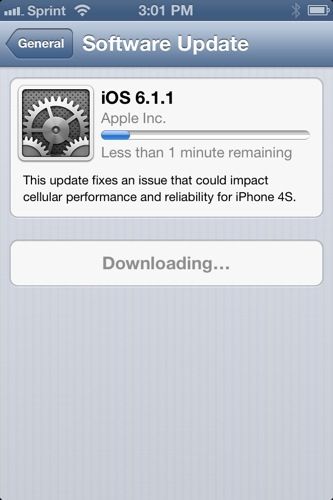
Apple has just released iOS 6.1.1. The software update is, at the moment, available only for the iPhone 4S, where the changelog says the new version “fixes an issue that could impact cellular performance and reliability for iPhone 4S”.

The last update to iOS 6, iOS 6.1, was released on January 28, adding Siri support for purchasing movie tickets, iTunes Match improvements, and more carriers for LTE compatibility.

iOS 6.1.1 is available for direct download here.

Permalink

Chris White’s iOS Workflows

Chris White’s iOS Workflows

Chris White is putting together an impressive collection of JavaScript bookmarklets, URL schemes, and iOS services and actions in a GitHub repo:

It seems like we’ve recently been seeing a ton of new ideas, clever tricks and tools for making users who are willing to dive into the deep-end more productive on our iOS devices through automation, seamless app communication and some really great shortcuts. This is a collection of bookmarklets, scripts and custom URL scheme actions that help bridge apps and manipulate the data you can send between them.

Chris included some of my bookmarklets and URL schemes in his collection, which I recommend checking out if you’re looking for a single place containing several moderately advanced tips for doing more than just launching apps via URLs.

iOS automation is, of course, a subject that I’ve been covering on a daily basis on MacStories for the past months. While I haven’t had the time to put together a GitHub repo like Chris did, allow me to list the various articles and tag pages where you can get started:

URL scheme tag page

Bookmarklet tag page

Automation with Drafts and Chaining Apps with Drafts

Pythonista review and scripts

Pythonista tag

I’m very glad Chris decided to collect these resources in a repo. I especially like the Drafts bookmarklets he made, which contain a check to see whether the browser has an active text selection (something I haven’t been doing as I’ve always created separate bookmarklets for Chrome and Safari).

Permalink