Federico Viticci

10758 posts on MacStories since April 2009

Federico is the founder and Editor-in-Chief of MacStories, where he writes about Apple with a focus on apps, developers, iPad, and iOS productivity. He founded MacStories in April 2009 and has been writing about Apple since. Federico is also the co-host of AppStories, a weekly podcast exploring the world of apps, Unwind, a fun exploration of media and more, and NPC: Next Portable Console, a show about portable gaming and the handheld revolution.

Fantastical 1.1 Brings Clipboard Detection, Multiple Alerts, Calendar Improvements

Fantastical

Fantastical

Fantastical is my favorite calendar app for iPhone. From my review of the first version:

Fantastical for iPhone gets many things right without cluttering the interface or forcing me to learn a new set of rules and menus. Like Tweetbot’s tap & hold actions, Instapaper’s footnotes, or Launch Center’s presentation of shortcuts, Fantastical’s DayTicker and natural language support made me ask myself: Why hasn’t anyone else done this before?

Fantastical was already a part of my daily workflow on the Mac; with the iPhone app, I’ve found myself using the app even more thanks to its beautiful and easy to use interface that makes it super simple to get a quick overview of a day’s events. Combined with my OmniFocus-to-Calendar system, I wouldn’t be able to go back to Apple’s Calendar app after using Fantastical.

Fantastical 1.1, released today on the App Store, adds a series of improvements that make the app even better to use.

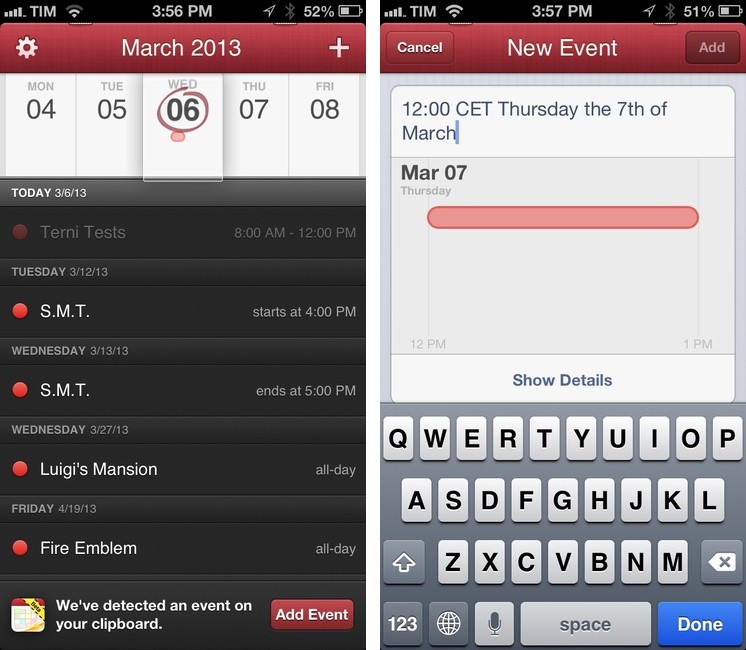
In terms of UI tweaks, there are new options in the Settings to highlight weekend days and dim past events for the current day. Both changes are welcome as they make it easier to quickly “read” the calendar; weekend days are dimmed both in DayTicker and calendar view. Another option that has been added in 1.1 – but which I don’t use – is the possibility to hide empty days from the DayTicker. The Dock icon can now show a badge indicating the current day of the month or remaining events for the current day (I prefer day of the month).

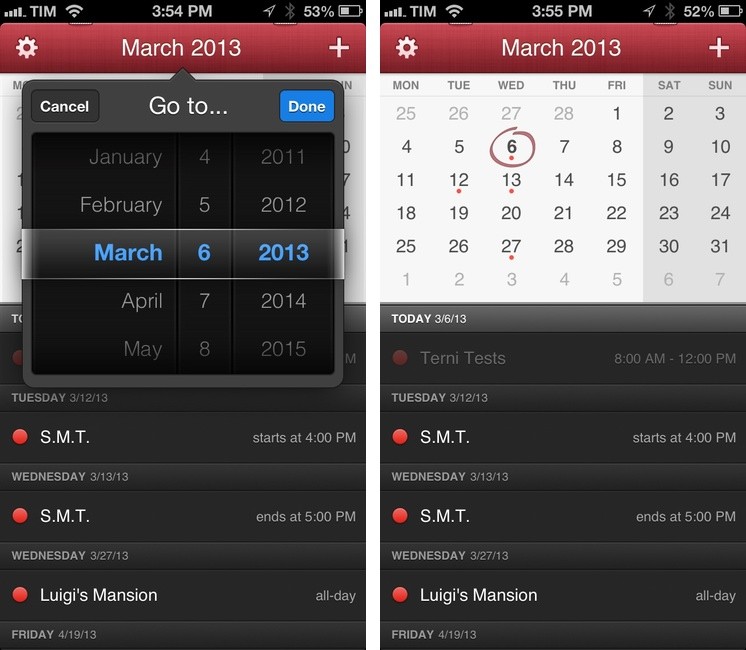
For calendar management and event creation, Fantastical 1.1 comes with new features that I really like. Events can be moved or duplicated by tapping & holding them and choosing Duplicate or Move from a popup menu; the same tap & hold gesture can be performed on the title bar (where the date is shown) to bring up a beautiful date picker that uses the same “loupe” effect of the DayTicker (shown above). If you don’t want to manually pick a date, you can now scroll the entire event list instead of being limited to the current month; scrolling will also automatically scroll the DayTicker or calendar views.
Fantastical

Fantastical

Alongside time zone support, pending invitations management, and multiple alerts (I managed to add 20 alerts to a single event, more than Week Calendar), Fantastical now has a smart clipboard detection tool that will look for date strings in your clipboard and offer you to quickly create a new event. For me, this has been particularly useful for dates of app releases or Skype calls that I frequently receive via email; I can copy the date, open Fantastical, and the app will parse it, letting me type the name of the event and save it.

Fantastical 1.1 is a solid update to my go-to calendar app for iPhone, and it’s available on the App Store.


Textual Siri

Textual Siri

NotSiri

NotSiri

Here’s a good article by Rene Ritchie from June 2012 about a textual interface for Siri:

If Spotlight could access Siri’s contextually aware response engine, the same great results could be delivered back, using the same great widget system that already has buttons to touch-confirm or cancel, etc.

I completely agree. Spotlight lets you find apps and data to launch on your device; aside from its “assistant” functionality, Siri lets you search for specific information (either on your device or the web). There’s no reason find and search shouldn’t be together. Siri gained app-launching capabilities, but Spotlight still can’t accept Siri-like text input.

The truth is, I think using Siri in public is still awkward. My main use of Siri is adding calendar events or quick alarms when I’m a) cooking or b) driving my car. When I’m working in front of an iPad, I just don’t see the point of using voice input when I have a keyboard and the speech recognition software is still failing at recognizing moderately complex Italian queries. When I’m waiting for my doctor or in line at the grocery store, I just don’t want to be that guy who pulls out his phone and starts talking with a robotic assistant. Ten years after my first smartphone, I still prefer avoiding phone calls in public because a) other people don’t need to know my business and b) I was taught that talking on the phone in public can be rude. How am I supposed to tell Siri to “read me” my schedule when I have 10 people around me?

I think a textual Siri, capable of accepting written input instead of spoken commands, would provide a great middle ground for those situations when you don’t want to/can’t talk in public. Like Rene, I think putting the functionality in Spotlight would be a fine choice; apps like Fantastical have shown that “natural language input” with text can still be a modern, useful addition to our devices.

Text input brings different challenges: how would Siri handle typos? Would it wait until you’ve finished writing a sentence or refresh with results as-you-type? Would Siri lose its “conversational” approach, or provide butttons to reply with “Yes” or “No” to its further questions?

Text, however, has also its advantages: text is universal, free of voice alterations (think accents and dialects), independent from surrounding noise and/or microphone proximity. With a textual Siri, Apple could keep its users within its control by letting them ask for restaurant suggestions, weather information, unit conversions, or sports results without having to open other apps and/or launch Google.

It’s just absurd to think semantic search integration can only be applied to voice recognition, especially in the current version of Siri. I agree with Kontra: Siri isn’t really about voice.

More importantly: if Google can do it, why can’t Apple?

Permalink

Week Calendar HD Review

weekcal

weekcal

Week Calendar has always been a calendar app for power users. I remember taking my first look at the iPhone version in March 2011, calling it a “powerful iCal alternative for iPhone”; two months later, I covered the release of the iPad client, which was then given a new theme to better differentiate it from Apple’s own Calendar app.1 After a long absence on the App Store, Week Calendar for iPad is back today as Week Calendar HD, which I have been testing for the past few months.

Just like its predecessors, Week Calendar is a calendar app for power users. You will find dozens of options and settings to tweak, perhaps even too many if you don’t like the idea of tweaking every font size, calendar behavior, or menu to your liking. The compromise of using a feature-rich app as Week Calendar is that there is an initial learning curve – not too steep, but definitely something worth keeping in mind if you want to get the most out of the app.

Therefore, instead of listing every single feature in detail, I’ll try to focus on the ones that I have been using on a daily basis.2

Read more


MacHash Apple News Aggregator Gets 4.0 Update

MacHash

MacHash

I’ve always been a fan of MacHash, a service that aggregates RSS posts from Apple-related websites. From January 2012:

I’ve been a huge fan of MacHash since I started using the service last year. With a straightforward web interface that aggregates the latest Apple headlines from websites like ours, MacRumors, TUAW, Macgasm, AppStorm, iMore and many others and an iOS client that offers more customization options alongside an in-app browser, MacHash has become my go-to place to stay on the top of the latest Apple news and commentary from the community.

Released yesterday, MacHash 4.0 brings a new, cleaner interface, iCloud syncing for settings, and improved sharing.

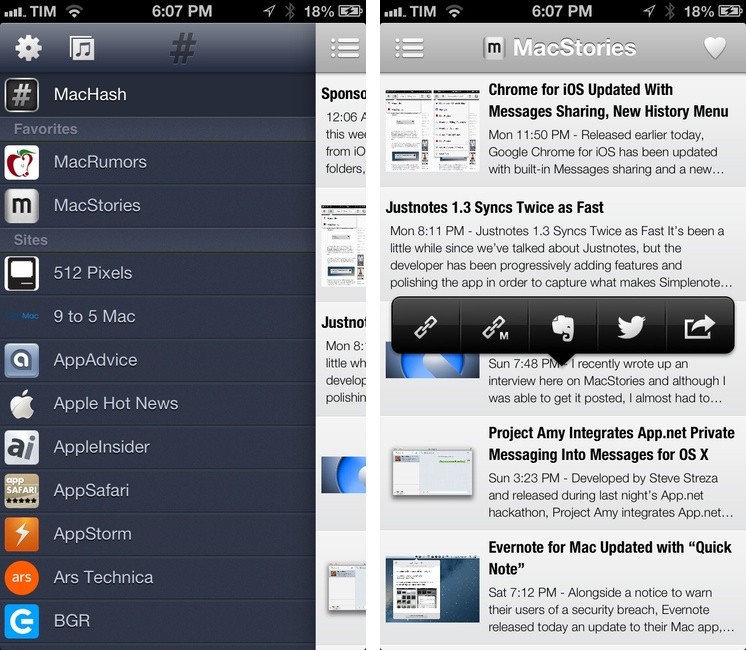
Sites are now available in a Facebook-like sidebar that you can access by swiping horizontally on screen or tapping the list button in the top left corner of the title bar; you can pull to refresh this view, or “star” sites that you want to display in the Favorites tab. Starring a site will give you quicker access to its standalone stream of articles, which, as in previous versions of the app, is fetched via RSS: if a site doesn’t have a full-text RSS feed, it will be truncated in MacHash (just like any other RSS reader).

MacHash already had a filtering option to “mute” sites that you weren’t interested in seeing in the main stream, and in this new version filters should sync alongside sync across various instances of MacHash (say on the iPhone and iPad) through iCloud. I say “should” because, in practice, my settings are being constantly reset to default state every time I start the iPad app. I have no idea whether this bug is due to MacHash itself or iCloud, but I wouldn’t be surprised to know the latter is the culprit.

My favorite new feature of MacHash 4.0 is the tap & hold menu for sharing. You can now tap & hold any article to bring up a Copy & Paste-like menu with options to view the full website, a mobilized version, share the link on Twitter, or open more sharing actions. Because the middle button is configurable, and because auto-sharing can be activated, I can now send articles to Evernote with just two taps without having to confirm the clipping action every time. It would be nice to be able to send links to specific Drafts actions, though I understand the added complexity of specifying a Drafts URLs to send links to.

MacHash 4.0 comes with other speed and stability improvements (though the app still crashed for me once) and an overall more polished interface. MacHash continues to be my daily destination to get a quick overview of a day’s Apple news, and the app is free on the App Store (with In-App Purchase to hide ads).


Sponsor: DiskAid

My thanks to DigiDNA for sponsoring MacStories this week with DiskAid.


DiskAid lets you transfer files to and from iOS devices via USB or WiFi. With support for files, folders, and complete file trees, DiskAid automatically detects installed apps and allows you to transfer music, movies, and podcasts (audio and video) to Apple’s apps, but also files and documents to third-party apps without having to use iTunes.

Among other features, you can access an iPhone’s call log, voicemail, and SMS history and export them to a Mac or PC. For Messages, you can generate a PDF of text messages, iMessages, or MMS that will include text and pictures formatted with iOS’ style.

Find out more about DiskAid here.


Chrome for iOS Updated With Messages Sharing, New History Menu

Chrome

Chrome

Released earlier today, Google Chrome for iOS has been updated with built-in Messages sharing and a new menu to access previously-visited webpages.

Available from the Share menu in the top toolbar, Messages integration brings up a modal Messages window to send a webpage’s title and URL to someone else. This is a good addition – I’ve long relied on bookmarklets and third-party apps to forward Chrome links to Messages – but unfortunately one I’ll make little use of, as iOS doesn’t let you quickly address a message to a pre-defined group of contacts.1

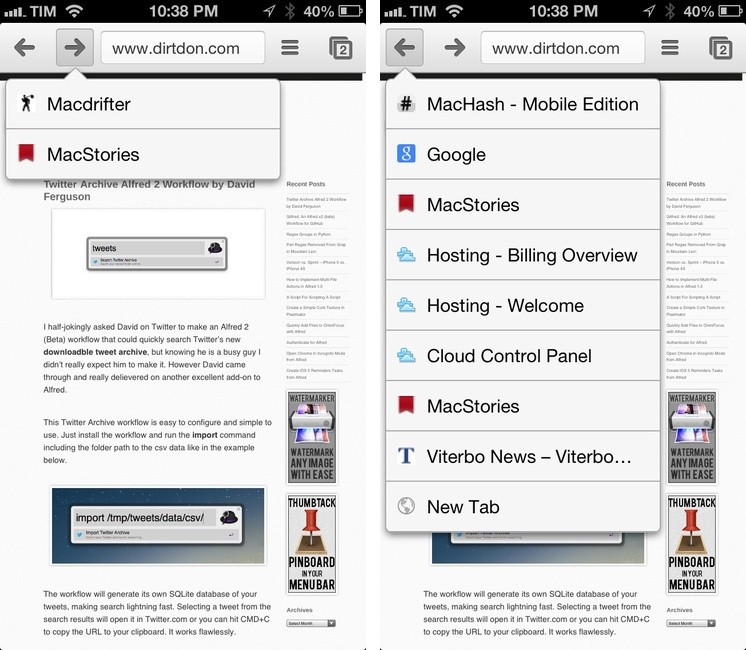
I find the new History menu much more interesting for my daily Chrome workflow. Similarly to Safari, you can now tap & hold the Back/Forward buttons to show a list of websites you have navigated to; tapping on one will take you back to that page. Like Apple’s implementation, this is a per-tab history; unlike Safari, the list of pages is shown in a dropdown menu rather than a full-screen modal view (on iPhone).

Read more


Project Amy Integrates App.net Private Messaging Into Messages for OS X

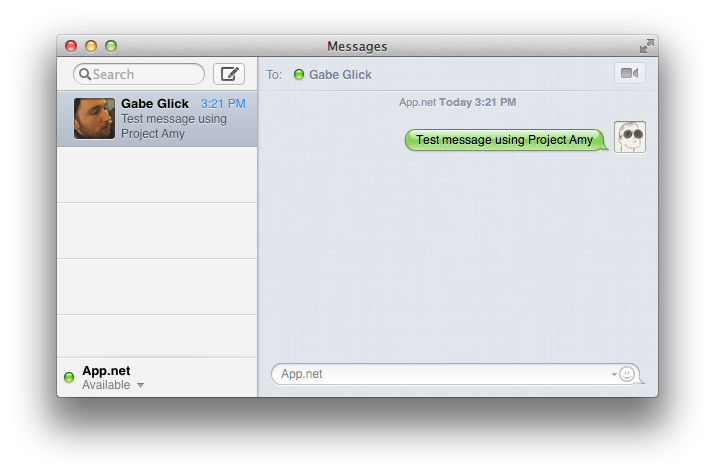
Developed by Steve Streza and released during last night’s App.net hackathon, Project Amy integrates App.net private messaging with the Messages application for OS X. A first version of Project Amy has been made available for download on App.net itself.

Project Amy is a clever experiment that showcases the App.net API and Apple’s IMServicePlugin.framework: using only public APIs and no proxies (unlike Steve’s first App.net project), Project Amy adds App.net as a native account in Messages, allowing you to have private conversations with other App.net users inside Messages. Once installed, you can simply login with your App.net credentials to have the account listed alongside AIM in the bottom left corner of Messages; choose Window > Buddies (or hit CMD+1) to show a list of users that you can send private messages to (they will be displayed as online with their full names rather than usernames).

Because it uses official APIs, messages sent through Project Amy also show up on App.net’s online messaging interface, Omega. In my tests, messaging with one or multiple users in Messages correctly mirrored the conversations to Omega, where they were updated in real-time without needing to refresh the webpage. I was even able to drag images into the conversation in Messages, and, while they didn’t show up as attachments on my end, they did appear as inline uploads on Omega and inside the recipient’s Messages application. Obviously, file uploads were handled by App.net’s File API as well.

Project Amy is a little buggy in this first version, but certainly promising. Aside from using an official OS X framework that few developers seem to know about, it shows the potential of the App.net API as a versatile solution capable of delivering more than just Twitter clones at this point.

Check out Project Amy here.


Evernote for Mac Updated with “Quick Note”

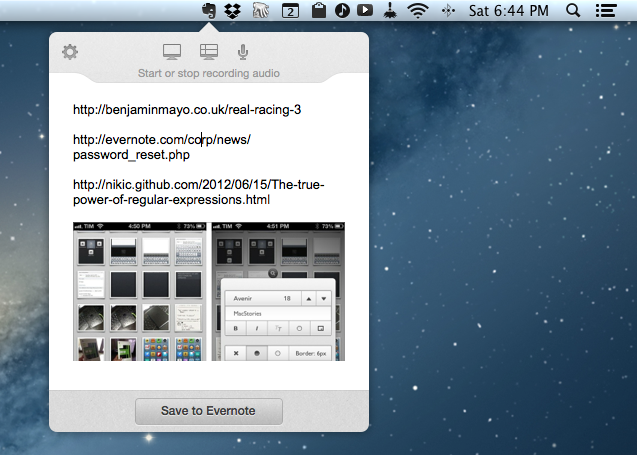
Alongside a notice to warn their users of a security breach, Evernote released today an update to their Mac app, which reaches version 5.0.6. For now, the update is only available for versions of Evernote downloaded outside of the Mac App Store.

According to the changelog, the update “addresses a security issue that requires you to reset your password”. It’s unclear how Evernote for Mac may have affected the security of passwords of the service, but Evernote says more details will be posted on their blog. Read more


Speeding Up OmniFocus Sync

Speeding Up OmniFocus Sync

Some great tips by Sven Fechner on how you can speed OmniFocus sync. It involves archiving data on the Mac and resetting sync databases on your iOS devices:

The free OmniSync Server makes life a lot easier and keeps your OmniFocus world, well, in sync. If you use your own WebDAV server you have the same capabilities but without the awesome “Mail Drop” feature which allows you to email in your actions.

While the OmniSync Server is fairly reliable, it is not necessarily the fastest syncing solution on the planet. In particular when your database gets larger and more convoluted.

It’s the first time I’ve followed this procedure, and, indeed, my OmniFocus database has been slimmed down and it now takes 5-8 seconds less to sync on WiFi; the improvement is even more considerable on 3G.

I’ve used my own WebDAV server with OmniFocus for months, but the convenience (and simplicity) of the Mail Drop feature lured me back to Omni Sync Server. Mail Drop works amazingly well in conjunction with Drafts, allowing me to quickly send off a task to my OmniFocus inbox in the cloud. In moving to Omni Sync Server, I didn’t lose the ability to have the latest version of my OmniFocus database mirrored to a calendar: OmniFocus does, in fact, come with some great debug commands to change its default sync times.

As an aside, while looking forward to OmniFocus 2, The Omni Group has posted the first batch of videos from The Setup event in San Francisco a few weeks ago. You can watch them here.

Permalink