John Voorhees

5812 posts on MacStories since November 2015

John is MacStories' Managing Editor, has been writing about Apple and apps since joining the team in 2015, and today, runs the site alongside Federico. John also co-hosts four MacStories podcasts: AppStories, which covers the world of apps, MacStories Unwind, which explores the fun differences between American and Italian culture and recommends media to listeners, Ruminate, a show about the weird web and unusual snacks, and NPC: Next Portable Console, a show about the games we take with us.

This Week's Sponsor:

Crickets

The first alarm app for families.


Opener Adopts Drag and Drop on the iPad

I’m particular about where links open. I want to open Instagram links in its app. I’d rather watch YouTube videos in ProTube, while it still works (RIP). I never want links to tweets to open in the official Twitter app. The point is, I want to follow links the way I prefer, not according to someone else’s defaults.

Fortunately, if you’re picky about this sort of thing too, there’s an app made just for you: Opener by Tim Johnsen. The strength of Opener is its action extension, which I keep in easy reach near the front of the system share sheet on my iOS devices. With the extension, you can send a link to any compatible app you have installed. With support for over 200 apps, it’s a rare occasion that I run into a URL that Opener can’t send to where I want it to open.

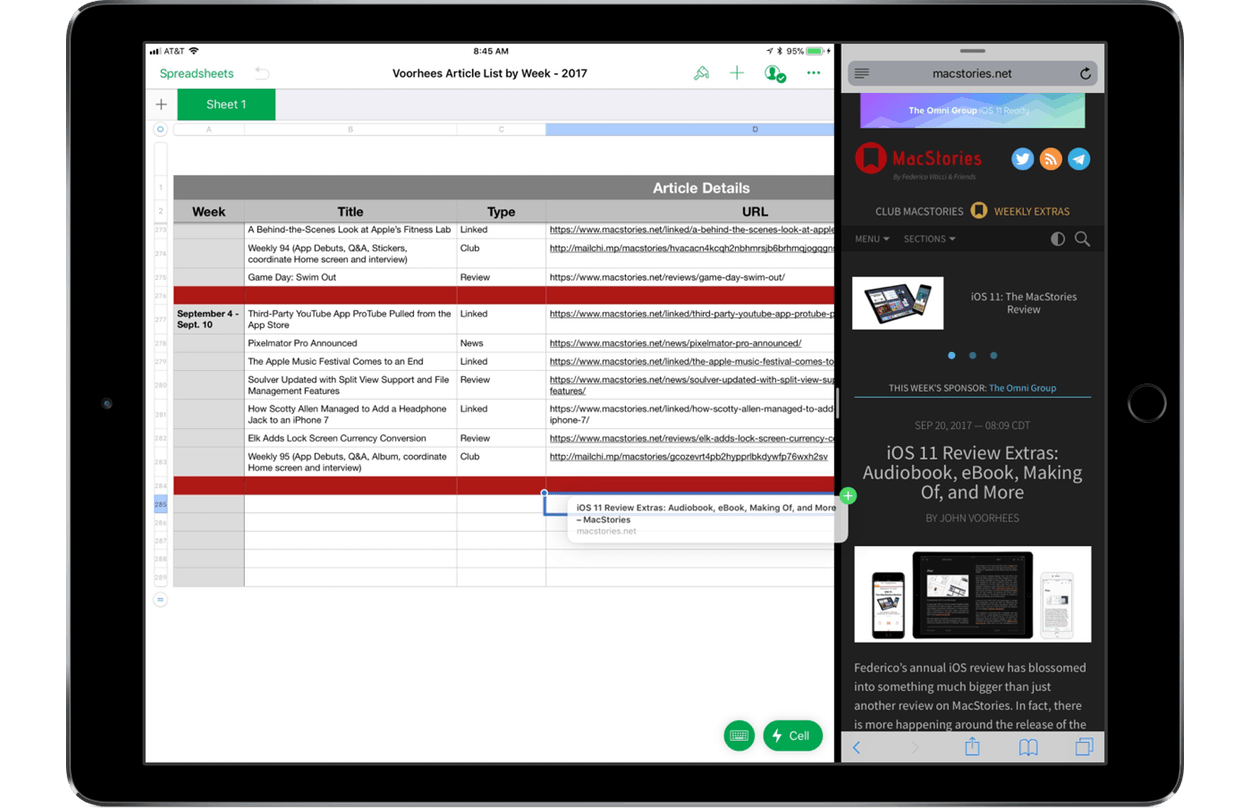
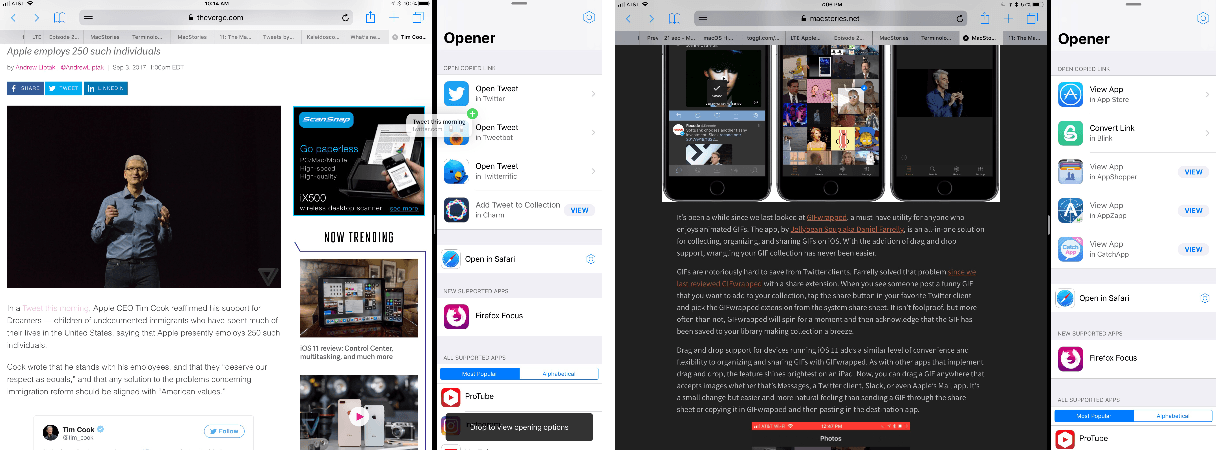
Opener has introduced new drag and drop functionality along with an iOS 11-style redesign. The new functionality makes Opener’s main app as easy to use as its extension and is particularly handy when researching. With Opener in Split View with Safari, I can manage where links open on the fly as I find materials I want to dig into in a certain app. Dragging in a link displays all the available apps on your iOS device in which you can open the link along with other supported apps with a link to them in the App Store. You can also drag links out of Opener into any compatible app.

Opener has adopted the design cues of system apps like Music, Apple News, and Messages with a big bold title and buttons that link to apps on the App Store that mirror the style used in that app. One additional new feature that I appreciate is keyboard shortcuts for external keyboards. There are shortcuts for Settings, Browser Settings, and numbered shortcuts for each app that can open the URL you feed to Opener.

Drag and drop is about reducing friction. Opener stands in between links and their final destination directing traffic by giving you options that the system won’t. That’s valuable if you care about where links open, but it’s also a step that needs to be as low friction as possible to make it worth the effort to use, which is why I’m glad to see that drag and drop has been adopted by Opener.

Opener is available in the App Store.


iWork Apps Updated with iOS 11 Features

Apple has released updates to its iWork suite of apps, Pages, Numbers, and Keynote, with support for iOS 11’s headlining features. There’s a commonality among the features added to each app that serves to tie them together more tightly than ever before while simultaneously making them easier to use with third-party apps. Numbers and Pages also feature a few additional revisions tailored to their specific functionality.

All three iWork apps support the new document browser, a file picker view that looks and feels just like the new Files app. Instead of being constrained to iCloud Drive or pushed into an app-specific folder, you can open Pages, Numbers, and Keynote files from any cloud service that is a file provider. All three apps were also updated to support drag and drop of text, tables, links, images, and other content between the iWork apps and to and from other apps on the iPad.

Apple also added more powerful shape manipulation features to the iWork apps. New Unite, Intersect, Subtract, and Exclude commands were added to make it easier to create custom shapes. Shapes can be broken apart into component pieces now. Apple’s support documents use the example of breaking the state of California apart from a map of the United States to use it by itself in an app. Shapes and other objects can also be arranged using new Align, Distribute, Flip Vertical, and Flip Horizontal commands.

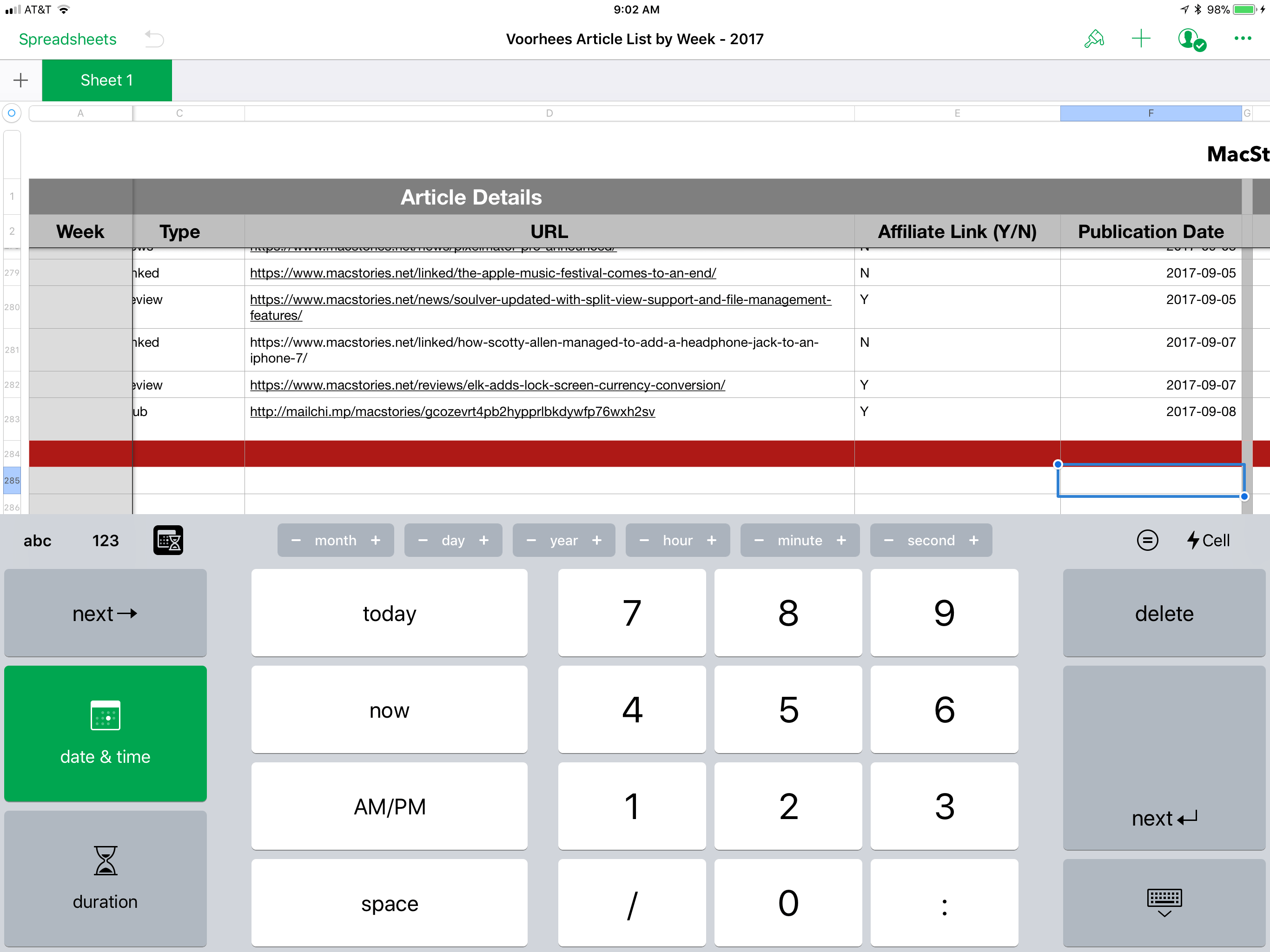
Numbers's new date, time, and duration keyboards.

Numbers’s new date, time, and duration keyboards.


Among the unique additions to the iWork apps, Numbers gained new keyboards for more efficient input including date, time, and duration keyboards and ‘smart steppers’ for making minor adjustments to those types of values. Pages also added a modest but handy gesture. Triple tapping a paragraph now selects an entire paragraph, something I wish more third-party apps supported.

I’m glad to see Apple adding iOS 11 features to the iWork suite on launch day. Adopting the latest technologies of its operating system encourages third-party adoption and serves as an example of how Apple expects those features to be implemented by third parties. It also brings new power and flexibility to each app for users, making them useful alternatives to apps like Microsoft’s Office suite.

The Pages, Numbers, and Keynote updates are available on the App Store.


iOS 11 Review Extras: Audiobook, eBook, Making Of, and More

Federico’s annual iOS review has blossomed into something much bigger than just another review on MacStories. In fact, there is more happening around the release of the iOS 11 review this year than ever before. In addition to the review itself, we have lots of fantastic extras that extend beyond MacStories to Club MacStories, AppStories, and Relay FM’s Connected, only some of which were announced yesterday.

The Audiobook

For the first time this year, Federico’s iOS review is available as an audiobook narrated by Relay FM co-founder Myke Hurley. Myke’s narration brings Federico’s review to life in a way that you’ve never experienced a MacStories review before. It’s perfect for commuters or to take with you to the gym or on a long flight. The audiobook, which is over 5 hours long, features a single MP3 file with chapter markers for easy navigation.

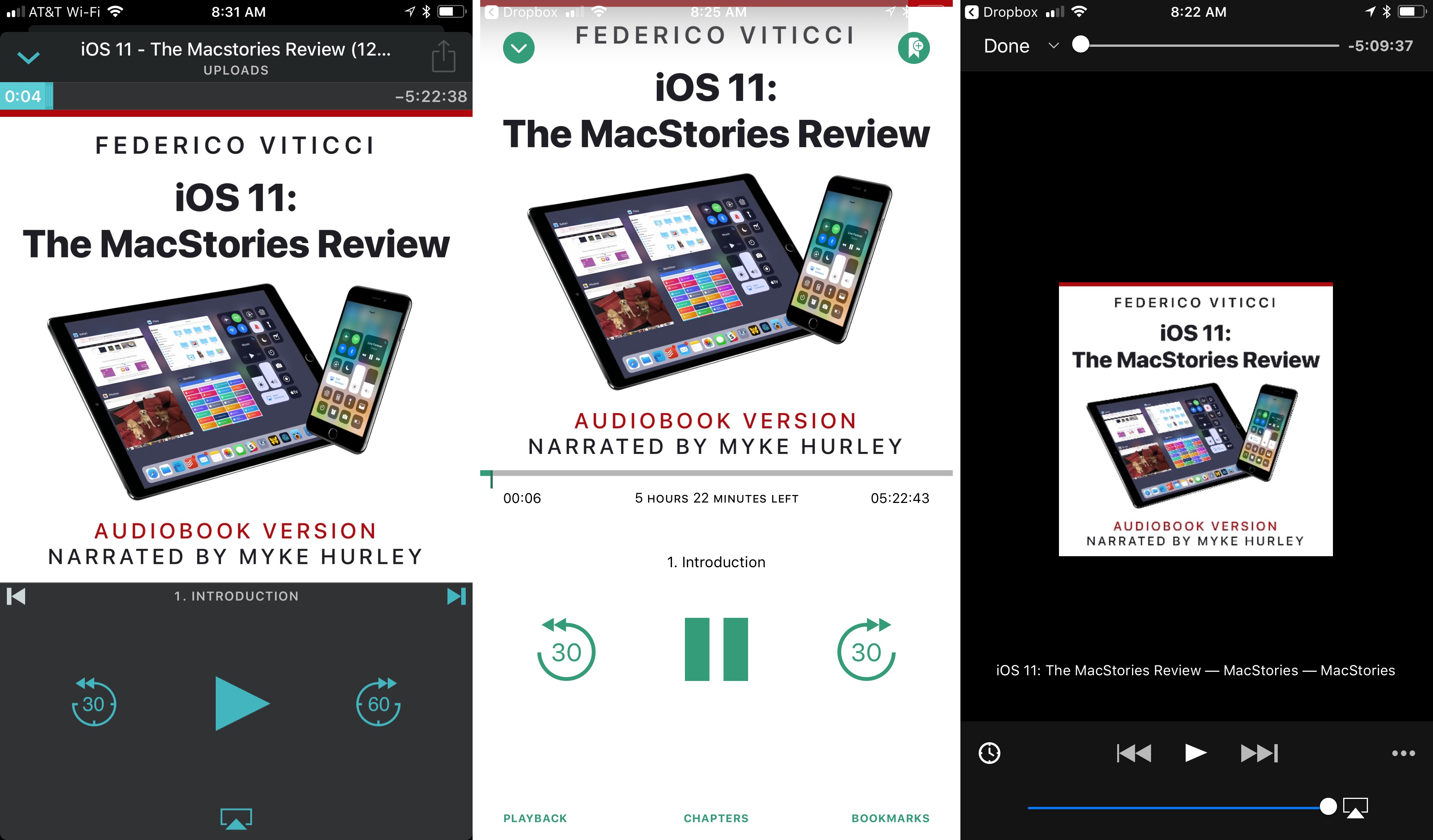
Overcast, Bound, and VLC are all good choices for enjoying the iOS 11 review audiobook.

Overcast, Bound, and VLC are all good choices for enjoying the iOS 11 review audiobook.

Overcast Premium subscribers can upload the audiobook, which I’ve found is an excellent way to listen. Another great option on iOS is Bound, an audiobook player that supports Dropbox, Google Drive, and OneDrive. You can also use a more general-purpose media player like VLC.

The audiobook version of the iOS 11 review is available for $9.99 (plus VAT for EU customers), but Club MacStories members can get it for 60% off the regular price – just $3.99. Instructions on how to use the exclusive Club promo code are available in the member Downloads area.

Now is a great time to join Club MacStories, especially if you are interested in the audiobook. By joining and taking advantage of the audiobook discount, you can enjoy your first month of Club MacStories, which costs $5/month or $50/year, and the audiobook for less than the price of the audiobook to non-members. That’s a bargain by itself, but by joining, you also have access to the free review eBook, past eBooks, the full archive of back issues and new issues of our weekly and monthly newsletters, plus hundreds of dollars of discounts on apps and services being announced through the end of the month, and other perks. We’d love you to be part of our growing community, so please consider joining the Club.

The eBook

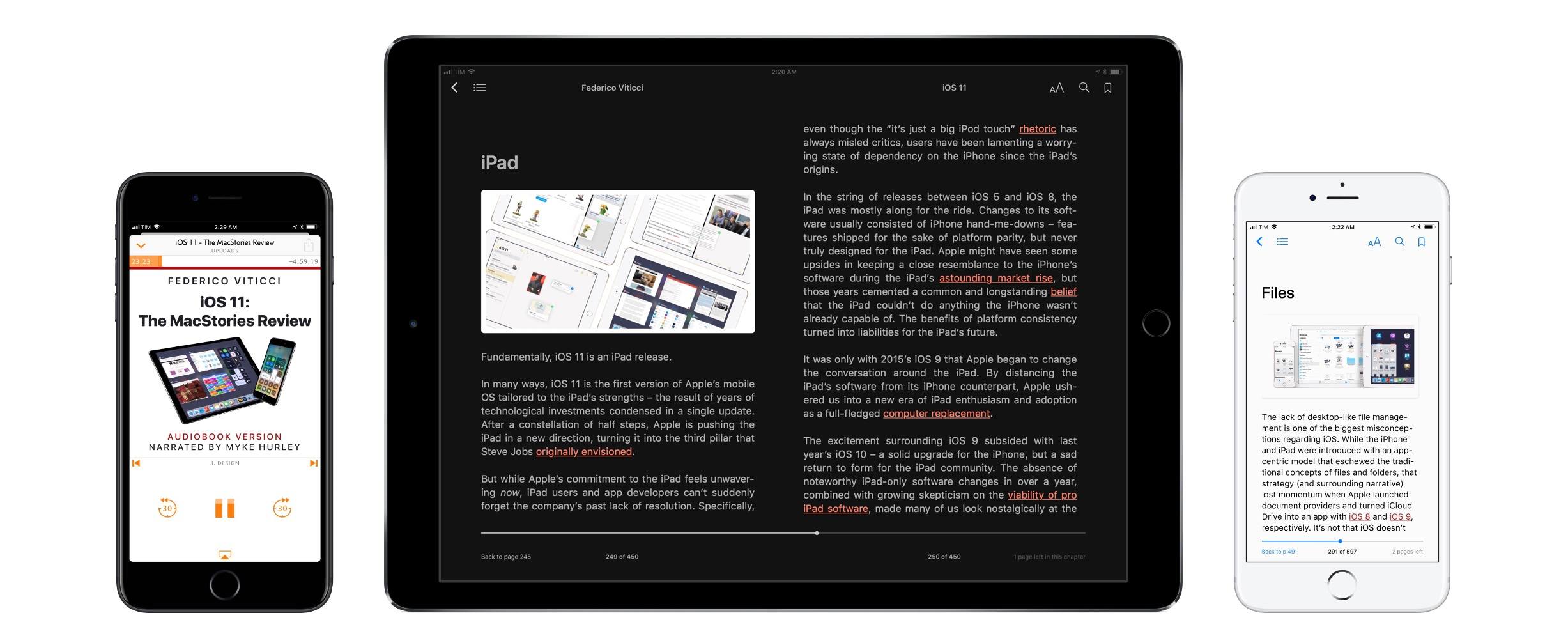
This is a special time of year for all of us at MacStories because Club MacStories just passed its second anniversary, which we are celebrating through the end of the month with discounts on apps, services, and other surprises. One of the perks members of the Club enjoy is complementary eBooks of Federico’s iOS reviews and other longform articles. The eBook looks great in iBooks and features all the media and layout options you’ll find on the MacStories version, including interactive footnotes and video players.

The eBook version is available for free exclusively to our Club MacStories members, and can be downloaded in the members-only Downloads area.

The Making Of

More than ever before, Federico’s iOS 11 review is a collaboration with a team of talented people who helped bring it and the extras to life. In this week’s edition of the Club MacStories Weekly newsletter, the people who contributed to the review will tell the story behind their roles. Among the stories Club members can look forward to is Myke Hurley’s tale of transatlantic narration as he recorded sections of the audiobook in New York and London throughout August and into September.

The Podcasts

In keeping with tradition, this week Federico, Stephen Hackett and Myke Hurley have released a special episode of Relay FM’s Connected dedicated to the review. Among other things, expect to hear Federico’s thoughts on iOS 11 now that it has launched and an inside look at the process of creating the audiobook from Myke.

This is the first iOS review released since Federico and I launched AppStories, and we’ve got two episodes for listeners this week. The first is Episode 23, the regular weekly episode of AppStories, that we released alongside Federico’s review. This week, we focus on the apps Federico used to create the review from the day he landed in San Jose for WWDC to today when he hit the publish button. We also discuss some of the third-party apps featured in the review that highlight iOS 11’s marquee features.

AppStories+ Deeper into the world of apps

AppStories Episode 23 - The Apps Behind Federico’s iOS 11 Review

0:00
44:39

↓

AppStories+ Deeper into the world of apps

The second episode is something entirely new for AppStories that we’re calling AppStories Unplugged. It’s a casual, more free-form, and longer version of AppStories that we plan to release periodically as an exclusive perk to Club MacStories members. In the inaugural episode, Federico and I discuss some of our favorite iOS 11 apps and what writing at MacStories during the summertime review season is like.

Club members can download AppStories Unplugged from the members-only Download area now.


This is the most exciting time of the year for all of us at MacStories. We’re a small team that grows a little each summer to accomplish all that the iOS review adds to the day-to-day of running MacStories, Club MacStories, and AppStories. We make it through propelled by Federico’s enthusiasm and inspired by his dedication to creating the very best for our readers and listeners.

Now, after many long months, it’s nice to take a moment to catch our breath and share it all with you. I hope you enjoy it as much as Federico and we did making it.


Apple Posts How-To Videos Featuring Third-Party Apps

Last month, Apple posted a series of short how-to videos to prepare customers for iOS 11. The videos each featured one new aspect of iOS 11 delivered in a light-hearted humorous style. Apple has added three new videos in the same style that feature third-party apps.

The first spot, ‘How to retouch a photo,’ features Pixelmator and demonstrates how to erase a stranger from a photo. The video concludes on a light note with ’You did great! The guy never knew what hit him.’

The second video, ‘How to copy and paste across devices with iOS 11’ features Curator, but highlights the Universal Clipboard, an iOS system feature. Curator is a mood-board and presentation app for creating collections of photos. The spot shows how to copy an image on an iPhone and paste into the Curator app on an iPad, explaining ‘the ice cream cone is now going to fly through the air’ and showing a time-lapse video of copying and pasting images over and over commenting ‘Really nice time-lapse everybody.’

The final video features GoodNotes and is called ‘How to magically convert notes to text and share them with iOS.’ The video shows how to use the lasso tool in GoodNotes to select handwritten notes and convert them into text that you can share via the system share sheet.

Like the videos posted by Apple in August, these spots strike a good balance between being informative and humorous. I’m glad to see Apple calling out third-party apps too because the ‘Pro’ in iPad Pro is as much about the third-party tools that are available as it is about the device’s hardware features.

You can watch each of the videos after the break.

Read more


The Apps Behind Federico’s iOS 11 Review

AppStories+ Deeper into the world of apps

AppStories Episode 23 - The Apps Behind Federico’s iOS 11 Review

0:00
44:39

↓

AppStories+ Deeper into the world of apps

Federico and John lift the curtain on some of the special events at MacStories and Club MacStories surrounding the release of iOS 11, discuss the removal of the App Store from iTunes on macOS, and dive into the apps Federico used to plan, research, write, and produce his iOS 11 review.

Read more


GIFwrapped Adds Powerful Drag and Drop Organization and Sharing

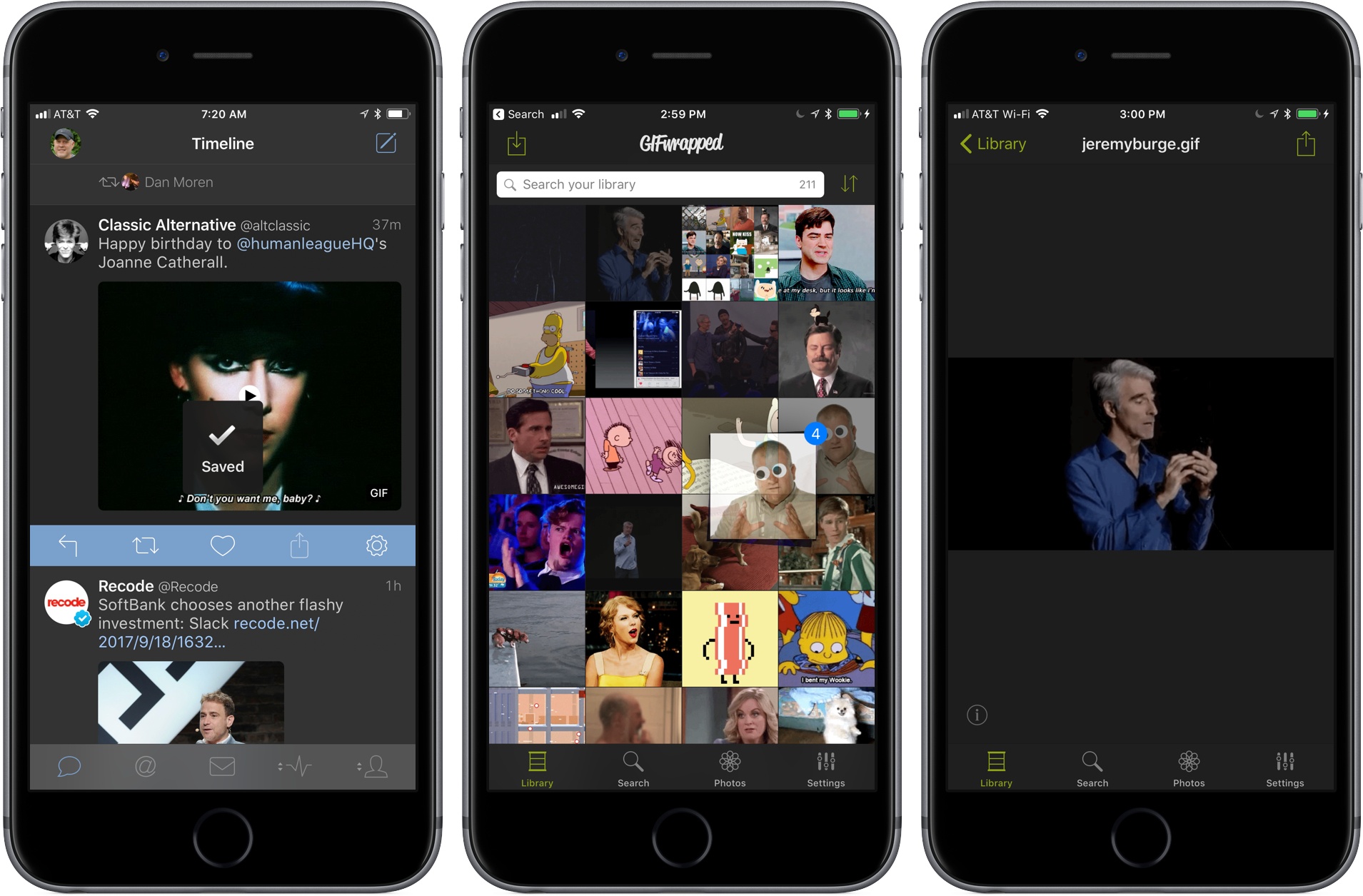
It’s been a while since we last looked at GIFwrapped, a must-have utility for anyone who enjoys animated GIFs. The app, by Jellybean Soup aka Daniel Farrelly, is an all-in-one solution for collecting, organizing, and sharing GIFs on iOS. With the addition of drag and drop support, wrangling your GIF collection has never been easier.

GIFs are notoriously hard to save from Twitter clients. Farrelly solved that problem since we last reviewed GIFwrapped with a share extension. When you see someone post a funny GIF that you want to add to your collection, tap the share button in your favorite Twitter client and pick the GIFwrapped extension from the system share sheet. It isn’t foolproof, but more often than not, GIFwrapped will spin for a moment and then acknowledge that the GIF has been saved to your library making collection a breeze.

Drag and drop support for devices running iOS 11 adds a similar level of convenience and flexibility to organizing and sharing GIFs with GIFwrapped. As with other apps that implement drag and drop, the feature shines brightest on an iPad. Now, you can drag a GIF anywhere that accepts images whether that’s Messages, a Twitter client, Slack, or even Apple’s Mail app. It’s a small change but easier and more natural feeling than sending a GIF through the share sheet or copying it in GIFwrapped and then pasting in the destination app.

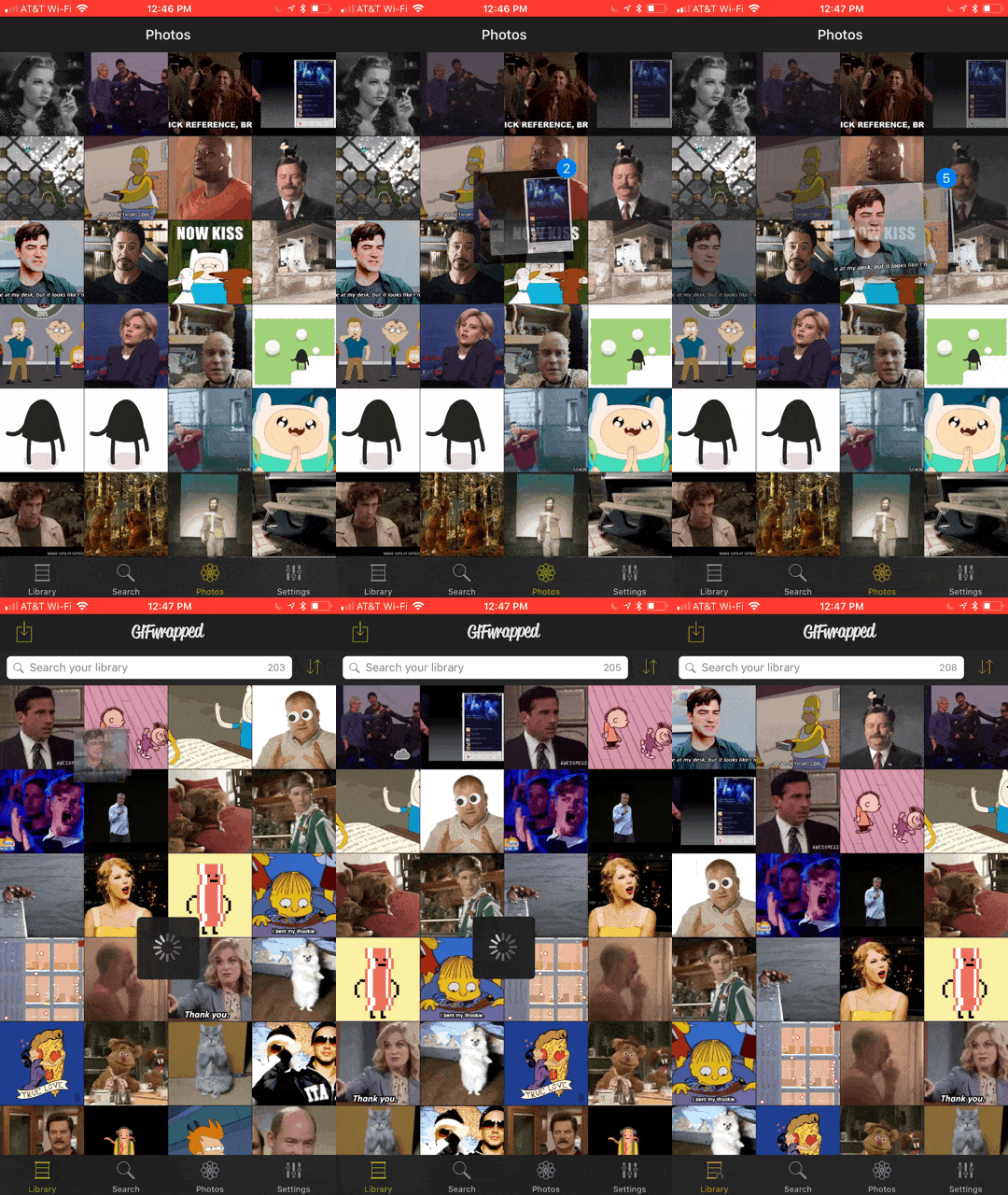
Importing several GIFs from Photos into my GIFwrapped library.

Importing several GIFs from Photos into my GIFwrapped library.

GIFwrapped’s drag and drop functionality is not limited to the iPad though. Apple only allows drag and drop on the iPhone within a single app. However, if you have GIFs stored in your iPhone’s photo library, you can access them in GIFwrapped’s Photos tab and use drag and drop to pick up and drag multiple GIFs into GIFwrapped’s Library tab importing the whole stack at one time. The one thing I’d like to see added to GIFwrapped is the ability to manually organize my GIF by dragging them into an order of my choosing. Currently, you can sort your library by file name or date modified only.

GIFwrapped demonstrates just how powerful drag and drop is. Copying and pasting GIFs was not an enormous burden, but the iPad is designed for interaction with the content on the screen and the multiple steps needed to send a GIF where you wanted it before iOS 11 felt clunky. Now, I can pick my Dancing Eddy GIF right up off the screen of my iPad and drop it into Tweetbot for the 100th time with newfound ease.

GIFwrapped is available on the App Store.


Make the Most of iOS 11 With Omni’s Apps [Sponsor]

It’s almost iOS 11 time and The Omni Group is ready to go. Right from the start, three of Omni’s apps will take advantage of iOS 11’s advanced productivity features.

Getting things done on iOS has never been easier than with OmniFocus and iOS 11. Now you can drag and drop content to and from OmniFocus and even internally within the app. It’s the best way to share information between OmniFocus and your other apps, or move tasks among your projects or to change due dates by simply dragging tasks to different days in Forecast.

OmniFocus is also adding extensive Siri support. Just ask Siri to ‘add buy milk to my shopping list’ and Siri will drop the task straight into OmniFocus. Siri integration goes even deeper though. It also supports dates and times, location-based tasks, list creation, list display, and task completion.

OmniGraffle and OmniPlan will be ready for iOS 11 too. Both support the Files app so you can open files created with each wherever you have them stored. They support drag and drop too, so you can do things like drag objects to new positions in an OmniGraffle hierarchy and drag content into your Gaant charts in OmniPlan such as calendars and lists.

iOS 11 is full of power user features, especially for the iPad. OmniFocus, OmniGraffle, and OmniPlan were already among the most powerful productivity apps available on the App Store, but by leveraging the new system features of iOS 11, Omni’s apps are unrivaled.

OmniFocus, OmniGraffle, and OmniPlan each feature a 2-week free trial so there’s no reason to wait. Head over to Omni’s website to learn more about how its apps can make you more productive today.

Our thanks to The Omni Group for sponsoring MacStories this week.


Terminology’s Versatility Expanded With Drag and Drop Support

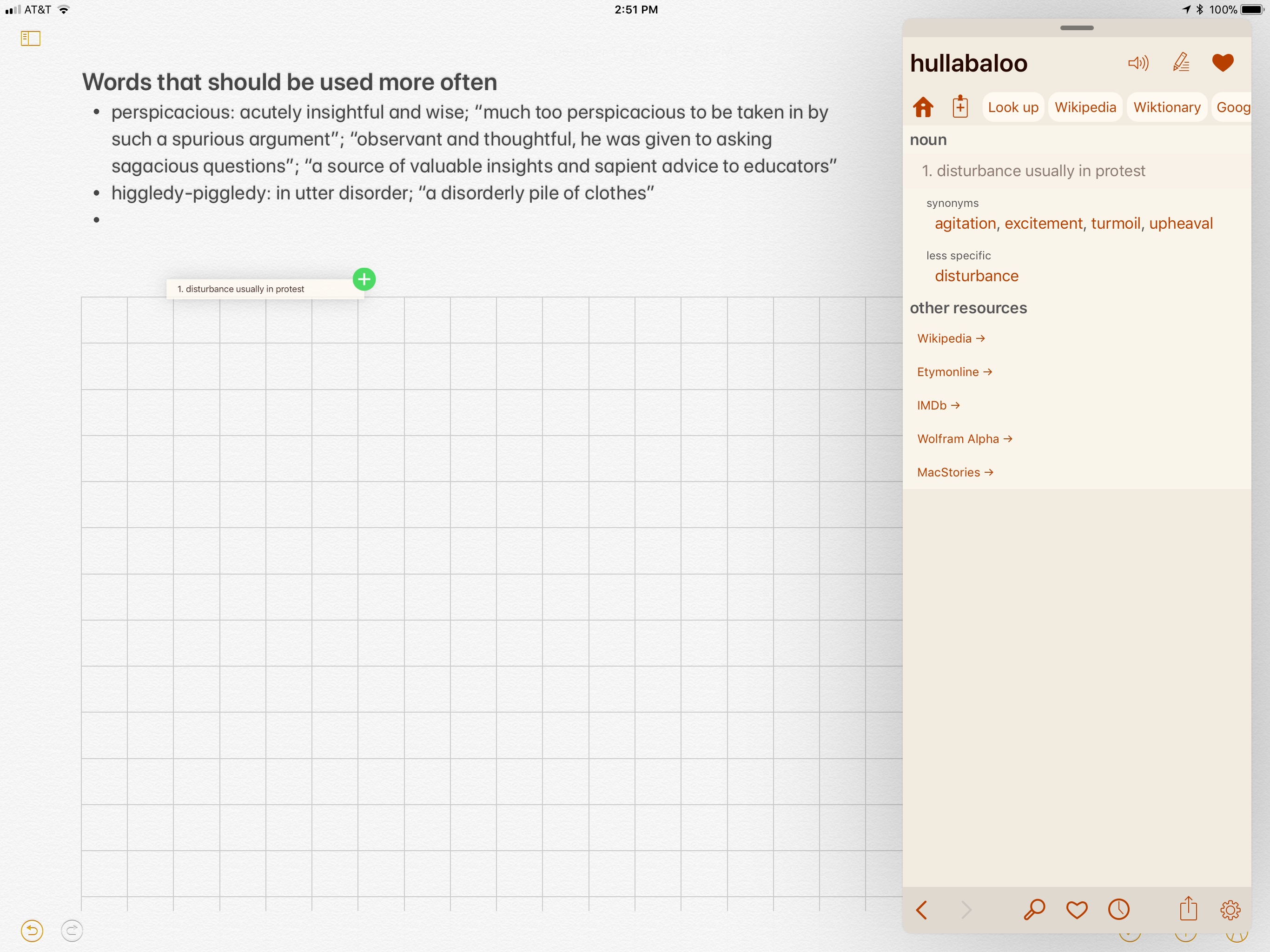
Terminology by Agile Tortoise is my go-to dictionary and thesaurus app on iOS. Early this year, the app got a major update that transformed it into a full-featured language research tool, complete with customizable actions for searching Wikipedia, online dictionaries, and other resources. That update also added a powerful share extension that makes it easy to look up words you find on the web or in any other app.

You can mark words as favorites in Terminology so they are easy to return to but until now, your choices for extracting information from Terminology has been limited. There is a dedicated button in the app’s toolbar for copying words you look up. You can also select, copy, and paste definitions into other apps, but Terminology didn’t include a way to export a term and its definition together.

Version 4.1 adds iOS 11’s drag and drop feature, which makes it simple to drag a word and its definition from Terminology to another app on an iPad. When you start the drag, a preview of the definition appears under your finger. One small thing I’d like to see added to the preview is the defined word since it too is pasted into the destination app when you drop the definition. You can also drag a word from another app into Terminology’s search box to look up its definition, but I prefer to use the app’s extension.

If you’re a student or English is your second language, Terminology’s drag and drop functionality makes it easy to create lists of words to study or flashcards for learning definitions. Those may seem like narrow use cases, but combined with Terminology’s extension, custom actions, and other features, the app has become a Swiss Army knife for anyone who works with words from a student developing a broader vocabulary to professional writers.

Terminology is available on the App Store.


Craig Federighi Answers Face ID Questions→

In a telephone interview with Matthew Panzarino of TechCrunch, Apple’s Senior Vice President of Software Engineering, Craig Federighi, answered many of the questions that have arisen about Face ID since the September 12th keynote event. Federighi went into depth on how Apple trained Face ID and how it works in practice. Regarding the training,

“Phil [Schiller] mentioned that we’d gathered a billion images and that we’d done data gathering around the globe to make sure that we had broad geographic and ethnic data sets. Both for testing and validation for great recognition rates,” says Federighi. “That wasn’t just something you could go pull of the internet.”

That data was collected worldwide from subjects who consented to having their faces scanned.

Federighi explained that Apple retains a copy of the depth map data from those scans but does not collect user data to further train its model. Instead, Face ID works on-device only to recognize users. The computational power necessary for that process is supplied by the new A11 Bionic CPU and the data is crunched and stored in the redesigned Secure Enclave.

The process of disabling Face ID differs from the five presses of the power button required on older iPhones. Federighi said,

“On older phones the sequence was to click 5 times [on the power button] but on newer phones like iPhone 8 and iPhone X, if you grip the side buttons on either side and hold them a little while – we’ll take you to the power down [screen]. But that also has the effect of disabling Face ID,” says Federighi. “So, if you were in a case where the thief was asking to hand over your phone – you can just reach into your pocket, squeeze it, and it will disable Face ID. It will do the same thing on iPhone 8 to disable Touch ID.”

In many respects, the approach Apple has taken with Face ID is very close to that taken with Touch ID. User data is stored in the Secure Enclave, and biometric processing happens on your iOS device, not in the cloud. If you have concerns about Face ID’s security, Panzarino’s article is an excellent place to start. Federighi says that closer to the introduction of the iPhone X, Apple will release an in-depth white paper on Face ID security with even more details.

Permalink