
Safari got a lot of refinements in iOS 11 this week. One of my favorites is also one of the smallest. If a website opens up a new tab in Safari, swipe left to right as you would to go back to the last page you were browsing and you will be taken back...
 App Debuts
 Federico
Tweetbot Tapbots’ client for Twitter power users has received early support for iOS 11. The app’s integration with drag & drop isn’t as extensive as I hoped – you can only drag tweets from the timeline into other apps – but it’s a start. Currencies Edovia’s currency converter has come back after a couple...
Apple’s Quest to Transform Photography→
John Paczkowski of BuzzFeed conducted a fascinating interview with Apple’s Senior Vice President of Worldwide Marketing Phil Schiller and Johnnie Manzari of Apple’s Human Interface Team about the iPhone’s camera. Much of the discussion is focused on the new Portrait Lighting feature available in the 8 Plus and X. As Paczkowski explains,
The camera’s effects don’t rely on filters. They’re the result of Apple’s new dual camera system working in concert with machine learning to sense a scene, map it for depth, and then change lighting contours over the subject. It’s all done in real time, and you can even preview the results thanks to the company’s enormously powerful new A11 Bionic chip. The result, when applied to Apple scale, has the power to be transformative for modern photography, with millions of amateur shots suddenly professionalized.
Manzari described the extensive process that went into creating Portrait Lighting:
“We spent a lot of time shining light on people and moving them around — a lot of time,” Manzari says. “We had some engineers trying to understand the contours of a face and how we could apply lighting to them through software, and we had other silicon engineers just working to make the process super-fast. We really did a lot of work.”
BuzzFeed’s article is worth a close read because it’s about more than just the camera in Apple’s new and upcoming iPhones. The behind-the-scenes peek at the development process of the many functions that the iPhone’s camera serves is the best example of one of Apple’s biggest competitive advantages: the fusion of hardware and software.
AppStories, Episode 23 – The Apps Behind Federico’s iOS 11 Review→
On this week’s episode of AppStories, we lift the curtain on some of the special events at MacStories and Club MacStories surrounding the release of iOS 11, discuss the removal of the App Store from iTunes on macOS, and dive into the apps Federico used to plan, research, write, and produce his iOS 11 review.
Sponsored by:

AppStories Episode 23 - The Apps Behind Federico’s iOS 11 Review
0:00
44:39
44:39






Just Press Record Refreshes Its iOS Design and Adds Powerful Features to Its Watch App
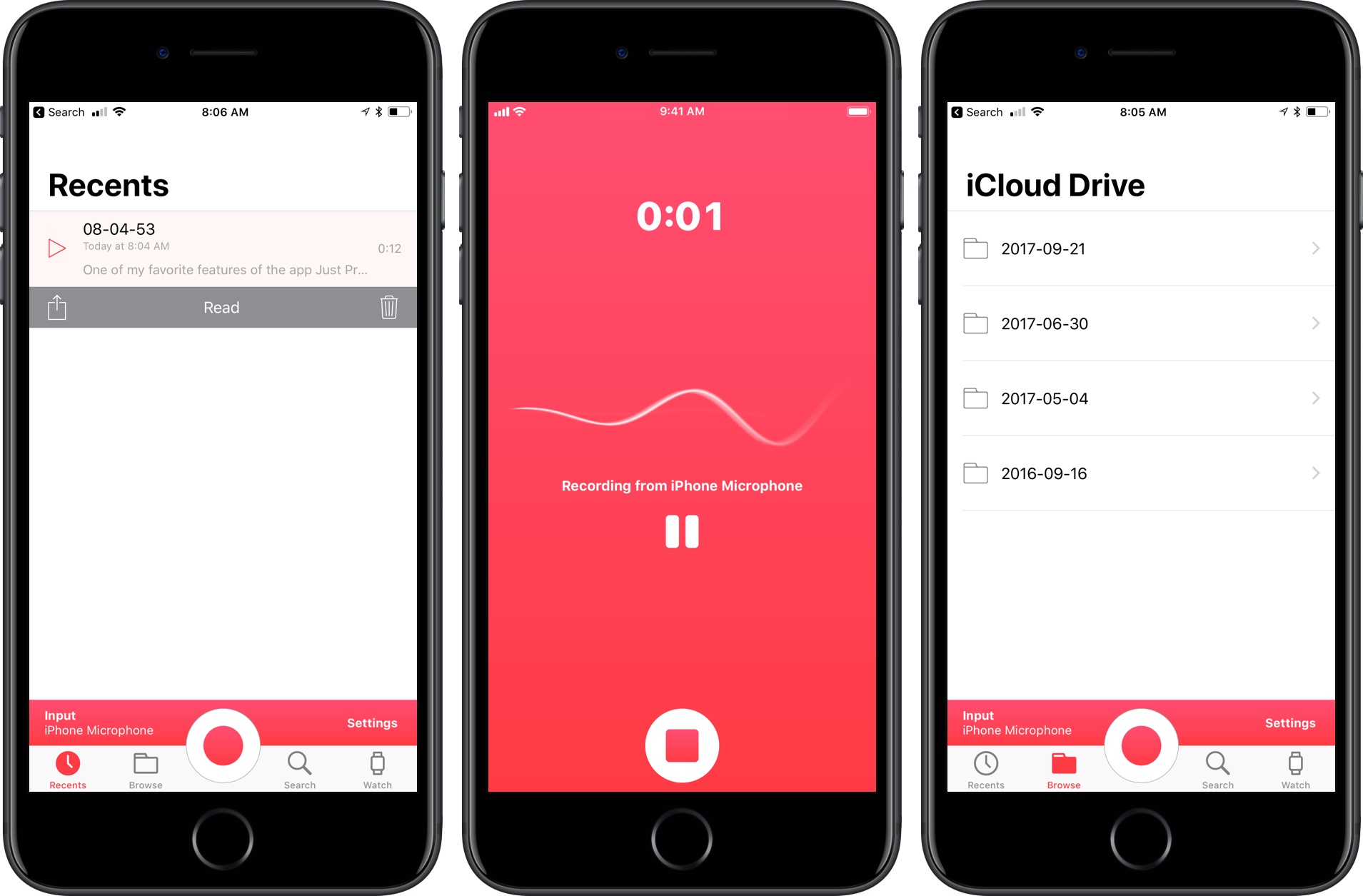
My favorite way to make quick recordings on my iPhone is Just Press Record. It’s a great way to capture a thought before it escapes me. With the release of iOS 11 and watchOS 4, the app launched an update with a modern design and more powerful watchOS app that makes it even easier to use.
Airmail Incorporates Drag and Drop, Quick Look on iPhone, and Voice Reply on Apple Watch
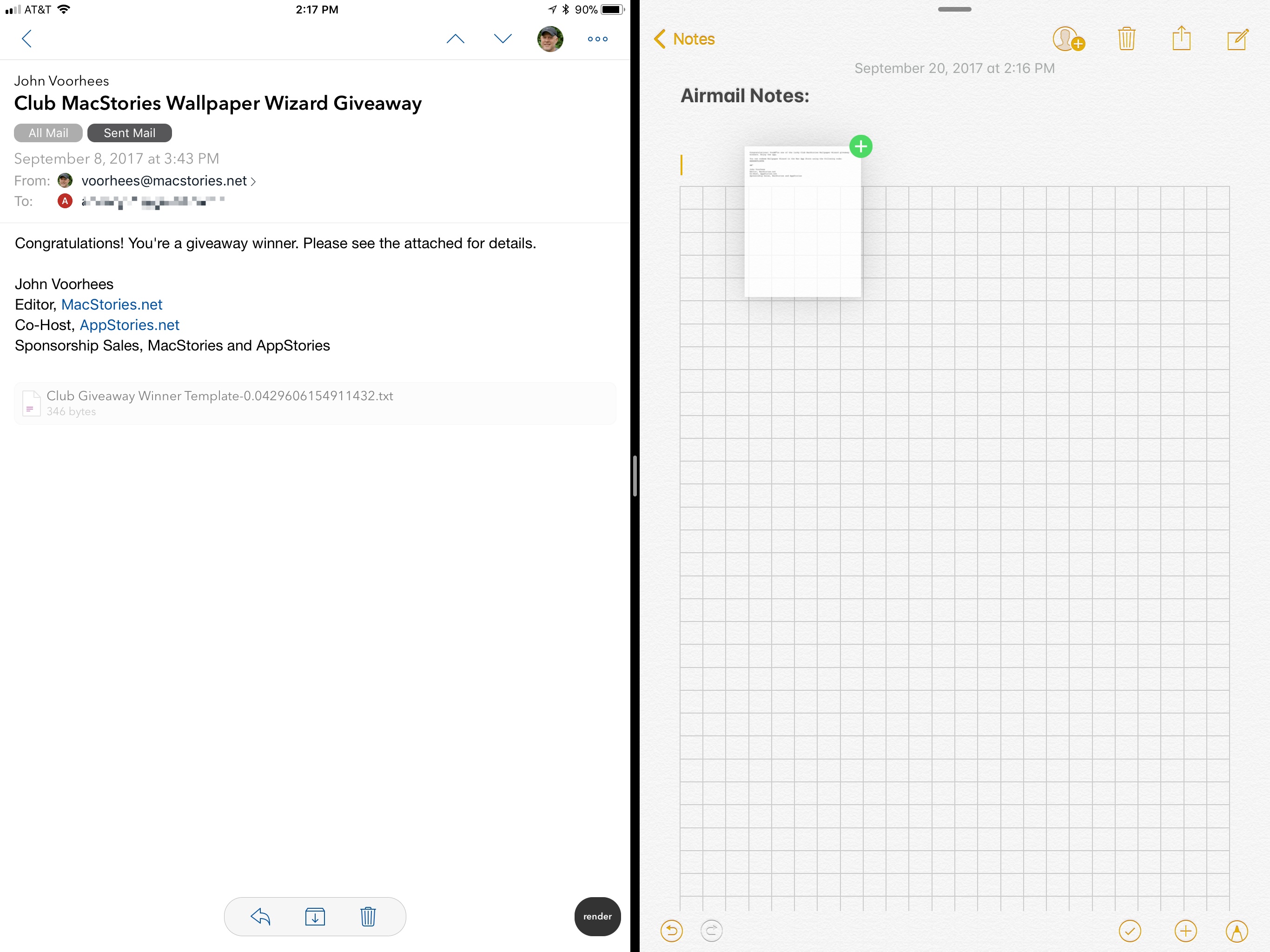
Airmail is my primary email client on iOS and macOS for two reasons. First, I can customize nearly everything in the app, so it’s laid out and works the way I want. Second, Airmail integrates with several third-party apps and services that I use, so it’s easy to get information out of Airmail and dump it into apps like Todoist or Trello. But sometimes, I want to put a little context around the information I’m exporting from Airmail. For those times, Airmail’s new drag and drop new functionality is ideal.
I get email from MacStories and AppStories sponsors every week. Many of those messages include a combination of files and text about an upcoming sponsorship. Often, those messages are also the conclusion of a back-and-forth conversation that includes additional relevant information I need. To keep track of the details in one place, I typically start a note in Apple Notes.
With the addition of iOS 11’s drag and drop support on the iPad, the process is easier than ever before. I can start with a few background notes for context and then select and drag in just the parts of a message that I need along with any images. I could accomplish this with the share sheet too, but I’d end up with extraneous information from the message and spend more time tapping around in Airmail and the share sheet. Instead, the result with drag and drop is an organized note that includes only the information I need, which makes it easier to use as a reference.
Another option that I’m considering using for some tasks is Apple’s new Files app. Dragging text into Files creates a rich text file that can be stored alongside any attachments producing a similar result to what you can accomplish in Notes.
You can also drag an entire message out of Airmail, which generates a PDF of its full text but without any attachments. That’s less attractive to me for most of my day-to-day tasks, but it is a nice way to archive an important conversation. Of course, you can also drag files from Files into Airmail as attachments or drag links, text, and other content into the body of a message.
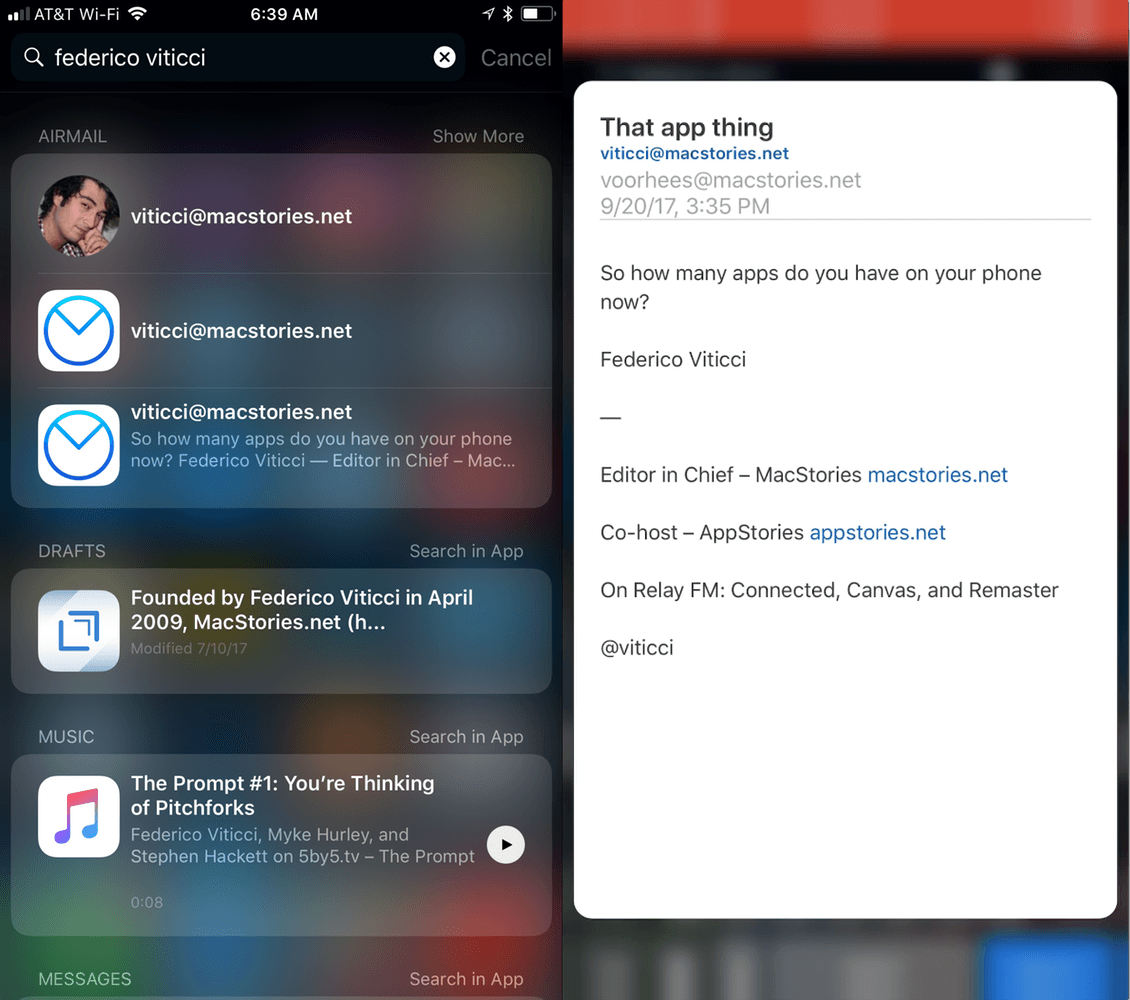
On iPhones that support 3D Touch, you can now press on a message to open a Quick Look preview from Spotlight search results. Just press on a message as you would from your Airmail inbox to pop up a preview of a message in Spotlight. The feature is a nice way to be sure you’ve found the correct message before launching Airmail.
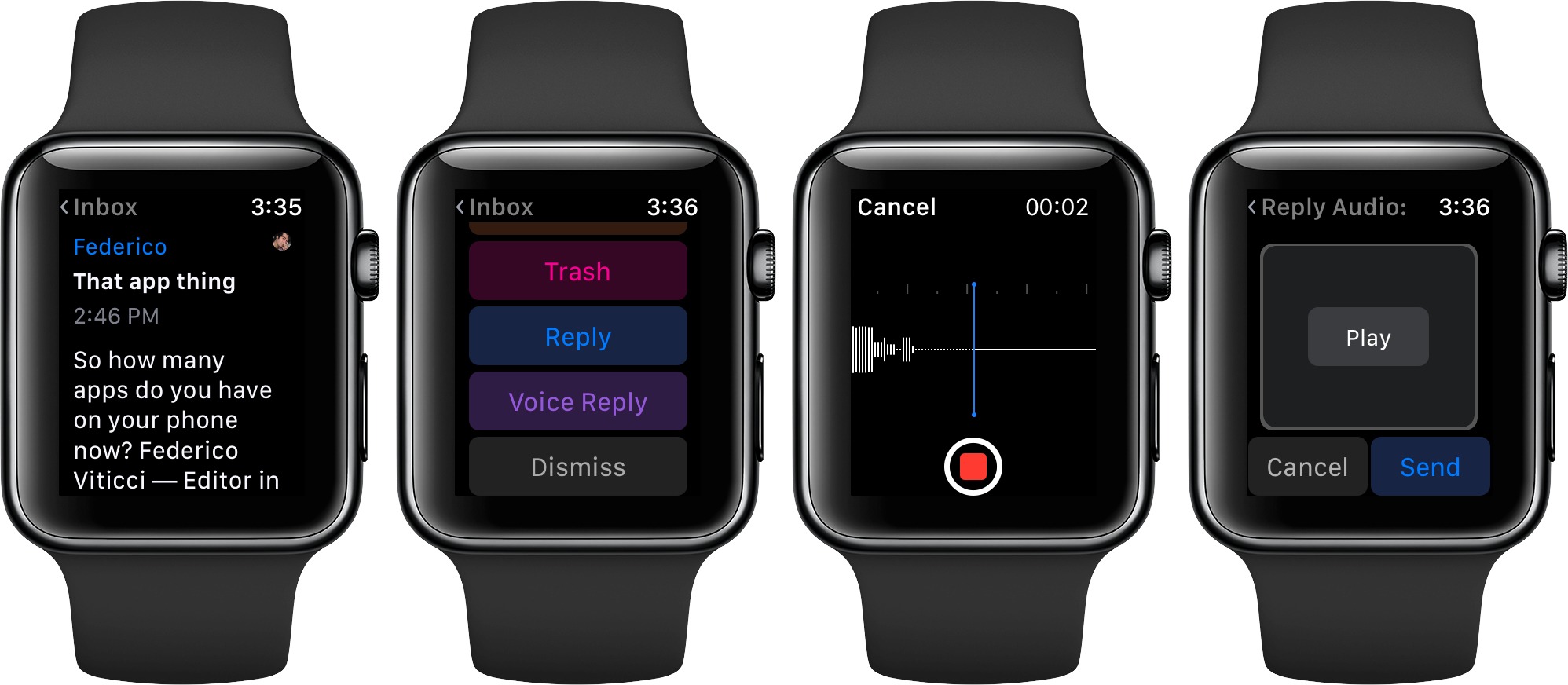
The final addition to Airmail is Voice Reply on the Apple Watch. If you’re out and can’t type a response, you can pick Voice Reply to record a short message that’s sent as an MP4 attachment to your reply. I’m not a fan of responding to email on my Apple Watch, but when a response has to be sent right away, replying with a short recording is easier than other methods.
Email is a competitive category on the App Store. Airmail, which won an Apple Design Award at WWDC this year, has continued to improve with regular updates and currently has one of the broadest sets of features and highest levels of customization possible on iOS and macOS, which means it will remain my primary email client for the foreseeable future.
Airmail is available on the App Store.
Working Copy Integrates with the Files App and Drag and Drop
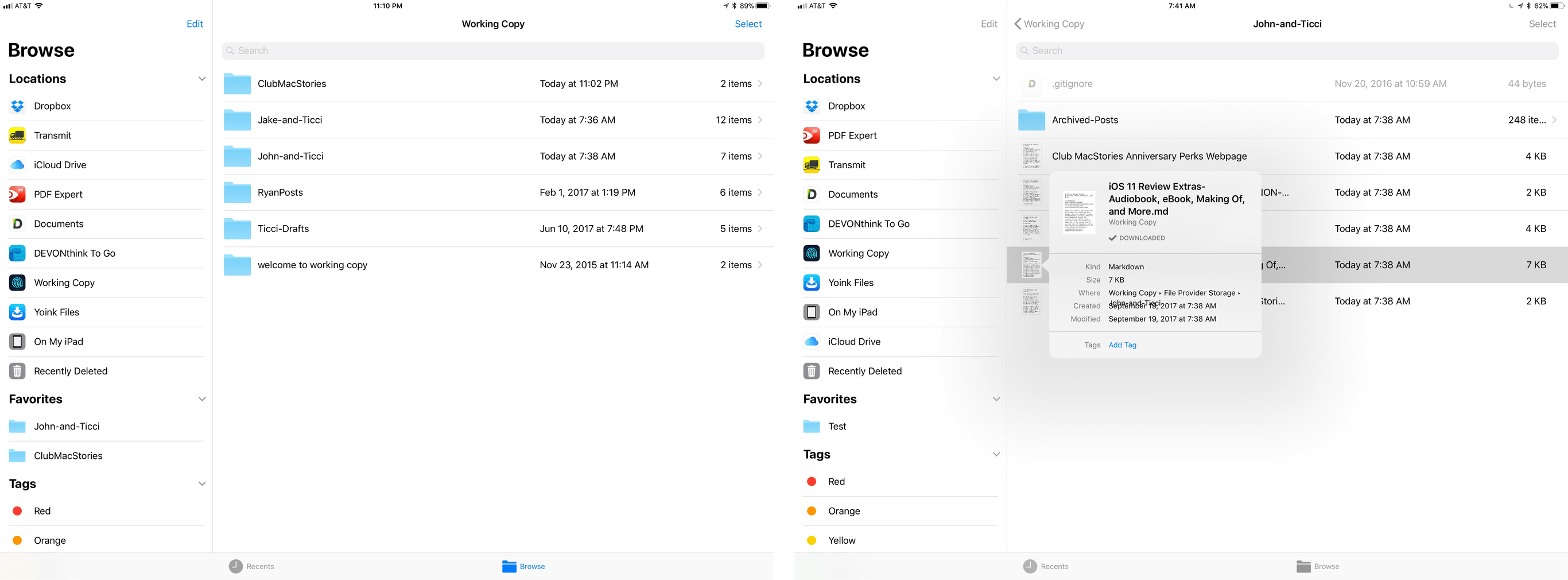
We use Working Copy every day to collaborate on articles for MacStories and Club MacStories. It’s an excellent tool for working as a group because it lets us easily track edits to documents and stay in sync with the latest version of an article. Ours isn’t the most common use for an iOS Git client – it’s usually used by developers – but it serves to illustrate the flexibility of Working Copy, which has only grown more useful with an update that incorporates new iOS 11 functionality.
Working Copy is a file provider in the Files app. This is a very big deal. Ulysses has had external file support for a while, but iOS 11 streamlines the process of accessing articles in our shared repos greatly. With a couple of taps in Ulysses, the document browser opens up with the familiar Files interface. There’s a folder for each of the repos I share with MacStories team members. All I need to do is select the document I want to edit, and any changes I make are saved to Working Copy. When I’m finished, I open Working Copy and commit my changes – that’s it. You can do the same with any app that supports document providers like Textastic, iA Writer, and 1Writer.
Because Working Copy is a document provider, you can also access your repos from the Files app. There, you can move files into folders, drag new files in, and delete files. When you’re finished, just sync everything up in Working Copy. You can even add tags and assign favorite folders.
With drag and drop support, it’s easy to get files in and out of your repos. When we do Home screen features in Club MacStories, I typically get drafts and screenshots sent to me by email. Now, all I have to do is drag attachments from Airmail straight into the Club MacStories repo in the Files app then commit the changes in Working Copy. This is the sort of thing I used to prefer to do on my Mac or would do by pasting text into Ulysses and then adding the document to Working Copy with its share extension, which was cumbersome and fiddly.
You can also drag files out of Working Copy to send them by email or drop them into another app for editing in place. Though I haven’t needed to do this yet, ZIP archives can be dragged into Working Copy where you are given the option to extract them into your repo.
Working Copy continues to grow in its versatility. With each passing revision, there are fewer and fewer reasons for me to use the GitHub Desktop app on my Mac. My needs are relatively simple. I work with a relatively small set of Markdown files shared with one or two people at once, but even if you have more robust requirements from a Git client, take a look at Working Copy, you may be surprised at just how much you can accomplish on your iPad these days.
Working Copy is available on the App Store.
Getting Tasks out of Your Head and into Todoist Has Never Been Simpler
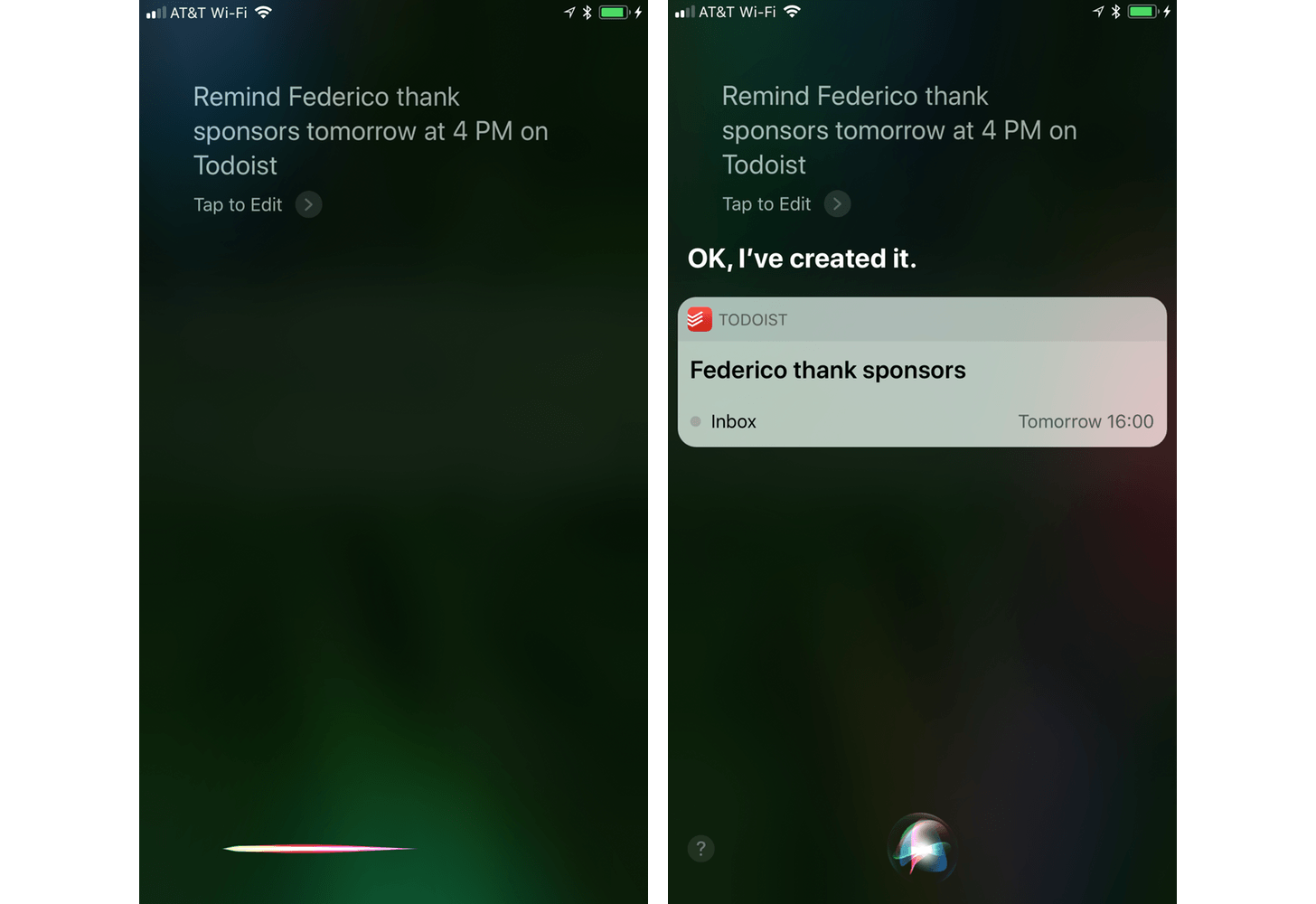
Todoist, one of our favorite task managers, has added deep integration with iOS 11 as well as adding a handful of other handy features in its latest update. At its core, Todoist is a web service, but you wouldn’t know it most of the time. Unlike many web service-based apps, Todoist continually adopts iOS-only features that help it compete in a category that is packed with strong rivals.
Apple didn’t add many new SiriKit intents with iOS 11, but it did add one for tasks. It took a while to get in the habit of using Siri to add tasks to Todoist, but I’ve been delighted with how well it works. It’s been both quick and reliable. Not only can you ask Siri to add tasks to Todoist, but you can also assign a due date and ask Siri to show you tasks in a specific date range or from a particular list.
iPad users can take advantage of drag and drop to add content to Todoist. For example, drag in a Mail message and the subject becomes the task name, and the body becomes an attached comment. You can also drag in images, text snippets, URLs, and other content. However, Todoist does not support dragging tasks into other apps.
Todoist is one of the few apps I’ve found so far that implements iOS 11’s new Password AutoFill. You may be familiar with a similar feature that’s been part of Safari for a while. The concept is similar. If it’s stored in your iCloud Keychain, Password AutoFill will suggest that it fill in your password for you, which makes for a much smoother login process.
Todoist has a few other nice features in store for users. The app could already attach photos to comments, but now you can attach nearly any file-type. This is especially handy when assigning a task to which you want to attach reference materials. Todoist has also added haptic feedback to supported iPhones when completing or rescheduling a task. Finally, Todoist has a custom Quick Add keyboard that includes ‘@‘ and ‘#’ for faster labeling and task assignment.
Todoist continues to evolve with iOS. The new iOS 11 features added to the app make it easier than ever to get information into Todoist quickly and efficiently so you can get on with your work. As Todoist adds features that bring it closer in line with the macOS version, I find myself switching to my iPad Pro for work more and more often.
Todoist is available on the App Store.
CARROT Weather Adds Augmented Reality Mode
CARROT Weather transcends iOS apps in its category by infusing a full-featured weather app with a personality that makes it a delight to use. Earlier this summer, CARROT Weather received a major redesign that managed to incorporate all its weather data into a single screen interface without feeling cramped. That’s not an easy task for a highly customizable app. CARROT Weather also has one of the most performant and useful Apple Watch complications available. It’s a combination that’s made the app a MacStories favorite.
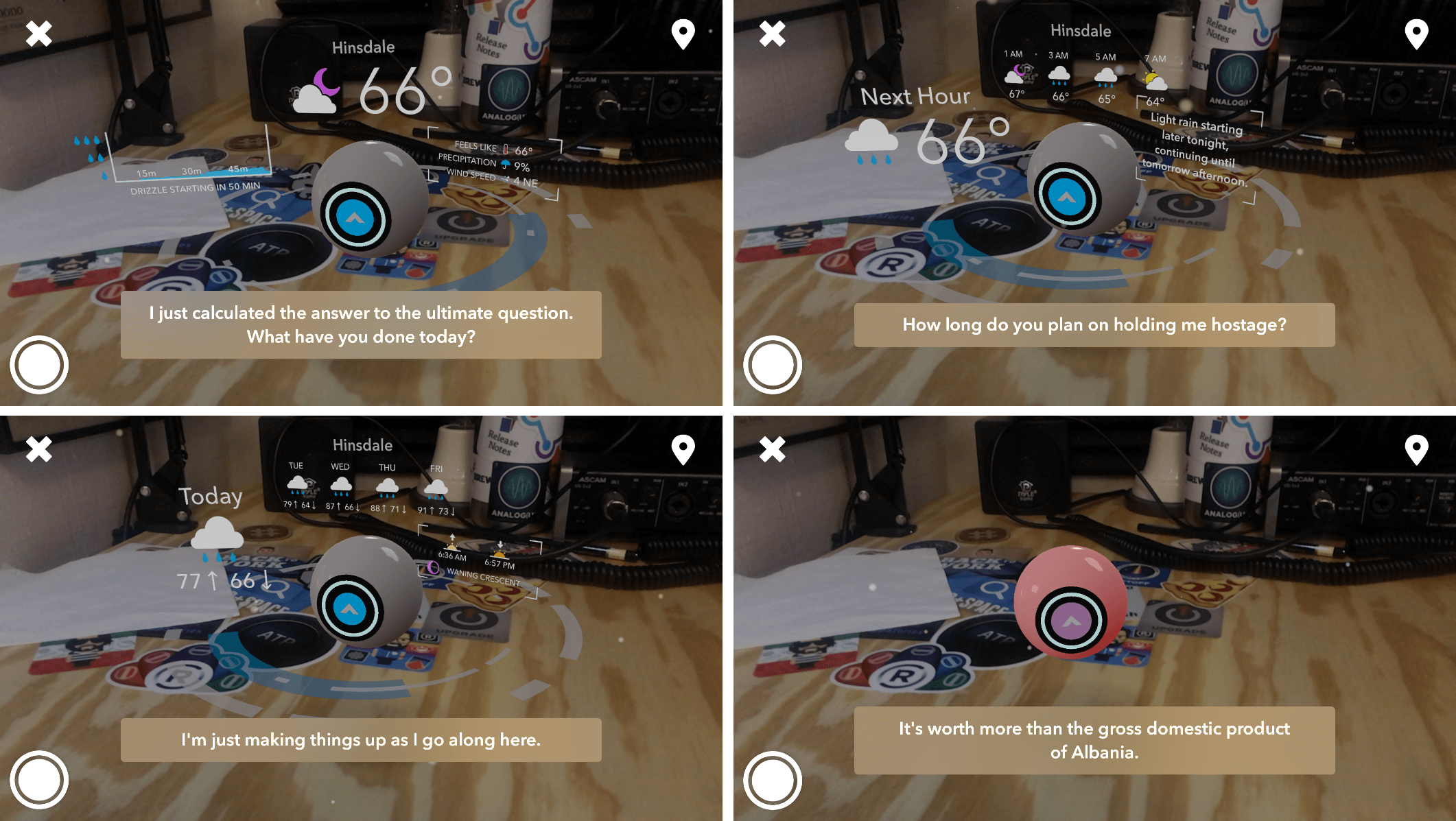
The app’s latest update takes advantage of ARKit to bring CARROT, the app’s snarky robotic protagonist to life as never before. Tapping the button in the top right-hand corner of the screen opens a drop-down menu for accessing AR Mode, Time Travel, and Settings. As with other ARKit apps, tapping AR Mode requires a few moments of calibration. When it’s ready to go, the icon projected into your environment turns green. Tap it, and CARROT drops into the scene surrounded by the current weather conditions and other data. Swiping on the ring below CARROT changes the weather data floating around CARROT to the next hour’s forecast and then the long-range forecast.
You can pinch and zoom in AR mode to adjust the frame of the scene and move your iOS device around to admire CARROT from different angles, all the while being taunted by its snarky comments. If there’s precipitation, that animates in the scene too. I don’t want to spoil the surprise, but try poking CARROT’s ocular sensor. It’s a bit of game-like interaction that makes me smile every time.
In addition to AR Mode, CARROT Weather has added Time Travel so you can check the weather up to 20 years ago and the forecast 10 years into the future. There’s also a new dark mode, three new secret locations, and hundreds of new lines of CARROT snark.
AR Mode fits perfectly with CARROT Weather’s style. It’s not a way I’ll check the weather most days, but dropping into AR Mode is a fun diversion when you’re not trying to check the weather quickly before running out the door. It’s entertaining and complements CARROT’s personality perfectly, making the app a pleasure to use.
CARROT Weather is available on the App Store.