

 Federico
This week, Federico and John take a look at some of their favorite apps with interactive widgets for iOS 17, iOS 17, and macOS Sonoma.
 Interesting Links
NVIDIA released DLSS 3.5 with upgraded ray tracing, which will see its first use in an update to Cyberpunk 2077. (Link) Jay Peters reports on a YouTube video by Vincent Zhong, who played Resident Evil Village on an iPhone 15 Pro connected to an external display and using a PlayStation DualSense controller and was...
Apps to Prompt You to Get Up, iPhone Wallets, USB-C Speeds, and Shortcuts
Here are the highlights from the Club MacStories Discord this week:
In response to a request from thewaytozion Club members offered some great app suggestions to remind them to get up from their Mac and stretch every hour. Devon shared a MagSafe wallet recommendation that a lot of other members agreed was a great...
App Debuts
Blackmagic Camera Blackmagic Camera is a new iPhone video camera app that’s designed to put pro-level camera controls in the hands of creators. Blackmagic, which makes high-end video hardware, has released the app as a free download that’s loaded with an interactive HUD that makes dialing in the shot you want fast, while allowing...
MacStories Unwind: Preparing for Downtime and a Roadtrip Audiobook About Dragons






This week on MacStories Unwind, Federico preps for some serious downtime by planning a mod of his ASUS ROG Ally handheld gaming PC and I listened to Fourth Wing by Rebecca Yarros on a drive from Philadelphia back to North Carolina.
Sponsored By:
- Kolide – It ensures that if a device isn’t secure it can’t access your apps. It’s Device Trust for Okta. Watch the demo today!
Links and Show Notes
Federico’s Season of Sci-Fi and Tech:
- Tech:
- ASUS ROG Ally Z1 Extreme
- ASUS ROG XG Mobile external eGPU
- Media:
- Starfield
- Foundation, Season 2
- For All Mankind, Season 4
- Light Bringer by Pierce Brown
- Other Games Mentioned:
John’s Pick:
- John’s Downtime Plans:
- Home Assistant Yellow
- Games
- [Dave the Diver]https://store.steampowered.com/app/1868140/DAVE_THE_DIVER/)
- Super Mario Bros. Wonder
- Fourth Wing by Rebecca Yarros (Audiobook version on Apple Books)
MacStories Unwind+

We deliver MacStories Unwind+ to Club MacStories subscribers ad-free and early with high bitrate audio every week.
To learn more about the benefits of a Club MacStories subscription, visit our Plans page.
The Mighty Mini Returns: Productivity Powerhouse at 34,000 feet
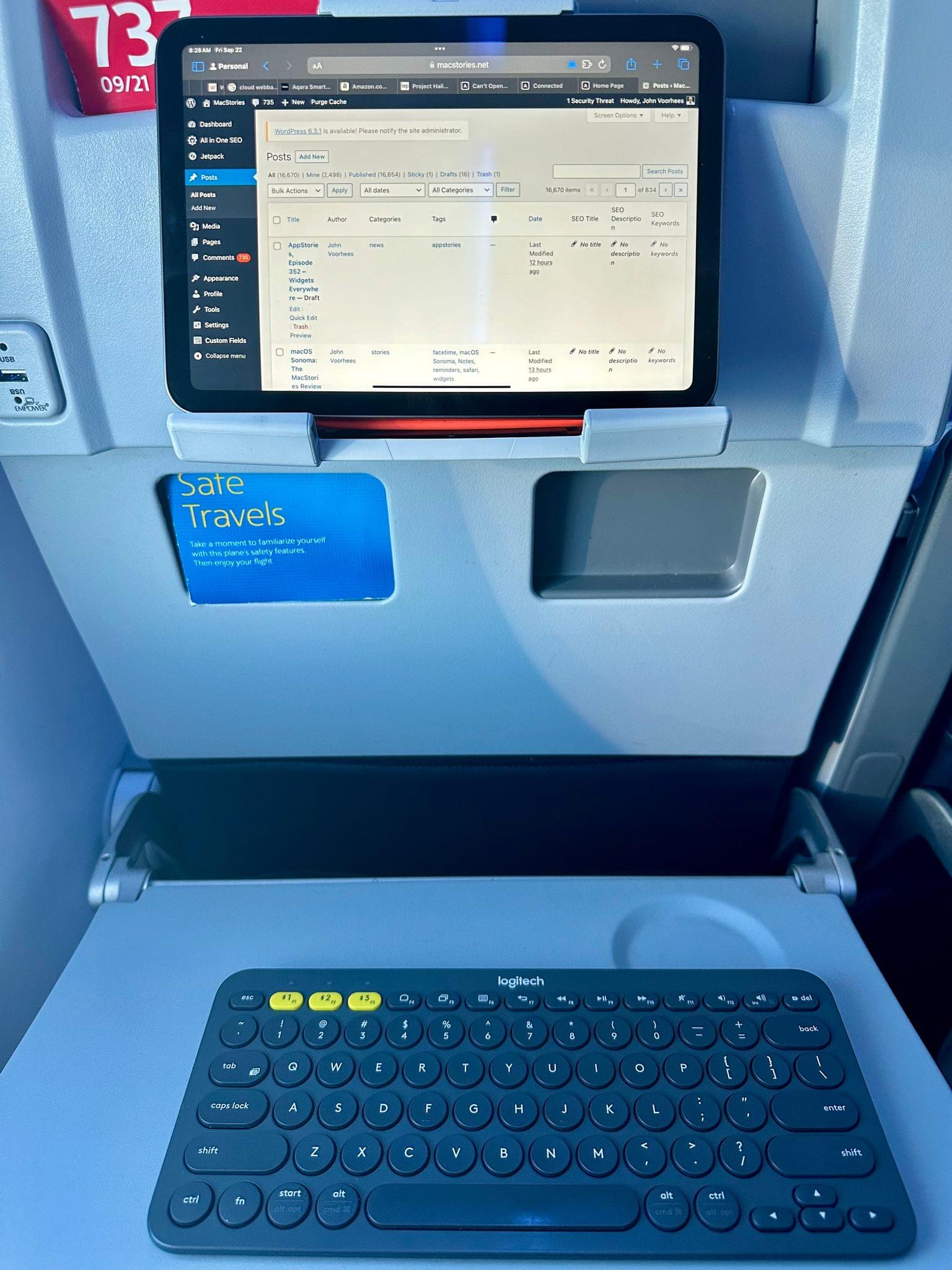
I’m sitting on an American Airlines flight, crammed in a window seat in economy class. I brought my iPad mini to catch up on some reading while I’m away, but at the last minute, I threw my Logitech K380 Bluetooth keyboard and a Twelve South Compass Pro. I cleared my task list for this trip, but it’s also been a while since I used the iPad mini for any productivity tasks, so I thought I’d bring it and the accessories along in case I had some downtime to do things like catch up on email.
I didn’t expect to do anything on the flight, especially writing. Tray tables are too shallow these days for even my M1 MacBook Air, let alone a mini in a stand with a separate keyboard. But when I settled into my seat, Jennifer pointed out the phone holder in the seatback in front of me. They’re meant for entertainment, replacing the in-seat screens airplanes used to have.
However, I discovered something arguably better that was also a fun opportunity to publish a story from 34,000 feet in the sky. When I pulled the little phone shelf out from the seatback, I saw the top bracket extended high enough that I could use it with my iPad mini. I signed up for in-flight Wi-Fi, paired the Logitech keyboard, and I was good to go.
The ergonomics are surprisingly good. The iPad is at eye level, and with nothing but the keyboard on the tray table, I can shove it closer to the seat in front of me, so my arms can extend to a comfortable position. The only downside is that without a pointing device, I have to reach up to log into websites and interact with some parts of apps, but it’s been far better than trying to type on a laptop or an iPad Pro in a Magic Keyboard. I highly recommend trying this the next time you need to work on an American Airlines flight.
Widgle’s Four Photo-Based Widget Games Deliver Simple, Fun Interactive Diversions
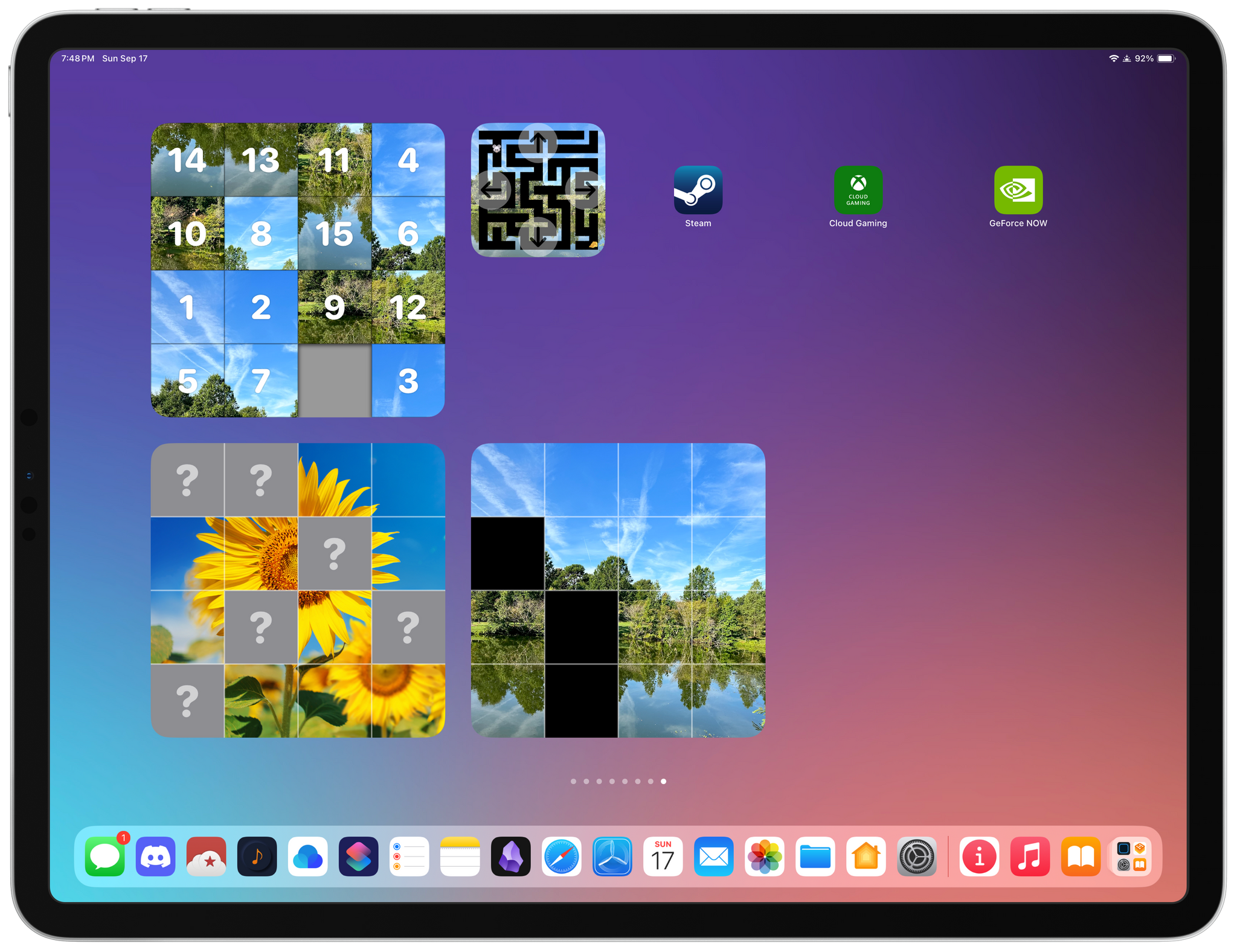
Widgle is a collection of four simple puzzle games for the iPhone and iPad that integrate with your photos. As I mentioned in connection with Widgetsmith’s Tile game, interactive widgets’ system-imposed button and toggle limitation severely constrains the kinds of games that can be built as a widget, but that doesn’t mean they can’t still be fun. Widgle’s four games, a tile sliding puzzle, a maze, a lights out-style game, and a matching game each come in small and large sizes.
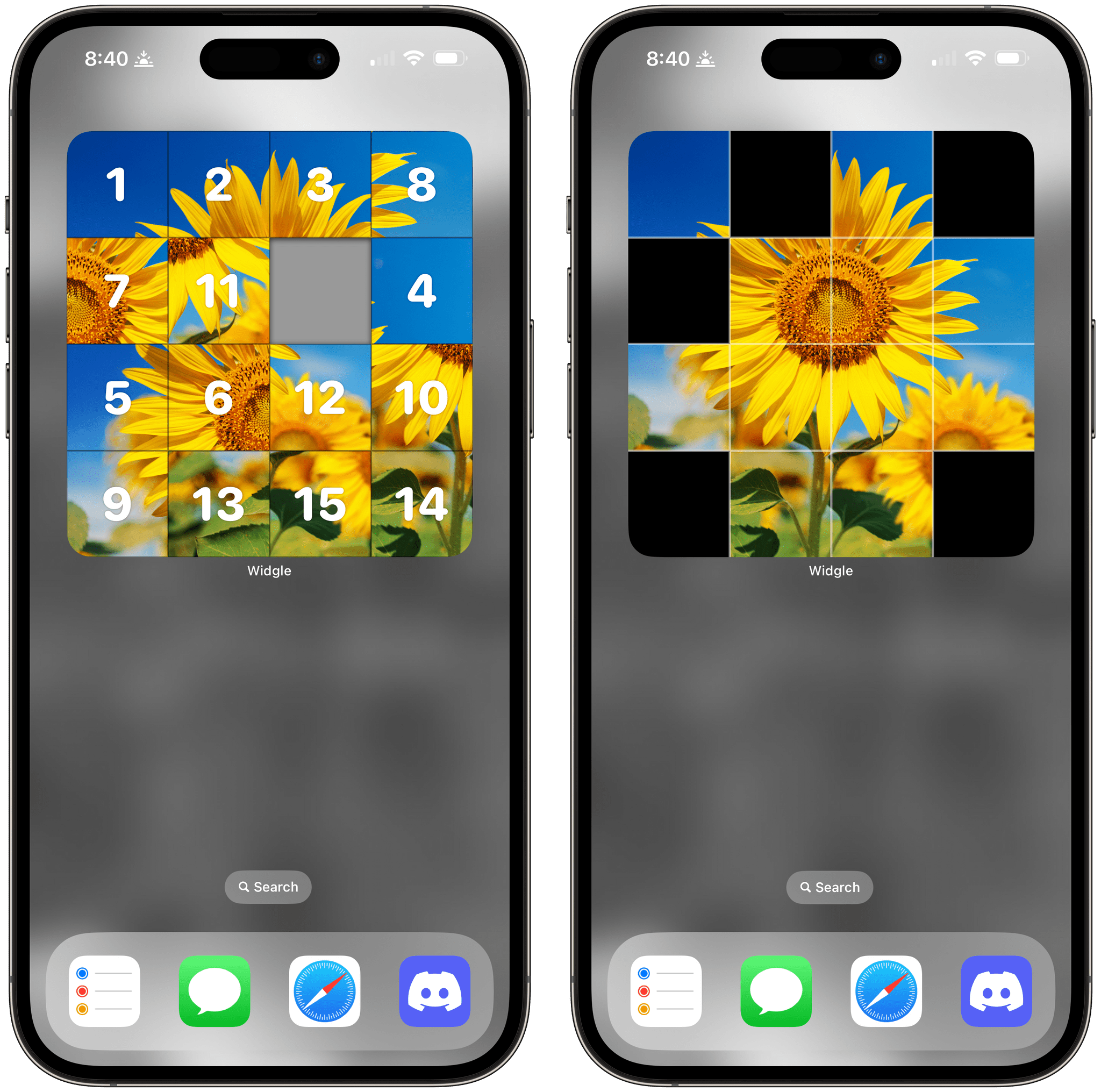
The Tile Slide game uses a photo of your choosing, scrambles the tiles, and overlays numbers, which can optionally be turned off in the widget’s settings. There’s one free space, and by tapping tiles, you can try to put them back in the correct order, reassembling your image. There are four grid options, too, a couple of which are only available in the large version of the widget.
Lights On begins with one of your photos divided into a grid with some of the squares missing. Tapping on a square inverts the others around it, and with some careful poking, you can reassemble your entire photo so it includes no blanks. Like Tile Slide, there are four grid size options, with two exclusive to the large-sized widget.
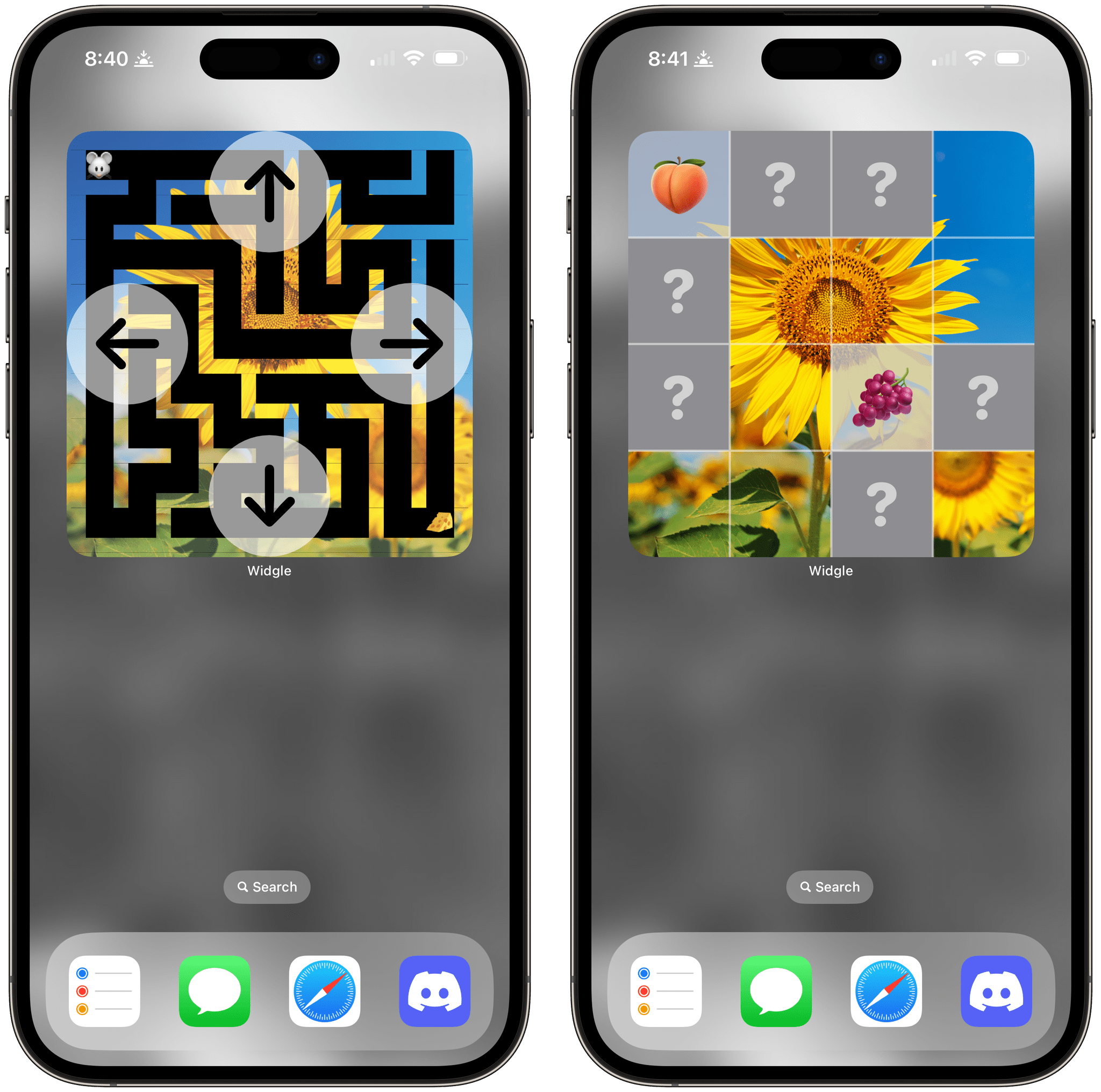
Maze Master overlays directional arrows around the edges of the widget, so you can guide your character through a maze backed by one of your photos. There are three difficulty levels to choose from and six different emoji characters available.
Finally, Match Up starts with a grid of squares with question marks in their centers. Tap squares to reveal the hidden emoji underneath. Find a matching pair of emoji, and the squares reveal part of one of your photos.
As I mentioned at the top. Widgle’s games are very simple classics, but I’ve still enjoyed idly playing with them when I need a break. The inclusion of photos, which can be picked in the main Widgle app, makes each game feel more personal.
Widgle is available on the App Store as a free download with an In-App Purchase of $1.99 to customize the puzzle with your photos.
AirScrobble Greatly Expands Its Utility with Headphone Compatibility, Live Activity Support, and App Shortcuts
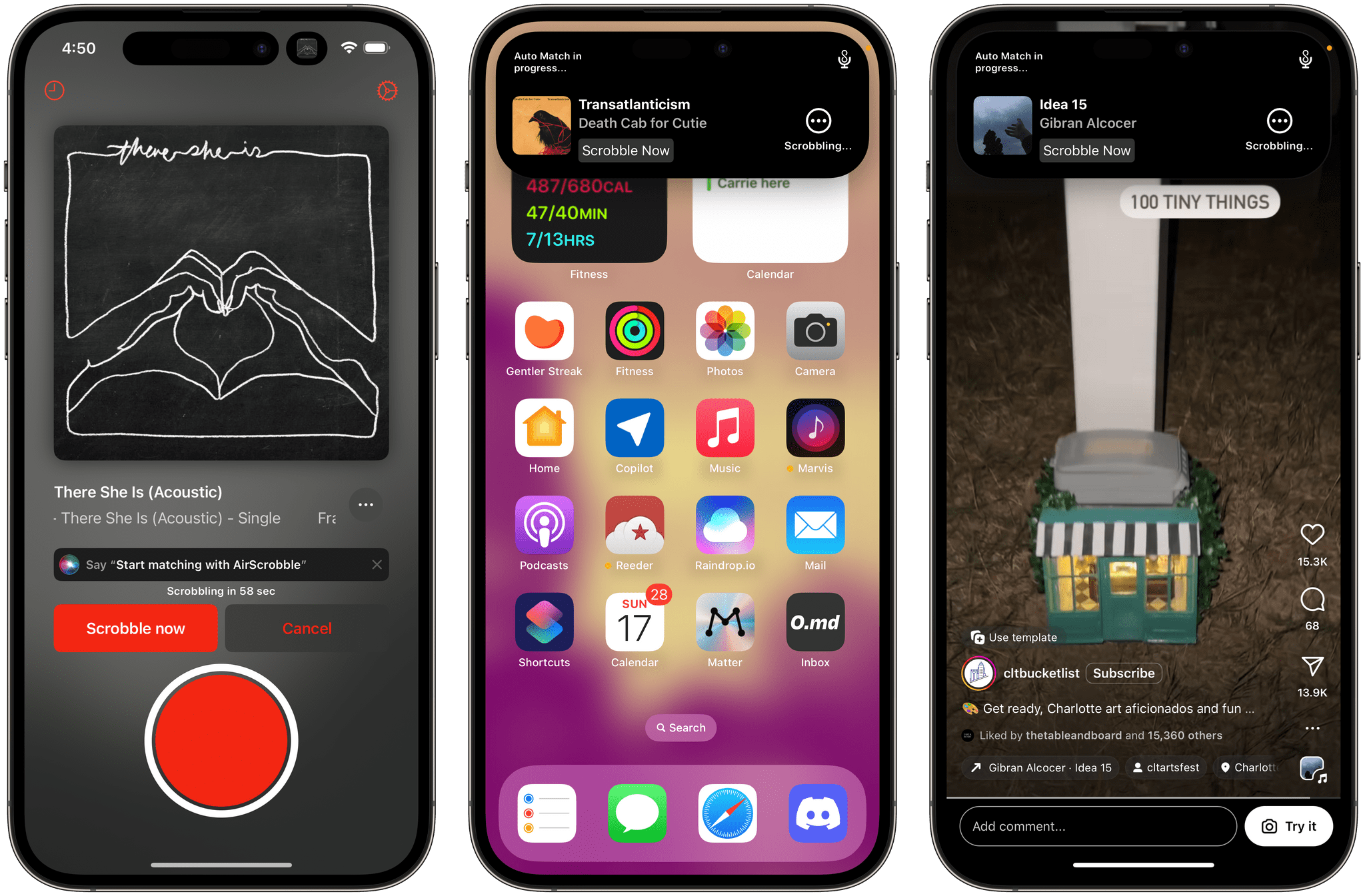
It’s time to take a brief break from widgets to bring you scrobbles. Scrobbling is Last.fm’s name for matching and logging the music to which you listen. The payoff of scrobbling is the in-depth statistics that Last.fm delivers monthly and annually to users. It’s also a great way to relive musical moments in your life and find music that you may not have in your library but that you may have heard while you’re out and about.
One of the best ways to scrobble on the iPhone and iPad is with AirScrobble, which has grown into a terrific all-around Last.fm utility. One of the app’s previous limitations, though, was that it only worked with music playing over a speaker. If you were using AirPods or other headphones, so the music couldn’t be matched via an iPhone or iPad’s microphone, you were out of luck. However, with the app’s latest release, you can now scrobble even while listening with headphones.
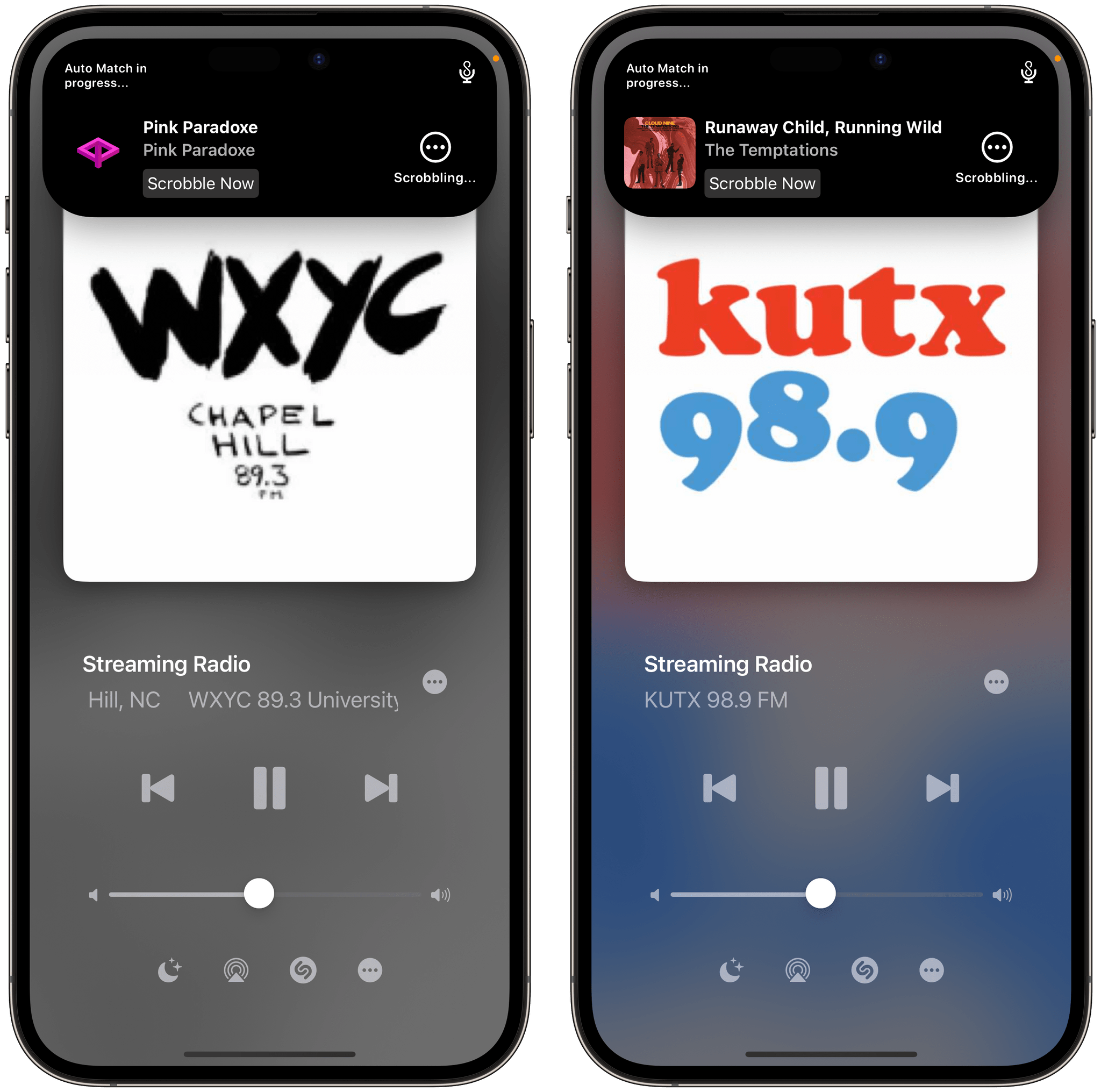
That alone is pretty great, but AirScrobble now works with any app that produces audio, too. Say you’re using Steve Troughton-Smith’s excellent Internet radio app Broadcasts to listen to your favorite college radio station. Now, AirScrobble can match the songs as you listen. The same goes for Reels you watch on Instagram, YouTube videos, and a lot more.
AirScrobble also includes Live Activity support. If you’ve started automatically scrobbling as you listen, the Live Activity expands when a song is recognized, offering an interactive button for manually scrobbling the song immediately.
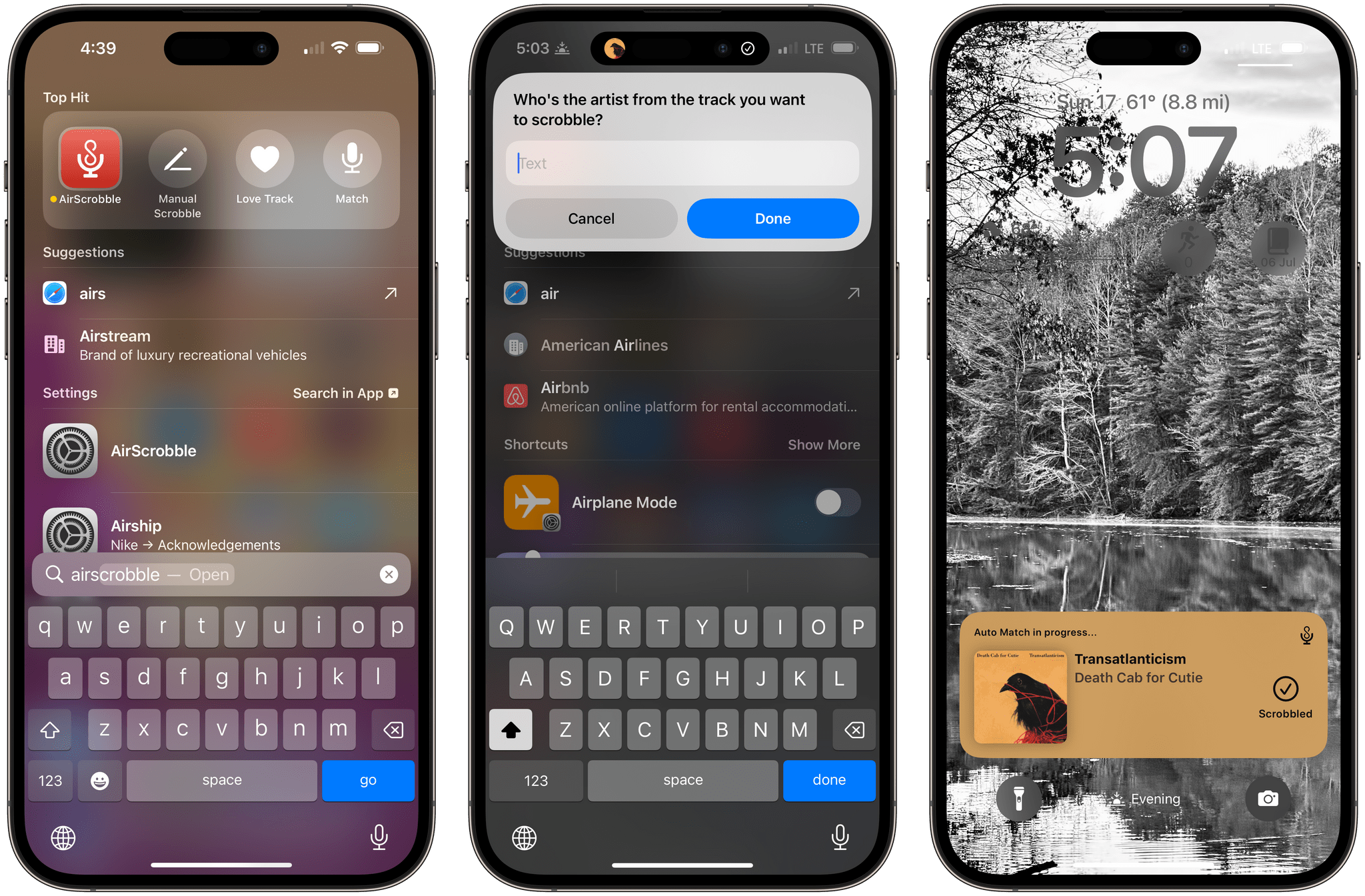
The app has added support for App Shortcuts, too. If you’re out at a restaurant and hear a song you don’t know and want to capture it, do a quick Spotlight search for ‘AirScrobble’ and pick the Match App Shortcut. There’s also a Manual Scrobble App Shortcut, which lets you search for the name of a song using the search field. Plus, there’s a Love Track App Shortcut for marking a track as one of your favorites.
I love this update to AirScrobble. It works in so many more situations now that headphones are supported, as well as other audio sources. The Live Activity makes it easy to scrobble while doing something else on your iPhone or iPad, too. If you’re a music lover and use Last.fm, check be sure to check out AirScrobble.
AirScrobble is available on the App Store as a free download. Some of the app’s features require a subscription.
Home Widget Unlocks HomeKit Device Control That Apple’s Home App Doesn’t Offer
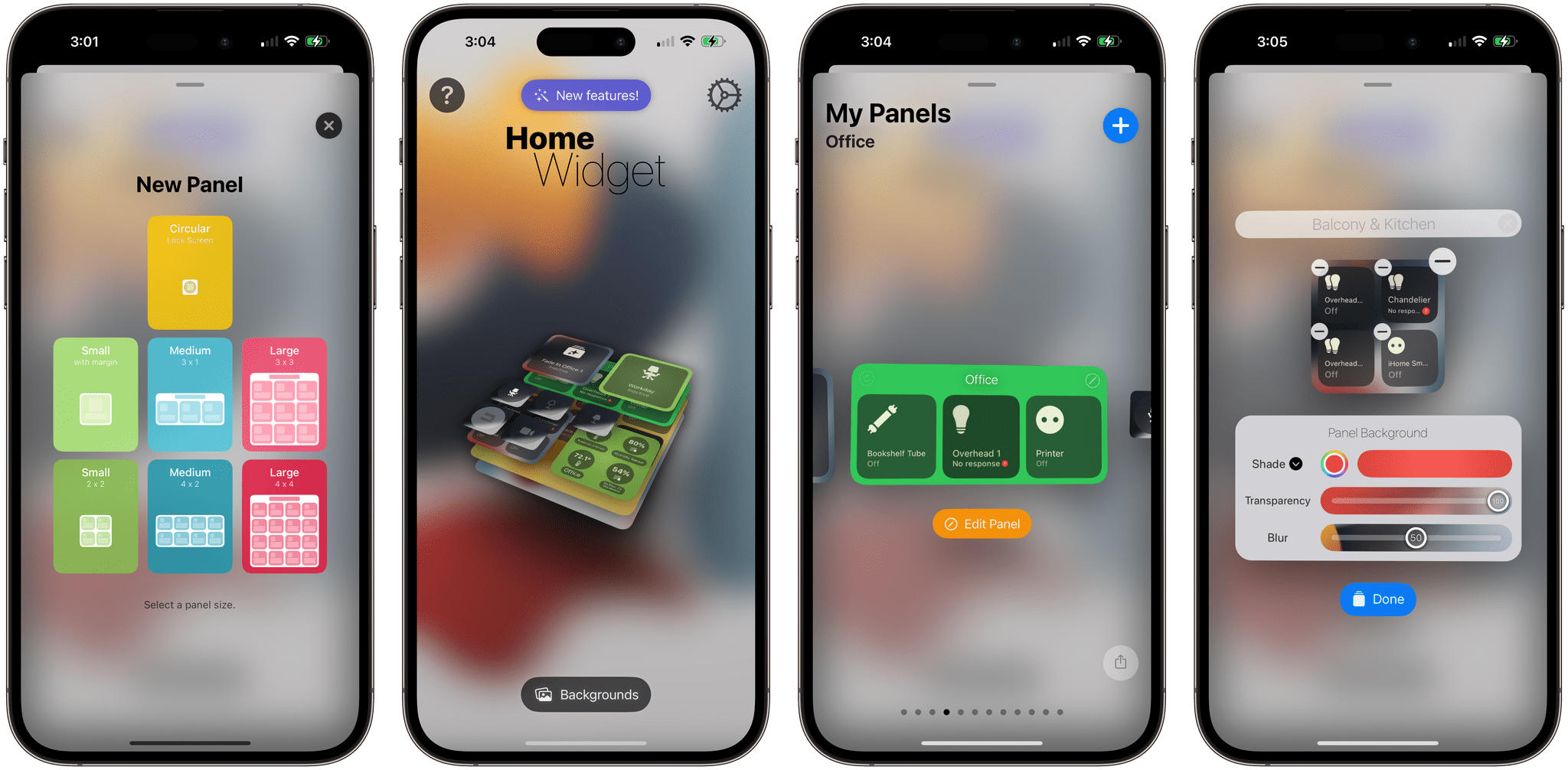
You might have wondered what would become of widget-focused apps like Home Widget when Apple announced at WWDC that a Home widget was coming to iOS 17, iPadOS 17, and macOS Sonoma. I did too. But, even though the Home widget works well, it’s limited, leaving room for developers like Clément Marty to take their widgets to an entirely different level.
If you’re a home automation nerd, you’ll quickly run into the Home widget’s limitations. For instance, it’s great for toggling lights on and off, but it can’t dim your lights or change their color. Home Widget goes beyond the binary choice of on or off across a spectrum of features, making it indispensable for home automation fans.
Let’s see what it can do.