

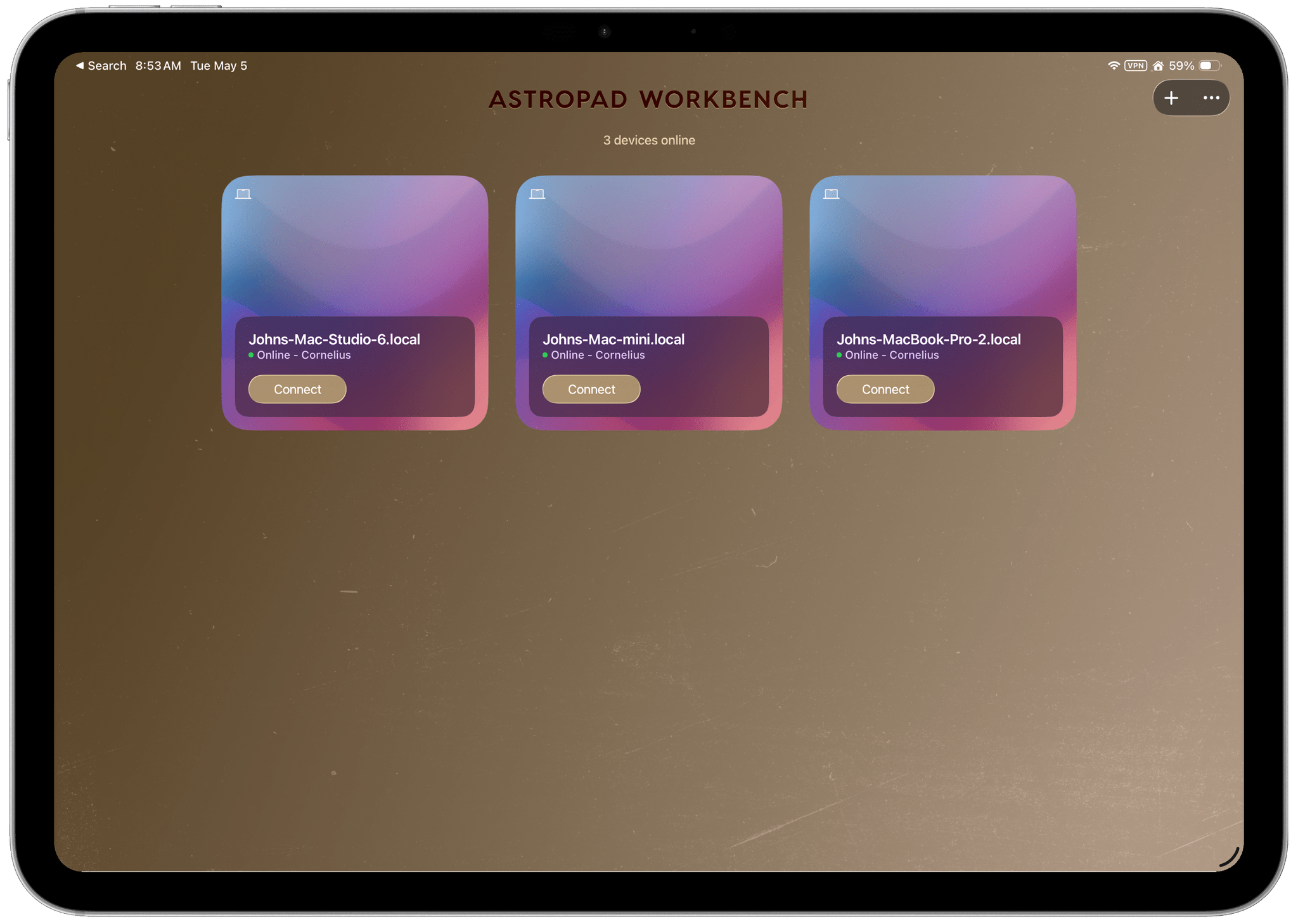
There are a lot of ways to connect remotely to a Mac, and I’ve tried most of them. Today, though, I want to focus on one in particular: Astropad Workbench, an app and service for remotely connecting to your Mac that includes unique features that make it a compelling choice on the iPhone and iPad, but less so when connecting from one Mac to another.
Astropad is the company you probably know from its Luna Display dongle that turns an iPad into a second display for your Mac or PC, Rock Paper Pencil, its iPad screen protector and Apple Pencil tip bundle, and other products. It’s no stranger to remote desktop streaming technology thanks to the Luna Display and the Astropad Studio app that lets you use an iPad as a drawing tablet for a Mac or PC, and it shows with Astropad Workbench. With the app installed and running on your Mac, connecting with an iPhone or iPad is fast and simple. Open the app, tap on a remote Mac’s tile, and with a chime that can be turned off in settings, you’re in.
Remotely controlling my Mac is something I’ve done for years to perform simple tasks when I’m away from my desk. Workbench handles those sorts of tasks well, too. What makes it different, though, is that it was designed with AI tasks in mind. If you’ve ever tried to manage and monitor a long-running task in the Terminal remotely, you know it can be frustrating. While that sort of thing isn’t unique to coding agents, it’s certainly a friction point more people are bumping up against given the rise in popularity of agents.
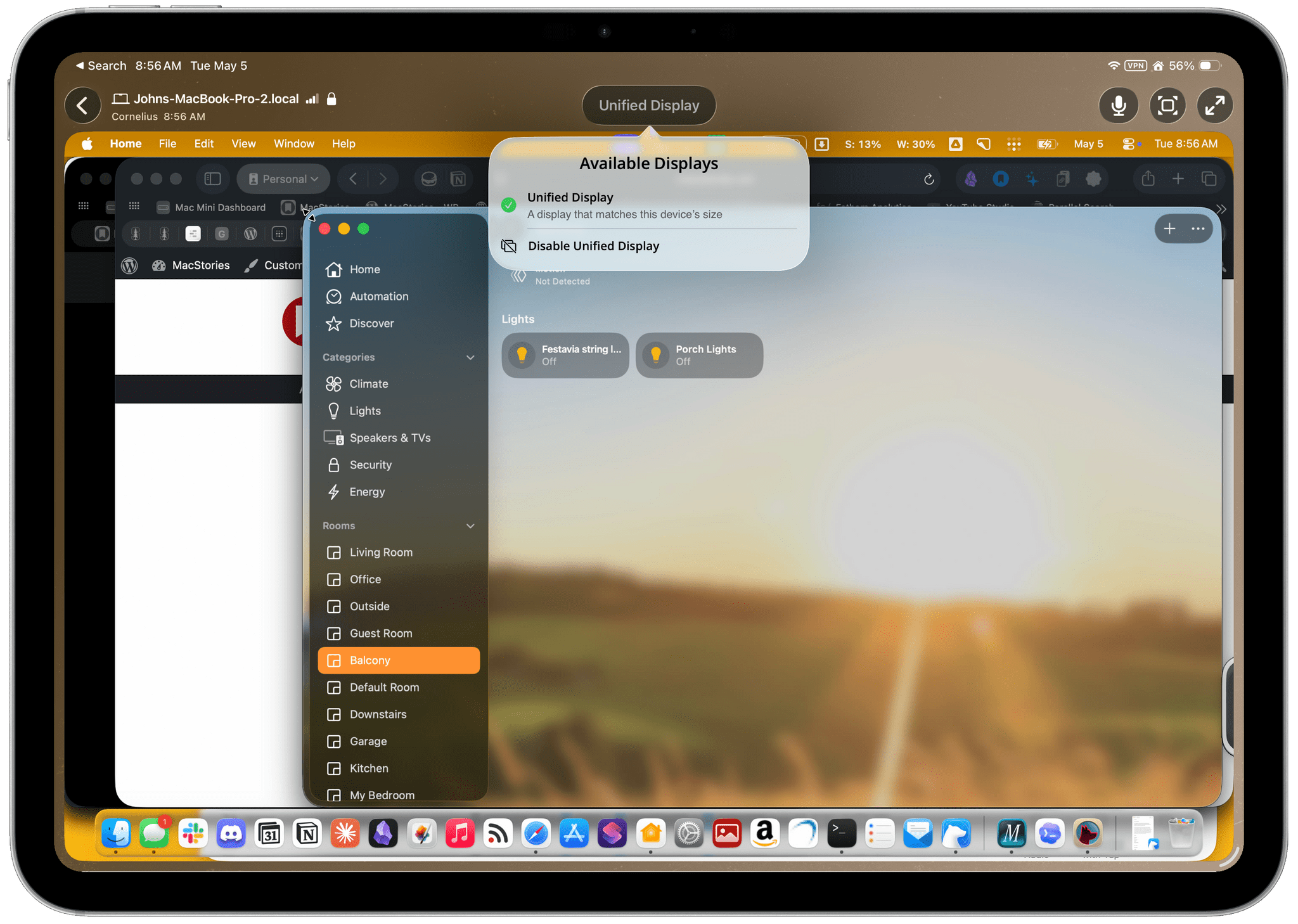
Workbench addresses this with a few twists that I like a lot. First, the app uses a unified display system that moves all windows, no matter how many displays are connected to your Mac, into a single, unified view on your iPhone or iPad at a resolution that matches your remote device. This helps solve the problem of things like teeny tiny Terminal text nicely.
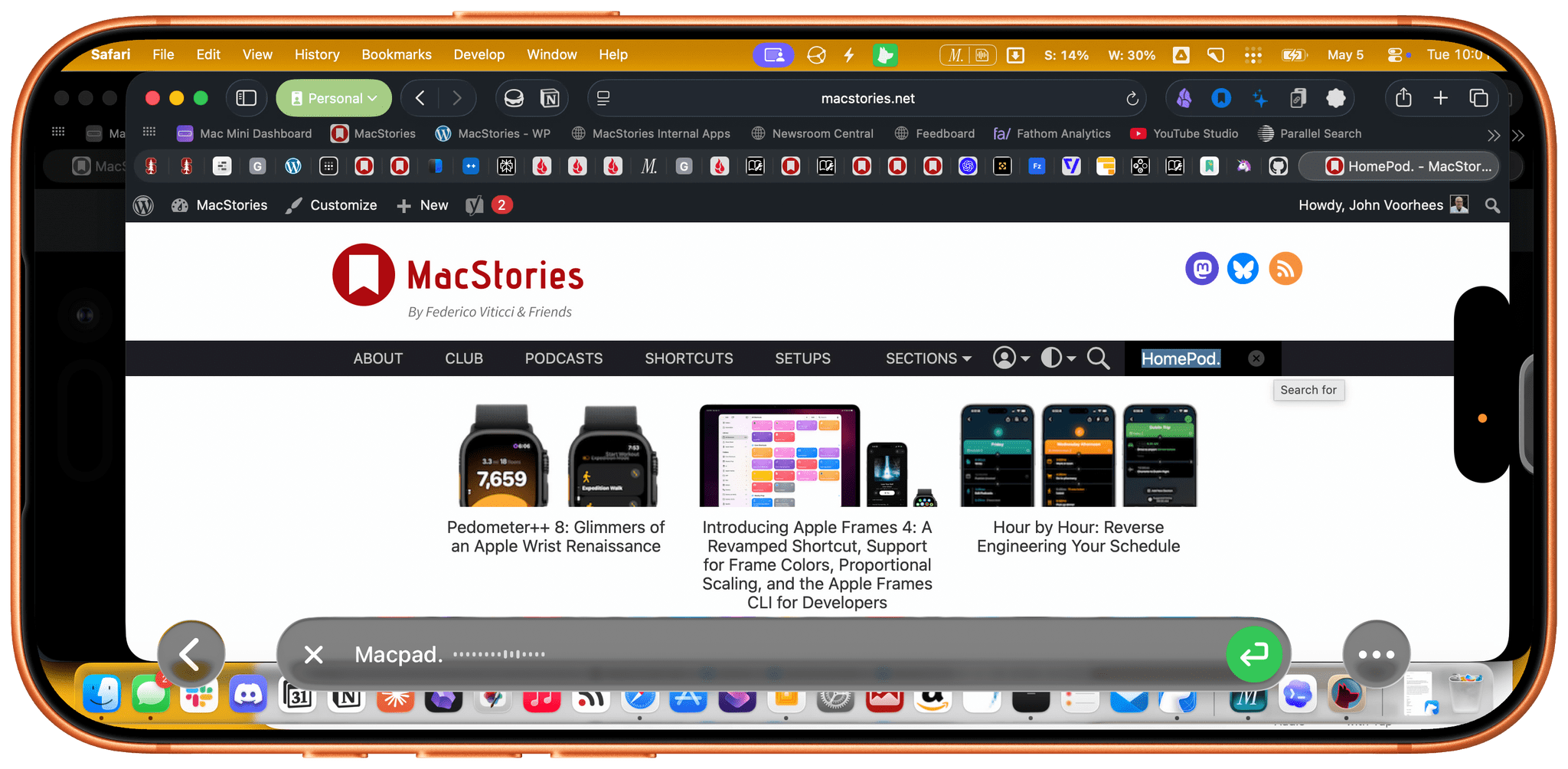
Second, the app supports dictation. Remote control apps can be frustrating to use on smaller screens like the iPhone and iPad where pulling up the onscreen keyboard hides most of the remote desktop. With dictation, you tap the microphone icon, dictate your text and hit Return. In my experience, it’s been accurate and effective in letting me control my remote Mac without hiding what I’m doing.
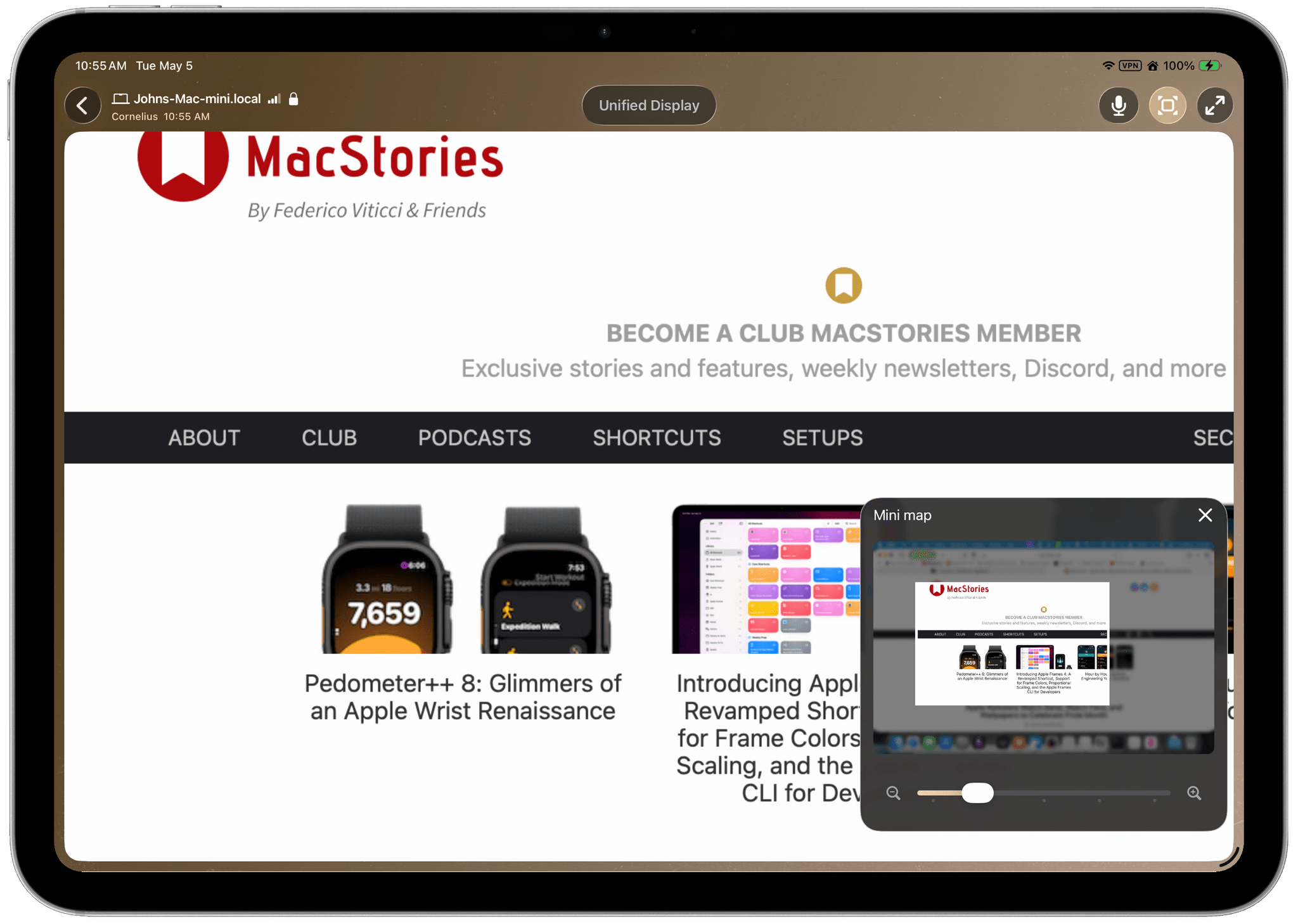
Third, Workbench includes a mini map. Toggle it on and it appears onscreen with a simple slider control for zooming in on your Mac’s screen for a more detailed look at part of the screen. The zoom level can also be adjusted with a pinch-to-zoom gesture and a single-finger drag moves the zoomed region around the screen. The iPad version of the app also supports the Apple Pencil for selecting text and tapping UI elements. Plus, you can use two-finger scrolling and click and drag for moving windows around on either an iPhone or iPad’s screen.
However, my excitement about Workbench comes with a caveat because I’ve run into bugs, primarily with my Mac Studio. I haven’t been able to pinpoint the problem, but the app occasionally fails to render the Mac’s screen on my remote device, or I lose the ability to type remotely. It doesn’t happen every time, but it’s frustrating when it does happen. The problem manifests itself most often in Mac-to-Mac remote connections, but it happens on other devices, too. It may be because my Mac Studio is the only Mac I’m using that isn’t either running headless or attached to an Apple display, but I can’t be sure.
Since the initial release of version 1.0 of Workbench, I’ve had fewer problems, but the issues haven’t gone away either, which is too bad. I’d like to use Workbench as my everyday remote desktop app, but I still feel like I need a Plan B in case it fails. This is less of an issue with Mac-to-Mac connections where I can fall back to Tahoe’s excellent built-in Screen Sharing utility. However, with no screen sharing option built into the iPad or iPhone, that means keeping a second app available, which isn’t ideal.
Still, Workbench is an app I plan to continue to use for remotely connecting from my iPhone and iPad. The dictation and mini map features are excellent and truly useful, so I don’t regret signing up for its annual $50 subscription. However, I will also be keeping a close eye on updates for more bug fixes.
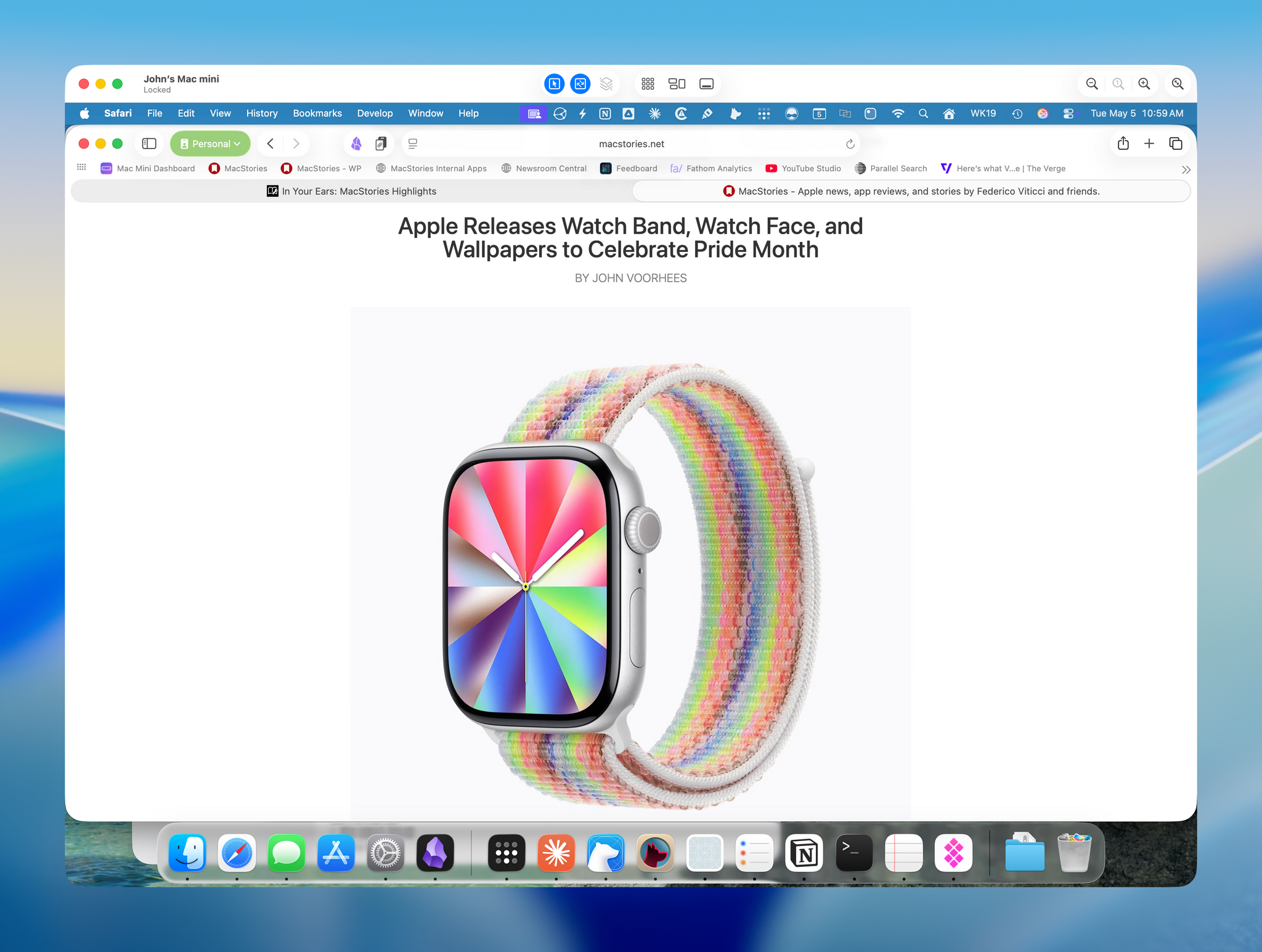
Also, regardless of any bugs, Workbench won’t replace my use of macOS’s Screen Sharing, which does a better job at maintaining a high resolution connection under good network conditions than any other remote desktop app I’ve tried. Screen Sharing also supports Finder-to-Finder file transfers, which Workbench doesn’t.
The bigger lesson I’ve learned from my remote desktop experiments is that Apple should bring the Mac’s Screen Sharing utility to the iPad and iPhone. Macs have already proven themselves to be a favorite among people using AI agents, as the Mac mini’s increasing popularity suggests. As a result, it’s time for Apple to revisit utilities like Screen Sharing for iOS and iPadOS. What once may have seemed like a power user feature that would barely get used on those devices is now an app many others and I would be excited to see announced at WWDC.
Astropad Workbench’s Mac component is available from its website and the iPad and iPhone apps are on the App Store as a free download. You can use the app for free for 20 minutes per day or unlock unlimited use for $10/month or $50/year.
