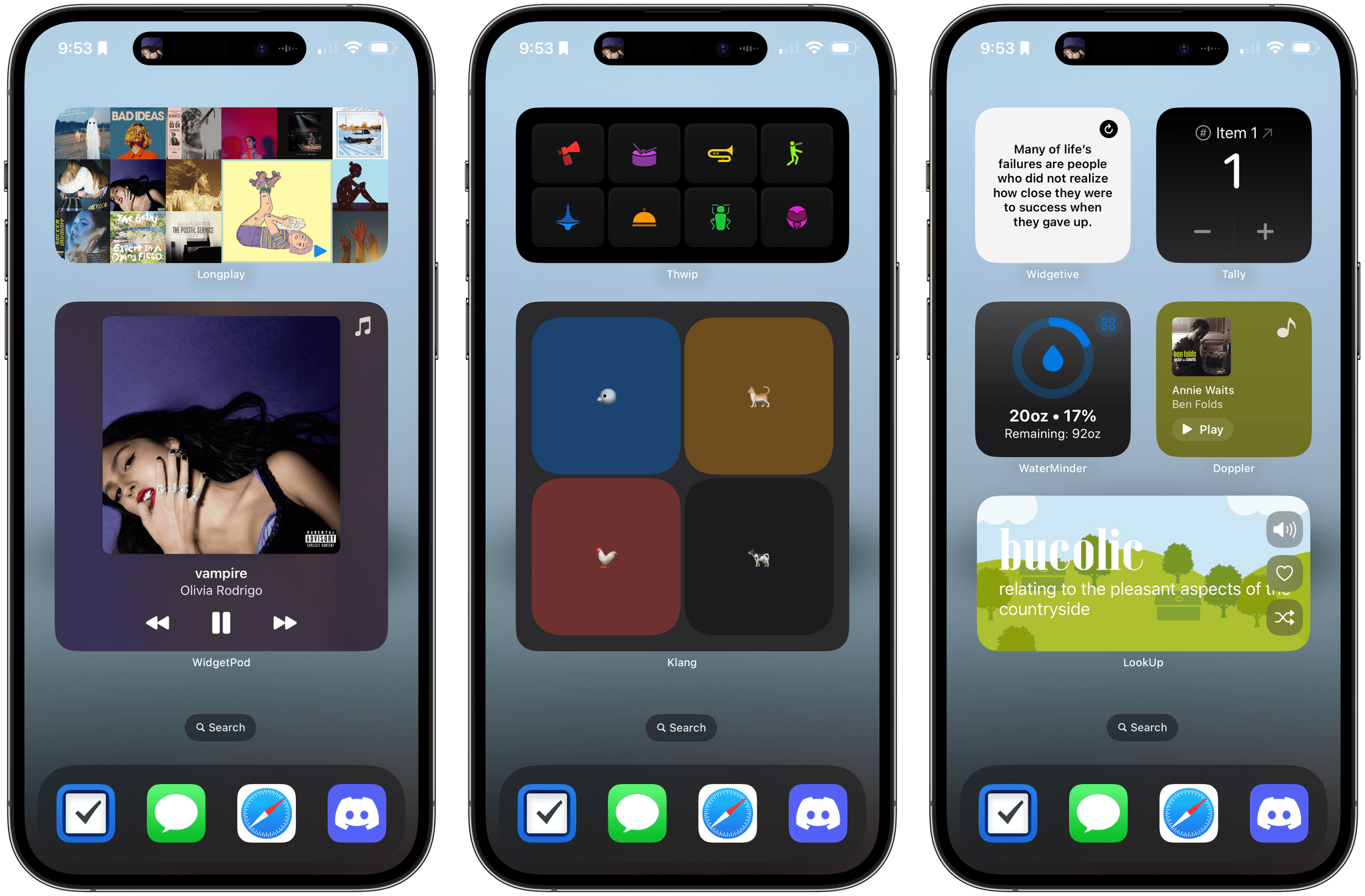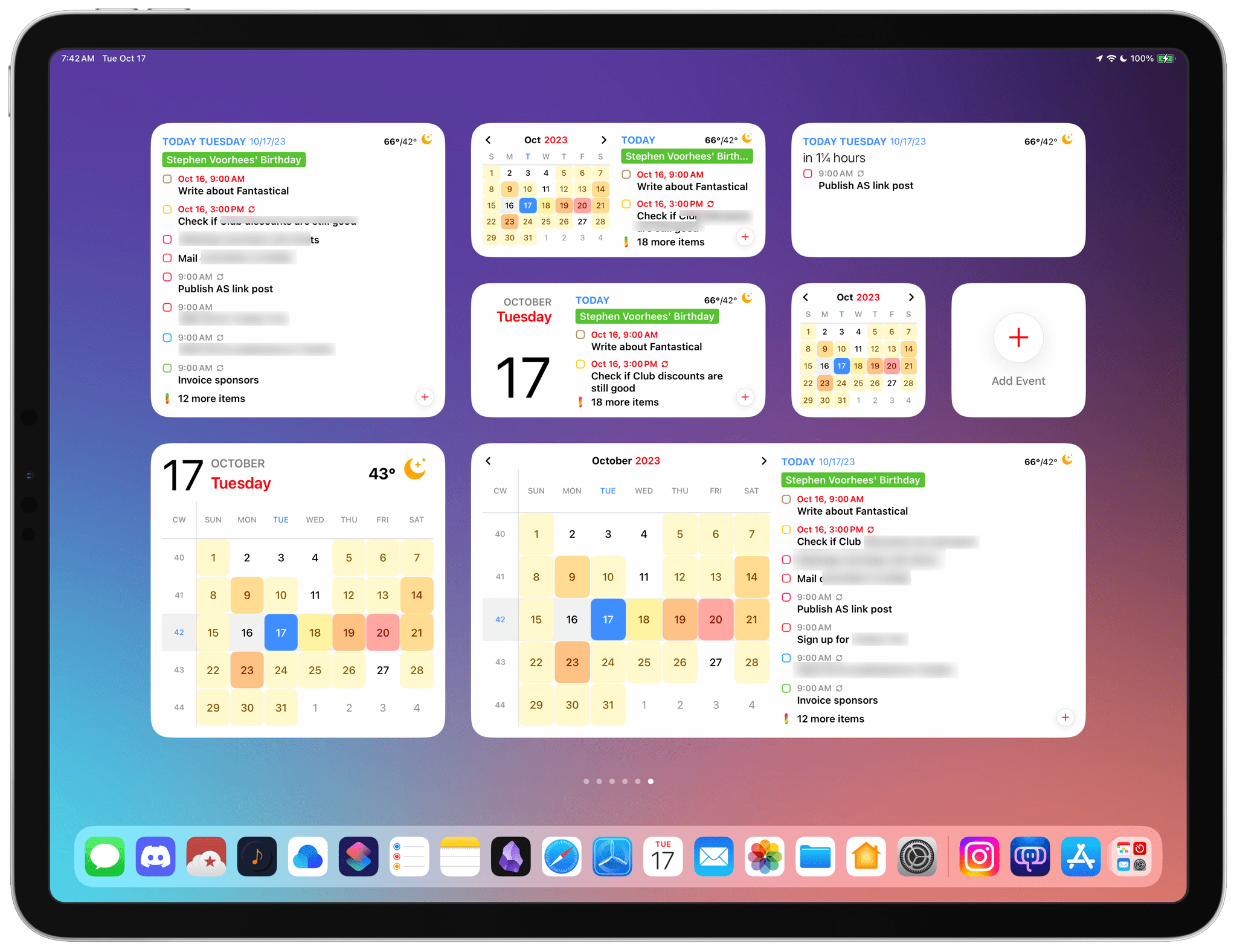
Posts tagged with "widgets"

Festivitas Brings Fresh Whimsy to Your Mac, iPhone, and iPad for the Holiday Season

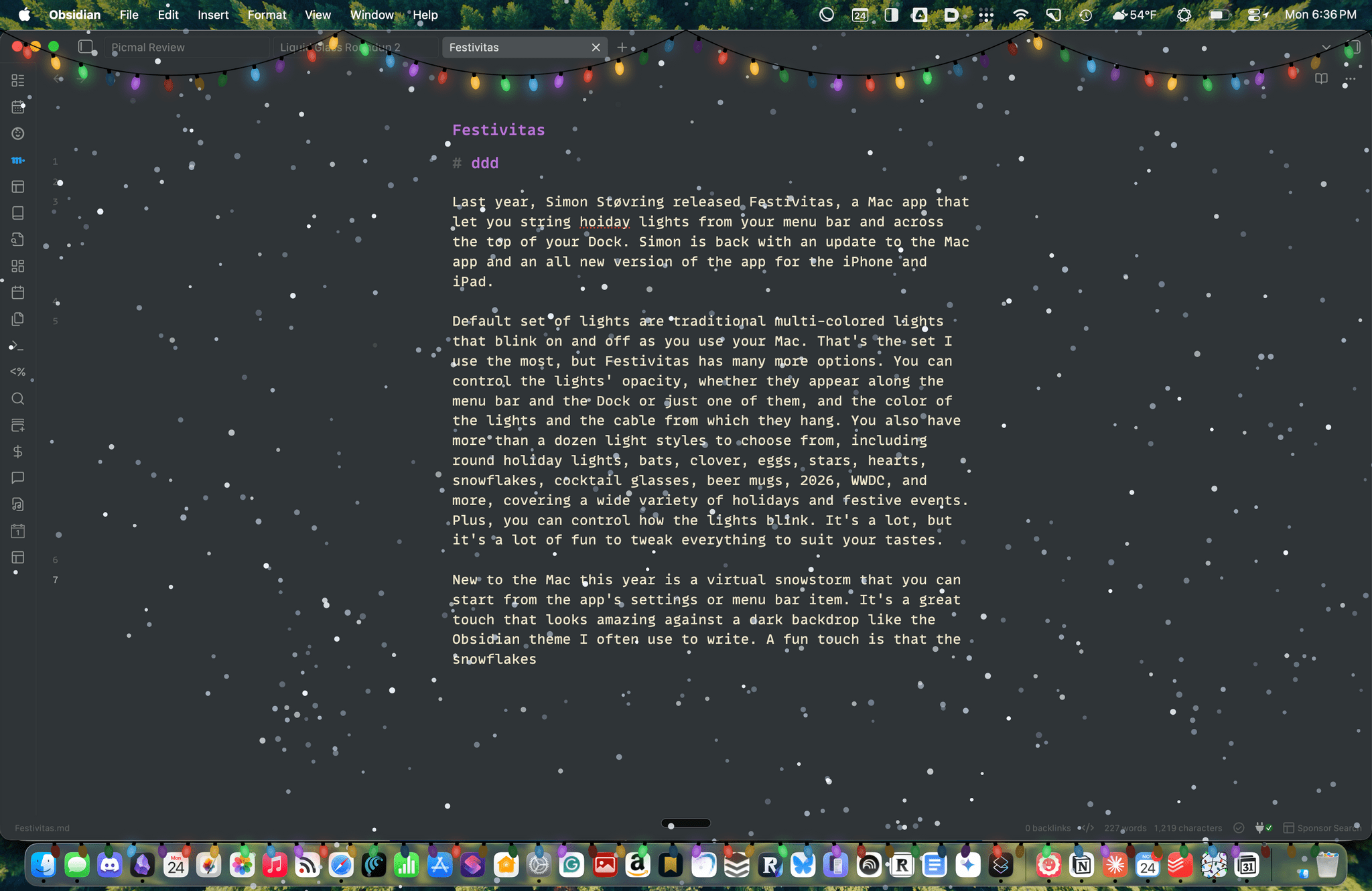
Last year, Simon Støvring released Festivitas, a Mac app that lets you string holiday lights from your menu bar and across the top of your Dock. This year, Simon is back with an update to the Mac app and a new version for the iPhone and iPad.

The default set of lights consists of traditional multi-colored bulbs that blink on and off as you use your Mac. That’s the set I use the most, but Festivitas offers many more options. You can control the lights’ opacity, whether they appear along both the menu bar and the Dock or just one of them, and the colors of the lights and the cable from which they hang. You also have more than a dozen light styles to choose from, including round holiday lights, bats, clovers, eggs, stars, hearts, snowflakes, cocktail glasses, beer mugs, “2026,” “WWDC,” and more, covering a wide variety of holidays and festive events. Plus, you can control how the lights blink. It’s a lot, but it’s also just plain fun to tweak everything to suit your tastes.

This year, the Mac app adds a virtual snowstorm that you can start from the app’s settings or menu bar item. It’s a great addition that looks amazing against a dark backdrop like the Obsidian theme I often use to write. A fun touch is that the snowflakes avoid your pointer, and you can adjust the sensitivity of this feature in settings. You can also use your pointer to push around the lights hanging from the menu bar, which is handy for those times when they obscure Safari’s menu bar or other content.

The snow is lovely. I highly recommend pairing it with the Animal Crossing Snowy Day soundtrack on Nintendo Music. It’s an incredibly peaceful and relaxing combination.

Festivitas supports Shortcuts, too. Simon has created some fun example automations that you’ll find in the app’s settings to do things like turning on the snowstorm when snow is forecast and activating your lights when you play music.

Festivitas on iPhone.

Festivitas on iPhone.

New this year is a Festivitas app for the iPhone and iPad. The app lets you build small, medium, and large widgets to place on your Home Screen. You can either frame a photo with twinkling lights or create a transparent-style widget so the lights frame an element of your Home Screen. I love that the lights framing the photos are animated, an effect I know isn’t easy to do with a widget. You can also add text and make other adjustments to each widget.


Festivitas isn’t going to help you get more done. In fact, it might even slow you down a little bit, and maybe that’s the point. Taking a moment to enjoy the app’s lights and be mesmerized by the falling snow is a good reminder to slow down a little and have some fun.

Festivitas for the Mac is available directly from the app’s website for any price you want to name between $3.99 and $9.99. The iPhone and iPad version is a free download on the App Store with a range of in-app purchases from $3.99 to $9.99 to create a similar name-your-price system.
CarPlay in iOS 26: The MacStories Review

When CarPlay Ultra was announced… checks notes… three years ago, it was a bold vision for the future of in-car displays. There was as much drooling over the new designs as there was skepticism over whether any car manufacturer would agree to such an extensive display overhaul.

Underneath all that, there were also some concerns about where this left regular, vanilla CarPlay. The kind that many people had fallen in love with, and which was often a prerequisite when buying a new car. Was this going away, or would it just be left to wither on the vine?

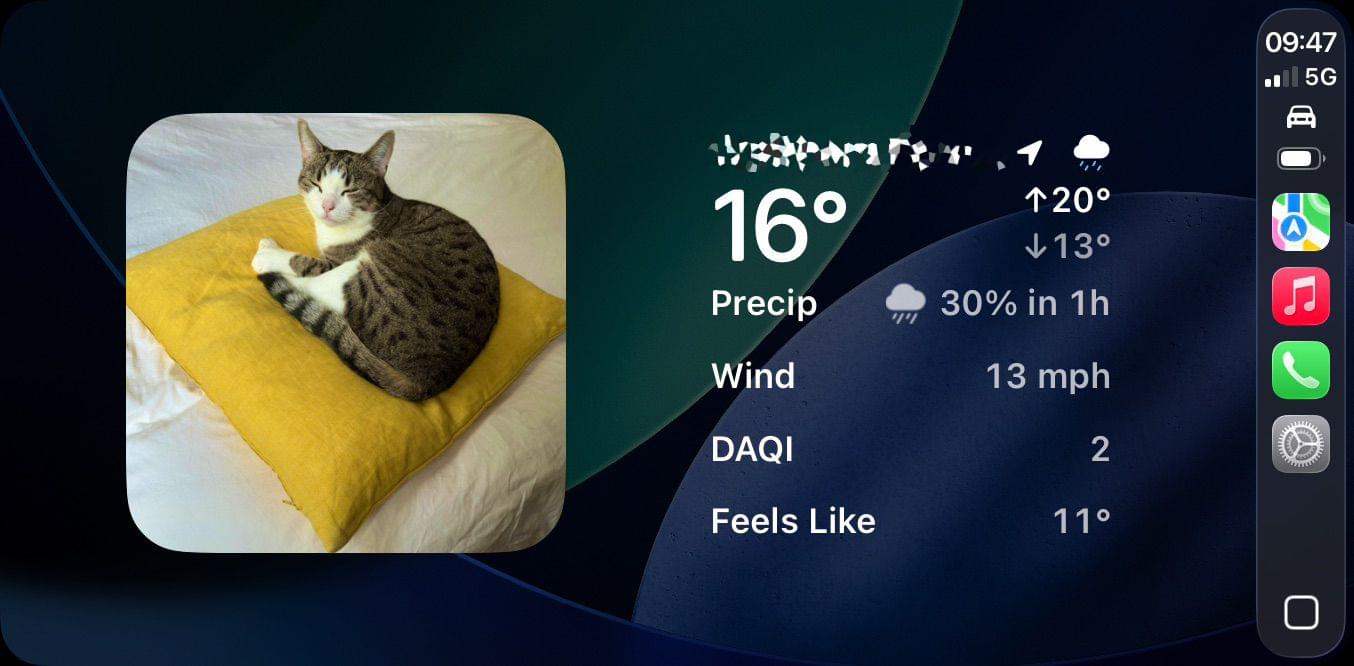
Thankfully, with iOS 26, the answer seems to be a firm “no” as Apple brings much more customization to our in-car displays, mainly by letting the much heralded features of CarPlay Ultra trickle down to regular CarPlay. There’s more than you’d think, so let’s take a look.

Read more


Mystery Solved: Why Third-Party Apps Vanished From the Mac’s Control Center

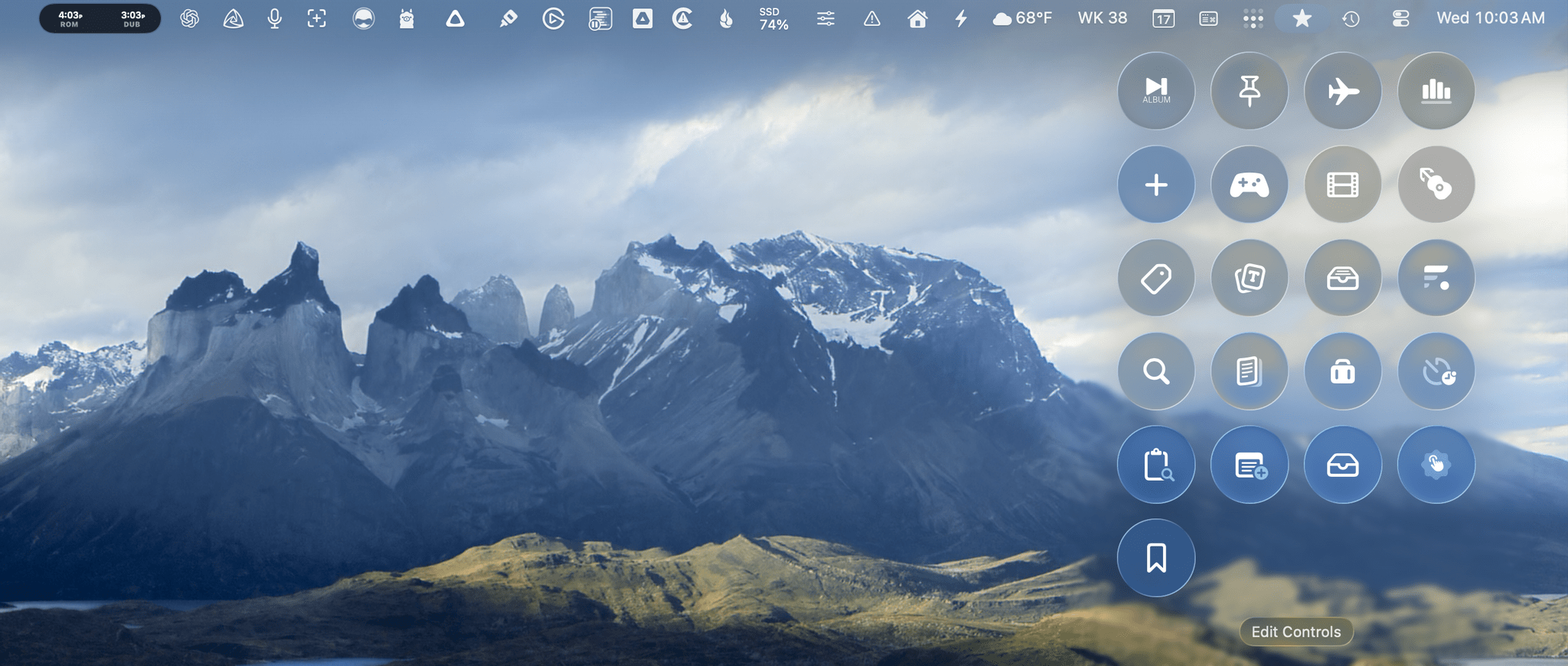
Just look at all those great third-party controls.

Just look at all those great third-party controls.

As I explained in my macOS Tahoe review, one of the biggest disappointments was how few third-party Control Center controls I had access to at launch. That was surprising to me given how many developers support Control Center on the iPhone and iPad.

So, I spent a lot of time investigating the issue without reaching a satisfactory answer until yesterday. The short story is it’s a bug, and there’s a workaround until it can be fixed by Apple, but here’s the rest of the back-story that didn’t make it into my macOS Tahoe review and how to sidestep it.

Read more


Looks Like Rain: Visualizing the Weather on a Color-Coded Timeline

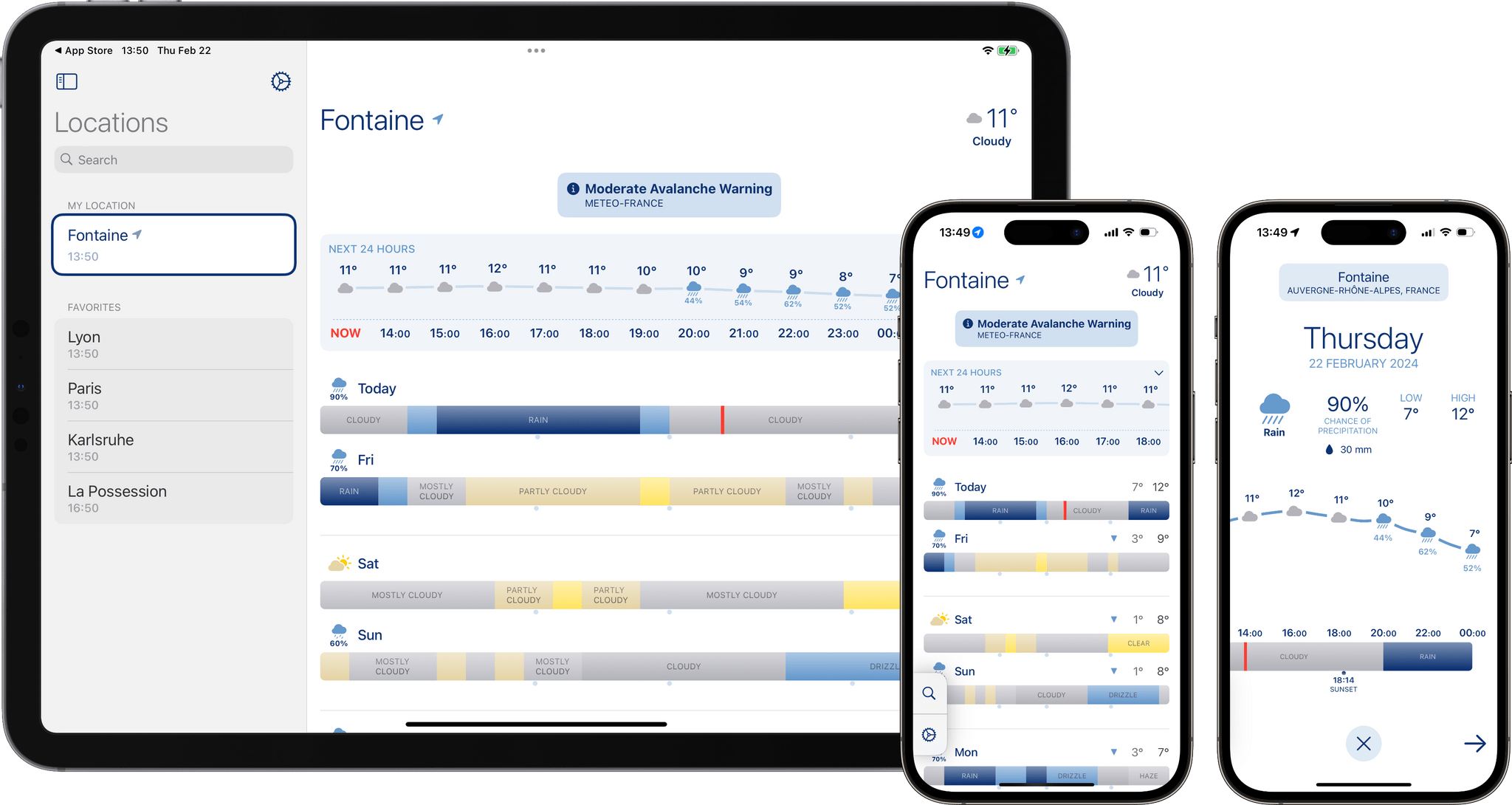
I’m always excited when a new weather app is released, especially when it’s a weather app that looks different from most of its counterparts. Looks Like Rain by Thinkbits is beautifully designed, and it certainly looks different, to say the least. The layout of the app is clean, the elements are well-spaced, and the color palette has clearly been composed with care. Most importantly, though, I’m absolutely loving its unique approach to visualizing the weather forecast on a color-coded timeline.

I’ve been using this brand-new weather app for the past few weeks on the iPhone, the iPad, and the Mac, and it has already earned a permanent place in the rotation of my favorite weather apps.

Let’s check it out.

Read more


TV Remote: Control Your TV From Your Lock Screen, Home Screen, and Live Activities

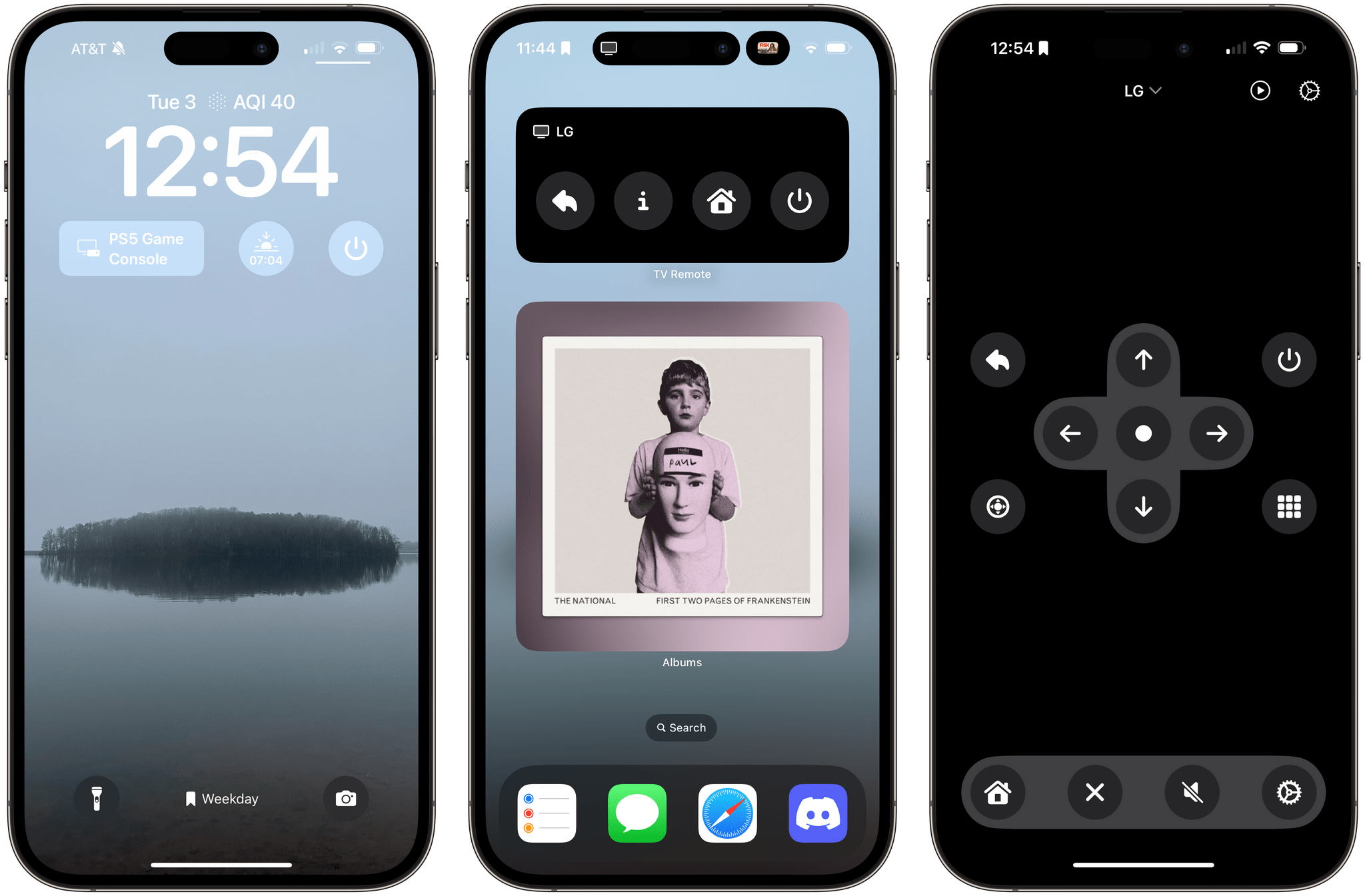
Developers have come up with endlessly clever uses for interactive widgets. I love testing them all, but one type is beginning to stick more than others. It’s the widgets for apps that require quick interactions when you’re in the middle of something else. Turning off the lights in my home office when I’m finished working for the day, toggling work timers as I switch from task to task, and then checking off those tasks as I complete them are all perfect interactions for widgets that require minimal switching away from whatever I’m doing. Hopefully, that means fewer distractions and, in turn, a more productive day.

But not everything is about peak efficiency and checklists. Sometimes, you just want to relax, which widgets can help with, too. One of my favorite apps to help with that, which recently added interactive widget support, is TV Remote by Adam Foot. Foot’s app is one I already used with my LG C2 TV, but it’s the app’s new widgets that have graduated it to a regular part of my TV routine.

Read more


Hue Widgets’ Interactive Widgets Are the Easiest Way to Control Complex Hue Lighting Scenes

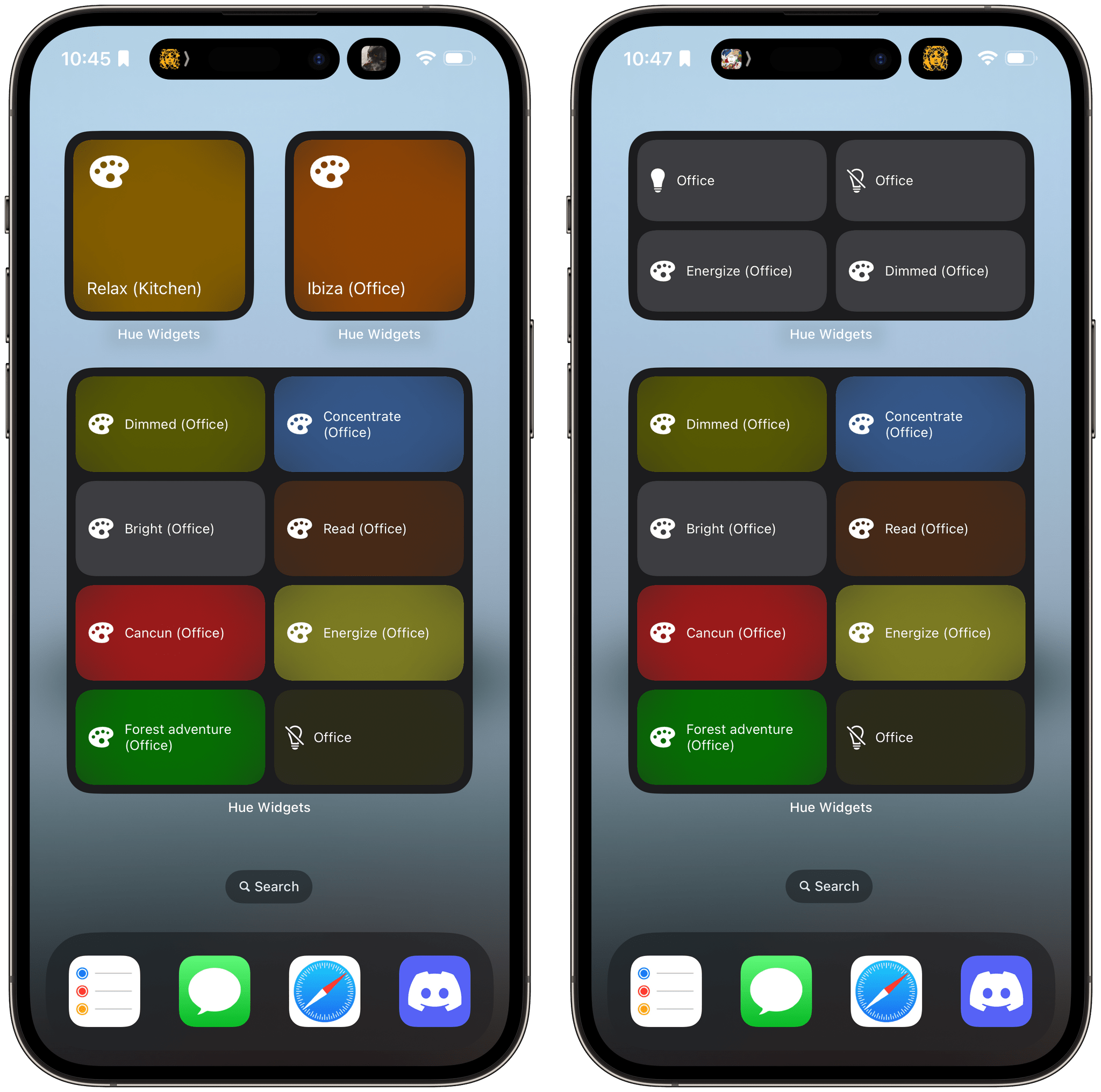
I’ve never been a big fan of the Philips Hue app. It has improved over time, and I appreciate its fine-grained control over my lights and its Shortcuts support, but the app has always felt a little clunky. That’s why I was happy when I discovered Hue Widgets over a year ago now. It’s a simple widget creation tool that lets you activate your Hue lights and scenes from your iPhone’s Home Screen, which is a much easier and nicer experience than using the Hue app. Better yet, with iOS 17, the app’s widgets are interactive, so lights and scenes can be triggered without ever opening the app.

Many Hue lights support features you can’t control from Apple’s Home app. For instance, many Hue lights can create animated and multi-color gradient lighting scenes that aren’t supported by HomeKit. These extended features can be accessed in the official Hue app, but it doesn’t have widgets, which is a faster and easier way to control your lighting and where Hue Widgets comes in.

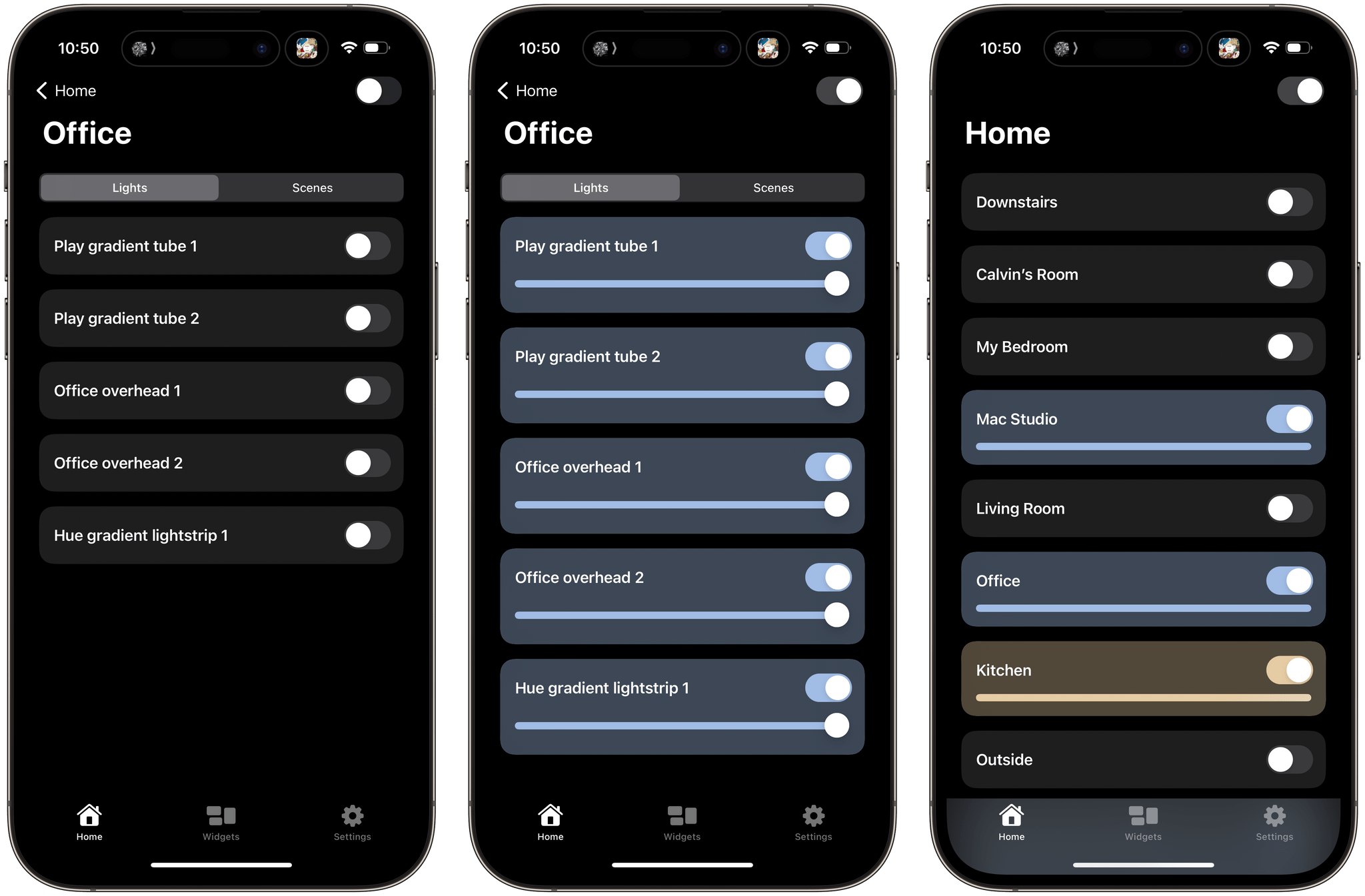
Controlling lights and scenes from Home Widgets.

Controlling lights and scenes from Home Widgets.

The Hue Widgets app has two main tabs: a list of the rooms in your home, and an interface for creating widgets. The Home tab allows you to turn on an entire room or zone’s lights or control them individually, turning lights and scenes on and off and adjusting brightness levels, light temperatures, and colors. The official Hue app works similarly, but Hue Widgets’ interface is simpler and faster.

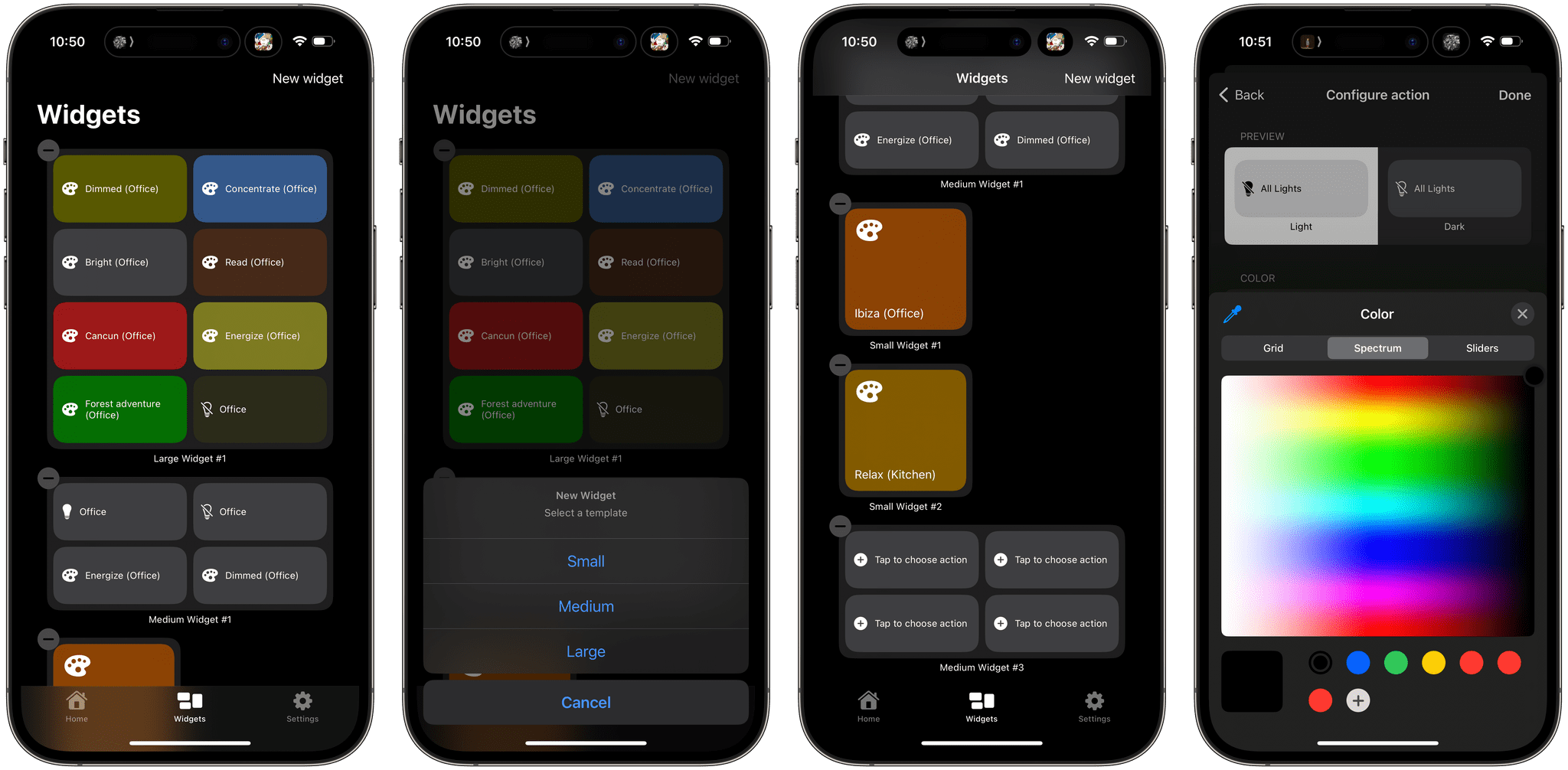
Building a widget.

Building a widget.

However, I’ve spent most of my time in the Widgets tab. Here, you can set up small, medium, or large widgets to control your Hue lights. The small version of the widget controls one light or scene, while the medium and large sizes control four and eight, respectively. After you pick the widget size you want, it appears in the Widget tab’s main interface. Then, tapping on each widget’s tiles walks you through picking a room and light or scene to control. Hue Widgets also lets you assign a color for each tile in your widget. It’s a quick and simple process but requires you to set up your lights and scenes in the Hue app first because Hue Widgets acts as a controller for the Hue app, not a replacement. When you’re satisfied with the widgets you’ve designed, return to your iPhone’s Home Screen to add one of the widgets you built, choosing the size you created in the app.

One thing I wish I could change in Hue Widgets is how it names widgets. Each is named automatically along the lines of ‘Small Widget #1’ and ‘Small Widget #2.’ If you create a lot of widgets, this isn’t ideal because it makes it hard to remember which widget is which. I’d prefer to assign more memorable names myself. I’d also love to see Hue Widgets on the iPad, where it could offer an extra-large widget.

Hue Widgets pairs nicely with Home Widget, which [I recently reviewed](https://www.macstories.net/reviews/home-widget-unlocks-homekit-device-control-that-apples-home-app-doesnt-offer/).

Hue Widgets pairs nicely with Home Widget, which I recently reviewed.

I was a fan of Hue Widgets before iOS 17, but having tried the interactive versions of its widgets, I can already tell I will be using them a lot more than before. Paired with the recent addition of Matter support for Hue hubs, which seems to have improved the responsiveness of my lighting, Hue Widgets has become a core part of my growing home automation setup.

Hue Widgets is available on the App Store for $1.99.


macOS Sonoma: The MacStories Review

In one sense, the story of this year’s macOS update is that there is no story, but that’s not exactly right. Instead, it’s a bunch of stories. It’s the tail end of the realignment of macOS with Apple’s other OSes that began with macOS Catalina in 2019. However, Sonoma is also part of a work-at-home story accelerated by COVID-19. The OS is also linked to the story of visionOS, only part of which has been revealed. Sonoma is a bundle of narrative threads built on the foundation of past releases, adding up to a collection of updates that will be less disruptive for most Mac users than recent macOS updates. Instead, Sonoma is packed with a variety of useful new features that help draw it closer to iPadOS and iOS than ever before, design enhancements, and a few disappointing omissions.

The timing for a more modest macOS update is right. In recent years, Mac users have had to adjust to substantial redesigns of everything from their favorite system apps to the Finder’s windows and toolbars. The changes were inescapable and necessary to harmonize the Mac with Apple’s other products, but also disruptive for some long-time users.

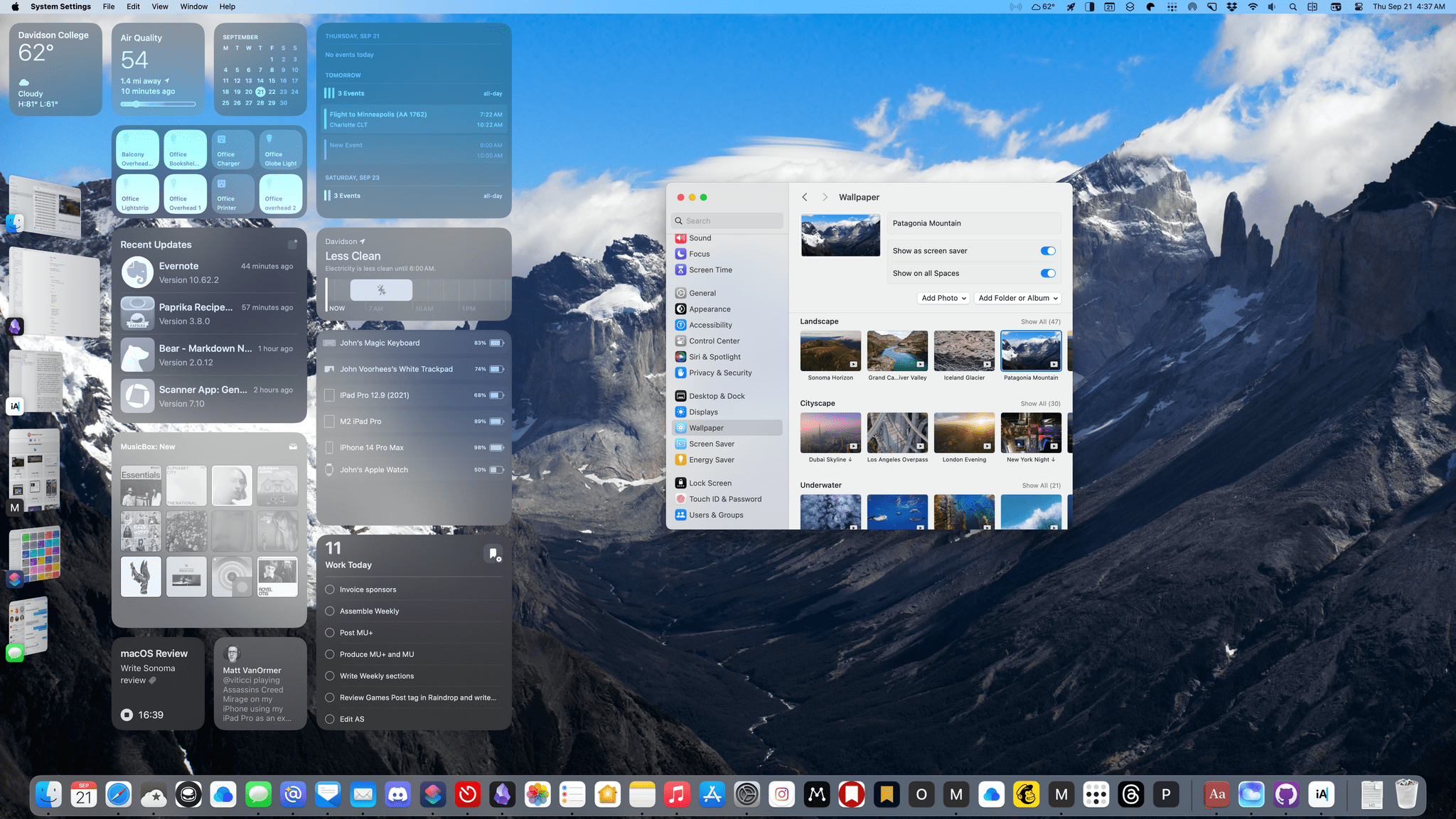
Sonoma adds a vast collection of new wallpaper and screensaver options.

Sonoma adds a vast collection of new wallpaper and screensaver options.

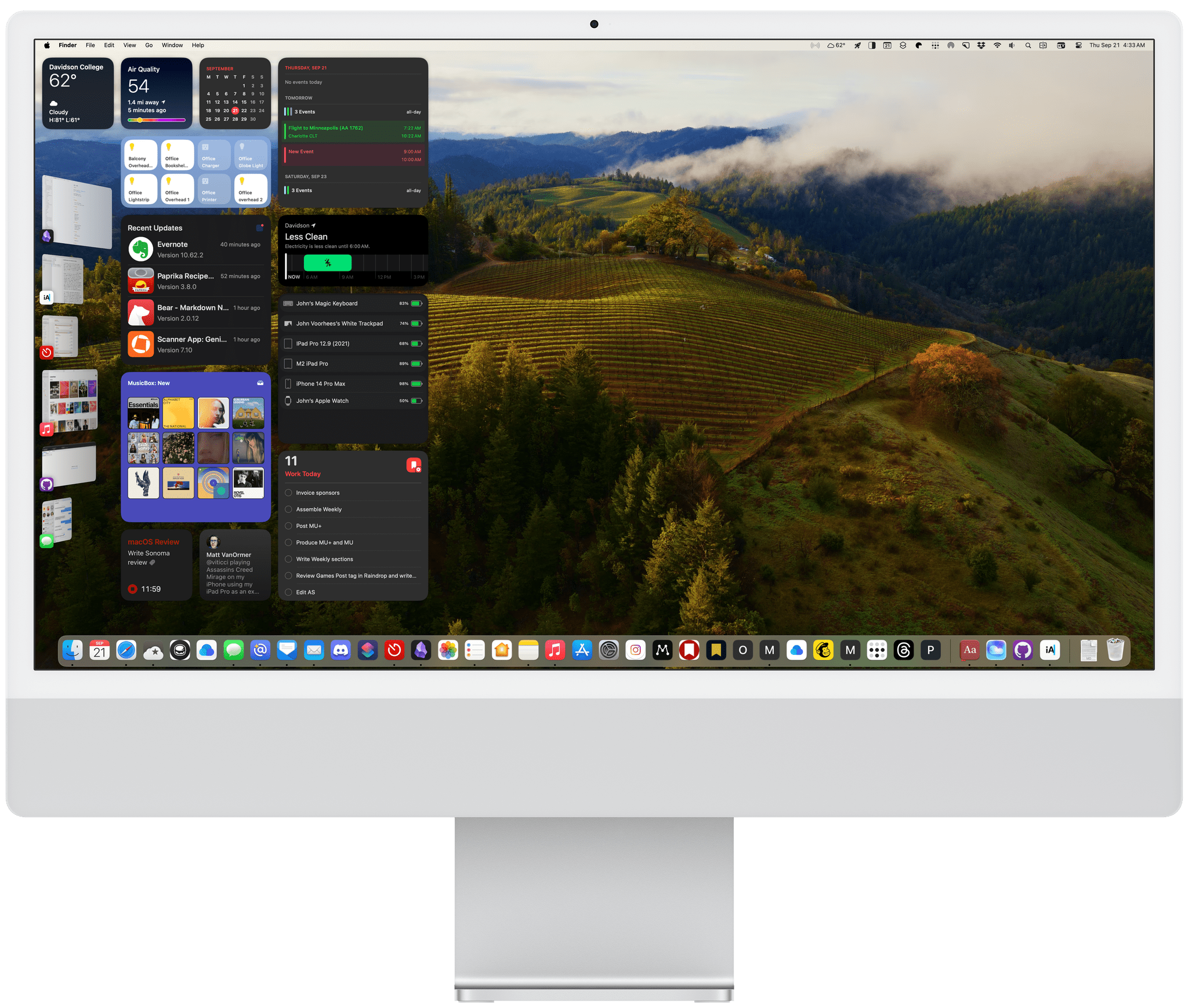
With macOS Sonoma, the biggest design shifts seem to be behind us – at least for the time being. Interactive widgets on the desktop are a big change this year, but it’s not like macOS dumps a bunch of them on your desktop by default. If you never want to see a widget anywhere near your desktop, you don’t have to. Other than the subtle way the login screen has changed and the new screensavers and wallpapers that are available, the core macOS experience has barely changed.

Instead, this year’s update is primarily about refining and building upon the foundation of the past few years, coupled with a handful of more significant updates to system apps. So, while the marquee features and design changes may be less notable than in recent years, there is still a long list of new and refreshed items that touch nearly every aspect of the OS, so let’s dive in.

Read more