This Week's Sponsor:

BetterTouchTool

Now with a Powerful Launcher for Your Mac


Posts tagged with "photos"

Instadesk: The First Instagram Client for Mac

Thanks to Instagram’s huge success and the release of an API that allows third-party developers to plug into the service to fetch images, user information and much more, in the past weeks we’ve seen the quick rise of dedicated Instagram clients for iOS that don’t focus on shooting and uploading new images (the API doesn’t allow that, yet) but instead turn Instagram’s social aspect into a central part of the experience. Apps like Instagallery for iPad or the popular Flipboard make great use of Instagram’s API and third-party tools by letting you browse popular photos and read comments directly from the tablet’s larger screen; they also let you like and comment on pictures, see your own photos and profile or follow other people. Photo taking capabilities aside, these apps are proving that there’s a whole world of social interactions and media behind “a simple iPhone app” that deserves to be studied and implemented through native software for iPhones and iPad. Not to mention other clever experiments with the Instagram API we have covered on MacStories, such as printed photos and web apps.

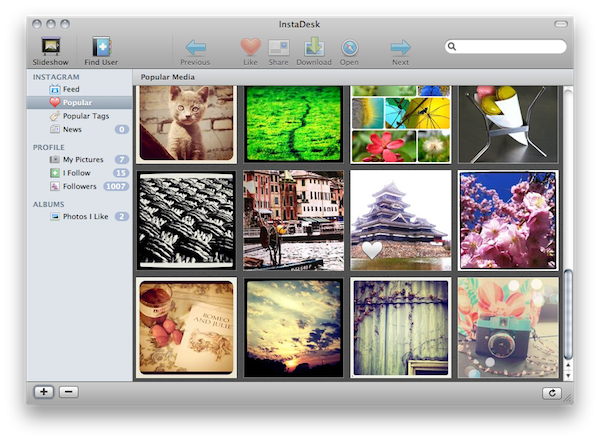
But what about the Mac? When you follow a link to an Instagram picture from, say, your Twitter client of choice, the photo will open into the web browser. Instagram’s website lets you see the photo at higher resolution and check out the author’s details, but there’s no “social backend” to browse photos and people just yet. Instadesk, a new app available in the Mac App Store, wants to bring Instagram’s full experience to the desktop. The app has a clean and nice design with thumbnail previews and beautiful icons in the top toolbar; it enables you to create local “albums” to save photos for later; it lets you share photos from you or others through a variety of social networks supported by Instagram.

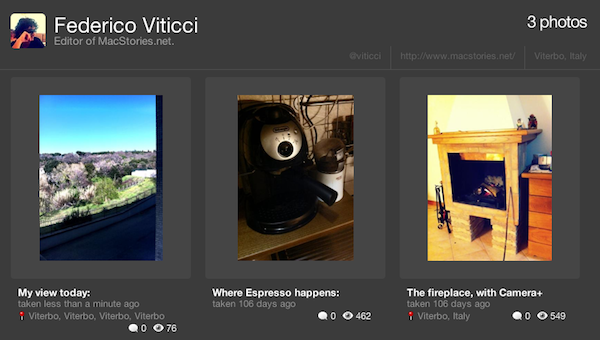
Instadesk is a full-featured Instagram client built specifically for the Mac. Once you’ve authorized the app with your credentials and granted permission to access your account through the API, Instadesk will place a link to your profile in the sidebar, right below links to the feed, most popular photos and tags, and status updates. In the profile tab you can check out all your photos, people you follow and your followers. As you click on a thumbnail in Instadesk, the photo is automatically brought in the foreground with a slick animation and a new screen that shows the author on the right (with buttons to follow / unfollow) as well as comments and likes,  and a box to leave a new comment yourself. You can like a photo or open it in the web browser, download it locally on your computer or hit the Share button to share the instagr.am link with your Facebook friends, Twitter followers and email contacts.

The popular section offers a selection of the most viewed photos and tags, whilst the Feed displays items posted by you and the people you follow. Instadesk also comes with a slideshow functionality and a “find user” option to manually search for a person on Instagram.

Instadesk provides a nice way to browse Instagram from your Mac. At $1.99 in the Mac App Store, it’s not a bad deal if you’re a loyal (and addicted) Instagram user. More screenshots below. Read more

Camera+ 2.2 Released: Adds “Clarity” Photo Enhancement Feature

MacStories-favorite alternative image processing / photo taking app Camera+ by tap tap tap was updated a few minutes ago to version 2.2 – and this update, among a series of fixes that improve the stability and performance of the app, introduces a big new photo enhancement feature called “Clarity”.

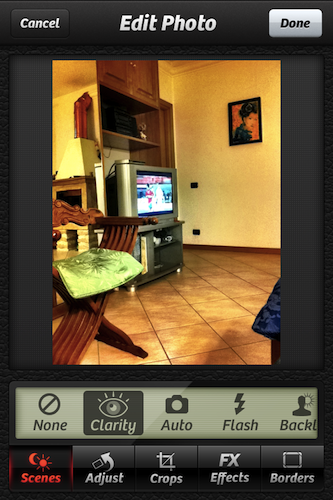
Clarity is a big step forward from the HDR technique implemented by Apple in the default Camera application for iOS: it’s a 1-tap image enhancement that will make your photos look better in most scenarios (direct sunlight, low-light) and it doesn’t have the issues that usually come with multi-exposure HDR such alignement problems. Once you take your photos in Camera+ and jump to the lightbox (which, by the way, feels faster and more responsive in 2.2), all you need to do is edit, tap “scenes” then Clarity to improve your photo’s quality. Clarity will make more details come out, balance light and dark spots when necessary and, overall, give your photo a more “realistic” feel by re-adding the details and colors that might go missing with a standard digital shot. If you’re a Camera+ owner, just try it and you’ll see.

Version 2.2 also gives a whole new meaning the “+” in the apps’ icon as, finally, there’s a new way to activate focus and exposure controls in the camera view: the two-finger gesture is still there, but you can now tap on the “+” button to split between focus and exposure controls. It’s really handy and I like it.

Camera+ 2.2 is a great update, and the app is still available at $0.99 in the App Store. Camera+ is a powerful, yet intuitive, alternative to Camera.app, and it looks like tap tap tap are really serious about adding features that outperform Apple’s own implementation in reliability and speed. Recommended.

Some examples of Clarity compared to Apple’s HDR below. Read more


Curious iPad 2 Camera Bug Generates Color-crazy Photos & Videos

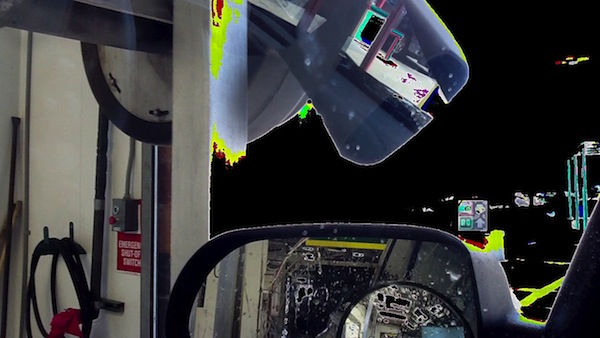
A few days ago we reported the FaceTime app on the iPad 2 might have some issues with the cameras “freezing” on the last displayed video call until a user restarts the device. I experienced this problem personally and it’s very annoying, as it forces you to close everything and reboot. Yet the issues with iPad 2 cameras reported by Cult Of Mac (and other users in my Twitter timeline last week, too) certainly are more interesting. Mainly because the screenshots taken to demonstrate the issue are completely crazy.

I compiled some still images from a recording that I made while inside a car wash. I had my iPad 2 in my bag, and I figured that, since I’ve yet to record a video on it, I could just record my trip through the car wash. During the two and a half minutes that I was in there, I noticed that the colors were “glitching-out.” It’s happened three times now.

Apparently the issue hasn’t been fixed in iOS 4.3.1, and it’s unclear whether it’s a software-related problem, a more serious hardware flaw. When I saw the first Twitpics of these crazy iPad 2 shots last week I thought it was an isolated issue happening to a couple of users, now Cult Of Mac says they received dozens of similar reports. I, for one, can say the issue with FaceTime and the cameras freezing is most definitely real, although I can’t confirm on the “color glitching” problem reported above. If you’re experiencing problems with your iPad 2’s cameras, drop a comment below or, even better, open a thread on Apple Discussions.


iPad 2 Lines Around The World [Pics]

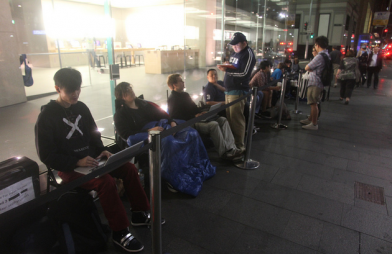
(iPad 2 line in Sydney via BeauGiles)

The iPad 2 is coming out tomorrow in 25 countries. As announced by Apple earlier this week, the device will be available in the following countries at 5 PM local time: Australia, Austria, Belgium, Canada, Czech Republic, Denmark, Finland, France, Germany, Greece, Hungary, Iceland, Ireland, Italy, Luxembourg, Mexico, Netherlands, New Zealand, Norway, Poland, Portugal, Spain, Sweden, Switzerland and the UK. The launch was delayed in Japan as Apple is focusing on recovering from the earthquake and tsunami that hit the country two weeks ago, and helping out employees and their families.

In the 25 countries scheduled for launch tomorrow, the iPad 2 will be available in Apple retail stores and authorized resellers. With the Apple Stores opening at 5 PM (same as the US launch on March 11), it’s no surprise that some people have decided to spend the whole day in line waiting for the doors to open – but some Apple fans have really broken any record this time. Take the Sydney Apple as an example: as reported by Fortune, Alex Lee and Marius Eilertsen started waiting in front of the store on Wednesday, 53 hours before the iPad 2 launch. Crazy. They are, of course, no. 1 and 2 in line, but they had to bring chairs and blankets (and water, I guess) for their adventure. The line has grown bigger, and it’s not extending down George Street with dozens of customers waiting. Read more


Flickr Improves Slideshows for iPad

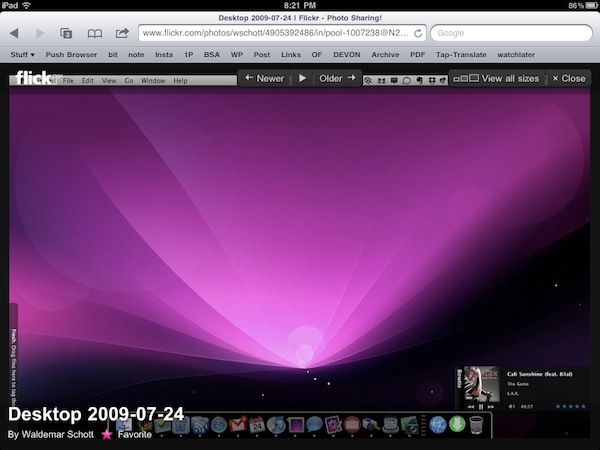
With a note on the official company blog posted earlier today, photo sharing Flickr has announced improved compatibility of slideshows for the iPad’s Mobile Safari browser. By taking advantage of the device’s touch interface, you can now tap on a photo to view at a larger size in the lightbox, and browse through photos with a single swipe. The lightbox displays photos on a clean, dark background and you also have options to mark an item as favorite or quickly go back to the standard photostream.

Flickr also offers a native app for the iPhone, available for free in the App Store, which was recently updated with Retina Display support and sharing to Twitter through the flic.kr shortener. [via Daring Fireball]


iPad 2 Gets “Real” Photo Booth with IncrediBooth Update

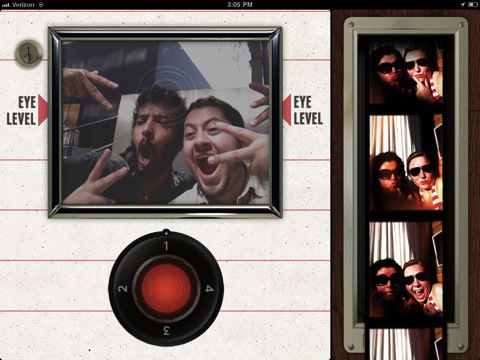
Apple’s Photo Booth software that comes pre-installed in the iPad 2 is great and offers lots of fun, but if you’ve been looking for an actual photo booth app with the vintage look of photo strips to virtually print with your friends and loved ones (who hasn’t done that at least once), then you should consider re-downloading IncrediBooth for iOS, which has been updated to natively support the iPad 2.

I was one of those that bought IncrediBooth last year but never really used it because the iPhone’s screen was too small to have fun with my friends in front of the camera. But on the iPad? Should be much better. As usual, you can take photos with 4 different effects, share to Facebook or email, save to the camera roll. In this update, a new photo setting has been introduced: Betsy X.

Combined with Apple’s Photo Booth, IncrediBooth is one of those apps that will grant you hours of fun and picture taking. Go get it in the App Store at $0.99.


Pano for iPhone Adds Tap-to-Focus

Pano, the popular application to take panoramic shots with your iPhone, has been updated to include support for tap-to-focus and exposure points. Even though the developers of Pano are promising a huge update is coming soon (perhaps with iPad 2 support and a revamped user interface?), this new version is worth mentioning as it adds a functionality requested by several Pano users in the past. As you take your pano shots, you can tap on screen to set the squares for exposure and focus. It works like in Camera+ or the default Camera app, and it’s a great addition to Pano.

Many users still prefer Pano to most recent alternatives like Occipital’s 360 to take panoramic photographs with their iPhones. While Occipital’s app lets you create your pano shot by just waving the iPhone around, Pano works by snapping a series of pictures and then blending them together in the processing section.

Pano is available at $1.99 in the App Store.


Labelbox Prettifies Your Photos, For Free

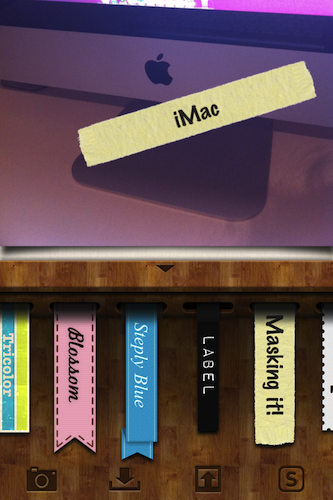
Labelbox, a free iPhone app by Stepcase, has been quickly climbing up the App Store charts lately thanks to a neat functionality that enables you to apply colored tapes to your photos to make them prettier, and share them online with your friends.

Labelbox is free, but doesn’t have any sort of ads and comes with a polished interface to edit your photos. Once you’ve loaded a photo from the camera roll, or shot a new one directly within the app, you’ll be able to swipe on it to apply a “tape” that can also contains a written description with a custom font. So, say you want to add some style to your photos or a few words to better describe the subject, Labelbox has got you covered. You can choose from a variety of colored tapes (some are really cute), and even mix them to create a “frame” to place around your photo. To remove a tape you simply have to tap & hold, but you can shake your iPhone to clear the whole screen.

You can share your photo creations to Twitter, Facebook and tumblr through the Step.ly network. The best results are achieved when you combine the filters offered by an app like Instagram with the colored tapes of Labelbox.

The app is a free download in the App Store.


AirTuner Turns iPhones and iPads Into AirPlay Receivers

Speaking of AirPlay apps, here’s a $0.99 one that Apple’s isn’t featuring in its custom section, but should: AirTuner turns any iOS device into an AirPlay receiver that can display videos and photos coming from another device or iTunes.

Entirely hardware-accelerated and based on the same interface design Apple uses for AirPlay, AirTuner is universal for iPhones and iPads and in my tests worked perfectly with the Youtube and Photos apps, iTunes, Safari and other third-party applications thanks to the improved AirPlay support in iOS 4.3. For what it’s worth, the app’s icon is also nice on your homescreen.

With the iPad 2 featuring two cameras, it makes more sense now to be able to instantly stream photos and videos from one iOS device to another. Imagine checking out some photos on your iPad 2, and also have the possibility to beam them to your friend’s iPad. AirTuner is a $0.99 download here.