This Week's Sponsor:

Finalist

A paper-inspired daily planner with notes for iPhone, iPad, Mac, and now Apple Watch. A day you design your way.


Posts tagged with "markdown"

MarkdownNote Brings Live Markdown Previews to OS X

Folks who enjoy writing in Markdown have already installed Brett Terpstra’s fantastic Marked for Mac, a nifty utility to generate HTML previews from Markdown documents written in any OS X application. You can read our review of version 1.2 here. Those who prefer a more cohesive writing environment with plain text/Markdown and HTML output living in the same application, however, might want to take a look at MarkdownNote, a new entry in the Markdown editing space that’s got some interesting features.

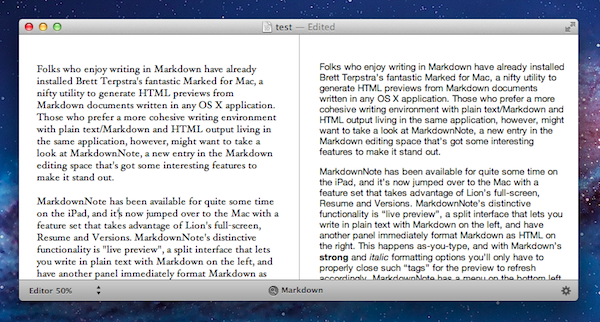
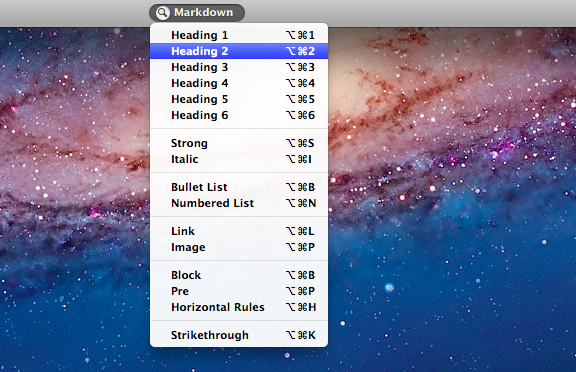
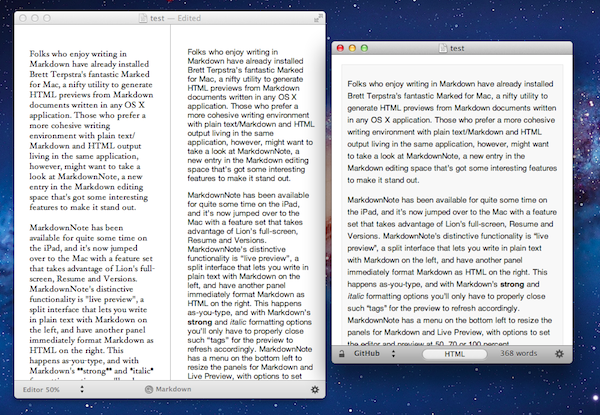
MarkdownNote has been available for quite some time on the iPad, and it’s now jumped over to the Mac with a feature set that takes advantage of Lion’s full-screen, Resume and Versions. MarkdownNote’s distinctive functionality is “live preview”, a split interface that lets you write in plain text with Markdown on the left, and have another panel immediately format Markdown as HTML on the right. This happens as-you-type, and with Markdown’s strong and italic formatting options you’ll only have to properly close such “tags” for the preview to refresh accordingly. MarkdownNote has a menu on the bottom left to resize the panels for Markdown and Live Preview, with options to set the editor and preview at 50, 70 or 100 percent.

MarkdownNote can save .txt files (everyone loves plain text, right?) , it lets you pick your own font and it’s got some further options to play with in the Preferences. When you’re done writing, you can copy the HTML and paste it somewhere else as usual. I’ve found MarkdownNote to be extremely useful in full-screen mode, as the split interface makes for a great alternative to having large borders around your text – with this app, you don’t waste space and you’ve got a live-updating preview at the same time.
MarkdownNote and Marked

Best of all, MarkdownNote works great with Brett’s Marked, although you may wonder why would anyone use Marked when MarkdownNote has got a live preview. I think MarkdownNote is great at letting you write and quickly keep an eye on the correct visual output, but I still prefer Marked for editing – after I’ve written a long piece, I fire up Marked, choose my favorite style, see how many words I’ve typed, and I go through my Markdown. I love this combination of writing tools.

At $3.99 on the Mac App Store, MarkdownNote gives you an easy way to write in Markdown and instantly see how the words you typed will look like, and use keyboard shortcuts to facilitate the process of Markdown writing itself. MarkdownNote works really well in combination with Lion’s full-screen mode and Marked – if you’re a Markdown nerd, you should give this a try.
Marked 1.2: Rewritten from the Ground Up

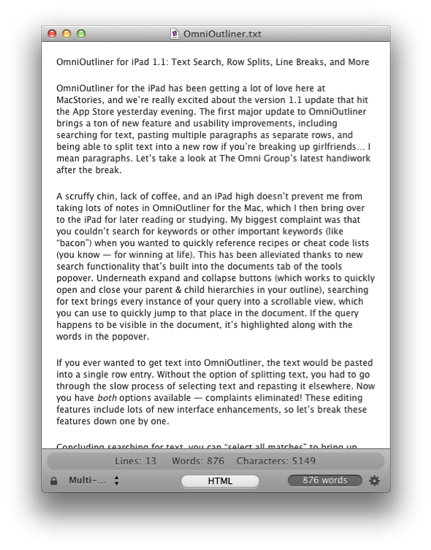
This one goes out to all the Markdown nerds out there (I’m one of them). Marked 1.2 is out, and it’s packed with tons of new features. The interface should be pretty familiar, although you have to like the new persistant word count that you can toggle on and off. CSS styles have been changed up a bit (if you’re not using your own — I used Horizon which is similar to the multi-column style), but asides from the tweaks on the surface of Marked, we have some usability improvements that should make everyone really happy.

Directly interact with the preview and source code using standard highlighting and copy shortcuts to grab text and quickly paste it in the application or web service of your choice. Bundled inside is a new MultiMarkdown 3 binary that’s efficient and better handles big files (for those writing another “Hitchhikers Guide to Markdown” manual), along with web document presentation and compatibility for everything from HTML and ERB (that’s Ruby shenanigans for those wondering). Hit command+E to edit text in your favorite editor, or find where you put down the Master Sword with command+R to bring the file into view from the Finder. Not geeky enough? Marked does a better job of knowing where you are in the document, and will even follow along if you’ve reached the bottom of the page. You can limit text width in the preview, supress link highlighting if you’re going to print (yes, printers till exist), and opening new preview windows can be opened to float on the desktop.

That’s just scratching the surface of what’s available in Marked if you write in Markdown — I use it on a daily basis here at MacStories, and I’m sure you fellow Geekstorians will find it just as useful. Check out the changelog to Marked (it is MASSIVE), read Brett Terpstra’s update, and check it out on the Mac App Store (it’s only $2.99).


nvALT 2.1 Update Adds Auto-pairing, Simplenote Tag Sync, and More

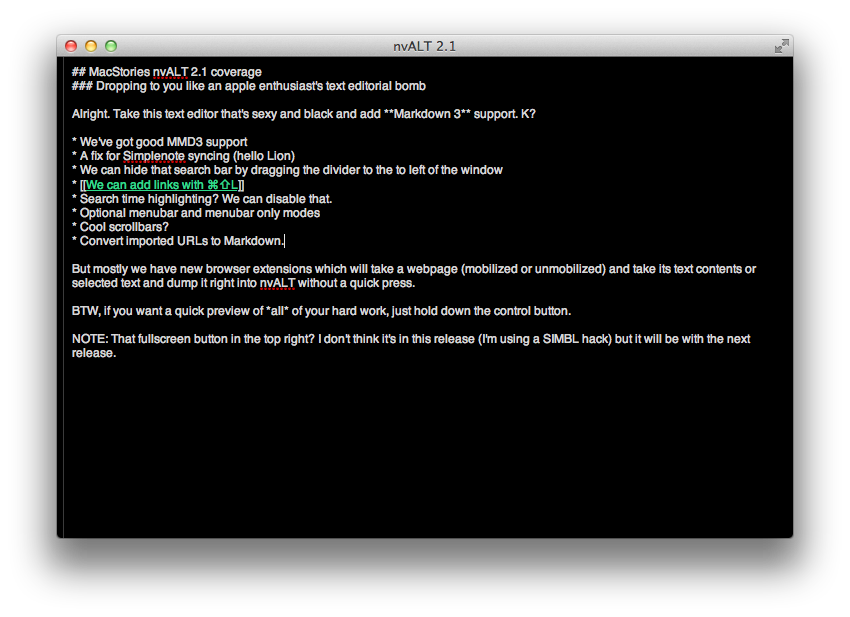
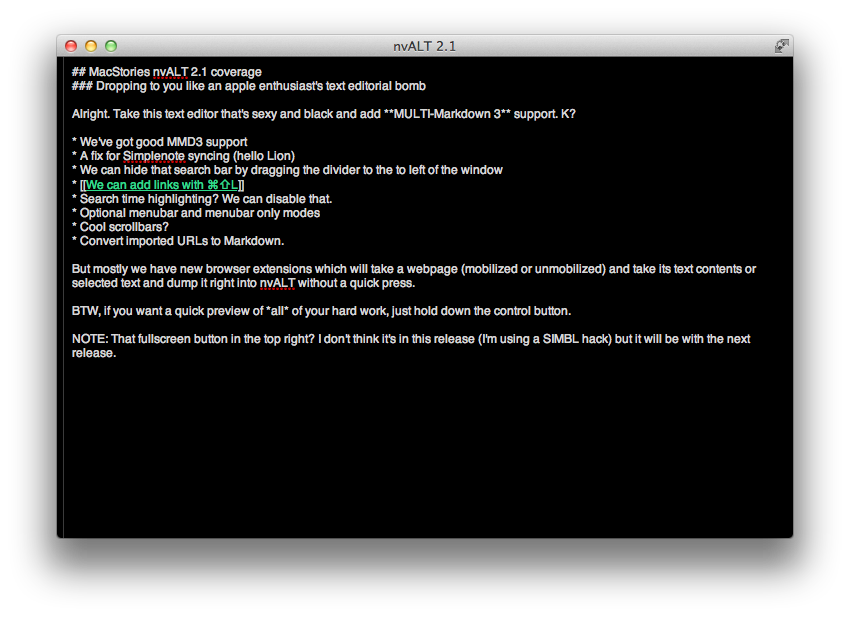
A lot of hard work has gone into the latest release of nvALT, including better Multi-markdown 3 support (MMD3 has to be installed locally of course), a shortcut (⇧⌘L) for inserting links, Simplenote tag sync (which the author notes may choke on large note collections), the ability to pin the preview window when moving across apps (^⌘P then click the pin at the bottom of the window), and Textmate-like auto-pairing that will complete brackets for you as you type. (Pretty nice eh?)

Also available are browser extensions for Safari and Chrome that can get webpages and text into nvALT. The extensions allow you to interact with webpages and links to dumps its textual contents or selection into the text editor — nvALT can run text through Instapaper’s mobilizer to clean up the results as text splashes into view. Personally I’m not so big about dumping webpages into nvALT, but the extensions are available to download from elastic threads.

In nvALT’s future, Terpstra promises better Lion support for fullscreen mode (shown in my screenshot but I’m using a SIMBL hack which you can find here),  bouncy scrolling, and more.

You can download nvALT 2.1 and read about all of its features here!


Byword for the Mac, Now with Markdown

Byword might be your text editor of choice thanks to its choice of colors in white or black shades, the intuitive and consistently convenient formatting pop-over, or its writer-esque text preview that lets you focus on just a few lines of text. If you’re not yet a convert for Byword’s good looks alone, Markdown support has been added under the hood for the many of us who prefer the popular, readable language over tag-numbing HTML code. Byword’s latest update to 1.2 brings Markdown and more, all reviewed just after the break.

Read more


Essay: The Smart, Intuitive HTML Powered Text Editor for iPhone & iPad

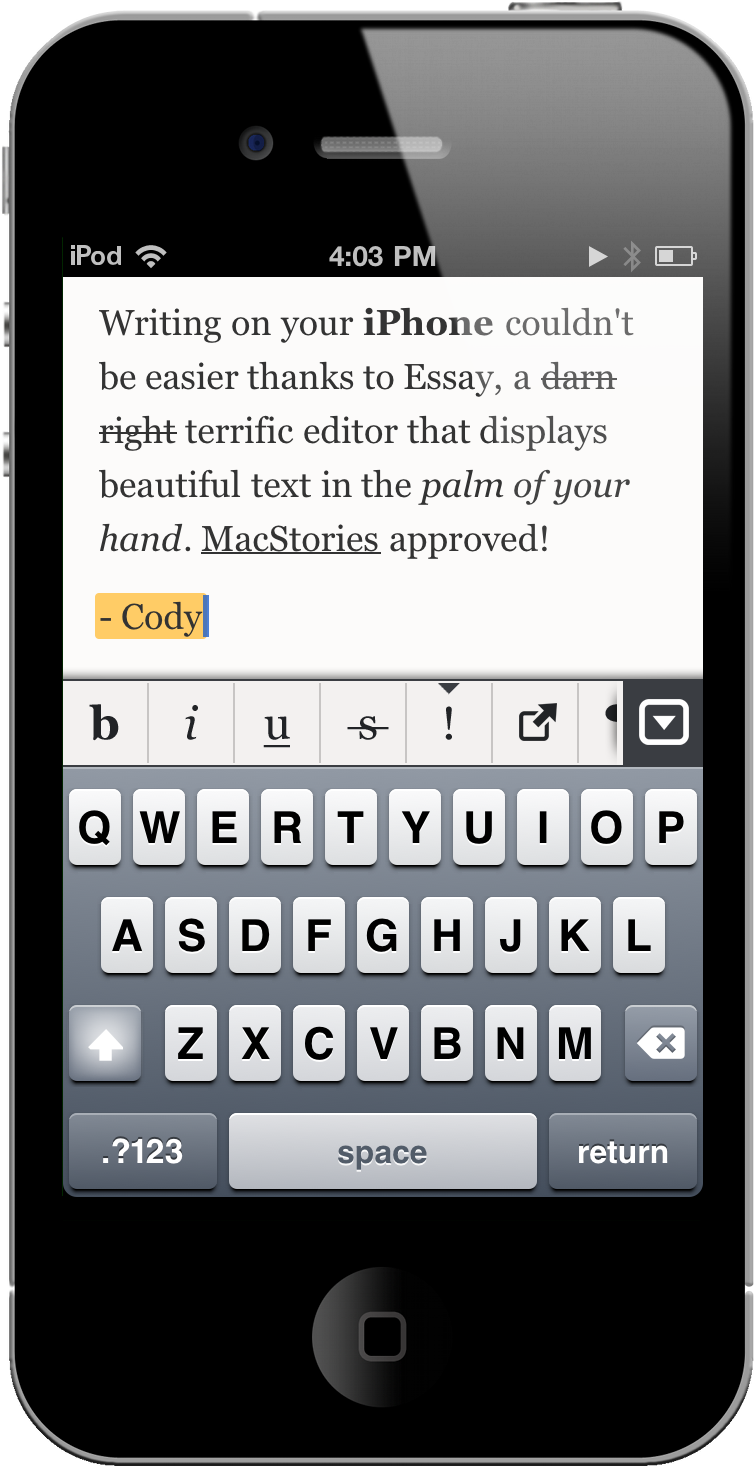
Constantly we’re bombarded or introduced to new text editors and word processors that attempt to redefine and strike a balance between what’s necessary and what isn’t. I’m personally getting to the point where enough is enough, as the focus on being new and imaginative in the iOS and Mac App Store has degraded into providing more of the same under a different name and a slightly different interface. While most of us are perfectly content with trend setters such as PlainText and Elements, Essay ended going above and beyond my expectations for an iOS text editor. Sure there’s SimpleNote, but with DropBox sync and a slew of formatting options I’ll sacrifice instant sync with Notational Velocity for HTML goodness.

Read more


TabLinks 2.0: Safari Extension To Gather Links From Your Open Tabs

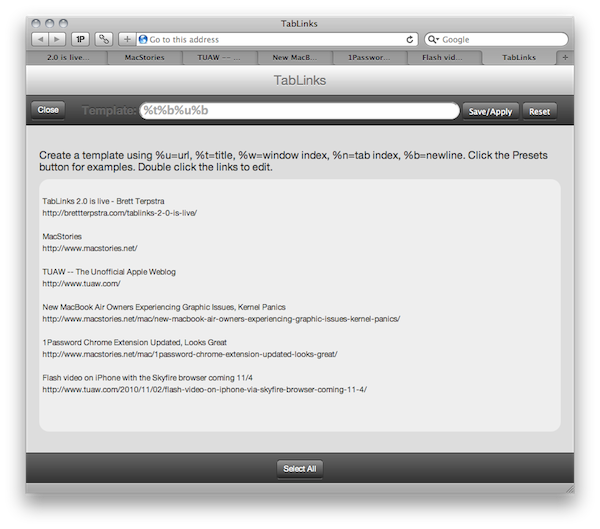
I’m not a Safari user anymore, but this extension from Brett Terpstra was just too cool to not mention it: with the click of a button, TabLinks can fill a pre-defined template with information about your open tabs. URL, title, window info – you name it. If you’re that type of user who always feels like he’s got too many tabs open at the same time and would like to save them for later, that’s exactly where TabLinks comes in handy. Read more


A Markdown Teleprompter

A Markdown Teleprompter

It takes input in standard Markdown format and, when you press the “Prompt” button or hit Shift-Enter, it blacks the screen and renders your Markdown in large, contrasting text. Then you can hit Spacebar or Enter to start and stop scrolling. Stopping auto-scroll and using your mouse’s scroll wheel will allow you to navigate. Escape (or a click on the background) will take you back to the editor.

Very cool. You can also run it locally or on your own server. The online version is available here.

Permalink


Using TextExpander for Markdown Reference Links

Excellent follow-up to Patrick Rhone’s screencast about Markdown and TextExpander.

Permalink