
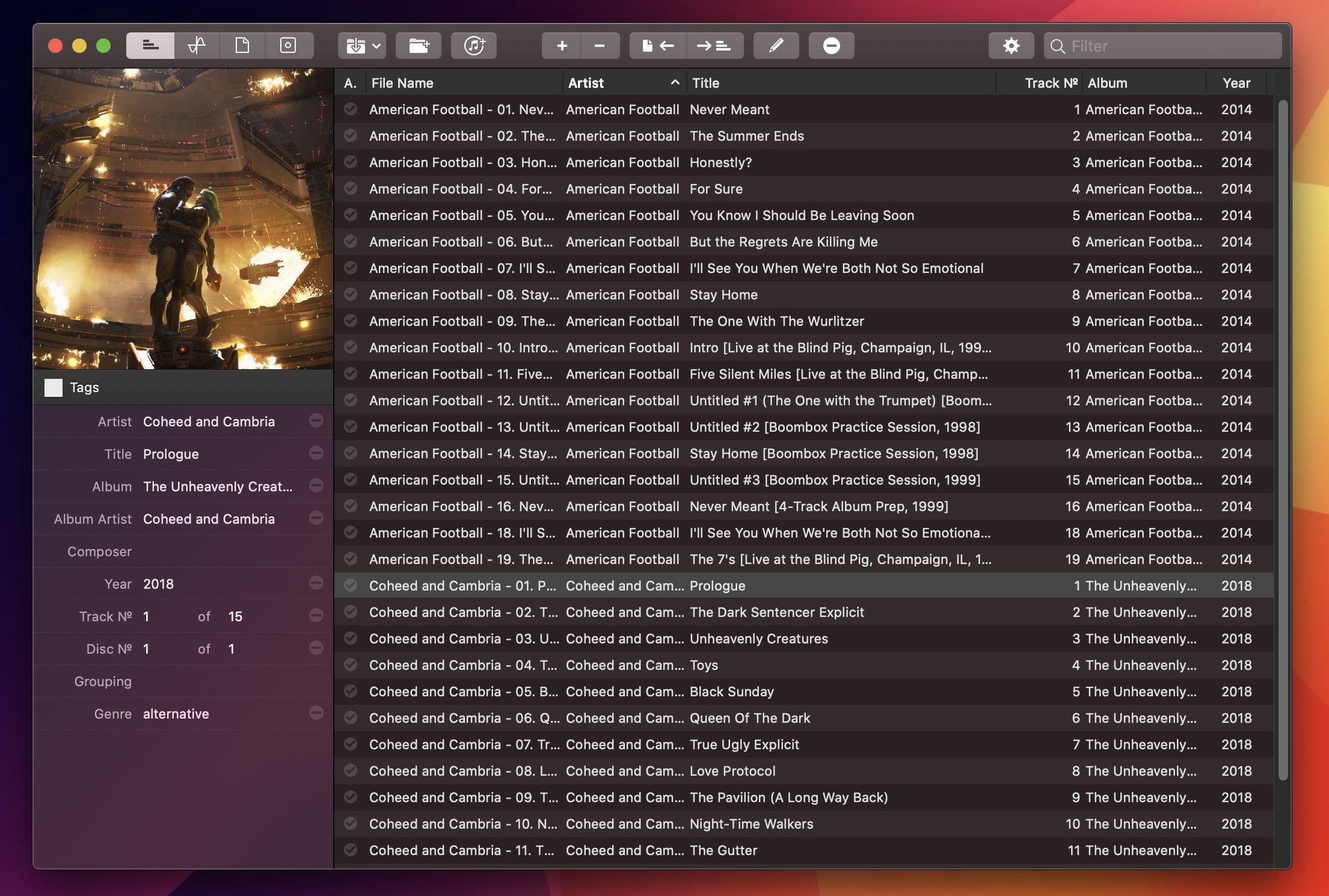
For the past year, I’ve been using a high-res Sony music player to listen to my personal music collection. I detailed the entire story in the December 2019 episode of our Club-exclusive MacStories Unplugged podcast, but in short: I still use Apple Music to stream music every day and discover new artists; however, for those times when I want to more intentionally listen to music without doing anything else, I like to sit down, put on my good Sony headphones, and try to enjoy all the sonic details of my favorite songs that wouldn’t normally be revealed by AirPods or my iPad Pro’s speakers. But this post isn’t about how I’ve been dipping my toes into the wild world of audiophiles and high-resolution music; rather, I want to highlight an excellent Mac app I’ve been using to organize and edit the metadata of the FLAC music library I’ve been assembling over the past year.
Posts tagged with "mac"
Editing FLAC Metadata with Meta for Mac
Adobe Unveils Photoshop Updates for the iPad and Mac on Its 30th Anniversary
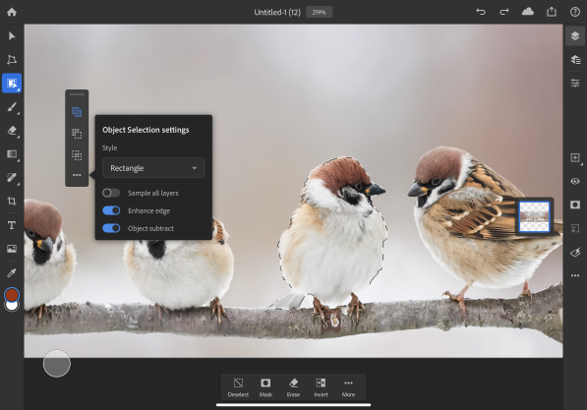
Not many apps can say they’ve been around for 30 years, but that’s how long it’s been since Photoshop 1.0 launched. To coincide with the milestone, Adobe has released updates to Photoshop for the iPad and the Mac. We haven’t tried either update yet, but from the press demo I received, the updates to both versions of Photoshop appear substantial and promise to improve the experience of using the app significantly.
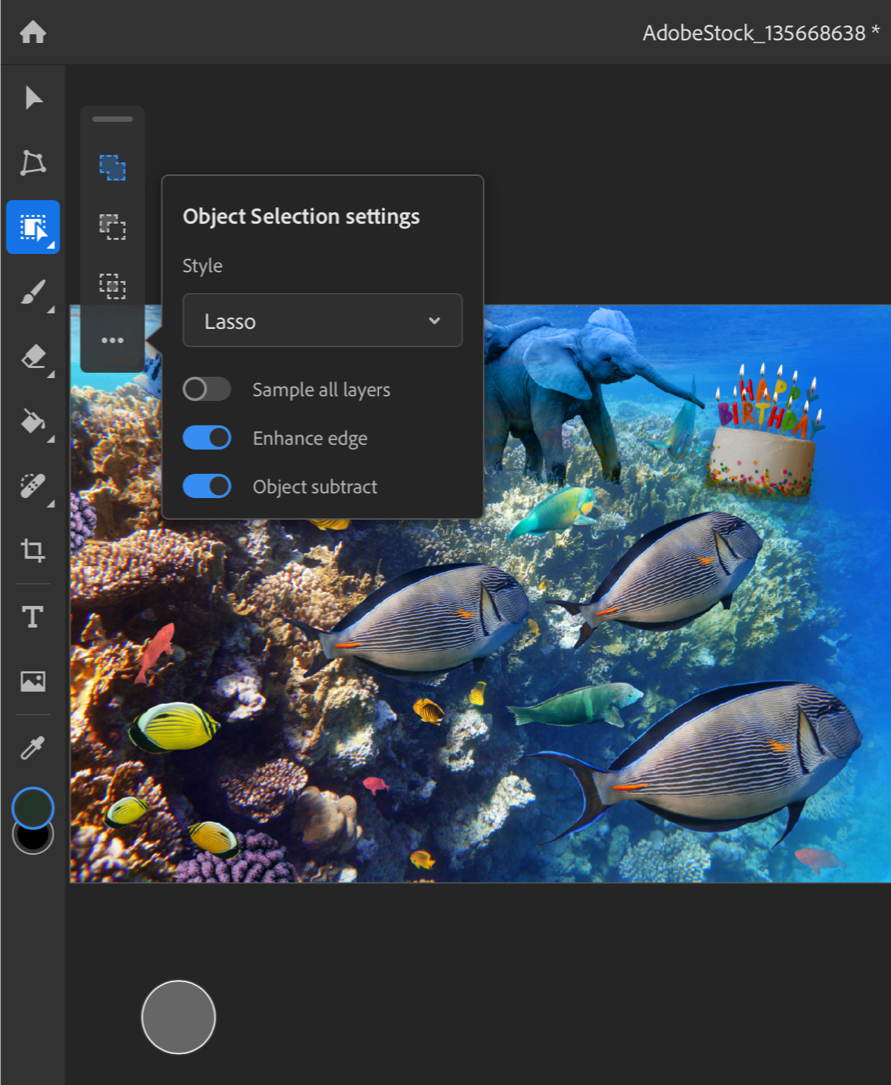
On the iPad, Photoshop already has a Subject Selection tool that lets users quickly select the primary subject of an image, but now, it also has a new Object Selection tool that works a little differently. Object Selection works best when there are multiple subjects in an image, and you want to select just one. After tapping the Object Selection tool, you trace an outline around the object you want to select. Then, Photoshop uses some software magic to figure out what you want and snaps the selection to the object. Finally, you can clean up the selection, adding and subtracting parts using Photoshop’s Touch Shortcut UI. It’s fantastic to see this tool, which just came to the Mac a few months ago at Adobe MAX, already part of the iPad app.

The other headlining feature on the iPad is better typography settings. There are now type layer, character, and options properties that include tracking, leading, scaling, and other adjustments that can be made to text. It’s not quite the complete set of tools available on the desktop, but it appears to be a substantial improvement over the previous version of the iPad app.
The Mac version of Photoshop has also been updated too. Lens Blur has been moved from the CPU to the GPU for better performance. The app can also read the depth map from images taken with an iPhone and other smartphones, which can be edited in Photoshop to get the exact focal point and look that you want.

The Content-Aware Fill workspace has been improved too. Now, you can make multiple selections and apply multiple fills in the workspace, whereas before users had to leave the workspace and reenter it between selections.
Photoshop for iPad was released in early November 2019 with the promise of frequent updates to fill the gaps between it and its desktop sibling. So far, Adobe has lived up to that commitment with substantial updates last December and today. Another indication that Adobe is serious about mobile is evident from the Photoshop webpage, which prominently features the app.
Still, there is still plenty of work to be done before Photoshop for iPad rivals the desktop Photoshop experience. In addition to features that haven’t migrated from the desktop to the iPad yet, I’d like to see Adobe implement iPadOS system features like drag and drop, so I can drag images from Lightroom or other photo editors into Photoshop, context menus, which seem like a natural fit for an app with so many settings, options, and actions, and multiwindowing. My hope is that new functionality like keyboard event detection and whatever Apple has in store for iPadOS 14 will make it easier for Adobe to refine Photoshop further and continue to implement the most powerful desktop features on the iPad too.
Photoshop for iPad is a free update that is available on the App Store and requires a subscription. The Mac version of Photoshop is available directly from Adobe.
Developer Crunchy Bagel Releases a Mac Catalyst Version of Streaks
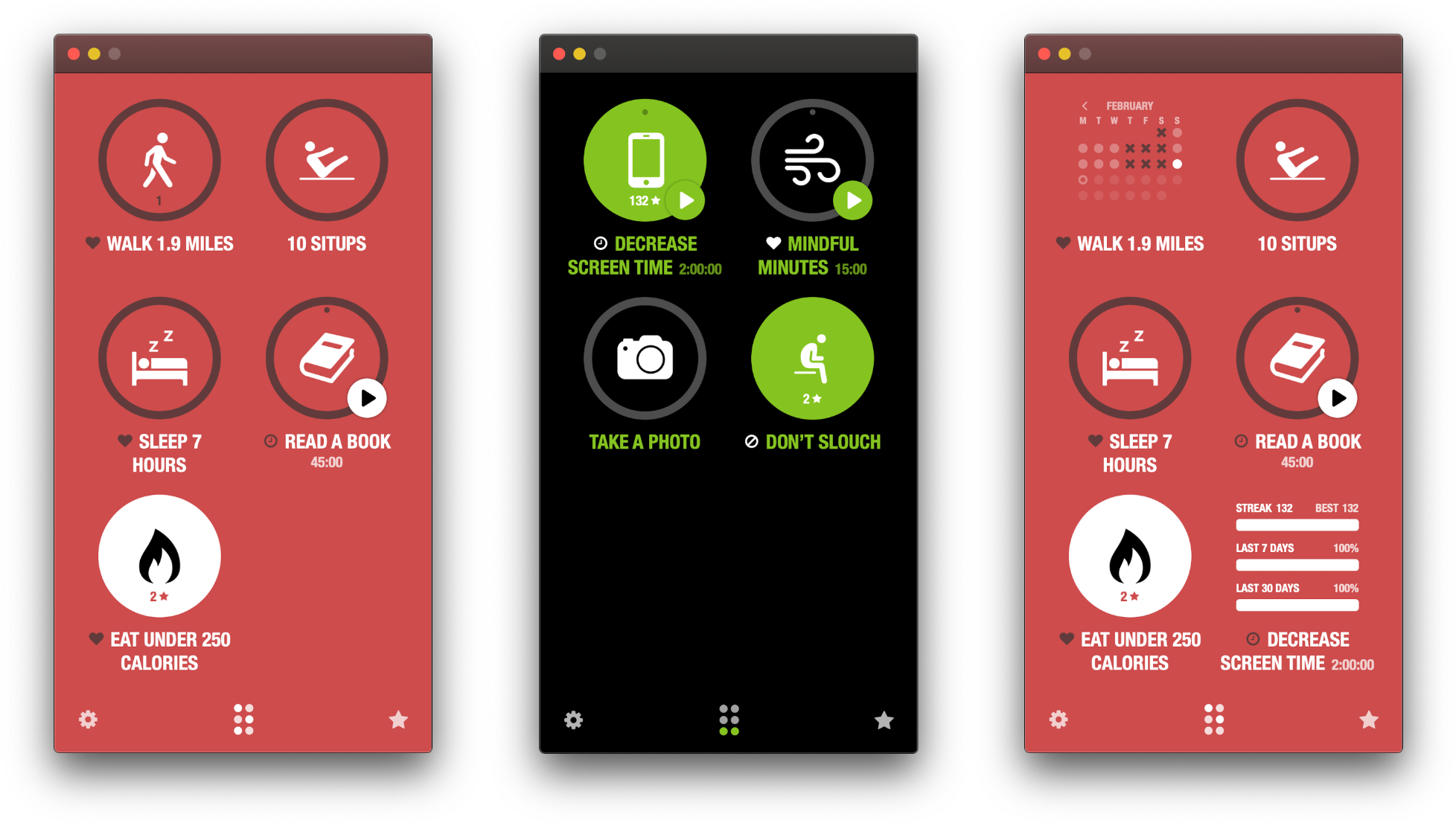
I’ve used Streaks on and off since its introduction. The app is a fantastic way to track and establish new habits. When it was launched, Streaks was iPhone-only. Since then, however, the app has added iPad support, an Apple Watch companion, Health app and Shortcuts integrations, new customizations, and other features, all while maintaining its distinctive, brightly-colored UI and fantastic iconography.
Today’s update adds Mac support to the mix via a brand new Catalyst app. There are a few differences between the Mac app and its iOS and iPadOS counterparts, but if you already use Streaks on an existing platform, the nearly-identical Mac version will feel familiar immediately.
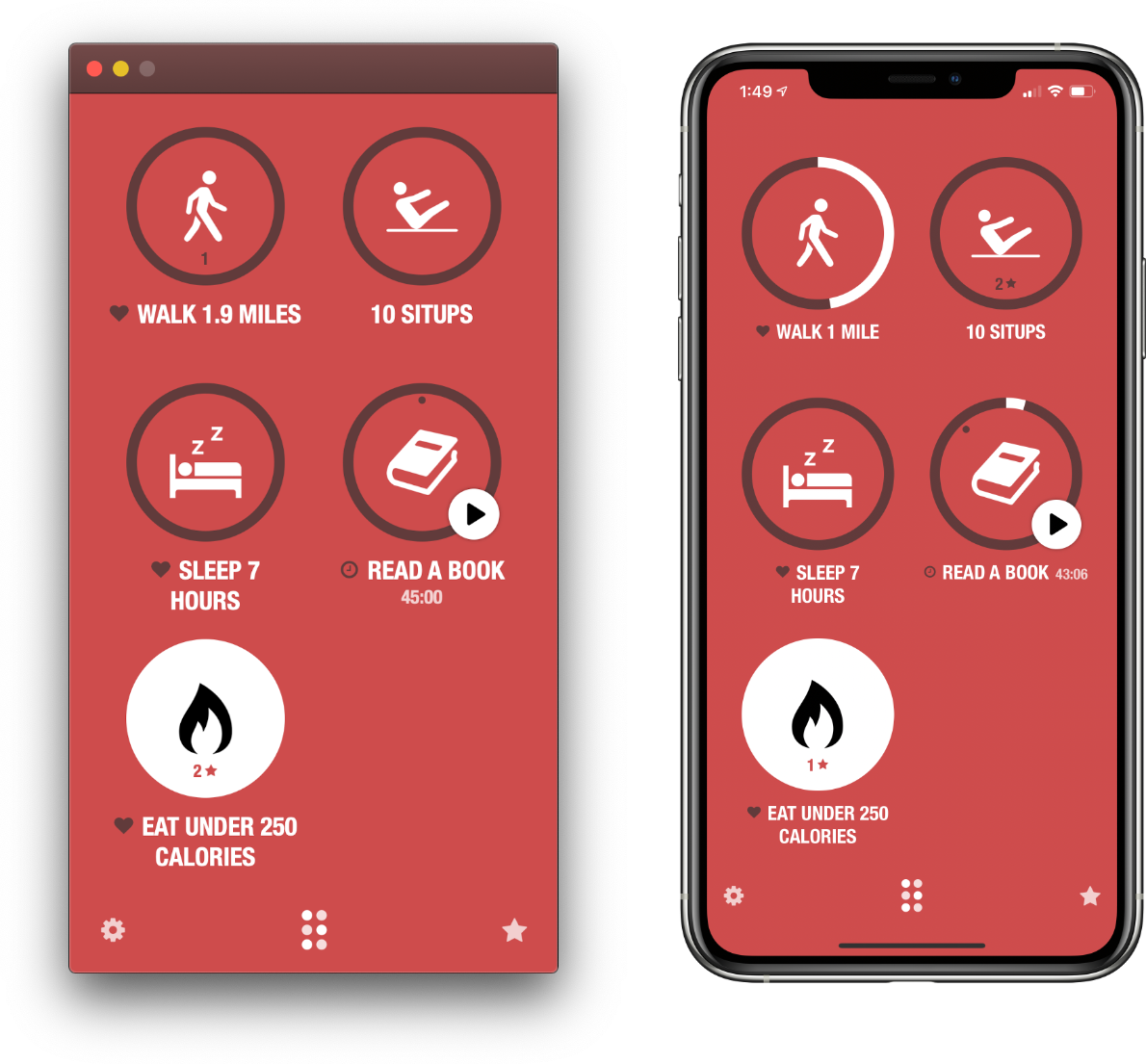
By the same token, newcomers who discover Streaks on the Mac may have a hard time adapting to the app’s approach. Modal views that slide into place from the bottom of the screen like an iOS app, ‘Done’ buttons and custom controls to close views, and fixed window dimensions aren’t design elements typically found on the Mac.
Coming from using the iOS app, though, the only place I found things hard to get used to was the ‘long click’ that replaces a long press on iOS and iPadOS for completing a task or entering editing mode, for example. On balance, though, I think Streaks’ long history and large audience on iOS largely negate the downsides of its atypical interactions.
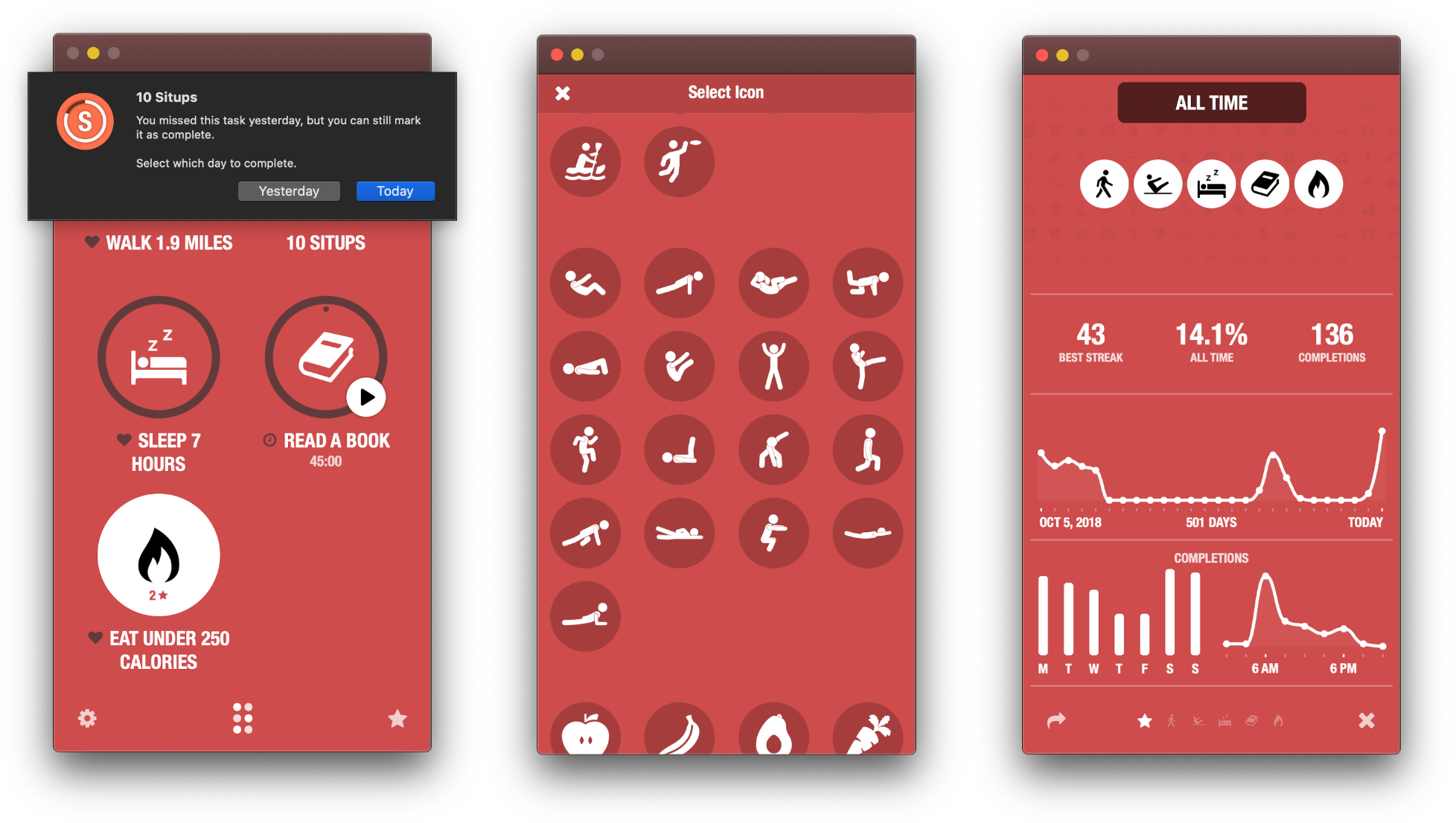
By and large, the functionality of the Mac version of Streaks is the same as the iOS and iPadOS versions. However, as you would expect, platform-specific settings that don’t make sense on a Mac, like Face ID and management of the Apple Watch app, are missing.
iCloud sync works well overall, too, syncing habit data, but not settings, running timers, and themes, which is also the case on the iPhone and iPad. However, I’ve noticed in my testing that the Mac version of Streaks is occasionally slow to update with changes from iOS. Even so, the two versions didn’t stay out of sync long since the apps coordinate their data every time the Catalyst app is reopened.
Streaks is a fantastic addition to the Mac by virtue of its nature as an activity tracker. It’s an app that fills a gap. If I don’t have my iPhone nearby, there’s a very good chance I’m working on my Mac or iPad. The inclusion of a Mac version of Streaks, like the iPad support that came before it, reduces the friction of tracking a new habit I’m trying to form, giving me even fewer excuses not to keep on top of my goals. As a result, even though I don’t expect to use the Mac app as often as Streaks on my iPhone, I’m glad I have that option now.
For more on Streaks, check out my reviews of the original app, as well as versions 3 and 4. Streaks for the Mac is available on the Mac App Store for $4.99.
Sensei: A Beautifully-Designed Dashboard and Set of Utilities for Your Mac
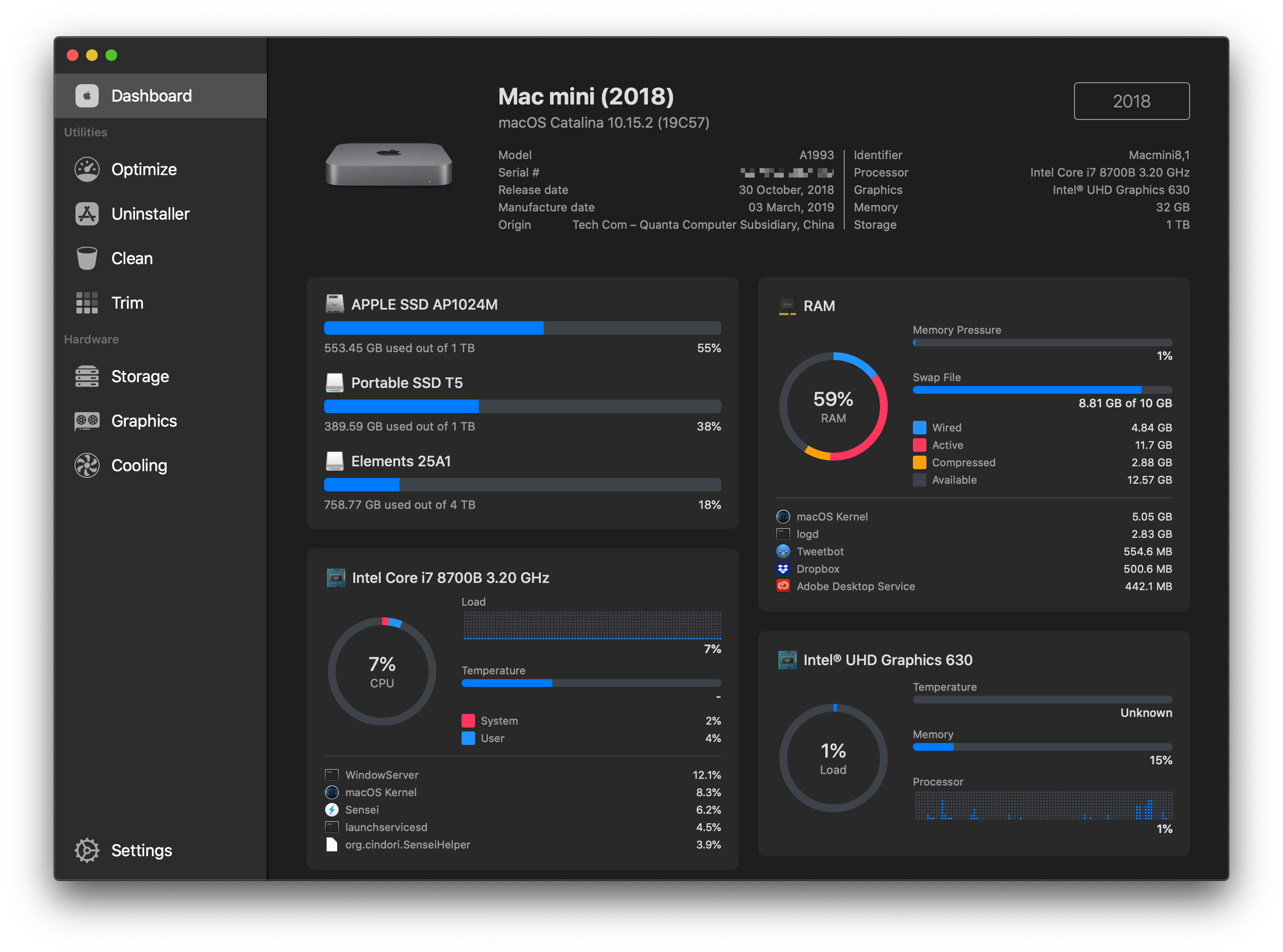
Sensei is a brand new Mac app that monitors the status of various components of your Mac’s hardware and provides a set of utilities to optimize its performance. The app is certainly not the first to offer these features – there are tools built into macOS and third-party apps that can accomplish many of the same functions, and in some cases more. However, what sets Sensei apart, and what has quickly won me over, is its ability to translate the data it collects and implement its utilities in a beautifully-designed, standalone app.
The Case for Low Power Mode on the Mac→
Marco Arment on marco.org, outlining his self-created Low Power Mode-like system which relies on a third-party app, and making the case for Apple to add something similar as an official macOS feature:
The vast majority of the time I’m using it, the 16-inch MacBook Pro is a much better laptop with Turbo Boost disabled.
It’s still fast enough to do everything I need (including significant development with Xcode), while remaining silent and cool, with incredible battery life.
But soon, I bet I won’t be able to do this anymore.
Turbo Boost Switcher Pro relies on a kernel extension that’s grandfathered into Apple’s latest security requirements, but it can never be updated — and when macOS Catalina loads it for the first time, it warns that it’ll be “incompatible with a future version of macOS.” I suspect that this is the last year I’ll get to run the latest OS and be able to turn off Turbo Boost at will, making all of my future laptop usage significantly worse.
Low Power Mode is one of many useful features that iOS has had for years but that Mac users have been forced to live without. The feature’s popularity on iOS makes it a no-brainer addition for portable Macs, where battery life is already worse than what’s found in the iPhone and iPad.
Update: Former MacStories contributor TJ Luoma helpfully pointed out something that genuinely surprised me: Low Power Mode isn’t on the iPad either. Here’s hoping Apple brings it not only to the Mac, but the iPad as well.
Front and Center, a Mac Utility from John Siracusa and Lee Fyock→
John Siracusa writes on Hypercritical about the new Mac utility he just released in partnership with Lee Fyock. Following the release of macOS Catalina and its lack of support for 32-bit apps, such as DragThing, Siracusa needed a new solution for restoring a classic Mac OS behavior that he didn’t want to lose.
In classic, when you click on a window that belongs to an application that’s not currently active, all the windows that belong to that application come to the front. In Mac OS X (and macOS), only the window that you clicked comes to the front.
[…]
I tried to get used to it, but I could not.
Front and Center is the name of Siracusa and Fyock’s creation. It’s a tiny app that re-enables the classic behavior mentioned above, while also providing the option of using shift-click to engage the modern default of selecting the clicked window only. With Front and Center, long-time Mac users can have both the classic Mac OS behavior they enjoy, and the benefits of macOS’ modern approach, all at once.
Front and Center is available on the Mac App Store for $2.99.
NoiseBuddy: Control Noise Cancellation and Transparency Modes of AirPods Pro on a Mac

Earlier this week, Guilherme Rambo released a new Mac utility called NoiseBuddy that toggles between the noise cancellation and Transparency modes of AirPods Pro and the Beats Solo Pro headphones when they’re connected to a Mac. The app can place an icon in your Mac’s menu bar or on the Touch Bar and uses the same noise cancellation and Transparency iconography found in Control Center on iOS and iPadOS. The app’s settings allow you to run NoiseBuddy in the menu bar, on the Touch Bar, or in both places. To switch modes, simply click the icon in the menu bar or tap the Touch Bar button.

This isn’t Rambo’s first time working with Bluetooth headphones and the Mac. He also created AirBuddy, which we covered previously. AirBuddy is a Mac utility that displays the charge status of AirPods and Beats headphones that use Apple’s proprietary wireless chips. The app also allows users to connect those headphones to their Macs via Bluetooth with a single click.

NoiseBuddy is the kind of Mac utility that I love. It takes overly fiddly aspect of interacting with macOS and makes it dead simple. The free app is available from Rambo’s GitHub repo, where it can be downloaded as a ZIP archive and then dragged into your Applications folder.
Apple Announces New 16” MacBook Pro with Redesigned Keyboard, Thinner Display Bezels, and Updated Processors
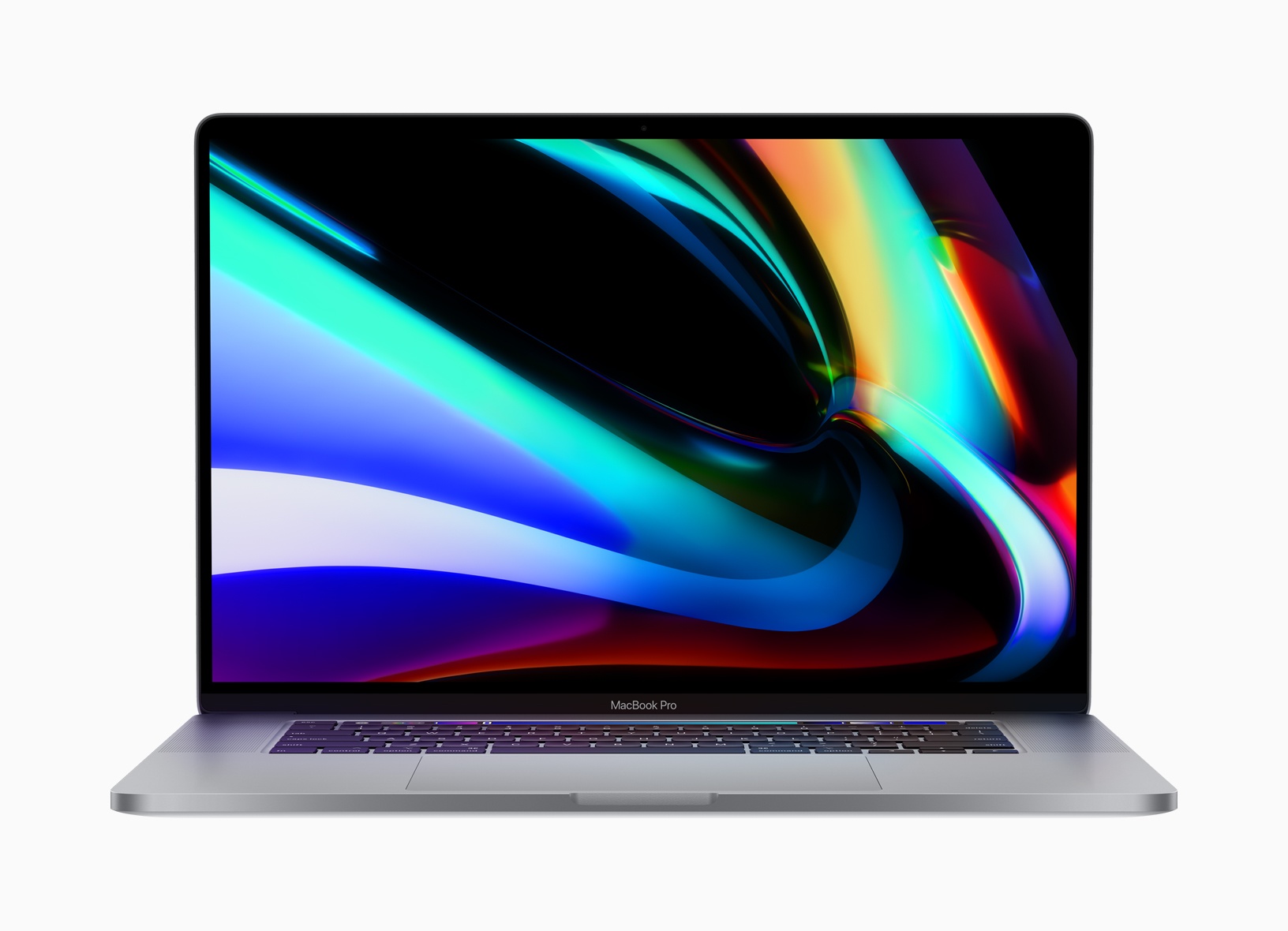
Apple has announced a new 16-inch model of the MacBook Pro that features a redesigned keyboard with keys that use a scissor mechanism, a larger screen with thinner bezels, and 9th generation Intel Core i7 and i9 processors. The new model replaces the existing 15-inch MacBook Pro.
Rumored since early this year, the new laptop is almost identical in size to the 15-inch MacBook Pro, which is 0.61 inches (1.55 cm) tall, 13.75 inches (34.93 cm) wide, and 9.48 inches (24.07 cm) deep. In contrast, the new 16-inch model is 0.64 inches (1.62 cm) tall, 14.09 inches (35.79 cm) wide, and 9.68 inches (24.59 cm) deep. The new MacBook Pro is also heavier, weighing in at 4.3 pounds (2.0 kg) compared to the 15-inch laptop, which is 4.02 pounds (1.83 kg).
The slight increase in size is thanks primarily to the reduction of the new MacBook Pro’s display bezels, which have been virtually eliminated. The laptop features a new high-resolution display too, which Apple lists as 3072 x 1920 pixels with a 226 ppi pixel density. The display is driven by new AMD Radeon Pro 5000M series graphics. Also, the MacBook Pro boasts significantly-improved 6-speaker setup and high-quality microphones to capture less background noise when recording.
Apple has also returned to a scissor mechanism for the new MacBook Pro’s keyboard. It remains to be seen whether the updated design is an improvement over the butterfly mechanism used for the past few years in Apple’s laptops. Before the company moved to the butterfly mechanism, which allowed for reduced key-travel and, consequently, thinner devices, a scissor keyboard mechanism was used in the MacBook Pro.
The keyboard on Apple’s latest pro-level laptop is also notable because it features the return of a physical escape key. The escape key was eliminated in Touch Bar-enabled MacBook Pros in favor of a software escape key on the Touch Bar, but the latest model shortens the Touch Bar to make room for a physical escape key, which many users missed. The new keyboard also features an inverted-T arrow key layout. Apple says:
The 16-inch MacBook Pro features a new Magic Keyboard with a refined scissor mechanism that delivers 1mm of key travel and a stable key feel, as well as an Apple-designed rubber dome that stores more potential energy for a responsive key press. Incorporating extensive research and user studies focused on human factors and key design, the 16-inch MacBook Pro delivers a keyboard with a comfortable, satisfying and quiet typing experience. The new Magic Keyboard also features a physical Escape key and an inverted-“T” arrangement for the arrow keys, along with Touch Bar and Touch ID, for a keyboard that delivers the best typing experience ever on a Mac notebook.
The 16-inch MacBook Pro also features an updated Intel 9th generation i7 and i9 processors with up to 8 cores. The base model runs at 2.6 GHz, which users can upgrade. RAM starts at 16GB and is configurable up to 64GB. Storage starts with a 512GB SSD, which can be increased to as much as 8TB.
To learn more about the new MacBook Pro, listen to episode 271 of Upgrade from Relay FM where Six Colors founder Jason Snell interviews Apple’s MacBook Pro Product Manager Shruti Haldea.
The new laptops are already available to order on apple.com and with the Apple Store app starting at $2,399, the same price as the old 15-inch model, with deliveries beginning later this week. Apple also notes that the Mac Pro will be available to order in December.
Apple Hits Restart on Game Controller Support
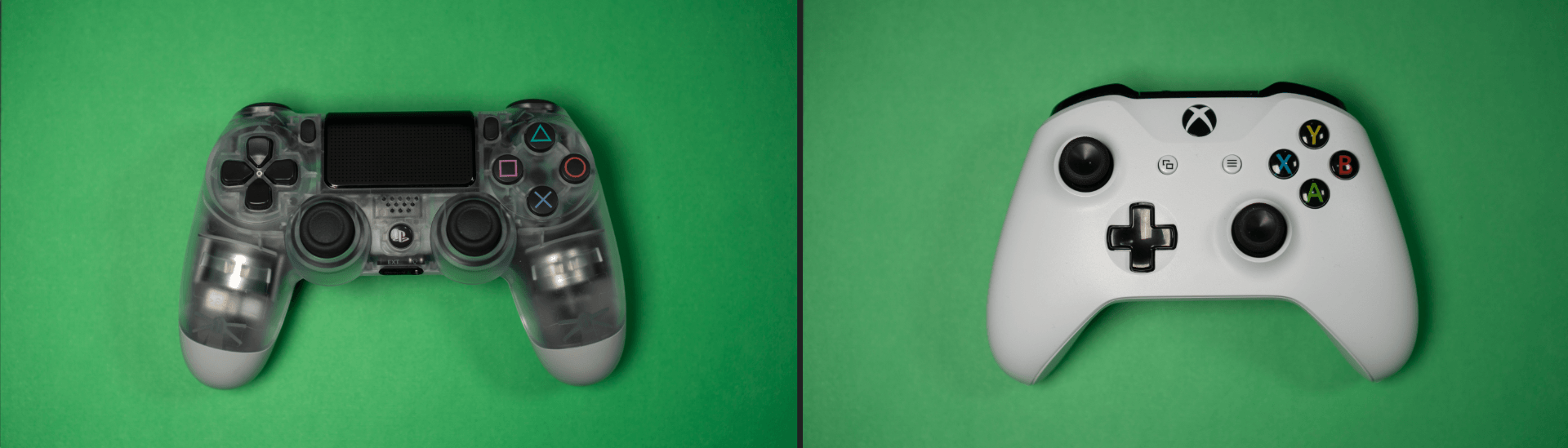
It’s hard to believe it’s been nearly six years since Apple added game controller support to iOS. The big news at WWDC in 2013 was the iOS 7 redesign, but for game developers, it was rivaled by the announcement that third-party Made For iPhone (MFi) controllers were coming.
The game press and developers understood the potential of controller support immediately. Even though it wasn’t announced there, Chris Plante of Polygon declared controller support the biggest story of E3, the game industry trade show that was happening at the same time as WWDC. Plante imagined that:
If Apple finds a way to standardize traditional controls, every iOS device will become a transportable console. In a year, both iPhones and iPads will approach the processing power of the current-generation devices. Companies will have the ability to port controller-based games for the mobile devices in millions of pockets — an install-base far greater than they’ve ever had before.
Game industry veteran Gabe Newell, the co-founder of Valve, saw Apple’s entry as a big risk to companies making PC and console games:
The threat right now is that Apple has gained a huge amount of market share, and has a relatively obvious pathway towards entering the living room with their platform…I think Apple rolls the console guys really easily.
I was right there with them. iOS devices couldn’t match the power of a traditional console in 2013, but you could see that they were on a trajectory to get there. With the addition of controller support, Apple felt poised to make a meaningful run at incumbents like Sony and Microsoft.
It didn’t work out that way though. iOS’ controller support was rushed to market. Early controllers were priced at around $100, in part because of the requirements of the MFi certification, and they couldn’t match the quality of controllers from Sony and Microsoft.
As anticipated, controller support was extended to the Apple TV when its App Store launched in 2015. Initially, it looked as though Apple would allow game developers to require a controller. In the end, though, the company went an entirely different direction by requiring that games support the Apple TV Remote, a decision that complicated development and dumbed down controller integration to match the remote’s limited input methods. Apple changed course eventually, and now lets developers require controllers, but by the time of that change the damage had been done. Many developers had already lost interest in controller support. It didn’t help either that for a very long time, the App Store didn’t indicate which games were compatible with MFi controllers, leaving the void to be filled by third-party sites.
Last year, when I looked back at the history of games on the App Store for its tenth anniversary, I came away pessimistic about the future of games on Apple’s platforms. After a decade, I felt like we were still asking the same question that Federico posed in 2013:
Will Apple ever develop a culture and appreciation for gaming as a medium, not just an App Store category?
Sadly, Federico’s question remains as relevant today as it was six years ago. Still, I’m cautiously optimistic based on what’s happened in the past year. Part of that is the App Store editorial team’s excellent track record of championing high-quality games in the stories published on the App Store. Another factor is Apple Arcade, the game subscription service we still don’t know a lot about, but which appears designed to showcase high-quality, artistically important games.
The latest cause for optimism is Apple’s announcement at WWDC this past June that iOS, iPadOS, tvOS, and macOS would all support the Sony DualShock 4 and Bluetooth-based Xbox controllers when Apple’s OSes are updated this fall. The reaction from developers and other observers was a combination of surprise and excitement that was uncannily similar to the MFi announcement in 2013. Yet, the news begs the question: ‘How is this time any different?’ The answer to that question lies in how the new controllers work and the role they will play in Arcade.