This Week's Sponsor:

SoundSource

New Year, New Audio Setup: SoundSource 6 from Rogue Amoeba


Posts tagged with "automation"

Things 3.4 Brings Powerful New Automation Features and App Integrations

I switched to Things as my task manager late last year, sometime before the holidays. While I discussed this decision at length on Connected and AppStories, I didn’t write about it on MacStories because I didn’t want to rehash Ryan’s in-depth review of Things 3. In terms of design and features, everything I like about Things is covered in his original review.

My personal motivation for switching to Things boils down to this: the way projects and the Today screen are designed in Things fits well with my schedule, and doesn’t stress me out. Things has a “calm” interface that doesn’t turn overdue tasks red, making me feel guilty; projects are clearly laid out with a tasteful use of San Francisco, and further organization can be applied to a project using headings, a feature I’ve never seen in any other task manager. And among dozens of thoughtful touches, Things’ separation of Today and This Evening for the current day is absolutely in line with how I think about my typical day. In short: I want 2018 to be less stressful than last year, and Things is helping with the task management part.

That said, as someone who used 2Do and Todoist in the past and heavily automated them for integration with other apps, I was missing some solid automation options from Things. Cultured Code has offered a basic URL scheme in their iOS app for a few years now, but the supported commands never went beyond the ability to create basic, metadata-free tasks in the app.

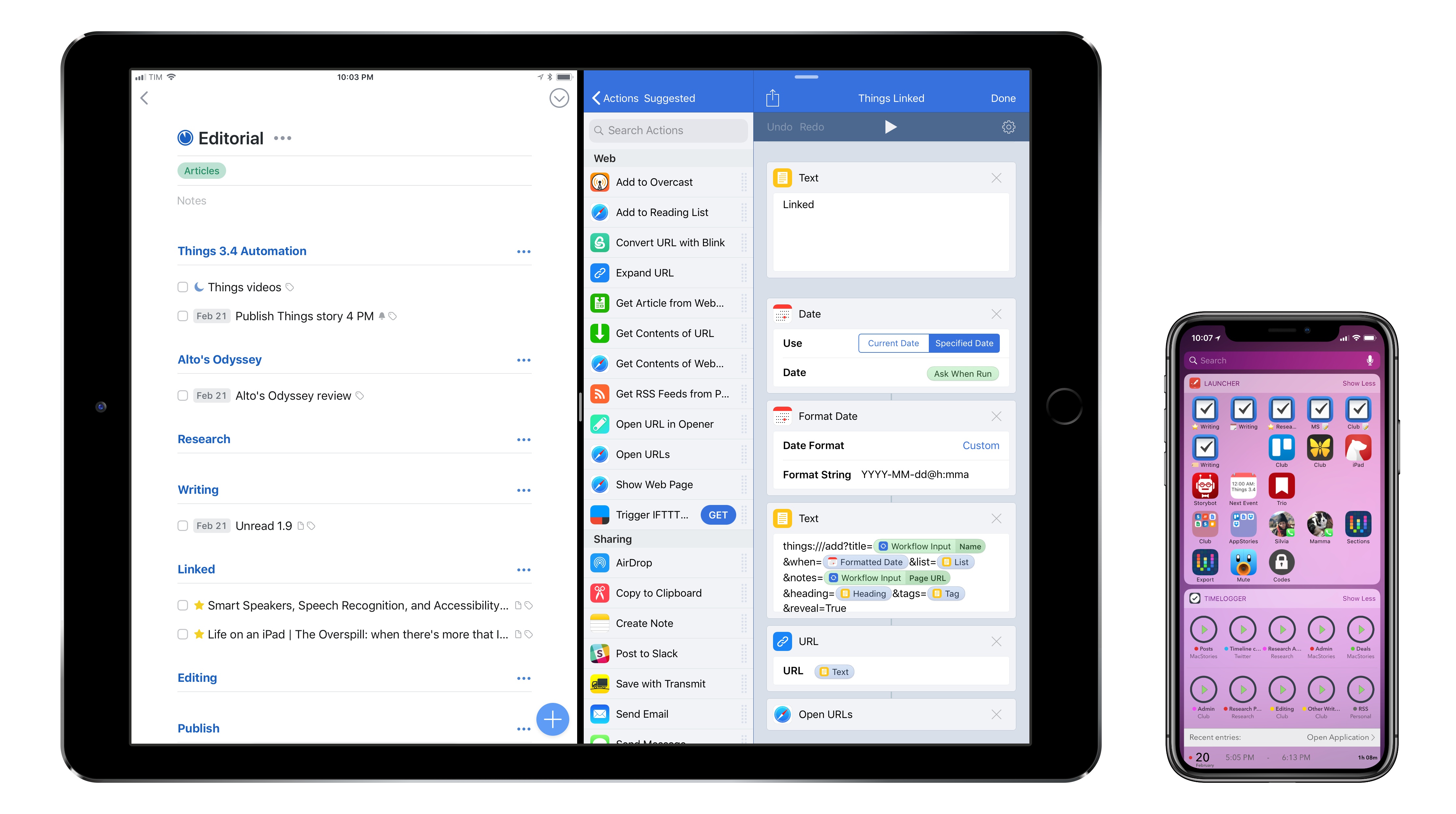
This is changing today with Things 3.4, which I’ve had the opportunity to test and experiment with for the past couple of months. With this new version, the folks at Cultured Code have shipped one of the most powerful and versatile URL scheme action libraries seen in a task manager for iOS – comparable to Omni’s work on OmniFocus, and, in a way, perhaps even more flexible.

The new Things URL scheme, which has been documented here, lets you create tasks, projects, show specific sections of the app, and search across your entire Things database. This may not sound too impressive on paper, but what sets this feature apart is the level of customization and detail that can be applied to every single parameter of every action. As a result, Things is now a first-class citizen of the iOS automation scene, and, within the limitations of iOS inter-app communication, its URL scheme unlocks several new possible integrations with apps and workflows.

Furthermore, Cultured Code wants to make it easy for third-party developers to natively support sending data to Things from their apps. Today, the company is also introducing a JSON-based command to allow more control when adding items to Things from external apps, and they’ve created a set of Swift helper classes that apps can use to easily generate the JSON needed to pass data to Things. As I’ll demonstrate later in this article, a couple developers of two of my favorite iOS apps are already taking advantage of these capabilities to great effect.

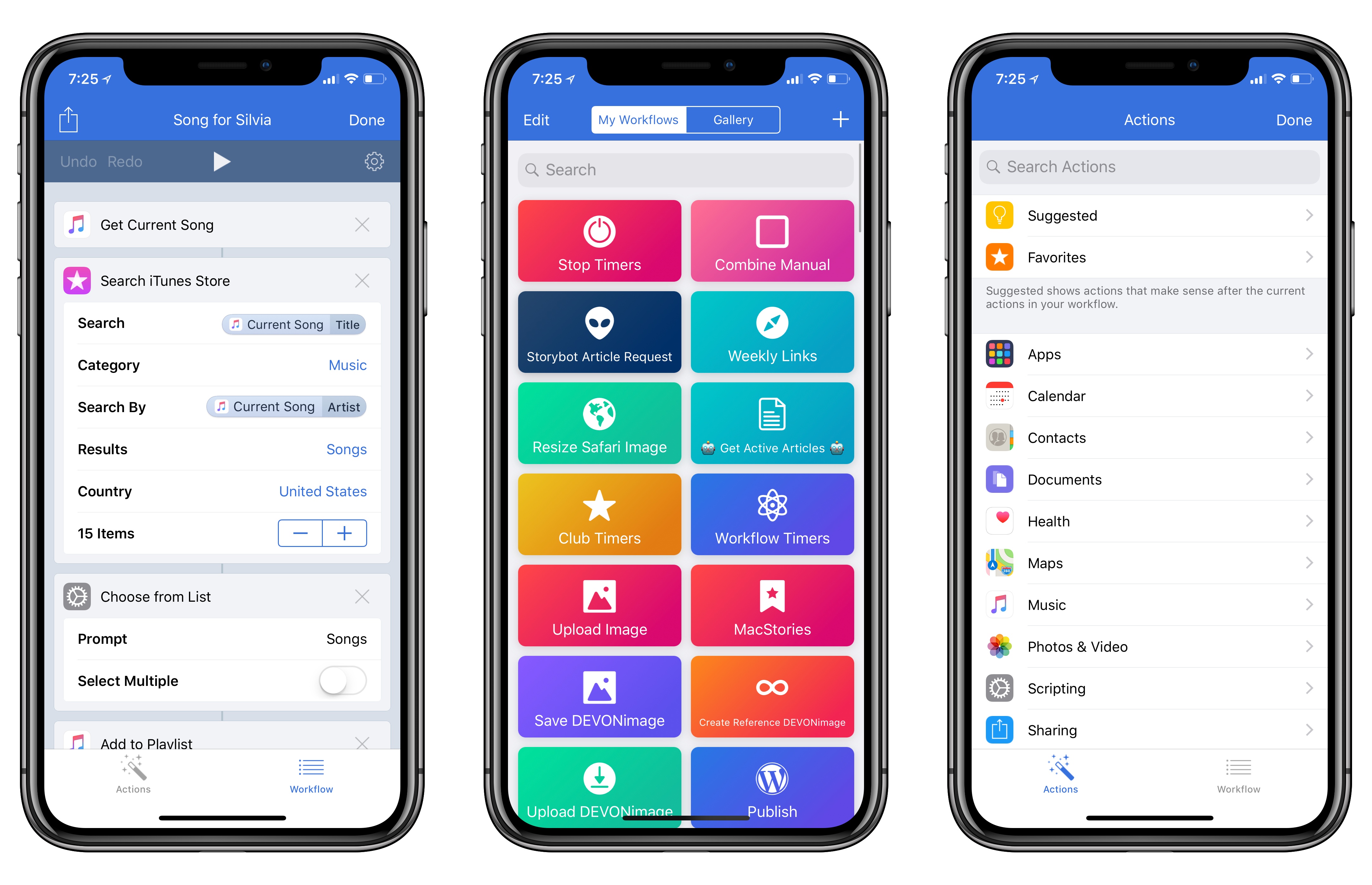
As you can imagine, I’ve been busy experimenting with the new automation features of Things and identifying aspects of the app I wanted to speed up by integrating them with other apps. Below, you’ll find a collection of the launchers and workflows I’ve put together for Things 3.4. These are the actions and scripts I find myself using the most on a daily basis, and which I believe considerably extend Things’ capabilities on the iPhone and iPad. More advanced workflows will follow over the next couple of weeks (and months) exclusively for Club MacStories members in the Workflow Corner section of MacStories Weekly.

Let’s dig in.
Read more


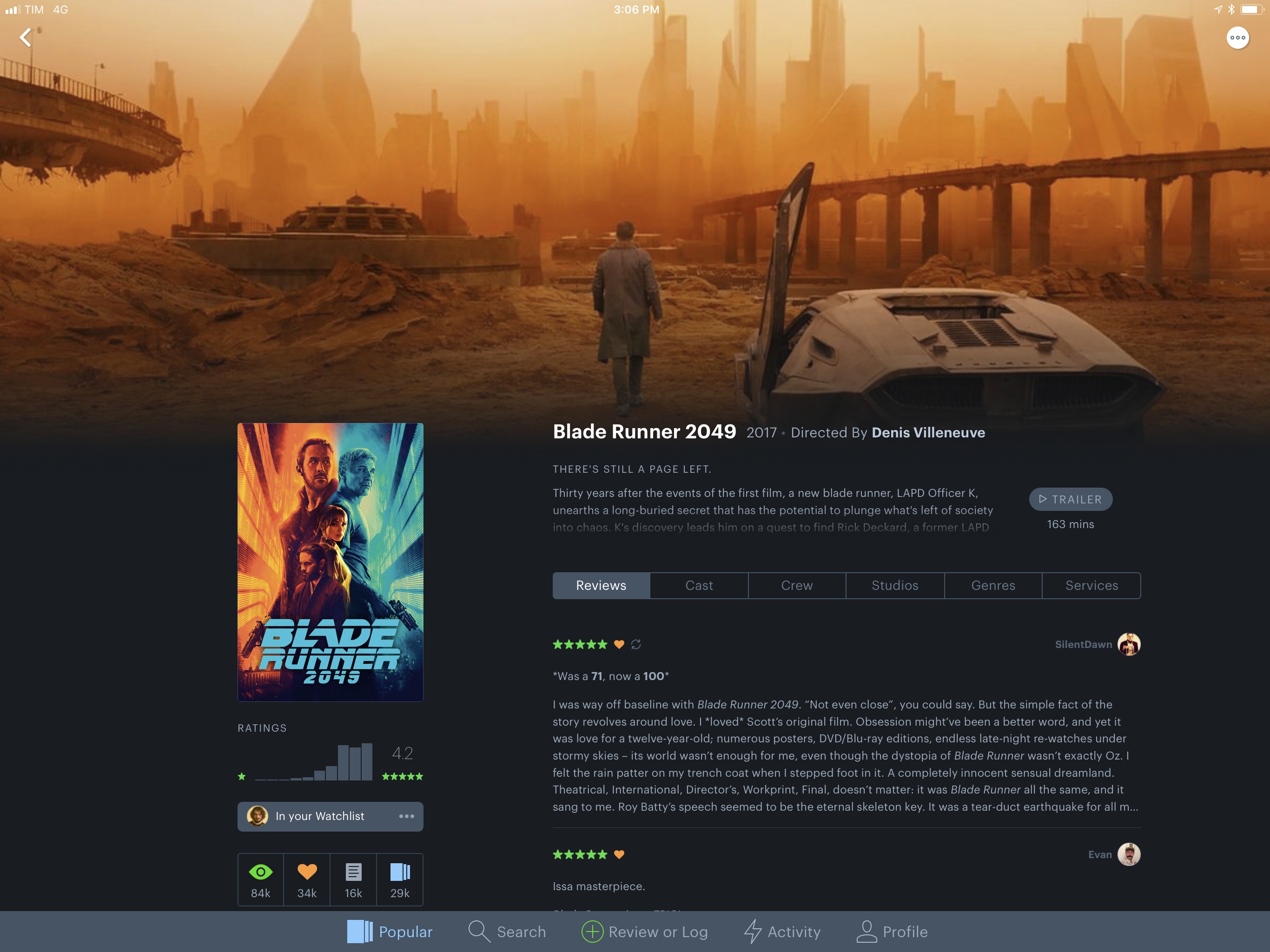
Letterboxd 2.0 Brings iPad Version, Support for iOS Automation Apps

I’ve always been fascinated by Letterboxd, the popular service to catalog and rate movies you’ve watched, as well as share your appreciation for the art of film with other users in a social network-type environment. My problem, however, is that dedicating serious time to watching quality movies (instead of whatever is on TV) has mostly been an aspirational effort; I never truly attempted to make a list of films I want to watch and set aside a good chunk of time every week to enjoy them.

Among various “quality of life” improvements (which I briefly mentioned in this episode of Analog(ue) with Myke Hurley), earlier this year I decided to create an Airtable database with a list of movies I want to see, trying to tick one off at least every week. Since I started testing a beta of Letterboxd 2.0 for iOS last week though, I’m wondering if maybe now is the time for me to consider using a dedicated service to collect, rate, and discover movies.

Read more


Zapier Launches Support for Productivity App Alfred

Zapier today added support for Alfred, one of the most popular productivity apps for macOS. Alfred is like a supercharged version of macOS’s built-in Spotlight; it enables you to quickly, easily search for files, webpages, or apps, perform text expansion, control music playback, and much more. Despite Alfred’s already extensive capabilities, Zapier support opens up a world of new possibilities.

Zapier is an automation web service that we use and love here at MacStories. Its power is found in integrating with a substantial number of web-powered services that can be hooked together to automate tasks in all sorts of ways. Zapier’s support for Alfred means that access to that extensive catalog of web-based services and tools is now at the fingertips of Alfred users, making tasks of varying complexity levels possible with a few simple keystrokes.

In Zapier’s announcement post, Matthew Guay walks through how to get Zapier set up with Alfred, and he also shares several examples of workflows now made possible thanks to today’s news.


Sal Soghoian Announces CMD-D, a Mac and iOS Automation Conference Coming in August

Sal Soghoian, Paul Kent, and Naomi Pearce are collaborating on a new conference called CMD-D covering automation and scripting on macOS and iOS.

The conference is called CMD-D (pronounced “Command-D”), and it will be held August 9th at the Santa Clara Convention Center. It’ll be a full day of exploring the current state of automation technology on both Apple platforms, sharing ideas and concepts, and showing what’s possible—all with the goal of inspiring and furthering development of your own automation projects.

To assist in this exploration of all things Automation, I’ve invited some of my smartest friends to present sessions focused on their own areas of automation expertise, on macOS and iOS. And, for those new to automation, we’re also planning a Scripting Boot Camp on August 8th.

Speakers include Andy Ihnatko, Jon Pugh, Jason Snell, John Welsh, and Sal Soghoian. Registration is open and can be found here.

Permalink

Timing 2 Makes Time Tracking on Your Mac a Pleasure

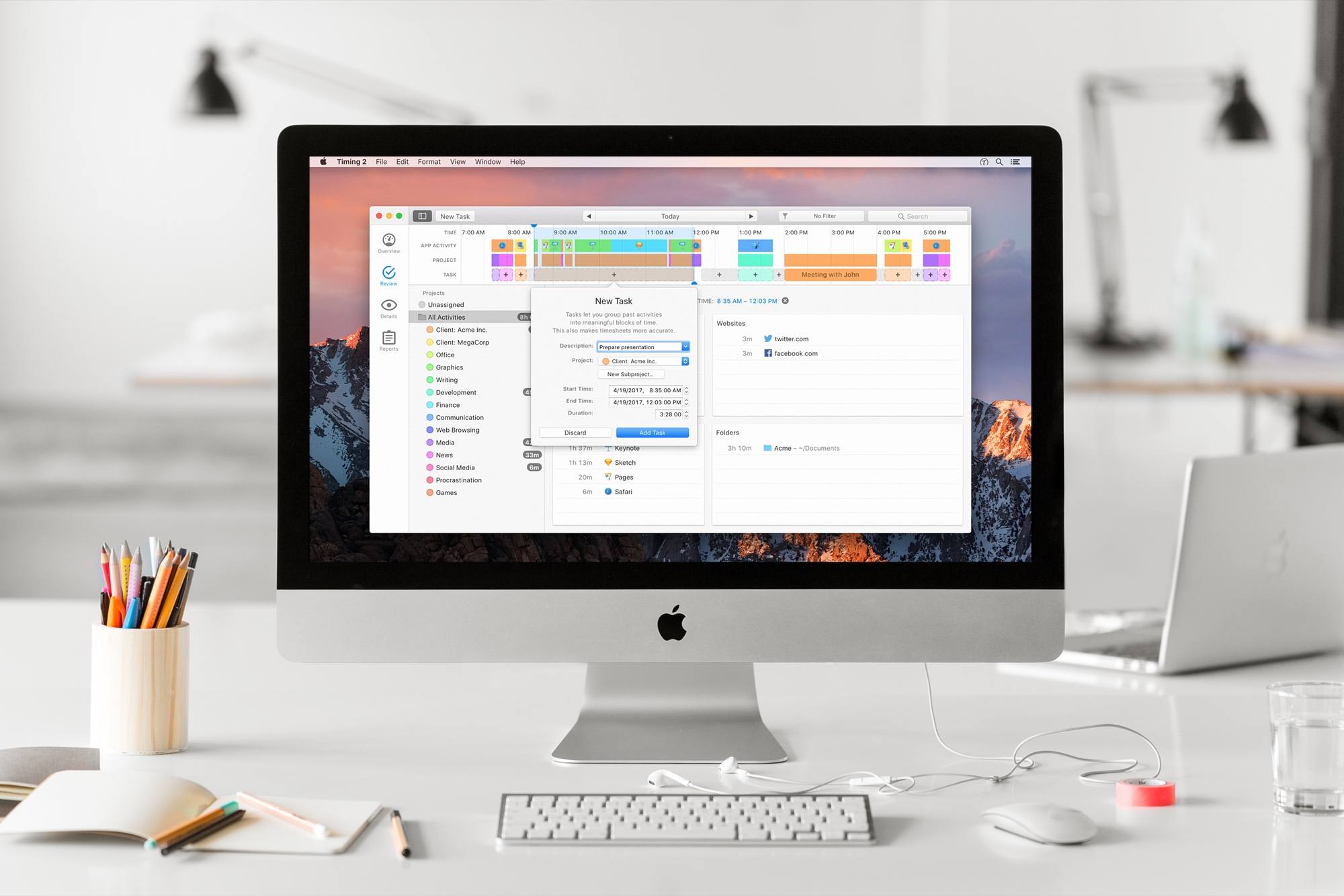
Timing 2 for Mac is out today. I’ve been a long-time user of Timing, and have had the pleasure of beta testing the new version for a while now. It’s an excellent update to a great tool.

Timing is an app that runs on your Mac and tracks everything you do. Sounds creepy at first, but the data is completely safe, and the tracking is only for your own productivity purposes (never uploaded anywhere). By helping you see how you’re spending your time, you can start to change behaviors. Plus – because it can intelligently associate activities with actual projects – it serves as a detailed work timer for your paid projects.

Timing 2 comes in three versions: Productivity ($29), Professional ($49), and Expert ($79). No recurring payments needed, you own the app and you own your data. Some of the features I’ll be talking about are from the Expert version, so be sure to check the feature list before you purchase one of the other versions.

Timing tracks more than just what app you’re using. It will record what websites you visit, what documents you open, what folders you work in, and every way you spend time on your Mac. You can even add in notes about what you did while you were away from your Mac.

Timing 2 does a brilliant job of grouping tasks together and automatically assigning “keywords” to add new tasks to groups. You can also assign tracked tasks to projects, and do fine-grained editing on the criteria Timing uses to determine the purpose of the time it tracked.

Keywords and manual assignment of activities can be grouped into categories such as “Research” or “Podcasting.” As a result, you can easily see what activities you spent the most time on – and possibly realize that you’re not focusing on what you thought you were.

Timing also provides automatic suggestions for blocks of time that might belong together. It makes it easy to group activities and reap the benefits of manual time tracking with the ease of automation.

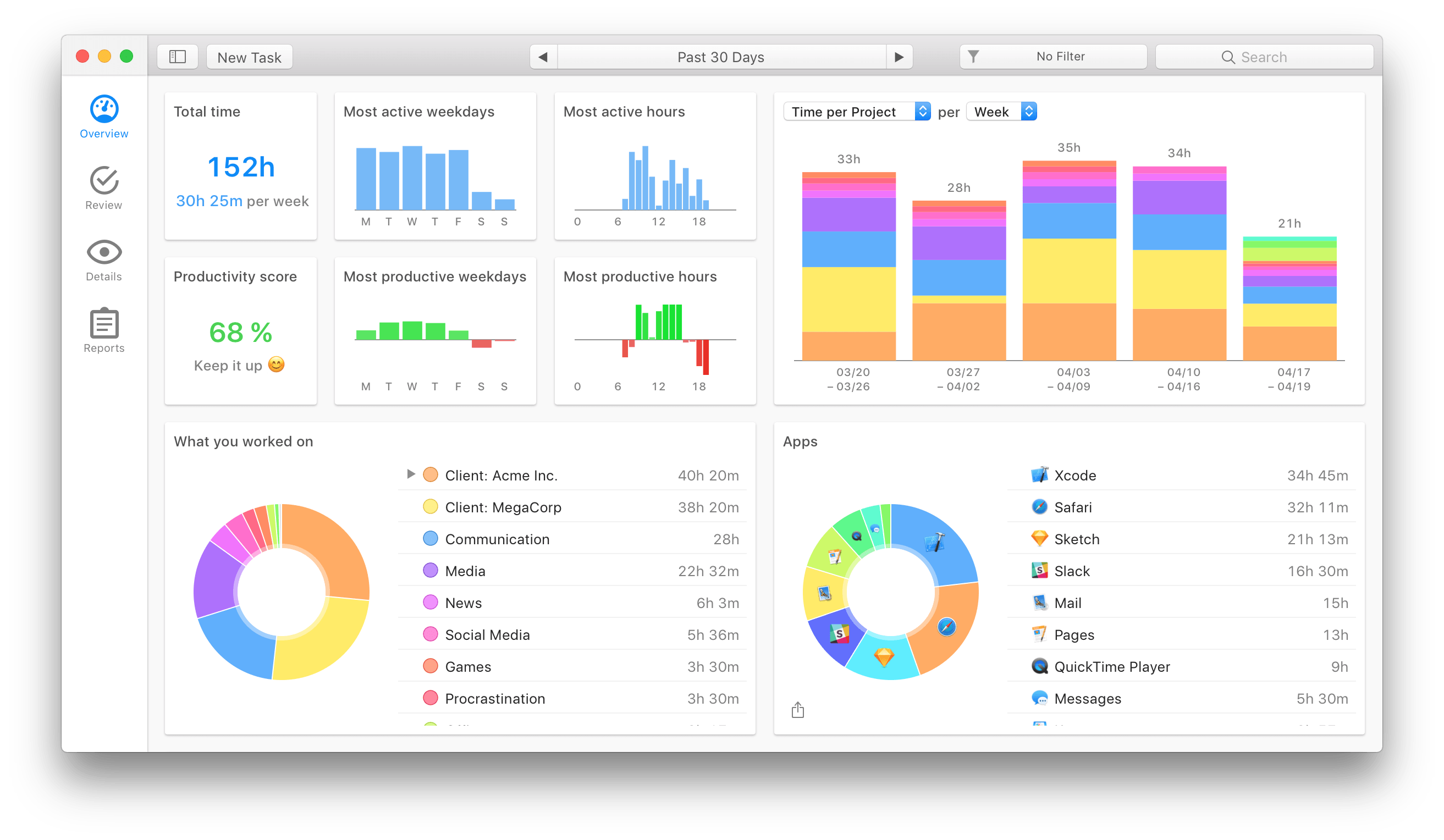
Timing 2 reports

Timing 2 reports

Then you get the reports. Timing 2 has truly upped its game in the data visualization section. Beautiful and useful graphs showing your most active times, most productive times, the type of work you spent your time on, and a pie chart of your most-used apps. Keep in mind that all of this is gathered automatically – you don’t have to configure anything to start getting detailed overviews.

When you edit a task, you can even assign a productivity rating to it. For me, an app like VLC gets a 25% productivity rating. A quarter of the time it’s active I’m watching something educational, but 75% of the time is probably less than productive. Now when I get reports, time tracked in VLC can automatically contribute to my overall productivity rating without unduly distorting it, and without me having to go in and manually mark each video as “productive” or “not.”

Timing 2 is the result of a solid year of development by Daniel Alm, who left his job at Google to work full time on it. In the process he’s turned a useful tool into an indispensable one for freelancers and productivity nerds. If that sounds interesting, go check it out!


Workflow Update Restores Google Chrome and Pocket Actions, Extends Apple Music Integration

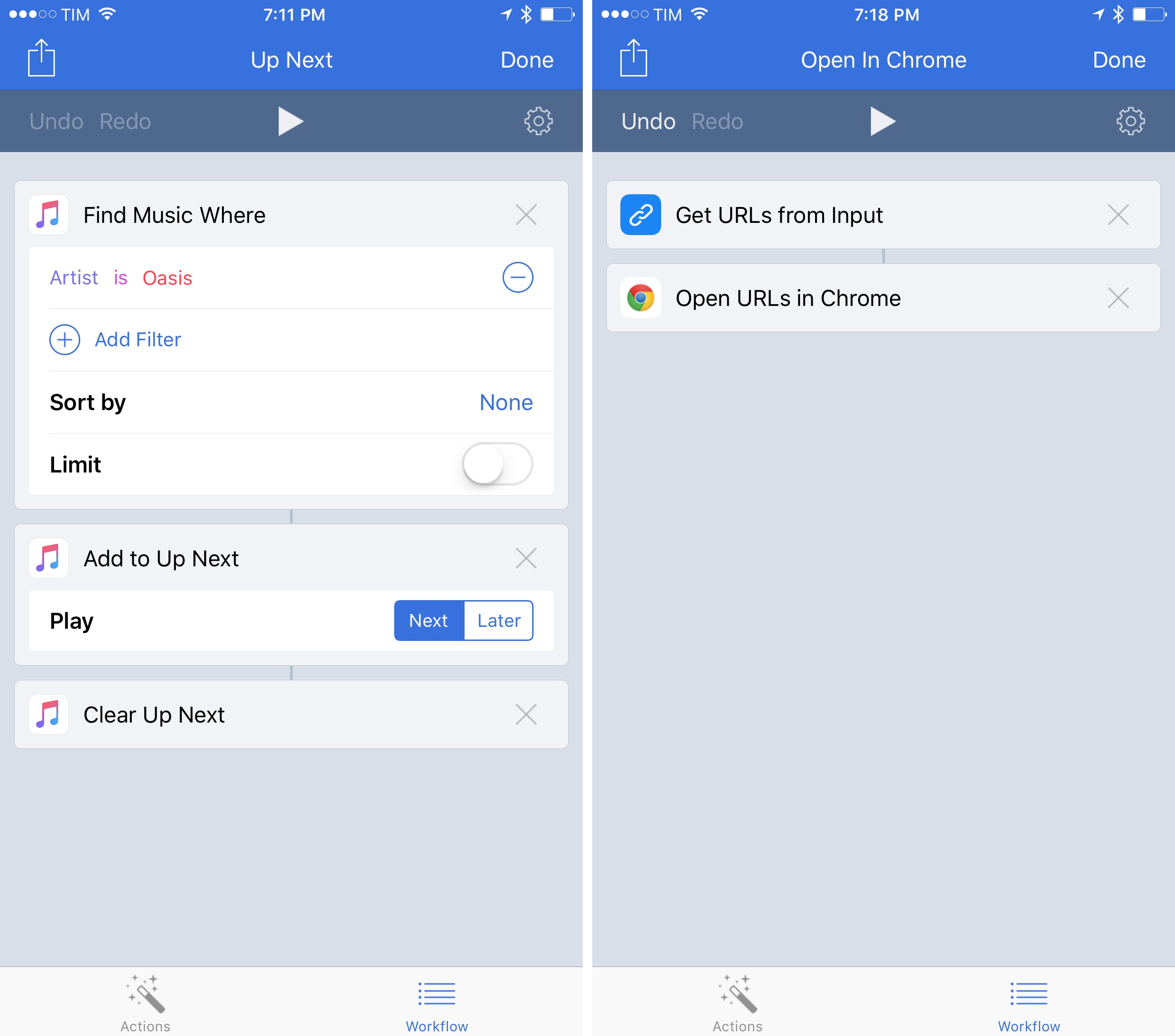
In the first update following Apple’s acquisition in late March – and despite rumors that claimed the app would no longer be supported – Workflow has today restored some of the features that were removed in version 1.7.3 of the app (which was released when Apple confirmed the acquisition) and has brought a variety of changes and improvements, including new Apple Music actions.

Read more


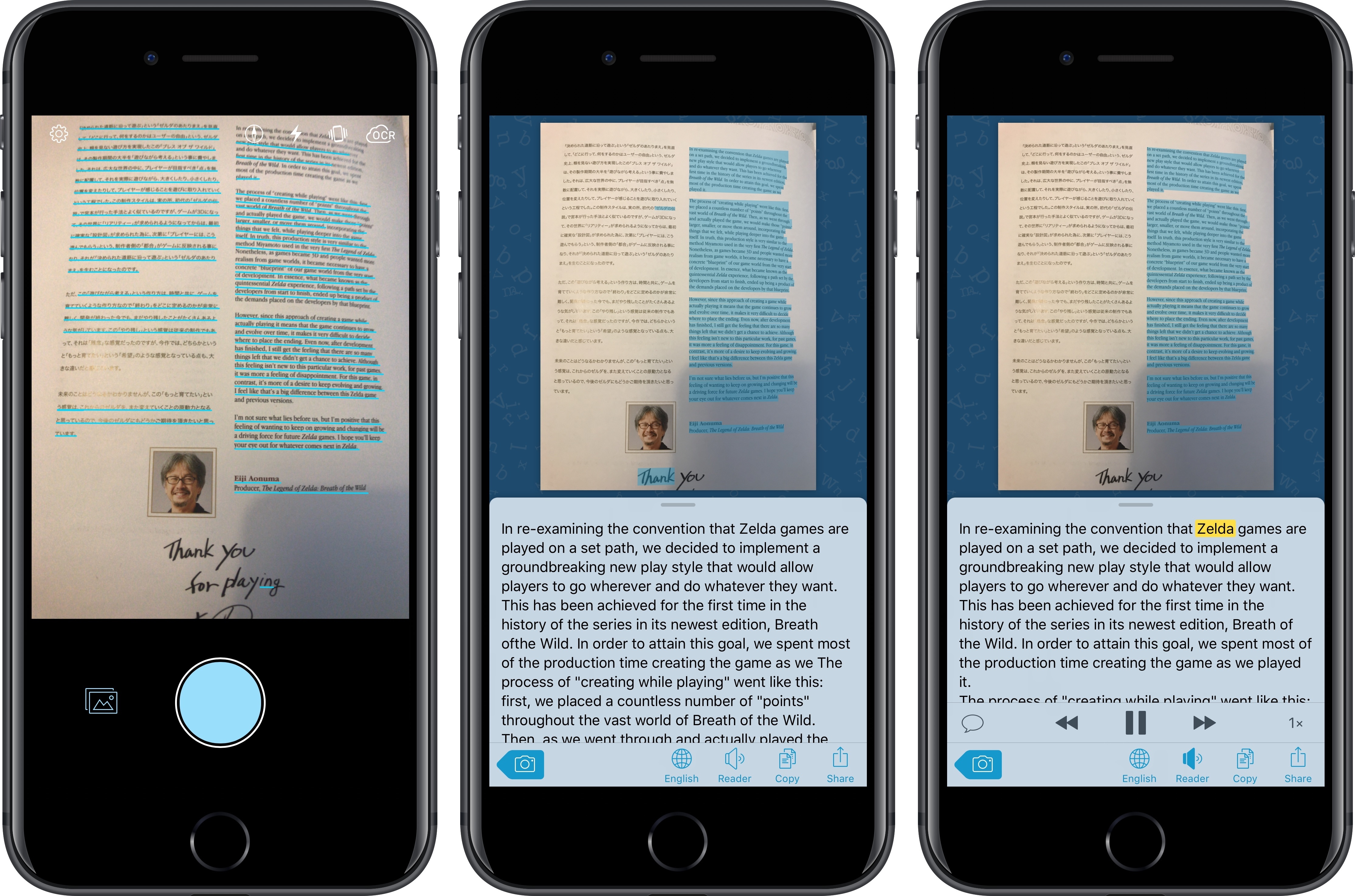
Prizmo Go Review: Smarter OCR with the iPhone’s Camera

I’ve long been using Prizmo to quickly extract text contained in photos using the iPhone’s camera. Developed by Creaceed, Prizmo has always stood out among iOS scanner apps thanks to its accurate and fast OCR. While most scanner apps focus on digitizing documents and exporting PDFs, Prizmo complemented that functionality with the ability to recognize and share text with just a couple of taps. Prizmo could be used as a scanner app for paperless workflows, but I preferred to keep it on my devices as a dedicated utility to effortlessly extract and share text.

With Prizmo Go, released today on the App Store, Creaceed is doubling down on Prizmo’s best feature with a separate app that’s been entirely designed with OCR and sharing text in mind. While OCR was a feature of Prizmo, it becomes the cornerstone of the experience in Prizmo Go, which takes advantage of impressive new OCR technologies to make character recognition smarter, faster, and better integrated with other iOS apps.

Read more


iPad Diaries: DEVONthink’s New Advanced Automation

iPad Diaries is a regular series about using the iPad as a primary computer. You can find more installments here and subscribe to the dedicated RSS feed.

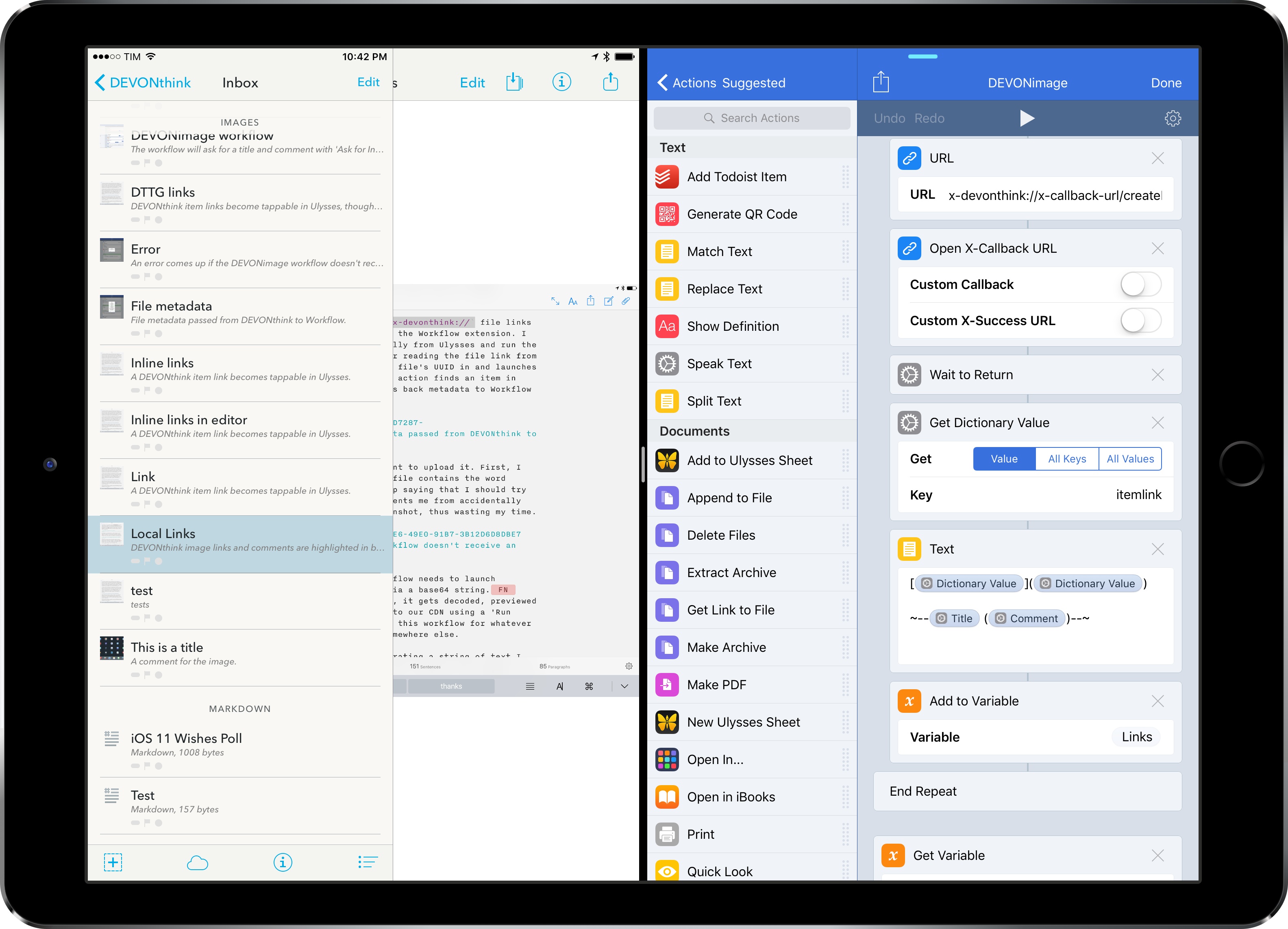
When I covered DEVONthink To Go in the first iPad Diaries column back in February, I briefly mentioned the app’s limited support for URL schemes and automation. I concluded the article noting that DEVONthink’s advanced file management features were ideal candidates for my writing workflow – particularly given the app’s ability to store different types of documents, reference them with unique links, and search them with Boolean operators. I also expanded upon the idea of using DEVONthink as my only iOS file manager in the latest episode of Mac Power Users.

I’ve been moving more work documents and other research material (web archives and PDFs, mostly) to DEVONthink over the past two months. The turning point occurred a few weeks ago, when DEVONtechnologies began adding advanced x-callback-url automation to DEVONthink’s beta channel and were kind enough to let me test and provide feedback for the functionality.

I was genuinely excited by the prospect of a scriptable DEVONthink: due to iOS’ lack of a deeply integrated Finder, I’ve always wanted a file manager that could be extended and enhanced through automation and other apps. With an improved set of URL commands and various optimizations for usage in Workflow, DEVONthink To Go can now be that kind of file manager. I made my decision: this is the app I’m going to use to manage the research content for my iOS 11 review this summer.

The automation features introduced by DEVONtechnologies in the latest DEVONthink for iOS go deep into the app’s structure, covering discrete functionalities such as file creation, search, and data retrieval. These changes will enable a greater number of users to integrate DEVONthink with their favorite iPad apps and workflows. And while the new commands are documented in the app, I thought it’d be useful to provide some concrete examples of how we can take DEVONthink to the next level through automation.

Read more