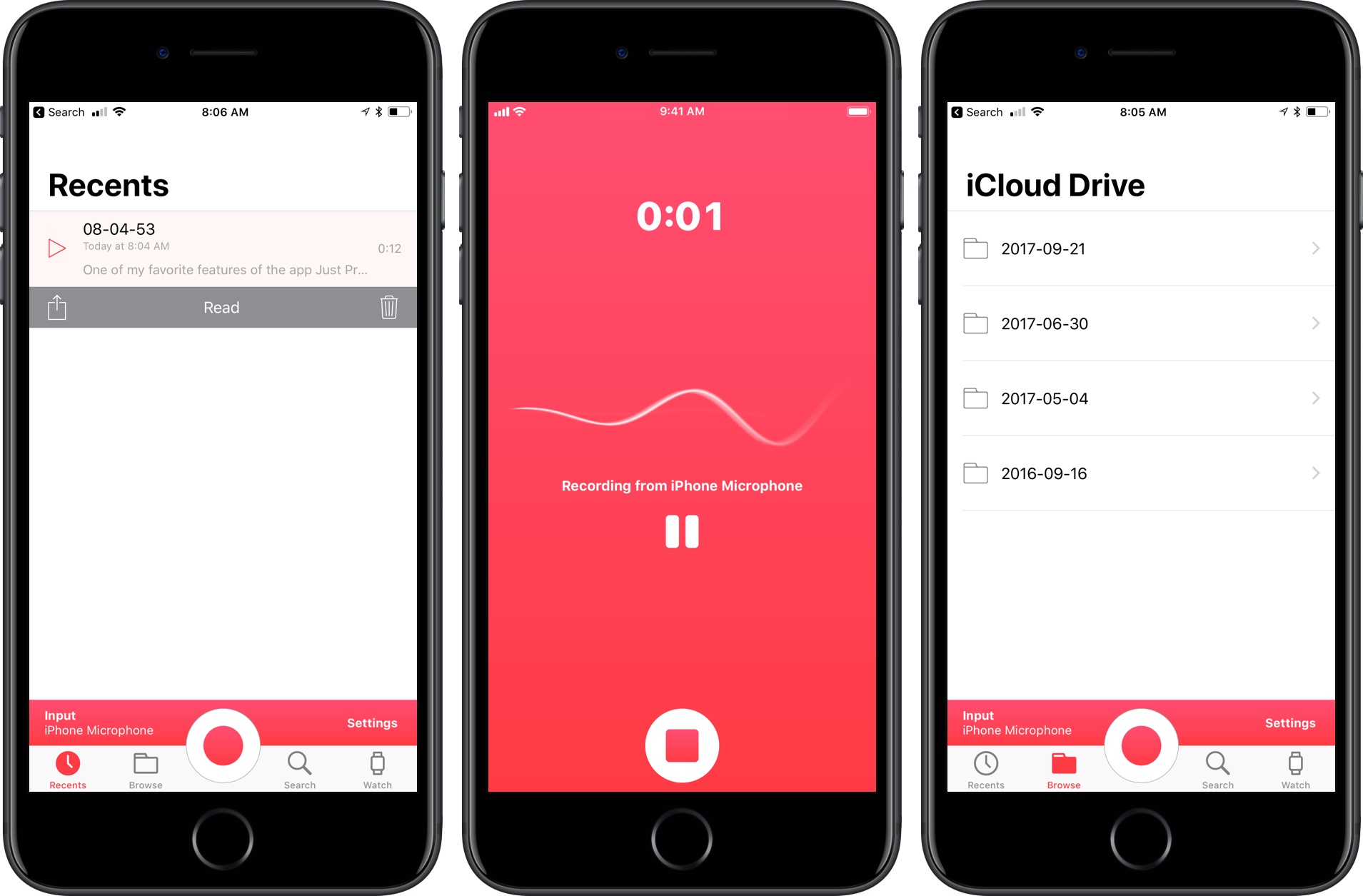
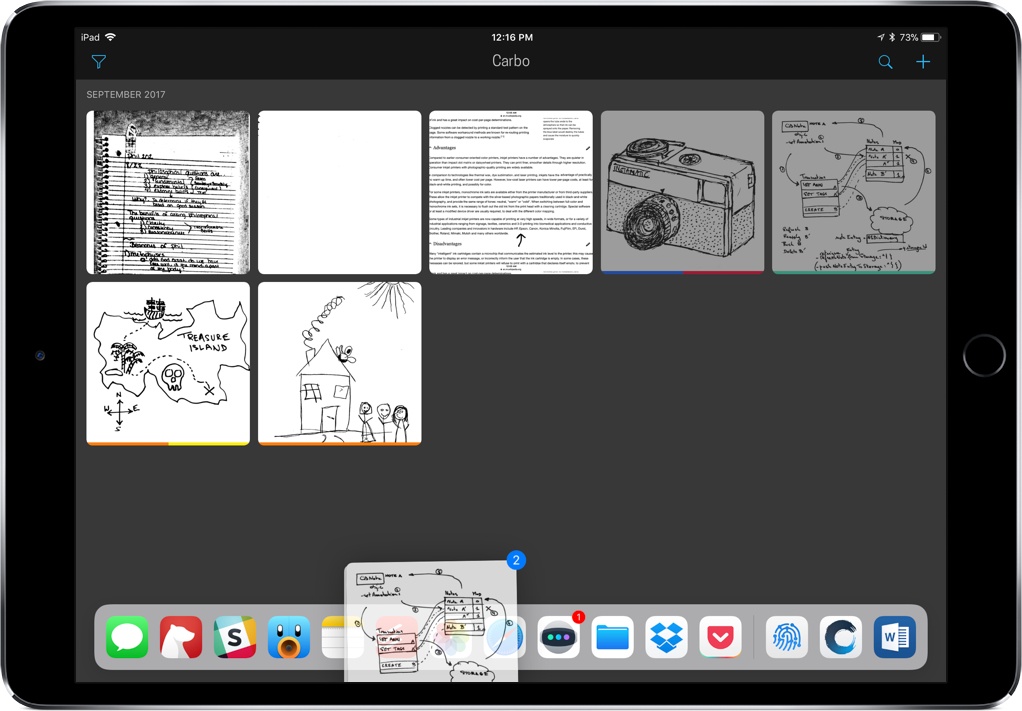
Reliving that Snow Leopard Magic

Enthusiasts of all types always have that one special obsession. For muscle car people, maybe it’s one particular year of Ford Mustang. Photographers always have a favorite lens, while baseball players may have a favored bat or glove.

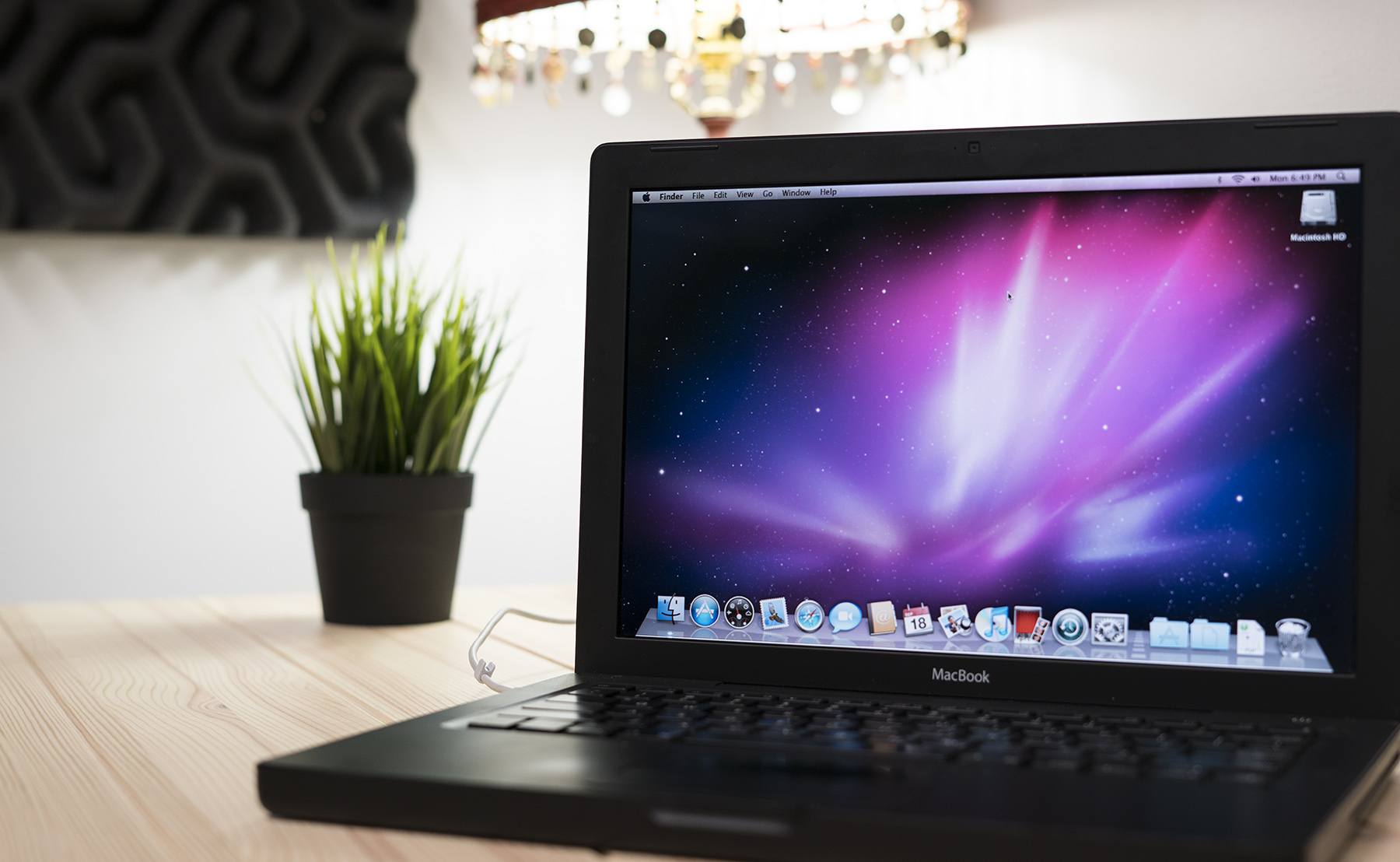
Ask almost any macOS fan, and they’ll tell you that Snow Leopard is their favorite version of all time.

There are a bunch of good reasons for that, beyond pure nostalgia.

Read more


Apple’s Quest to Transform Photography

John Paczkowski of BuzzFeed conducted a fascinating interview with Apple’s Senior Vice President of Worldwide Marketing Phil Schiller and Johnnie Manzari of Apple’s Human Interface Team about the iPhone’s camera. Much of the discussion is focused on the new Portrait Lighting feature available in the 8 Plus and X. As Paczkowski explains,

The camera’s effects don’t rely on filters. They’re the result of Apple’s new dual camera system working in concert with machine learning to sense a scene, map it for depth, and then change lighting contours over the subject. It’s all done in real time, and you can even preview the results thanks to the company’s enormously powerful new A11 Bionic chip. The result, when applied to Apple scale, has the power to be transformative for modern photography, with millions of amateur shots suddenly professionalized.

Manzari described the extensive process that went into creating Portrait Lighting:

“We spent a lot of time shining light on people and moving them around — a lot of time,” Manzari says. “We had some engineers trying to understand the contours of a face and how we could apply lighting to them through software, and we had other silicon engineers just working to make the process super-fast. We really did a lot of work.”

BuzzFeed’s article is worth a close read because it’s about more than just the camera in Apple’s new and upcoming iPhones. The behind-the-scenes peek at the development process of the many functions that the iPhone’s camera serves is the best example of one of Apple’s biggest competitive advantages: the fusion of hardware and software.

Permalink

AppStories, Episode 23 – The Apps Behind Federico’s iOS 11 Review

On this week’s episode of AppStories, we lift the curtain on some of the special events at MacStories and Club MacStories surrounding the release of iOS 11, discuss the removal of the App Store from iTunes on macOS, and dive into the apps Federico used to plan, research, write, and produce his iOS 11 review.

Sponsored by:

AppStories+ Deeper into the world of apps

AppStories Episode 23 - The Apps Behind Federico’s iOS 11 Review

0:00
44:39

AppStories+ Deeper into the world of apps

Permalink


Conduct AR: Desktop Micromanaging at its Finest

I never was the kid to play with toy trains, but that hasn’t stopped me from becoming engrossed in augmented reality ones thanks to Conduct AR.

An AR follow-up game to Northplay’s Conduct THIS, Conduct AR puts you in control of trains barreling down the tracks. As they make their routes, they’ll pick up passengers at stations for later drop off, but only if you can guide the trains there without crashing into obstacles along the way.

To do that, you’ll switch tracks, stop, and start the trains, carefully pointing your camera at them and tapping the screen at the same time. In AR, though, this can be tricky, as Conduct AR requires you to move around, peer into the level, and get close enough to where you can control the trains in a precise way.

Many AR apps are meant to be seen as a big picture experience, like a rocket ship landing in your backyard pool. That’s not Conduct AR. In order to play the game right, you have to survey the level and get a perfect understanding of how to play it. As you progress through the levels, so much is happening that you always have to be moving, checking tunnels, and guaranteeing your trains don’t crash.

Conduct AR’s performance is sufficient but occasionally shaky, sometimes in the literal sense; there were occasions where the tracking fell off and required an app restart. Still, those issues are relatively uncommon, and the game often runs well.

If you’re looking to dive into Conduct AR, I really recommend that you play it on a desktop or table – with a flat surface directly in front of you, it’s much easier to stand up, move around, but also play comfortably. You should also know that the game has run hot on my iPhone 7, but I’d expect this to get figured out on the iOS end as ARKit develops.

Once you become addicted to Conduct AR, you’ll be happy to see that there’s plenty of content to work through before you finish the game. For $3.99, it’s worth the experience alone, but having many levels makes it all that much sweeter. Those interested in the new AR experiences in iOS should pick up Conduct AR in the App Store here.


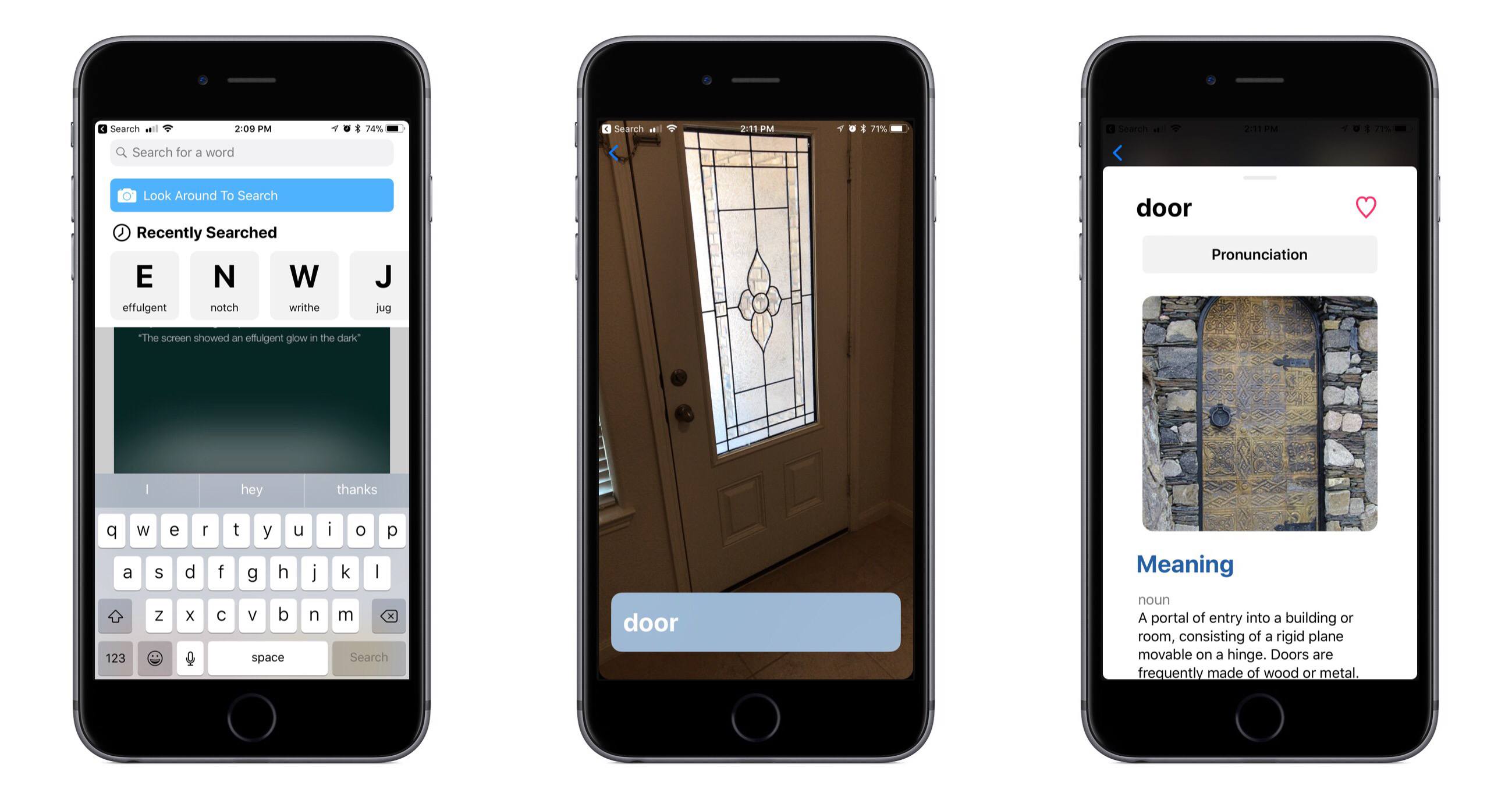
LookUp 4.0 Adds Object Recognition via Vision Framework, Plus Drag and Drop

LookUp is a beautifully designed dictionary app that we first reviewed earlier this year. With its effective use of bold headings and colorful graphics atop a white background, Lookup visually looks like a sister app to Apple’s new App Store – and considering how much I love the new App Store, that’s high praise. I won’t spend any time on the basics of the app though, as you can check out Jake’s original review for that. Instead, I want to focus on how LookUp harnesses the power of new iOS 11 technologies.

Read more


TeamViewer Quick Support Adds Live Screen Sharing for iOS 11

TeamViewer Quick Support has been available on the App Store for several years, but due to the sandboxed nature of iOS, it hasn’t been as powerful or helpful as I’m sure its makers would have liked. But among a host of exciting new technologies in iOS 11, Apple has introduced a screen sharing feature that makes an app like Quick Support a truly powerful tool for giving or receiving support.

Quick Support uses a new and improved version of Apple’s ReplayKit framework to enable true screen sharing; with it, you can broadcast a live recording of your iPhone or iPad’s screen so that anyone with the broadcast link will be able to follow, in real-time, your actions on the device.

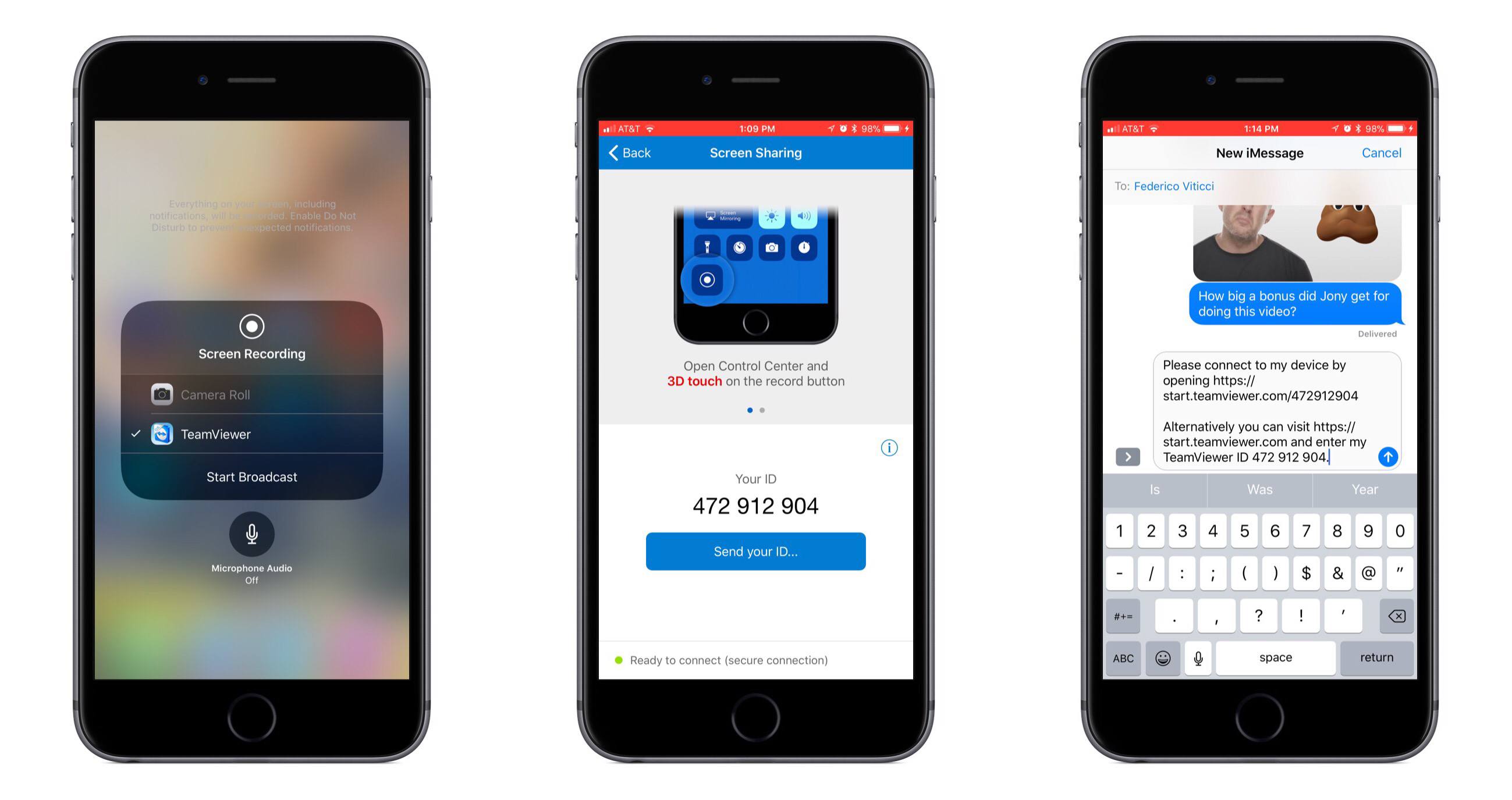
Getting started with Quick Support couldn’t be easier. First, you’ll need to make sure that the new Screen Recording option is set up in Control Center. Once it is, open Control Center, use 3D Touch (or a long-press) on the Screen Recording icon, select TeamViewer, then hit Start Broadcast. At this point you’ve officially begun streaming your device’s display online. In order to let others access it, open Quick Support and tap Send Your ID. The share sheet will come up, allowing you to send the broadcast link to others so they can view it from any other device.

As the app’s name implies, the focus of Quick Support is to serve as a support tool. If you need help with one of your iOS devices, you can broadcast your screen to the people working to assist you. Or, perhaps a more likely scenario most MacStories readers will find themselves in, you can install Quick Support on the device of a family member or friend who needs your help to figure out, for instance, why on earth their newly-updated iOS 11 iPad is acting so strange. The quick and easy setup, aided by a step-by-step walkthrough in the app, makes Quick Support an ideal option for non-techies.

In my testing, Quick Support worked great and provided a seamless experience for those viewing my screen broadcast. Viewers do have to download the TeamViewer app for whichever device they’re using, whether a Mac, PC, or iOS device, but it’s still a user-friendly process – the download will trigger upon clicking the given link, and once the app’s installed, future broadcast-viewing is effortless.

TeamViewer Quick Support is available for iPhone and iPad on the App Store.