

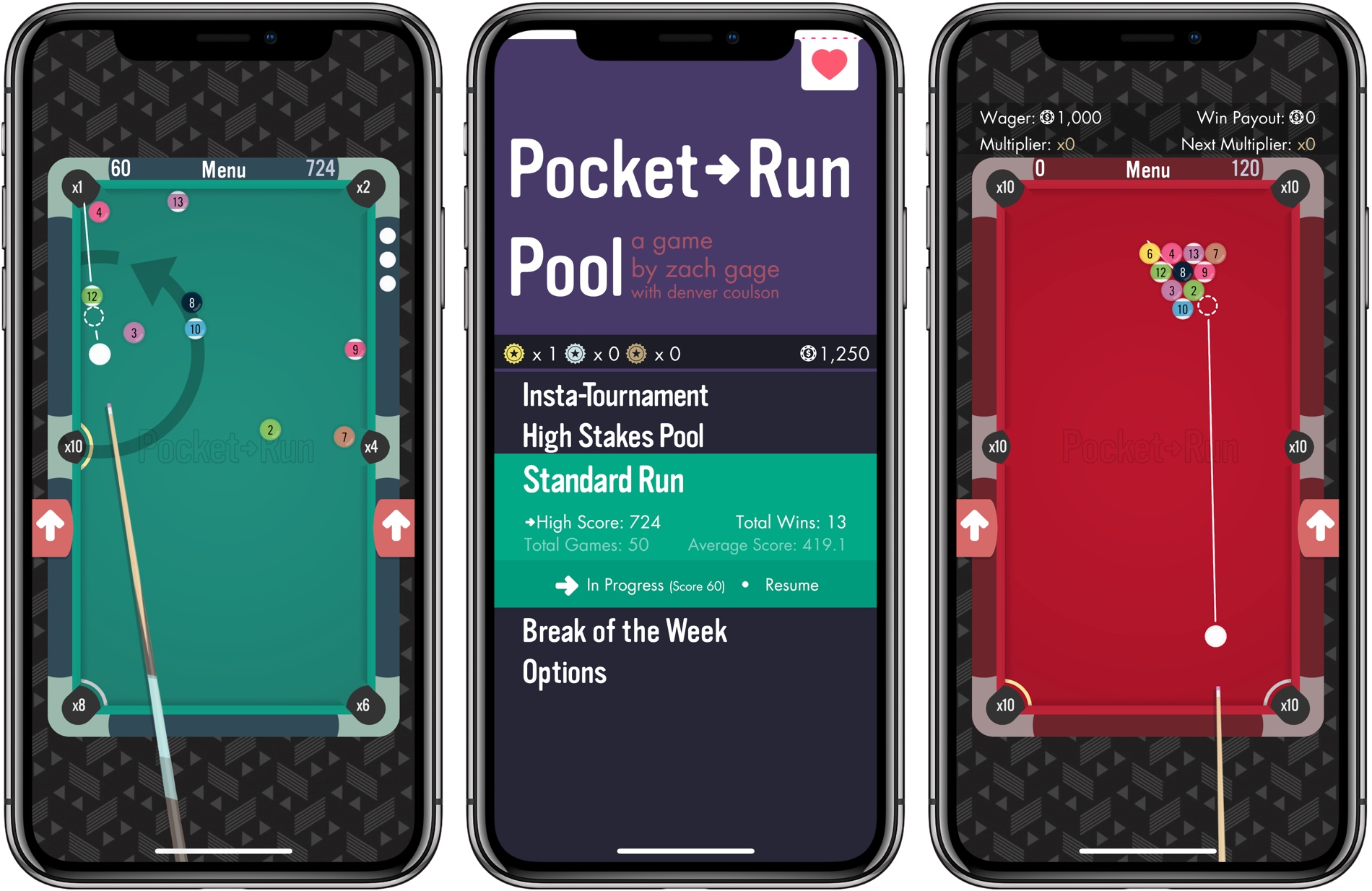
Zach Gage has earned a reputation by taking time-tested but tired classic games and reinventing them for mobile. Past hits from Gage like Flip Flop Solitaire, Really Bad Chess, and Typeshift zero in on what is fun about classic games and add a twist that breathes new life them. Pocket Run Pool is no different.
Game Day: Pocket Run Pool
Connected, Episode 194: Strike a Better Balance→
Myke and Federico talk about Spark 2, Castro 3, and Ticci’s big article about his Second Life.
If you want to hear Myke and I discuss my story from yesterday, you don’t want to miss this week’s Connected. You can listen here.
Sponsored by:
- PDFpen 10, from Smile: The ultimate tool for editing PDFs and go paperless.
- ButcherBox: Thoughtfully sourced meat delivered directly to your door
Apple’s Emoji Search Is Bad→
Emojipedia’s Jeremy Burge, following a series of tests with emoji search, a built-in macOS feature that still isn’t available on iOS:
Prior to macOS Sierra’s release in September 2016, emoji search for Mac was the opposite: general terms wouldn’t return any results - but if you knew the emoji name you could get it to appear 100% of the time. This is no longer the case.
I do wonder if an internal effort to make these types of search and prediction tools better in the longer term is making them worse for users in the short term.
It’s not just that it’s bad because the results are somewhat lackluster. It’s bad in the sense that typing Apple’s exact description for an emoji sometimes doesn’t bring up the character it belongs to. If someone is in charge of this feature for the Mac, I hope they can take a serious look at whatever is going on.
Obscura 2 Review: An Approachable Manual Camera App with Tasteful Filters
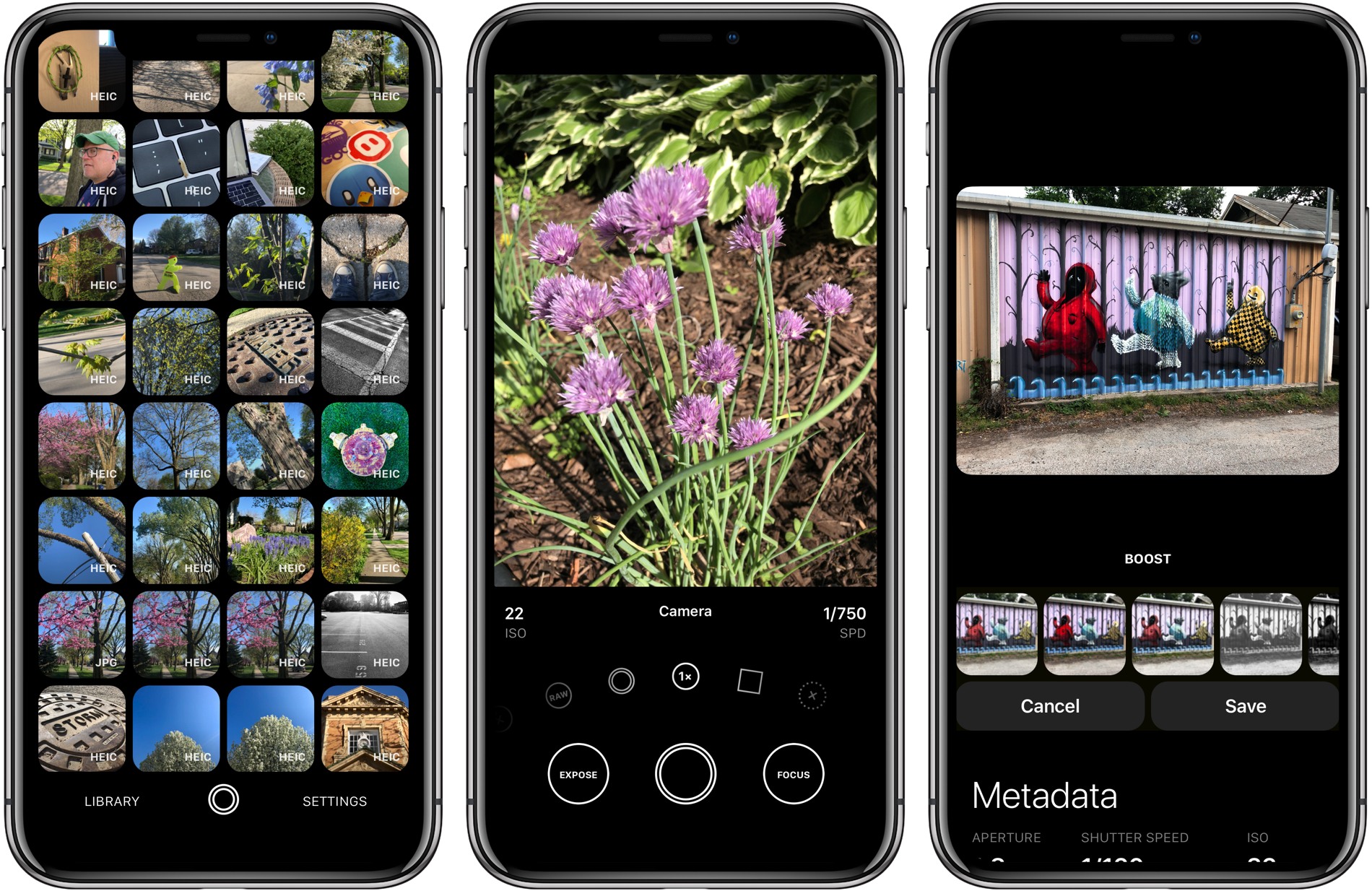
I enjoy taking lots of photos. Over the years, I’ve dabbled with DSLRs, but more often than not these days, I use my iPhone because it’s always nearby.
I’ve historically used Apple’s built-in Camera app. It has the advantage of being available from the Lock screen, which is a big plus because it lowers the barrier to getting up and running with the camera. Later, I would go back and pick out the best shots, edit them a little in the Photos app, and share a few.
Over the past couple of weeks though, I’ve been moving between Apple’s Camera app and Obscura 2, which was released today by developer Ben McCarthy. I’ve used manual camera apps in the past, but always wound up going back to Apple’s option in the end.
Obscura has been different. I’ve found myself going back to it repeatedly because I enjoy the way it approaches taking pictures and editing them so much. I don’t expect I’ll stop using Apple’s Camera app altogether; it’s just too convenient. However, when I leave the house with the intention of finding something interesting to photograph this summer, I’m going to use Obscura.
One of the things I like most about photography is that it’s a creative outlet that’s just for me. Sure, I share some of the pictures I take, but it’s entirely for fun.
One of the issues I’ve always had with pro camera apps is that many take the fun out of photography for me. They have intimidating UIs that throw lots of photography jargon and controls at you in a way that sends me looking for a manual. It feels too much like work.
Obscura doesn’t dispense with camera-speak entirely, but it succeeds by presenting the complexities of manual camera features in a simple, thoughtful UI. Instead of sending me looking for support pages, I found myself experimenting with Obscura’s controls, learning what each does by doing, which has been an enjoyable, organic process.
Illustration in the iOS 11 App Store→
Khoi Vinh, writing about one of my favorite aspects of the iOS 11 App Store:
Apple’s dramatically redesigned App Store got a decent amount of attention when it debuted last year with iOS 11, but its unique success as a hybrid of product design and editorial design has gone little noticed since. That’s a shame, because it’s a huge breakthrough.
I myself paid it scant attention until one day this past winter when I realized that the company was commissioning original illustration to accompany its new format. If you check the App Store front page a few times a week, you’ll see a quietly remarkable display of unique art alongside unique stories about apps, games and “content” (movies, TV shows, comics, etc.). To be clear: this isn’t work lifted from the marketing materials created by app publishers. It’s drawings, paintings, photographs, collages and/or animations that have been created expressly for the App Store.
We don’t see this particular flavor of artistic ambition from many companies today, especially tech companies. The predominant mode of product design almost exclusively favors templates and automation, what can be done without human intervention. The very idea of asking living, breathing art directors who need to be paid real salaries to hire living, breathing illustrators who also need to be paid a living wage in order to create so-called works of art that have no demonstrably reproducible effect on actual profits is outlandish, absurd even. The mere suggestion would get you laughed off of most design teams in Silicon Valley. Design in this century has little use for anything that can’t be quantified.
I haven’t seen a lot of praise for the artistic side of the App Store’s Today page. I think it’s remarkable that Apple is commissioning these illustrations and making them instrumental in highlighting apps and developer stories. Don’t miss Vinh’s roundup of his favorites.
The Apple Watch Has Found a Surprisingly Useful Home With Everyone That Works on Their Feet→
Speaking of the Apple Watch becoming an essential everyday device, Mike Murphy published a fascinating story at Quartz:
You might’ve noticed that the person who took your order at the bar, brought you the shoes you wanted to try on, or perhaps even patted you down at the airport security line, is sporting an Apple Watch, which starts at $329 for the newest Series 3 watch. And there’s a pretty simple explanation: Many service-industry jobs where employees have to be on their feet all day don’t allow workers to check their phones while they’re on the clock. But that rule doesn’t necessarily apply to a piece of unobtrusive jewelry that happens to let you text your friends and check the weather.
Quartz spoke with airline attendants, bartenders, waiters, baristas, shop owners, and (very politely) TSA employees who all said the same thing: The Apple Watch keeps them in touch when they can’t be on their phones at work. Apple has increasingly been pushing the watch as a health device, and seems to have moved away from marketing it as one that offers more basic utility, as Apple continues do with the iPhone. But given that roughly 23% of the US labor force works in wholesale or retail operations, perhaps it’s a market Apple should reconsider.
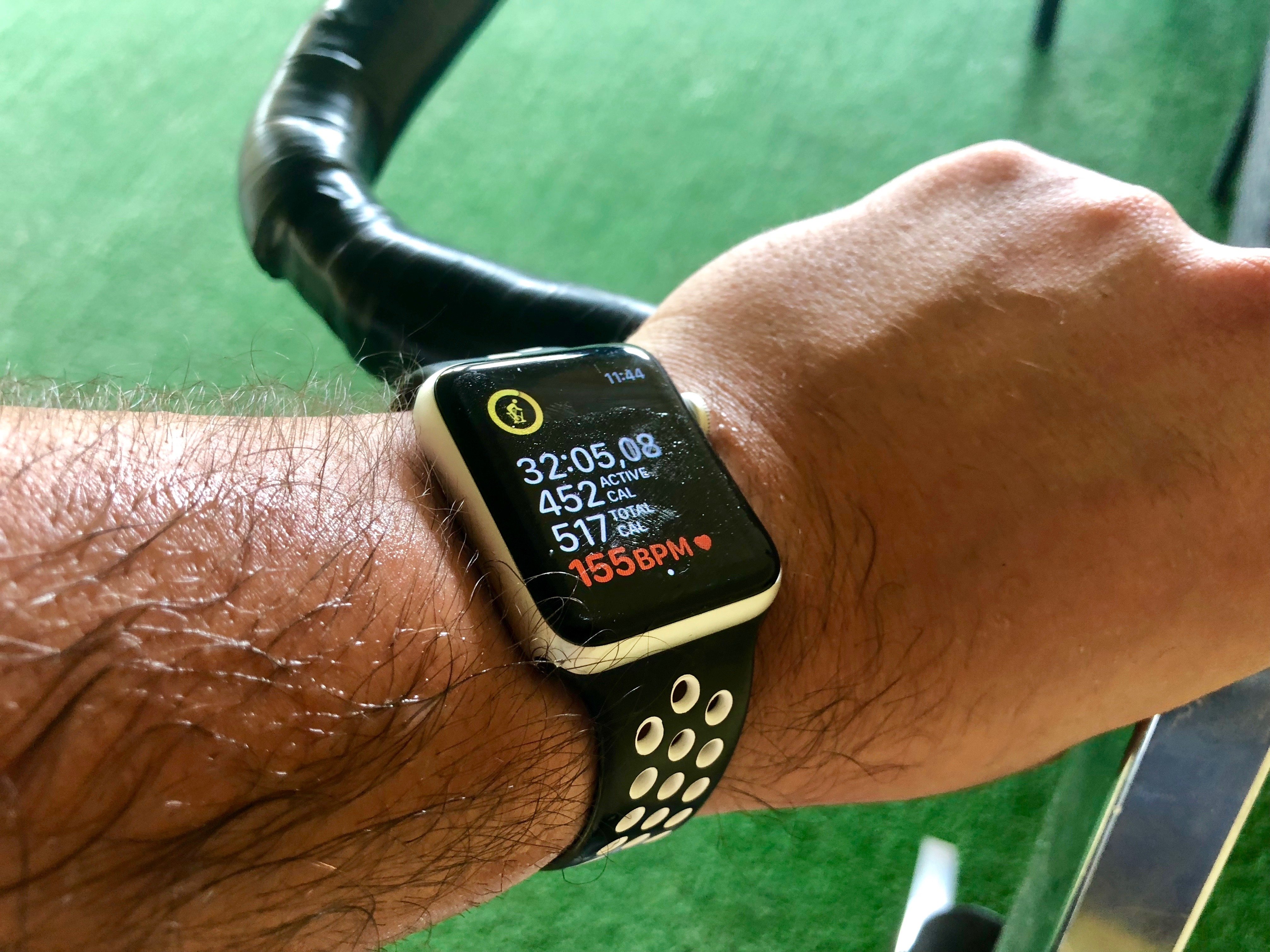
While I obviously hope Apple continues to improve the Watch as a health and fitness accessory, I would love to see new ways to triage and customize notifications too – especially when it comes to more granular controls for Do Not Disturb and notification mirroring on the iPhone. I have my fingers crossed for improvements in iOS 12.
Second Life: Rethinking Myself Through Exercise, Mindfulness, and Gratitude
“There’s something in your latest scan that we need to double check.”
Here’s what I’ve learned about cancer as a survivor: even once you’re past it, and despite doctors’ reassurances that you should go back to your normal life, it never truly leaves you. It clings to the back of your mind and sits there, quietly. If you’re lucky, it doesn’t consume you, but it makes you more aware of your existence. The thought of it is like a fresh scar – a constant reminder of what happened. And even a simple sentence spoken with purposeful vagueness such as “We need to double check something” can cause that dreadful background presence to put your life on hold again.
Apple Debuts New Data and Privacy Website in Europe Ahead of GDPR Effective Date
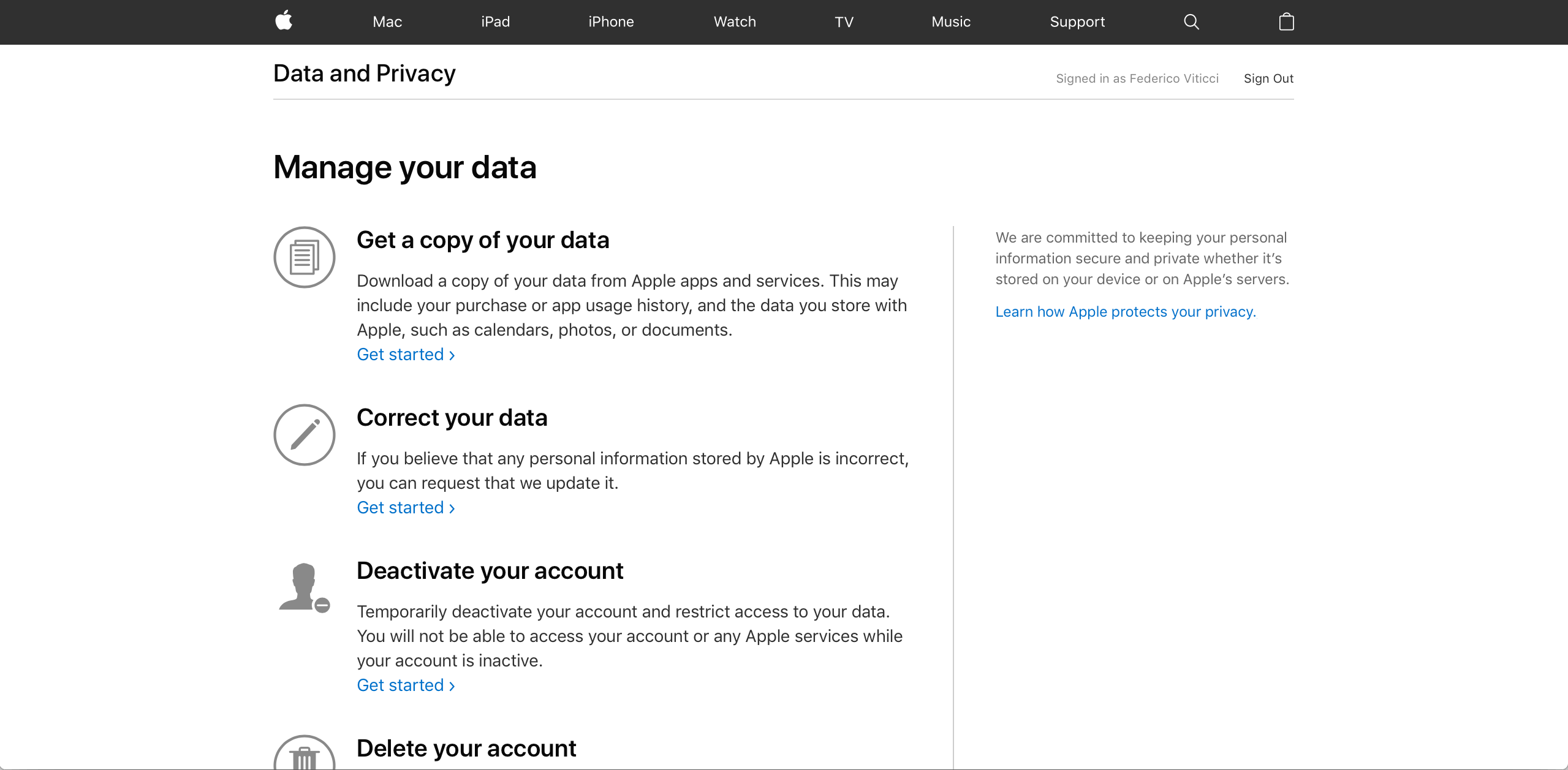
Today, Apple unveiled a new data and privacy website to comply with the European Union’s GDPR legislation that goes into effect on May 25th. The site allows users to copy and correct personally identifiable information associated with their Apple IDs and deactivate or delete their accounts. Although the new copy and deactivation options are only available in the EU, they will be rolling out throughout the remainder of the year to the rest of the world.
AppStories, Episode 56 – Controlling The Time Spent on Your iPhone→
On this week’s episode of AppStories, we talk about managing time spent on smartphones, including what manufacturers like Apple and Google are doing to address the issue, what users can do, and how we deal with being on our iPhones too much.
Sponsored by:
- Techmeme Ride Home – Search for Techmeme Ride Home on your podcast app now.
- AutoWake - the world’s first haptic smart alarm for your Apple Watch.
- The first 11 people to tweet at @AutoWakeApp with the code word ‘Espresso’ will receive a free promo code.

AppStories Episode 56 - Controlling The Time Spent on Your iPhone
0:00
32:26
32:26





